

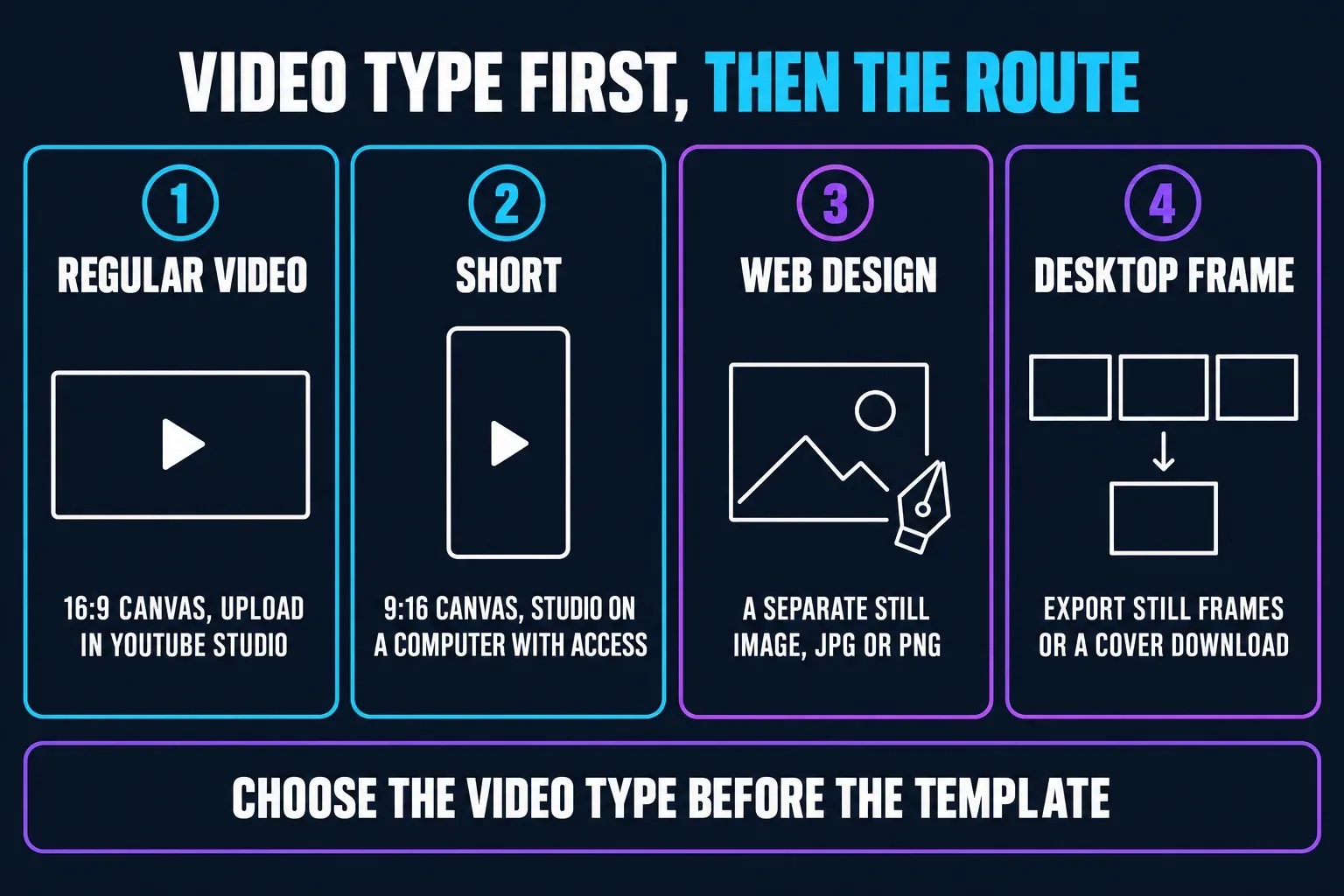
To make a YouTube thumbnail in CapCut, create a separate still image in the Web design editor, save a JPG or PNG, then upload that file in YouTube Studio. Already editing the video on a PC or Mac? Use Export still frames to save a source frame, or check whether Cover offers its own image download. Exporting the video does not replace the thumbnail upload.
Build a 16:9 image
Target 3840 × 2160 when the current CapCut route can produce it. Keep the width at least 640 pixels and upload JPG or PNG.
Build a 9:16 image
Target 2160 × 3840. Shorts custom-thumbnail upload is currently a computer workflow and may still depend on channel rollout.
Use CapCut Web
Use an image canvas, not a timed video clip. Our CapCut design guides cover related still-image projects.
Save a Desktop frame
Use Export still frames to save a JPG or PNG. Cover is another option when its current panel offers a separate image download.
Use YouTube's Current Thumbnail Requirements
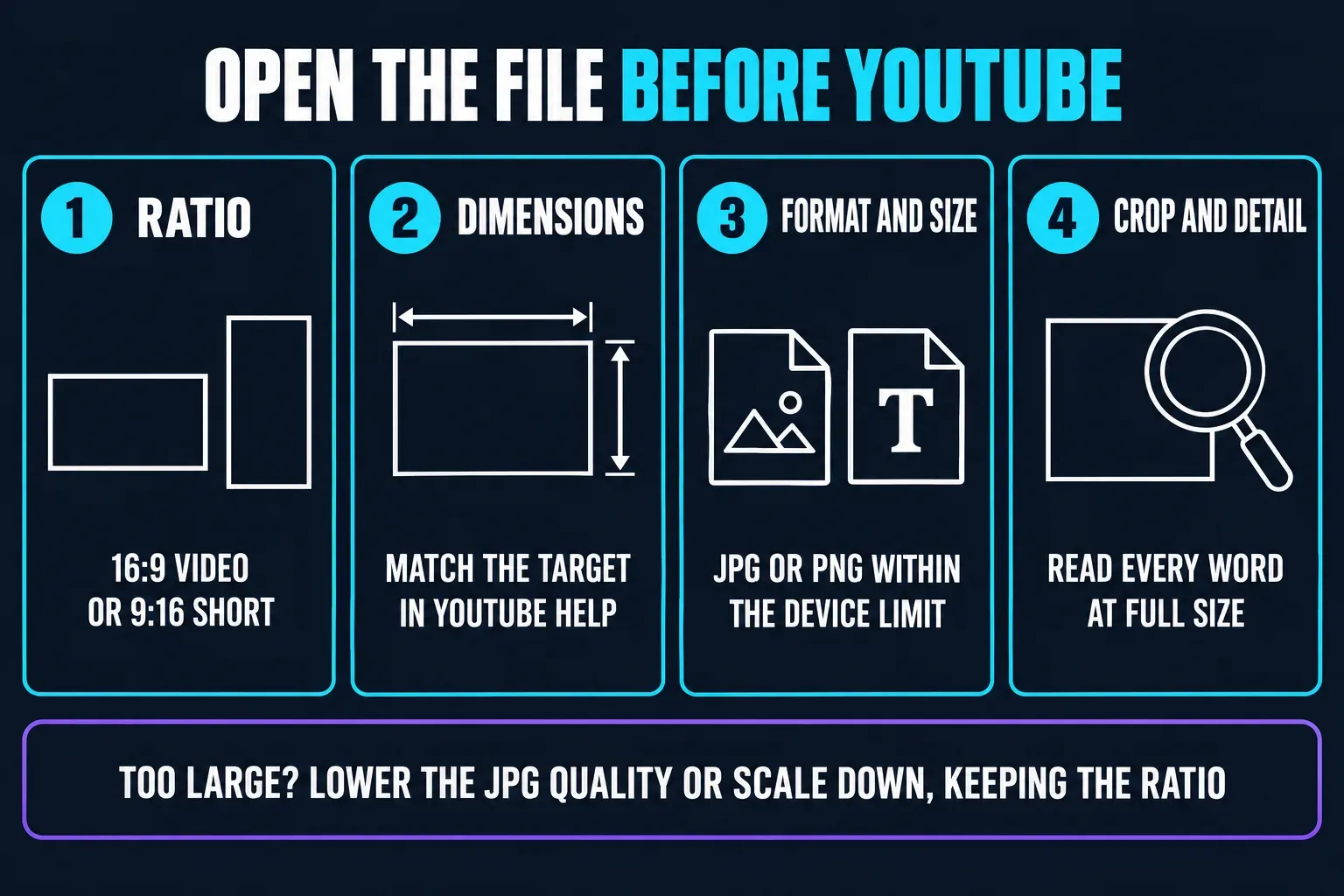
YouTube's current custom-thumbnail help is the authority for the file that will be uploaded. It recommends 3840 × 2160 for regular videos and 2160 × 3840 for Shorts. The normal-video ratio is 16:9; the Shorts ratio is 9:16. JPG and PNG are accepted.
- Target: 3840 × 2160
- Minimum: 640 px wide
- Ratio: 16:9
- Format: JPG or PNG
- Upload limit: 2 MB on Mobile, 50 MB on Desktop
- Target: 2160 × 3840
- Minimum: 640 px high
- Ratio: 9:16
- Format: JPG or PNG
- Upload limit: 50 MB on Desktop
- Upload: YouTube Studio on a computer when available
If CapCut offers a 1280 × 720 YouTube preset, it still has the correct 16:9 shape and clears YouTube's minimum width. It is not the resolution YouTube currently recommends. Start with YouTube's larger target when the editor and source image support it; don't stretch a small, soft screenshot just to create more pixels.
YouTube also warns that a 16:9 custom thumbnail for a vertical video can be replaced by an auto-generated 4:5 image on Home, Explore and Subscriptions. Do not assume every placement will show the full design. Keep the important subject and wording away from the edges, and check the published result.
Choose the Source Before You Open a Template
Pick a frame that makes the subject clear: the finished result for a tutorial, the product for a review or the location for a travel video. A separate photo can work too, provided it accurately represents what the video delivers. Extra arrows and glow will not rescue a picture that promises the wrong thing.
- Start from the original frame. Avoid a screenshot downloaded from a social feed when the video file can provide a sharper source.
- Choose one subject. Three competing faces, products or screenshots force the viewer to decode the design before understanding the topic.
- Write one promise. The thumbnail can show the result, conflict or question; it doesn't need to repeat the full video title.
- Keep an untouched copy. Background removal, sharpening and generative changes should not replace the only source frame.
For crop, color or cleanup before arranging the thumbnail, use the CapCut photo editor guide. The background-removal guide explains cutout checks, but its video controls are not a guaranteed map of the still-image workspace.
Make the Thumbnail in CapCut Web
CapCut's July 2026 thumbnail tutorial describes the basic composition, while its thumbnail maker page documents an image canvas and download. The steps below follow the manual canvas. Labels and menus can differ by device and app version.
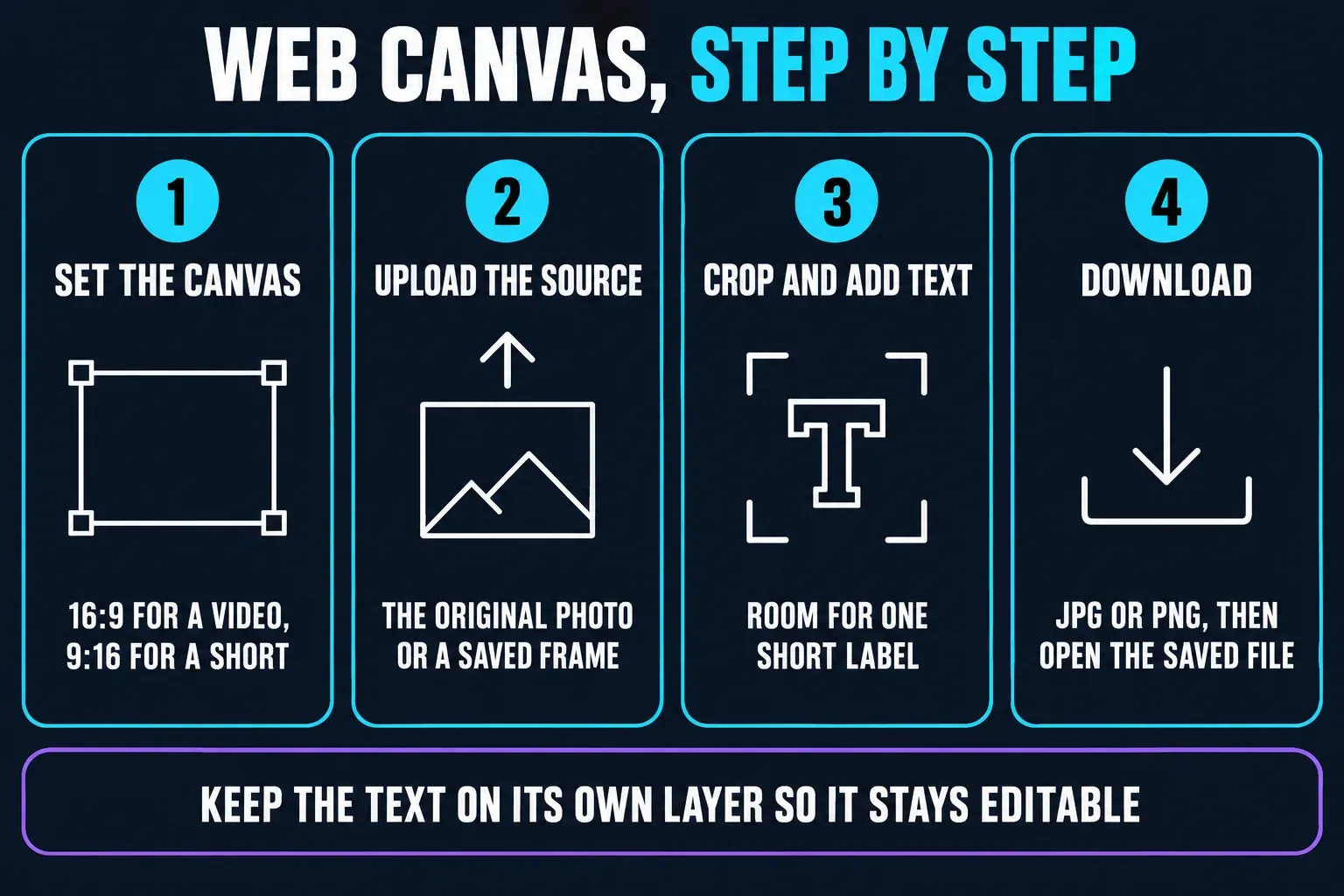
- Open a thumbnail canvas. Follow the official thumbnail maker link above. If your workspace shows Social media, choose YouTube, then YouTube thumbnail. Some documented layouts instead use Create new. If you land in a prompt box, use the AI option below rather than looking for canvas buttons that are not there.
- Set the canvas size. For a regular video, enter 3840 × 2160 in Custom size when available; for a Short, use 2160 × 3840. Check the actual dimensions if you chose a preset instead.
- Upload your source image. Use Upload to add the original photo or saved frame. Replace the sample picture if you started from a template, and use only images and assets you have permission to use.
- Crop around the subject. Leave room for text without pushing the face, product or key result against an edge.
- Add a short label with Text. Choose a readable font and strong contrast. Keep the wording separate from the picture so you can fix spelling or shorten it without replacing the image.
- Download JPG or PNG. Depending on the canvas, open Download directly or Export, then Download. Inspect the format and size offered. Keep the editor open until the saved file opens outside CapCut.
A template is only a starting layout. Replace its sample subject, rewrite the wording and remove decoration that does not explain your video. Check paid labels and asset permissions before using the design; a free entry page is not proof that every template, AI action or export option is free.
If Web opens AI Design instead
CapCut's AI Design help describes uploading a reference image and entering a prompt, reviewing the result, then downloading JPG or PNG. Describe the background or layout you need, inspect any credit notice before sending, and compare the result with your real subject. Add exact wording manually where editing controls allow it. An attractive generated product or result is unusable if it misrepresents the video.
Making the image on a phone
CapCut's Mobile photo-editing instructions start with New image on Home, followed by selecting a photo, editing and Export. If that workspace is available, crop for the video type, add your wording and inspect the saved image. If you cannot set the required size or save a suitable image, finish it in Web. Do not assume a normal Mobile video project has a JPG export. Uploading a regular video thumbnail from Mobile has a 2 MB limit; uploading a custom Shorts thumbnail still requires Studio on a computer.
Save a Thumbnail From CapCut Desktop
For a frame from an existing edit, move the playhead to the moment you want. CapCut's Desktop frame-export instructions document Export still frames in the player menu, with JPEG or PNG output. Choose the available resolution, save the file and open it before adding a thumbnail layout. Our step-by-step frame-export guide covers that control in more detail.
Cover is a separate tool. CapCut's Desktop Cover tutorial describes choosing a frame and adding text or a layout. If your Cover panel offers an image download, inspect that file. Otherwise, save the source with Export still frames and arrange the finished thumbnail in an image canvas.
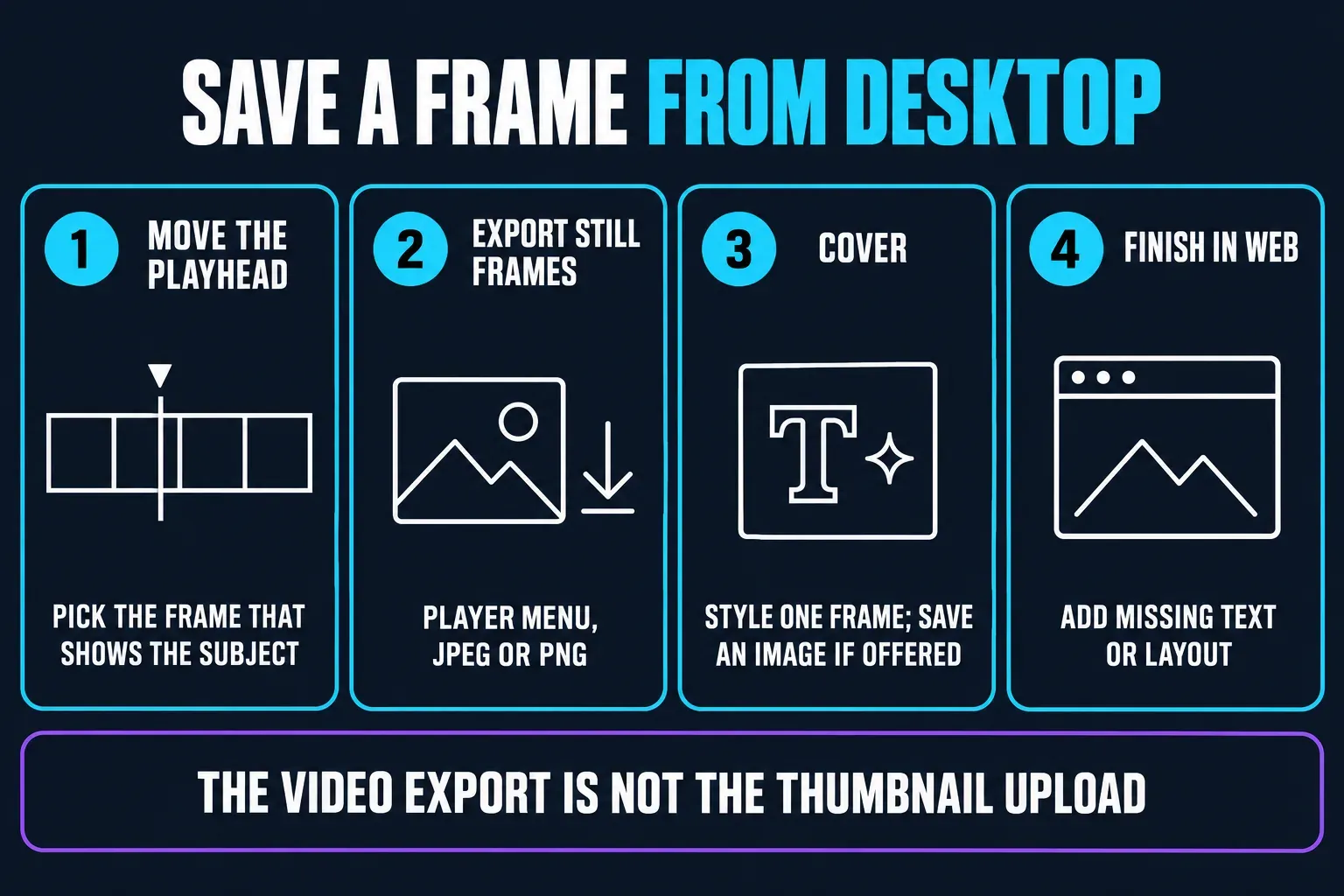
Cover styles one chosen frame; it is not a general Desktop export. Use Export still frames for a standalone frame; that does not guarantee it includes separate edits made only inside Cover. If those edits are missing, add them to the saved image in Web. Frame rate, codec and video bitrate do not set the quality of a separate thumbnail file. Avoid a soft screenshot of the editor, and do not insert a fake thumbnail frame into the video to force YouTube to pick it.
For the video itself, use the CapCut video export settings. Check the exported video and the thumbnail as two separate files before uploading either.
Build a Thumbnail That Still Works Small
A thumbnail is rarely viewed at the size of the CapCut canvas. Reduce it until it resembles a phone-feed card. If the subject disappears, the text becomes a grey stripe or the red arrow points at nothing, the large canvas was flattering the design.
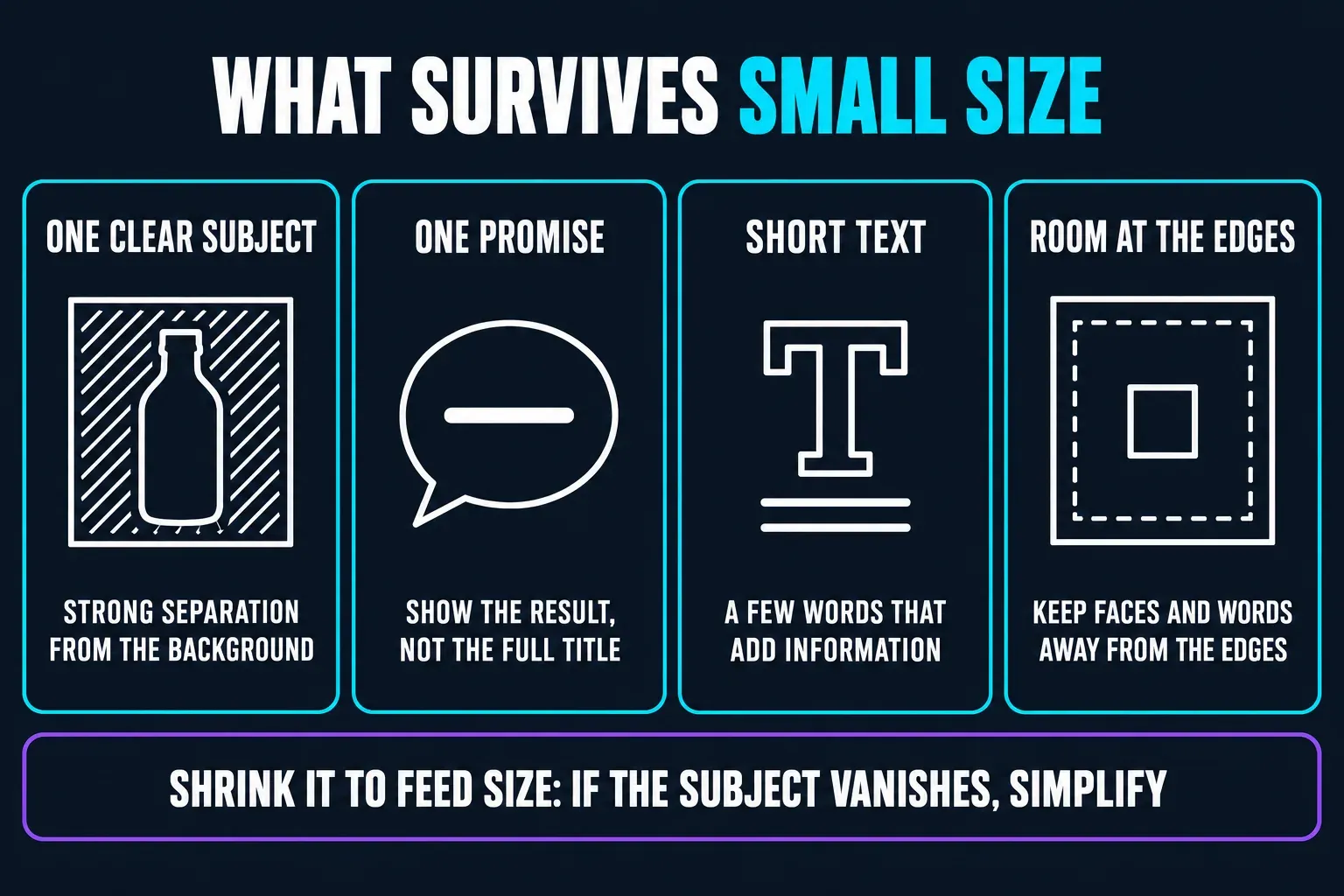
Keep
- One clear subject
- One visual promise
- Short optional text
- Strong subject/background separation
- Room around faces and type
Remove
- The full video title
- Three different calls to action
- Arrows with no clear target
- Tiny screenshots nobody can read
- Claims the video does not deliver
Text should add information the image can't carry. “Before / After,” “3 Fixes” or one concrete result can work; the exact wording depends on the video. Use the CapCut text guide if the issue is font, outline, spacing or layer control. Add final type manually even when AI generated the background, because spelling and hierarchy need deliberate control.
Preview the Promise, Not Just the Pixels
Run two checks. First, can the image be understood at small size? Second, does it represent what the viewer will get? A sharper lie is still a bad thumbnail. Compare the image with the video title and opening minute: together they should set one clear expectation, not make two unrelated promises.
- Hide the title and ask whether the subject is still recognizable.
- As a practical preview, shrink the thumbnail to roughly 160–320 pixels wide and read every visible word. This is a design check, not a YouTube upload requirement.
- Check the design against light and dark surroundings, and make sure text remains distinct from its own background.
- Inspect faces, hands, product geometry, logos and generated text at 100%.
- Remove any element that needs an explanation outside the thumbnail.
If you use generated source art, the CapCut AI image generator guide covers prompt, model, credit and rights checks. Generation doesn't replace the final truthfulness review.
Export and Check the Thumbnail File
Try JPG for a photographic thumbnail and PNG for sharp-edged graphics or text. Compare the saved files: choose the one that keeps the details clear within the upload limit. Use an intentional background rather than relying on transparent areas to look the same everywhere.
Open the downloaded file outside CapCut and inspect its pixel dimensions, ratio, crop, text and detail. On Mobile, YouTube currently limits a normal video thumbnail to 2 MB. On Desktop, the current limit for video and Shorts thumbnails is 50 MB. If a file is too large, export a JPG at slightly lower quality or reduce the dimensions while keeping the 16:9 or 9:16 ratio. Don't squash one side independently.
Upload the Custom Thumbnail in YouTube Studio
- Sign in to YouTube Studio.
- Open Content and select the video.
- Under Thumbnail, choose Upload file.
- Select the checked JPG or PNG from your device.
- Confirm the preview, then click Save.
YouTube requires account verification for custom thumbnails. Follow its phone-verification instructions if needed. Thumbnail content must also meet Community Guidelines. If the upload control is absent, check the channel and, for Shorts, the computer-only rollout before rebuilding the image. If YouTube displays Daily custom thumbnail limit reached, its help says to try again in 24 hours; the quota varies, so there is no single number to promise every channel.
After saving, open the public watch page and at least one feed surface. YouTube notes that changes can take time to appear, and the image used on one surface may differ for vertical content. Verify what viewers receive rather than assuming the Studio preview proves every placement.
Make a Custom Thumbnail for a YouTube Short
A Short needs a separate 9:16 design, not a stretched 16:9 thumbnail. YouTube's July 24, 2026 Shorts thumbnail rollout announcement says uploading began with YouTube Partner Program creators and would expand. The current Help page says custom Shorts thumbnails are added in YouTube Studio on a computer and require a verified account. Trust the live Upload file control for your channel.
In Studio on a computer, open Content → Shorts, select the Short, then choose Thumbnail → Upload file and Save. Use a 2160 × 3840 image where the editor and source support it, within the 50 MB Desktop limit. Keep essential text and faces away from the edges because previews can crop differently.
If custom upload is unavailable, YouTube's announcement describes three suggested frames on Desktop, or choosing a frame through the YouTube app on Mobile. Use that available option; do not alter the actual Short just to insert a thumbnail frame. For editing and publishing the video itself, follow the CapCut for YouTube Shorts guide.
Fix Common Thumbnail Problems
Upload file is missing
Verify the channel, use YouTube Studio on a computer for Shorts, and check whether the current rollout includes the channel.
The file is too large
Export JPG at lower quality or reduce pixel dimensions without changing the aspect ratio. Reopen the result and inspect text and edges.
The thumbnail looks blurry
Return to the original frame, avoid enlarging a small screenshot and check the downloaded dimensions before blaming YouTube compression.
The Cover didn't appear on YouTube
A CapCut Cover is not automatically the custom thumbnail. Save a separate JPG or PNG, then upload it under Thumbnail in YouTube Studio.
Text is unreadable on a phone
Shorten it, increase the main type, remove a secondary message and retest at feed size.
A Short shows a different image
Check whether custom upload is available for the channel and remember that YouTube can use different thumbnails on different vertical-video surfaces.
Frequently Asked Questions
Can I make a YouTube thumbnail in CapCut?
Yes. Create a still image in CapCut Web and download JPG or PNG, or save a frame from Desktop with Export still frames. You must then upload the image separately in YouTube Studio. Mobile New image is another option when that workspace is available.
What size should a YouTube thumbnail be in 2026?
YouTube currently recommends 3840 × 2160 at 16:9 for a regular video and 2160 × 3840 at 9:16 for a Short. The minimum width for a video is 640 pixels; the minimum height for a Short is 640 pixels.
Is 1280 × 720 still allowed for a YouTube thumbnail?
It meets the 16:9 ratio and exceeds the 640-pixel minimum width, but the file must also meet the format, size and content rules. YouTube currently recommends 3840 × 2160; use that when the source and editor support it.
Should I export a YouTube thumbnail as JPG or PNG?
Use JPG for a photographic thumbnail that needs a smaller file. Use PNG for hard-edged graphics and text when file size remains acceptable. Open the saved file and judge clarity rather than choosing by label alone.
Why is my CapCut Cover not showing on YouTube?
CapCut Cover and YouTube's custom-thumbnail upload are separate steps. Download a separate image from Cover if offered, or save a frame with Export still frames and add the layout in an image editor. Then choose Upload file under Thumbnail in YouTube Studio and save.
Can I upload a custom thumbnail for a YouTube Short?
YouTube currently supports custom Shorts thumbnail upload in Studio on a computer for verified channels with access. The rollout began with YPP creators, so check whether Upload file is visible for the current channel.
Why is my YouTube thumbnail file too large?
YouTube's current limit is 2 MB for a video thumbnail uploaded on Mobile and 50 MB on Desktop. Export a JPG at lower quality or reduce dimensions while keeping the correct ratio, then inspect the new file before upload.