

You can compress a video in CapCut by exporting a smaller delivery copy. Start with its duration and bitrate, then adjust resolution if the remaining detail can tolerate it. Keep the original file and project: a lightweight attachment should not become your only copy.
CapCut's online video-compressor page describes an upload, timeline and export workflow. Its own FAQ stops short of promising an exact final megabyte size. The useful question is therefore: how small does this copy need to be, and what must remain readable or visible?
I would decide that before changing several export controls. A talking clip for review, a screen recording with small text and fast-moving gameplay have different tolerances. A file that fits the limit but hides the information has failed its purpose.
Set a file-size budget before choosing settings
Write down the receiving service's actual limit and the final video duration. Use the limit shown by your email provider, uploader or client; there is no one attachment limit shared by every service. Leave some room below a strict limit rather than aiming at its last byte.
Bitrate is data per second. That gives you a useful estimate:
Size in decimal MB ≈ (average video Mbps + average audio Mbps) × seconds ÷ 8
The calculation estimates the media payload. Container overhead adds data, and variable-bitrate encoding can finish above or below a chosen target. It is a planning tool, not a measured CapCut result. An operating system may also display binary units differently from a website's decimal MB limit.
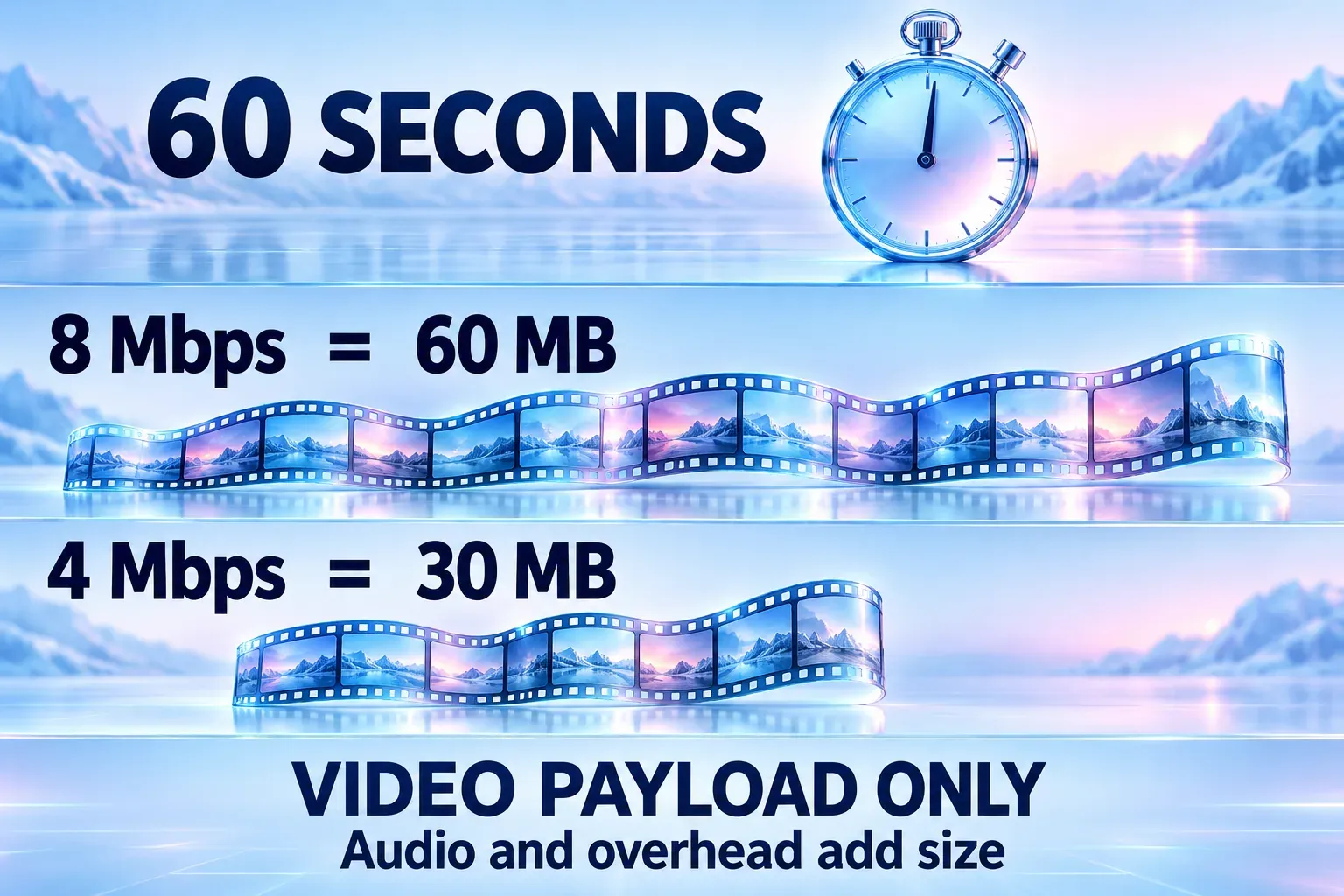
For the video stream alone, the same average bitrate produces twice as much data when the duration doubles:
| Duration | Average video bitrate | Estimated video payload |
|---|---|---|
| 30 seconds | 4 Mbps | 15 MB |
| 60 seconds | 4 Mbps | 30 MB |
| 60 seconds | 8 Mbps | 60 MB |
| 120 seconds | 4 Mbps | 60 MB |
Audio and overhead are additional in every row. A 720p label does not tell you the file size; the selected encoding still matters.
Example: a one-minute video under 20 MB
Suppose the finished clip is 60 seconds long and the upload limit is 20 MB. A video average of 2.2 Mbps, with an assumed 128 Kbps audio stream, gives about 17.46 MB of payload: (2.2 + 0.128) × 60 ÷ 8.
That audio rate is an assumption for the example, not a claim about CapCut's preset or a control every build exposes. The result leaves room for overhead, but you still need to check the finished file. Whether the picture remains useful at that budget depends on its detail, movement and encoder.
If the required bitrate is too low for the content, shorten the delivery or use an approved sharing link. Do not keep reducing quality until text is unreadable simply to hit a number.
Compress the video on CapCut Desktop
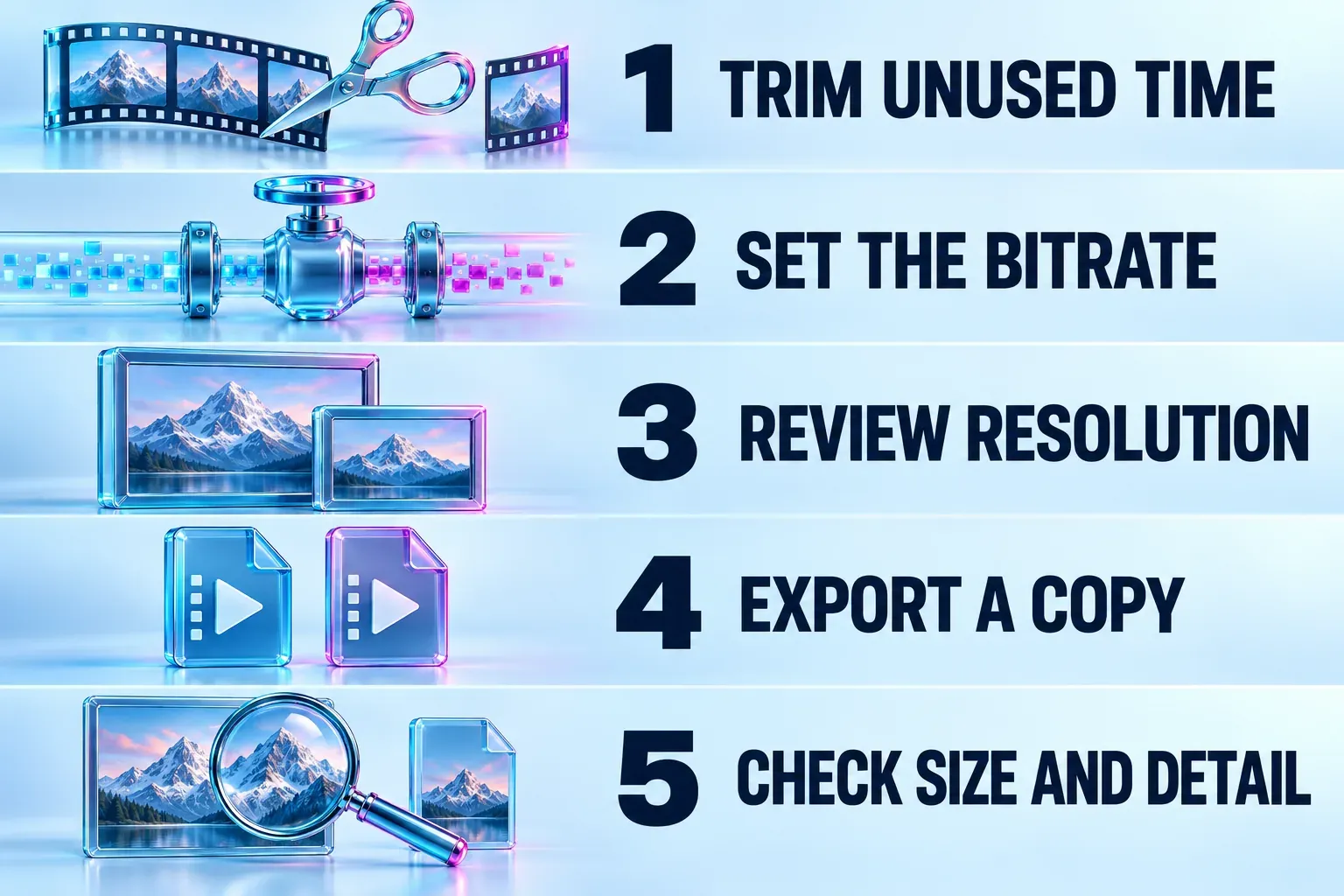
Use a separate project or delivery copy if trimming changes what you want to keep. Then work through these decisions:
- Remove unused time. Trim an accidental ending or unnecessary pause if the shorter edit still answers the brief. This reduces duration; cropping the picture is a different operation.
- Open Export. Review the current panel's resolution, frame rate, format and bitrate controls. Their availability depends on the build and project.
- Choose the bitrate deliberately. CapCut's export-quality help documents Export → Bit rate → Custom, with a numerical field in Kbps. Use that route when your version exposes it. For the example above, 2.2 Mbps is 2200 Kbps. Read the field's unit before entering a number.
- Use the available preset if Custom is missing. A lower bitrate or quality option can be a starting point, but a label such as Recommended is not a fixed megabyte budget. Export a representative section and inspect its detail; confirm the size of the complete delivery afterward.
- Review resolution without blindly changing the frame rate. If the file needs a smaller picture, compare a 1080p or 720p copy with the detail the recipient needs. Keep the source and timeline's cadence unless a separate delivery requirement justifies changing it.
- Export under a new filename. Choose an identifiable save location, check the actual size and play the finished file outside the editor before sending it.
For a normal delivery, H.264 in MP4 is a practical starting point where selectable. If the recipient requires another codec or container, follow that specification; our CapCut supported-formats guide explains those distinctions. The broader CapCut export-settings guide covers social delivery, color and frame-rate choices.
On mobile or online, use the controls that appear
CapCut on iPhone or Android
CapCut's mobile export instructions put a resolution label beside Export. Tap it before rendering to review the available options. Lower the resolution only as far as the intended viewing size and content allow; use a bitrate or quality control if your build also exposes one.
Do not assume the phone has the Desktop Custom field, the same units or the same codec selector. When only preset controls are available, the final file is the size check. If those options cannot meet a strict budget at an acceptable quality, use a workflow that exposes numerical bitrate control or send an approved link.
CapCut's online compressor
The documented web route is to upload the video, place it on the timeline, choose resolution and quality, then export. Select a file download when the recipient needs a video attachment. CapCut's web export guidance distinguishes Download from presentation sharing; a review link is a different deliverable.
Use footage you have permission to upload. For confidential work, follow the agreed delivery process before putting it into an online editor. The landing page's free-compression wording does not establish that every project, asset or export option will be free in your current account; read any plan prompt before proceeding.
Why can a shorter CapCut export be larger?
CapCut creates a new encoded video from the timeline. The original file's size is not a cap on the new one. If the new average bitrate rises enough, even a shorter clip can occupy more space.
For example, 120 seconds at an average 2 Mbps is about 30 MB of video. A shorter 60-second version at 8 Mbps is about 60 MB. These are calculated payloads, not results from a CapCut test. The change comes from the data rate, despite halving the duration.
Check the exported bitrate, duration and resolution rather than the filename alone. MP4 and MOV are media containers, not automatic small-file and large-file quality levels. Merely changing that label does not establish a compression ratio. Cropping, reducing frame rate or lowering resolution also does not mathematically halve the bytes if average bitrate and duration stay the same; it can instead help an encoder work within a smaller budget.
HEVC can offer efficient compression, but choose it only when the receiving workflow supports it. Apple's HEVC compatibility guidance describes device, resolution and frame-rate conditions. Do not exchange a slightly smaller file for one the recipient cannot open, or assume a particular percentage saving.
If export never completes, that is a separate problem covered by our CapCut export-stuck checklist. If the local file is complete but already soft, use the blurry-after-export guide before changing every setting again.
Can you compress without losing quality?
A smaller delivery can retain enough visible detail for its purpose. That is different from a guarantee of identical pixels or a dramatic reduction with no tradeoff. HandBrake's quality guidance explains the general encoding tradeoff: lowering quality usually reduces size, while large reductions can visibly remove detail. Its encoder-specific quality values are not CapCut settings.
Review a demanding section with movement and fine detail. Look for readable captions and screen text, clean movement, dark-area detail and sound that stays in sync. Check at the recipient's likely viewing size. A tiny phone preview can hide problems that become obvious on a monitor.

If only the uploaded copy looks poor, separate the site's processing from the local file. Keep the original export and compare the completed upload before compressing it yet again. For settings derived from the source and destination, our export recommender provides a starting profile and a qualified size estimate where the visible numerical bitrate supports one.
My choice is to trim what is unnecessary, set a realistic data budget and stop when the file meets both the size limit and the viewing requirement. Keep the master. If the remaining detail cannot survive the required attachment size, send a link or a shorter review cut instead of an unusable full-length copy.