

CapCut has several caption tools, and the fastest route depends on what you're trying to do. Generating speech-to-text, repairing timing, translating a track and moving an SRT file are separate jobs. This hub sends you to the right workflow so you don't have to work through a long beginner tutorial again.
Choose by task: Generate → Edit → Style → Translate → Import or export → Fix a problem.
Caption or subtitle: which term should you use?
In everyday CapCut use, the two labels overlap. CapCut's current help material calls its speech-to-text feature both Auto Captions and Recognise Subtitles. A simpler working distinction helps: accessibility captions represent speech and meaningful non-speech audio, while subtitles usually carry dialogue in the same or another language. Terminology differs by region, and generated speech text on its own may still need speaker labels or meaningful sound cues. What you decide in the editor matters more than the label.
Start with generation if the speech is already in the video. Start with import if a translator or client supplied timed text. And if the text exists but looks wrong, skip straight to editing, styling or troubleshooting.
No spoken audio? Write the lines yourself, or get a checked translation of the signing in a sign-language video. Auto Captions transcribes speech; it cannot translate gestures. For a short sequence, add a text layer for each phrase and set its start and end on the timeline. CapCut documents a manual Text → Add Text route on Mobile; its Desktop and Web text-overlay guides cover adding text on a computer.
For longer sequences, prepare a timed SRT and use the import route below. Keep that file if you need a separate subtitle deliverable: CapCut’s caption-export guidance distinguishes recognized captions from hand-added text, so ordinary text layers should not be treated as an exportable SRT track.
What works on Web, Desktop and Mobile?
| Task | Web | Desktop | Mobile | Best next guide |
|---|---|---|---|---|
| Generate speech captions | Yes | Yes | Yes | Auto captions |
| Correct caption text | Yes | Yes | Yes | Editing route |
| Word-by-word styling | Varies | Varies | Varies | Word-by-word captions |
| Bilingual generation | Documented | Documented | Documented | Bilingual subtitles |
| Direct subtitle-file import | SRT; check the dialog for ASS/LRC | SRT; TXT/ASS/LRC depend on the import dialog | No direct file import | Import subtitles |
| Subtitle-file export | Available in supported workflows | Available in supported workflows | Do not assume parity | Export SRT or TXT |
The matrix helps you pick a route; it isn't a permanent feature promise. CapCut says the core recognition function is available on all three platforms, while advanced options can depend on region and app version. Check the exact menu on the device that will finish the project.
1. Generate captions from speech
When you have spoken audio and need editable text, start with the complete CapCut Auto Captions guide. It covers Mobile, Desktop and Web, then works through correction, timing and readable styling.
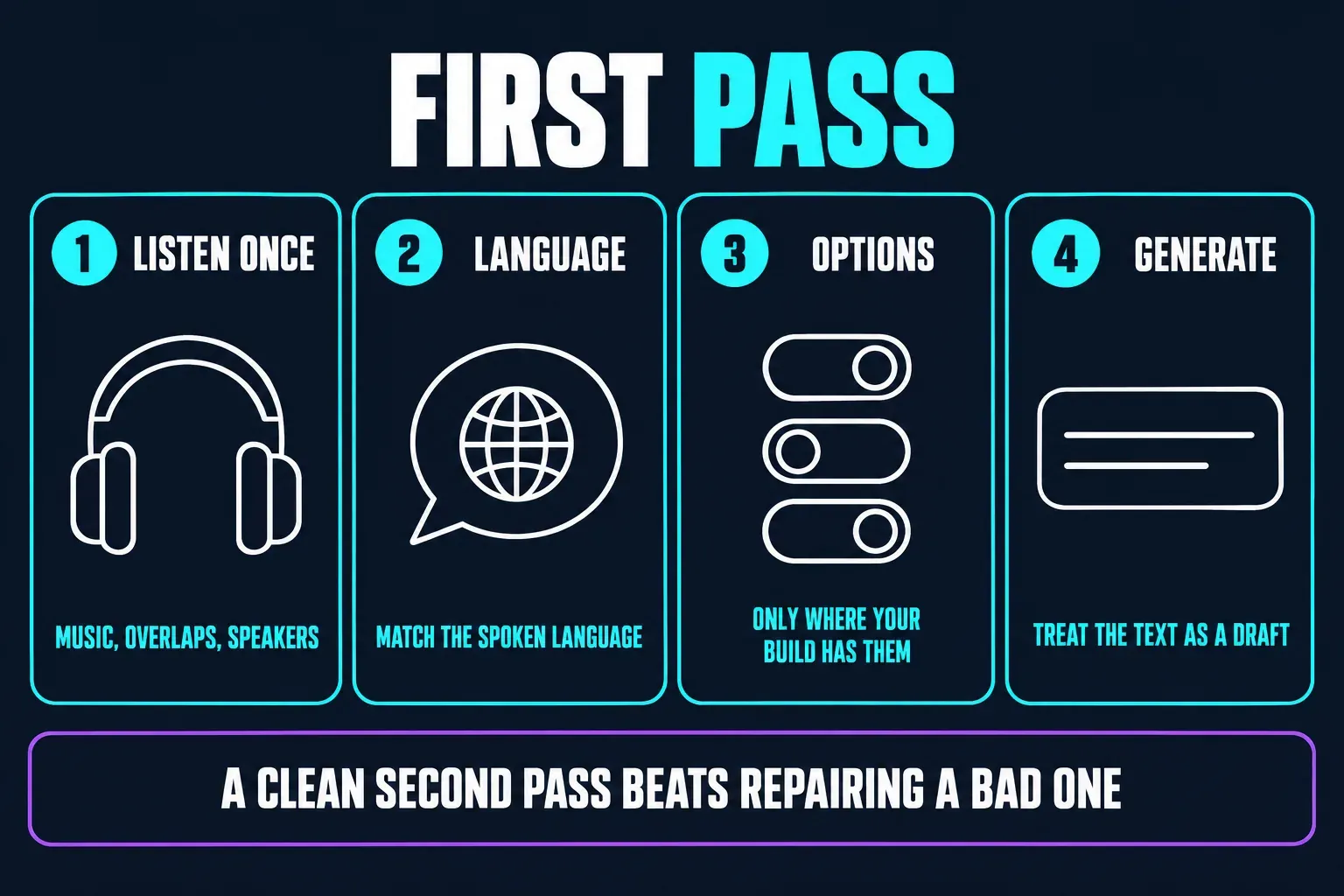
Pick the spoken language and listen to the source once before you generate. Music over dialogue, overlapping speakers and the wrong language choice can cause errors that take longer to repair than a clean second generation. CapCut's recognition guidance confirms all three platforms, though menu names and advanced controls can differ.
Use this route when: the timeline has clear spoken audio and there's no trusted transcript or subtitle file yet.
2. Edit the words, line breaks and timing
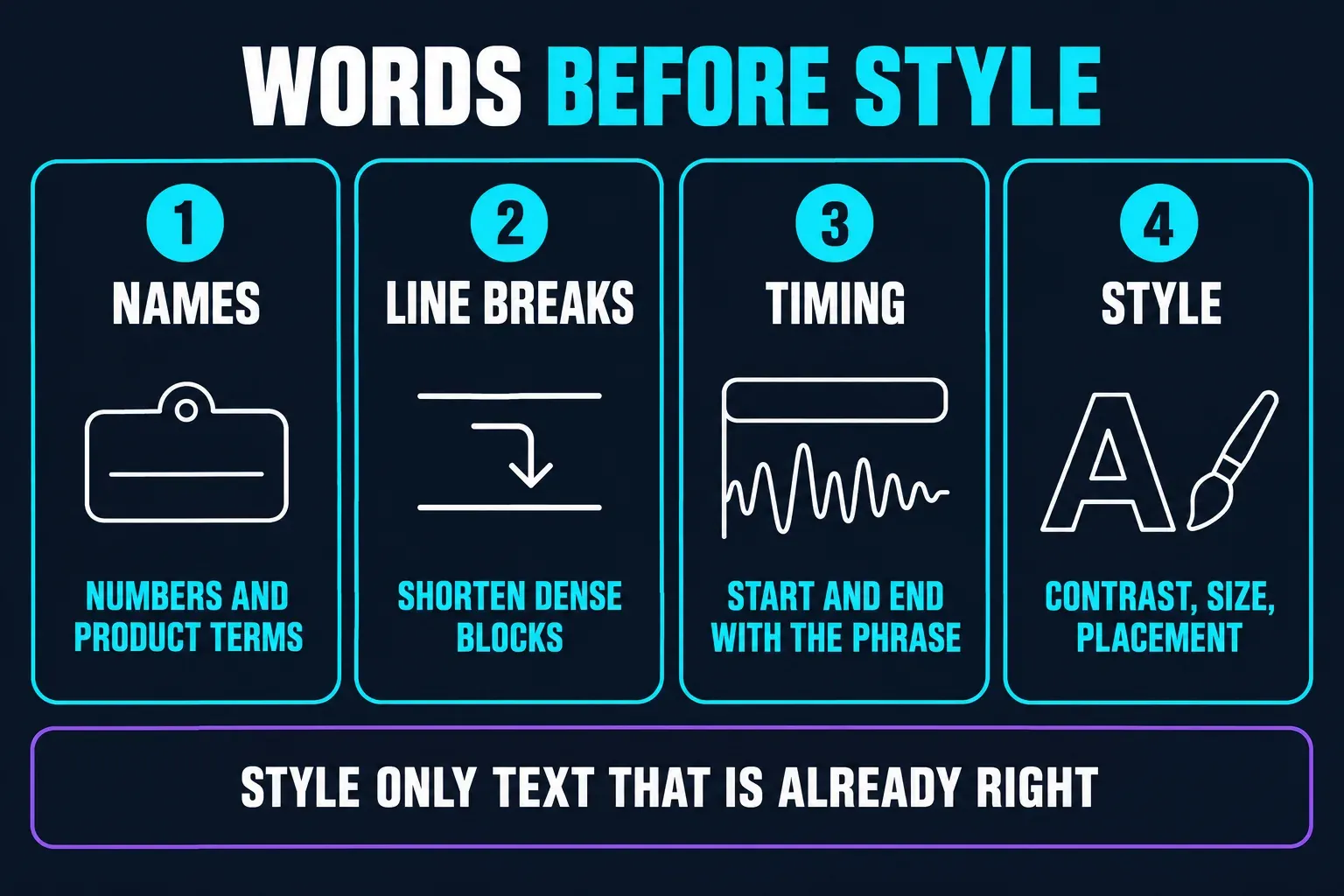
Generated text is only a draft. Fix names, numbers and product terms first. Then trim dense blocks, keep line breaks natural and check whether each caption starts and ends with the spoken phrase. CapCut documents text editing across Web, Desktop and Mobile, though the controls sit in different places.
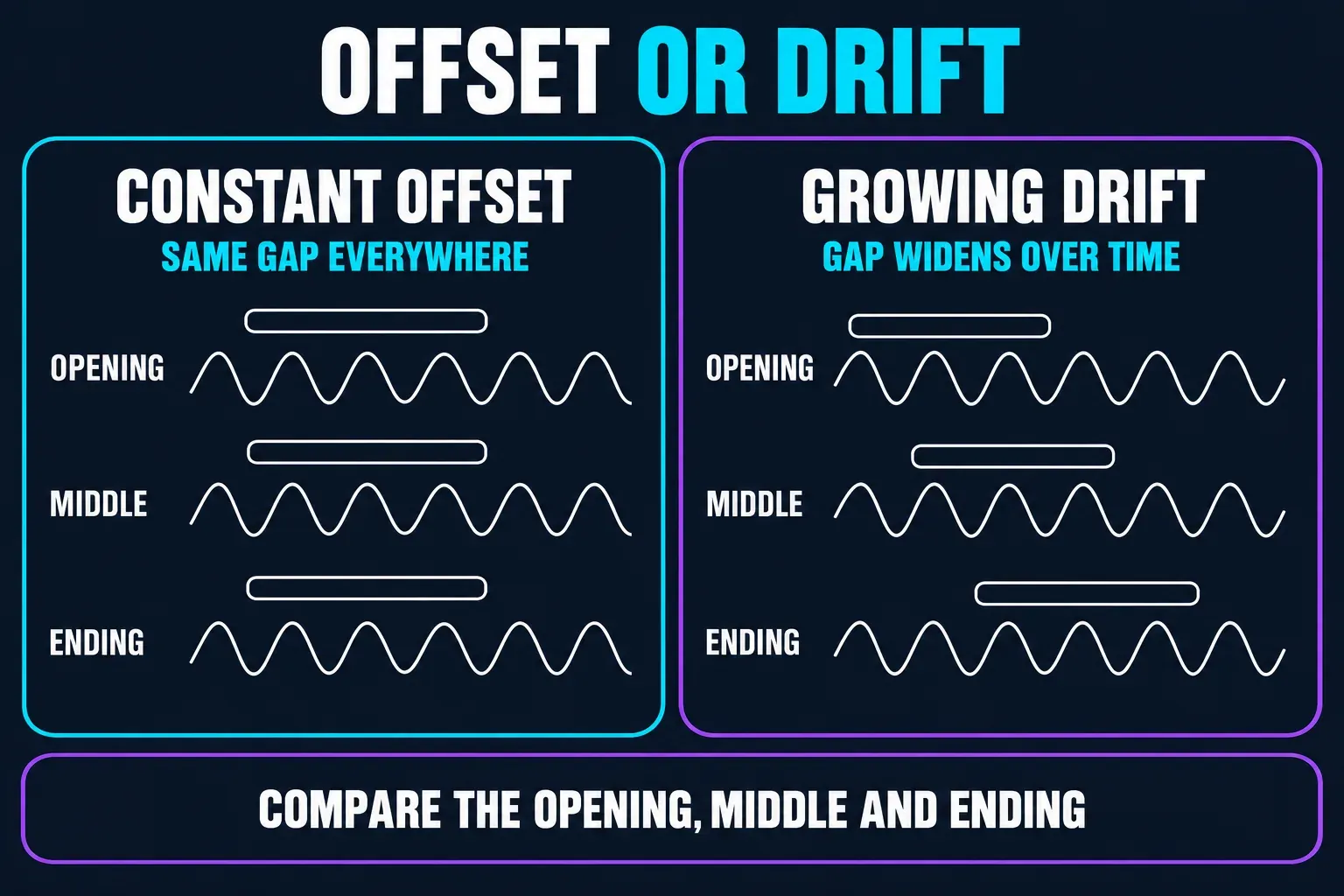
When the words are right but the text shows up early, late or slowly drifts, open the caption timing diagnostic. It separates a constant offset from progressive drift, overlaps and poor segment boundaries. Knowing which one you have keeps a local timing problem from turning into a full re-captioning job.
Use this route when: captions exist and the main problem is accuracy, segmentation or sync.
3. Style captions for the screen
Good styling makes the words easier to follow. Sort out contrast, size and placement before you touch animation. Keep essential text away from platform controls and off the lowest edge of a vertical frame. Preview several busy and quiet shots, because a style that works over one background can disappear over another.
For karaoke-style emphasis or one word at a time, open the word-by-word caption guide. It explains how highlighting words inside a sentence differs from replacing the whole line with a single timed word. They're different visual systems, and each needs its own timing checks.
Use this route when: the text and timing are already reliable, but readability or pacing needs work.
4. Translate or show two languages
Translation adds a second accuracy problem. You can't trust the translation until the original transcript is correct. Fix names and ambiguous phrases in the source language first, then review the target language in context. Machine translation can preserve the wrong meaning very neatly.
CapCut documents bilingual subtitle generation on Web, Desktop and Mobile. The bilingual subtitles guide covers paired lines, layout and the file-based option for when the one-click control is missing. Keep each language visually distinct, but don't shrink both until neither one is readable.
Use this route when: one video needs a translated track or two languages visible together.
5. Import or export SRT and TXT files
Go with file transfer when timed text already exists or has to continue in another tool. CapCut's import guidance lists direct subtitle-file import on Desktop and Web. SRT is documented on both. The help text and interface examples differ on other formats, so check the types listed by your current import dialog. Mobile doesn't offer the same direct file-import route.
- Import subtitles into CapCut for SRT structure, encoding problems and the Desktop/Web path.
- Export CapCut captions as SRT or TXT when the timed text is the deliverable.
A successful import doesn't prove every cue is correct. Check the first, middle and last minute, names with accents, line breaks and any spot where the frame rate or edit changed. Before you export, look at which caption track is enabled and whether the destination expects embedded text or a separate sidecar file.
Use this route when: captions must enter or leave CapCut as timed text rather than only as pixels in the video.
Convert an existing subtitle file
Have SRT but need WebVTT for a player, or VTT that must become SRT for import? The SRT and VTT converter converts a copy in your browser, keeps cue timing and flags formatting that cannot transfer. It does not transcribe audio or invent missing timestamps.
6. Fix missing, stacked or broken captions
When generation fails, stalls or returns a usage message, go to CapCut Captions Not Working. It starts with the source audio, language, network and project state, then offers a conservative fallback that protects your edit.
If two captions appear at once, look at the timeline before you blame the exported file. CapCut names overlapping subtitle clips, duplicate auto-caption layers and manual text placed over captions as common causes. Save a copy of the project before removing any layers. Where that control is available, disable the suspected duplicate, or remove it from the copy. Then repair overlaps and preview the affected section before exporting again.
If captions show in the editor but not in the result, confirm that the intended caption track is visible and included, then review the dedicated export guide. I'd run a short sample export from a duplicate project first. It's safer than repeatedly changing a finished timeline.
Use this route when: the feature fails, captions disappear, several lines stack together or timing degrades.
A caption check before delivery
- Listen to the opening, a dense middle section and the ending with captions visible.
- Search for names, numbers, brand terms and repeated recognition errors.
- Check line breaks and text contrast over the busiest shots.
- Look for stacked tracks, overlaps and captions that extend past the spoken phrase.
- Confirm whether the recipient needs burned-in text, SRT, TXT or both.
For the wider editing sequence, head back to our complete CapCut tutorial. It puts captions after the rough cut and audio cleanup, where speech recognition and timing are easier to manage.
CapCut's subtitle-file export guidance covers export settings. It doesn't give a universal fix for missing burned-in captions, and the visibility checks above are editorial diagnostics. Public documentation can't confirm every signed-in account or regional state, so check availability on the device that will finish the project.