

Checked 13 September 2026.
To show two subtitle languages in CapCut Desktop, open Captions → Auto captions, set Spoken language, then choose a translation under Bilingual captions. Generate a short test and check that the original and translated text appear together. Correct both before applying the same approach to the full edit. For caption creation, translation, subtitle-file and voice routes beyond a two-language layout, see our overview of CapCut AI tools.
Already have approved captions? Keep them. Use a separate Translate action if your editor offers one, or import a paired SRT file on Desktop or Web. You do not need to transcribe the speech again just to add its translation.
Two visible languages, not two selectable tracks
A bilingual layout keeps the original words and their translation on screen at the same time. That's a different job from supplying two subtitle files so a viewer can pick one language in a player. Figure out which result you need before you start editing.
This guide covers the paired on-screen layout. If you're after translated speech or a single translated subtitle track, the CapCut Video Translator guide is the better fit. Switching the app's menu language doesn't translate the video.
Finish the rough cut first, keep an untouched editable copy and hold on to the source media. Test with a short clip that includes a name, a number and normal speech. A separate 20–30-second project is plenty; it's a sample size, not a CapCut limit. Check permission before you upload client recordings or transcripts to a cloud caption or translation tool. The Desktop app doesn't guarantee offline processing, either.
Create bilingual subtitles on Desktop
CapCut’s bilingual subtitle instructions document a source language and one translation target. On Desktop, those controls sit in the Auto captions panel:
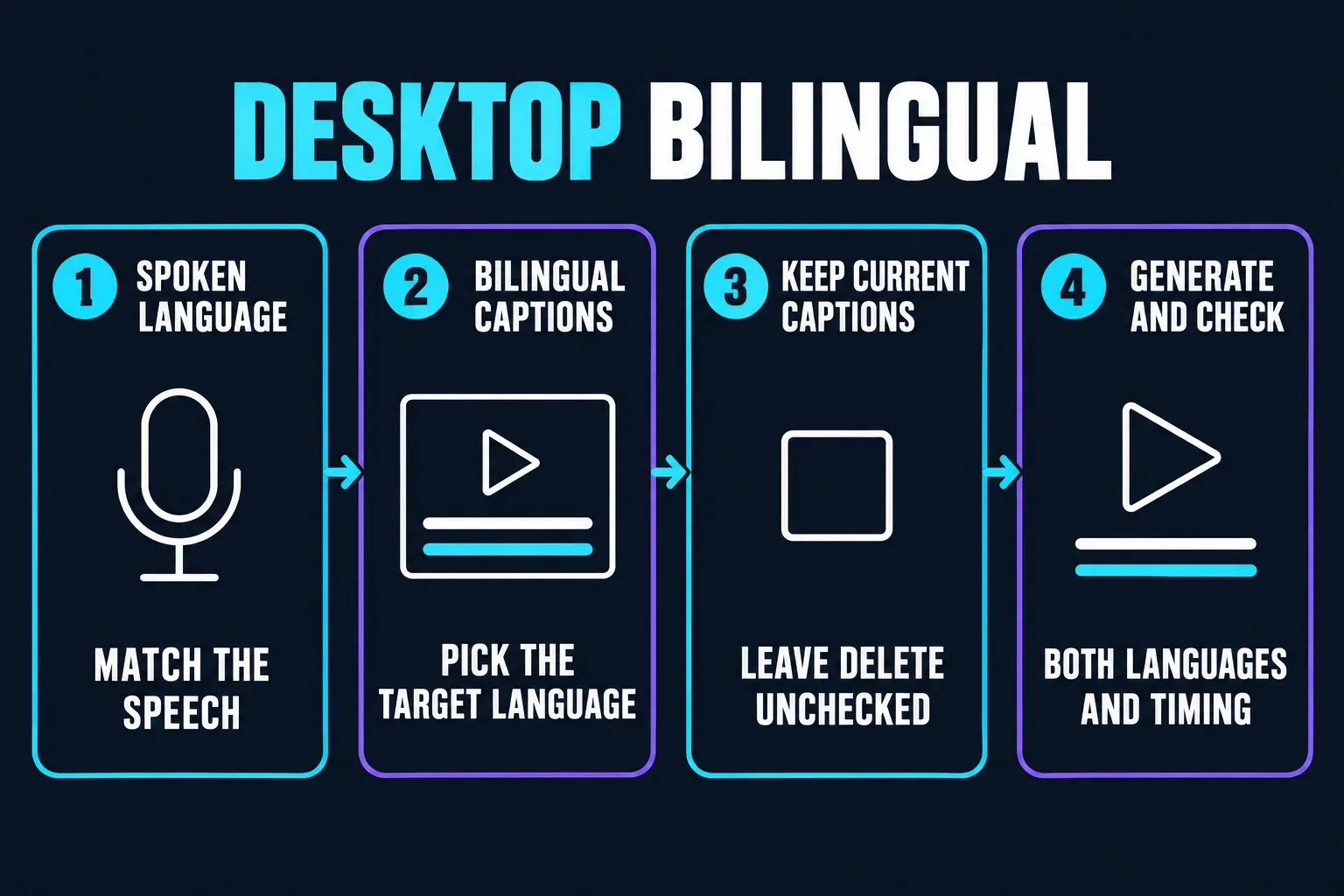
- Open your short test project or an editable working copy, then choose Captions → Auto captions.
- Set Spoken language to the language of the speech. If an audio-source selector is available, choose the source containing that speech.
- Open Bilingual captions and select the target language.
- Leave Delete current captions unchecked when existing captions must remain. Turn off optional processing you do not need, read any access prompt and select Generate in the copy.
- Play the result and check that both languages are visible. Correct the source transcript, then revise each translation against the corrected meaning. Check the timing of the complete pair.
The Desktop panel in those instructions puts Pro badges on Bilingual captions, optional filler-word identification and Generate. Read the prompt for the options selected in your account. The badges alone don't tell you a universal price or free allowance, and leaving a deletion box unchecked doesn't replace a backup.
The Auto Captions guide covers generating and correcting the first language, if you haven't done that yet. Once you've reviewed a transcript, don't keep generating over it.
Translate captions on Web, then check what remains visible
CapCut has an editor and separate browser tools, and their menus aren't interchangeable. Its translated-subtitles walkthrough shows a standalone AI captions tool: generate the source captions, open Subtitles, then use the translation shortcut. That doesn't prove the same button exists in every open Web editor project.
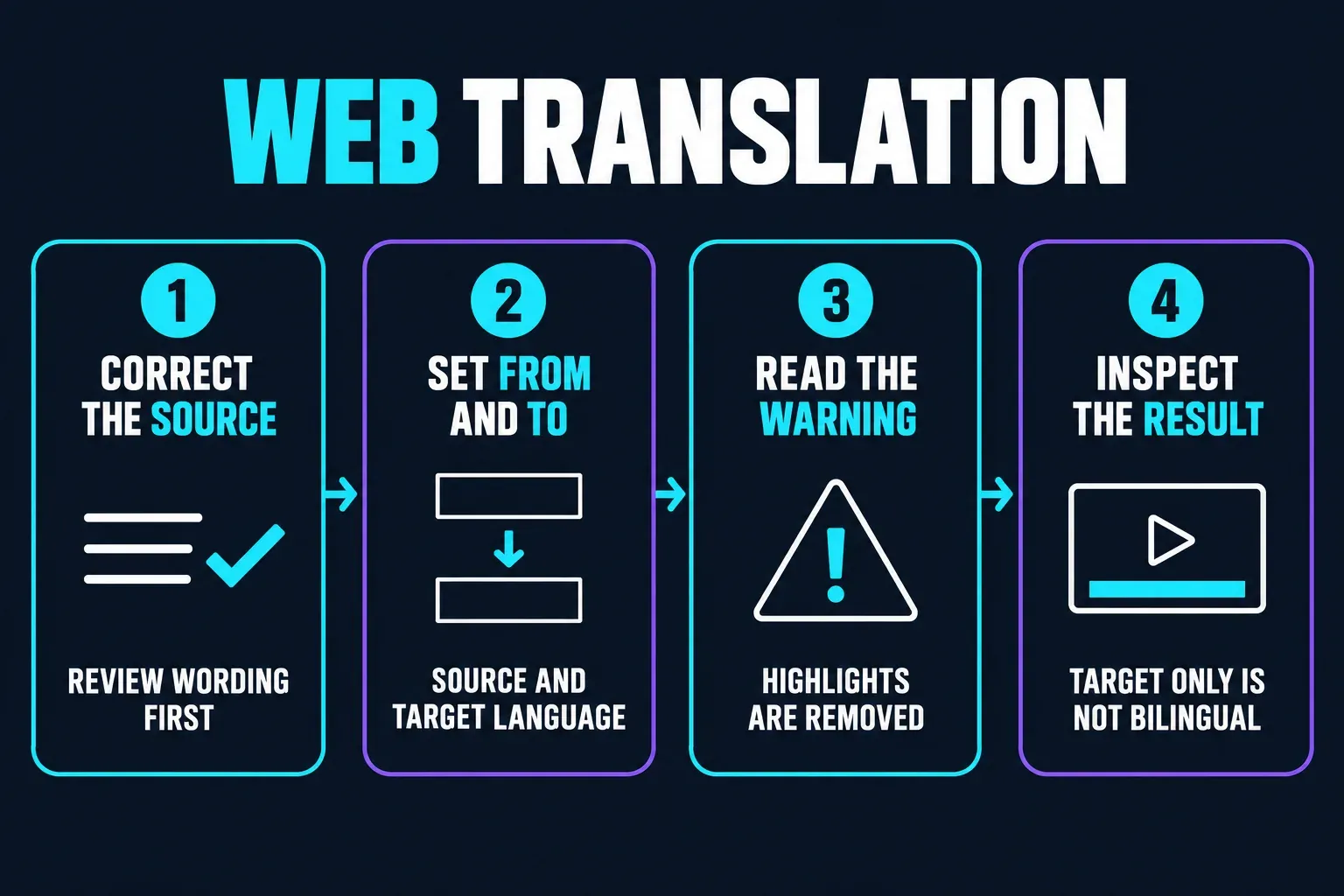
- Open the AI captions tool from CapCut’s available tools and upload a short clip you are allowed to share.
- Generate the source captions and correct their wording before translation.
- Open Subtitles and the translate control in the shortcuts area. Set From and To to the intended languages.
- Read the warning, then choose Translation. The Web dialog warns that translating removes previously applied word highlights; finish the translation before rebuilding that styling.
- Inspect the result. If only the target language remains visible, it is not yet a bilingual layout. Keep your approved source text and use the paired-file method below on Desktop or the Web editor.
If you're already editing a project in CapCut Web, open its Captions panel and see which controls it offers. Where a translation action is available, run it on your reviewed captions instead of starting another recognition pass. If it's missing, a reviewed SRT is the more direct way to go.
Use Mobile translation, or time a short pair manually
On Mobile, CapCut documents Captions → Auto Captions, a spoken-language choice and Translate to. If your generation sheet offers the target selector, pick the pair, test it in a separate short project and correct both languages afterward. Not every supporting help image shows the target selector, so if your app doesn't show it, don't assume it's tucked under some particular submenu.
On a short clip, manually timed text gets around a missing translation control. CapCut’s subtitle import help lists Text → Add text as a Mobile alternative. It doesn't document direct SRT import in the Mobile app.
- Work in a copy and move to the beginning of the first spoken phrase.
- Choose Text → Add text. Enter the approved source phrase, insert a line break, then type its translation.
- Adjust the text clip’s start and end on the timeline so the pair appears with that phrase. Play it with the audio and correct the boundaries.
- Position the pair where both rows are readable. If you need a different font or position for each language, use two text clips with matching start and end times instead.
- Repeat for the next phrase, then watch a short export before timing the rest. Keep your approved text outside the project too.
That works for a few captions but gets slow on a long interview. For longer work, I'd switch to Desktop or Web and use the paired file below. Don't assume a phone project saved locally has made it to another device. Check that an editable copy and its media are there before you carry on.
Put both languages in one SRT file
An SRT cue can hold multiple text lines under one start and end time. Put the source phrase on the first line and its translation on the next. The Library of Congress description of SRT explains the numbered cues, timestamps and blank-line separators.
Here's a small English–Spanish example. Swap in the words and times from your video:
1
00:00:01,000 --> 00:00:04,000
We meet at six.
Nos vemos a las seis.

2
00:00:04,500 --> 00:00:07,500
Bring your camera.
Trae tu cámara.
Keep the comma before milliseconds, both hyphens in -->, and a blank line between cues. Don't put a blank line between the two languages inside a cue. When you combine two existing files, match phrases by meaning and timing. Cue numbers alone can mislead you, because different sentence splits can make “cue 12” refer to different speech.
Save it as plain text, not a word-processing document
- Windows: paste the cues into Notepad and use File → Save as. Select UTF-8 encoding and All files as the file type, then name the file
bilingual.srt. - Mac: in TextEdit, choose Format → Make Plain Text before pasting. Save as
bilingual.srtwith UTF-8 plain-text encoding. If TextEdit adds.txt, change the extension to.srt; do not merely rename an RTF document. Apple’s TextEdit settings guide explains the plain-text encoding and automatic.txtoptions.
Check the full filename, then reopen the saved file in your text editor. The file must contain ordinary readable cues, keep accents such as cámara intact and end in .srt, not .srt.txt. Make sure smart punctuation hasn't turned the two hyphens in the timestamp arrow into a long dash. Save confidential text only in an approved location.
Import the pair into Desktop or Web
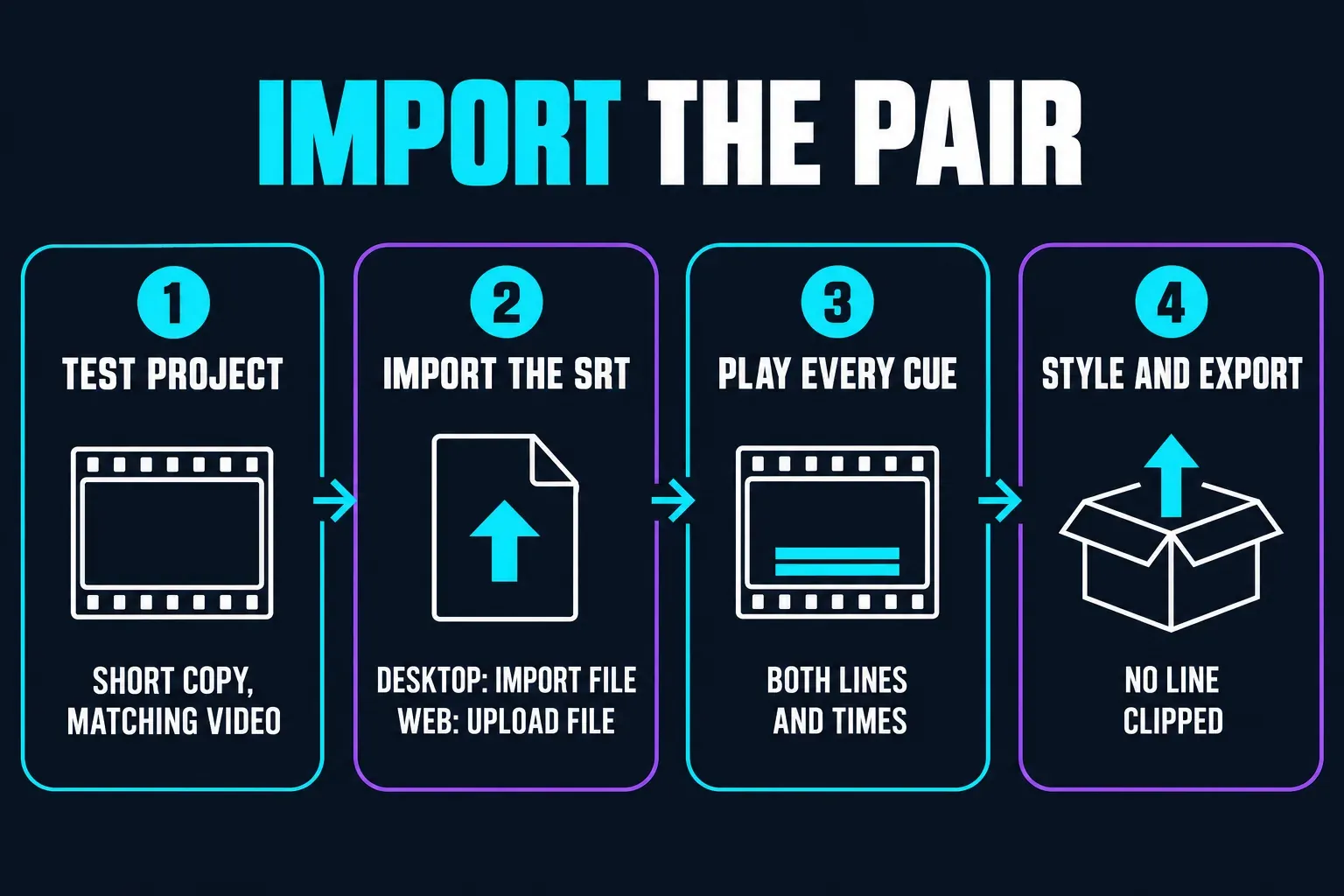
- Open a separate short test project with the matching video. This keeps an earlier caption layer from covering the imported pair.
- On Desktop, use Captions → Add captions → Import file. In the Web editor, open Captions → Upload caption file. Select your SRT.
- Play every imported cue. Check both language lines, special characters and start/end times. Both lines share a cue; do not count on independent styling for each row.
- Style the captions and export a short video. Confirm that neither line is missing or clipped before importing the full file into your working copy.
When the file gets rejected or the timing is off, the subtitle import guide walks through format and import checks. Hold on to the original SRT, because imported captions and manual text may not qualify for CapCut's native caption-file export later.
Check the meaning before polishing the style
Read the source while you listen to the speech, then compare the translation against it. Give names, dates, numbers and negatives a deliberate second look. A sentence can read fluently and still be wrong if “do not share” turns into “share.” Keep a short terminology list for names and specialist terms.
When translation is a separate step, correct the source first. If the bilingual generator already produced both languages, fix the source and then update the target yourself. Don't assume later edits stay linked across the two languages.
Mixed-language speech needs its own check. Setting English as the source and Spanish as the target doesn't mean recognition caught a Spanish phrase spoken halfway through an English sentence. Listen for those switches and fill in any missing words and timing. Important translations deserve a competent bilingual reviewer, and specialist material also needs someone who knows the subject.
Keep both rows readable, then check the export
Pick a consistent order, such as source above translation, and keep both rows big enough to read at phone size. If a translation runs long, split the thought or rephrase it without losing the meaning. Shrinking the second language until it fits isn't a fix.
- Use strong contrast and natural phrase breaks. Do not rely on colour alone to identify each language.
- Keep the pair clear of faces, labels and the destination app’s buttons. Check the full video in a private posting preview only when uploading is authorized.
- Inspect the actual scripts: missing-character boxes, detached Arabic letters, reversed punctuation or awkward Chinese breaks need a font and layout check.
- Review timing with speech, not word-for-word translation order. If captions drift, use the caption timing guide before redesigning them.
When captions are there for accessibility, keep speaker identification and meaningful sound cues. W3C’s caption guidance separates those needs from translating dialogue alone. Putting two languages on screen won't make an inaccurate transcript accessible.
When both rows move together
Check whether both layers are selected and whether an Apply to all option is on. In a copy, try one small position change with broad selection or automatic application turned off, where that's offered, and look at the neighboring captions too. An older discussion about simultaneous captions describes this trap, but it doesn't guarantee that every current build has the same fix. A paired SRT keeps both lines in one cue on purpose. When you need independent placement, use separately timed text clips.
Deliver the right files
For two rows that must always look the same, export a video with both burned into the picture. Viewers can't switch those rows off. Don't judge the result from the editor preview. Watch the exported file and check the whole video for cropping, unreadable text and missing translations.
For selectable languages, retain separate reviewed subtitle files. A single bilingual SRT is still one track with two text lines in it. YouTube’s supported subtitle formats specify plain UTF-8 for SRT and don't support its style markup, so don't expect CapCut fonts, colors, animation or positions to carry over.
CapCut's caption export help limits native subtitle-file export to eligible recognized captions. Before you promise two separate SRT downloads, check the export options on your screen and open each resulting file to read its full contents. The SRT export guide covers those checks. Edits inside CapCut don't update an older external SRT, so keep your delivered files in sync with the final video.
If the bilingual control is missing or generation fails
Start by working out whether recognition failed or the translation is the problem. With no usable source captions, follow caption-generation troubleshooting. If the source is right but the translation is off, fix the target. There's no need to recognize the whole project again.
Check that you're on the intended account, confirm the selected language pair and read the exact availability or upgrade message. Then test a short separate project. Keep the editable master and media safe before you update through an official store, since an update doesn't guarantee access. Don't clear app storage or delete drafts hunting for a missing control.
If the option still doesn't show up, fall back on the paired-file or manual-text method above. For an error you can't resolve, send CapCut the app version, platform, language pair and exact message through its support route. On Mobile, CapCut documents that route as Settings → Feedback → Give feedback. Strip account details, private filenames and project thumbnails out of anything you share as evidence.
Bilingual subtitle questions
Can CapCut show two subtitle languages at once?
Yes. CapCut documents a spoken-language selector and a bilingual translation target. Generate a short test and confirm that both rows remain visible. If your controls produce only a translation, use a paired SRT on Desktop or Web, or manual text for a short clip.
Are bilingual subtitles the same as AI dubbing?
No. Bilingual subtitles display the original and translated words together. Dubbing changes the speech. Separate selectable subtitle tracks let the viewer choose a language instead of necessarily seeing both.
Can the bilingual setting recognize mixed-language speech?
Do not assume it can. The source-and-target selectors do not prove reliable recognition of language switches within a clip. Listen to each switch and correct missing or mistranscribed source words before approving the translation.
Is bilingual caption translation free?
CapCut’s Desktop instructions show Pro badges, but they do not establish a universal price or free allowance. Read the prompt for the selected options in your account before generating the full project.
Why is Translate to missing on Mobile?
Check the current caption panel, intended account, language pair and any access message. An update is not a guaranteed fix. If the control is absent, use manually timed text for a short clip or a reviewed paired SRT on Desktop or Web.
Should I correct the source before translating?
Yes, if translation is a separate step. If both languages already exist, correct the source first and revise its translation against the corrected meaning. Do not assume later changes update the other language automatically.
Can one SRT contain both languages?
Yes. Put the source and translated text on separate lines inside each numbered cue, sharing one start and end time. Leave a blank line between cues. This creates one bilingual track, not two selectable language tracks.
Can I export both languages as separate SRT files?
Check your export dialog and every resulting file. CapCut’s native caption-file export is restricted to eligible recognized captions; separate downloads for both languages are not guaranteed. Keep the reviewed source files you imported.
Does SRT preserve my bilingual caption design?
Do not rely on it for CapCut fonts, animation, colour or position. Basic SRT carries timed text. Export a video with both rows burned in when the designed appearance must stay fixed, and retain the editable project.
Why do both language rows move together?
Check broad selection and any Apply to all option in a working copy. A paired SRT puts both lines in one cue, so shared movement is expected. For independent placement, use two text clips with matching start and end times and verify neighboring captions after changes.