


To record your own voice in CapCut, open a video project and use Audio → Record on Mobile, or the microphone recording control on Desktop and Web. Allow microphone access, record a take, then play it back with the video before you export. CapCut documents the Mobile recording route, a Desktop microphone control and the Web voice recorder.
This records the words you speak. If you want an artificial voice to read written text, use text to speech instead. Recording a sample for a Custom Voice profile is another task, and that sample isn’t the ordinary narration track this guide covers.
I’d record one short sentence before reading a whole script. Listening to that take catches a silent microphone, room echo or the wrong input while there’s still very little to redo.
Find the voice recorder on your platform
Open the project you want to narrate and go to the point where the voice should begin. Get the next few lines ready, cut down background noise and wear headphones if you need to hear the video while you speak. The microphone can pick up sound from your speakers, and that sound can end up in the take.
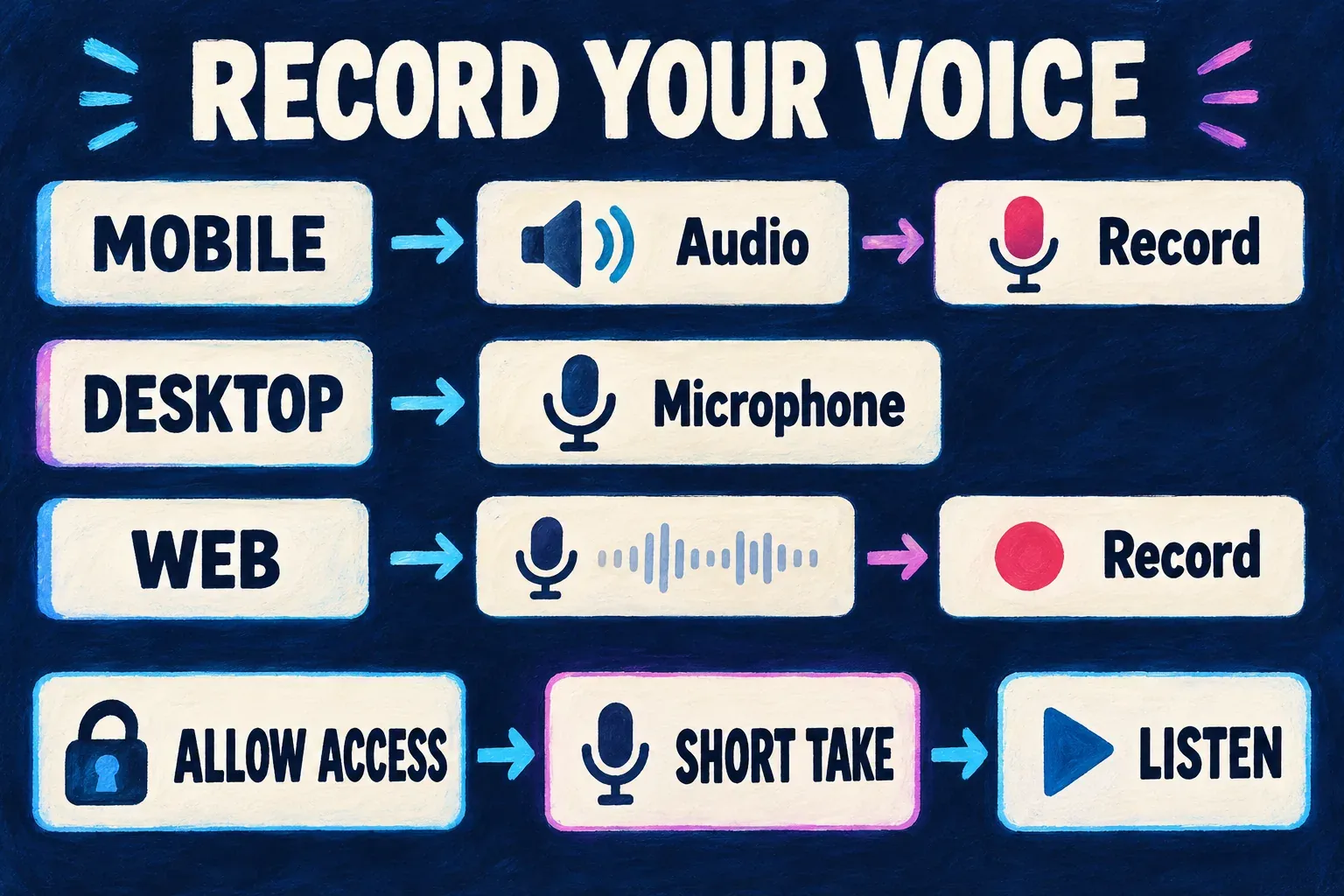
iPhone and Android
- Open a project containing the video you want to narrate.
- Open Audio, then look for Record or Record audio. Those labels appear in CapCut’s voiceover instructions and its separate record-audio walkthrough.
- Allow microphone access when asked. Start recording with the control your version displays and speak your lines.
- Stop the take and follow any confirmation shown to keep it in the project. Play the section back with the picture.
If you denied permission earlier, check CapCut’s microphone access in your phone’s system settings. Granting photo-library access doesn’t answer a microphone request. Leave the project intact while you check permissions. You don’t need to delete the app for this first check.
Windows and Mac
Open the video project and look for the microphone-shaped recording control in the editing workspace. CapCut’s Desktop recording guide describes this route, though the page isn’t consistent about where the control sits. Go by the recording control you see on screen instead of hunting for a button in a fixed corner.
If the recording panel offers an input-device choice, pick the microphone you plan to use. A connected headset or USB mic deserves a second look here: hearing sound through a device does not establish that it is the recording input. Start a short take, stop it, then play back what you recorded.
On Windows 11, you’ll find microphone permission under Settings → Privacy & security → Microphone. Microsoft distinguishes general microphone access from allowing desktop apps to use the microphone. Check the desktop-app setting too.
On Mac, open System Settings → Privacy & Security → Microphone and review CapCut’s access. Apple explains this app-permission setting. If a restart prompt appears after you change access, protect your current edit first, then follow the prompt.
CapCut Web
Go to the online editor and open or create your video project. CapCut’s online recording instructions place the microphone control in the timeline area, followed by Record.
When the browser asks, let the site use your microphone. If you already blocked microphone access for the site, check two places: the site’s microphone permission in the browser and the browser app’s system permission. Record a short take and listen before you go on. A recorder shown in a Desktop tutorial is not proof that the same control is available in the Web session you have open.
Fit the recorded voice to the video
A take sitting on the timeline is only the start. Play the section with the picture and judge whether the words arrive when the viewer needs them.
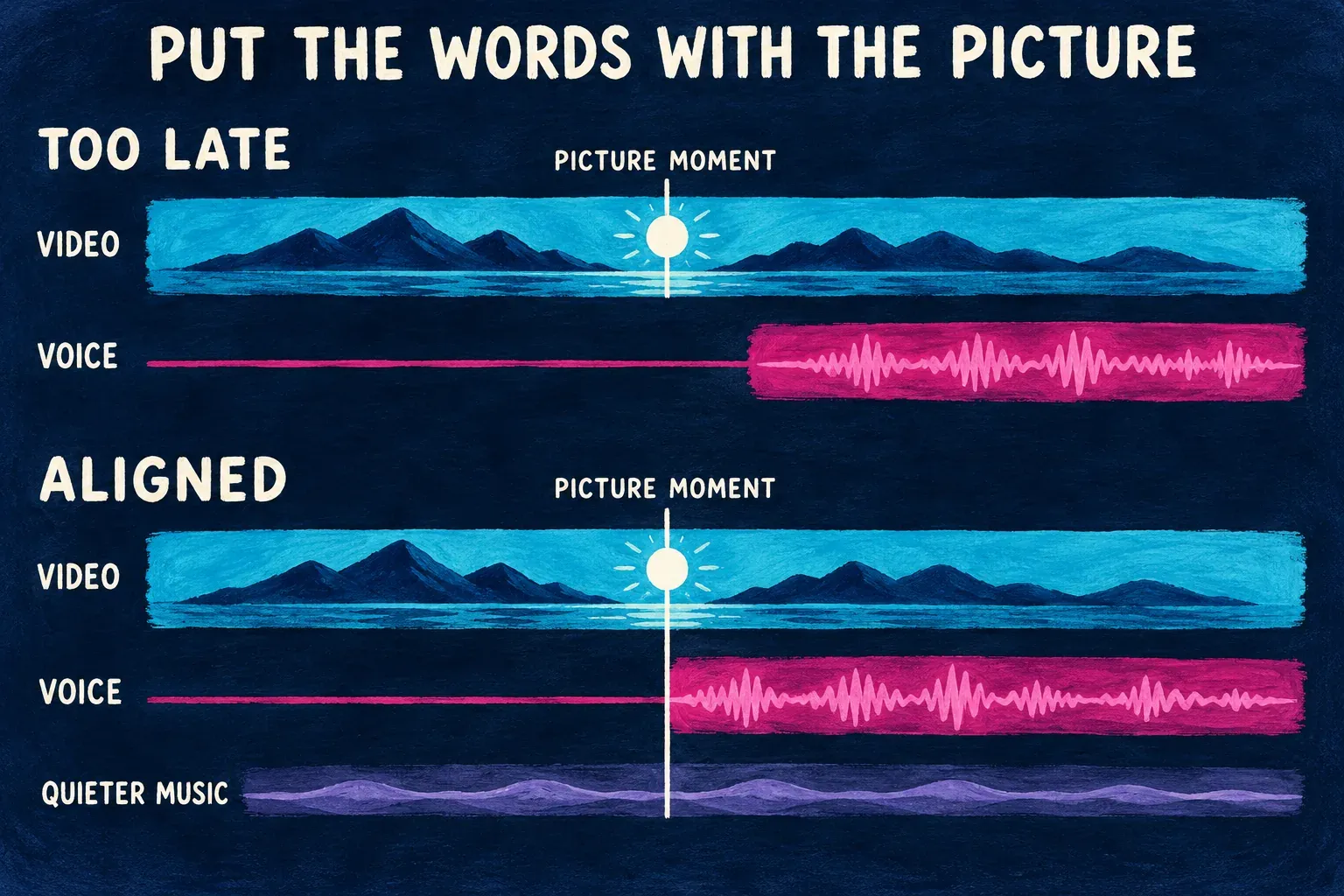
Trim the empty space at the start or end of the take, then line the clip up against the video. Listen across the joins. A cut that looks tidy on a waveform can still chop off a consonant or leave a breath sounding abrupt. With a longer script, record in manageable sections so you can replace one line without throwing out everything.
If the whole sentence starts late, move it. Words that gradually fall out of step with the picture need a different fix: inspect the timing instead of shifting the whole clip again and again.
Get the voice understandable on its own before you bring in music. Then lower the music beneath the narration, and check any sound already in the video too. Two audible versions of the same speech can make the result sound doubled even when the new take is fine. The audio-mixing guide explains how to balance separate tracks.
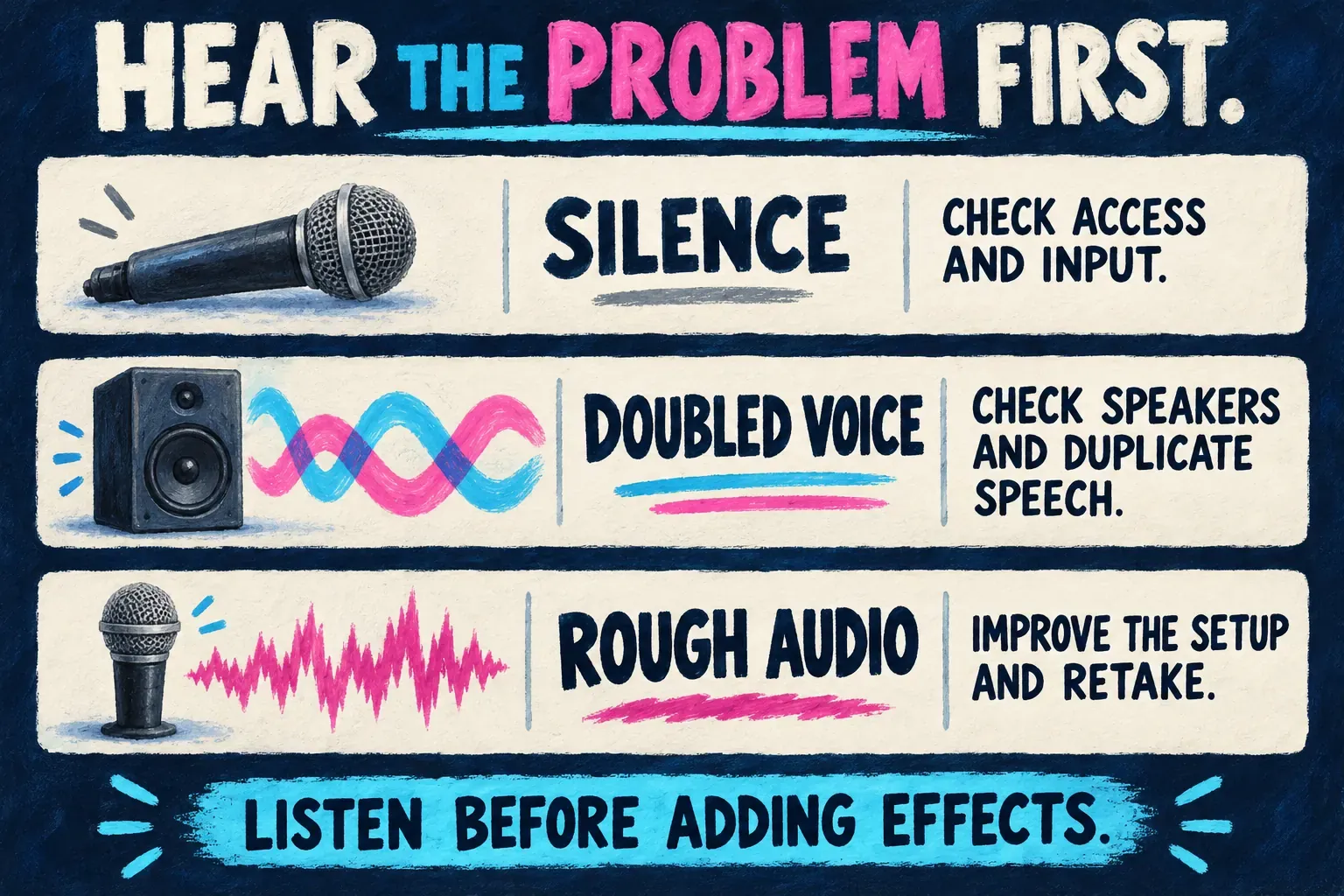
I’d retake a badly distorted sentence before reaching for enhancement. Processing may change the sound, but it’s a poor substitute for a take where the words are clear from the start. Don’t apply several voice effects just because they’re available.
If recording is silent, doubled or unclear
Work from what you hear. A missing input and a quiet timeline clip need different checks.
| What happens | Check first | Next useful step |
|---|---|---|
| Recording will not start, or microphone access is denied | App/site and system microphone permission | Allow the intended app or site, then follow any restart or reload prompt |
| A take exists but you hear nothing | Selected input, muted clip and playback output | Record a short new take; check clip volume and whether other audio plays |
| Voice sounds doubled or has obvious echo | Speakers playing into the mic, plus overlapping speech tracks | Use headphones for the next take; mute duplicate speech during playback |
| Voice sounds rough or breaks up | The original take before effects | Move away from noise, adjust the recording setup and retake the affected line |
| Voice is clear alone but disappears under music | Music and original-video sound levels | Lower competing tracks and listen to the whole section again |
If the recording control is missing, make sure you’re inside a video-editing project and following instructions for the same platform. Check current official help for your version. For a practical fallback, save a recording from an audio recorder you already have, then import that audio into CapCut. Keep the original file until the project plays it correctly.
To finish, export the video and listen to the saved file through the full narrated section. Check the first word, the cuts between takes, the music level and the ending. If you want a separate narration file instead of a video, use the platform-specific audio-only export guide; recording a voice inside a project does not guarantee the same audio export options on every platform.