

In CapCut Mobile on iPhone or Android, open All tools → Quick actions → Teleprompter, add your script, adjust its reading display and start recording. That is the route in CapCut’s mobile teleprompter walkthrough. If your current build places the controls differently, follow the ones it offers.
The teleprompter keeps your words in front of you while you deliver them to the camera. The performance and the voice come from you. A teleprompter does a different job from generating narration with text to speech or assembling scenes with Script to video.
I’d shorten and speak the script before spending time on its display settings. A comfortable font can’t rescue a sentence you’d never say aloud.
Open the teleprompter in the recording tools
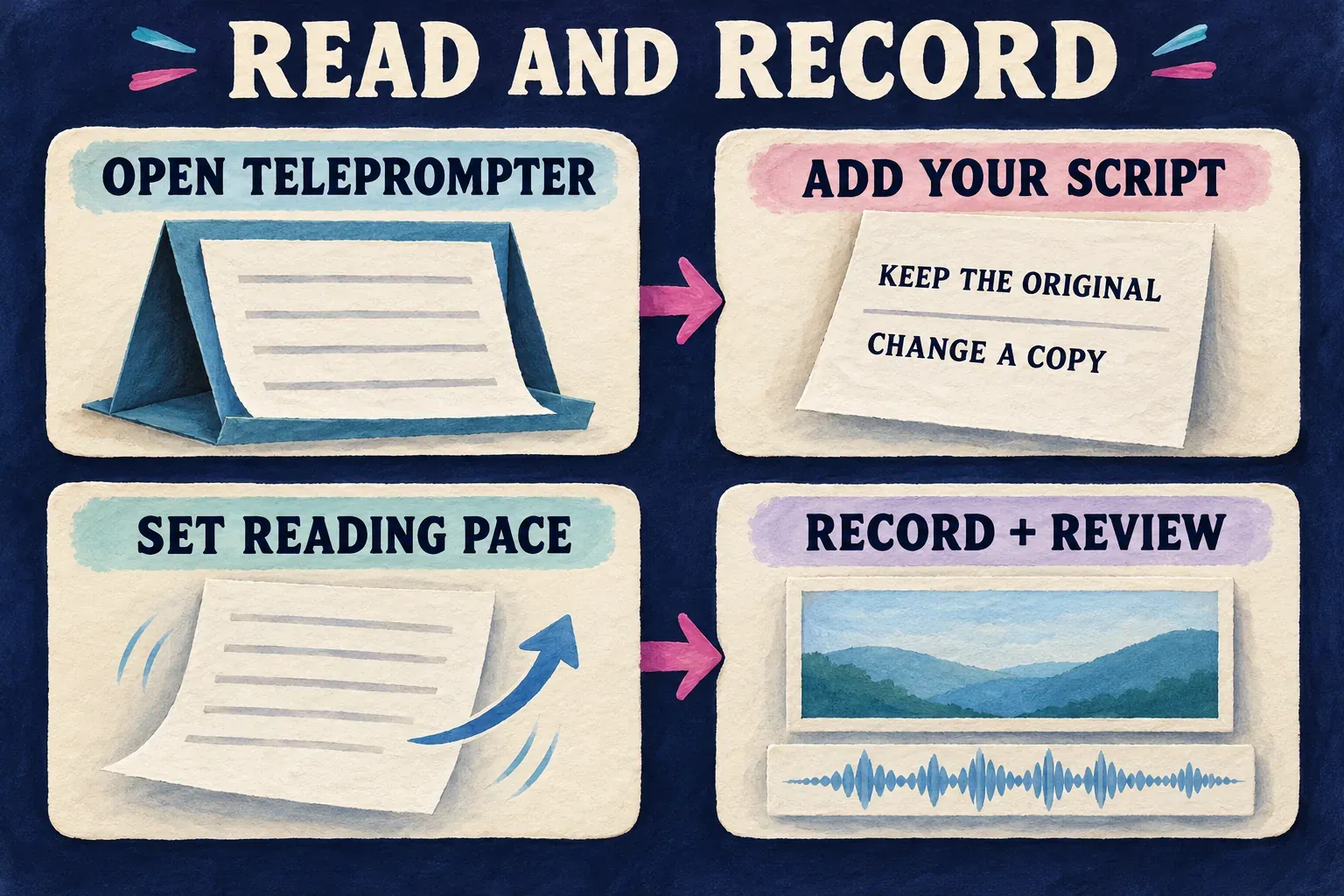
Start from CapCut’s main mobile screen instead of looking through an existing timeline’s text effects. Open All tools, find Quick actions, then select Teleprompter. The current Help Center describes the teleprompter as a recording mode, not a timeline text layer.
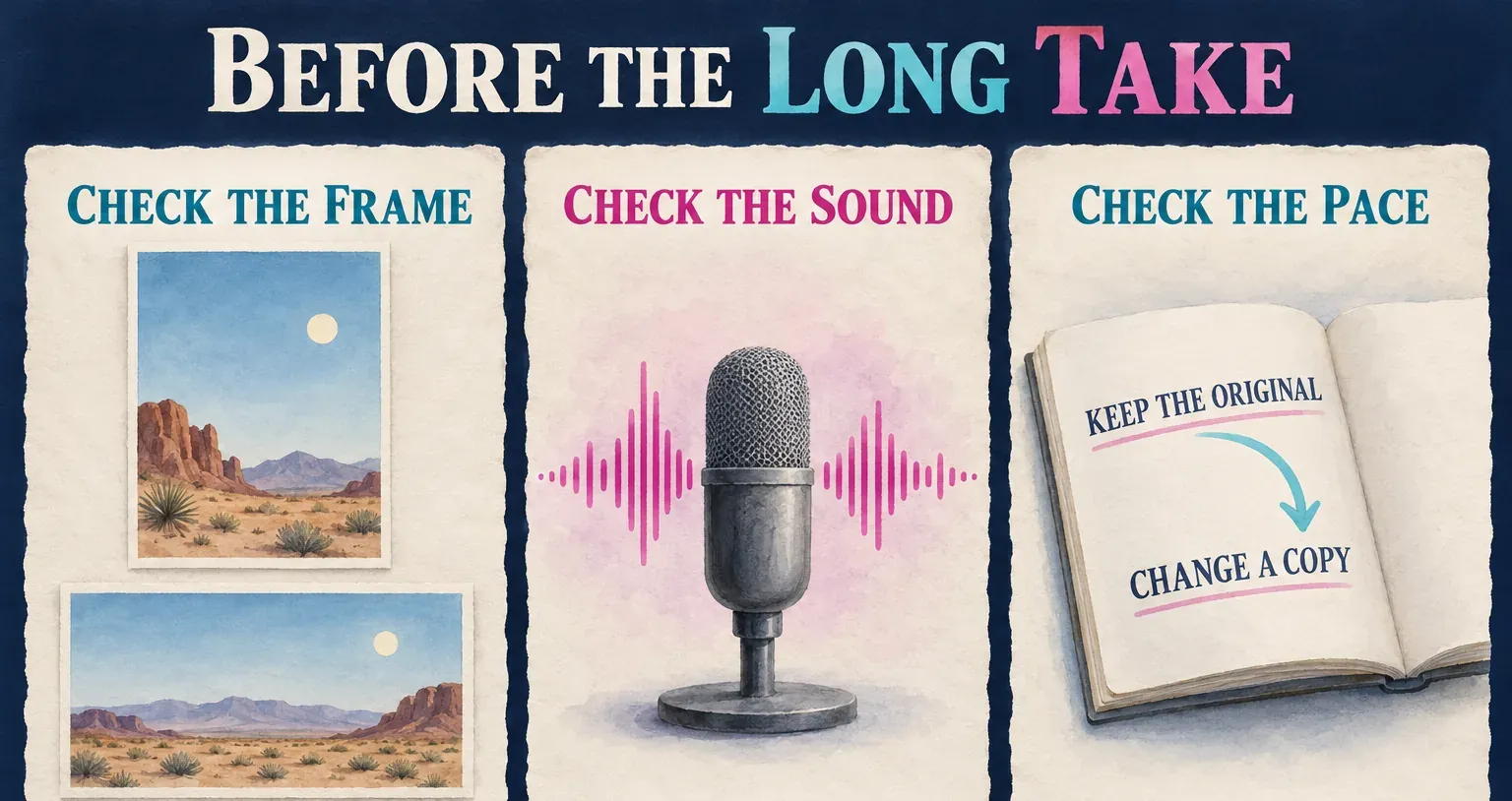
Before you paste the script into the app, keep the original in Notes or another document you control. If the app asks for camera or microphone access, you decide whether to allow the access your recording needs. Check the camera view and the sound before you commit to a long take.
The prompt is for the speaker. It doesn’t replace captions for the audience, which you add and correct during editing. Words that need to show in the finished picture are a separate text or caption decision.
Add a script you can speak naturally
CapCut’s teleprompt app instructions describe opening the script editor with the pencil icon, typing or pasting the text, then choosing Done. Use whichever script-edit control your version shows, and go back to the recording view after you save.
Prepare the words for a voice, rather than a page:
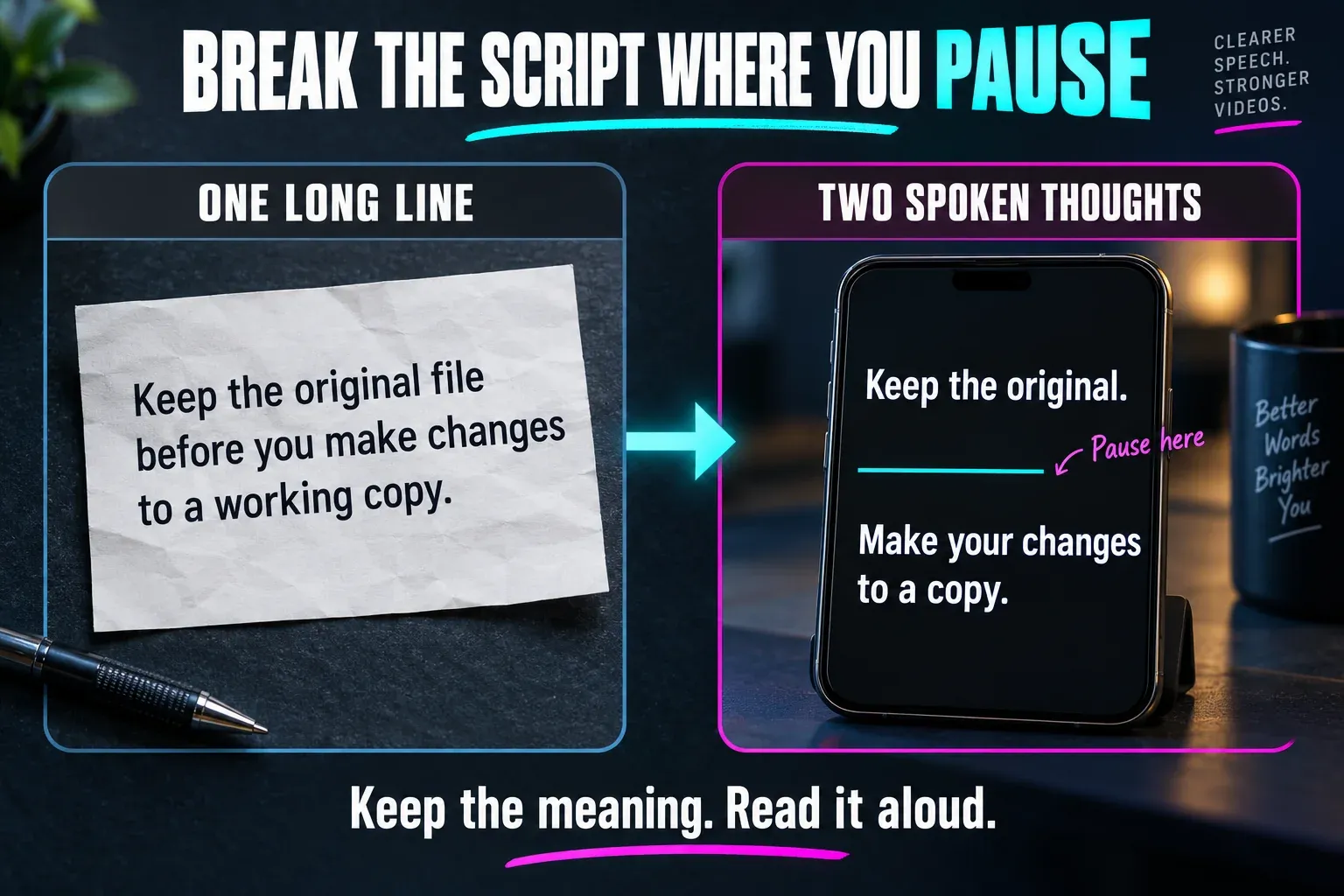
- Put one thought in each short paragraph. Break a long explanation where you would naturally pause.
- Replace phrases that make you stumble with words you use in conversation.
- Read names, figures and technical terms aloud before the take. Correct the script where pronunciation needs more attention.
- Remove headings, editing notes and directions you do not want to speak. Keep production notes separately if they might be read by accident.
A written instruction might say, “Before making any changes, preserve an untouched original file.” A spoken version could be, “Keep the original. Make your changes to a copy.” The short version works for a quick instruction. A longer sentence can stay when it sounds natural and carries the thought clearly.
Some builds offer writing tools such as Improve, Expand or Shorten. Treat their output as a draft. Read the rewritten text before recording and check that the meaning, names and claims you intended are still there. Pasting a finished script is fine; this workflow doesn’t require AI writing.
Set text size, position and scrolling pace
Use whatever display settings your app offers to make the text comfortable at the distance you’ll record from. CapCut documents font-size, color and scroll-speed adjustment, plus a repositionable text window.
Make the text large enough that you can read it without leaning toward the phone. Pick clear contrast, then put the reading area near the active camera lens where practical. Leave enough of the frame visible to notice your position. An on-screen text box works differently from a studio teleprompter’s glass-and-camera arrangement; it cannot promise perfect eye contact on its own.
Read the opening aloud and watch the scroll. If you’re hurrying to catch a line, slow the pace or simplify the wording. When you keep waiting for the next line, adjust the pace or the breaks. Don’t force your delivery to fit an arbitrary speed value from someone else’s tutorial.
I’d leave pauses in the performance instead of filling every moment with speech. Pauses give the viewer time to follow an explanation and give you places to make a clean edit. For a product video, use a pause to lead into the demonstration. The UGC editing guide covers that broader structure.
Choose the camera and review a short opening
CapCut’s front/rear camera instructions describe Flip Camera while the mobile teleprompter is active. Before you record, use the camera-switch control on screen to pick the lens you want.
With the front camera, you see the script and the framing from the screen side. For a rear-facing shot, think about who can see the script display and operate the phone. Pick that setup on purpose. A better-looking rear-camera shot doesn’t help much if the speaker can’t read the words.
Check the framing your recording mode gives you, and position the phone securely. Pick the mode and duration your build offers; don’t assume an old tutorial’s time choices are the current limits. Leave room in the shot for captions you’ll add later and any crop you plan. The aspect-ratio guide covers that separate delivery decision.
Record the opening and review the saved take instead of judging it only from the camera preview. Check the voice, framing and orientation, and notice whether reading the display changes how you deliver the lines. Make one useful adjustment, then record the full performance. Don’t keep a take just because you got to the end of the script.
Once the take is recorded, keep working in CapCut’s editing flow. Trim the unwanted lead-in and ending, fix the captions, and balance any background music around the voice. Our audio-mixing guide explains the soundtrack decisions. Before you publish, review the finished export with sound on.
If Teleprompter is missing, or you use Desktop or Web
Look in the mobile home tools and the recording area first. A script-reading control is easy to miss if you’re searching an open project’s text menu. Next, check whether an official app update is available for your device and region. Keep existing projects safe before you change the installation; deleting app data isn’t a sensible way to reveal a missing tool.
CapCut’s platform guidance currently places this built-in teleprompter mode on Mobile and says the mode isn’t supported on Desktop or Web. Use the mobile route when it’s available. Otherwise, record with a suitable setup you already have and import the video to edit on whichever platform you prefer.
The product page advertises a free teleprompter, but that does not establish every account’s tool access, optional AI allowance or final-export conditions. Before you build the recording around a locked option, read any access notice your app shows.
If the feature still doesn’t show up, use the CapCut Help Center to ask about your mobile build and account. Include the device, app version and missing control; keep account details and unpublished scripts private. A readable script and a usable recording matter more than getting one particular button to appear.