

For an animated sound-wave graphic in CapCut Desktop, open Stickers, search for a waveform, add one to the timeline and position it over your video. If the graphic has to follow your actual song or voice recording, confirm that it analyzes the audio. A moving sticker alone does not prove that connection. One documented alternative is to make an audio-driven waveform video in a dedicated visualizer and then bring the result into CapCut.
I’d choose the route before styling the graphic. A decorative pulse can suit a music cover, while a podcast excerpt may need motion tied to the speech. Both kinds of motion can look alike in a still frame and behave very differently during playback.
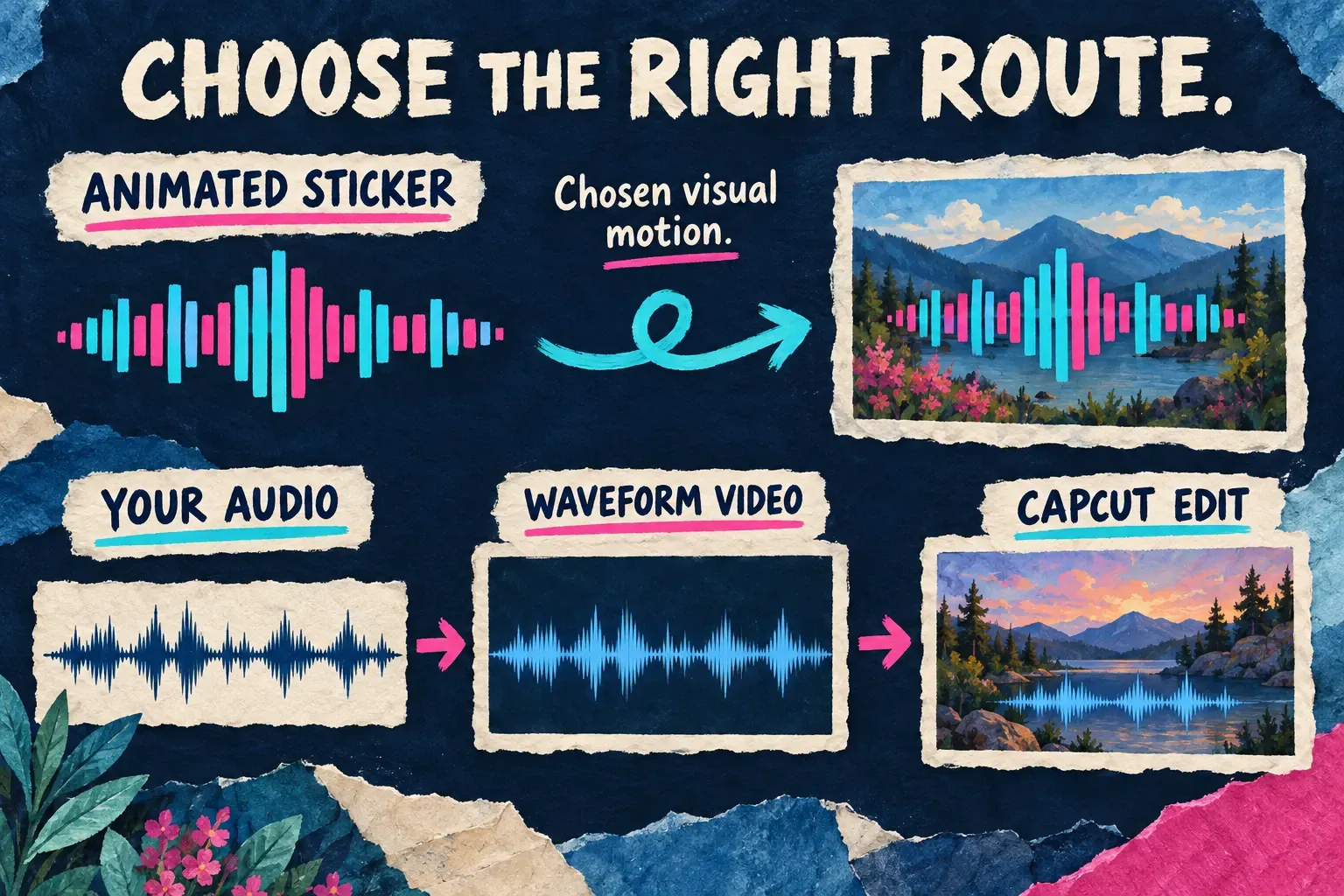
Decide which kind of visual you need
People use the word “waveform” for three different things in an editor:
| What you mean | What it does | What you need to add |
|---|---|---|
| Waveform displayed on an audio timeline | Helps you find changes in the recording while editing | A visible video layer if you want a graphic in the exported picture |
| Animated waveform or spectrum sticker | Supplies the chosen animation’s visual motion | The sticker, positioned and timed for the scene; establish its audio behavior separately |
| Audio-driven visualizer | Derives its changing appearance from audio | A tool or template with a documented audio input, or a rendered visualizer video |
The timeline display is an editing aid, not a video layer. Making it visible under an audio clip doesn’t add those peaks to your finished picture.
Terminology can be loose too. Adobe’s waveform explanation describes amplitude over time; its spectral display shows frequency components. In a sticker library, search terms such as audio wave, waveform and audio spectrum may still turn up different decorative styles.
Add a waveform sticker in CapCut
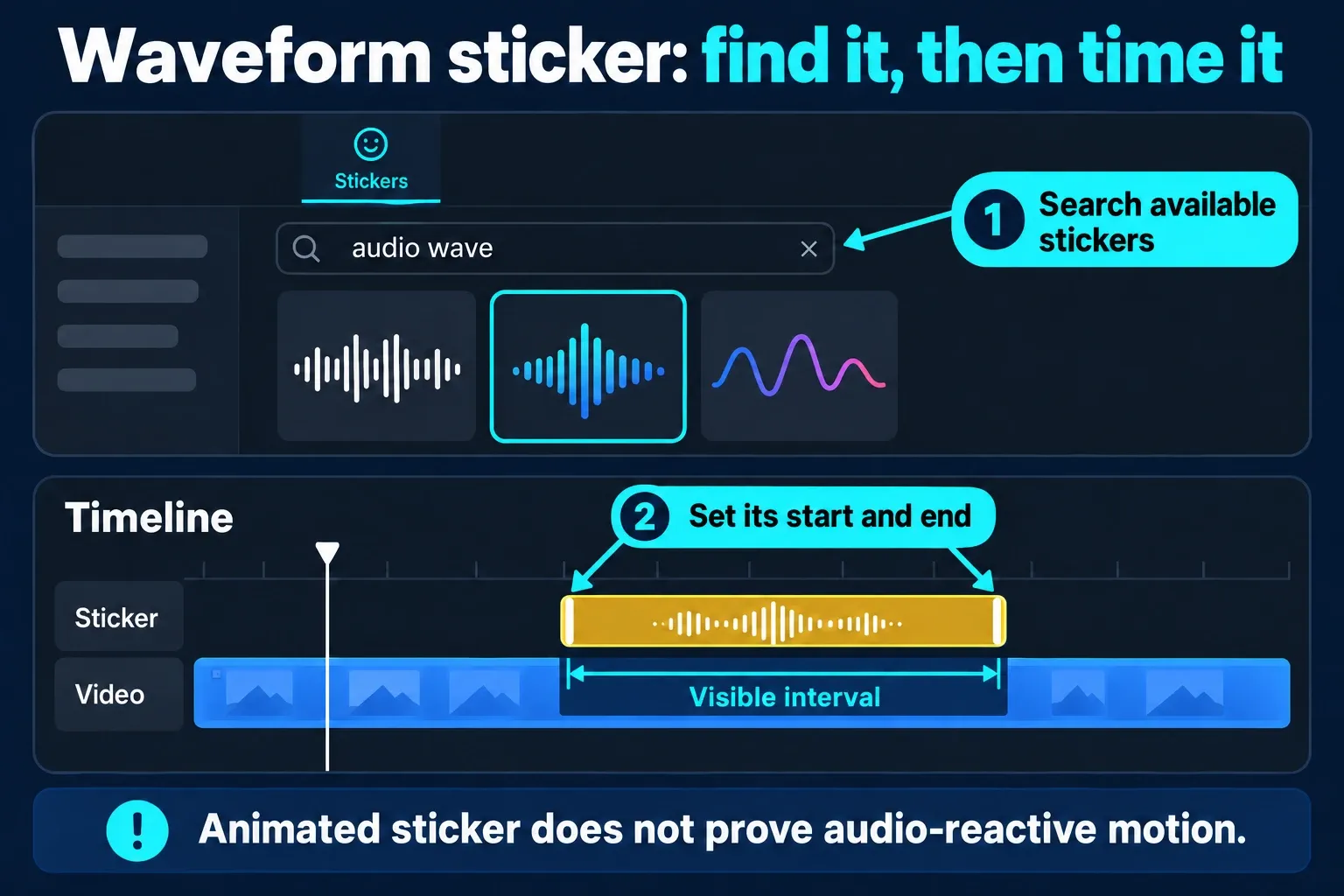
CapCut’s sound-wave guide documents the Desktop route: open Stickers, search for a waveform and drag the sticker you pick onto the timeline. The guide describes animated stickers, and the procedure has no step that binds a sticker to an audio source. Don’t assume a sticker placed above a song will analyze that song.
On Desktop:
- Open the intended project with your background video or image and audio in place. Keep the original media available.
- Open Stickers. If search is offered, try audio wave, waveform or audio spectrum. Inspect what is available in your build rather than relying on one named sticker from an old video.
- Add the chosen item to the timeline. Check any paid-access notice before building the edit around it.
- Select its visual layer and adjust its size and position. Leave room for captions, titles and the destination platform’s controls.
- Align the layer with the section that needs it and set its visible duration using the controls offered for that item. Play the entrance, middle and ending.
On Mobile, find Stickers in the project tools, then search or browse, whichever route your build offers. Select the added item before you change its position or timing. If the entry or search isn’t there, import a suitable visualizer clip instead of hunting for Desktop’s toolbar on a phone.
If responsiveness matters, compare the graphic around an obvious pause and a strong sound. Does the motion relate to those changes, or does it repeat a pattern? The comparison is a useful check, not a universal rule that every style must go completely flat during silence. Some visualizers use smoothing or a designed baseline. Check the item’s documented audio controls when they exist. Visual similarity is not proof of analysis.
Create a visualizer that follows your audio
For a documented audio-driven route, VEED’s music visualizer describes animations based on the uploaded audio. You can make the waveform video there and come back to CapCut for the rest of the edit. Only upload audio you have permission to process in that service. Before you choose that service, check the current export and plan conditions.
The VEED sound-wave instructions give this sequence:
- Create a project and upload the audio or video you want the visualizer to represent.
- Open Elements, find Sound Wave and choose a style.
- Set the graphic’s position, size, color and duration, then preview it with the sound.
- Export and download the video. Review the saved file before importing it elsewhere.
That Help page says the sound waves represent the full project instead of being attached to one specific audio file. If you want only the narration to drive the graphic, use a separate visualizer project containing that narration and keep the background music out of that project.
Start from the audio edit you intend to use, with the cuts and pauses you plan to keep. If you make a significant change to that recording later, regenerate the matching visualizer or change both clips together. A graphic made from the earlier arrangement can’t automatically follow a new cut you make in CapCut.
Bring the waveform video into CapCut and keep it aligned
On Desktop, import the downloaded visualizer video. If you want it as an inset, place it on a track above the background. On Mobile, use Overlay → Add overlay for the same arrangement. CapCut’s multi-platform overlay instructions document both the upper-track and phone-overlay routes. You can also use the visualizer video as the full-frame picture when a full-frame look suits the design.
Select the imported clip, resize and position it, then align its start with the matching audio section. Our overlay guide covers the layer controls in more detail.
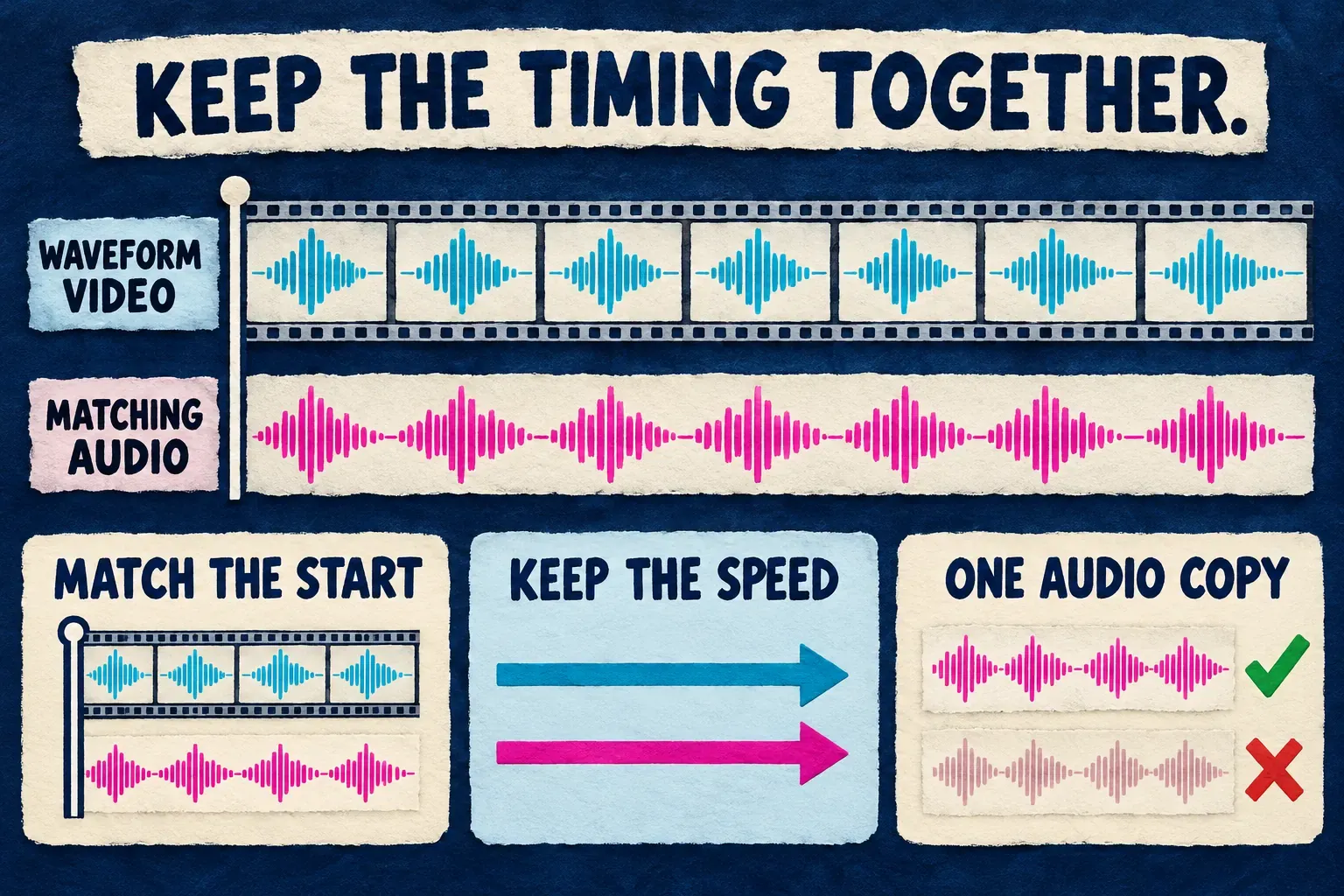
Check these relationships before adding more effects:
- Start: align matching content, accounting for any leading silence or opening graphic in the downloaded file.
- Speed and cuts: leave the related clips at matching playback speed. When trimming a matching section, preserve the same time interval in both.
- Sound: if the imported video includes the audio, decide whether to use that copy or the existing track. Mute the duplicate rather than playing both together. Use the audio-mixing guide if the wider soundtrack needs balancing.
- Background: a visible black or colored rectangle may be part of the rendered file. Do not assume an MP4 arrives with transparent edges. Keep a deliberate inset or full-frame design; the alpha-export guide explains the separate transparency question.
If everything runs consistently early or late, move the matching clip to correct the offset. If the difference grows across the video, investigate speed, duration or the rendered source instead of shifting the start again and again.
Templates and the final export
CapCut’s audio-visualizer catalog is another place to find a look. Open the individual template and check what you can replace, which audio it uses, whether it reacts to your input and what access it requires. A catalog title saying “visualizer” does not answer those questions. Don’t assume a preview animated to its original soundtrack will follow a different recording.
I’d keep the layout restrained: one clear title, enough space for readable captions and a waveform that supports the audio instead of covering the message. Check the rights for the music, artwork and template components. If the result promotes a business, the commercial-use checklist is useful.
Export the finished sequence and play the saved file with sound. Watch for a missing visual layer, motion that ends early, a timing offset, duplicate audio and text hidden by the waveform. Check the ending too. Keep the editable project, the audio and the rendered visualizer file together for later revisions.
For decorative motion, a suitable sticker may be all you need. For motion tied to your recording, choose a documented audio-driven route and keep the timing intact when you bring the result back into CapCut.