


Checked September 23, 2026. CapCut menus and export options differ by platform, region, account and app version. Confirm the codec and transparency controls shown in your own export panel before building a long transparent-video workflow.
Yes, CapCut can remove a video background, but a transparent preview does not guarantee a transparent exported file. A reusable transparent video needs all three of these conditions: the background is removed, the selected codec can carry an alpha channel, and the export screen explicitly preserves transparency.
My practical rule is simple: use CapCut Desktop, make a five-second trial, choose an alpha-capable export only when the option is visible, then re-import the file over a bright color layer. If CapCut offers only MP4/H.264 or no transparency control, treat the export as flattened and use a green-screen handoff or finish the alpha export in another editor.
Why the checkerboard preview is not proof of alpha
A checkerboard in an editor means the canvas is showing empty pixels. It does not tell you what the encoder will write into the final file. The export can still flatten those pixels onto black, white or another background.
CapCut's own guide to transparency and alpha channels makes the same distinction: a mask can create a clean cutout, but transparency can disappear during export, compression or upload. The reliable question is not “Does the preview look transparent?” It is “Does this exact exported stream contain an alpha plane that the next app can read?”
That is why a screenshot of a checkerboard or a file ending in .mov is incomplete evidence. The stream inside the container and the export setting decide what survives.
Remove the background first
On CapCut Desktop, the currently documented automatic route is:
- Create a project and import the clip.
- Select the clip on the timeline.
- Open Video → Remove BG → Auto removal in the right panel.
- Wait for the subject mask to finish.
- Inspect hair, motion blur, fingers and fast edges at several points in the clip.
- Correct the source or mask before thinking about export.
The route comes from CapCut's current video background remover instructions. Names can move between releases, so use the equivalent background-removal control if your build is arranged differently.
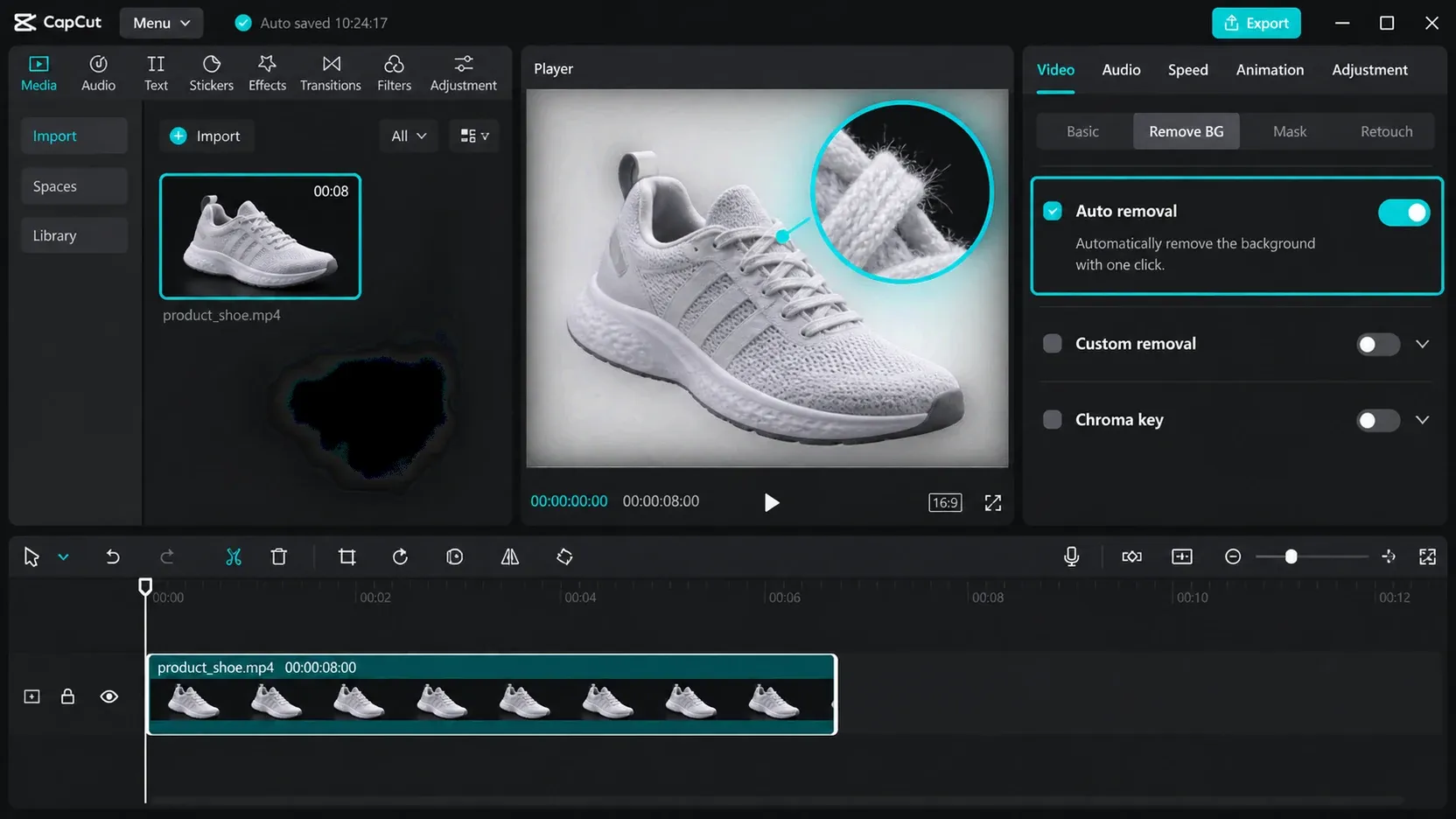
A clean mask is only the first gate. If fine hair flickers or a soft edge disappears before export, an alpha-capable codec will preserve the bad mask faithfully. Check several frames instead of judging one still image.
Container, codec and transparency option are three different choices
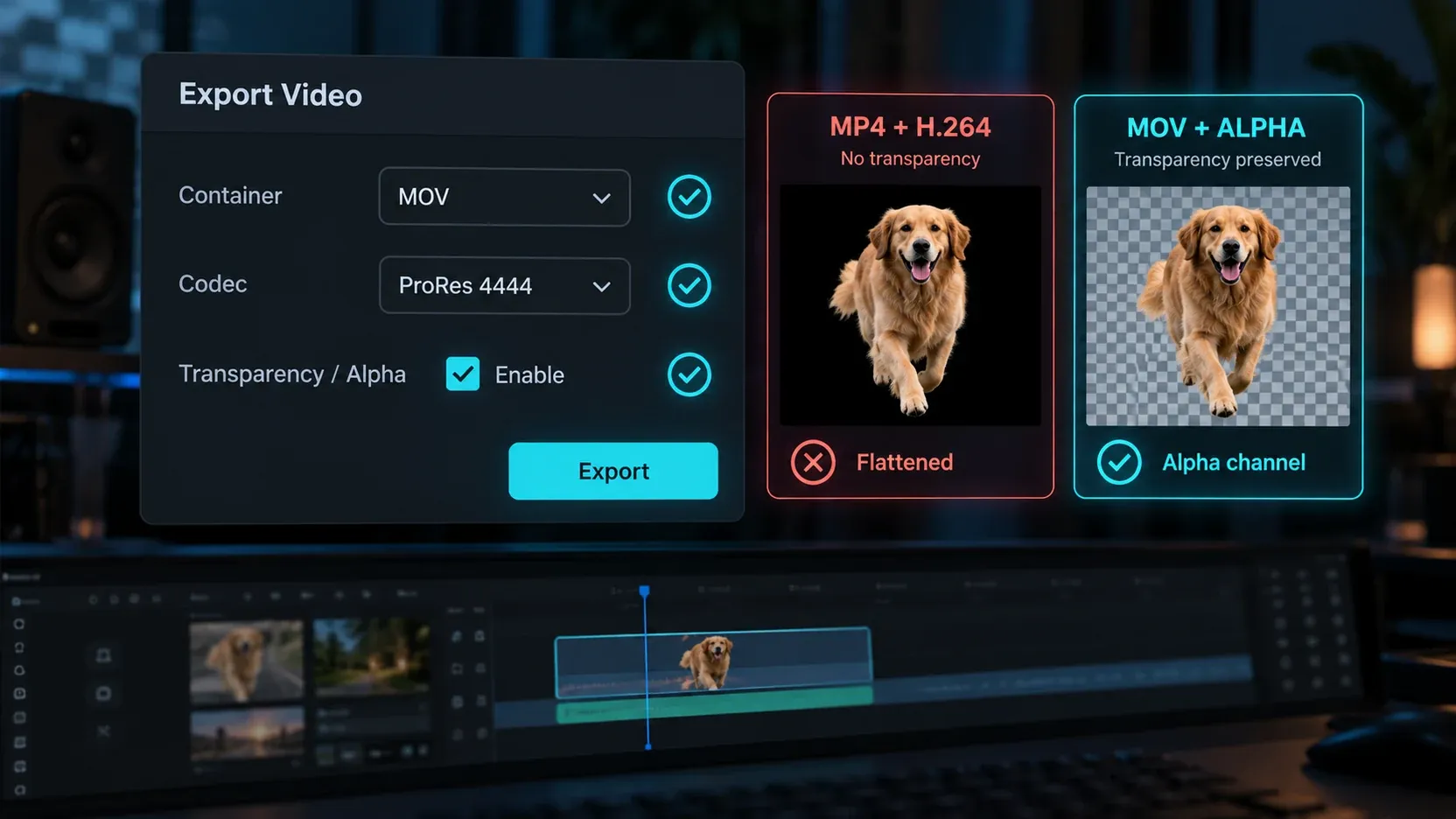
An export filename can hide the detail that matters. MOV is a container. It can hold different video codecs, some with alpha support and some without it. MP4 is also a container, and the ordinary H.264 export used for social delivery should be treated as flattened for this task.
Inside the export panel, look for three separate pieces of evidence:
- a container offered by the app;
- an alpha-capable codec or format;
- a visible transparency or alpha option.
If one is missing, do not infer it from the extension.
Which formats can preserve transparency?
| Delivery choice | Can carry alpha? | When it makes sense | What to verify |
|---|---|---|---|
| ProRes 4444 / 4444 XQ in MOV | Yes | High-quality handoff to a desktop editor or motion-graphics workflow | CapCut actually offers the codec and alpha option; the destination imports it correctly |
| HEVC with alpha | Yes, in supported Apple workflows | Smaller delivery files inside compatible Apple software and devices | The receiving OS, player and app support HEVC alpha |
| WebM with alpha | The format can | Web and tools that explicitly support WebM alpha | CapCut exposes a real WebM-alpha export and the browser or app reads it |
| MP4 / H.264 | Do not rely on it | Normal flattened social delivery | Expect a solid background; use it after compositing is complete |
| Green-screen video | No embedded alpha | Fallback when the next editor can chroma-key but CapCut cannot export alpha | Edge spill, compression blocks, semitransparent details and the key color |
Apple's ProRes technical paper says only ProRes 4444 and ProRes 4444 XQ in the ProRes family support alpha, with mathematically lossless alpha-channel storage up to 16 bits. A menu that says only “ProRes” is not enough; confirm the 4444 variant.
Apple also documents HEVC video with alpha as a way to carry transparency in a more compact delivery file. It is not a universal interchange promise. Check the receiving player and editor before choosing it for a client or cross-platform handoff.
The WebM project documents an alpha channel for WebM video, while its container documentation explains the format family. That proves the format can hold transparency; it does not prove that the current CapCut build writes WebM alpha. Require an explicit export option and a successful re-import.
Make a five-second trial before the full export
Do not discover a flattened background after a 20-minute render. Build a short sample that includes the hardest edge in the source:
- Put the playhead where hair, fabric, smoke, glass, motion blur or a fast hand movement is visible.
- Export five seconds with the intended container, codec and transparency setting.
- Give the file a clear name such as
alpha-test-prores4444.mov. - Close the export dialog and test the file as a new asset.
The trial should use the same settings planned for the final handoff. A low-resolution draft with a different codec does not validate the final route.
Re-import over a vivid color layer
The fastest useful check is a second timeline:
- Create a new project or an empty section away from the original composition.
- Add a solid magenta, lime or bright blue background to the lower track.
- Place the exported test file above it.
- Scrub frame by frame around difficult edges.
- Repeat over black and white if the subject has bright or dark detail.
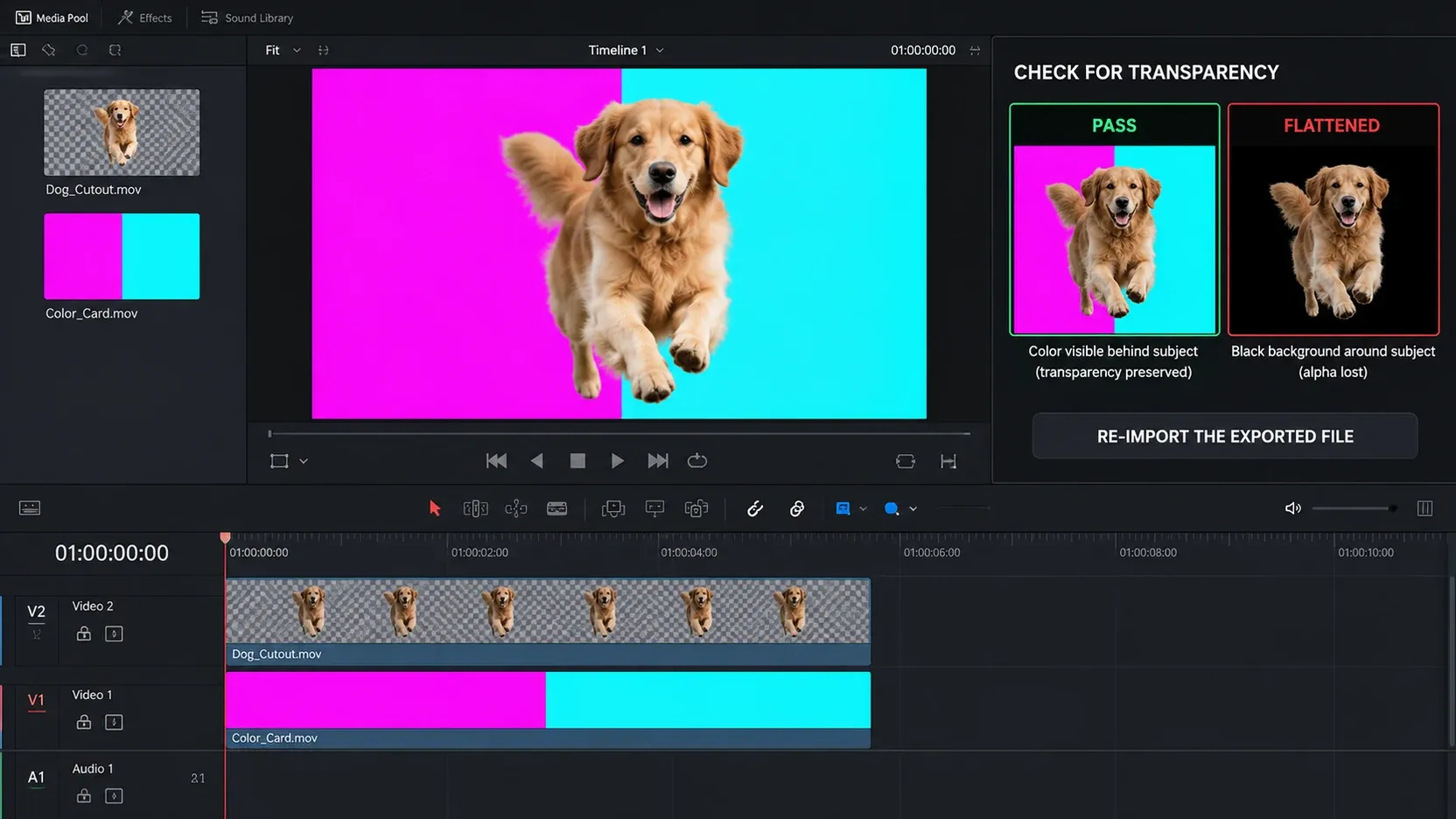
A correctly interpreted alpha file reveals the lower color wherever the subject is absent. A black or white rectangle means the export was flattened or the receiving app ignored its alpha. A thin colored outline points to mask contamination or chroma spill. Jagged edges and block noise usually need a cleaner mask, less destructive compression or a better interchange codec.
For another practical compositing workflow, the CapCut overlay guide explains track order and positioning. Use the overlay test as validation, not as evidence that the file format contains alpha.
Desktop, mobile and web are not interchangeable
CapCut Desktop is the best place to attempt this workflow because it is the platform most likely to expose codec and export controls. Even there, do not promise yourself a transparent file until the option appears in the current export panel.
On CapCut Mobile and CapCut Web, background removal may be available while transparent video export is absent, simplified or account-dependent. If the interface offers only a normal MP4 download, assume the output is flattened. Do not rename the extension to MOV; renaming does not change the encoded stream.
When transparent export is essential and the option is missing, choose one of these routes:
- export with a clean, unique green background and key it in the destination editor;
- export the subject as an image sequence with transparency only if both CapCut and the destination explicitly support that route;
- move the project or source clip to an editor that exposes a documented alpha-capable codec;
- composite the final background inside CapCut and deliver a normal flattened file.
The right route depends on what happens next. A social upload usually needs a finished MP4, not a transparent master. A lower third, logo animation or reusable product cutout needs an interchange file that another editor can place over footage.
Avoid the two common false fixes
Renaming MP4 to MOV
Changing the filename does not transcode H.264 into ProRes 4444 or add an alpha plane. Inspect the export choice, not the suffix.
Exporting a black background and using a blend mode
Screen or Add can hide black around bright graphics, but that is not true transparency. Dark details disappear, edges can glow and the file will fail as soon as the design contains shadows or dark colors. Blend modes are a creative composite, not a replacement for alpha.
If the file must travel between apps, confirm the actual video and audio streams with the destination app or a media-inspection tool. The CapCut supported formats guide explains why container names alone do not predict whether a file will import correctly.
Transparent-video export checklist
Before the final render, confirm:
- the subject mask is clean across motion, hair and semitransparent edges;
- the export panel names an alpha-capable codec, not just a container;
- a transparency or alpha option is visibly enabled;
- the five-second trial re-imports over a vivid layer without a rectangle;
- black and white backgrounds reveal no unacceptable fringe;
- the destination app supports the chosen codec and alpha mode;
- the final resolution, frame rate and color handling match the receiving project;
- the normal social MP4 is created only after the final background has been composited.
For non-transparent delivery, use the CapCut export quality guide to separate source, timeline and encoding problems. If you are still choosing the final delivery format, the export recommender gives a task-based route.
The practical recommendation
Remove the background in CapCut Desktop, then treat transparent export as a separate technical handoff. Choose ProRes 4444 when the current build offers it and the destination accepts it. Consider HEVC with alpha only inside a verified compatible Apple workflow. Treat WebM alpha as conditional on a real export option, and treat MP4/H.264 as a flattened final-delivery format.
Most of all, re-import a short trial over a bright color before rendering the complete clip. That one check tells you more than the checkerboard preview, the .mov extension or a tutorial recorded on a different CapCut version.