

Checked September 21, 2026. Features, prices and system requirements can change, and CapCut availability varies by platform, account, plan and region. Apple prices below refer to the US storefront checked on this date.
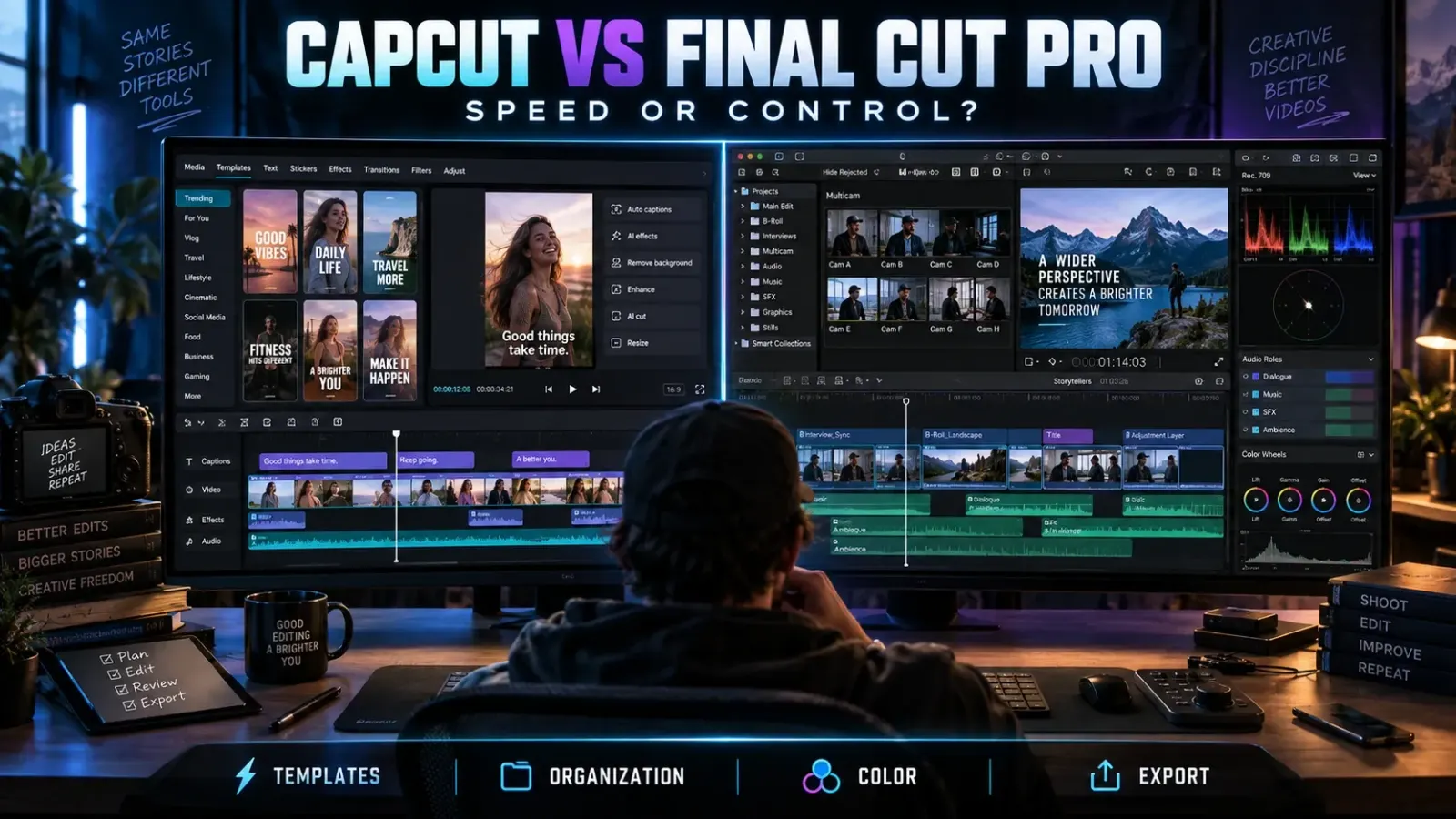
CapCut is the better choice when the job is to turn footage into a polished short video quickly. Its templates, automatic captions, effects and cross-device reach reduce setup time. Final Cut Pro is the better choice on a Mac when the project needs durable media organization, multicam editing, deeper audio and color control, plugins, repeatable exports or a timeline you expect to revise for weeks.
The practical dividing line is not “beginner versus professional.” It is speed versus control. A skilled creator can make strong work in CapCut, and a new editor can be overwhelmed by Final Cut Pro. Choose the workflow that removes the biggest obstacle in the project you actually have.
Fast answer: choose CapCut for short-form, template-led and mobile-friendly work. Choose Final Cut Pro for long or complex Mac projects that need organized libraries, multicam, roles, plugins and controlled delivery. If neither description fits, compare DaVinci Resolve before paying for a new workflow, or use the video editor comparisons hub to narrow the field.
CapCut vs Final Cut Pro at a glance
| Decision | CapCut | Final Cut Pro |
|---|---|---|
| Best fit | Fast social, creator and template-led videos | Long-form, multicam and repeatable Mac productions |
| Platforms | Windows, macOS, mobile and web routes; features vary | Mac and iPad, with meaningful differences between editions |
| Learning curve | Faster start for familiar social editing | More concepts to learn, especially libraries, events, roles and the Magnetic Timeline |
| Captions | Fast automatic-caption workflow | Generate Captions plus deeper project and delivery tools |
| Templates and effects | A central strength | Strong titles, effects and third-party templates, but less template-first |
| Media organization | Enough for smaller projects | Libraries, events, keywords, favorites, collections and search |
| Multicam | Not the main reason to choose it | A core documented capability |
| Color | Curves, color wheels, filters and adjustments | Color wheels, curves, masks, LUTs and HDR/SDR tools |
| Audio | Quick creator-oriented controls | Roles, components, mixing support and organized exports |
| Extensions | Built-in ecosystem and plan-dependent assets | Large plugin and template ecosystem plus XML workflows |
| Price model | Free and paid options vary by account, platform and region | $299.99 one-time on the checked US Mac App Store, or included in Apple Creator Studio subscription |
Choose CapCut when publishing speed matters most
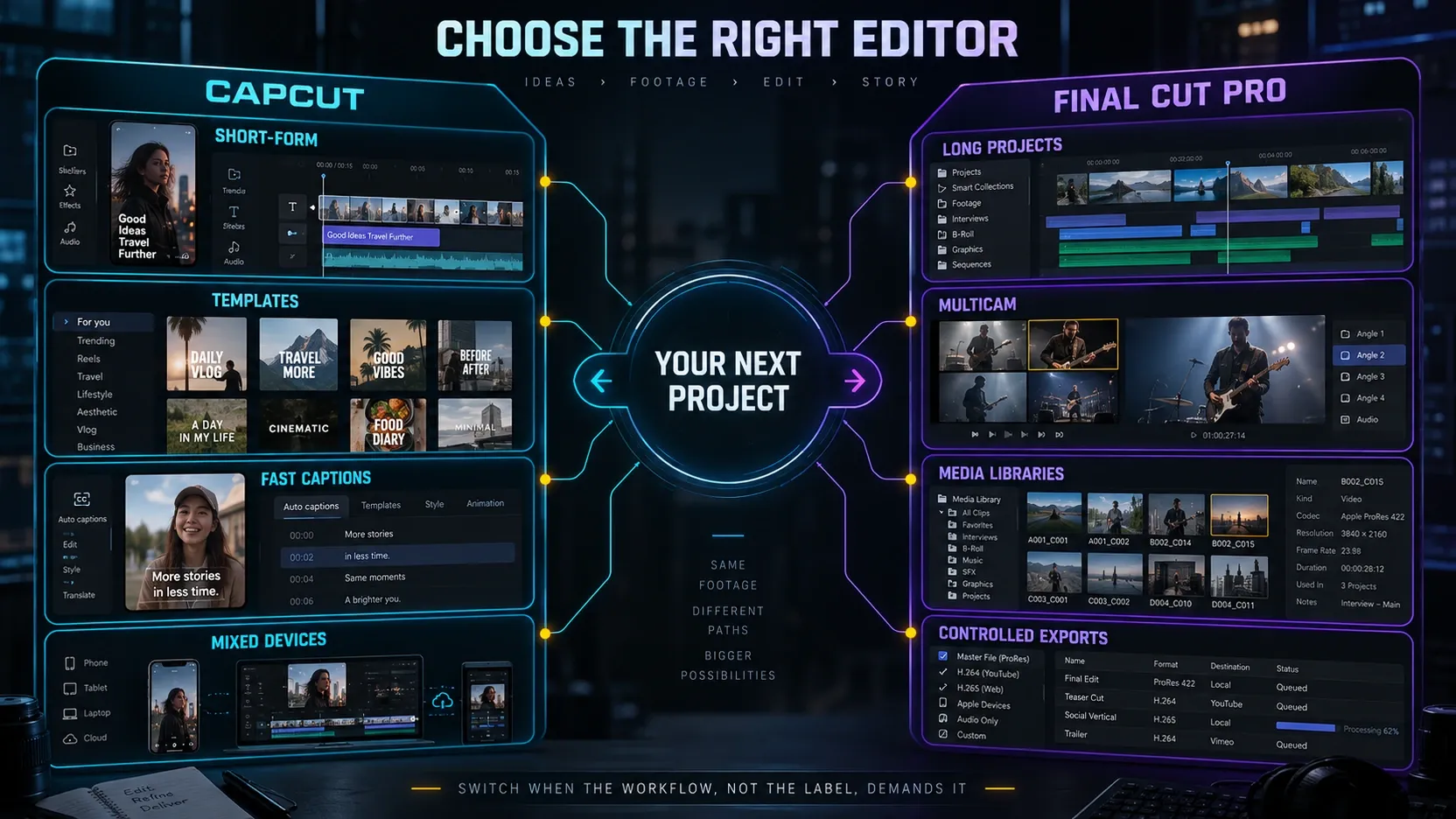
CapCut removes several early decisions. The editor puts templates, effects, transitions, automatic captions and creator-oriented tools close to the timeline. That makes it well suited to a vertical video that needs a hook, captions, music, motion and an export before the idea goes stale.
Its platform reach also matters. A creator can begin on a phone, use a browser workflow or move to the desktop application, depending on the features available to that account and build. Final Cut Pro is an Apple workflow. If a collaborator edits on Windows or the project must stay practical on a phone, CapCut starts with a structural advantage.
CapCut is usually the more rational choice for:
- short social videos with a fast turnaround;
- template-based edits where the look is already defined;
- automatic captions that need quick styling;
- creators moving between mobile and desktop;
- simple one-person projects with a manageable number of clips;
- an editor who wants to learn timing and storytelling before building a heavier media-management system.
That does not make CapCut a toy. The official CapCut Desktop page documents keyframes, curves, color wheels, effects, transitions and caption tools. The limitation appears when the project stops being one timeline and starts behaving like a production: multiple shoots, alternate cuts, several cameras, reusable media, versioned deliveries and revisions months later.
If the paid tier is part of your decision, check the offer shown for your platform and region, then compare it with our current CapCut pricing guide and CapCut Pro value breakdown. Do not assume a price quoted for another country, account or app store is the price you will pay.
Choose Final Cut Pro when the project must stay organized
Final Cut Pro earns its place through workflow depth. Apple's Final Cut Pro user guide documents libraries, events, keywords, favorites and search for organizing media. Those tools matter after a project grows beyond the point where filenames and timeline memory are reliable.
The Magnetic Timeline is another major difference. Connected clips and storylines change how edits ripple and stay attached. Editors coming from a fixed-track timeline need time to understand it, but the model can make complex revisions cleaner once the logic becomes familiar.
Final Cut Pro is the stronger fit when you need:
- multicam editing for interviews, podcasts, events or performances;
- libraries that can hold related projects and reusable media;
- keywords, favorites and collections for finding shots quickly;
- audio roles and organized audio delivery;
- color wheels, curves, masks, LUTs and HDR/SDR handling;
- third-party plugins and templates that extend the editor;
- XML exchange with other post-production tools;
- separate, preset or batch export paths for recurring deliverables.
These features do not automatically improve a video. They reduce friction when the production itself becomes complicated. A 25-second reel may gain nothing from a library strategy. A documentary assembled from several shoots can become expensive to manage without one.
Where the two editors look similar — and where they are not
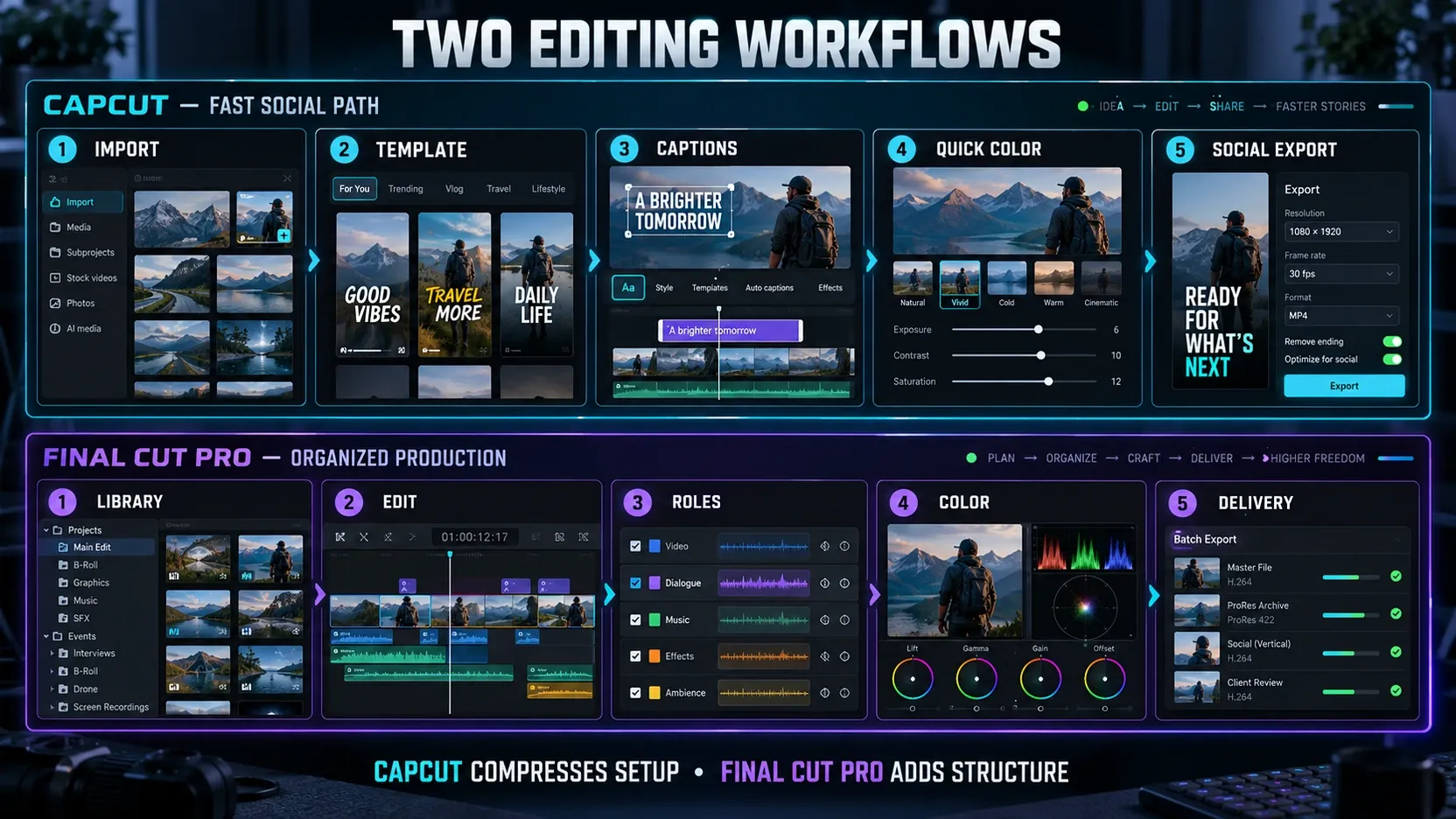
A feature checklist can make CapCut and Final Cut Pro appear closer than they feel in use. Both can trim clips, add titles, generate captions, adjust color, keyframe movement and export a finished file. The difference is how those tools connect across a project.
Captions
CapCut treats captions as part of a fast social workflow. Generate them, style them and place them close to the visual edit. Final Cut Pro also documents caption generation, but it sits inside a system designed for larger timelines, project organization and controlled delivery.
If captions are the main job, CapCut is usually faster to justify. If captions are one part of a long episode with organized media, multiple audio roles and several exports, Final Cut Pro has the stronger surrounding workflow.
Templates and effects
Templates are one of CapCut's clearest advantages. They can compress an edit into media replacement and text adjustment. That is valuable when consistency and speed matter more than building the motion language from scratch.
Final Cut Pro supports titles, effects, templates and a broad plugin ecosystem. It gives an editor more room to build a reusable system, but that system takes setup and judgment. Buying a professional editor does not remove the need to choose good typography, pacing and effects.
Color and image finishing
CapCut documents curves and color wheels, and it offers fast filters and adjustments. That is enough for many creator projects. Final Cut Pro goes further with masks, LUT workflows and HDR/SDR tools documented by Apple. The advantage becomes meaningful when shots from different cameras must match, a look needs selective correction, or delivery specifications matter.
Audio
CapCut is built for fast voice, music and effect decisions. Final Cut Pro's roles and component-based organization are more useful when dialogue, music, ambience and effects need separate treatment or delivery. This is one of the quiet signals that a project has outgrown a social-first editor.
Media organization
CapCut keeps small projects approachable. Final Cut Pro asks the editor to think about where media belongs. That feels slower at first, then pays back when the same interview, B-roll library or graphic package appears across several edits.
When CapCut starts to feel too small
Do not switch because a video did well or because “professional” software sounds more serious. Switch when the current workflow creates repeatable costs.
CapCut is becoming tight when:
- you repeatedly lose time searching for clips or rebuilding bins and selections;
- several camera angles must stay synchronized;
- one project needs many versions, aspect ratios or delivery presets;
- audio categories must be separated for mixing or handoff;
- color work needs masks, shot matching or managed HDR/SDR decisions;
- a plugin or XML-based handoff is central to the job;
- old projects must remain understandable months later;
- collaborators expect a more formal post-production pipeline.
One difficult edit is not proof that you need another application. A pattern across several projects is stronger evidence.
When Final Cut Pro is too much
Final Cut Pro can also be the wrong tool. It requires a compatible Apple device, a financial commitment and time to learn a different editing model. The current US Mac App Store listing shows $299.99 as a one-time purchase and lists macOS 15.6 or later for the current version. Apple also notes that some features require Apple silicon. Check the current Mac App Store listing before buying because requirements can change.
Apple Creator Studio offers another route. On the US page checked for this article, it costs $12.99 per month or $129 per year after the trial and includes Final Cut Pro for Mac and iPad, Motion and Compressor on Mac, plus other Apple creative apps. That can make sense if several included applications matter. It is poor value if the subscription exists only to avoid deciding whether you need Final Cut Pro.
Final Cut Pro is probably excessive when:
- most videos are under a minute and follow a repeatable social format;
- templates supply most of the visual structure;
- edits happen mainly on Windows, Android or across mixed devices;
- the project has few clips and one delivery file;
- the editor does not need multicam, libraries, roles, plugins or XML;
- learning the Magnetic Timeline would delay work without removing a current bottleneck.
Mac users who want a simpler Apple editor should also compare our iMovie review before committing to Final Cut Pro.
The real cost of moving from CapCut to Final Cut Pro
The purchase price is only the visible part. The switch also costs attention.
Learning cost
The Magnetic Timeline, connected clips, libraries, events, keyword collections and roles require new habits. Plan to rebuild a familiar short project first. Do not make the first Final Cut Pro project a deadline-critical client delivery.
Media cleanup
CapCut projects often grow around imported copies, downloads and app-managed assets. Before moving, gather original footage, music, graphics, fonts, licenses and final exports into a project folder you understand. A new editor cannot repair missing source files or unclear rights.
Timeline rebuilding
Do not plan around direct CapCut-to-Final Cut Pro project conversion. No reliable official conversion path was established for this guide. Export a clean master for reference, preserve source media and rebuild active timelines in Final Cut Pro when further editing is required.
Template replacement
A CapCut template, effect or paid asset may not exist in Final Cut Pro. Identify which visual choices are essential and which can change. Recreating every animation exactly can cost more than designing a cleaner replacement.
Delivery changes
Document the resolution, frame rate, color treatment, caption format and destination for each recurring output. Final Cut Pro gives more delivery control, but more choices create more ways to produce the wrong file if the specification is vague.
A safer CapCut-to-Final Cut Pro migration plan
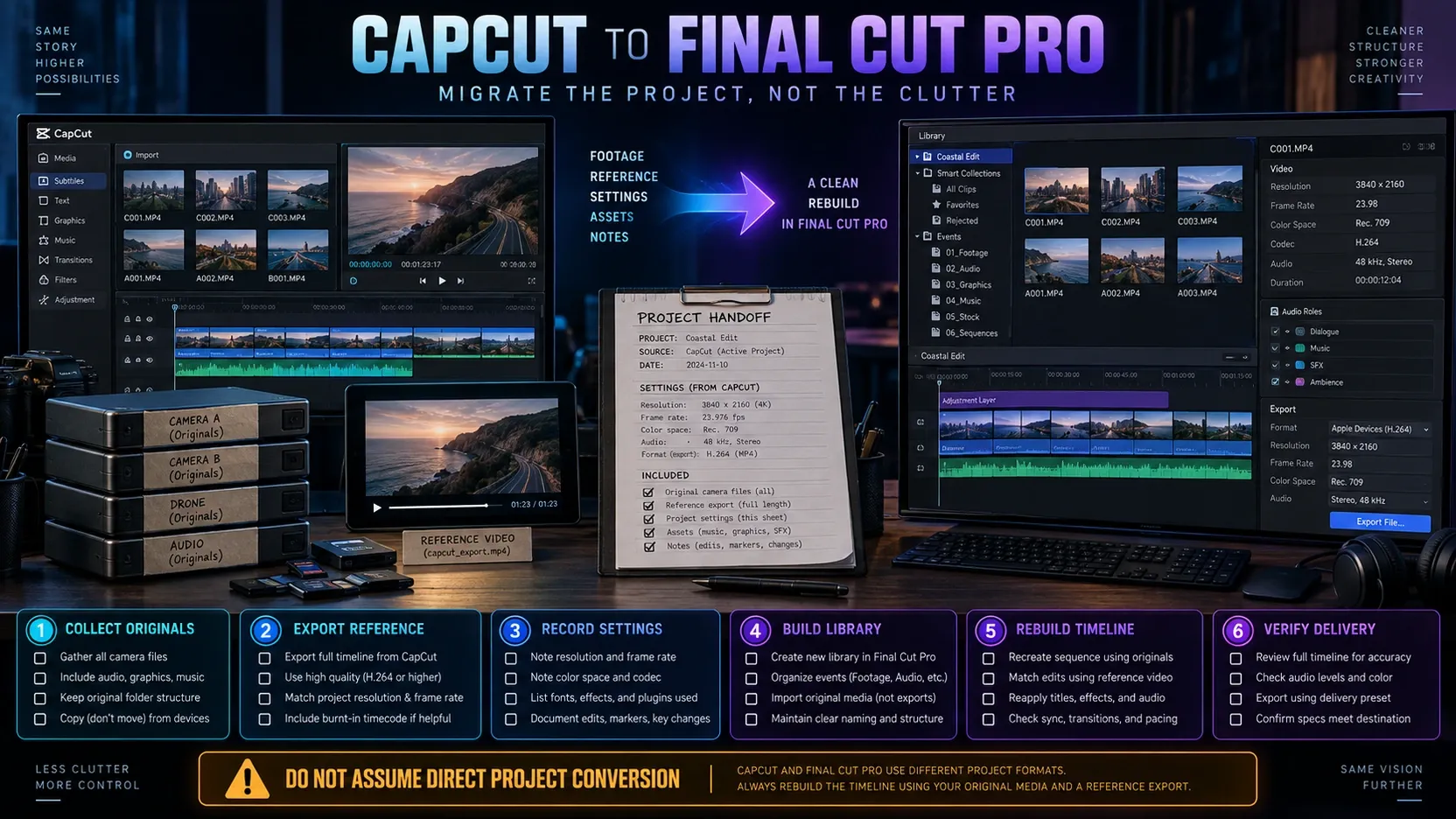
Use a staged move instead of transferring every old project at once:
- Choose one representative project. Pick a finished short video with captions, music, a few effects and a clear export target.
- Collect original media. Copy source video, audio, graphics, fonts and license information into a stable folder.
- Export a reference master. Keep a high-quality finished file and a viewing copy so timing, text and visual choices remain visible.
- Record project facts. Note frame rate, resolution, aspect ratio, caption text, fonts, colors and any effect that must be recreated.
- Build a Final Cut Pro library. Create a simple event structure and import the source media deliberately.
- Rebuild the edit. Recreate the timeline, captions, audio and color decisions instead of expecting project translation.
- Compare the result with the reference. Check timing, crop, text, audio levels and export settings.
- Move only active work. Archive completed CapCut projects with their source assets and masters. Rebuild an old timeline only when a real revision requires it.
Keep CapCut installed during the transition if your existing account and license allow it. The goal is a controlled move, not an artificial one-day cutoff.
Can CapCut and Final Cut Pro work together?
Yes, if each editor has a defined job. CapCut can remain the fast route for template-led social versions, while Final Cut Pro holds the organized long-form master. Another practical setup is to finish the main edit in Final Cut Pro, export a clean file, then create platform-specific social treatments in CapCut.
The weak version of this workflow is passing compressed files back and forth repeatedly. Each handoff should have a purpose. Preserve camera originals and the main project, then create deliberate exports for the next stage.
If CapCut remains your main editor, our CapCut for Mac guide and CapCut tutorial hub cover the workflow without forcing a software change.
CapCut vs Final Cut Pro FAQ
Is Final Cut Pro better than CapCut?
Final Cut Pro is better for complex Mac projects that need libraries, multicam, roles, plugins, deeper finishing and controlled exports. CapCut is better for many short-form projects because it reaches a polished social result faster and works across more device types. “Better” depends on the production cost each editor removes.
Is CapCut good enough for professional work?
CapCut can be good enough for paid social content, creator work and fast promotional edits when its platform, asset and delivery limits fit the job. Professional work is defined by the result and the reliability of the process, not the application name. Final Cut Pro becomes more useful when the process needs durable organization, multicam, formal audio roles, plugins or repeatable delivery.
Can I open a CapCut project in Final Cut Pro?
Do not assume direct project compatibility. Preserve the original media, export a reference master and rebuild any timeline that still needs active editing. This avoids depending on an unsupported conversion path and gives you a clean media structure in Final Cut Pro.
Is Final Cut Pro a one-time purchase?
The US Mac App Store listing checked September 21, 2026 shows Final Cut Pro for Mac at $299.99 as a one-time purchase. Apple also includes Final Cut Pro in Apple Creator Studio, which uses a subscription. Prices, taxes, trials and availability can differ by region, so verify the storefront you will use.
Is Final Cut Pro available on Windows?
No. Apple's current product page offers Final Cut Pro for Mac and iPad. Windows users who have outgrown CapCut should compare a cross-platform editor such as DaVinci Resolve instead of building a plan around Final Cut Pro.
Is Final Cut Pro for iPad the same as Final Cut Pro for Mac?
Treat them as related but distinct applications. Apple presents both under the Final Cut Pro name, but device interfaces, workflows and feature availability differ. Confirm the exact iPad workflow you need before assuming a Mac tutorial or plugin applies.
Final recommendation
Stay with CapCut when it lets you publish consistently without losing control of media, captions, assets or delivery. Its speed is a real production advantage, especially for short-form work.
Move to Final Cut Pro when the problems are no longer about learning another effect and are instead about organizing footage, synchronizing cameras, separating audio, matching shots, extending the editor or delivering several reliable versions. Make the move with one representative project, keep a reference master and rebuild only work that still has value.
That approach turns the software decision into a workflow decision. It also prevents an expensive editor from becoming a new obstacle instead of a solution.