


Short answer: Descript is a better CapCut alternative when your videos start as conversations, screen recordings, lessons or podcasts and the fastest edit is the one you can make by changing a transcript. CapCut is still the better fit for phone-first social edits, animated captions, templates and trend effects. Descript saves time on the story edit, but it doesn't replace CapCut's social packaging.
This review covers Descript's current desktop and browser workflow: transcription, text-based cuts, AI audio, scenes, captions, collaboration, export and the media-minute/AI-credit model. Everything here was rechecked on September 4, 2026 against Descript's live pricing matrix and current help pages. Prices are a US snapshot, so confirm the total for your country, billing cycle and tax before you pay.
Facts at a Glance
| Question | Current answer |
|---|---|
| Best fit | Talking-head videos, podcasts, interviews, screen recordings, courses and teams reviewing a cut in a browser. |
| Editing model | Edit the transcript and Descript cuts the linked audio/video non-destructively; scenes and a timeline handle layouts and timing. |
| Free plan | $0 with 60 media minutes per month, 100 one-time AI credits and 720p video export with a Descript watermark. |
| Paid snapshot | Hobbyist $16 with annual billing/$24 monthly per person; Creator $24/$35; Business $50/$65. US pricing checked September 4, 2026. |
| Usage model | Plans include media hours and AI credits. Uploads/recordings consume media minutes; Underlord and enhancement tools consume AI credits. |
| Platforms | Desktop app and supported Chromium browsers. Mobile editing is not officially offered; a phone can upload media. |
| Export | Local video, audio, GIF, text and subtitle export plus shareable web pages and publishing connections; plan controls resolution and watermark boundaries. |
Quick Verdict: Descript Wins the Talking-Video Edit
Descript’s strongest idea is also its clearest test: if you can identify the words you want to remove, you can remove the matching video without scrubbing a timeline for every pause. The transcript becomes a practical edit list. Delete a sentence, tighten a paragraph, move a phrase or find every mention of a topic, then check the cut in the preview. For a 30-minute interview, that is a different kind of speed from a template or a one-tap effect.
That advantage has a shape. Descript is unusually good at dialogue, narration and screen recordings. It's comfortable with a producer who comments on a line of the script, a guest reviewing a web link, or a teacher turning one recording into several lessons. It's less convincing when you need a highly animated vertical Short made on a phone, a trending caption style or a big library of social templates. CapCut's mobile and web workflow is built for those moments, and our CapCut alternatives guide maps the wider field.
My verdict depends on what you're editing. Choose Descript when the spoken content is your raw material and revision is the bottleneck. Keep CapCut when publishing speed, kinetic captions and trend-led packaging matter more than transcript control. Plenty of creators can use both: Descript for the story edit, CapCut for the final social version.
What Descript Is in 2026
Descript is a text-based video editor with desktop and browser versions. You import or record audio/video, Descript builds a transcript, and that transcript sits beside a preview and a timeline. It's more than a transcription window now. Descript’s getting-started guide describes recording, Rooms, imported media, AI Speakers and scenes for split-screen, picture-in-picture, title cards and outros.
What sets it apart from a conventional NLE isn't a missing timeline. The timeline's still useful for timing, music, B-roll and layout. What changes is that you can make the first rough cut in words. A producer can read a transcript, remove a repeated answer and leave a comment without learning every trim tool. A solo creator can turn one podcast recording into a clean long-form cut, a short excerpt and a written transcript before touching a caption preset.
Underneath, the workflow is cloud-shaped. You upload or record media, transcription and several AI operations run online, and projects can be opened in a browser. That makes review and handoff convenient. It also makes internet access, account permissions, cloud storage and usage limits part of the product decision. Treat Descript as a connected desktop/web editor, not as a completely offline phone app.
The “Edit Like a Doc” Workflow
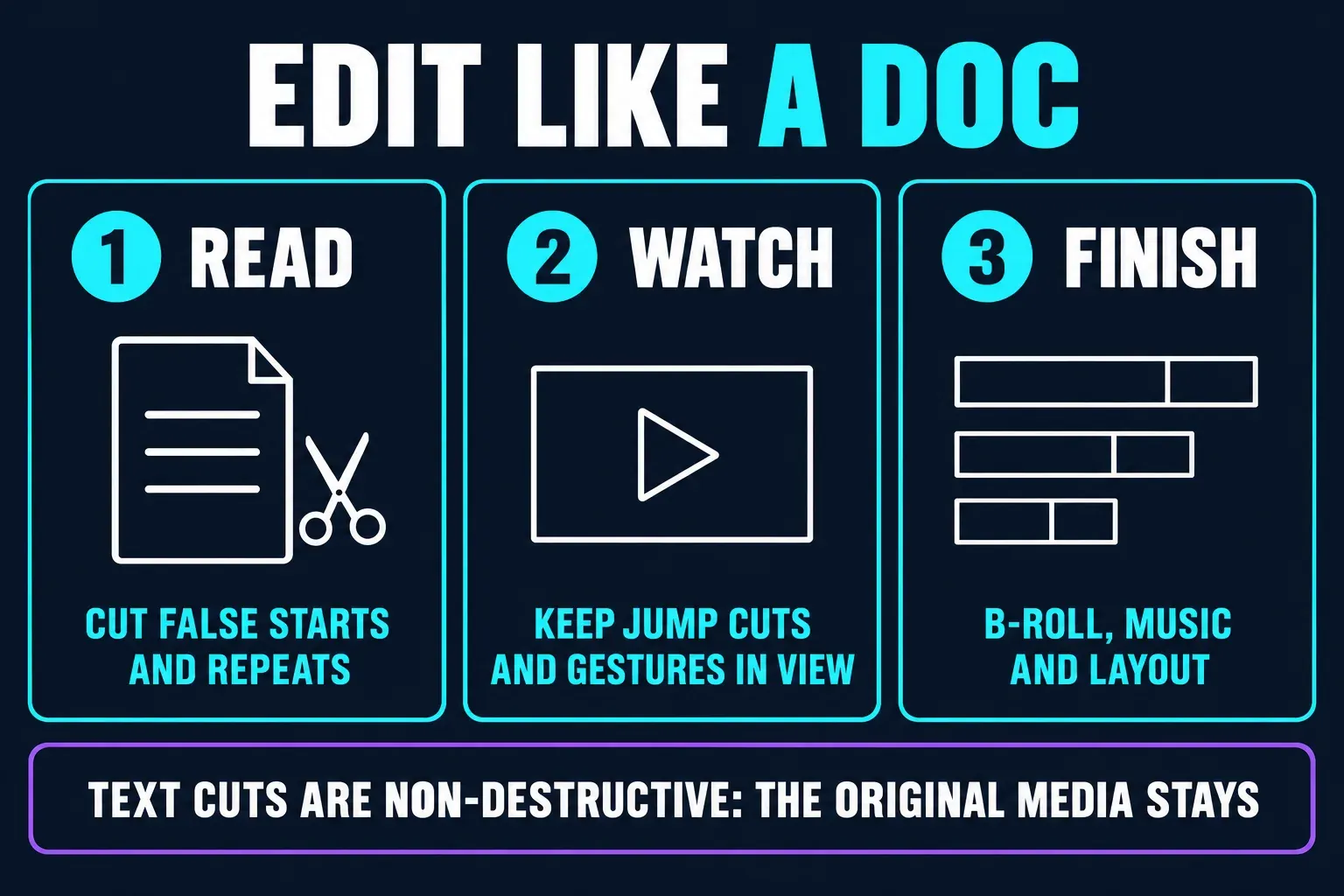
Open a recording and the transcript is the first place you cut. According to Descript’s inline-notes documentation, deleting, moving or copying transcript text changes the linked audio and video non-destructively. When a cut needs to be shorter or a speaker needs a breath, the wordbar gives you a small timing control. Your original media stays available, which is reassuring when an automatic cut goes too far.
The workflow comes down to three passes. First, read for meaning: cut false starts, repeated answers and the long detour that made sense while recording but not in the final piece. Second, watch for rhythm, because a transcript can hide a jump cut, a hand gesture or a visual beat that needs to stay. Third, finish on the timeline: place B-roll, adjust scenes, balance music and check the first and last frame. Descript makes the first pass faster. It doesn't make editorial judgment automatic.
This model shines with interviews, since you can search the script for names, topics and repeated phrases. It's also handy for a screen recording where the narration tells you exactly where a mistake happened. With music, non-verbal action and fast overlapping dialogue, it's less magical. The text is an index into the media. It can't fully describe what the viewer sees.
Transcription Accuracy and Correction
Descript's automatic-transcription guide names the variables that matter: microphone quality, background noise, accents, overlapping speakers and the selected model. The current pricing matrix lists transcription in 25 languages and detection for eight or more speakers. That's a list of capabilities, not a promise of equal accuracy. Speech turns into editable text that can drive captions and search, but names, jargon, speaker labels and timing still need a human pass. Music and song lyrics aren't a supported speech-transcription use case, and files longer than 15 hours fail automatic transcription.
Speaker labels are a useful start. They don't prove that every line belongs to the right person. In a two-person podcast, scan the handoffs and correct names before you export captions or a transcript. Give the same check to any guest who says a product name, a URL or a technical term. Search is only as reliable as the transcript's spelling, and one caption error can make a polished video look careless.
There's a second accuracy question: whether a text cut preserves the picture. A filler word may be harmless when the speaker is on camera but awkward when the edit jumps to B-roll. After a heavy text pass, watch the cut with sound. Descript's non-destructive model lets you restore or adjust a line, but you still need to audition the edit.
For social videos, CapCut's auto-captions workflow is often faster, since it starts closer to animated, platform-ready text. Descript is stronger when you want the transcript to stay the source of the edit and the caption copy, and then style the finished scenes with restraint.
AI Audio, Filler Words and Underlord
Descript's AI tools earn their place when they shorten a repetitive cleanup pass. Remove Filler Words can detect words such as “um,” “uh” and “you know,” then let you preview and handle each suggestion. The current help page describes it as an English-transcript feature, so the earlier five-language claim no longer holds. Use it as a suggestion system. It's no reason to erase every hesitation.
Studio Sound goes after the harder problem: a voice recorded in an ordinary room. Underlord can help with editing and refinement, and other AI tools cover eye contact, green screen, AI speech and generated media. The current usage guide says Studio Sound and Remove Filler Words scale with the job but stop at a 30-credit ceiling per file and tool application. Thirty is the maximum, not a fixed charge. Underlord has no fixed price per action, and it can spend credits both on deciding what to do and on the tool it runs. In a community discussion about AI-credit costs, danicuki reports spending half a monthly balance on a first edit, while ItinerantFella says they have never exhausted their allowance. Those accounts do not establish what the same task costs on current plans. Treat those as warning signals, not a typical rate, and keep the Usage display visible during your own representative edit.
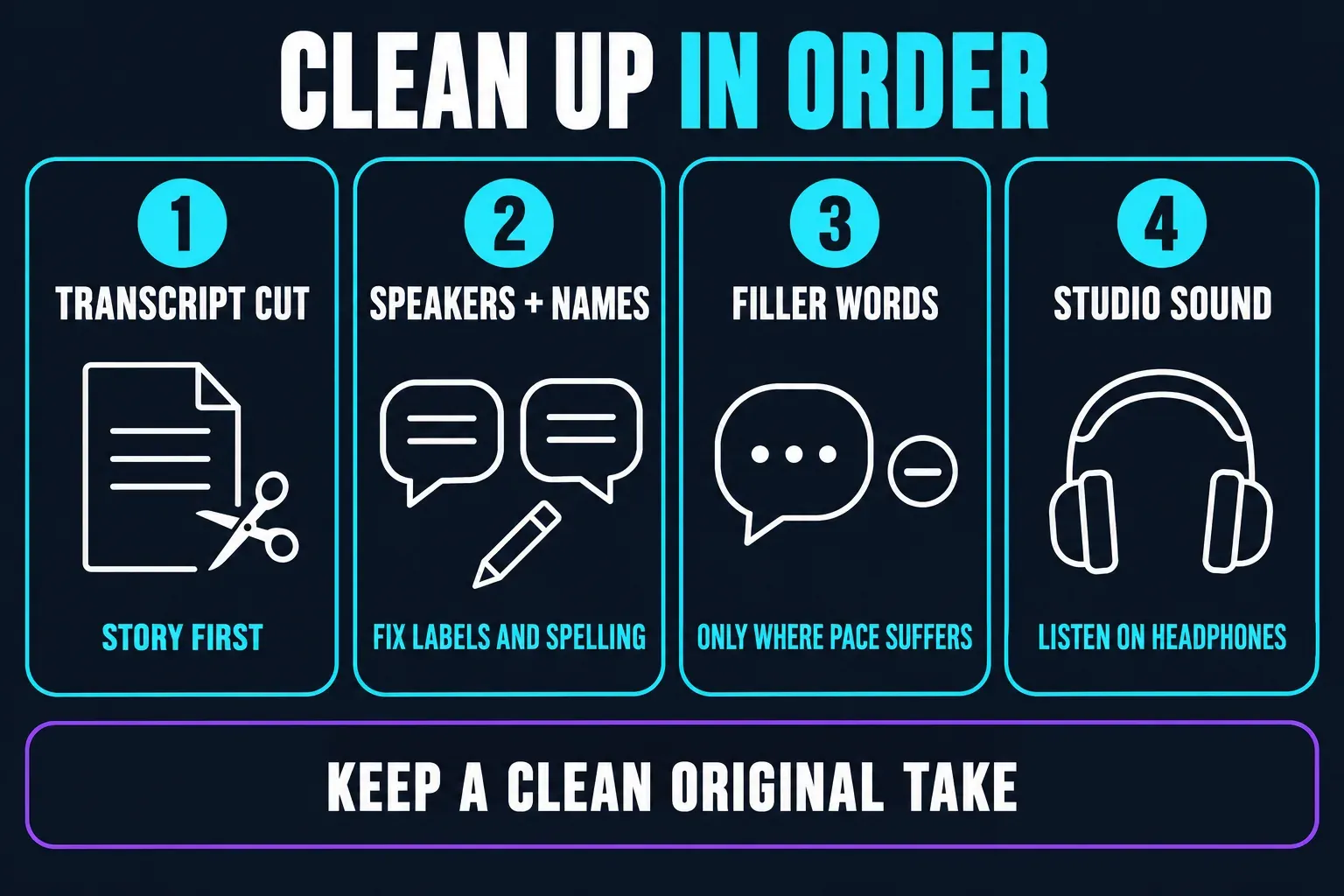
Run the tools in a set order. Make the transcript cut, fix speakers and names, remove only the filler words that hurt the pace, then audition Studio Sound on headphones. Listen for clipped consonants, pumping room tone and a voice that suddenly sounds synthetic. The best Descript workflow is still an editorial one: accept the useful suggestions, reject any that change the speaker's intent, and keep a clean original take.
Scenes, Layouts, Captions and Vertical Video
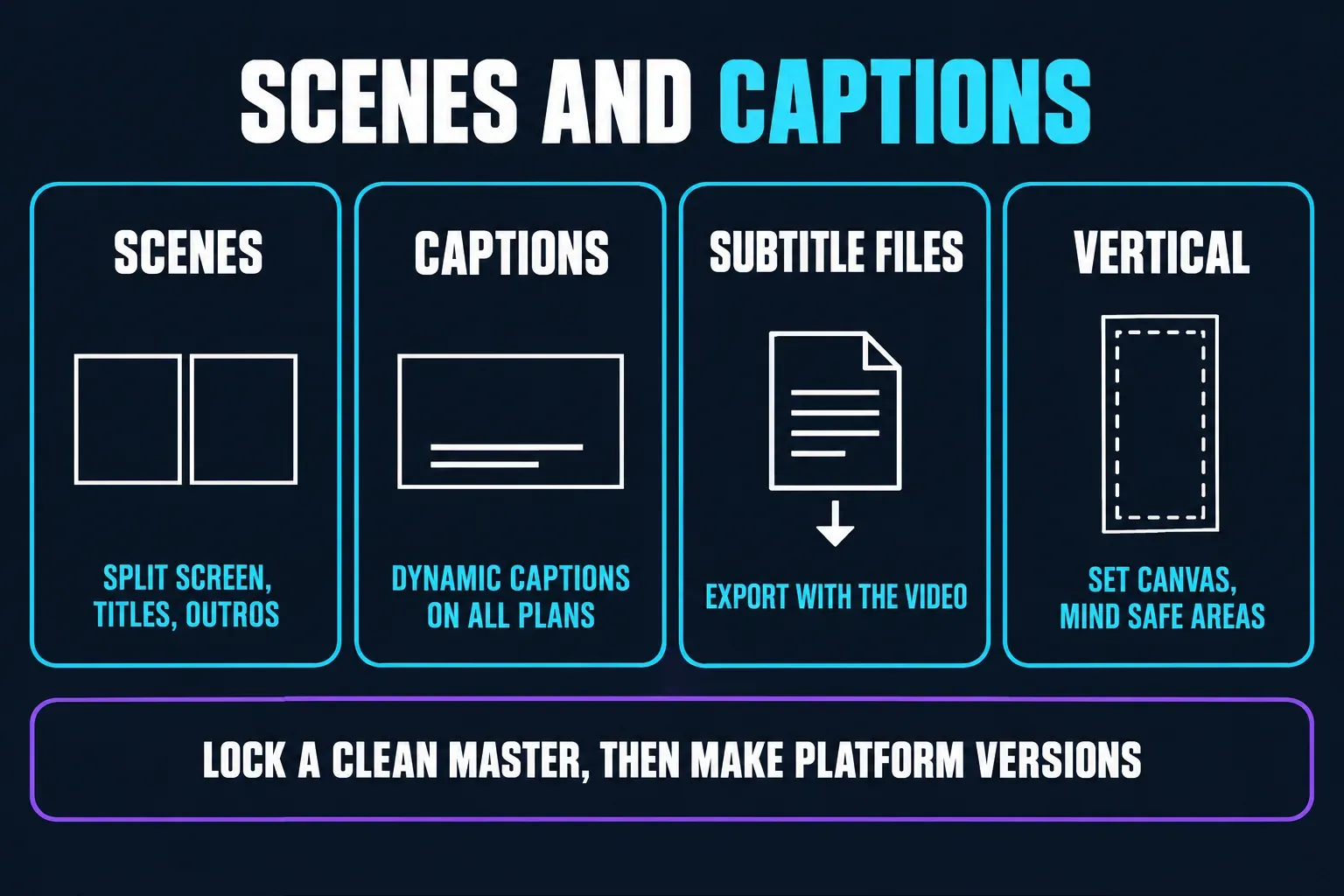
Scenes are Descript's answer to the visual side of text editing. A scene can hold a talking-head shot, a screen recording, a title card, an outro or a split-screen layout. That's enough for a lesson, product walkthrough or podcast clip without forcing every visual decision into one continuous timeline. Scenes also make alternate openings and social cuts easier to build.
Captions are built into the transcript-to-video workflow, and Descript's export documentation lists subtitle and text files alongside video, audio and GIF output. The current pricing matrix also lists Dynamic Captions and layer animation on every plan. That closes more of the social-video gap than older reviews suggest. CapCut still has the broader trend-template, sticker and effect workflow, but it's no longer accurate to say Descript offers only plain transcript captions.
Descript can make a vertical scene, but it takes more deliberate setup than a phone editor that starts in 9:16. Set the canvas, check safe areas and decide where the transcript-derived caption sits relative to a face or screen recording. If you publish in many aspect ratios, keep a clean master scene and build platform versions once the story is locked. Our CapCut export settings guide helps with that final social handoff.
Pricing, Media Minutes and AI Credits
The current Descript pricing page shows a free plan and three paid tiers. In the US snapshot checked on September 4, 2026, Hobbyist costs $16 per person/month billed annually or $24 billed monthly, Creator is $24 or $35, and Business is $50 or $65. Hobbyist lists 10 media hours and 400 AI credits per month, Creator lists 30 hours and 800 credits, and Business lists 40 hours and 1,500 credits. Annual billing shows as the lower price, and the page says it can save up to 35%. Read these as dated US figures, not a worldwide quote.
Don't reduce the plans to “transcription hours.” Descript separates media minutes from AI credits. Uploading or recording audio/video uses media minutes, still images count as one second, and unused monthly minutes don't roll over. Underlord, Studio Sound, filler-word removal, green screen, eye contact, AI speech, avatars and generated media use AI credits, and unused monthly credits don't roll over either. The current top-up guide says top ups are limited to Creator and Business, kick in only after the monthly allowance is exhausted and stay valid for 12 months. That's why a long interview and several AI passes can cost very differently from a short social clip.
The free plan is useful for trying the editing model. The September 4 pricing snapshot lists 60 media minutes per month, 100 one-time AI credits, 5 GB of cloud storage and 720p video export with a Descript watermark, and the pricing FAQ says no card is required. Hobbyist lists 1080p watermark-free export, while Creator and Business list 4K watermark-free export. Check the live matrix before you quote a client, especially if a watermark, upload-size ceiling, web-link duration or AI top up changes the economics.
Export, Watermark and Deliverables
Descript can export video, audio, GIF, text and subtitles locally. It can also make a shareable web page/embed and publish to supported destinations. That combination helps with review: a client can watch a link, comment on a line and get the final MP4 or subtitle file after approval. You don't have to flatten the project at the first review.
Export is where plan limits show up. The current matrix lists 720p on Free, 1080p on Hobbyist and 4K on Creator and Business, and it caps video web links at one hour on Free/Hobbyist and three hours on Creator/Business. Check the exported file's dimensions, frame rate, audio and subtitle timing. A project preview can look fine while a platform upload exposes a wrong aspect ratio, missing captions or a lower-resolution setting.
For a repeatable handoff, name the master, caption file and vertical version separately. Keep the clean long-form export outside the social project, and hold on to the source media until the client signs off. If another editor handles the finishing, test Descript's export and timeline handoff options on a short section first. Not every layout or AI treatment will translate identically.
Desktop, Browser, Cloud and Performance
Descript isn't a mobile editor. The current system requirements page recommends macOS 14 Sonoma or newer, Windows 11 or newer, an Intel 7th-generation/Kaby Lake or Apple silicon M1-or-newer Mac processor, and Intel 7th-generation or AMD Ryzen 3000-or-newer on Windows. It recommends 16 GB of RAM, 32 GB for 4K or heavier work, 20 to 40 GB of free storage and a 50 Mbps down/10 Mbps up connection. The minimum is 8 GB RAM. Chrome, Edge and Opera are the officially supported Chromium browsers.
You can upload media from a phone, but the editing tools are meant for desktop or web. Mobile browsers, tablets, iPad and Chromebook aren't officially supported editing environments. That's a real difference from CapCut, which can follow a creator from phone to desktop. Descript asks you to bring the project to a supported computer or browser.
The web editor is convenient for review and access. In a Descript engineering article updated July 29, 2026, the company says its WebCodecs engine powers the web app and the newer desktop experience, and it reports average 4K exports two to three times faster in its own user data. That's useful vendor evidence. It isn't an independent benchmark, and real performance still depends on codecs, RAM, storage, browser, network and project complexity.
I'd plan a test before any deadline. Import a representative clip, transcribe it, apply the audio cleanup you intend to use, make a vertical scene and export at the final resolution. For a 4K project, leave storage for source media, caches and the rendered file. A browser editor can feel quick on a short proxy and get demanding once a long multi-camera recording is loaded.
Collaboration, Comments and Review Links
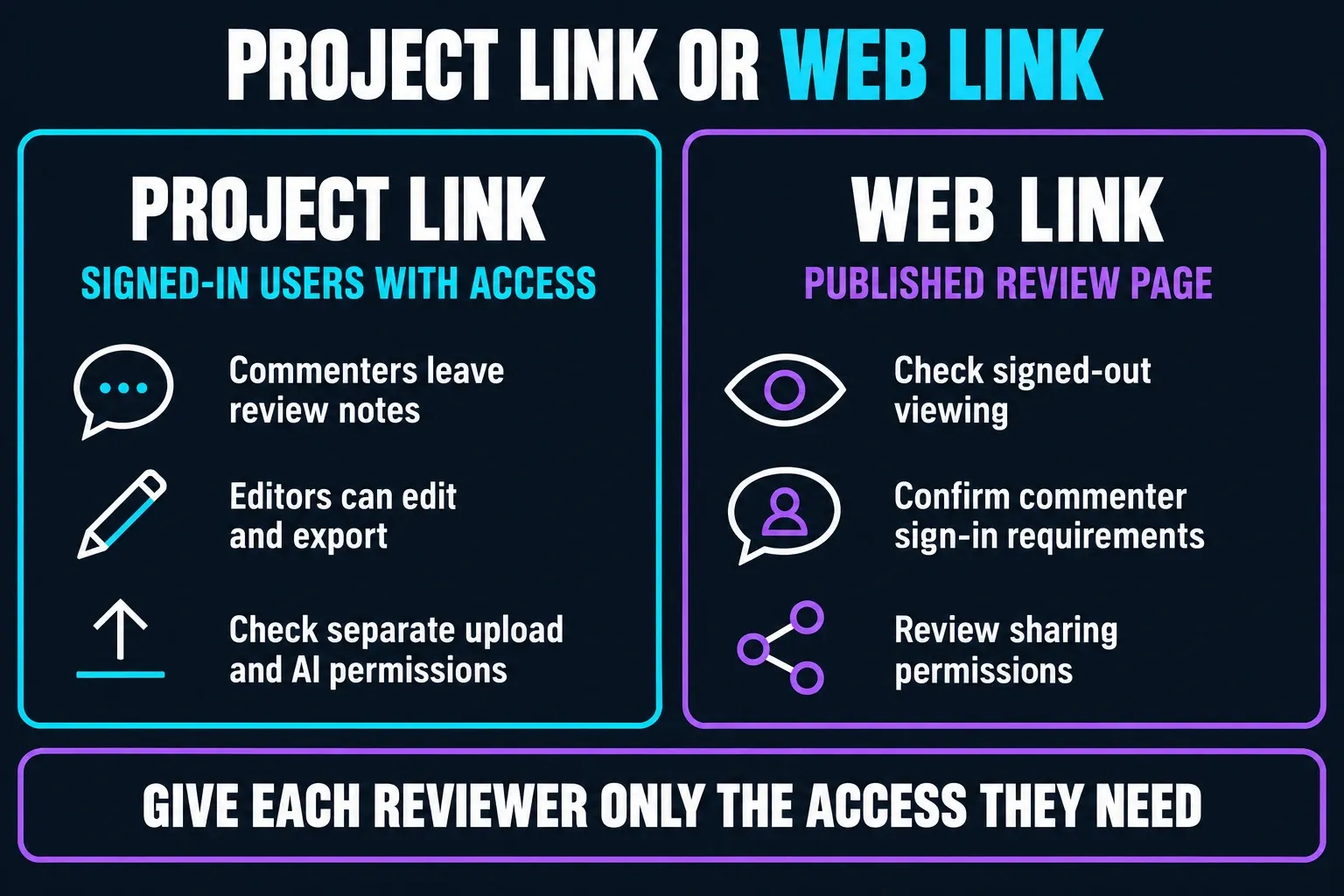
Collaboration is one of the strongest reasons to keep Descript alongside CapCut. Project access documentation separates roles such as commenters and editors. An editor can edit and export, but editor access doesn't automatically include uploading, AI or translation permissions. That split is useful when a client should approve a cut without spending the team's media or AI allowance.
Comments can attach to transcript text or to a moment in the project. Instead of emailing a list of timestamps, a reviewer can write “tighten this answer,” “add the product close-up” or “leave the pause here” right next to the relevant part of the edit. Private project comments and comments on a published page work differently, so pick the link type on purpose.
Project links require a signed-in Descript account, and their access settings determine who can open the full project. The current guide describes published web links as viewable and commentable without an account. Separately, the web-link export guide says “Anyone with the link” viewing needs no login, while restricted pages require an authorized login; its comment setting does not specify every commenter’s sign-in experience. Choose the access setting and enable comments deliberately, then verify signed-out viewing and the reviewer’s commenting access on the exact link before sending it to a client.
Descript vs CapCut: Feature Comparison
| Workflow question | Descript | CapCut |
|---|---|---|
| Best starting point | A transcript of a conversation, lesson, screen recording or podcast. | A phone clip, template, effect, beat or social format. |
| Core editing speed | Fast rough cuts by selecting, deleting and moving words. | Fast visual cuts, templates, captions and effect presets. |
| Transcription and captions | Editable transcript drives the media cut; current plans list Dynamic Captions, but accuracy still needs review. | Auto captions sit inside a broader mobile social-template and effect workflow. |
| AI cleanup | Studio Sound, filler-word removal and other AI tools use credits. | Broad mobile/social AI and effect tools; exact features vary by plan and platform. |
| Layouts | Scenes, split screen, picture-in-picture, titles and screen recordings. | Large template and effect library with quick vertical variants. |
| Collaboration | Transcript/time comments, role-based project access and review links. | Cloud/account workflows, with the strongest everyday experience aimed at social creation. |
| Platforms | Desktop app and supported Chromium browsers; no official mobile editing. | Mobile, desktop and web options for a more device-flexible social workflow. |
| Best project | Interview, podcast, course, webinar, narrated screen recording or client review. | Short-form social post, trend edit, caption-heavy clip or template-led campaign. |

Choose Descript If You...
- Make interviews, podcasts, lessons, webinars or screen recordings where spoken words carry the story.
- Want to cut a rough edit by reading the transcript instead of scrubbing every pause.
- Need searchable transcripts, subtitle files and a review process that keeps comments next to the edit.
- Work on a supported Mac, Windows PC or Chromium browser and have a reliable connection for cloud processing.
- Can budget media hours and AI credits, and will check the final audio and captions before export.
Stay With CapCut If You...
- Publish mostly from a phone and want editing to work on mobile without moving to a desktop.
- Need animated captions, templates, stickers, effects and trend formats more than transcript search.
- Turn short clips around quickly for TikTok, Reels, Shorts or a client’s social calendar.
- Want a generous free-first experiment before paying for media capacity or AI usage.
- Rely on many aspect-ratio variants and platform packaging rather than long-form dialogue editing.
A Practical Descript and CapCut Hybrid Workflow
A hybrid works when the handoff has a clear purpose. Record or import the interview in Descript, clean the transcript, remove only the filler words that help the pace, balance the dialogue and build a clean master. Export the long-form video and subtitle file. Then bring a copy into CapCut for the 9:16 cut, animated captions, platform-safe margins, a trend sound or a final template treatment.
Keep the Descript project as the editorial source and the CapCut file as a publishing version. Don't let a quick social change overwrite the approved master. If the client asks for a new quote or a different answer, fix the source transcript first, export a new master and regenerate the social cut. That simple split keeps a caption tweak from turning into a lost interview edit.
If you finish in the browser, our CapCut web editor guide shows where the desktop handoff fits. Once you know whether your next project is a conversation or a trend, head back to our comparison of CapCut alternatives for the wider decision.
Frequently Asked Questions
Is Descript better than CapCut?
Descript is better for transcript-led editing, talking-head videos, podcasts, screen recordings, audio cleanup and review comments. CapCut is better for mobile-first social edits, templates, animated captions and trend effects. The winner depends on whether your bottleneck is finding the story or packaging it for a feed.
Is Descript free?
Yes. The pricing page checked on September 4, 2026 lists a $0 plan with 60 media minutes per month, 100 one-time AI credits, 5 GB of storage and 720p video export with a Descript watermark. Paid Hobbyist, Creator and Business limits differ; check the regional price and current matrix before subscribing.
Does Descript edit on iPhone or Android?
Not as an official mobile editing environment. The current system-requirements page says phones can upload media, while editing tools are supported on the desktop app and Chromium-based browsers. Mobile browsers, tablets, iPad and Chromebook are not officially supported for editing.
Does Descript have automatic captions?
Yes. Descript turns speech into editable text that can be used for captions, and it can export subtitle files. You still need to correct names, speaker labels, timing and words that the recording makes hard to recognize. CapCut usually reaches animated, social-ready caption styling faster.
What are Descript media minutes and AI credits?
Media minutes track uploaded or recorded audio/video, while AI credits power tools such as Underlord, Studio Sound, filler-word removal, green screen, eye contact, AI speech, avatars and generated video. The two allowances are separate, unused amounts don't roll over, and longer files or heavier AI operations can use more of the pool.
Can a client review a Descript project without editing it?
Yes. Descript supports project commenters, project editors and exported web links. Full project links require a signed-in Descript account and suitable access. Published web links can allow signed-out viewing; restricted pages require an authorized login. Enable comments if needed, verify the reviewer’s access on the exact link and give them the narrowest permissions that work.
Final Verdict
Descript is a focused CapCut alternative for creators whose raw material is speech. Transcript-driven cuts, a searchable script, scenes, subtitle export, AI audio tools and review comments can take a lot of friction out of interviews, podcasts, courses and screen recordings. Its current plan system is more involved than a simple “free versus paid” label, though. Media hours, AI credits, seats, export resolution and billing cycle all affect the real cost.
CapCut remains the smarter choice for phone-first social publishing, kinetic captions, templates and trend velocity. Descript is the smarter choice when the edit begins as a conversation and the team needs to read, revise and approve it. If your channel needs both, build the story in Descript, preserve that master, and use CapCut for the version that belongs in the feed.