

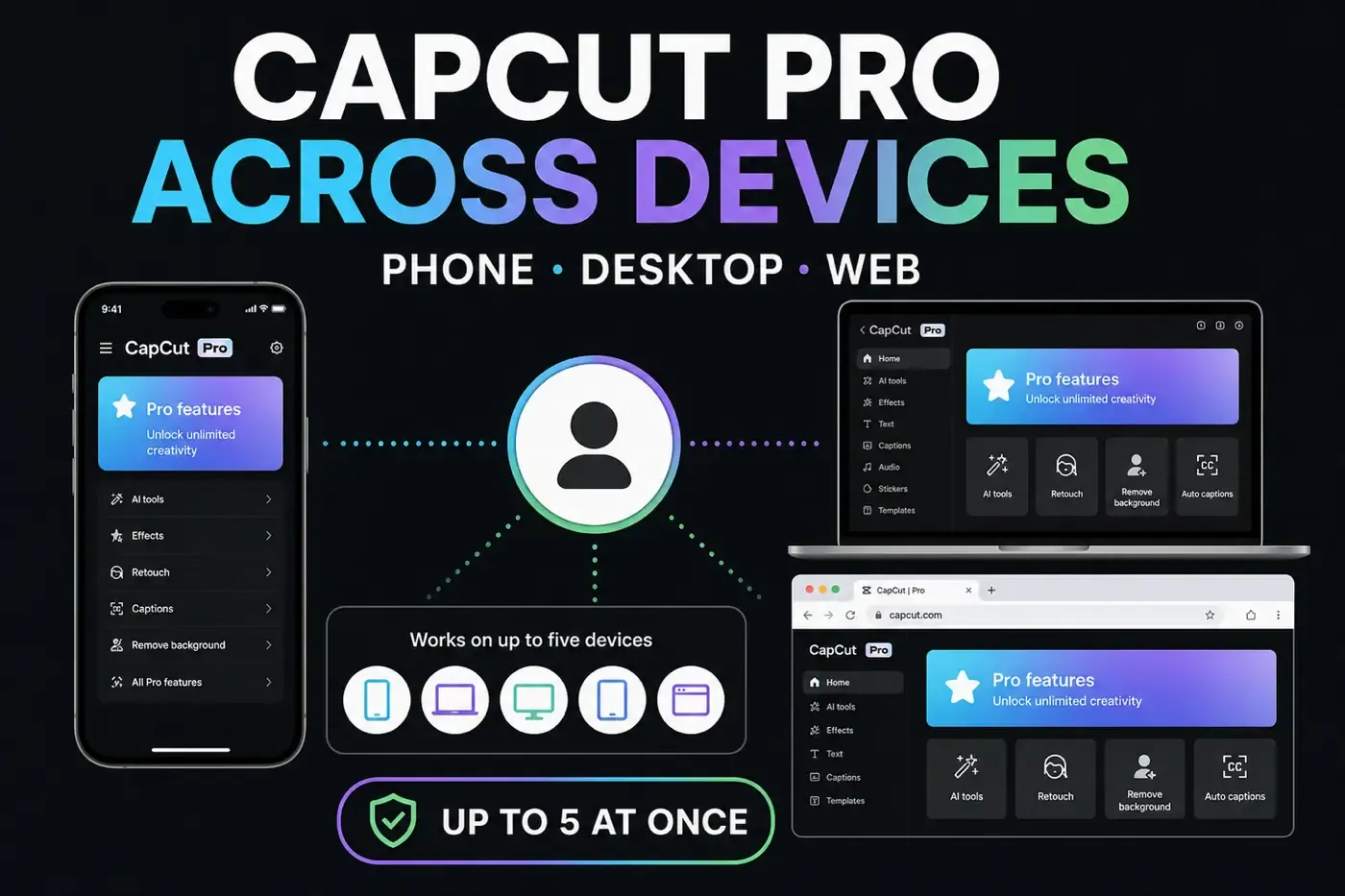
You can use CapCut Pro on your phone, computer and web browser with the same paid CapCut account. CapCut’s membership guidance, checked September 14, 2026, says up to five devices simultaneously. That allowance does not mean five people get separate subscriptions, and it does not automatically move your local projects.
Before adding a device, keep the working session open and record its CapCut ID, login method and plan name. Check those details on the destination before pressing Subscribe again. Pro supports mobile, desktop and web; Standard’s paid benefits remain mobile-only where that plan is offered.
What does the five-device limit actually cover?
The official wording is “up to five devices simultaneously” for one subscription account. It describes concurrent device use, not a lifetime limit of five installations. The guidance does not define how multiple browser profiles, tabs or app-and-browser sessions on one computer count. We cannot turn it into a separate guaranteed session limit or promise that signing out immediately frees a slot.
If CapCut displays a device-limit notice, record the exact message and review the devices you still use. Save work before signing out on an old device you control, and keep the only known working session until you know how to get back in. CapCut’s sign-out instructions describe disconnecting the current device or browser session, not a universal remote “remove all devices” control. For a lost device, ask support how to remove its access.
Do not interpret permission to use several devices as a guarantee of conflict-free editing of the same timeline at once. Finish saving on one device before continuing on another, and keep an editable backup.
Pro and Standard have different platform access
CapCut’s cross-platform subscription guidance lists Pro benefits on iOS and Android, Windows and Mac, and the web editor. Standard allows sign-in on other devices, but its paid benefits are limited to the mobile app.
- Phone says Standard; laptop lacks paid tools: this can be the plan boundary, not a failed purchase.
- Both devices say Pro; a tool is absent: check that tool’s platform and regional availability. Cross-platform membership is not identical feature availability.
- New device says Free: check the account identity and active membership before buying anything.
Use the Free, Standard and Pro comparison for plan selection. This guide is for accessing a subscription you already have, not choosing a new offer.
Identify the account that has Pro

The Apple or Google account on a payment receipt is not, by itself, proof of which CapCut profile is open. Privately record the CapCut ID or UID, original sign-in method, plan name and billing source. The UID identifies the user; the DID identifies a device and is not the value to match between computers.
CapCut’s ID instructions document these routes. Labels may differ in your app:
- Web: Profile → Settings, then User ID.
- Desktop: top-left Profile, then CapCut ID.
- iOS: Me → Settings → Edit profile.
- Android: open the signed-in Profile to see CapCut ID.
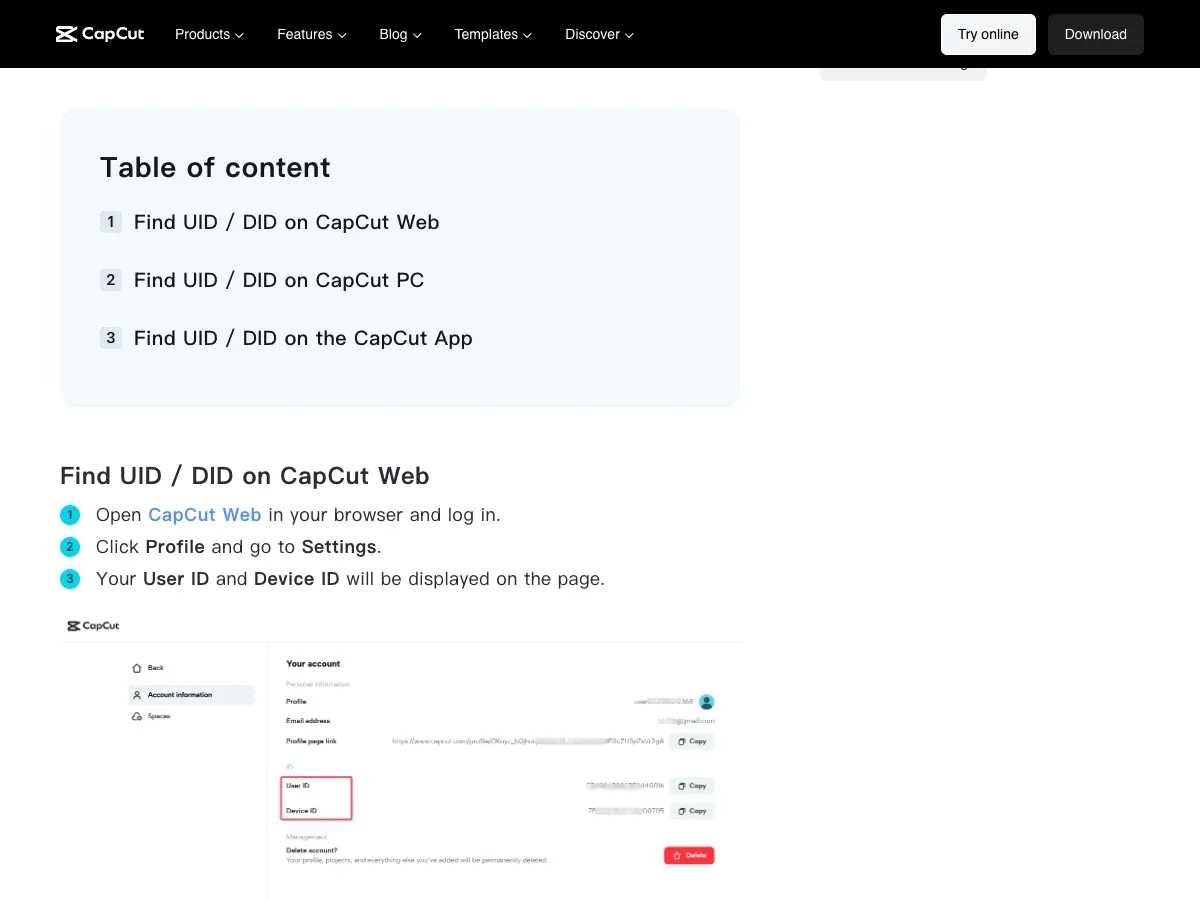
For the login method, CapCut documents Profile → Manage Account on mobile and avatar → Settings on Web. Its Help page says Desktop does not directly show the login method. If Desktop is your only working session and you cannot identify the method, preserve that session and use the account recovery checks before signing out.
Use the original sign-in method or an already verified linked method. CapCut warns that Google and email sign-in can open different accounts despite the same visible email. It also documents linking an email to an existing account through mobile. These are different cases: an email matching by coincidence is not the same as a method you deliberately linked and verified. Compare the resulting CapCut ID. You do not need to unlink anything to add a device.
Sign in on the second device
- Use the official CapCut app or website on a trusted device. Save existing drafts before updating the app; do not clear app data as a subscription fix.
- Select the original or verified linked login method if it is offered.
- After sign-in, compare the CapCut ID with the working device.
- Check that the membership area shows the active Pro plan.
If the correct login option is missing
QR login is an alternative when the right account is already open on your phone. CapCut’s QR instructions place the code on Desktop or Web and the scanner on mobile:
- On the computer, select Use QR code or Continue with CapCut Mobile.
- In the signed-in mobile app, open Me → Scan, following the controls available in your version.
- Scan the computer’s code and approve the login on your phone, as described in CapCut’s cross-device instructions.
- Compare the computer’s CapCut ID before uploading a project.
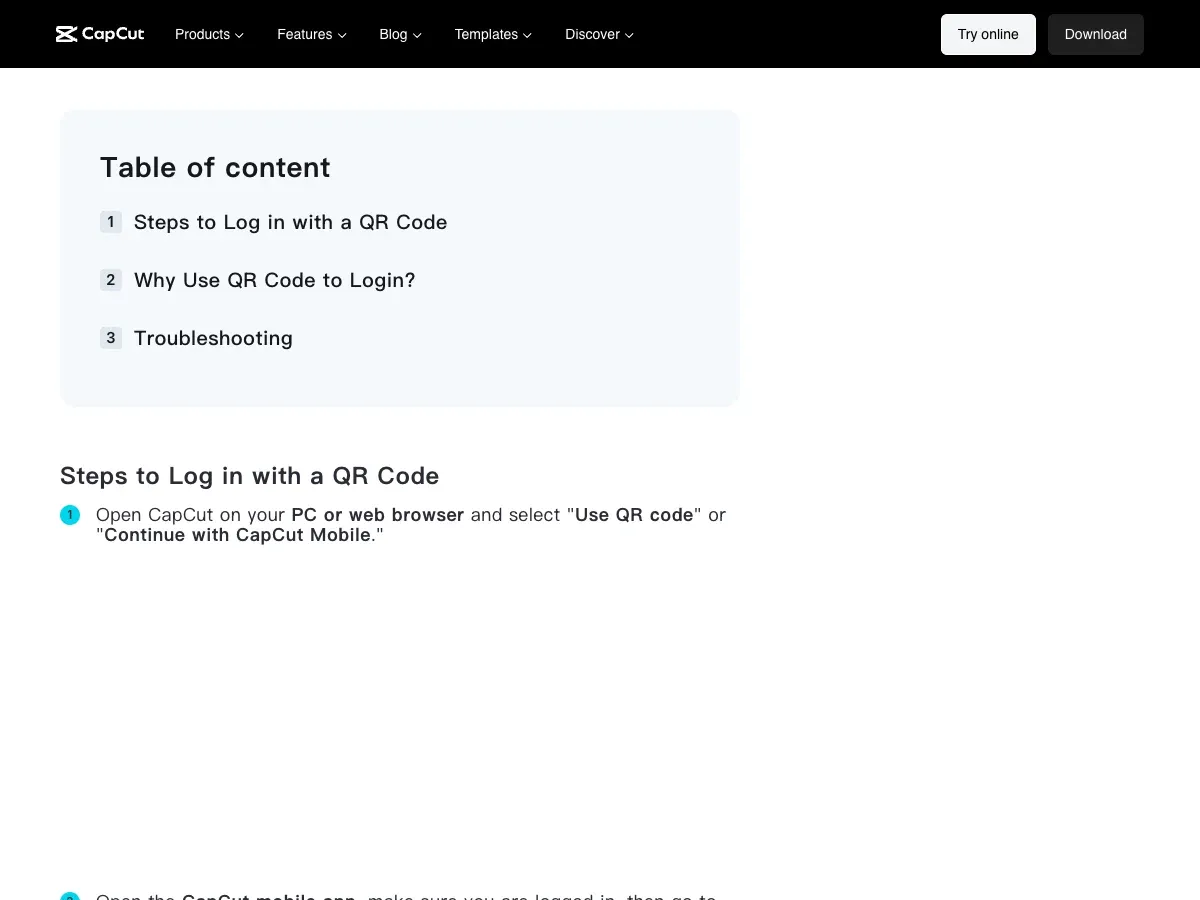
Scan only the official login screen you opened yourself. Never send someone a live login QR code or approve a sign-in you did not initiate. If the scan fails, check camera permission and both devices’ connections, then refresh an expired code. Do not erase local drafts to repair a QR screen.
Apple sign-in needs a qualification: CapCut’s login overview says Web has no direct Apple ID or phone-number login, but its restriction guidance mentions Apple authentication on Web. Those official pages disagree. Use the matching option actually offered, or QR from your verified mobile account. If neither is available, preserve the working session and contact support rather than selecting an unrelated provider.
Pro access does not transfer a local draft
A Pro badge on your laptop proves neither that a phone draft uploaded nor that all its media is available. CapCut’s project guidance uses broad automatic-cloud wording but also explicitly requires uploading projects to Spaces for cross-platform cloud use. Treat an upload and a successful reopen as checks, not assumptions.
Select the intended Space, check available storage and wait for the upload to finish. Open the editable project on the destination, check clips, audio and effects, and make a short export before deleting or moving the original. A thumbnail or finished video is not an editable backup. Follow the project backup and transfer guide for that separate task.
Credits also belong to the account, not each device. CapCut’s Credit Rules confirm that purchased credits can be used across devices while signed into the same account. Its cross-device credit guidance describes a shared balance on compatible versions. Do not expect a second allowance just because you added a laptop, or identical credit controls on every platform. The AI credits guide covers costs and expiry.
Using a different CapCut account is not another transfer method. CapCut says Standard and Pro benefits cannot be transferred to another account.
Test the paid feature you need
Try a disposable five-second project with your own media on the new device. Choose one Pro item included in your plan that does not consume AI credits, preview it and export. This is a suggested check, not a test we performed on your account.
If it works, you have verified that item and export, not every Pro feature or an old project’s transfer. If it fails, record the exact prompt:
- Different CapCut ID: resolve the account mismatch.
- Matching ID, Standard plan: check the mobile-only benefit boundary.
- Matching ID, Free status: compare the receipt, payment state and expiry with the working device.
- Matching ID and active Pro: check whether the particular tool is available on this platform and whether it needs credits.
For persistent paid-access problems, follow the Pro not working guide. A Free badge alone does not identify the cause. Do not buy a second plan merely to see whether it fixes the screen.
A login restriction is not necessarily a device limit
“Maximum number of attempts reached” and a notice explicitly naming too many devices are not interchangeable. Stop repeated attempts and follow the message. CapCut’s specific “Retry after 24h” guidance is not a universal unlock deadline for every restriction.
In one multi-device restriction discussion, the owner described errors on their own devices, while a reply described losing the original login method after signing out. These are individual reports, not proof of a cause, a reliable timer or a workaround.
Send the exact message, platform, app version, CapCut ID and relevant receipt details privately through CapCut’s support form. Never send passwords, one-time codes or a live QR image. If access may be unauthorized, prioritize securing the account with official support rather than preserving a suspicious session.
Can family members or a team share Pro?
The five-device wording does not grant five separate user seats. CapCut’s Terms of Service require keeping account credentials confidential. Check the terms served for your country; a region parameter alone does not establish which regional contract the site will return.
For collaborators, CapCut documents a Teams subscription tied to a team identity, with invited members and seats. That is different from circulating one personal password.
Apple Family Sharing is also separate. Apple’s family subscription instructions apply to eligible subscriptions, not every third-party offer. Check Settings → your name → Subscriptions → Manage Family Access and the actual CapCut subscription record. Do not assume an app’s Family Sharing label proves your particular Pro purchase can be shared. We have not verified eligibility for your offer.
CapCut Pro on multiple devices: FAQ
How many devices can use CapCut Pro at once?
CapCut’s membership Help page, checked September 14, 2026, says up to five devices simultaneously on one subscription account. It does not define how browser tabs, profiles or app-and-browser sessions are counted.
Can I use the same Pro subscription on iPhone and Windows?
Yes. CapCut documents Pro access on iOS, Android, Windows, Mac and Web under the same paid CapCut account. Individual tools can differ by platform; Standard’s paid benefits are mobile-only.
Does the same email address prove I opened the right account?
No. Google and email sign-in can create different CapCut accounts with the same visible email. Use the original or an already verified linked method, then compare the CapCut ID.
Will signing in copy all my phone projects to the computer?
No. Do not assume local drafts or source media have moved. Upload the editable project through a supported Space workflow, reopen it on the destination and verify it before removing the original.
Does signing out cancel my subscription?
Signing out disconnects a session; it is not the billing cancellation process. Manage renewal through the company that billed you, rather than assuming a device change ends payment.
Can I move Pro to a new CapCut account?
CapCut says Standard and Pro subscription benefits cannot be transferred to another account. Multi-device access means using the same paid account on additional devices.
Does a maximum-attempts error mean I used too many devices?
Not necessarily. Record the exact notice, stop repeated attempts and follow its instructions. A specific Retry after 24h notice is not a guaranteed unlock time for every restriction.
Can five people use the five-device allowance?
The allowance does not provide five separate user seats. Use supported team invitations or a specifically eligible family-sharing offer instead of circulating account credentials.
If you are replacing a device, verify both paid access and the editable project before retiring the original. For billing changes, use the cancellation guide; for other subscription decisions, return to the CapCut Pro guides.