

iMovie is a good CapCut alternative if you use an iPhone, iPad or Mac and want a clean, free editor with no subscription meter. It's deliberately calmer than CapCut: trim a sequence, add a title, record narration, pick music and export. Magic Movie and Storyboards get beginners moving, and a regular Movie project gives you a more controlled timeline. For Android, Windows, AI tools, animated captions, trend templates and daily vertical posts, CapCut is the better fit.
This iMovie review was rechecked on September 4, 2026 against Apple's live iPhone/iPad and Mac store listings, the current iMovie product and support pages, the observable review/comparison results and a recent iMovie community discussion. The choice isn't just “free versus paid”: the two apps carry different version numbers, the current OS gates are strict, 4K and 60 fps run through several distinct export paths, and an editable mobile-to-Mac handoff comes with theme, HDR and version caveats.
iMovie Review Facts at a Glance
| Review fact | Current answer |
|---|---|
| Core product | Apple's free, beginner-friendly video editor for iPhone, iPad and Mac, with manual Movie projects on all three platforms; Magic Movie and Storyboards are available on iPhone and iPad. |
| Price | Free in the current Apple App Store listings; there is no iMovie subscription or AI-credit meter. |
| Platform gate | Apple devices only. The live iOS/iPadOS listing requires iOS 17.6 or iPadOS 17.6; the Mac listing’s Compatibility field requires macOS 26.6 or later. |
| 4K export | Apple's general guide documents 4K UHD at 30 fps; the current iPhone/iPad sharing guide also offers 60 fps with eligible 4K source media. |
| 60 fps export | For iPhone/iPad, check Share Video → Options: 60 fps can appear with eligible 1080p or 4K source media. The separate Settings switch appears in another Apple support article; Mac offers a 1080p 60 export path. |
| Guided modes | Magic Movie assembles clips, Storyboards provide a shot list and Movie projects give the most manual timeline control. |
| Handoff | Projects can move between Apple devices through AirDrop, Files/iCloud Drive or a Mac import; an exported video is safer for non-Apple editors. |
| Best fit | Family films, school projects, simple YouTube videos, clean travel edits and Apple users who value a short learning curve over social effects. |
Quick Verdict: iMovie Is the Calm Apple-first Choice
Choose iMovie when your footage already lives in Photos, your editor is an iPhone, iPad or Mac, and the finished video needs to look intentional without a long setup. Apple gives you a straightforward timeline, clean titles, transitions, filters, voiceover, picture-in-picture, green screen and a useful library of soundtracks and effects. You can start with a guided project and move to a manual one when you need more control.
Choose CapCut when the real brief says “make a Reel or Short that feels current.” It puts animated captions, templates, beat-led effects, AI helpers and broader device coverage right at the front of the workflow. Our roundup of CapCut alternatives covers the wider shortlist. iMovie gets its own review because its strength is what it leaves out: friction, pricing surprises and watermarks. A bigger tool count isn't the point.
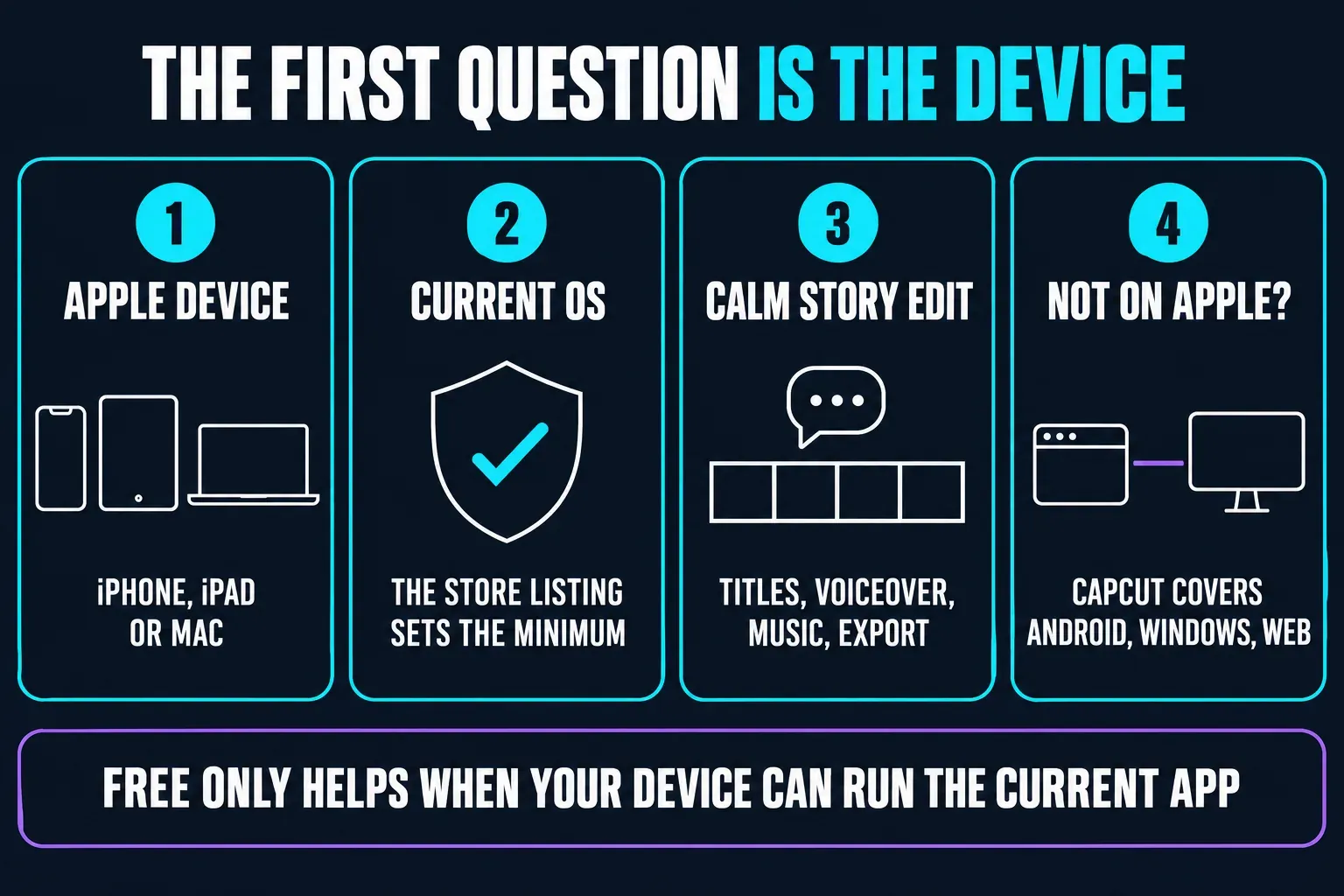
One thing is non-negotiable: you need an up-to-date Apple device. The current iPhone/iPad listing requires iOS or iPadOS 17.6, and the Mac listing’s Compatibility field requires macOS 26.6. If your phone, tablet or Mac can't install the current app, “free” doesn't help until you find a compatible earlier build. Check compatibility in the App Store before you plan a project around it.
What iMovie Is in 2026
Apple's current iMovie product page presents one editor across iPhone, iPad and Mac, but the interfaces aren't identical. On mobile, touch controls and guided projects make it easy to pick footage and tell a short story. The Mac version spreads out: the browser, viewer and timeline give you a wider editing surface, keyboard shortcuts and a more comfortable place to organize a longer sequence.
The live store history shows iMovie 3.0.5 for iPhone and iPad and iMovie 10.4.5 for Mac at the October 17, 2026 check; the Mac release is dated September 29. Those labels tell you more than an old blog post saying “the latest iMovie.” Apple updates the two apps separately, so check the store on the device you'll edit on. A project made in a newer mobile build may not import cleanly into an older Mac build.
iMovie isn't Final Cut Pro with a free button. It's a creator editor built around a primary story, connected clips and accessible controls. You can make a polished video with it, but the workflow deliberately skips the deep color, audio routing, third-party plugins and multi-editor collaboration of a professional NLE. That narrower focus is exactly why it feels manageable to a new editor.
Free Does Not Mean Cross-platform
iMovie is free in Apple's current App Store listings. There's no plan switch, watermark or AI-credit allowance to calculate. That keeps the first project refreshingly simple: install the app, allow access to the Photos and media libraries, import footage and start cutting. It also means the platform boundary matters more than the price.
There's no official Android or Windows iMovie app. A friend who receives an iMovie project can't open the editable timeline in CapCut, Premiere or a Windows-only editor. Share a finished video file when the recipient only needs to watch or publish it, and confirm that their app accepts its format. Send the editable iMovie project when the next editor uses a compatible Apple workflow.
The current Mac listing’s Compatibility field requires macOS 26.6 or later; its description also specifies 4 GB memory and 3.5 GB available space. The iPhone/iPad listing asks for iOS 17.6 or later or iPadOS 17.6 or later. Apple may offer an older compatible version through an existing purchase history, but that depends on your device and account. It's not a universal promise. Check the store before you buy hardware or move a library.
Magic Movie, Storyboards or Movie Project?
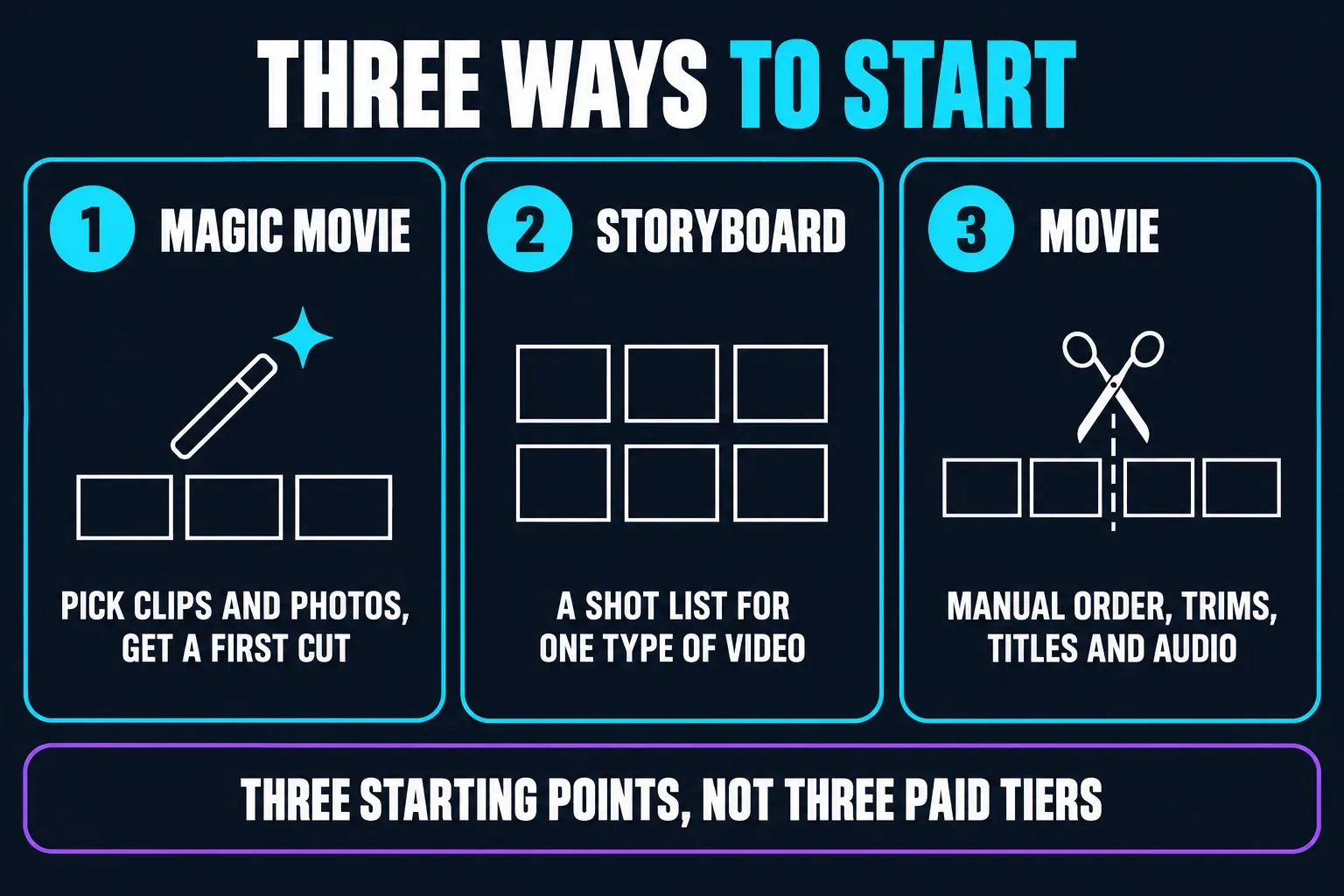
Apple's iMovie guide describes three project modes on iPhone and iPad:
- Magic Movie selects clips and photos, then builds a first cut with a soundtrack, transitions and a style. You can rearrange, remove and edit the clips afterward.
- Storyboard gives you a shot list for a type of video such as a product review, cooking tutorial or Q&A. It suggests the kind of shot to capture and supplies matching titles, transitions and music.
- Movie starts with a manual project. You choose the order, trim and split clips, add overlays, titles and audio, and make the story decisions yourself.
Magic Movie is the closest iMovie gets to a one-tap social assistant, but it isn't CapCut's AI generation layer. It works from your own media and hands you a structured draft. Storyboards do more for a beginner who doesn't yet know what shots a tutorial needs. Go with a regular Movie project when you already have a script, a sequence or a long interview to shape.
The current iPhone/iPad listing names 20 Storyboards, 14 trailer templates, 8 themes, 13 Apple-designed filters and 11 animated title styles. These are dated mobile counts. They aren't a promise that the Mac catalog is identical or that Apple will never change them. They do show the design philosophy, though: a curated set of coherent choices instead of the large template marketplace that makes CapCut feel current.
Timeline and Learning Curve
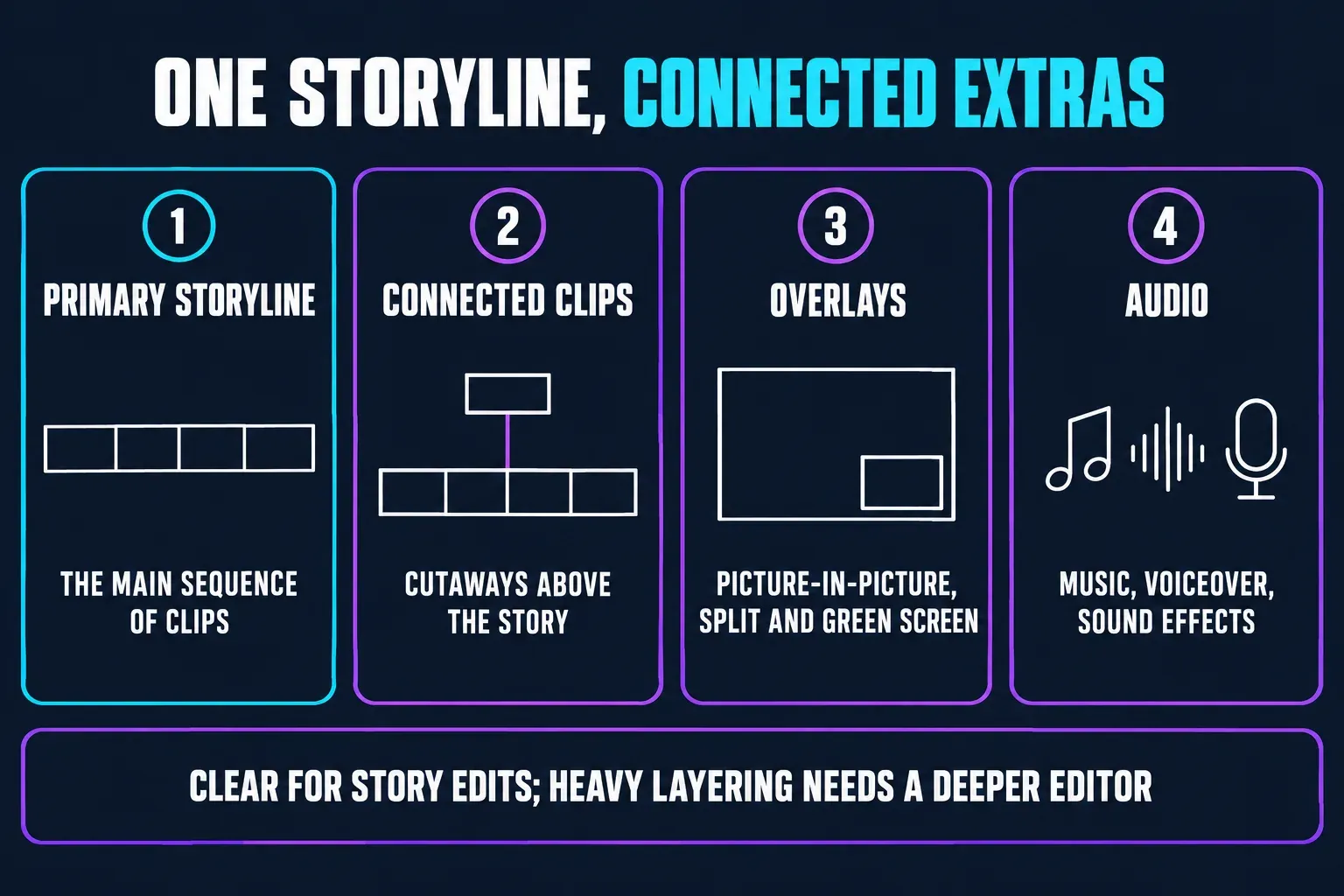
On Mac, you build a movie by dragging clips from the browser into a primary timeline. From there you can trim edges, split clips, insert a selected range, reorder shots, adjust speed and use the precision editor when an edit point needs more care. Connected clips sit above the primary storyline for cutaways, picture-in-picture, split screen and green screen. It's capable enough for a clean YouTube essay or travel film, and it doesn't expose every professional control at once.
On iPhone and iPad, a touch-first Movie project gives you the same basic decisions in a smaller space. A keyboard and trackpad can make iPad editing more accurate, but the app is still built around selecting, dragging and tapping instead of a full desktop shortcut map. For casual editing that's a feature. For someone who wants a fast, dense professional timeline, it's a limitation.
iMovie's restraint helps your pacing. You're more likely to ask whether a clip belongs in the story than to spend ten minutes auditioning a new effect. The ceiling becomes obvious once a project needs many simultaneous layers, detailed color work, transcript editing or a large audio mix. For a deeper desktop NLE, compare the DaVinci Resolve review. For a more capable paid timeline on iPad, see the LumaFusion review.
Titles, Captions and Vertical Social Video
iMovie has animated title styles, title placement controls, filters, backgrounds and readable transitions. That's enough for an opening card, chapter label, lower-third or end screen. It isn't a transcript editor, though. There's no CapCut-style auto-caption workflow that turns speech into a timed, animated text layer with one tap.
If your video needs captions for accessibility, you have two practical options: add titles by hand for a short clip, or export the clean video and run it through a dedicated caption tool. Our CapCut auto-captions guide covers the faster transcript-to-caption route. With iMovie, proofread the final captions in the target app. Don't assume a title treatment has the same safe area on every screen.
Vertical video is another decision point. iMovie can handle portrait footage, but its project and export flow isn't organized around the 9:16 template/caption/beat workflow that dominates Reels and Shorts. Test a short portrait project before you cut a long one, and check whether the crop, title position and exported dimensions match the platform. If you need exact social ratios and a library of vertical presets, CapCut is the less awkward choice.
Don't rotate a finished file repeatedly just to force a ratio. Keep the clean landscape or portrait master, then make platform versions in a tool that exposes the intended canvas. This avoids black bars, sideways titles and a final export that looks fine in Photos but wrong inside a social app.
Audio, Voiceover and Music Rights
iMovie handles the audio that goes with a personal film comfortably. You can add built-in sound effects, background music, audio from your Music library, a clip's original sound and a recorded voiceover. Apple's Mac guide gives background music its own area so you can trim it independently of the main video, and a voiceover shows up as an attached audio clip.
Don't lump Apple's bundled audio in with songs you bring in. Apple's iMovie audio guidance says the built-in iMovie soundtracks and sound effects are free to use in iMovie projects. That doesn't clear a commercial song from your Music library, and on its own it doesn't give you the right to redistribute an Apple audio asset. For public or client work, keep the finished video within the allowed project use, and use outside music only when its license covers the destination.
iMovie's audio controls are deliberately basic: volume, fades, ducking and a few effects. You won't find a full mixing console. Record narration in a quiet room, keep speech above the music, and listen twice: once on headphones, once on the device that will play the final video. If the brief calls for vocal isolation, pitch correction, multi-bus mixing or a large sound library, plan a handoff to another editor.
4K, 60 fps and Export Reality
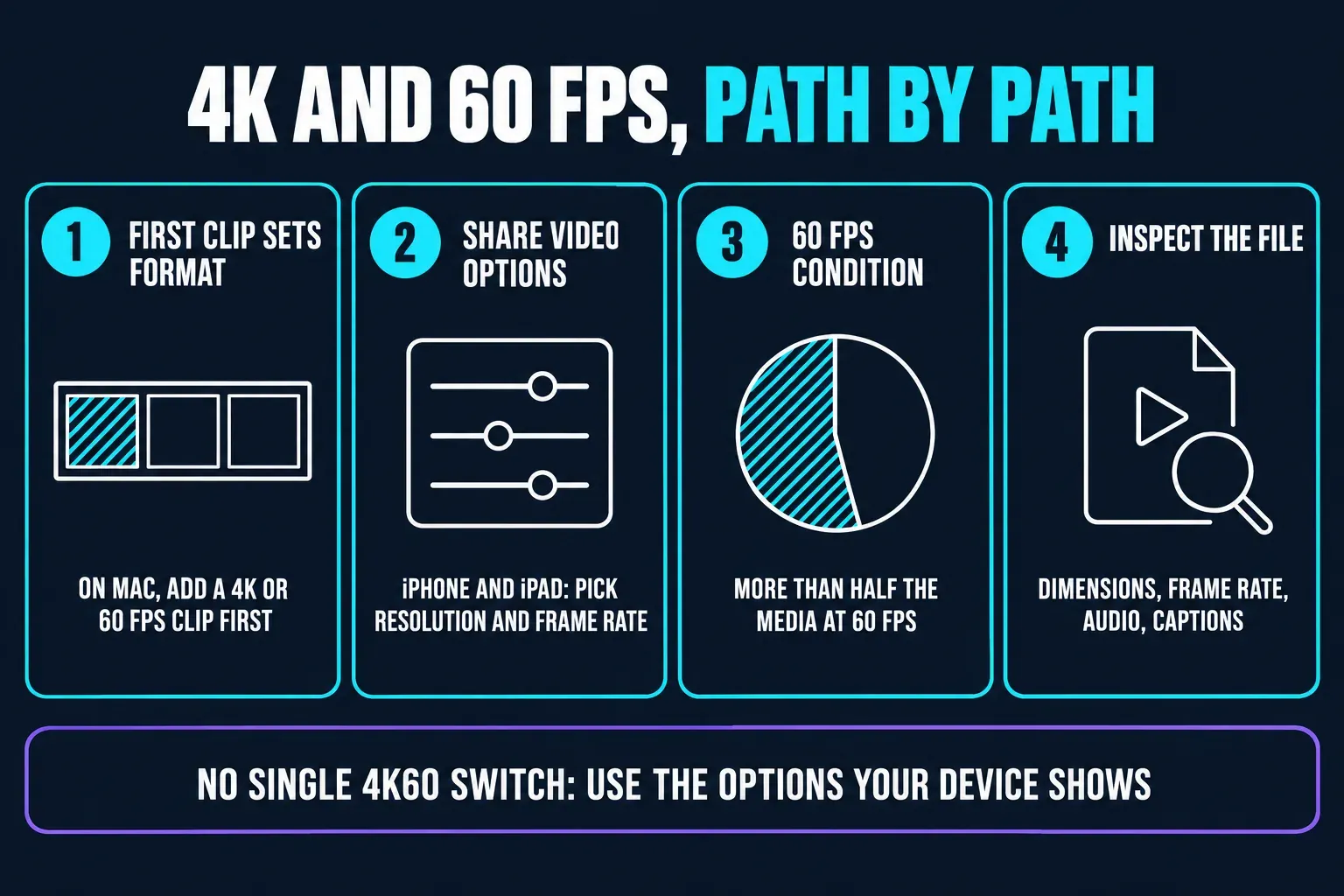
iMovie can export a high-quality file, but it's easy to squash its resolution and frame-rate rules into one misleading “4K60” label. Apple's current 4K and 60 fps guide says that on Mac, the first clip you add to the timeline sets the project format. For a 4K project, add a 4K clip first. For a 60 fps project, add a 60 fps clip first.
Apple's general 4K and 60 fps guide describes 4K at 3840×2160 and 30 fps on Mac, a separate “Enable 60 fps export” setting for 1080p60 on iPhone/iPad, and a “1080p 60” choice on Mac. The current iMovie iPhone sharing guide says something different: open Share Video → Options and choose a resolution and frame rate. It adds that 60 fps is available for 1080p HD or 4K output when more than half the project media is 1080p or 4K footage at 60 fps, and the iPad sharing guide gives the same condition. Because the general support article and the current app guides describe different mobile controls, check the options on your own device and project.
On iPhone or iPad, you can save to Photos, Files, iCloud Drive, AirDrop or an enabled third-party storage service. On Mac, choose File in the Share window and set the resolution, quality and compression. Apple also provides optimized sharing for YouTube and Facebook, but you still upload the resulting file yourself.
MP4 needs extra care, because Apple documents it as a separate compatibility route. The current Share or export your iMovie video page says an iPhone/iPad project has to be imported into iMovie on Mac first for its specifically named MP4 conversion, and then shows Medium or Low quality at 720 or 540. Don't read that narrow container-conversion instruction as the limit for every mobile share. Save Video and Share Video have their own resolution and frame-rate options. Whichever path you take, check the exported file's container, dimensions, frame rate, audio and captions before you publish.
Project Handoff: AirDrop, iCloud Drive and Mac
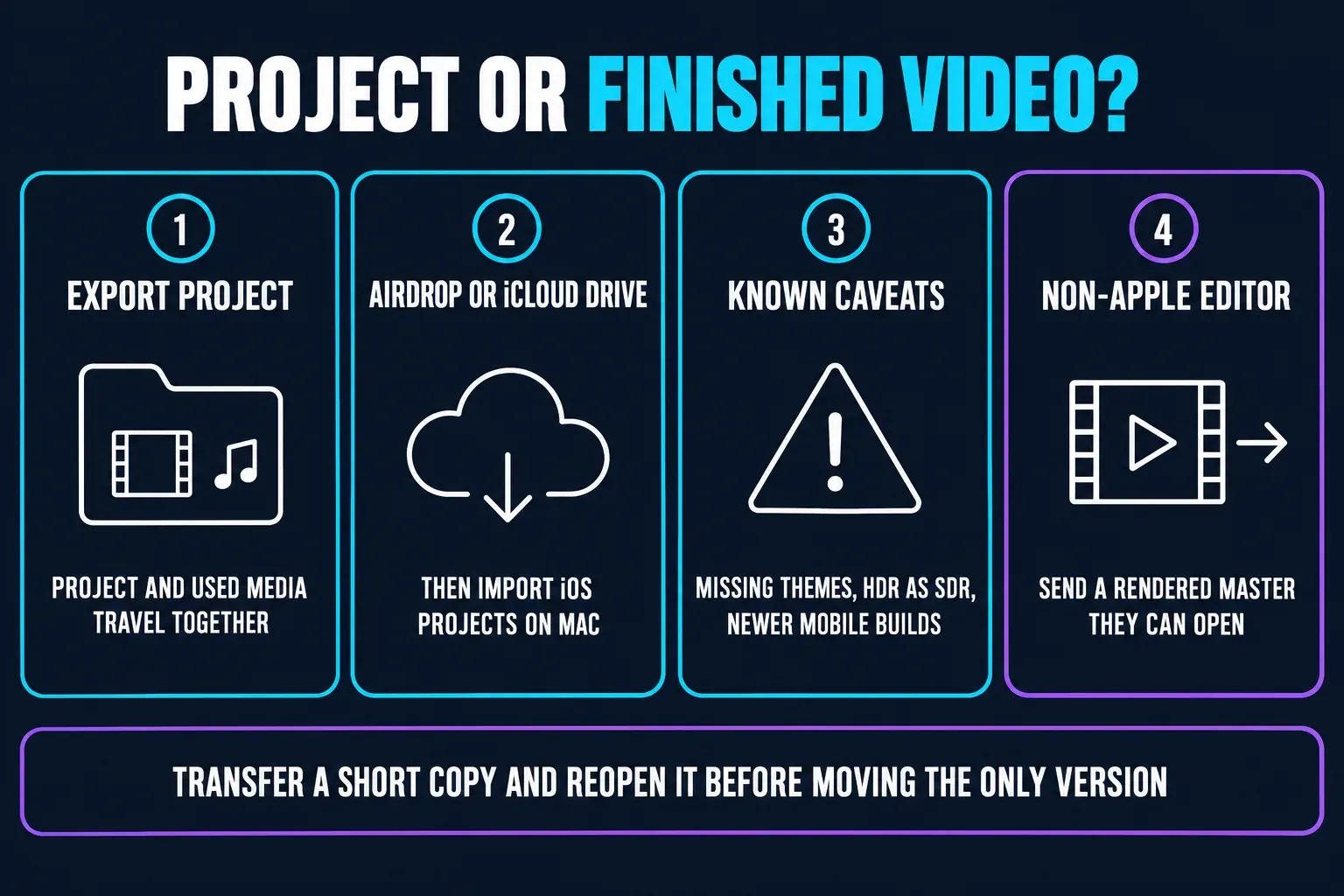
Apple's project handoff is one of iMovie's biggest advantages over a random free editor. According to Apple's Export Project guide, the project and the media it uses are saved together and can move through AirDrop, Files/iCloud Drive, Mail or Messages. On Mac, use File → Import iMovie iOS Projects to keep editing instead of starting over from a rendered video.
The handoff isn't live cloud collaboration. Apple warns that if a mobile theme is missing on the Mac, it falls back to the default Mac theme. After import, HDR media is tone-mapped to SDR for display, while the source media in the library stays unchanged. Apple also notes that a project from a newer iPhone/iPad build can fail to import into an older Mac build. I'd move a short copy across and reopen it before trusting this route with the only version of a project.
Choose the handoff deliberately:
- Editable Apple project: use Export Project, AirDrop or iCloud Drive, and confirm the receiving device runs a compatible iMovie build.
- Finished video: share a rendered video file, check its container and codec, and confirm the receiving editor can import it. Apple documents a specific MP4 export path in iMovie on Mac.
- Non-Apple collaborator: send a clean rendered master plus a note about the frame size, frame rate, music license and captions. They won't receive an editable iMovie timeline in CapCut or Windows software.
Cinematic Mode, ProRes and Apple Media
iMovie gets more useful when your footage already comes from Apple devices. Apple documents editing Cinematic mode video, changing focus points and adjusting the depth-of-field effect on supported devices, and the product page also lists ProRes import and Apple ProRAW stills. Those features make a phone-shot family film or product demo feel more controlled without asking a beginner to learn a professional camera pipeline.
Compatibility still matters here. The App Store listing ties device requirements to Cinematic mode and 4K/60 workflows, and the Mac listing has its own operating-system gate. Start with a short sample from the iPhone or camera you'll really use, import it into the iMovie build you'll edit in, and check focus controls, HDR appearance and export options before you commit to a long edit.
CapCut can accept many of the same media types, but its value lies elsewhere: auto captions, templates, effects and AI-assisted social revisions. When the clean image and the Apple capture pipeline are the main story, iMovie is the better choice. If the video has to be repackaged several times for social platforms, CapCut is the better choice.
Performance, Storage and Reliability
iMovie generally runs comfortably on a supported Mac, iPhone or iPad, but “free” doesn't mean a 4K library comes without storage pressure. iMovie projects reference or package media, and exported masters can be large. Leave enough local space for the source clips, render and final file. The Mac App Store listing itself calls for 3.5 GB available space before your footage is even counted.
If an edit feels slow, test a short section before you blame the whole app. Large Photos libraries, multiple 4K clips, HDR, background transfers and an almost-full device can all make the project browser or export feel heavy. Keep original media safe, don't delete source clips until you've checked the final export, and give a mobile project time to finish copying before you close the app.
The r/iMovie feature-request discussion contains specific wishes: TravlRonfw asks for selective blur and a caption generator, ExcitingClass6749 for a Shorts editor, and Expensive-Heart3299 for multiple picture-in-picture clips. Playful-Tip4971 asks for text without animation. Those are individual requests, not a representative survey or proof of every current product limitation. Use them as a checklist against your brief: captions, vertical framing and simultaneous overlays may determine whether iMovie or another editor fits.
iMovie vs CapCut: Feature Comparison
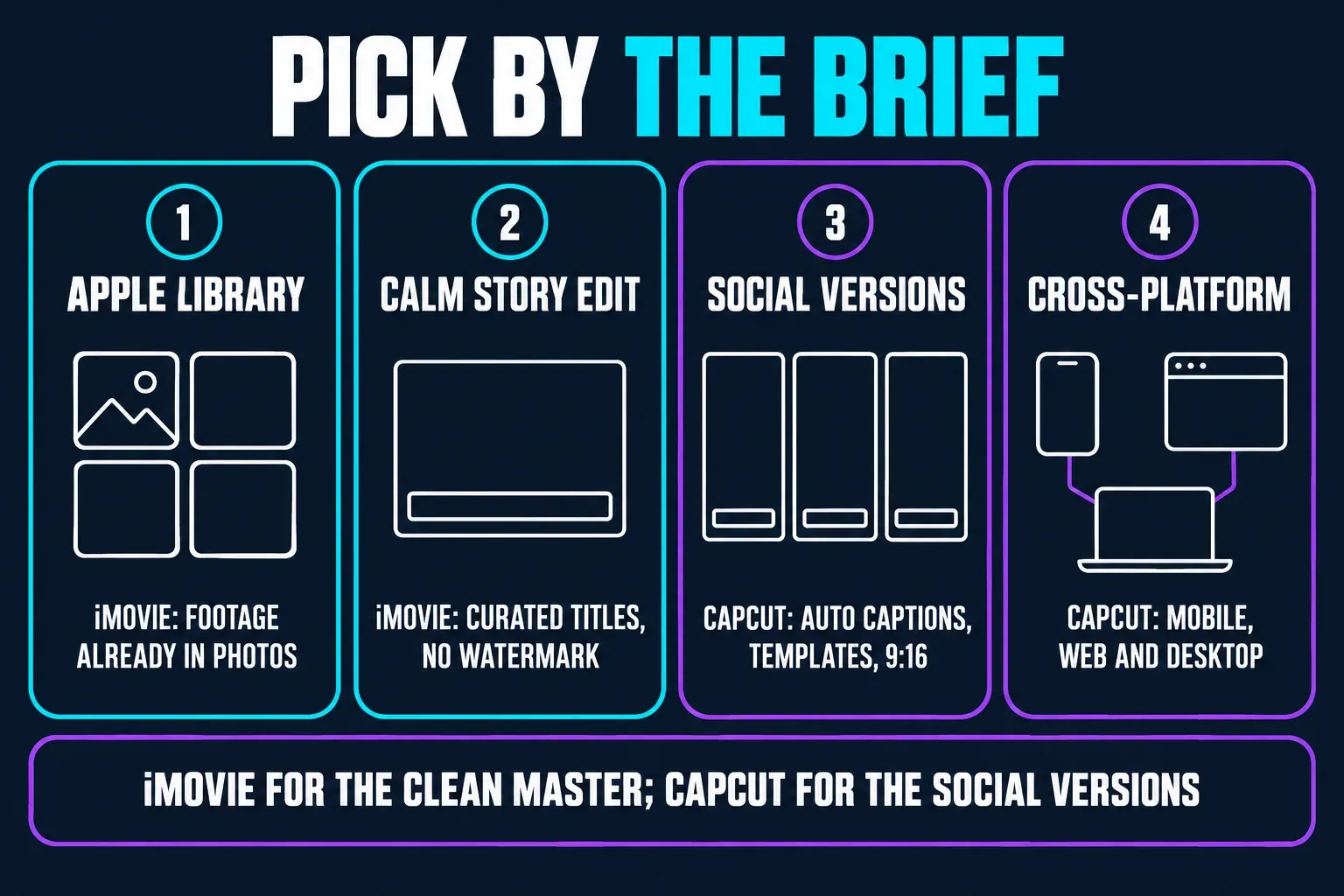
Both apps can turn phone footage into a finished video. iMovie starts from the Apple library, a curated style and a simple timeline; CapCut starts from social formats, templates, captions and AI tools. Read this table as a workflow decision. It doesn't claim that one app wins every row.
| Decision factor | iMovie | CapCut |
|---|---|---|
| Price | Free Apple app with no iMovie subscription or watermark | Free and paid paths vary by platform, region, feature and account |
| Platforms | iPhone, iPad and Mac only; current OS requirements apply | Mobile, web and desktop coverage across more devices |
| Starting modes | Magic Movie or Storyboards on iPhone/iPad; manual Movie project on mobile and Mac | Blank timeline, templates, auto tools and social presets |
| Timeline | Clear primary storyline with connected clips, overlays and audio | Effect-heavy social timeline with keyframes, masks, templates and shortcuts |
| Captions | Manual titles and subtitle-style text; no comparable built-in auto-caption workflow | Auto captions, animated text, translation and social caption styles |
| AI | Guided Magic Movie assembly rather than a credit-metered generative AI suite | Wide creator-focused AI toolset; what's available shifts with version, region and plan |
| Export | Mac: documented 4K30 or 1080p60 paths. iPhone/iPad: eligible 1080p or 4K60 when more than half the media is 1080p or 4K at 60 fps; check Share Video → Options. | Resolution, frame rate, watermark and plan rules vary; check the export screen |
| Handoff | Editable project via AirDrop/iCloud Drive between Apple devices; HDR/version caveats | Cloud/account handoff varies; cross-platform publishing is easier |
| Music | Built-in effects/soundtracks plus library audio; rights still matter | Large social music/effect ecosystem; asset and commercial rights still need checking |
| Social ratios | Not built around trend templates or an exact 9:16 production loop | Vertical templates, effects, captions and platform-led workflows |
| Best fit | Apple users, family films, school projects, clean YouTube and travel edits | Shorts/Reels/TikTok, daily social publishing and cross-device teams |
Choose iMovie If You...
- already use an iPhone, iPad or Mac and want a free editor with no watermark;
- make family films, school projects, travel videos, simple tutorials or clean YouTube edits;
- want Magic Movie or Storyboards to give a beginner a sensible starting structure;
- prefer a curated set of titles, transitions, filters and soundtracks to an endless template marketplace;
- need an editable project handoff through AirDrop or iCloud Drive inside Apple's ecosystem;
- can verify your device's current OS, 4K/60 export path and available storage before a large project;
- care more about a readable story and restrained effects than AI-generated social variations.
Stay With CapCut If You...
- need Android, Windows, web access or a workflow that is not tied to Apple hardware;
- publish daily vertical videos and need captions, templates, beat maps, stickers or rapid effects;
- want auto captions, translation, AI cleanup or generative tools in the same editing surface;
- need exact social canvas controls and several Reels/Shorts versions from one master;
- collaborate with people who won't open an iMovie project on an Apple device;
- expect a deep audio, color, multi-layer or plugin workflow beyond iMovie's creator scope;
- prefer an account-based web/desktop project over a local Apple library and file handoff.
A Practical iMovie and CapCut Hybrid Workflow
When the source is on an iPhone or iPad, use iMovie for the clean master. Build the story, trim the interview, add a restrained title and voiceover, check Share Video → Options for the project's available resolution and frame rate, and save a high-quality master. Hang on to the editable iMovie project for later revisions, and send collaborators who don't use Apple devices a rendered video in a compatible format.
Then switch to CapCut for the social finishing pass. Import the clean master, pick the 9:16 or square canvas you need, generate and proof captions, add a platform-appropriate effect and export a version for each destination. Our CapCut export settings walkthrough covers the final-file checks. One clean master can feed every version, so don't keep re-encoding the same clip.
For a quick social idea, flip the order: find the hook and trend timing in CapCut, then move to iMovie on a Mac for a calmer, longer edit or a family-safe version. Treat the handoff as a file with documented dimensions, frame rate, audio and music rights. It's not a promise that the iMovie project will open in every app.
Frequently Asked Questions
Is iMovie really free?
Yes. The current iPhone/iPad and Mac App Store listings show iMovie as a free Apple app with no iMovie subscription tier or export watermark. The catch is hardware and operating-system compatibility: current listings require iOS/iPadOS 17.6 or later on mobile and macOS 26.6 or later in the Mac listing’s Compatibility field.
Is iMovie better than CapCut?
iMovie is better for an Apple user who wants a clean, restrained timeline, simple titles, voiceover and a free master without a subscription meter. CapCut is better for cross-platform work, auto captions, templates, AI tools and daily vertical publishing. The winner follows the workflow, not the feature count.
Can iMovie export 4K?
Yes. Apple's general support guide documents 4K UHD export at 3840×2160 and 30 fps. Add a 4K clip first on Mac because the first clip determines the project format. On iPhone/iPad, the current sharing guide also describes a 60 fps option for a 4K output if more than half the project media is eligible 60 fps footage. Check Share Video → Options for the choices available on your device and project.
Can iMovie export 60 fps or 4K60?
On Mac, Apple documents a “1080p 60” choice in its 4K and 60 fps support guide. On iPhone/iPad, the current sharing guide directs you to Share Video → Options and says 60 fps can appear for 1080p HD or 4K when more than half the project media is 1080p or 4K at 60 fps. A separate Apple support article still describes an iMovie Settings switch for 1080p60. Use the controls shown by your device and check the exported file before treating 4K60 as guaranteed.
Can I move an iMovie project from iPhone to Mac?
Yes, export the editable project through AirDrop, Files or iCloud Drive and import it into iMovie on Mac. Apple warns about missing mobile themes, HDR tone mapping to SDR for display and possible errors when the mobile build is newer than the Mac build. For a non-Apple editor, send a rendered video in a format they can open.
Does iMovie have auto captions?
iMovie has titles and text treatments, but it is not a transcript-first auto-caption editor like CapCut. For a short clip you can add titles manually; for a long talking video, export a clean master and use a dedicated caption workflow. Proofread names, numbers and timing before publishing.
Final Verdict: Choose iMovie for Apple-first Simplicity
For Apple users who want a clean story, a short learning curve and no watermark, iMovie is still one of the best free starting points. It loses to CapCut when the job is a caption-heavy vertical content pipeline, a cross-platform team or an AI-assisted social edit. Start with a five-minute project cut from your real footage, check the device requirements and export options, and then pick the app whose limitations fit the video you make.