

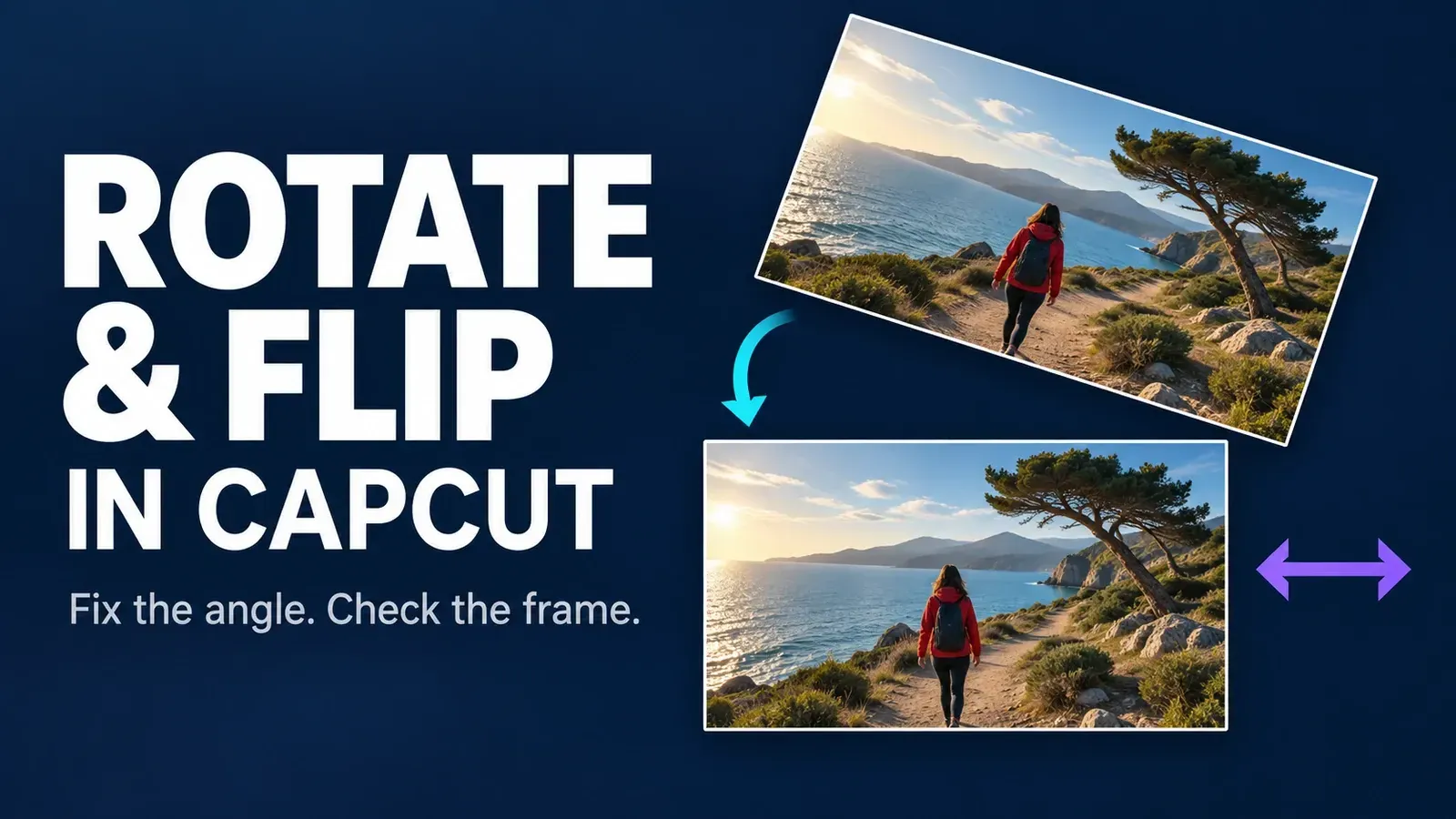
Select the clip first. Use Rotate when the picture is sideways, upside down or slightly tilted; use Mirror when left and right need to swap. If the clip is upright but the project frame is wrong, leave Rotate alone and change the canvas ratio instead.
Fast fix: on Mobile, select the clip and open Edit → Transform → Rotate for a quarter turn, or Mirror for a left-right reflection. On Desktop, use Video → Basic → Rotate; Mirror is in the clip toolbar above the timeline. Web has separate Rotate and Mirror controls. After any change, inspect the frame and the saved file.
Checked against CapCut's published rotation and mirroring instructions on September 17, 2026. This is a documentation-led guide. The Mobile and Desktop pictures come from the official walkthrough; they show those layouts, not every build. Before changing an important edit, duplicate the project and keep its original media. The project safety guide explains what makes a copy restorable.
Rotate, flip, change ratio or reverse?
These controls solve different problems. Rotate turns the selected clip around its center. Mirror swaps left and right. A vertical flip swaps top and bottom. Ratio changes the project canvas. Reverse changes the order of time, so the action plays backward; use the Reverse guide for that job.
That distinction matters when a phone recording arrives sideways. Rotating the clip can make the subject upright while the canvas remains horizontal, leaving empty space at the sides. That is not a failed rotation. It is a separate framing decision, handled with Scale, Background or the CapCut aspect ratio controls.
Choose the right correction
| What looks wrong | Use | Check afterward |
|---|---|---|
| The whole picture is sideways | Rotate 90° clockwise or counterclockwise | Empty sides or cropped edges |
| The picture is upside down | Rotate 180° | Text and overlays still line up |
| The horizon is slightly crooked | Use a numeric angle on Desktop or a degree control on Web | Scale enough to hide exposed corners |
| A selfie or logo reads backward | Mirror horizontally | Every word, logo and directional cue |
| The clip is upright but the frame is the wrong shape | Change Ratio, not Rotate | Subject, captions and overlays stay in the safe area |
| The movement should run backward | Reverse the clip | Audio and timing |
| Top and bottom need to swap | Vertical Flip, if offered; otherwise horizontal Mirror plus 180° on an unrotated ordinary clip | Asymmetric detail and any existing animation |
A 180° rotation alone is not a vertical flip. For an ordinary clip with no existing rotation or rotation keyframes, horizontal Mirror followed by a 180° turn produces the same geometric reflection as swapping top and bottom. Check an asymmetric detail, such as a sign on one side, to confirm the result. If the clip is already rotated or animated, work on a duplicate and inspect its existing values first. Do not overwrite a changing angle with 180° and assume you have preserved the animation.
How to rotate or flip video in CapCut Mobile
- Open the project and tap the exact video clip in the timeline. Confirm that the clip, rather than the empty canvas or another layer, is selected.
- Open Edit → Transform. Swipe the bottom toolbar if the Transform control is outside the visible area.
- Tap Rotate for a 90° turn and repeat until the picture is upright. Use Mirror instead when you need to swap left and right.
- Play the entire changed section. Check writing, logos, hand movements, and separate captions or overlays.
- Repair any empty edges with framing controls. Export a short diagnostic copy, then inspect the complete final export outside CapCut.
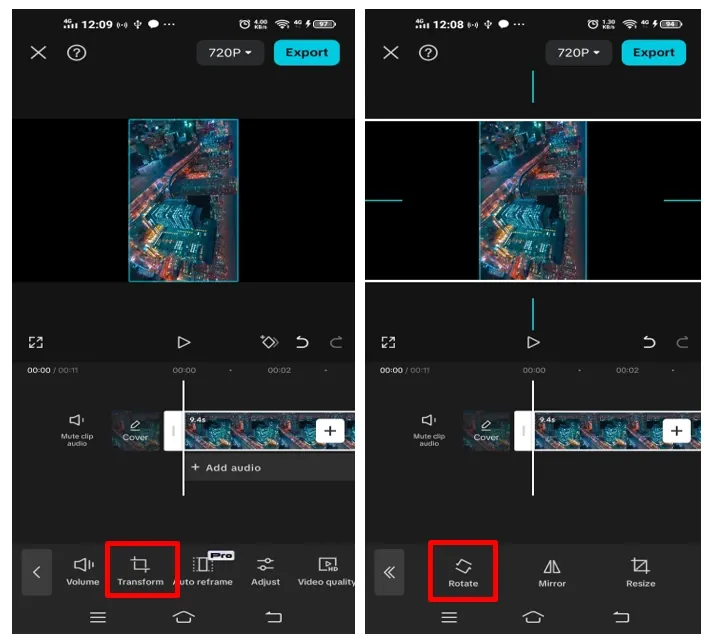
CapCut's rotation walkthrough documents Mobile's quarter-turn route, and its flip guide documents Transform and Mirror. If the controls are missing, check clip selection and the scrolled toolbar first. Do not clear app data or reinstall while the app holds your only editable copy. CapCut warns that those actions can delete local projects; preserve a verified restorable copy before any such reset. For a slightly crooked horizon, use a fine-angle control only if your build offers one. Otherwise, correct a copy of the source with Desktop's numeric angle or Web's degree control. Moving an edited project between platforms is a separate compatibility task, not a guaranteed shortcut.
How to rotate or mirror video on CapCut Desktop
CapCut's current Desktop rotation instructions place the angle control in Basic. A numeric value lets you make a quarter turn or a small straightening adjustment. Before replacing a value, look for keyframes: an angle that changes during playback is part of an animation.
- Import the source, place it on the timeline and select the intended clip.
- Open Video → Basic in the right inspector and locate Rotate. Expand the Transform group if your layout puts it there.
- Use 90° or 180° for a fixed orientation correction, or a small positive or negative angle to level a horizon. Check the picture rather than assuming a positive value turns every source the direction you need.
- For horizontal reflection, use Mirror in the clip toolbar above the timeline. That locator is documented in CapCut's Desktop mirroring walkthrough.
- Inspect the whole changed interval, including existing keyframes and overlays, then check the exported result.
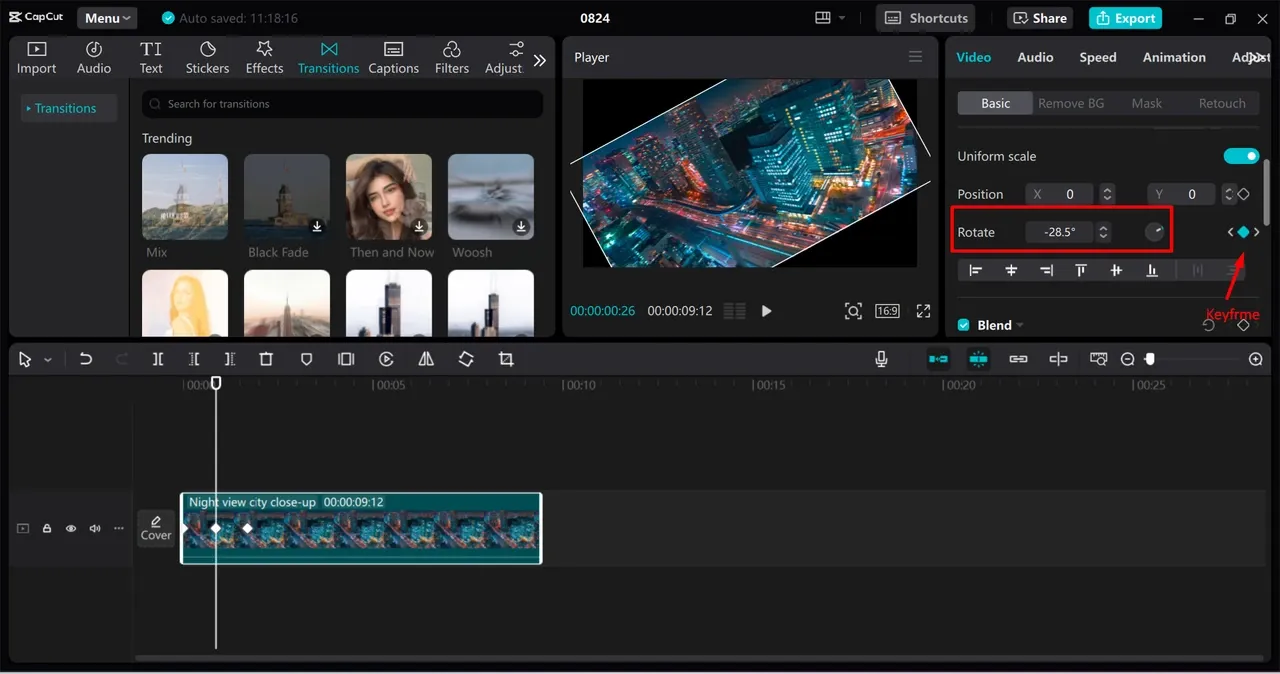
Rotation changes the selected picture; it does not automatically choose a new project canvas. A portrait clip turned inside a landscape frame can leave empty areas. Fix the composition next rather than repeatedly turning an already upright subject.
How to rotate video in CapCut Web
- Open the Web editor, upload a suitable source and place it on the timeline. For private or client footage, confirm that cloud processing is permitted before uploading.
- Select the clip. Locate Rotate and adjust its degree value, wheel or visible orientation handle. CapCut's Web rotator instructions describe those options.
- For a left-right reflection, use Mirror in the edit bar above the timeline, as described in the Web mirroring instructions. Rotation and mirroring are separate actions.
- Preview the entire changed clip, repair framing and inspect a downloaded diagnostic file. Check the complete final export before delivery.
The Web layout can change with account, version and window width. If a named control is absent, confirm selection and the available editing toolbar. Use a copy of the source in Desktop or Mobile when the Web route does not expose the control you need. A 90° Rotate button is not a substitute for Mirror. Keep the existing project and original source rather than repeatedly converting or overwriting them.
Fix black bars or empty corners after rotation
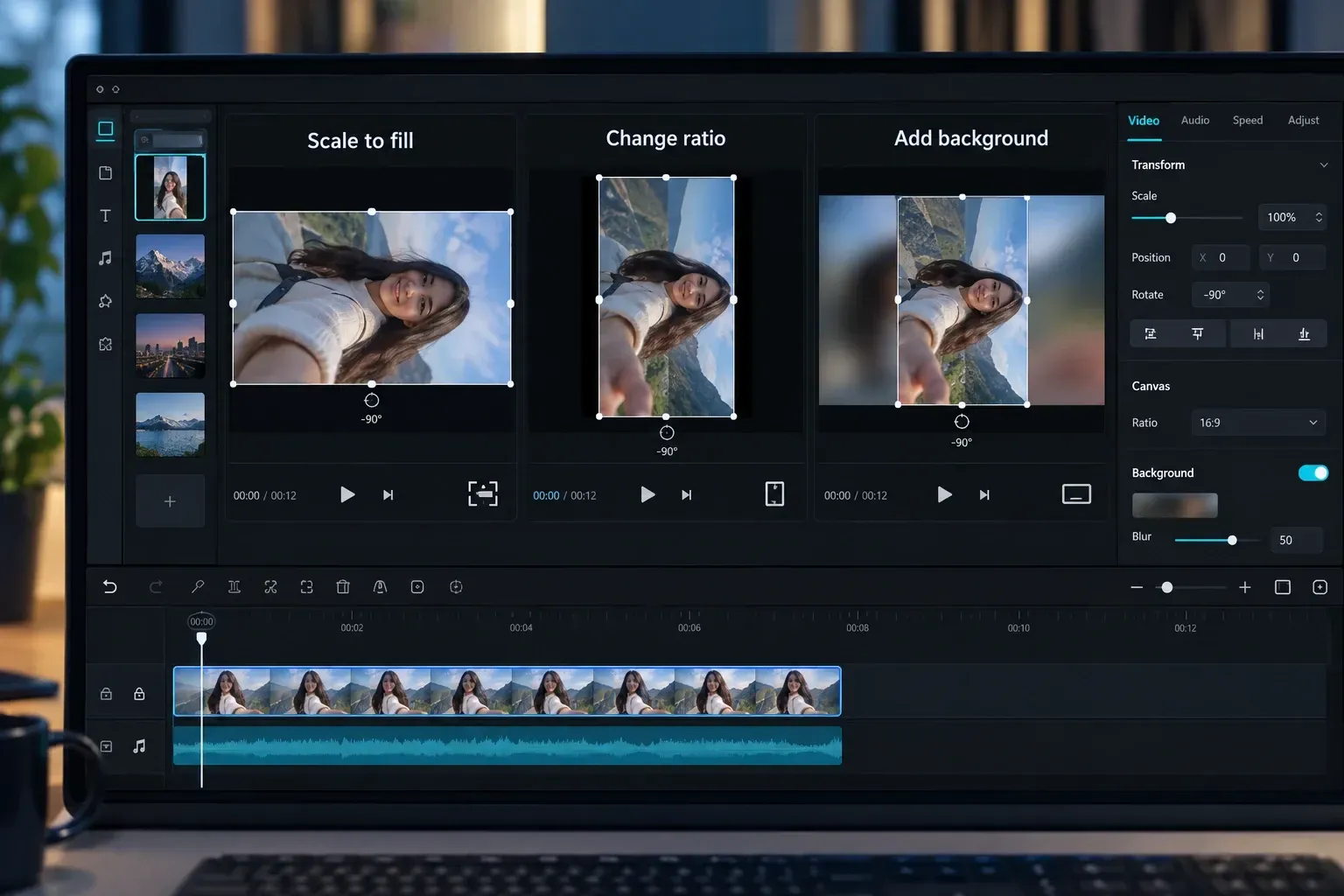
A rotated rectangular clip may no longer cover the project canvas. Choose the framing change that fits the destination:
- Scale up: fill the canvas when losing some edge content is acceptable. Inspect faces, writing and action near the crop.
- Change Ratio: choose the canvas shape required by the destination, then reposition the picture and separate overlays.
- Add a Background: keep the source fitted without cropping and fill unused space with a color, image or blurred background. A background does not undo a crop or zoom already applied.
On Desktop, the official rotation guide points to Canvas in the Basic controls for background choices. Mobile and Web labels can differ, so inspect the available Canvas or Background control. For small exposed corners, a little scaling may be enough; check what it removes. Use the Crop guide when you deliberately want to discard edge content. Do not stretch the picture accidentally: that changes people and objects' proportions.
Mirror a clip without breaking text or logos
Mirroring can help screen direction: a person can face toward a title instead of away from it. It also reflects everything baked into the footage. Street signs, clothing text, product labels, handedness, sports technique and steering direction can become misleading.
Inspect the whole changed clip rather than its opening frame alone. If important writing becomes backward, keep the original direction or choose another composition. Covering and rebuilding a label is appropriate only when the result remains truthful. Check separately added captions, titles and overlays independently; a correction to the video layer does not prove those other layers are positioned correctly.
Rotate only one section or animate the turn
To correct only one section, work in a copy of an important edit. Split at the section's start and end, select the middle segment and apply Rotate or Mirror there. Check both joins and listen for a cut-off word. A sudden orientation change may be intentional, but it should not be an accidental jump. The cutting and splitting guide covers selection and track-specific limits.
For a smooth turn, animate Rotate with keyframes instead of applying one static angle. Set the starting state, move the playhead and set the ending angle; then watch every frame between them. CapCut's keyframe help also warns that some template elements do not support keyframes. Check an ordinary clip in a project copy if the control is missing. Use the keyframes tutorial for timing and easing.
When Rotate or Mirror is missing, or export looks wrong
- No control: select the timeline clip, expand its Basic or Transform controls, and scroll the Mobile toolbar. Check whether a template restricts that element.
- Wrong clip changes: undo the change and select the intended item. Split first if only an interval should change.
- Upright but badly framed: stop rotating. Inspect Scale, Ratio, Background and existing crop.
- Preview and export disagree: open the exact same saved file in two players. Different display is a clue about interpretation, not proof of a CapCut bug.
- Template import behaves differently: keep the original edit. Test a copy of the source in a plain blank project, apply the correction to the timeline clip and compare a short export. This separates a template-specific path from an ordinary clip workflow.
Video orientation can be stored as a track transform rather than physically rotated pixels. Apple's archived AV Foundation orientation note explains that distinction and why a player ignoring the transform may display a file differently. This 2015 reference explains the file concept; it does not diagnose a current CapCut defect. A video track transform is also different from photo EXIF orientation.
Once the short diagnostic works, inspect the complete final export from beginning to end. Check angle, framing, text direction, animated sections, overlays and sound. Keep the source and editable project. Our full breakdown of CapCut export settings covers destination-specific output choices.
CapCut rotate and flip FAQ
How do I rotate a video 90 degrees in CapCut?
Select the timeline clip. On Mobile, use Edit → Transform → Rotate for a quarter turn. On Desktop, use the numeric Rotate control under Video → Basic. On Web, use the selected clip's Rotate degree control or visible handle. Then inspect the canvas and exported file.
Is Flip the same as Rotate in CapCut?
No. Rotate turns the picture around its center. A horizontal flip, commonly labelled Mirror, swaps left and right. Reverse is different again: it changes the order in which the clip plays.
Why does my rotated video have black bars?
The rotated clip no longer covers the project canvas. Scale up if some cropping is acceptable, change the project ratio when the destination needs a different frame, or use a background to keep the whole clip visible.
Can I straighten a slightly crooked video?
Use a small numeric angle on Desktop or a degree control on Web. The documented Mobile route uses 90° steps; use a fine-angle control only if your build offers one. Small adjustments can expose corners, so inspect any crop needed to fill the frame.
Why is text backward after I mirror a video?
Mirror reflects the pixels of the selected footage, including words and logos. Inspect the entire changed clip. Check separate title, caption and overlay layers independently and keep them readable.
Does rotating a video reduce quality?
Do not assume a rotated export is lossless. Enlarging or cropping can reduce useful detail, and output resolution, codec, bitrate and repeated encoding affect the saved result. Compare a short diagnostic with the source, then inspect the complete final file.
How do I flip video vertically in CapCut?
Use a dedicated Vertical Flip control if your editor offers it. For an ordinary clip with no existing rotation or rotation keyframes, horizontal Mirror followed by a 180° turn produces the vertical reflection. Check an asymmetric detail. Do not overwrite an already animated angle blindly.
Why is my export sideways when the preview is correct?
Compare the same saved file in two players, then test a copy of the source in a plain blank project. Player interpretation, source orientation and template or project transforms can differ. One symptom does not prove which cause applies; keep the original files while diagnosing.
Once the clip is upright, leave Rotate alone and judge the edit as a viewer: direction, text, framing and the saved file. For the broader sequence from first import to final export, continue with our step-by-step CapCut tutorial.