

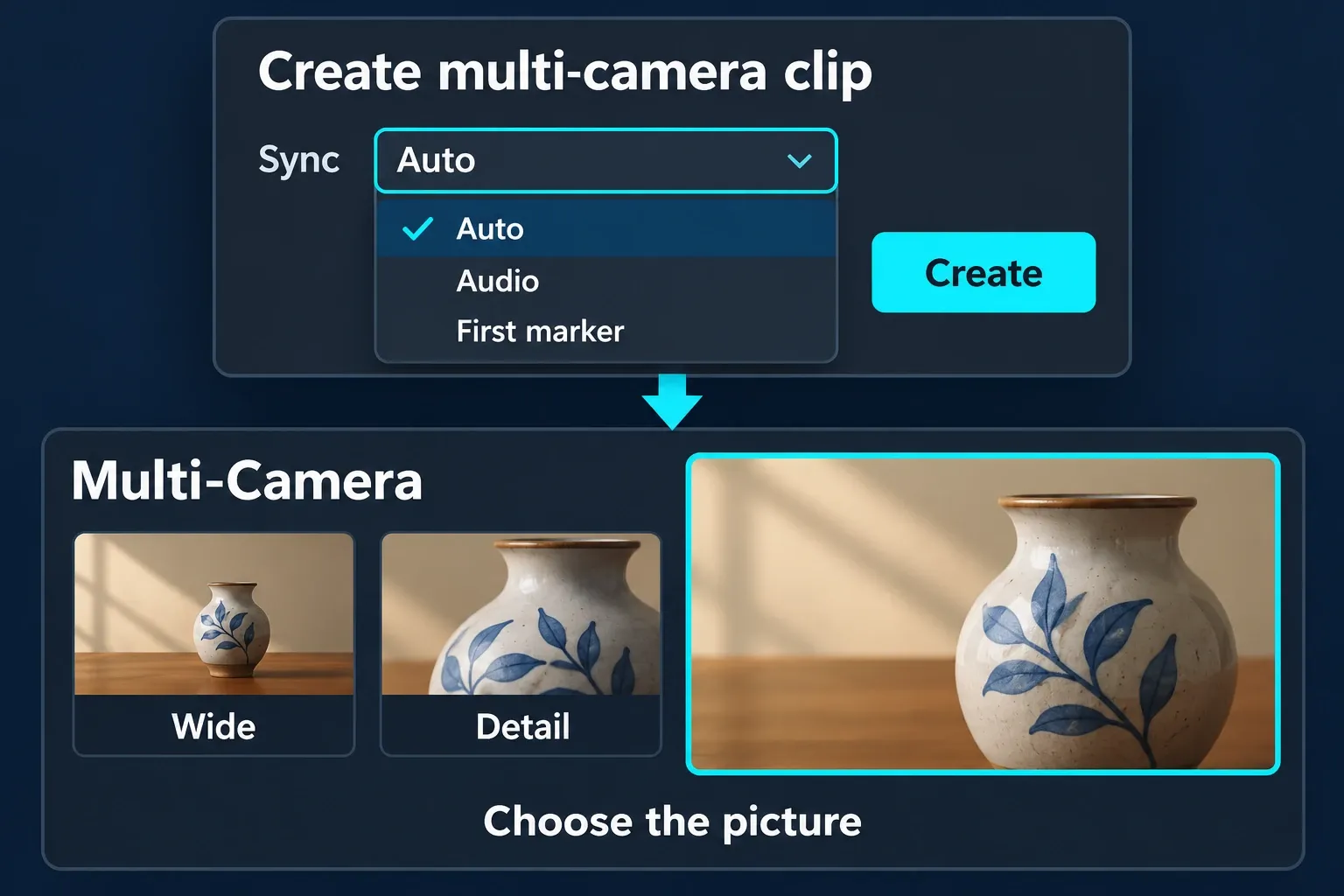
CapCut Desktop's documented multicam workflow starts with Create multi-camera clip. Put the camera clips on separate timeline tracks, select them together, right-click, and choose that command. Pick a synchronization method, click Create, then switch between angles in the Multi-Camera preview.
Use the command if your Windows or Mac build offers it. If it's missing, you can still put together a multi-angle edit from aligned tracks. The manual method below keeps the underlying event in place.
Multicam editing gives you one chosen camera view at a time. A split screen shows several views at once. Our collage and split-screen guide covers that different output.
Prepare the angles and choose a shared reference
Keep the original recordings and work in a copy of the project. Name each angle clearly, such as Wide and Detail, so you can pick the view you want without guessing from thumbnails that look alike.
Set the destination frame shape and frame rate before you build the edit. A vertical phone clip and a wide camera recording can share a project, but each may need its own framing. Synchronization won't make their compositions identical.
Hold on to usable camera audio for syncing until you've checked the match. Find one event that every device recorded: a clap, a distinct impact or a clearly matching spoken moment. Line up that event inside each recording instead of assuming the files all start at the same instant.
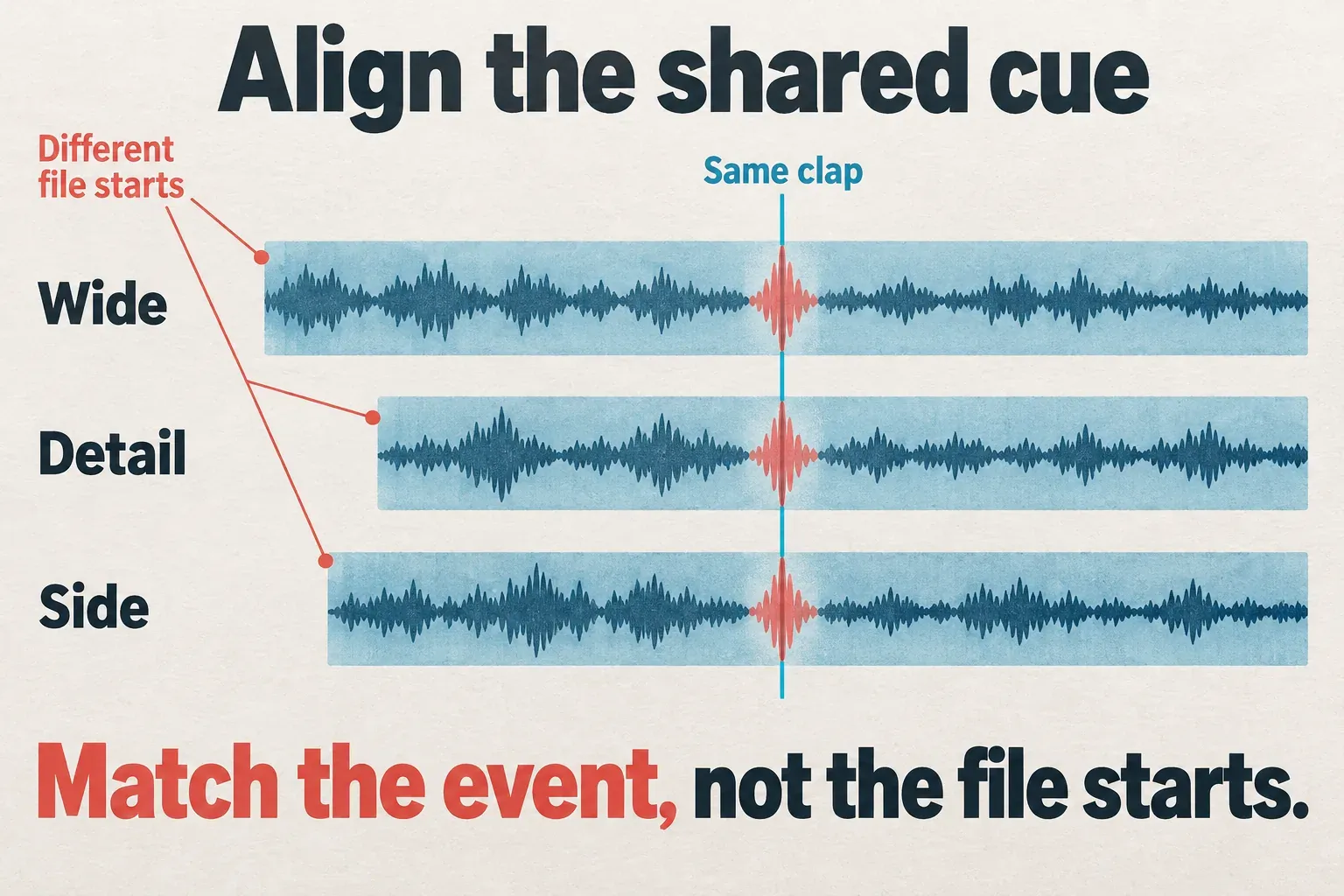
CapCut's multi-device editing guidance recommends checking synchronization throughout the recording. Look near the beginning, middle and end. If the start lines up but a later moment slips, shifting the whole clip again moves the good section too. Fix the affected timing before you make angle cuts.
Create a multi-camera clip on Desktop
Import the recordings and put each camera angle on its own video track. Select the relevant clips together, right-click, and choose Create multi-camera clip. CapCut's official creation steps list the synchronization choices Auto, Audio and First marker.
| Synchronization choice | Use it when | Check before cutting |
|---|---|---|
| Auto | You want the editor to attempt alignment with the available recordings. | Inspect the result against a shared event; an automatic result still needs review. |
| Audio | The cameras recorded recognizable versions of the same sound. | Confirm the same moment lines up, including later in the recording. |
| First marker | The first marker in each source identifies the same event. | Different first markers are different references, even if both files contain markers. |
Pick the offered method that fits your footage, then click Create. Keep your sources until you've confirmed the result.
Put the new multi-camera clip on the working timeline if your editor hasn't already done that. Then look for standalone source clips still playing in the output. You want the intended multicam result, not a second stack you didn't notice covering it or doubling its sound.
Open Multi-Camera in the preview. CapCut documents four-view and nine-view displays for its multicam preview. Choose the layout your current build offers.
Switch the picture while keeping one audio source
Play the sequence and click the camera view you want in the multicam preview. Afterward, go back over the angle changes and tighten their timing with whatever timeline controls are available. Our cut, trim and split guide explains the difference between a picture cut and removing time from the project.
I'd make a first pass with the main angle carrying the action, then add another view where it reveals something useful. A detail shot can explain a demonstration. Switching between nearly identical views every few seconds adds cuts without adding information.
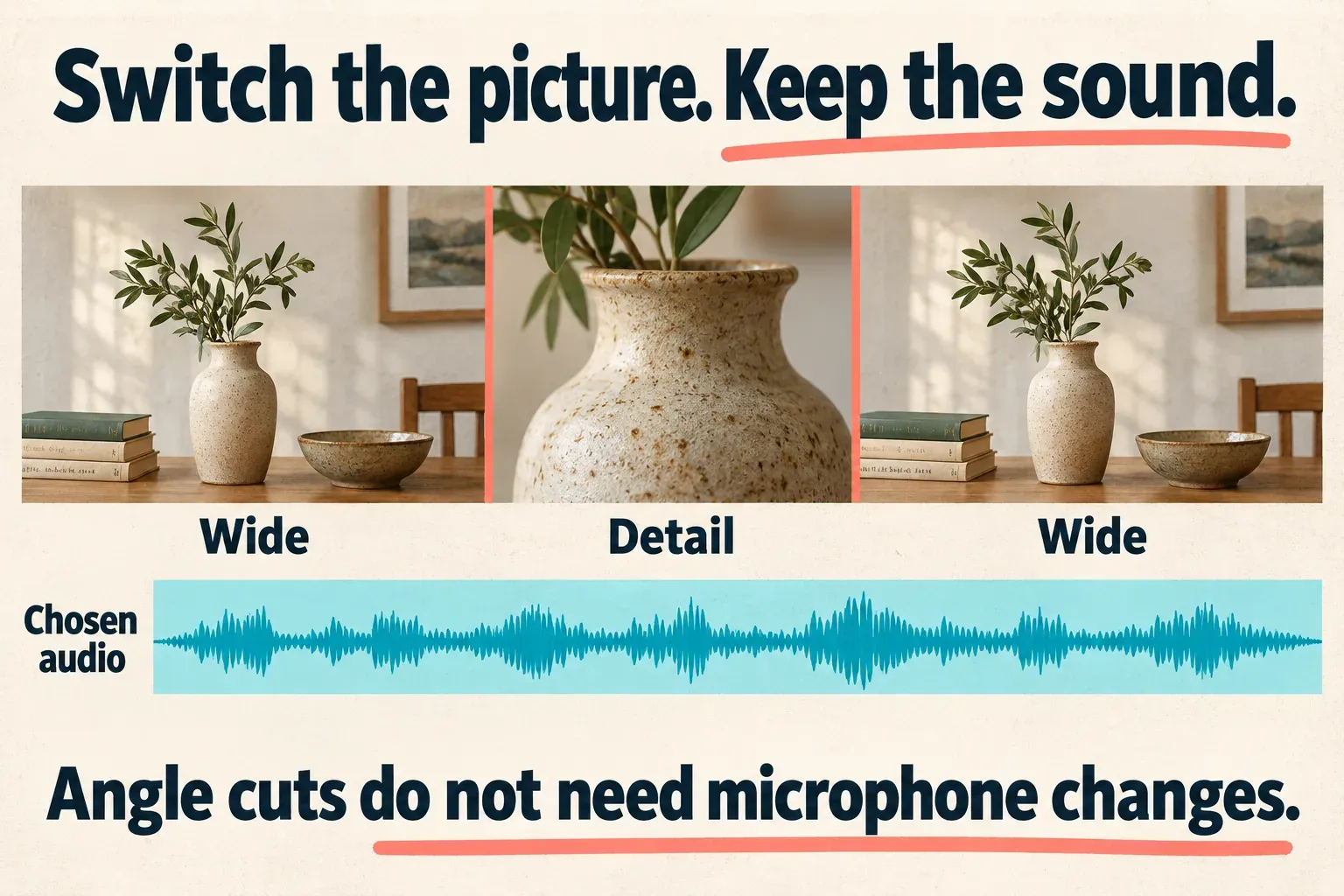
Pick the clearest recording for the full section. Listen across every angle change: the sound shouldn't suddenly jump to a distant camera microphone or play twice. Start with the audio choices your current multicam controls expose. If they don't give you the result you need, keep the intended recording on a separate audio track and mute the competing sources.
If that recording still sits inside a camera clip, use Separate audio or Extract audio only where the operation is available and its access terms suit you. Don't drop the original sound until the separate recording is aligned and audible. The audio-mixing guide covers selecting and balancing the track you intend to hear.
Build a manual multi-angle edit when the command is missing
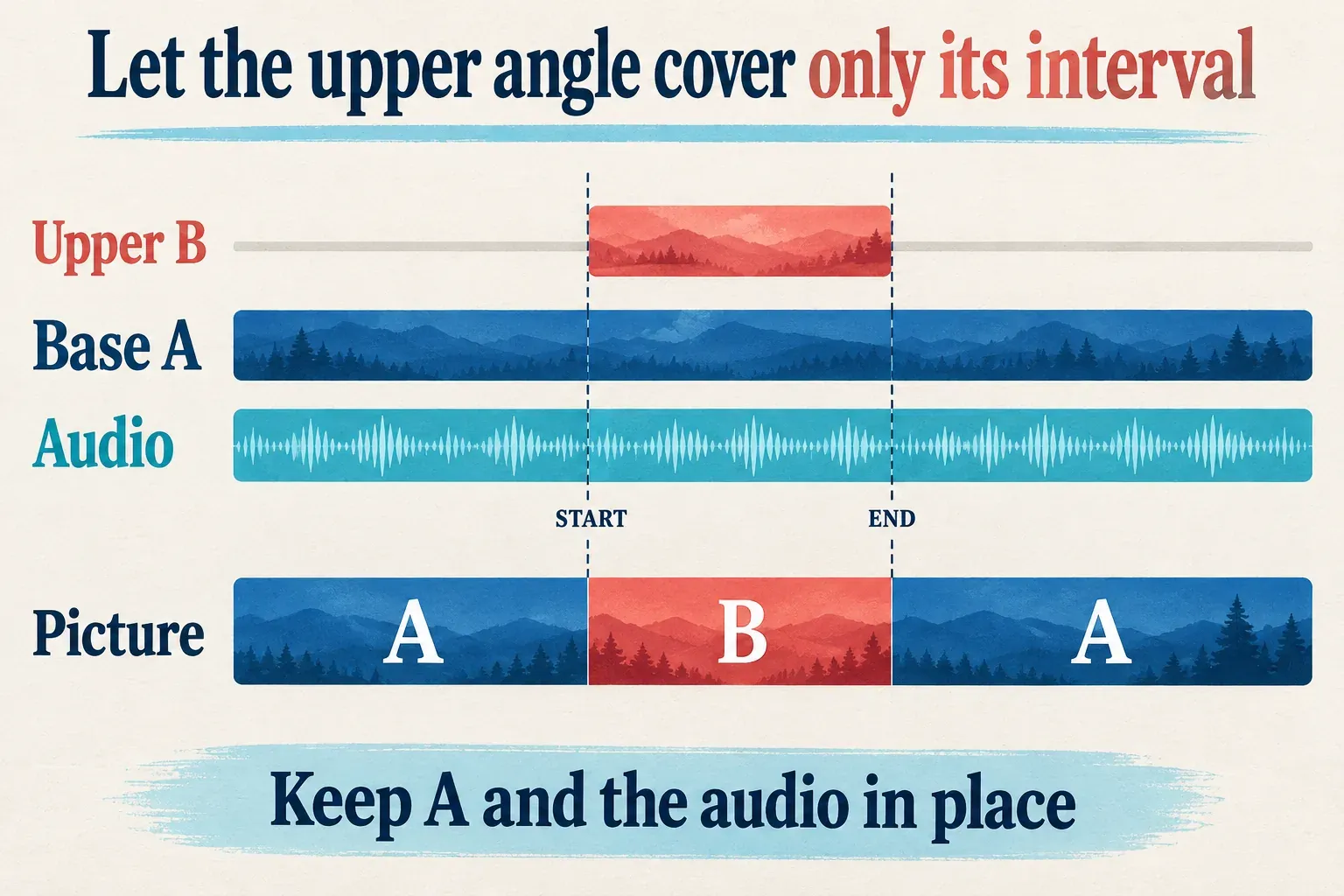
Manual editing uses aligned visual layers instead of a dedicated multicam viewer. It can also help with a brief secondary angle that doesn't cover the entire event. The overlay guide covers adding the upper video layer on Desktop, Mobile and Web.
- Put the main angle A on the base track and angle B on a higher visual layer. Keep the chosen audio recording continuous underneath.
- Find the shared event in both clips and move B until the matching action lines up. Check a later event before cutting.
- Mark the interval in which B should replace A. Split or trim B so its upper layer covers that interval at the correct time.
- Keep A underneath and in its original timing. Mute B's audio if the continuous recording already provides the sound.
- Play across both boundaries. A should remain the picture outside the interval, with B visible inside it and the intended audio uninterrupted.
Don't remove time from A just to reveal B. A ripple deletion can change how the picture lines up with the continuous sound. Likewise, putting two clips back to back strings takes together in sequence, but it doesn't synchronize two recordings of the same event.
On Mobile or Web, use this layered method wherever the controls you need are available. The documented Desktop Create multi-camera clip command doesn't mean those surfaces have the same native multicam viewer.
Fix missing controls, drift and distracting angle changes
If Create multi-camera clip is missing or unavailable, make sure you selected the relevant video clips in the Desktop editor. Read any access notice, and check the current menu before you assume a tutorial's location is permanent. The feature-availability guide separates platform and account limits. A free download doesn't guarantee access to every command.
When sync looks off, confirm the clips show the same take and contain the same reference. If the mismatch grows later in the recording, look into drift. Running the original automatic alignment again isn't a complete diagnosis. Save a copy before you change section timing.
If playback stutters with several angles, use preview-quality or proxy options where your build exposes them. Reduced playback detail can help you navigate, but it doesn't repair alignment. Check the final output against the intended source media.
If the timing is right but a cut still looks wrong, compare the framing and color. Match the main angle's white balance and exposure as far as the footage allows. Our color-correction guide covers the relevant controls. A preset can't recover detail missing from an overexposed source.
Before you deliver, watch the full exported file outside CapCut. Check every angle boundary for a repeated or missing moment, listen for microphone changes, and make sure later dialogue still matches the picture. Hang on to the source recordings and working project so you can revise an angle without rebuilding the event.