

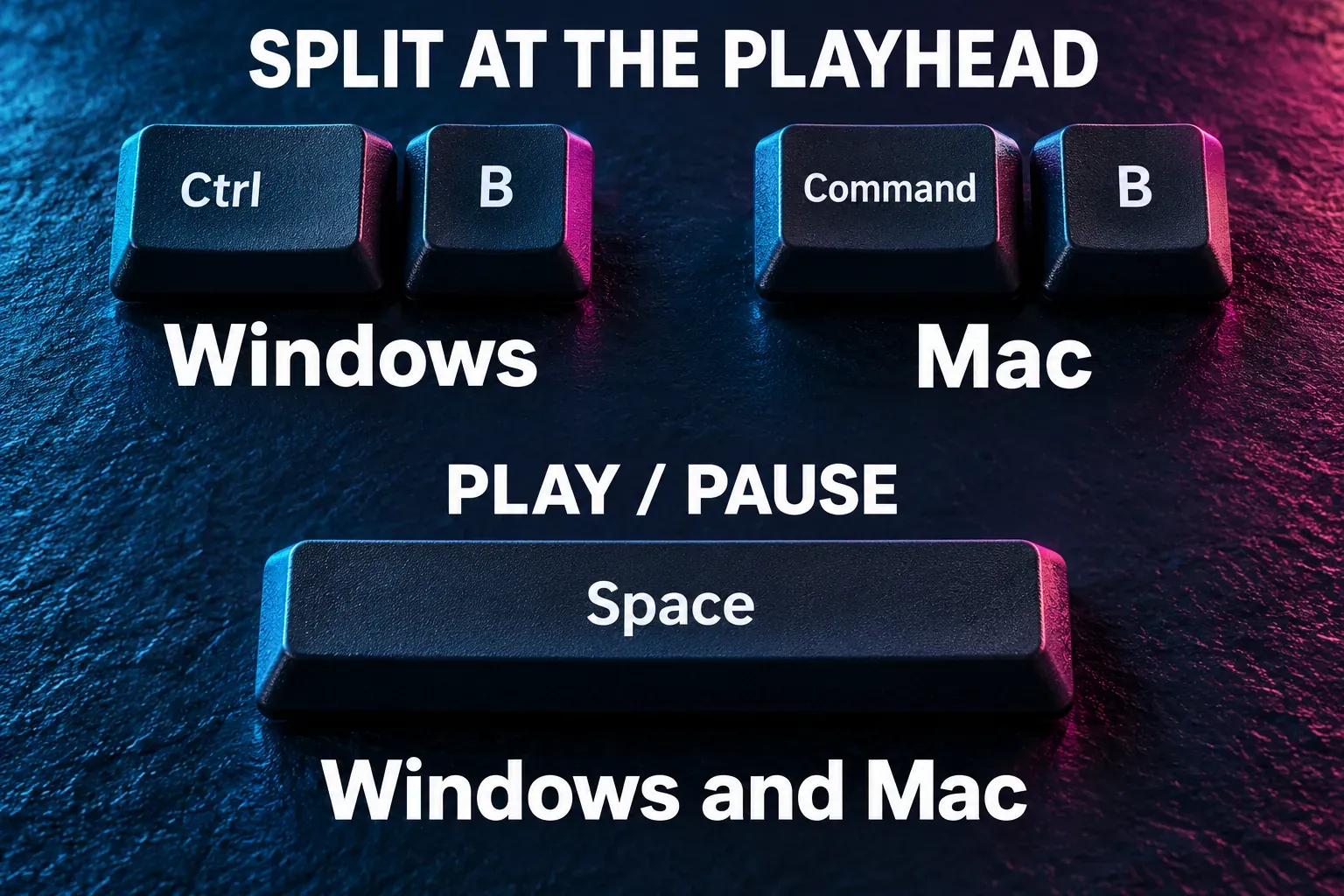
The CapCut split shortcut is Ctrl+B on Windows and Command+B on Mac. Space plays or pauses, and the Left and Right Arrow keys move through frames when the timeline has focus. Those are the first commands I'd learn for a rough cut.
For the rest of your CapCut shortcut keys, check the Shortcut/Shortcuts list in your own Desktop editor. Assignments can change, and a downloadable cheat sheet may describe its author's custom layout. The action name and the binding your installed copy shows matter more than an old keyboard image.
A useful starting reference
CapCut's Desktop shortcut overview documents Split, playback and frame navigation. The range commands below come from its Help guide to exporting part of a timeline.
| Action | Windows Desktop | Mac Desktop | What to check |
|---|---|---|---|
| Split the selected clip at the playhead | Ctrl+B | Command+B | Select the intended clip and position the playhead first. |
| Play or pause | Space | Space | Leave text-entry fields and return focus to the timeline. |
| Move one frame backward | Left Arrow | Left Arrow | Check the current mapping if a field changes instead. |
| Move one frame forward | Right Arrow | Right Arrow | Watch the preview to confirm the next frame. |
| Set the In point for a range | I | I | Inspect the marked start before exporting. |
| Set the Out point for a range | O | O | Inspect the marked end before exporting. |
These are documented starting bindings. They don't cover every version or custom profile. CapCut also documents Shift+X as a way to select a range for export. If that command works differently in your build, follow the visible In/Out controls.
On a Mac keyboard, Command is the ⌘ key. Don't add it to every shortcut: I, O, Space and the arrow keys above are literal keys. For a split, Command+B is the Mac combination you want. Holding Control instead sends a different combination.
Our playhead guide covers precise positioning. For removing a section and preserving the surrounding edit, use the cut, trim and split walkthrough. A keyboard shortcut runs the command, but it doesn't decide which frames belong in the finished video.
Find and change your current shortcut mapping
Open a Desktop project and look for Shortcuts or Shortcut in the editor's toolbar or menu. If you can't see the entry, check Help. The entry's location can change: CapCut's UI update guidance points readers to the main menu, toolbar and settings for moved tools.
Find the action by name, then read its assigned keys. Make sure you're looking at Split, for example, instead of a command that splits several tracks or changes the cursor mode. Similar names can describe different edits.
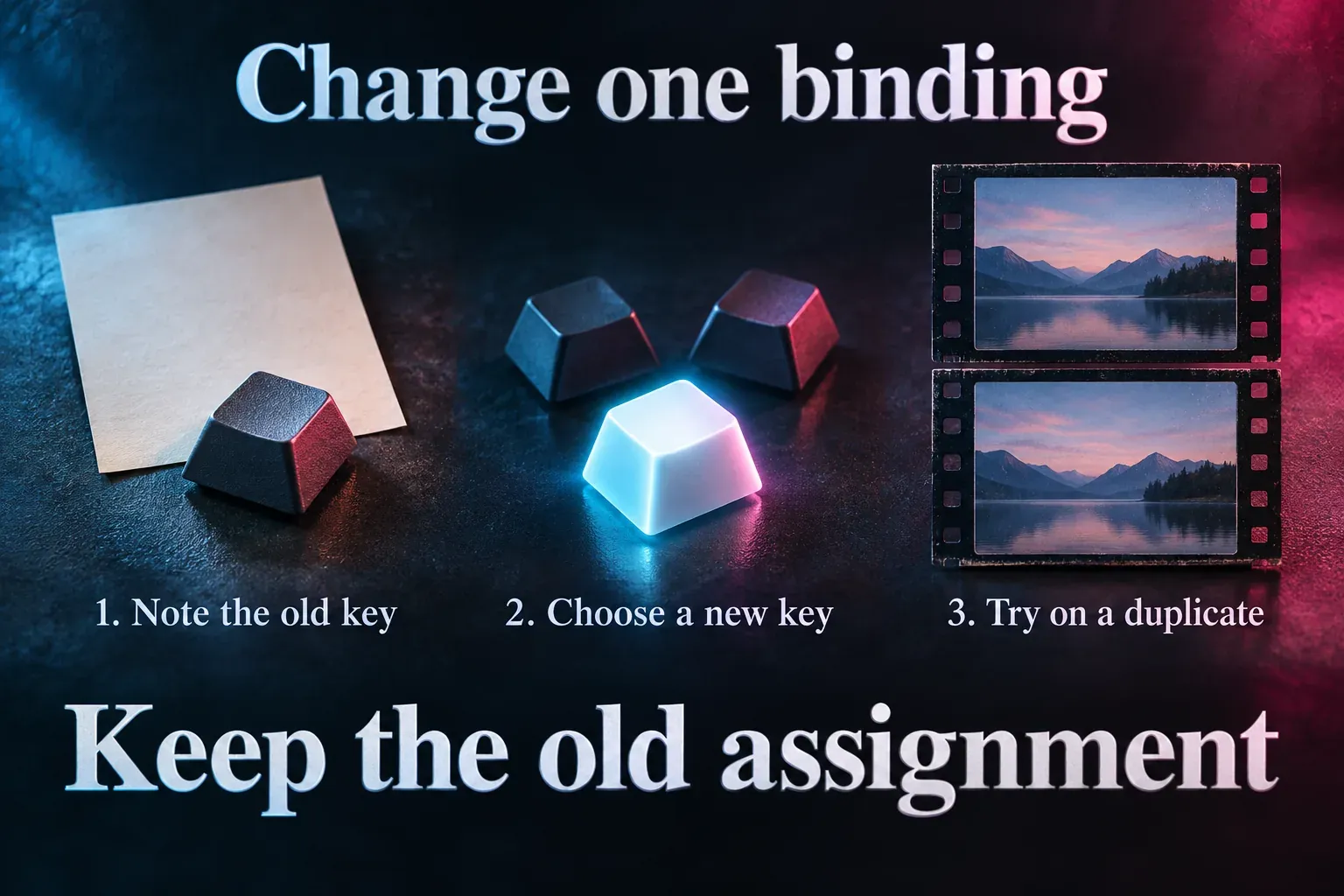
CapCut supports personalizing Desktop keyboard shortcuts. I'd change one frequently used action first:
- Record its existing binding so you can put it back.
- If the assignment is editable in your build, select it and enter the combination you want.
- Resolve any conflict the editor shows. Avoid taking a key from another action you still use.
- Apply or confirm the change if the editor asks, then return to the timeline.
- Try the command on a duplicate project or an expendable clip. Check the selected object, the cut position and the result before using the new binding in your main edit.
If the row is unavailable or can't be edited, stick with its current assignment or use the visible command. You don't need a macro to finish the edit.
Check whether a cheat sheet uses custom keys
A shortcut chart can be useful and still not match your editor. Take this published custom CapCut cheat sheet: it tells readers to replace their assignments and uses S for Split All. That's a chosen layout, not proof that S performs the same action in a fresh installation.
When a tutorial's keys don't match yours, compare the action names first. Then either use your current binding or remap that action on purpose. Don't copy a whole layout just to follow one step.
For a printable personal reference, make a short table of the actions you use and the keys your editor shows. Add your operating system and any assignments you changed. Keep the table beside the timeline so you can look up a command without mixing up someone else's preferences with your own.
When a CapCut shortcut does nothing
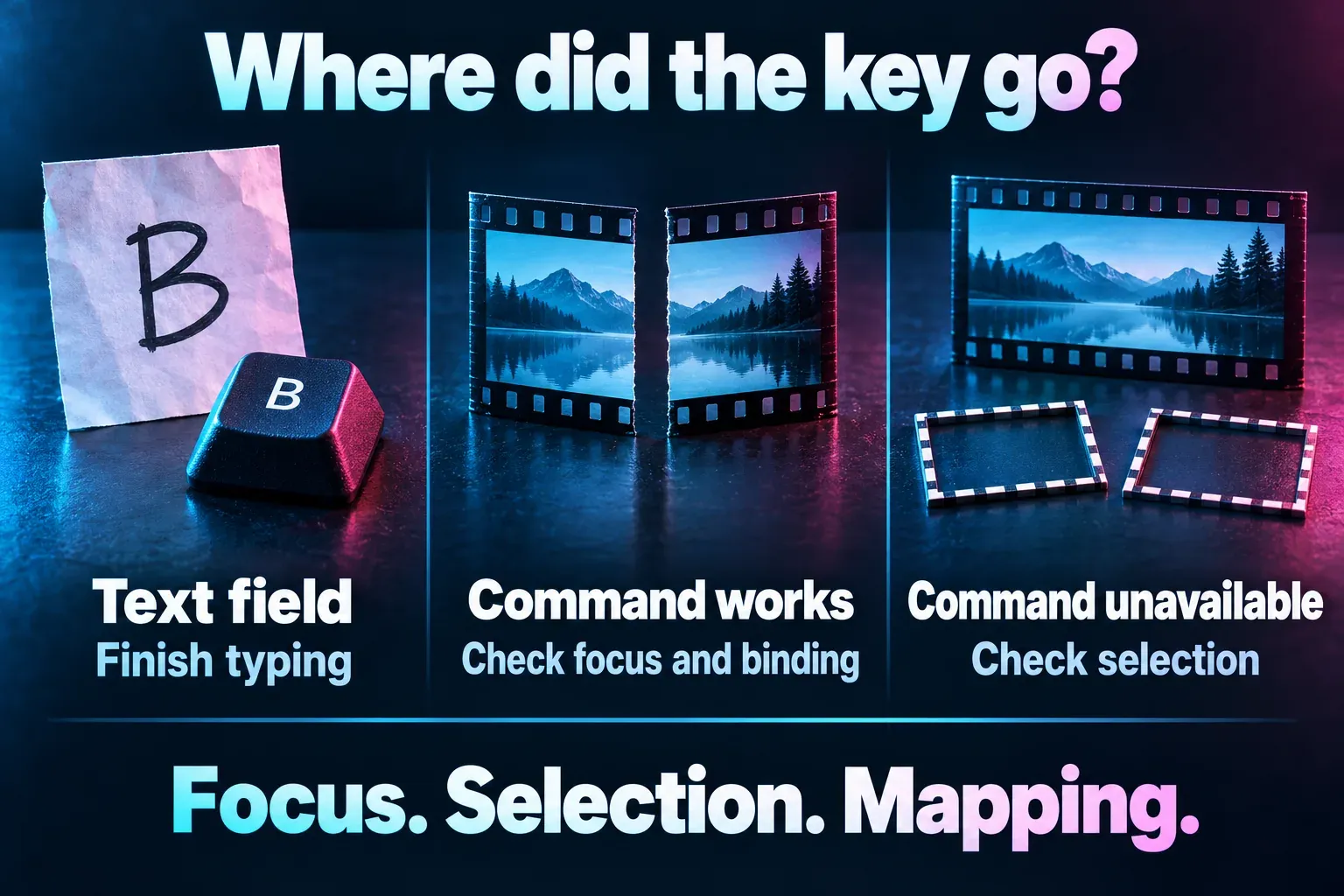
Check focus first. Finish editing a title or number, click the timeline, and try again. If a letter shows up in a text box or an arrow changes a numeric value, your input is going to that field.
Next, check which clip is selected and what the action is currently bound to. Compare the shortcut with the visible toolbar or menu command:
- The visible command works: recheck focus, modifier keys, custom assignments and any keyboard utility that might intercept the combination.
- The visible command is unavailable too: inspect the selection and editing state. Changing the shortcut will not make an unavailable action applicable.
- The wrong action runs: undo that edit, then check which command owns the key before pressing it again.
This reference covers Desktop on Windows and macOS. Don't assume the same mappings apply to CapCut Web, a tablet keyboard or the Mobile app. If you were using I/O for a delivery excerpt, finish with the selected-section export guide. A marked range isn't the same as cutting media out of the project.