


To fade a video out in CapCut, animate its Opacity from 100% to 0% over the closing part of the clip. For a fade-in, reverse those values. CapCut documents opacity keyframes on Desktop and Web. On a phone, it depends on which controls the selected clip gives you.
There's one catch: transparent does not mean black. If another clip sits underneath, that clip shows through. For an ending that goes completely dark, you need black behind the fading clip or a black layer covering the entire composition.
I prefer opacity keyframes for a plain fade because the two values make the endpoint clear. A preset called Fade may add blur or another visual treatment. Preview the result before you decide it's the effect you want.
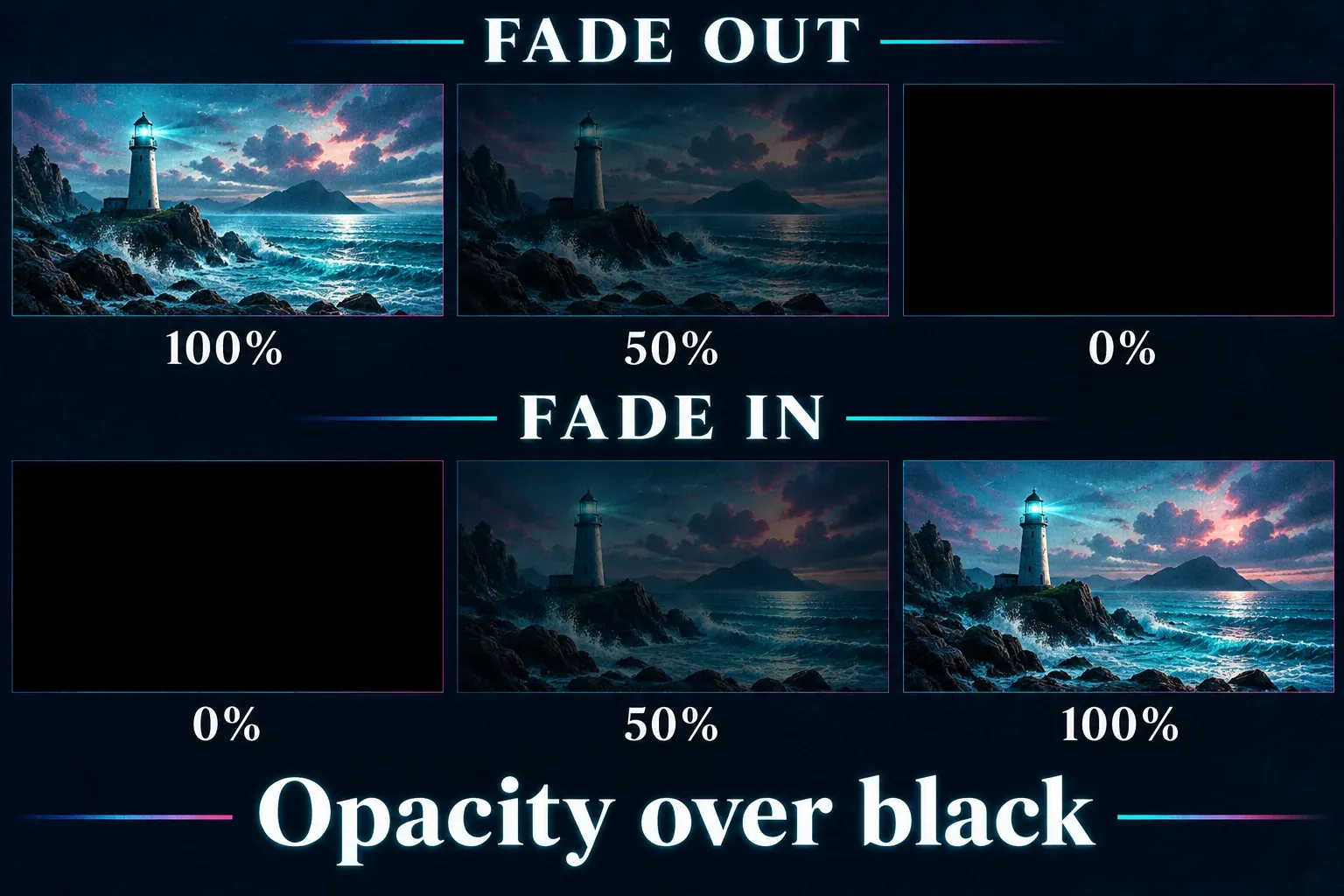
Make a plain fade with opacity keyframes
Pick the clip you want to change, then decide when the fade should start and finish. Keep both markers inside the visible clip. If the second marker lands past the clip's end, the video can cut off before the fade reaches its endpoint.
Desktop: set the two values
CapCut's Desktop keyframe guide documents an Opacity control with a diamond beside it in the right-hand panel.
- Select the video clip on the timeline and find Opacity in its controls.
- Move the playhead to the moment the fade-out should start. Set opacity to 100% and add a keyframe with the diamond.
- Move to the final visible frame of the clip. Change opacity to 0%, then check that a second marker exists at that position.
- Play through the interval. Check what appears underneath as the video disappears.
For a fade-in, put the first marker at the clip's opening frame with 0%, then set a later marker to 100%. The gap between the two markers is your fade duration. Leave the rest of the clip at full opacity.
For example, a ten-second clip could stay fully visible until the nine-second point and then fade during its final second. That's only a timing example, so pick what suits your edit. I'd shorten the fade if it hides an action the viewer needs to see.
If marker placement is new to you, our CapCut keyframe guide explains how values change between points. You don't need to touch playback speed to change how long this fade lasts.
Web: use the selected clip's Basic controls
The official Web keyframe instructions place the selected clip's property controls in the upper-right Basic panel. Find Opacity, set the first value with its diamond, move the playhead, and set the second value.
Use the same 100-to-0 sequence for a fade-out, or 0-to-100 for a fade-in. If the Web workspace doesn't offer opacity keyframing for your selection, don't swap in a scale or position diamond. Those animate a different property. When you need explicit control over the black endpoint, use the Desktop route.
Fade video on iPhone or Android
For a preset fade-in, CapCut's current Help instructions give this Mobile route:
- Select the clip on the timeline.
- Open Effects, then Video effects.
- Search for Fade In, add it, adjust its duration and confirm.
Play the opening back and check that the effect starts where you want it to. For this preset, the same Help page also documents an Effect panel on Desktop and an Effect entry in the Web side toolbar.
For a plain fade-out, start by checking whether the selected clip offers keyframed opacity. CapCut's mobile editing overview describes opacity animation, but it doesn't give one menu path that fits every phone layout. If your controls support keyframed opacity, place a 100% marker where the closing fade starts and a 0% marker where it ends. If they don't, switch to Desktop for the opacity method above. And a Fade In preset doesn't mean there's a matching Fade Out control in the same menu.
If the preset softens the picture but leaves it visible, choose the opacity method for a plain disappearance. Our CapCut effects guide covers effect categories and missing library entries.
Make the ending reach black
Opacity changes the selected layer's transparency. It all comes down to how layered video composites reveal content beneath transparent areas, which is why a fade can show another shot, a colored background or an overlay instead of turning the whole frame black.
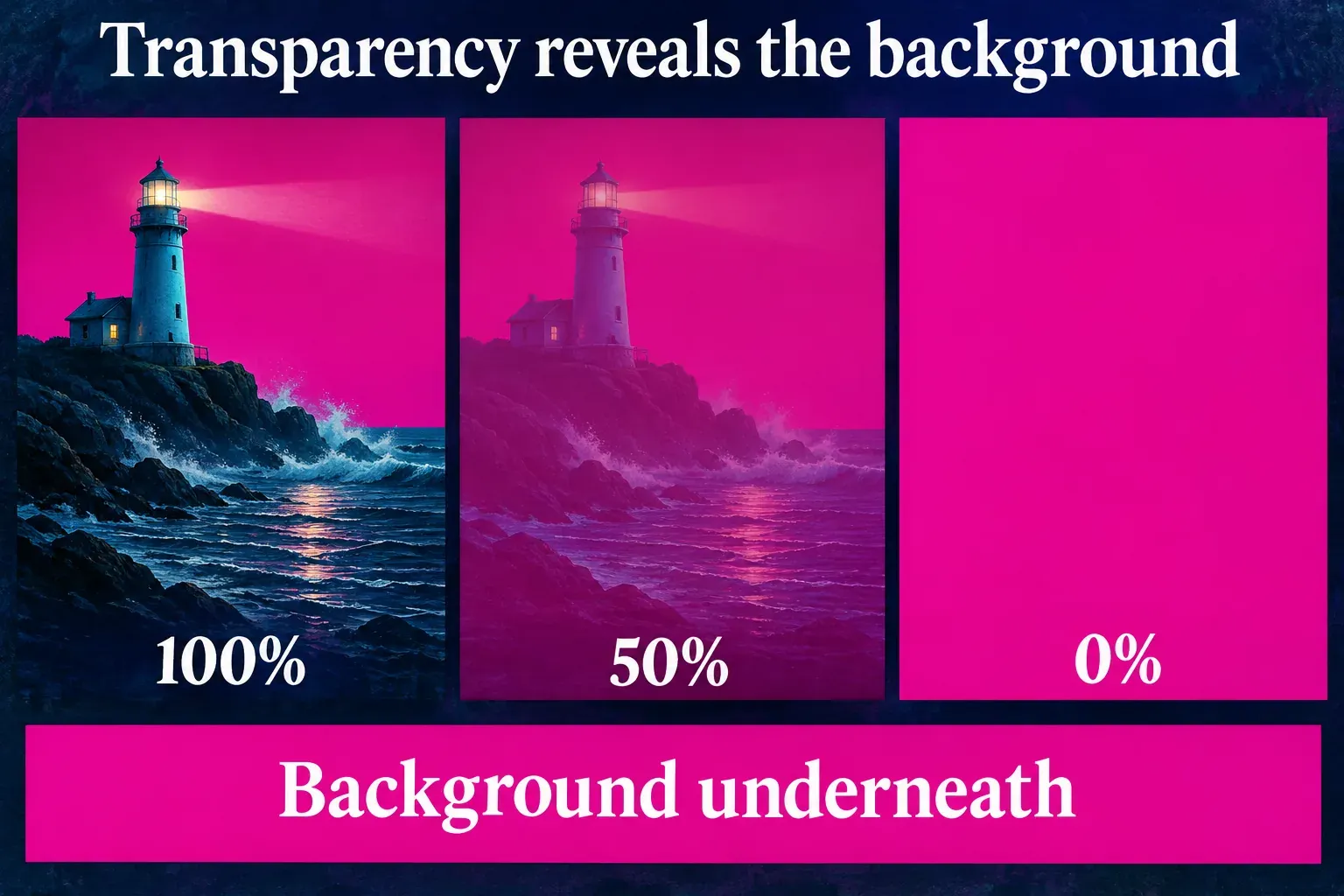
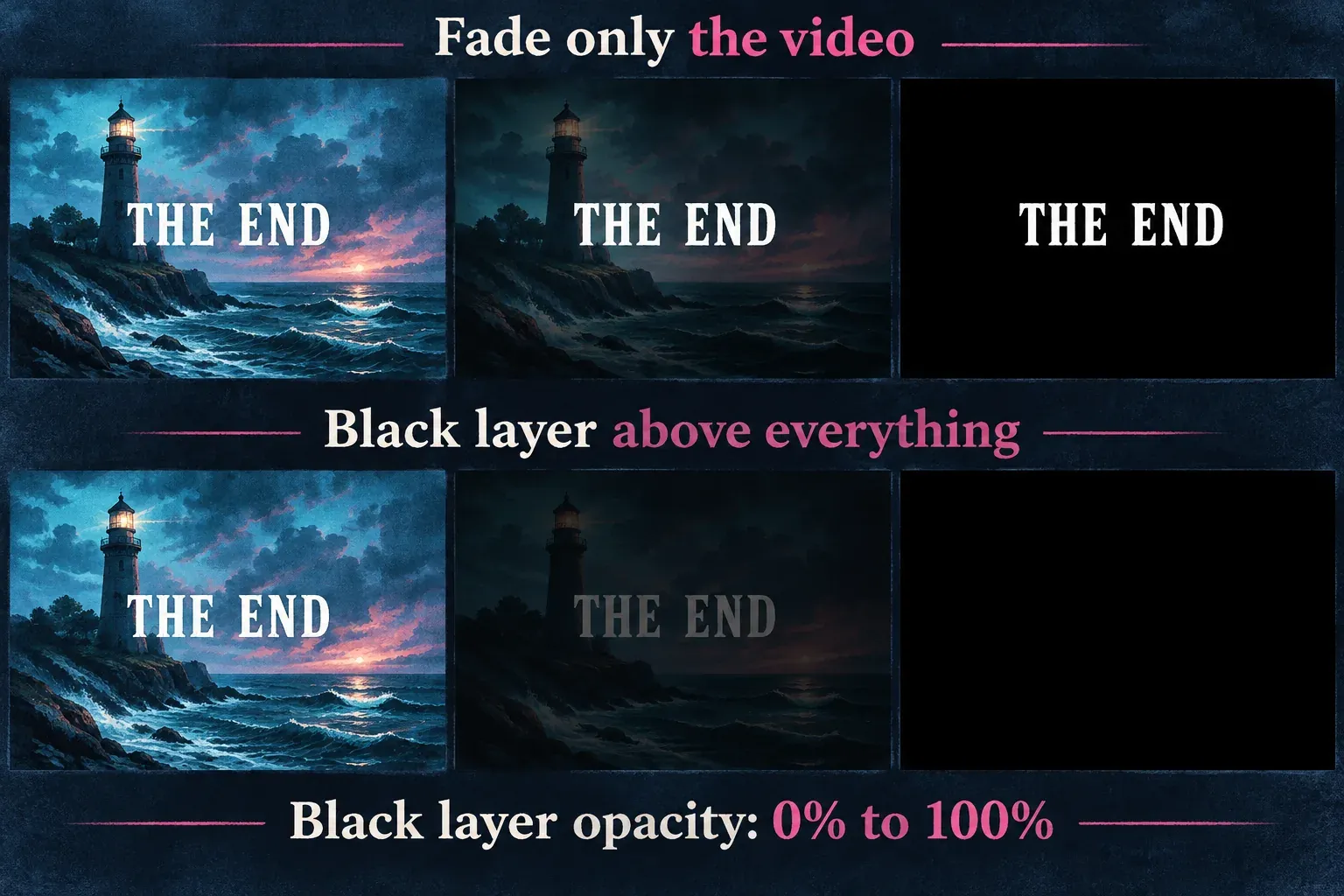
With a single video layer, put black beneath the clip and fade the video down. If the ending has independent titles, stickers and other visible layers, changing only the main clip's opacity leaves those elements untouched.
On Desktop, I'd import a plain, opaque black image and put it on a track above every visible element, because one layer then darkens everything at once. Make it fill the frame and span the closing interval. Then animate the black image's opacity from 0% to 100%, and it gradually covers the picture and text together. Keep it fully opaque for any black hold you want at the end. No special whole-video fade preset is needed; the image layer and its opacity control do the work.
Make sure the black image has no transparent area, mask or blend treatment that lets content show through. In its final state, the black image must cover the entire frame. To reveal a composition from black, reverse the black layer's values: start at 100% and end at 0%.
If you want one shot to dissolve into the next, use the transition between the two clips instead. A shot-to-shot dissolve is a different ending from disappearing into black.
Check the picture and sound separately
Before you export, watch the fade at normal speed and check its last visible frame. Look for a leftover title, an uncovered edge or a flash of footage after the black layer ends. If the timing is off, move a marker or extend the covering layer.
Then listen. A video opacity fade doesn't fade the music or narration. Decide whether the sound should carry on over black or taper separately; our audio mixing guide covers controlling the project's different tracks.
Finally, watch the opening or ending of the exported file. The useful check is simple: does the saved video reach the picture and sound endpoint you intended?