

To change CapCut’s interface language, use Settings → App language on Mobile, Settings → General → Language on Desktop, or your profile’s Language menu on Web. Pick English or any other language from the list your version offers. These are the routes in CapCut’s language-settings guide.
This setting changes the editor’s menus. If speech is being captioned or translated into the wrong language, open the caption or translation tool’s settings instead. Switching the words around the editing controls won’t translate the words already in your video.
I’d first identify which language is wrong: the menus, the captions or the voice. Knowing which one is wrong saves a trip through unrelated settings and keeps a simple menu change from turning into a project rewrite.
Choose the route for your CapCut platform
Save your current edit before you leave the workspace or accept a restart. Follow the path for the app or browser you’re changing. A Desktop tutorial may show different controls from your phone.
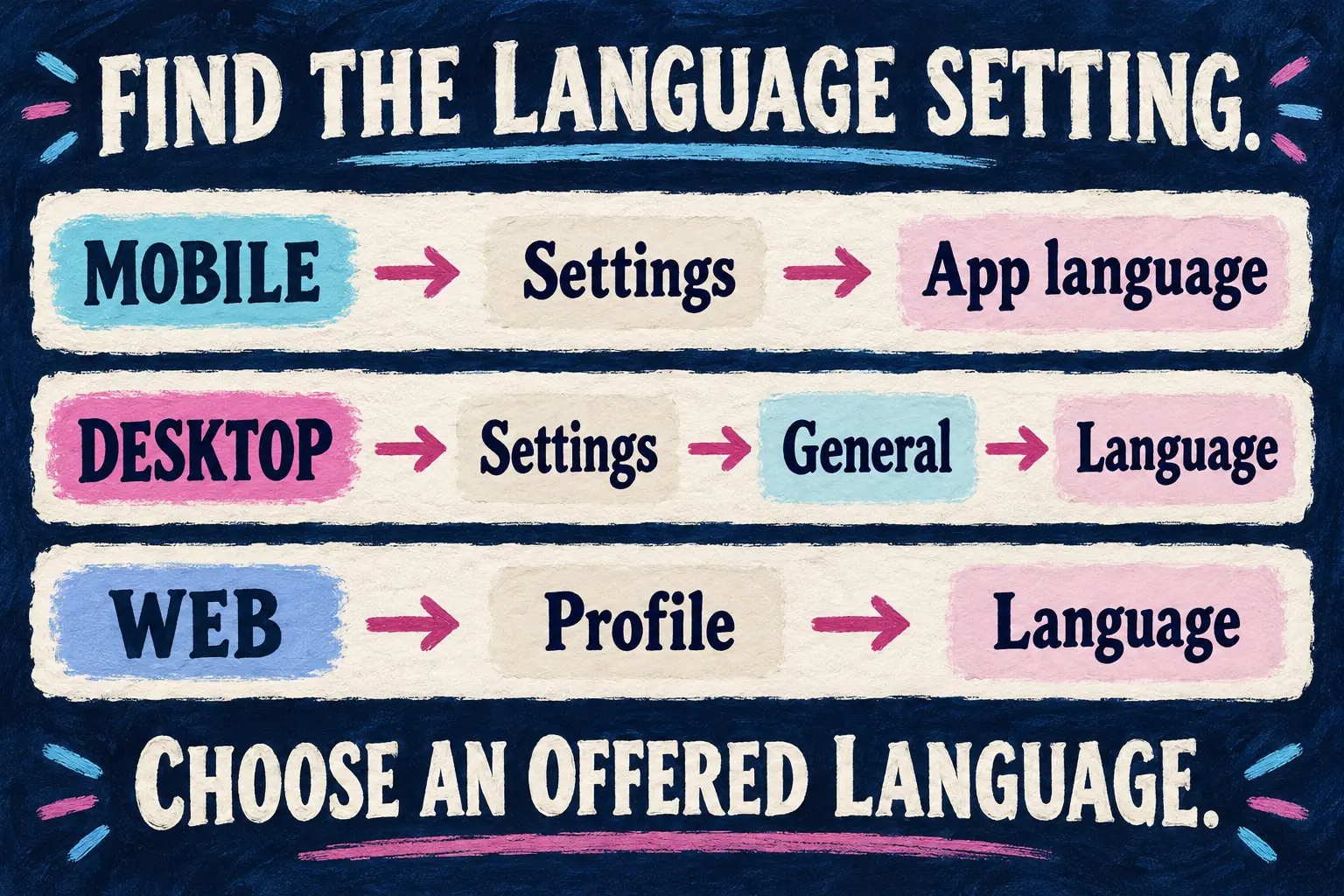
iPhone and Android
CapCut’s Mobile instructions start with Settings, then App language. Open the list and pick the language you want. Confirm if your build asks you to, then check a familiar menu to see whether the new language applied.
The Help page puts Settings near the top of the app screen, but go with the control your build shows. You want the application setting, not a caption layer’s language field inside a project.
Windows and Mac
On the Desktop app, open Settings → General → Language, pick your language and restart if prompted. That’s the documented Desktop language route. Make sure your work is saved before you accept the restart.
CapCut Web
Sign into the online editor, open your profile menu, then choose Language and the option you want. Stick to the account/profile route in CapCut’s Web instructions instead of assuming that switching the public website’s language changed the editor too.
If you can’t get into the account interface, sort out the login problem separately with our CapCut account guide. A language setting is not an account-recovery method.
Menu language, captions and dubbing are separate choices
Once the interface has changed, pin down which kind of text or sound still seems wrong:
| What you want to change | Where to work |
|---|---|
| Menus and editing labels | The app or Web language setting above |
| Speech recognized into captions | The caption tool’s spoken-language choice |
| Caption wording in another language | A subtitle-translation workflow or reviewed translation |
| Spoken narration in another language | Dubbing or a separate recorded voiceover |
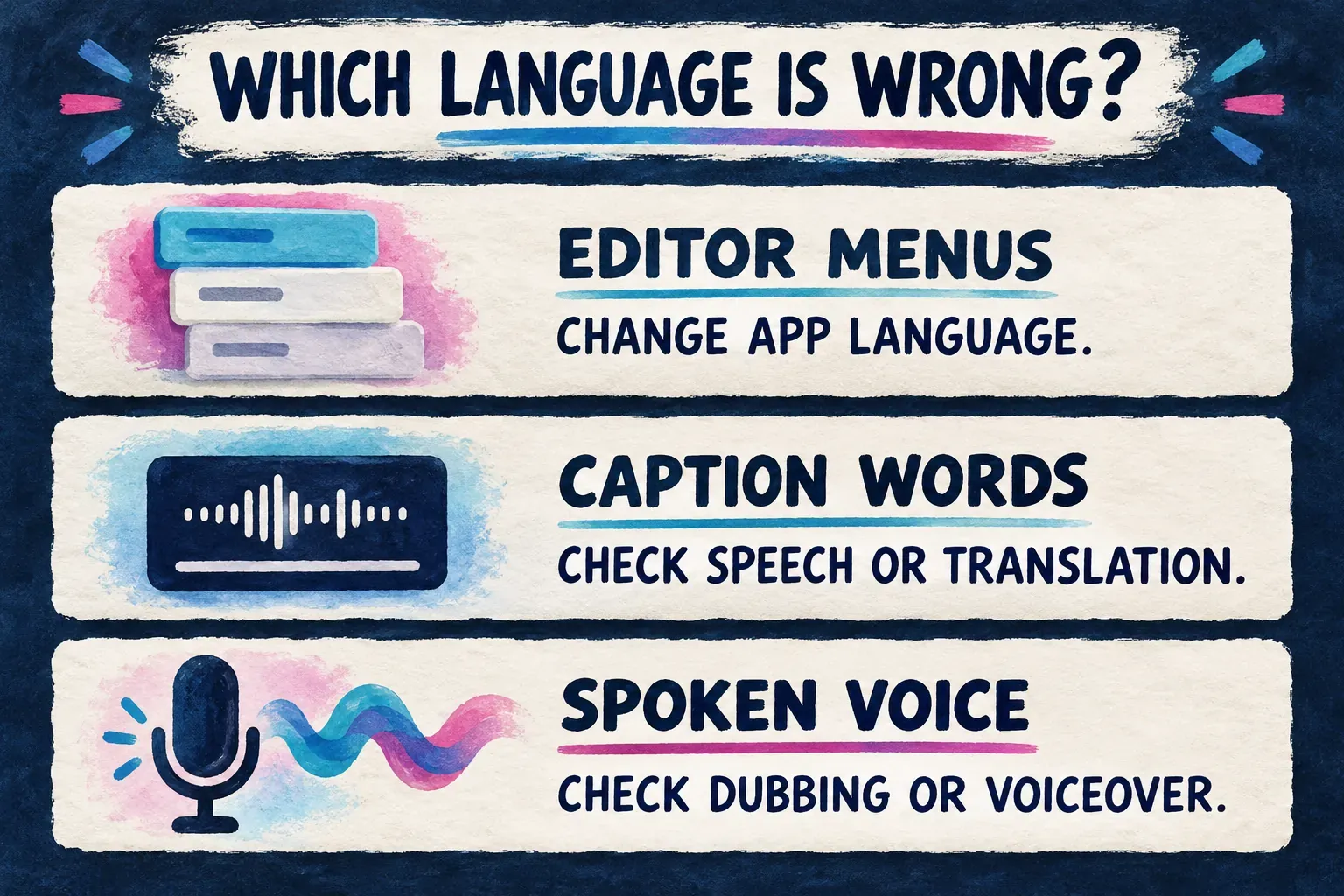
You can, for example, use English menus while editing a video with Spanish speech. Pick the matching speech language when you generate the captions. CapCut’s caption troubleshooting explains that the wrong recognition language can lead to missing or incorrect transcription.
Use our captions and subtitles guide for the caption workflow. For translated subtitles or dubbed speech, the video-translation guide walks through those choices. Hold on to the original wording until the translated version has been reviewed.
If English is missing or the change does not apply
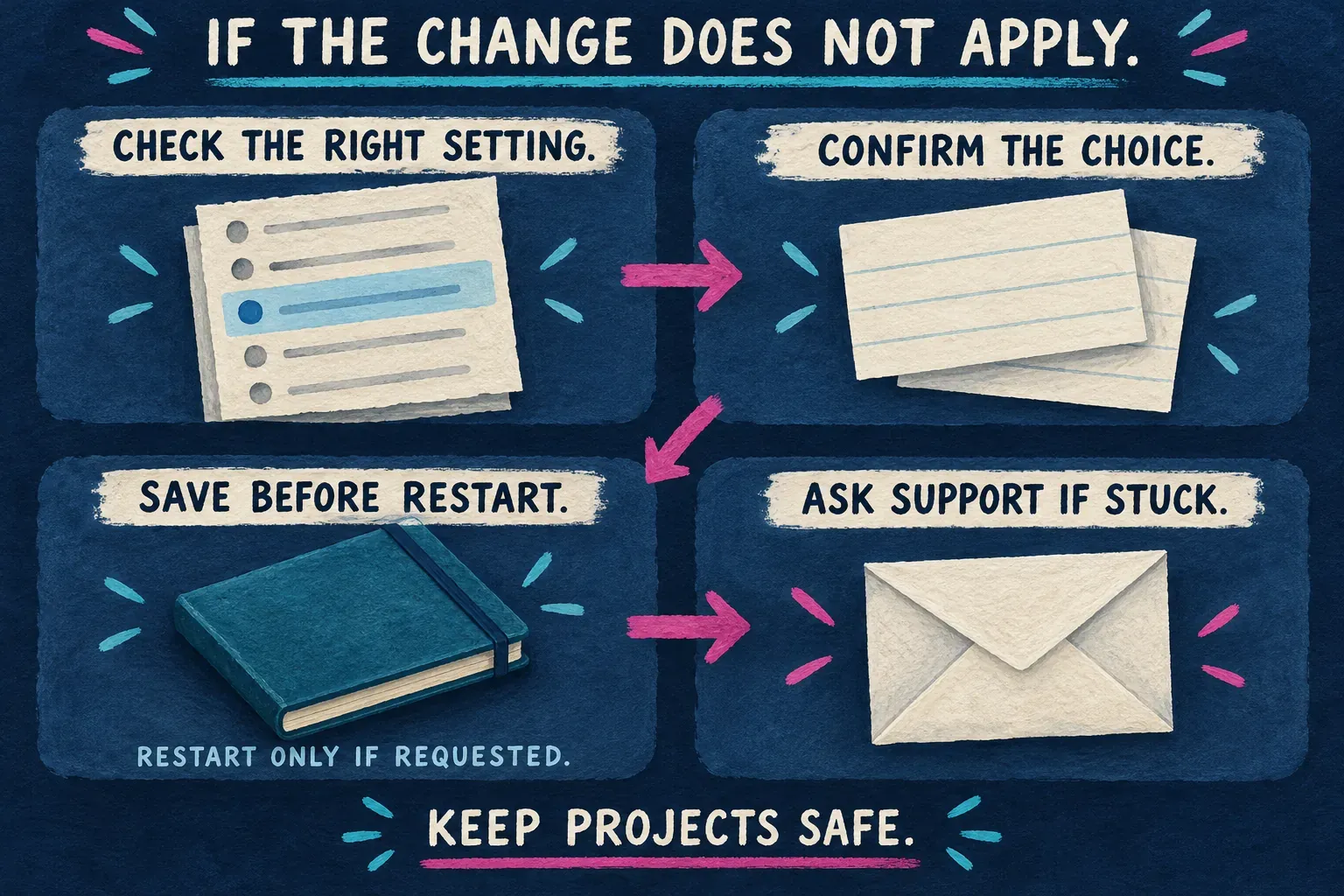
Start by reopening the language list on the device where you made the change. Make sure the right language is selected, then finish any pending confirmation or restart prompt. Check the editor’s menus instead of judging the change from a template title, imported text or a help page in a different language.
According to CapCut’s guide, language settings are applied per device, so check any other device separately. The same guide says changing the language does not alter your account, projects or data. That does not replace saving an active edit before restarting.
If you can’t read the current menus, use an up-to-date reference for the same platform or ask someone who reads that language to help you find the setting. Don’t guess at reset or deletion controls. Once the language list is open, pick the language name you recognize, if it’s offered.
If the documented language control isn’t there, check for an official app update. An update is a sensible check, not a guarantee that a particular option will appear. If the setting is still missing or the selected language doesn’t apply, use the support link in CapCut’s language guide or our support-contact guide.
Tell support your platform, app version, the language you selected and what stayed the same. A cropped view of the relevant menu can help. Keep account IDs, project names, unpublished media and unrelated files out of the crop. Clearing app data or reinstalling is a poor next step when all you need is a menu you can read.