


To translate a video in CapCut, first decide what should change: the subtitles or the spoken voice. For translated text, open Captions → Auto captions and check the translation options. For dubbed speech, select a video clip on Desktop and look for Video translator in its right-hand Audio settings. That dubbing feature depends on your region, so it may not show up in your account.
Review a short sample before translating the full project. A fluent-sounding voice can still say the wrong name, price or instruction.
Checked against CapCut's official help pages on September 5, 2026. The diagrams explain the workflow; the controls and availability messages in your own version take priority.
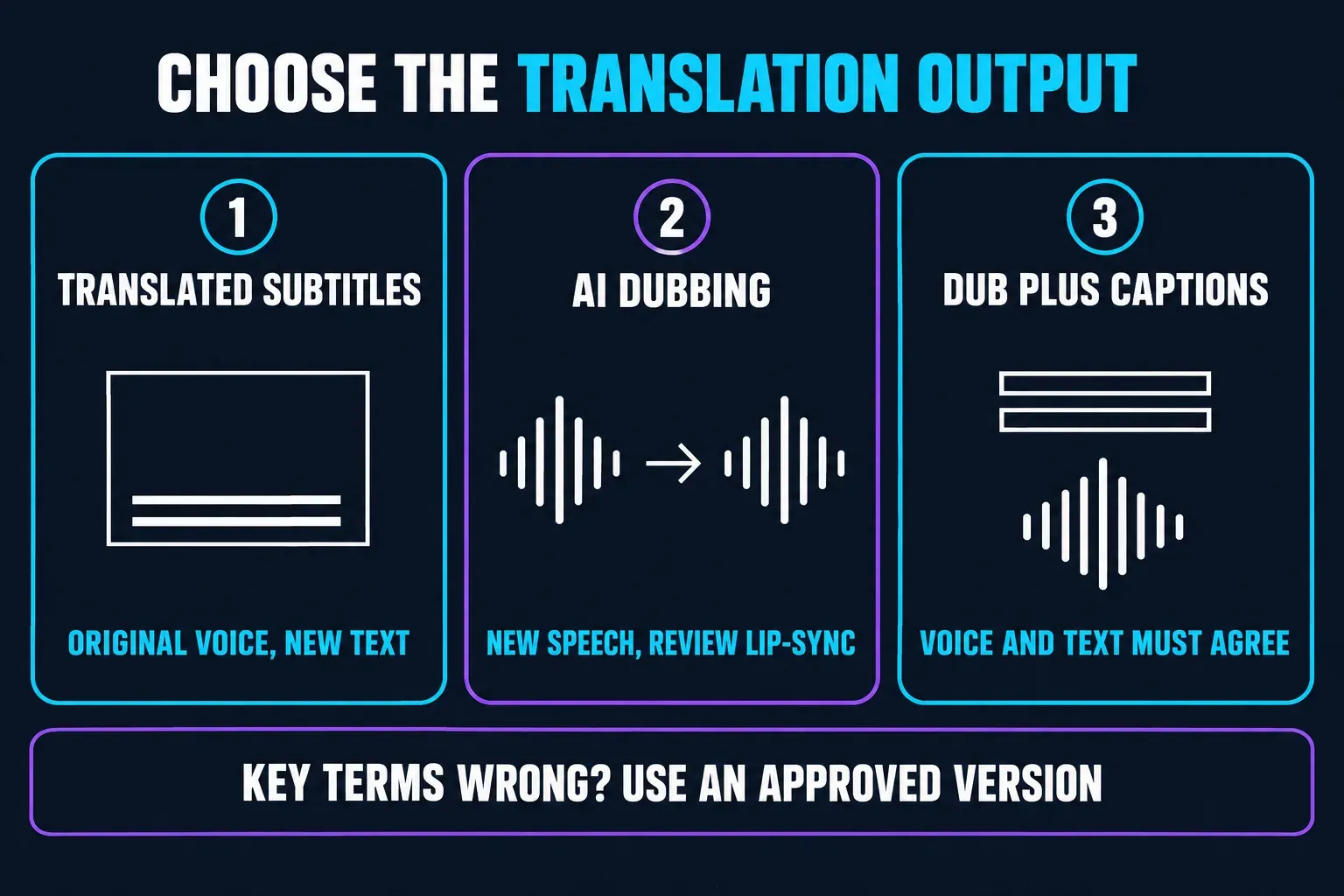
Choose subtitles or AI dubbing
Translated subtitles
Keep the original voice and add another-language text. Correct the caption wording, timing and line breaks before export.
AI dubbing
Create translated speech. Check meaning, pronunciation and pacing, then inspect lip-sync if the tool processes the visible speaker.
Dubbed audio plus captions
Review the final voice and text together. If you change either after translation, check that they still say the same thing.
Approved translation or voiceover
Use a reviewed subtitle file or recorded narration when the automatic result cannot handle essential terminology. Keep a copy of the approved wording.
What CapCut Video Translator does
CapCut's Video Translator page describes translated subtitles. Its separate AI Video Translator page describes translated speech, voice-style preservation and lip-sync. Similar names, different outputs.
Recognition errors can carry into either result. If a person's name gets transcribed wrong, check the translation against the recording and fix it. Just don't assume that editing a caption changes what a separate dubbing tool will say. That tool may run its own recognition on the audio.
Voice preservation and lip-sync are advertised features, not guarantees. Listen for changes between clips and watch the face movement closely. A natural voice on its own doesn't prove the meaning is right.
Before you translate a real project
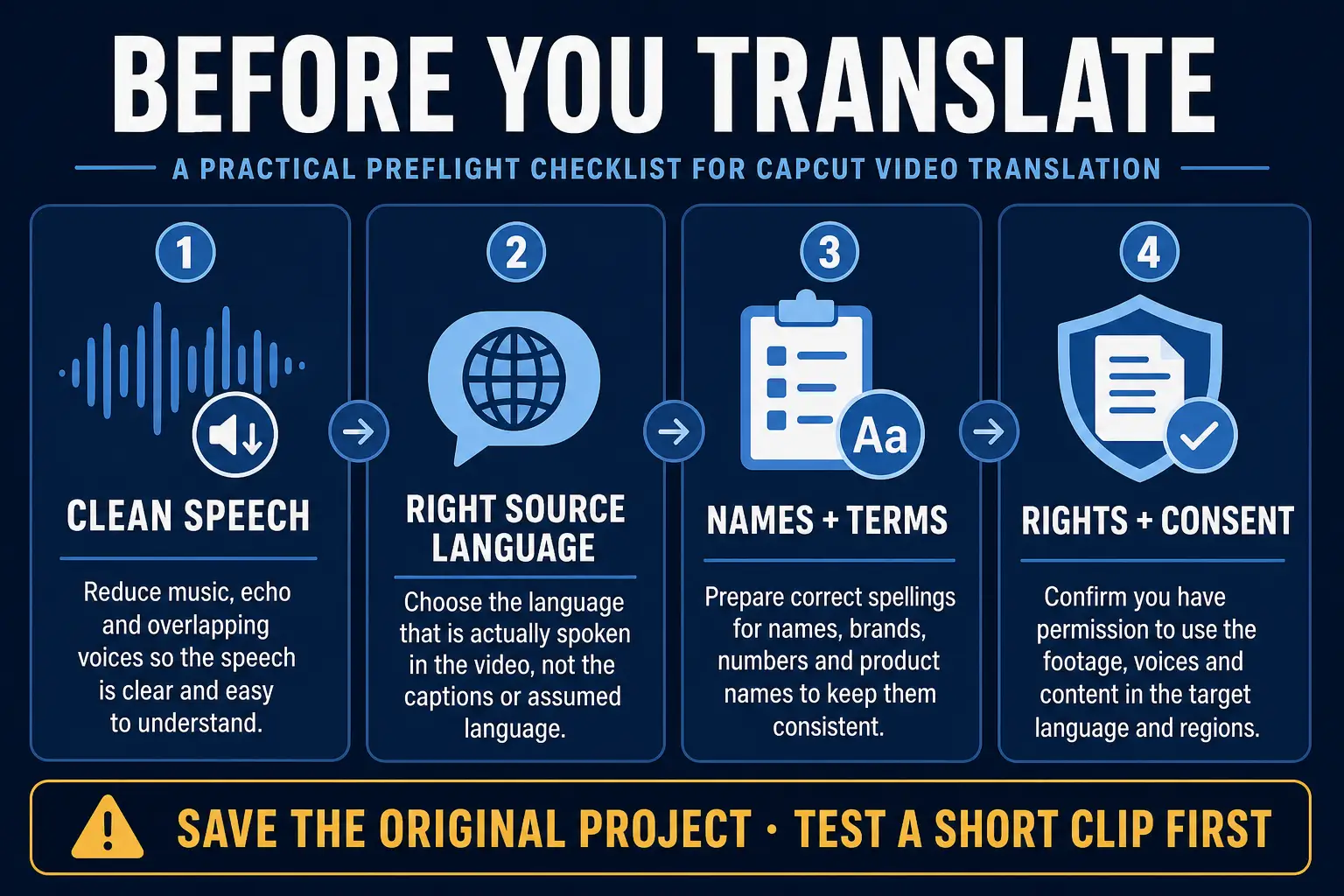
- Keep a separate project copy and the source media. Saving the current edit is not an independent backup; an exported video is not an editable-project copy.
- Make a short test project. Include an ordinary sentence, a difficult name, a number and a visible speaker if lip-sync matters. This bounds the test without assuming that selecting one clip limits every AI action to that clip.
- Check the speech source. Play it with headphones. Use the actual audio-source selector when offered. Playback mute alone does not reliably tell you which track recognition will process.
- Write down important terms. Keep names, brands, dates, units and approved phrases beside you during review. This is a review checklist, not an assumption that the translator accepts a terminology prompt.
- Confirm permission before uploading. Check that you may process the footage and voice, especially for client work. CapCut's materials and commercial-use guidance does not clear unrelated footage or somebody else's voice.
Clearer speech gives recognition a better starting point. Music, distortion and overlapping speakers can all get in the way, and noise reduction won't bring back every missing word. Plan on an internet connection for AI processing and account checks.
Translate captions or keep two languages on screen
There are two documented workflows, and the difference matters if you've already corrected the text:
- Translate existing captions, when that option is present. CapCut's video-to-text instructions describe generating and editing captions, then opening Translation. Select the reviewed captions, choose the target language and compare the translated lines with your approved source.
- Generate bilingual captions from the audio. The bilingual-subtitle instructions describe recognition and translation together. Desktop uses Captions → Auto captions; Mobile adds a target language under Translate to. A new Generate action can recognize the speech again and bring back errors you already fixed.
Before you generate again, keep the reviewed track safe in your separate copy and look closely at any replace/delete-existing-captions option. Hiding a track won't protect it from being replaced. Once generation finishes, compare both new language tracks with the recording and the approved text.
For two visible lines, platform-specific controls and phone layout, follow the bilingual subtitles guide. Check the available source and target languages separately, because a language offered for captions isn't always available for dubbed speech.
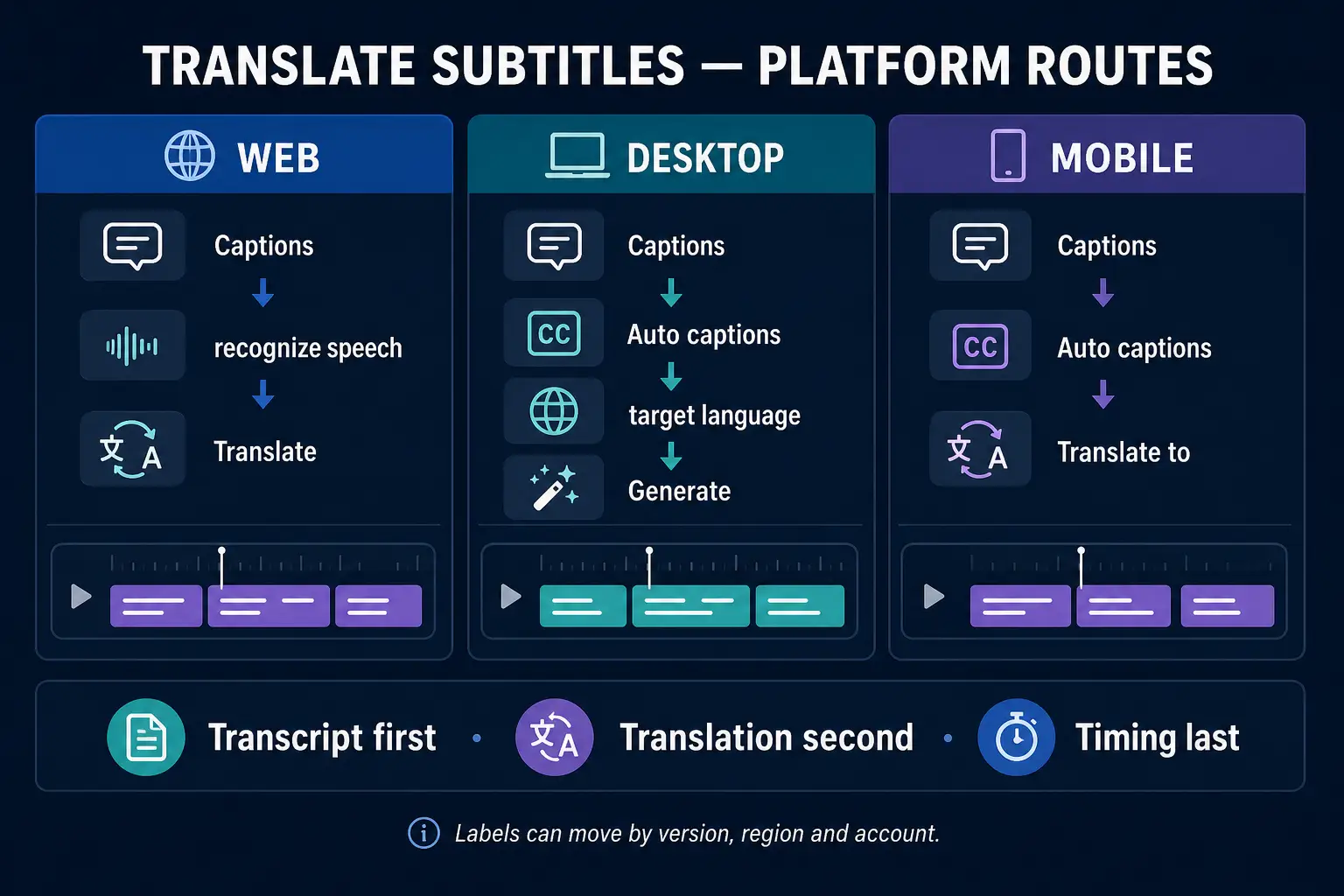
Treat the source-first order in this diagram as a review principle. It doesn't mean every Generate button translates an edited transcript. If your version has no existing-caption Translation option, fix the target text by hand or use a reviewed subtitle file.
How to translate spoken audio with AI dubbing
CapCut's AI Dubbing instructions cover Desktop and say outright that the feature is limited to certain regions. Its detailed dubbing walkthrough puts the control in the selected clip's right-hand Audio → Basic settings, so don't look for it in the music library.
- Open your short test project. Put the speech video on the timeline and select it. Keep the original recording available for comparison.
- Inspect the clip's right-hand Audio panel. In the documented layout, open Basic and look for Video translator. If it is absent, use the availability checks below; don't search indefinitely through music assets.
- Choose the source and target languages. Confirm what the speaker says rather than relying only on automatic detection. Use a target offered by this specific tool.
- Read the generation prompt. Check any subscription, credit, clip-length or regional restriction before starting. A free-download button on a website does not establish this action's price.
- Generate the sample. Wait for processing to finish. Don't assume that corrections in a separate caption track control the dubbed wording.
- Compare the result with the original. Check meaning, names, numbers, pronunciation, pauses, volume and any processed mouth movement. Export and review the sample before continuing with the full project.
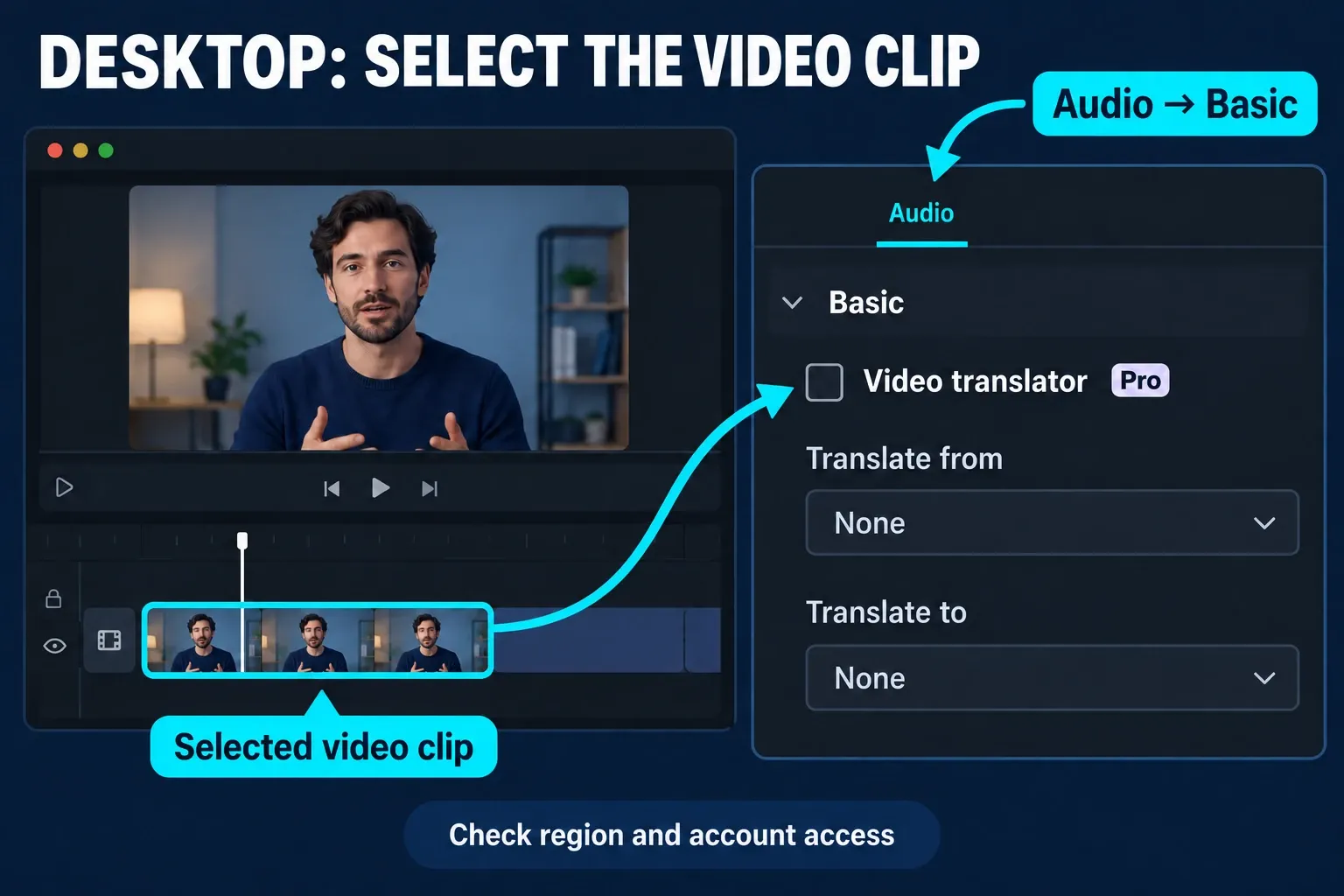
Go by the prompt your editor shows you. If a dubbed phrase comes out wrong and the tool won't let you edit its script, a reviewed voiceover or narration made from approved text gives you more control.
Review the translated video in the right order
Ask someone fluent in the target language to review anything you can't confidently judge yourself. Back-translating the output can flag problems, but I wouldn't treat it as proof that the result sounds natural or keeps the meaning.
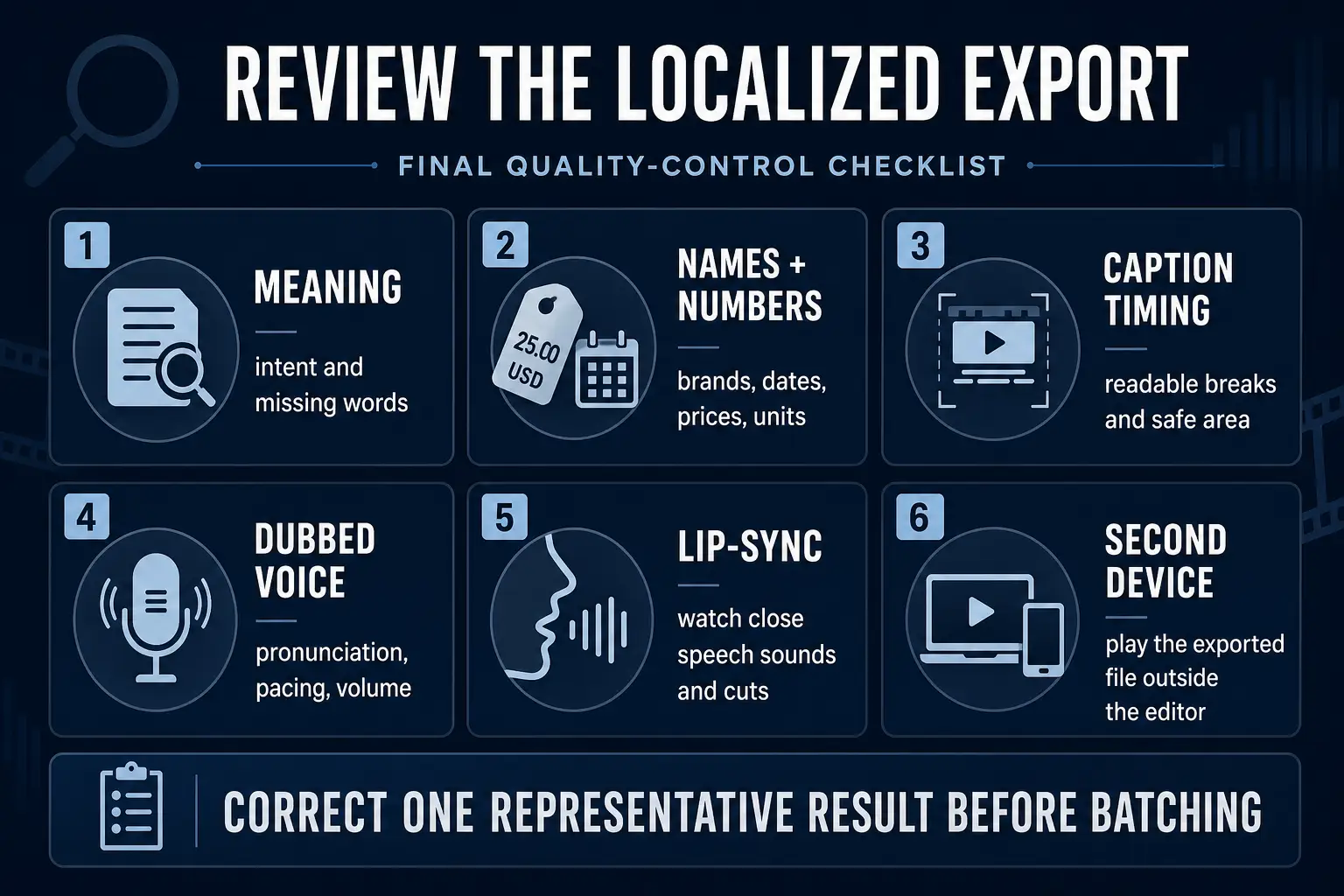
- Meaning: compare the recording, available transcript and translated result. Check who said what, including negatives and uncertain statements.
- Names and numbers: review names, brands, dates, prices, measurements and abbreviations individually. Confirm pronunciation as well as spelling.
- Caption timing: allow enough time to read each line. Recheck long translations, line breaks and text near app controls at phone size.
- Voice: listen for clipped words, rushed endings, awkward pauses and changes in tone or loudness between clips.
- Lip-sync: inspect close shots and cuts. Look for speech starting before the mouth opens, movement after speech ends, or a visibly mismatched closure. No short sound checklist proves every language or scene is correct.
- Export: play the finished file outside CapCut, with the final captions and audio together. Keep the approved project and source files.
Which CapCut platforms support video translation?
| Platform | Translated captions | Spoken dubbing |
|---|---|---|
| Web | Official guidance uses Captions; other documented layouts use Text and Translation. Check the signed-in editor. | Do not assume the Desktop Video translator control is present. |
| Windows / macOS | Captions → Auto captions, with translation controls varying by layout. | Advertised selected-clip Audio → Basic → Video translator route; region and account access still matter. |
| iPhone / Android | Captions → Auto captions → Translate to when offered. | Availability varies; a Desktop instruction is not proof of a Mobile control. |
Run the feature-availability checks before you reinstall. An official landing page tells you what the product can do. It doesn't tell you what every signed-in account can use today.
Is CapCut Video Translator free or Pro?
CapCut promotes free translation on its product pages, but access can depend on the action and the account. Its AI-access checklist separates regional restrictions, Pro requirements and credits. It doesn't set one universal dubbing allowance.
Check the prompt before you generate and again before you export. If a charge or quota shows up, note what it applies to. A Pro subscription doesn't override a region restriction, and a free caption action doesn't mean dubbed audio is free too. Try the exact workflow you need before paying for a long project.
CapCut Video Translator missing or not working
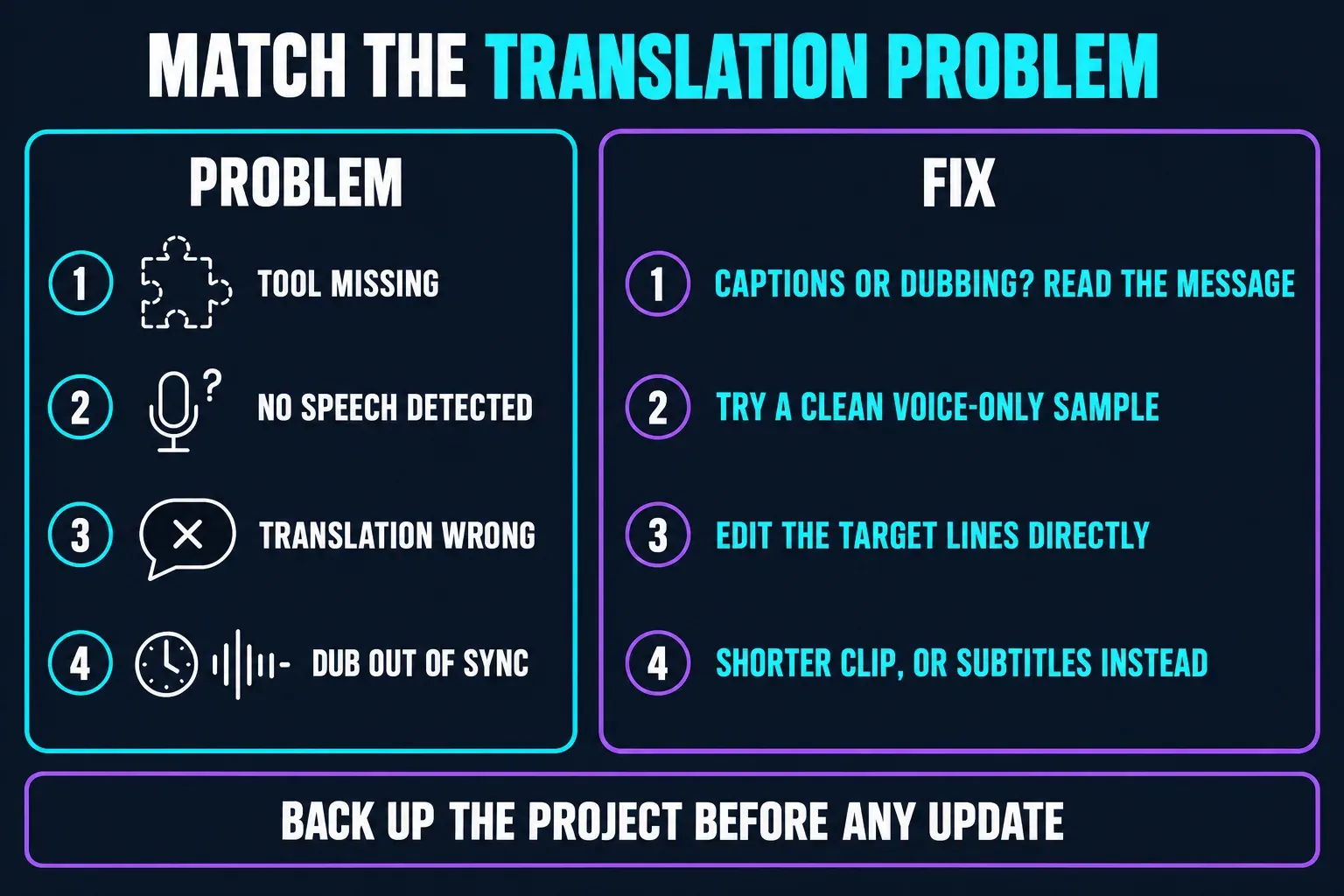
Use the diagram to pin down the problem, then check the qualifications below. “Regenerate” isn't a universal fix. The next run may start from the audio again instead of your corrected text.
Tool is missing
Separate Captions from the selected-clip dubbing control. Check your platform, version, signed-in account and the actual error message. One Mac 8.4 user reported losing track of the second-language option; that report does not establish its cause or prove global removal. Back up before updating or changing accounts.
No speech is detected
Listen to the recording, confirm the spoken language and inspect the recognition source when selectable. A clean voice-only sample can isolate an input problem. CapCut's recognition troubleshooting also covers connection and software failures; don't interrupt an active job to restart it.
Translation is wrong
Compare the result with the original speech and approved wording. Edit the target captions directly, or translate the corrected source through an existing-caption Translation control. A terminology sheet cannot change an AI tool's input unless the tool accepts it.
Dub is out of sync
Try a short sample with one speaker and fewer cuts. Check sentence length and pauses with a fluent reviewer. If the result still fails, use translated subtitles or an approved recording instead of stretching an unusable synthetic voice over the scene.
Avoid repeating the same translation mistake
Changing the app language changes the menus, not the speech. Fixing a caption's spelling won't automatically repair a dub, and generating again from unchanged audio can repeat the same recognition error. Keep the original around until the complete translated result passes review. One good-looking preview isn't enough.
For basic transcript correction and styling, use Auto Captions. Voice effects and custom-voice options are separate tasks in the AI Voice guide.
Use an approved translation when automation falls short
For subtitles, prepare a reviewed SRT with cue numbers and timecodes intact, then follow the subtitle import guide for documented Web/Desktop routes and Mobile qualifications. Translate the text and leave the timing syntax alone. Renaming a plain TXT transcript doesn't give it timing.
For speech, record approved narration or generate it from reviewed text, then line it up with the edit. That isn't the same as cloning the original voice or automatically matching the mouth. If the client needs a subtitle file instead of text burned into the video, use the caption-file export guide and check the exported cues. Viewers can't switch off burned-in text.
Privacy, rights and consent
Get permission to use the source material and any recognizable voice or likeness. Keep the approved scripts, and don't make anyone appear to endorse a statement they didn't approve.
CapCut's AI safety guidance advises caution with confidential files and with other people's faces or voices. For client work, confirm that cloud processing is allowed before you upload anything. Processing, exporting and publishing are different actions, and none of them is a blanket privacy guarantee. Strip private screens, addresses and account details out of test material.
CapCut Video Translator FAQ
Does CapCut translate subtitles or spoken audio?
Both, through different tools. Captions handles translated text. The advertised Desktop dubbing route is Video translator in the selected clip's right-hand Audio settings, when available. Check text and voice separately.
Can I translate captions I have already corrected?
Use an existing-caption Translation control when your editor provides it. Bilingual Generate may recognize the audio again rather than reuse your edits. Preserve the reviewed source and compare the new result, or import an approved timed subtitle file.
Why is Video translator missing in CapCut?
Check whether you need Captions or the selected-clip dubbing control. Then check platform, version, account and the exact restriction shown. CapCut's dubbing pages explicitly limit availability by region; Pro does not guarantee access everywhere.
Is CapCut AI dubbing free?
Public pages promote free use, but check your account's generation and export prompts for any plan, credit or clip limit. There is no verified universal allowance in this guide.
Does AI dubbing keep the original voice?
CapCut advertises preservation of speaker style, not a guarantee that every result will match. Compare pronunciation, tone, pacing and continuity against the original recording.
How do I fix a bad translated subtitle?
Check the original speech and correct the target line directly, or translate a reviewed source using an existing-caption Translation option. A new recognition pass can repeat old errors. Check names, numbers, meaning and timing before export.
What if dubbed audio is still out of sync?
Test a shorter, simpler clip and review pauses and sentence length. If it still fails, use translated subtitles or a reviewed recorded voiceover. A caption edit alone does not change the dub.
Before you translate the next video
Keep the approved source, review both text and voice, and watch the exported file before repeating the workflow. Use the AI tools hub for related workflows and export settings for resolution, frame rate and codec checks.