

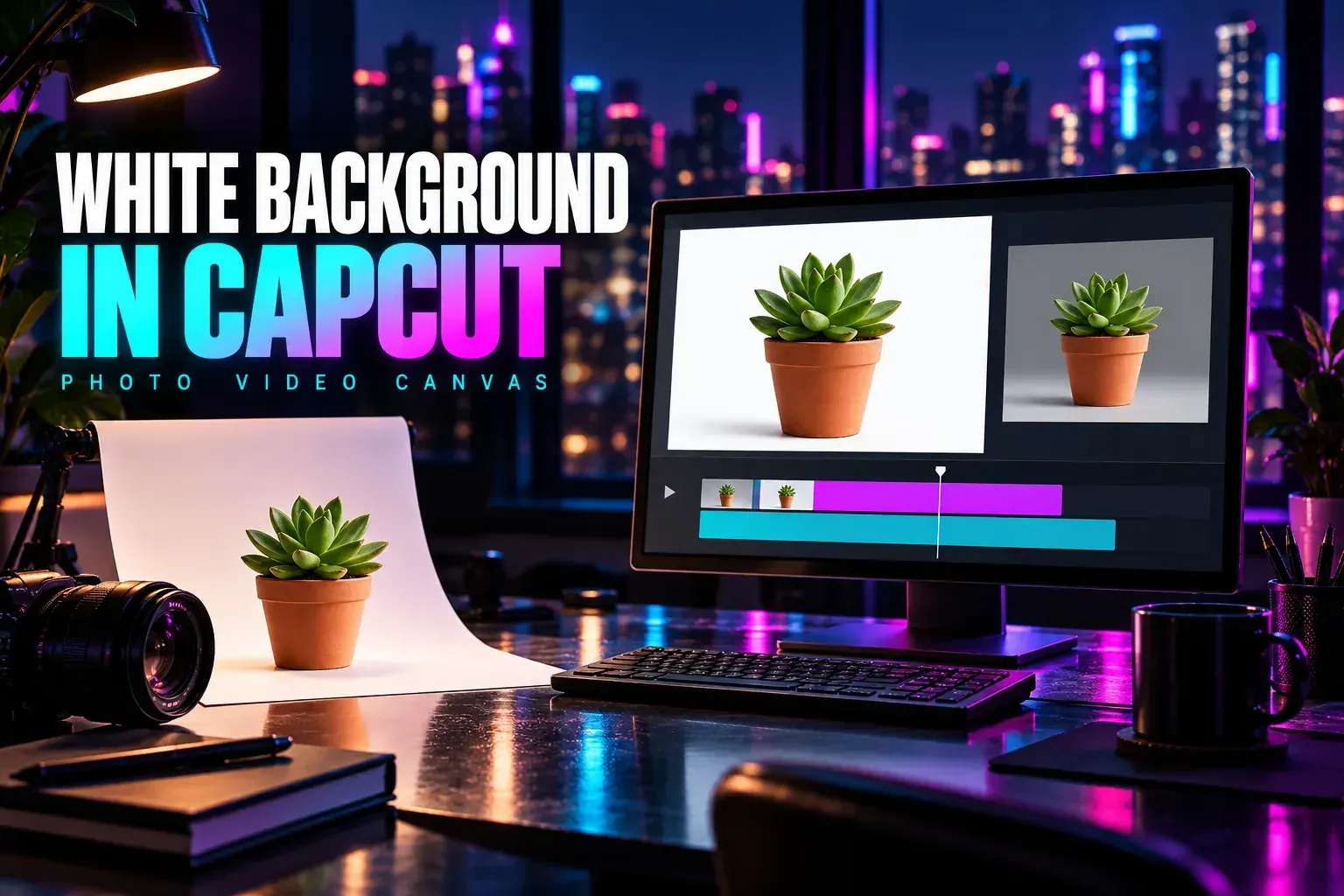
Open CapCut’s photo background changer, upload the photo, remove its existing background, then choose a solid white background and export an image. CapCut’s current white-background instructions describe that sequence. Look over the cutout before you save. White makes leftover edge pixels and missing details easy to spot.
Adding white around an unchanged photo only creates a border. To replace the room, wall or scenery behind the subject, you have to separate the subject first. What the finished file should show is the subject against white, instead of a photo of the old background sitting on a larger white canvas.
I’d use the simplest available cutout-and-color route for this job. A new scene or a generative restyle adds decisions you don’t need when the brief is a plain white background.
Start in a still-image workspace
The documented Web route starts at the CapCut photo background changer. Open the changer in your browser and upload the original image. Sign in if the workspace asks you to, and read any tool or download notice before you commit to a batch.
On iPhone or Android, look for whichever photo-editing workspace is available. On a PC or Mac, tell the Web image editor or AI Design apart from the ordinary video timeline. Our CapCut Photo Editor guide explains those starting choices and the checks for a missing workspace. A photo placed on a video timeline can still become a video at export. Getting a video file back is a poor surprise when you need a JPG for a listing.
Keep the original file and do your work on a separate edit. Use the sharpest source you have, with enough separation between the subject and the background to judge the outline. A small, compressed preview leaves you less detail to preserve. Only upload an image you have permission to use and you’re comfortable sending to the online service.
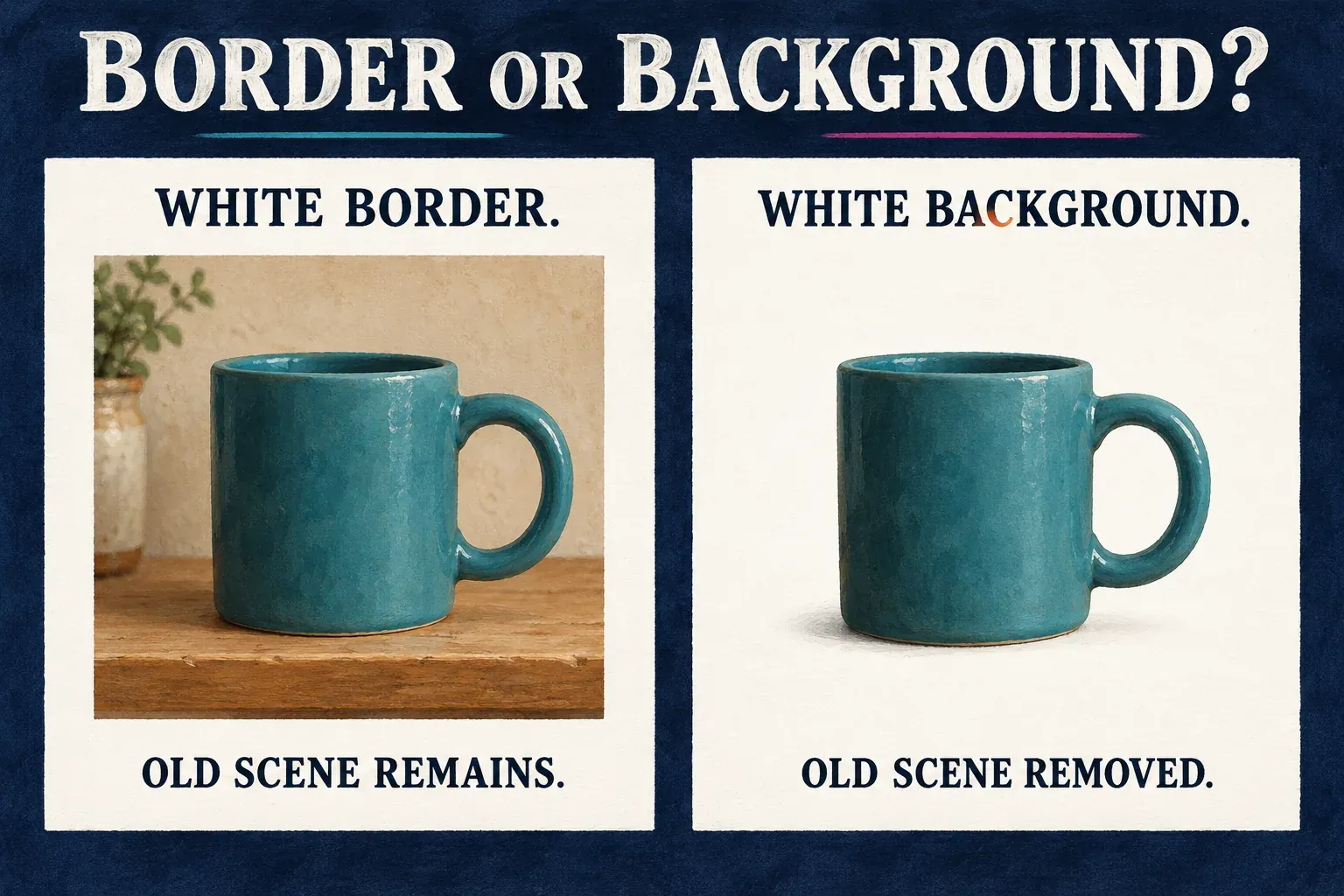
Remove the old background, then add white
Use whichever controls your image workspace offers. CapCut’s Help calls the selection Remove background, while the changer page also uses Auto Cutout. Both names describe subject separation, but they are not a promise that every build has the same toolbar.
- Upload and select the photo. Make sure you are editing the intended image, rather than a blank page or an unrelated layer.
- Run the available background-removal control. Let it finish, then check that the subject remains complete. If the workspace instead opens a prompt-led editor, use the separate approach below.
- Inspect and refine the cutout. Look at the outline and small gaps before changing the composition. Restore missing subject areas or remove leftovers where your editor offers those controls.
- Open the background options and choose solid white. Apply the color behind the cutout. If an editable RGB or hex field is available, pure white is 255, 255, 255, or #FFFFFF. A white preset is enough when no numeric field is offered.
- Position the subject and set the crop. Leave the space the destination needs. Avoid stretching the object or cutting off a handle, lid or edge simply to fill the frame.
- Export or download a still image. Read the offered format, size and quality options, save the file, and open that saved copy outside CapCut.
Changing the page color under an opaque original photo won’t erase the photo’s background. If the old scene is still visible, go back to the photo’s removal step. If white is covering the subject, check which layer or area you filled.
For a moving clip, follow the video background-removal guide. Clip work brings timeline, moving-mask and alpha-export decisions, which is a different job from downloading this finished photo.
Repair the edges without changing the subject
Judge the result on its final white background at full size, then scale it down to the size people will see. A small preview can hide a thin dark rim. Zooming in heavily can also tempt you to erase useful detail that looks natural at normal size.
Go around the whole outline, paying extra attention to small projections, gaps and areas close in color to the old background. On a mug, inspect the handle opening and the rim. On clothing, look at loose threads and folds. Hair, glass and translucent material need particular care, since their edges may not be fully opaque.
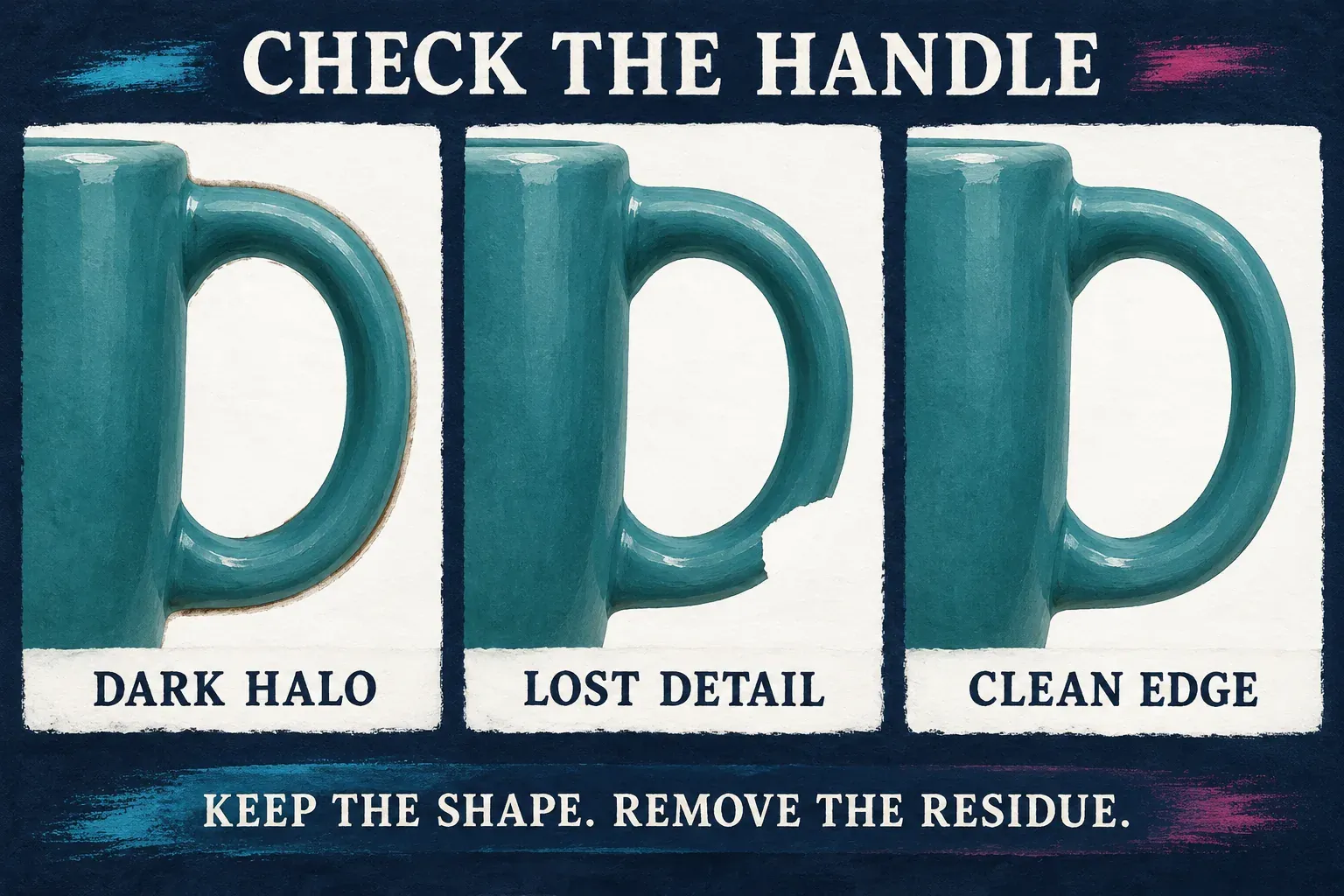
A temporary dark background can reveal pale halos and light-colored edges that went missing. Switch back to white before the final export. Make a modest repair if the workspace supports one. Stronger sharpening or contrast is no substitute for fixing the cutout.
When the tool keeps losing important detail, go back to a clearer source or switch to an editor with the manual control the image needs. Do not keep trimming a product until its shape becomes easier for the tool to recognize. The product’s real color, proportions, label and parts matter more than a spotless edge.
For a product listing, look up the destination’s current background, crop, margin and file requirements. White alone does not prove a marketplace image is compliant. An ID or passport photo has its own rules too, and this editing workflow is not a promise that retouching is permitted.
If CapCut opens AI Design instead
CapCut’s image background-remover page documents both automatic removal and a prompt-led AI Design approach. Use the manual color control when it’s available and fits the task. If your workspace offers a reference-image prompt instead, keep the request narrow:
Replace only the background with flat white. Keep the subject’s original shape, color and details unchanged. Do not add objects, text or decorations.
That is an instruction to inspect, not a guarantee of faithful output. Put the result next to the original: count the parts, read the small text and check the outline. Reject a cleaner-looking background if the mug handle, packaging, face or clothing changed. A fresh white scene is of little use once it stops representing the source.
Before you send the request, read the access or credit notice your account displays. CapCut advertises free options on its product pages, but that does not establish the price or availability of every AI action and export for your account. The AI credits guide explains why seeing a tool and having the allowance to use it are separate questions.
Save opaque white, then check the file
A white-background photo and a transparent cutout do different jobs. Here, you want the saved image to have white behind the subject. A checkerboard commonly represents transparent areas. Seeing one doesn’t mean white pixels have been added.
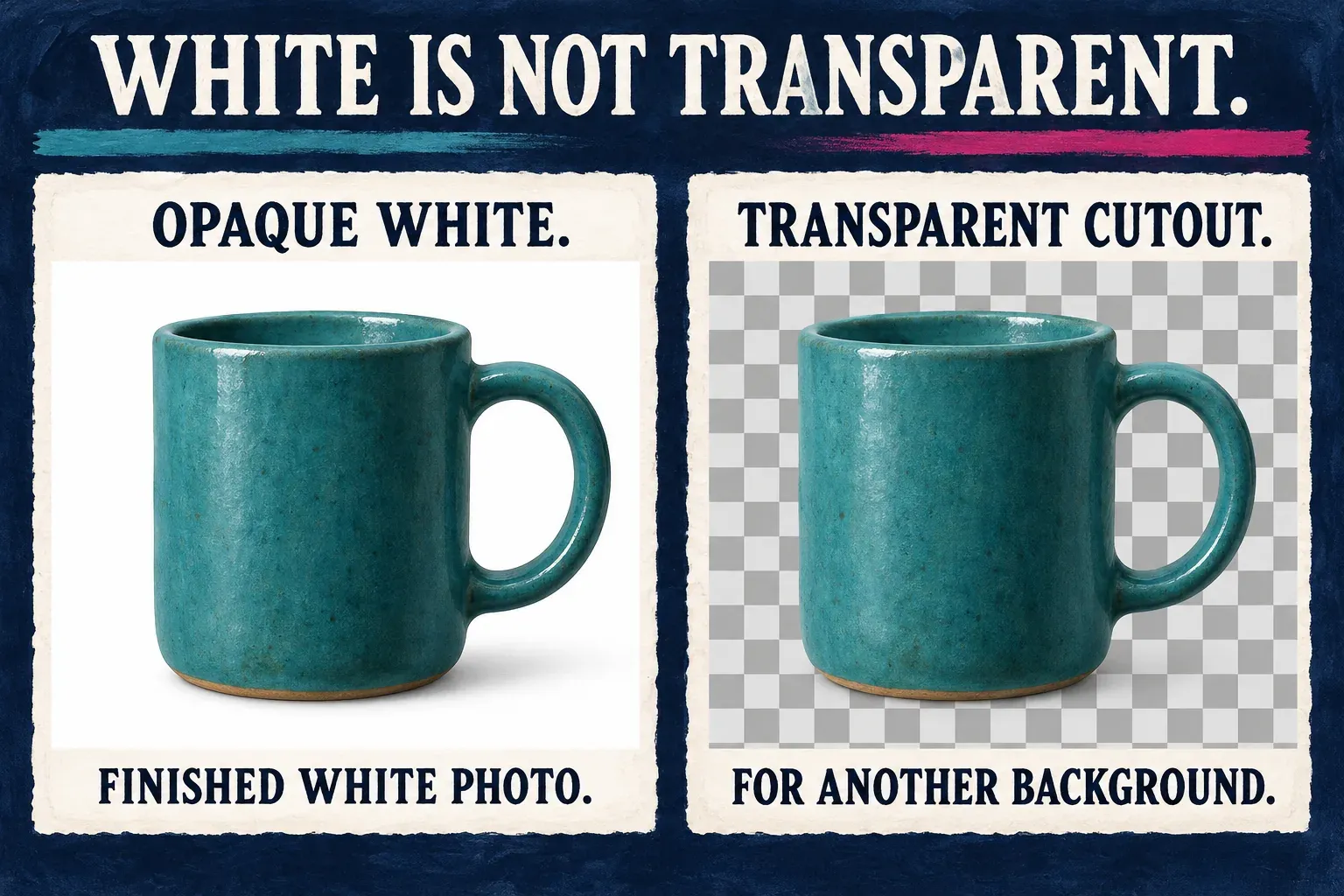
From the options offered, pick the format your destination accepts. JPG often suits an ordinary photograph, while PNG can preserve hard edges and lossless image detail. MDN’s image-format guide describes JPEG as lossy and PNG as lossless with alpha support. PNG can hold opaque white too. Picking PNG doesn’t automatically create either white or transparency.
Open the newest downloaded file and check:
- The old scene is gone, and the background is the intended solid white.
- The outline, gaps, subject color and important details survived.
- The saved width, height and file type match the destination.
- The crop works at the actual display size, with no unwanted text or decorations.
- The upload preview matches the saved image, rather than showing an older copy.
If you plan to animate the finished product photo later, keep this still as a source for the product-photo video workflow. Hang on to the untouched original too, so a different crop or background can start with all of the original’s detail intact.