


To remove an object in CapCut Desktop, select the video clip, open Video > Basic > AI remove, brush over the unwanted object, and click Remove. Size the brush so it covers the object without marking details you want to keep. If you paint too far, use Erase to fix the selection before processing.
CapCut's object-remover instructions document that brush-and-erase sequence. The tool fills the selected area from the surrounding scene, so a good removal has to pass two checks: the object is gone, and the replacement background still looks convincing for the whole shot.
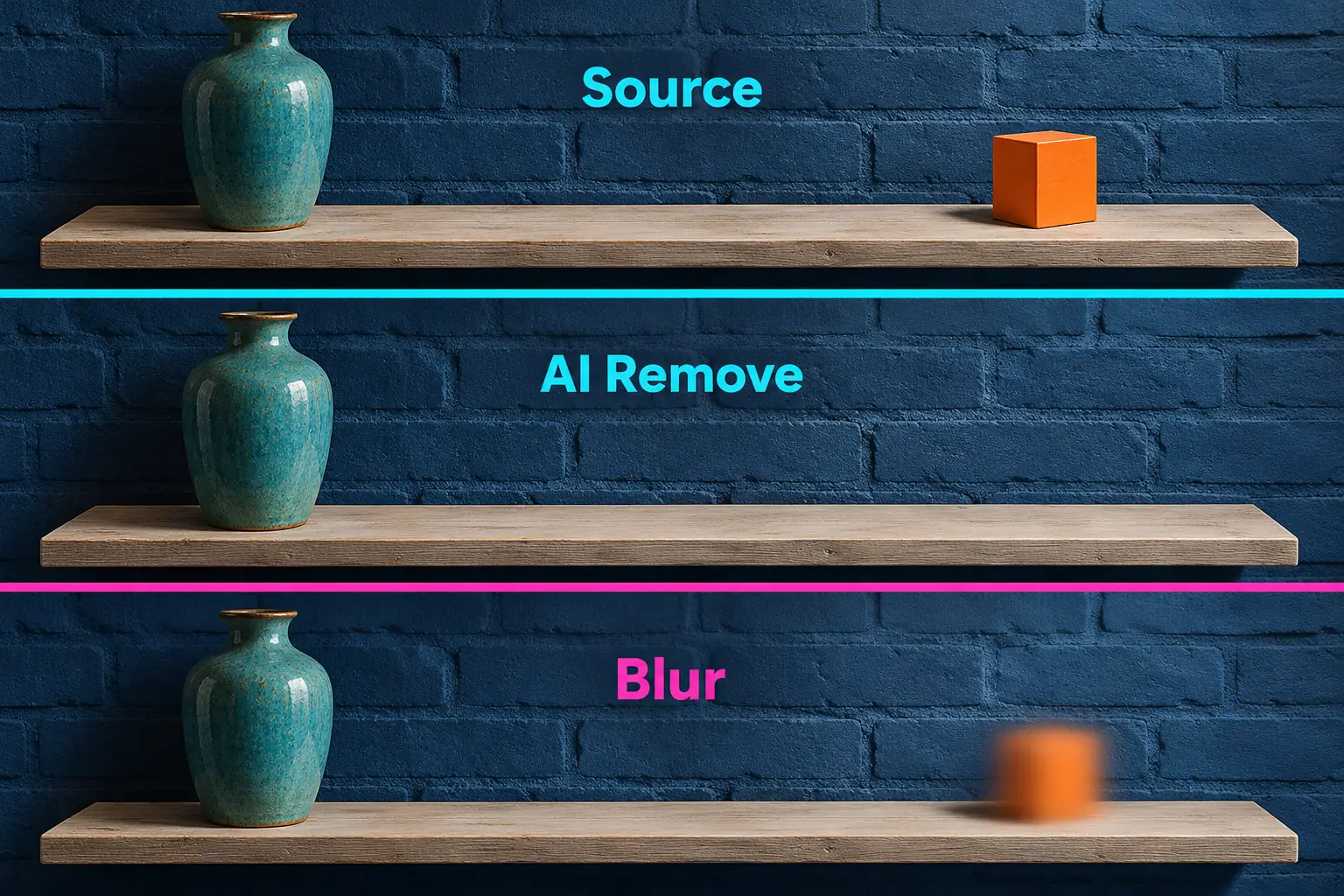
Choose object removal, background removal or blur
AI Remove goes after an unwanted item inside a scene. Reach for it when a distracting object needs to go and the rest of the picture should stay. CapCut describes the fill as inpainting: the software creates replacement picture content instead of uncovering an untouched view hidden beneath the object.
Remove BG isolates a foreground subject so you can replace or remove the background around it, and the tool's Custom removal brushes refine the cutout. Painting with a cutout eraser doesn't necessarily fill a hole with matching scenery. Our background-removal guide covers that separate task.
Blur conceals detail and leaves the area visibly softened. I'd choose Blur when the goal is to hide information and a natural-looking empty scene isn't needed. Use the partial-blur guide for a static or moving region, then check the entire interval in the exported file.
You don't need an object-removal template for the Desktop brush method. A catalog page with that name doesn't mean a particular template can erase an arbitrary object from your footage.
Remove an object in CapCut on Windows or Mac
Before you change a shot you need to preserve, keep the original media and make a working copy of the project. Start with the section that contains the distraction. You can judge the result there before you work on a longer sequence.
- Import the video if needed, add it to the timeline, and select the intended video clip. Put the playhead on a frame where the object is clearly visible.
- Open Video > Basic, then find AI remove. CapCut's Desktop removal walkthrough documents Quick Brush and an adjustable Size control; brush options can differ in your build.
- Adjust the brush size and mark the whole unwanted object. Keep the selection close to its outline, especially beside a face, lettering or an important edge.
- Use Erase, where available, to remove accidental marks from the selection. This corrects the marked area before removal; it is not a request to erase another object.
- Click Remove and let processing finish. Read any access, credit or clip-limit notice before confirming the operation.
- Play the processed section through, compare it with the original, then inspect the most difficult frames individually. Export only after the replacement area holds up in motion.
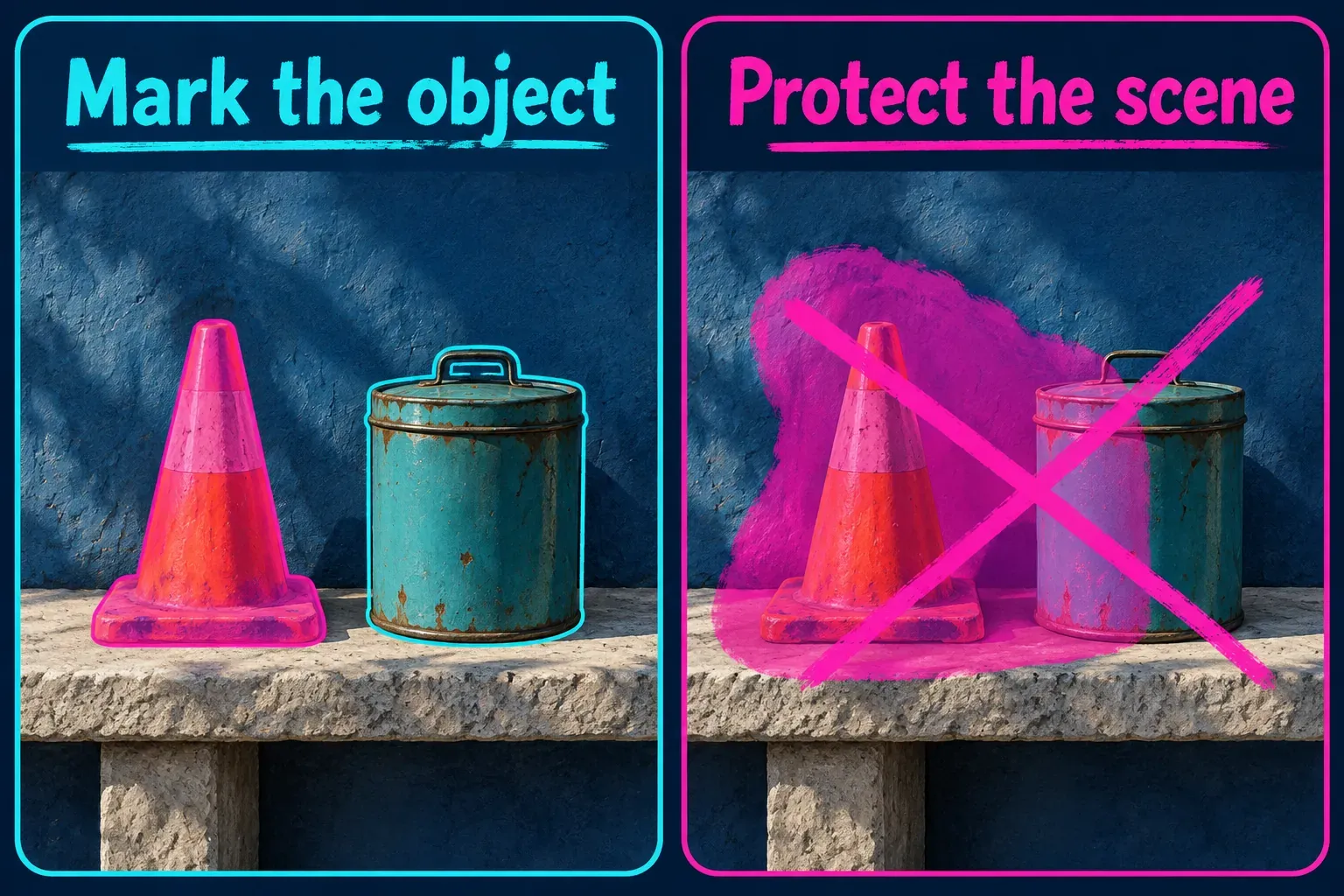
The object can disappear and still leave its shadow or reflection behind. Check those areas on their own and decide whether the shot needs another targeted edit. Stretching the brush over everything nearby can damage the background or a subject you want to keep.
On moving footage, check both the selection and the result across the object's full visible interval. If your editor exposes temporal selection controls, follow them. Don't assume that marking one paused frame guarantees a clean result on every later frame.
Mobile, Web and still photos use different surfaces
On Mobile, look through the selected clip's tools for AI remove. CapCut's AI Suite announcement lists AI Remove and warns that some features vary by region. A phone without that entry may still offer Remove BG, which is a different operation. And don't expect the Desktop path above to tell you where the Mobile toolbar puts it.
For a still photo on Web, CapCut's image-removal instructions use AI tools > Remove, a selection brush and Generate. Check the filled area, then save the image with the image surface's Download control. Our photo-editor guide explains the image and video surfaces so you can save a still instead of a short movie.
That Web image workflow doesn't mean the same brush can process a video in every browser account. If the video editor has no object removal, switch to Desktop where the tool is available, or change the composition instead.
AI Remove is missing, locked or fails to finish
Start by confirming that you selected the right media and opened an editing surface that supports the operation. A control may have moved, so check the tool's current name and panel before you decide the feature is missing. The feature-availability guide separates platform, account and regional limits.
For free access, read the offer your account shows. A free download or a search result saying "free AI remover" doesn't guarantee free processing for that clip. If CapCut displays a Pro requirement or a credit charge, decide whether to take that offer or make a different edit. CapCut's credit guidance says applicable AI actions deduct credits when confirmed; it doesn't give one fixed AI Remove price for everyone.
If the tool reports a duration or media limit, go by the limit it states. An old tutorial's maximum clip length may belong to an earlier build. Only shorten a working copy if the shorter section still covers the entire object-removal interval.
If processing fails, write down the message and save your work before you retry a short section. Look for any network or account notice the editor shows. When a simple shot works but a busy one gets poor fill, change the selection or pick a fallback. Running the same operation again won't supply missing background detail.
Inspect the fill in motion and choose a fallback
CapCut's object-removal guide acknowledges that complex backgrounds make removal harder. Look at the edited area itself instead of counting a vanished object as the complete result:
- Play from before the object appears until after it leaves. Watch for a patch that flickers or shifts between frames.
- Pause beside straight lines and repeated textures. Check for bent edges, doubled details or a visibly soft fill.
- Inspect overlaps with the subject and any remaining shadow or reflection.
- Watch the exported section outside CapCut at its delivery size. Check that the processed region is present in the saved file.
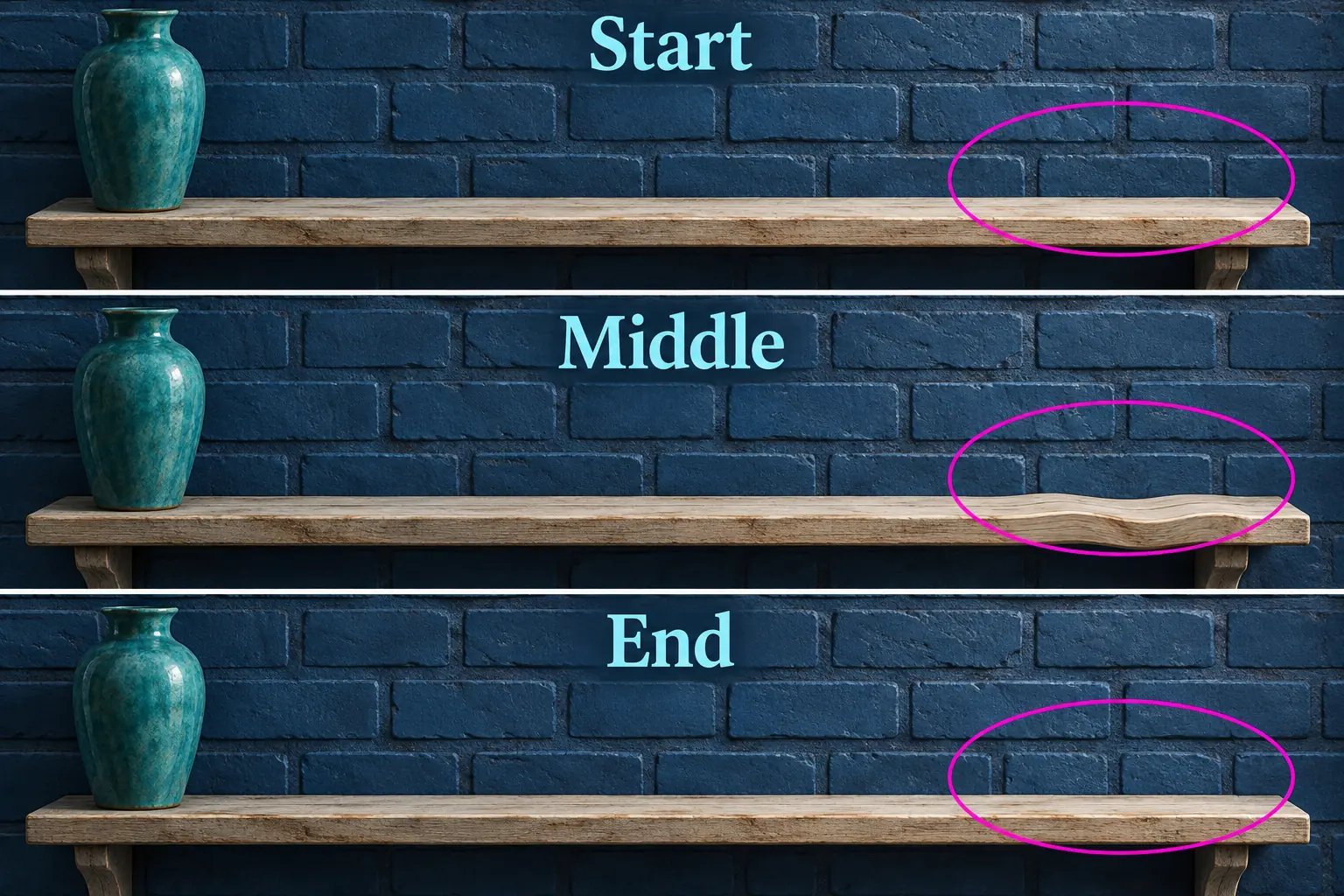
I'd stop regenerating when the fill damages an important detail. If the subject still fits, a tighter crop can solve a distraction at the edge of the frame. When an object covers information the video never recorded, another shot may be the better choice.
On simple backgrounds, you can also mask in a patch from an unobstructed part of the scene. The patch has to match the lighting and perspective, and keep matching during motion. A duplicate clip with a mask doesn't remove an object by itself; the visible upper area has to supply suitable replacement pixels. The masking guide covers controlling that visible area.
Hold on to the source and the editable working copy after export. The filled video can't restore the original scene content or your earlier removal choices.