

AI Expand adds picture area beyond the original frame. Use it when you need more background around a subject, like room for a title or a wider banner. CapCut's outpainting instructions describe generating that extra area. The new content is an interpretation of the scene, not a recovery of whatever the camera never recorded.
For a photo in the Mobile app, CapCut documents All tools > AI expand in the Photo editing area. For video, its instructions give a separate Crop > AI Expand route after you select the clip on the timeline. Pick the route that matches your media type, if your current build offers it. A tutorial for one surface doesn't mean you'll find the same controls on another.
If you need the action to last longer, that's a different job. Expanding the background doesn't, by itself, add more seconds of action. CapCut separately describes AI Extend for longer scenes on PC.
Choose expansion for the right kind of space
Start with the final layout. A square product photo might need a wide background for a banner, while a tightly framed shot might need a little headroom. Decide how much area to add before you ask the AI to fill it.
| What you need | Use this approach | What changes |
|---|---|---|
| More scene around the subject | AI Expand or outpainting | New picture content fills the added area. |
| A different frame without invented scenery | Ratio, crop, position or a background fill | Existing pixels are reframed or surrounded by a chosen background. |
| A moving crop that follows a subject | Auto Reframe, then review its tracking | The visible crop moves through the existing footage. |
| More time in the edit | A separate extension, loop, slower playback or still hold | Duration changes; the borders are a separate decision. |
Our aspect-ratio guide covers the canvas and framing choices. Use Auto Reframe when following a subject is the actual problem.
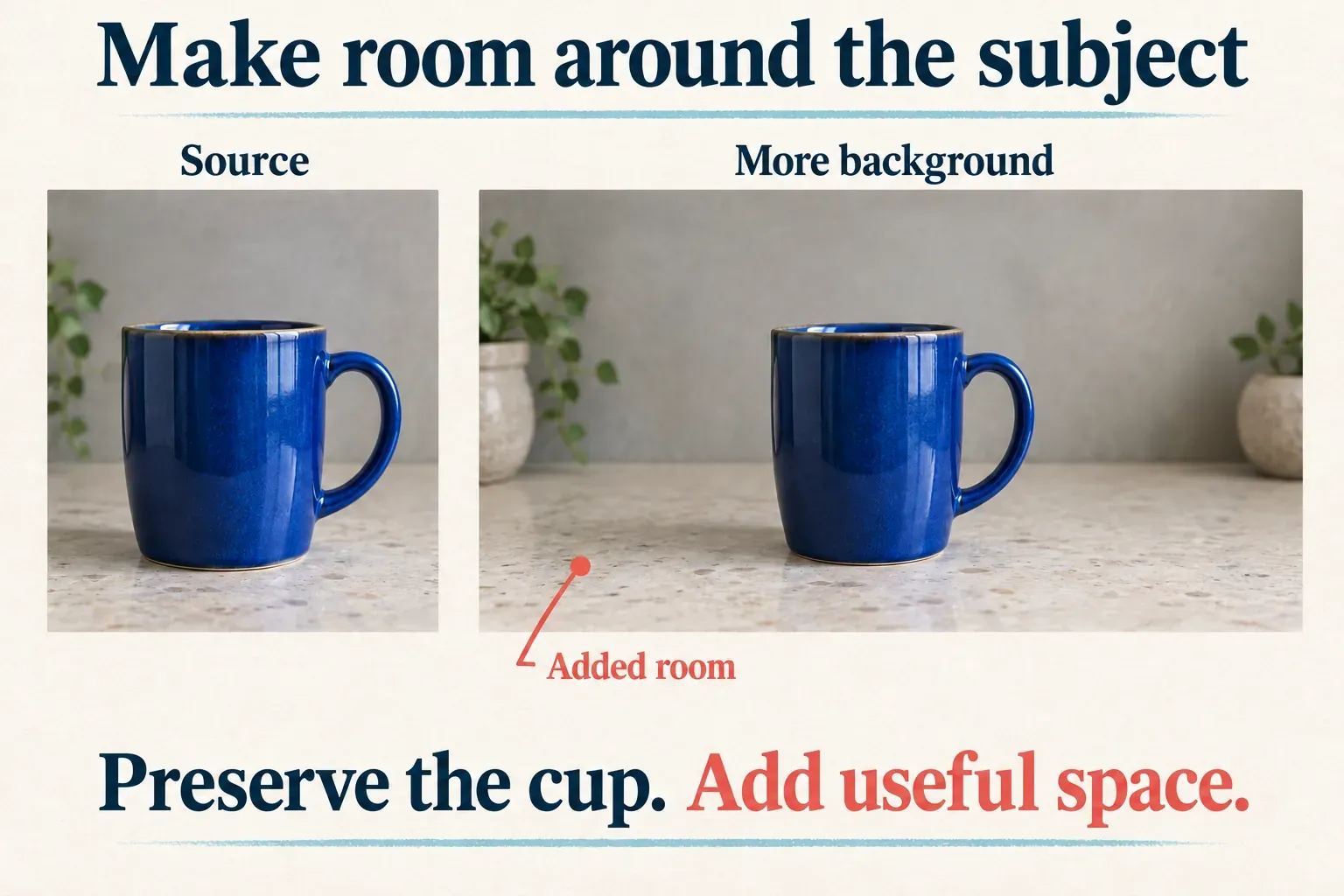
I'd expand only as far as the layout requires. A little extra counter or sky has fewer details to resolve than a whole new room. If a plain background gives the title enough space, it may be the cleaner choice.
Expand a photo in CapCut Mobile
Keep the original photo. Work from a copy you can compare against the result, especially if the image shows a product, a person's appearance or readable packaging.
CapCut's Mobile photo-expansion procedure gives this sequence:
- Open All tools from Home and choose AI expand in the Photo editing area.
- Select the photo and tap Next.
- Choose the offered Aspect ratio that fits the destination. Inspect the empty area around the source before generating.
- If the tool offers a prompt, describe the background you want continued. Read any access or credit notice, then choose Generate if the settings suit you.
- Compare the available results with the original. Select the version that preserves the subject and has a believable border, then tap Export to save it.
For a tabletop photo, an example instruction is: “Continue the pale stone counter and soft gray wall. Keep the blue cup, its handle and its shadow unchanged. Leave clear space on the left for a title.” That instruction describes the change you want; it doesn't guarantee that the model will preserve every detail.
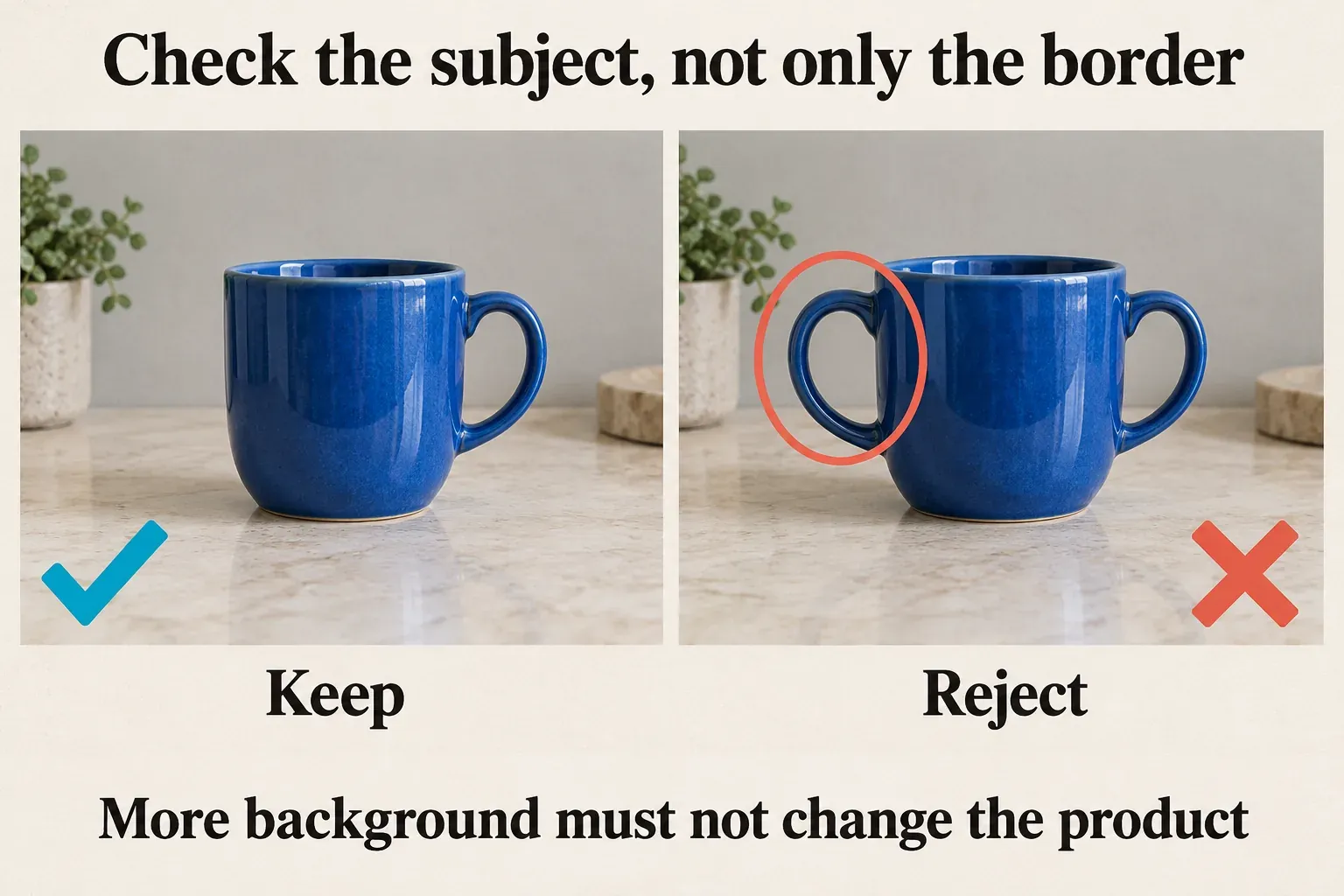
The useful result isn't just the one with the most added space. Reject any version that changes the cup's proportions, invents a second handle or bends the counter behind the cup. Add the title afterward so its letters stay editable, instead of asking the background generator to paint the words into the scene.
If AI expand is missing from this entry, check that you're using the photo tool instead of a video clip's toolbar. Don't assume a Pro trial, a template with the same name or an old tutorial will reveal an identical menu. When this account doesn't offer expansion, keep the photo and use another available editing route.
Use the other routes for video, Desktop photos and Web images
For Mobile video, select the clip you want on the timeline and check Crop > AI Expand, the path given in CapCut's Mobile video-expansion instructions. Set whatever area or frame choices your build provides, then review the whole processed interval. If the tool shows a media or duration restriction, follow it. Don't turn an old tutorial's limit into a rule for every current account.
If only a short section needs expansion, isolate that section on a working copy and check both joins afterward. Switching the picture area partway through a shot can create a visible jump, even when each expanded frame looks plausible on its own. The crop and split workflow explains making a separate range without assuming every layer changes with it.
For a photo in Desktop, CapCut's Desktop photo instructions place the imported image on the timeline and locate AI expand in the side panel. They describe Fit for an automatic adjustment and Custom for a manual expansion choice. Use those options where they show up for the selected photo. Stick to this procedure for still images, and check a video clip's own controls before you use these steps on video.
For a still image on Web, CapCut's Web image-expansion instructions describe starting an image project, uploading the photo and selecting Expand. Check the added area, then download the finished image with the controls offered there. The photo-editor guide covers the image-project and still-export routes. If the only export option is a video file, make sure you opened the right workspace for the output you need.
Inspect the new borders in stills and in motion
Compare the final image with the original at a useful viewing size. Trace straight lines across the old and new areas: a counter edge, a horizon or a door frame shouldn't kink at the join. Check shadows, perspective and repeating patterns too. A convincing texture can still hide a bent wall or a duplicated object.
Then go back to the subject. Check hands, faces, product dimensions, handles, labels and logos wherever they matter. Outpainting can produce an attractive composition while changing something the image was supposed to show accurately. If those changes would mislead the viewer, use the untouched original.
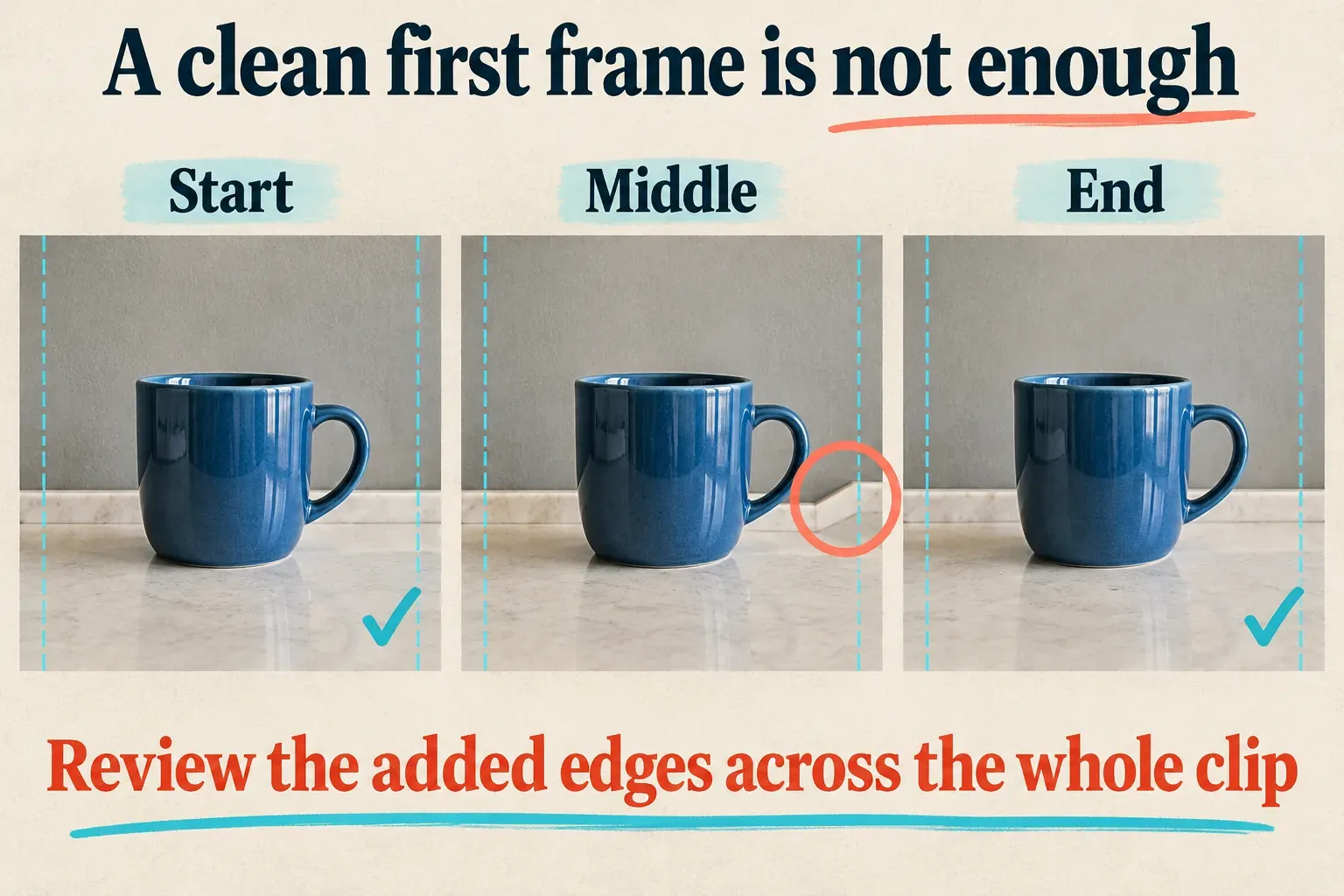
With video, watch the entire interval at normal playback speed, then pause wherever the border pulls your eye. Look for flickering texture, moving seams, changing geometry and objects that appear or disappear at the edge. Review the cut into and out of the expanded section as well. A clean still isn't evidence that the moving sequence is clean.
Save the source and your chosen result separately. Before sharing, inspect the downloaded image or exported video outside the editor. Confirm the dimensions you intended, the subject detail and the border quality. Exporting at a larger resolution can't repair an incorrect shape.
Handle missing controls, access notices and weak results
A page titled “free AI image expander” doesn't mean unlimited generation for your account. CapCut's general credit instructions explain how credit-based AI actions are confirmed and deducted. Before you confirm, check the price and included access shown for that operation.
If you can't find the command, check the selected media type and the entry described above. Read the current access notice before you buy a plan just for a feature you saw in an old screenshot. Our feature-availability guide covers differences between surfaces and accounts. Preserve your local projects before you make broader app changes.
If the result is weak, shrink the added area or simplify the background instruction. A plain wall may suit the brief better than newly invented furniture. If the subject still changes or the border won't hold in motion, keep the source and go with a deliberate crop, solid background, blur fill or different shot. Any of those can finish the layout without pretending the missing scene was captured.