

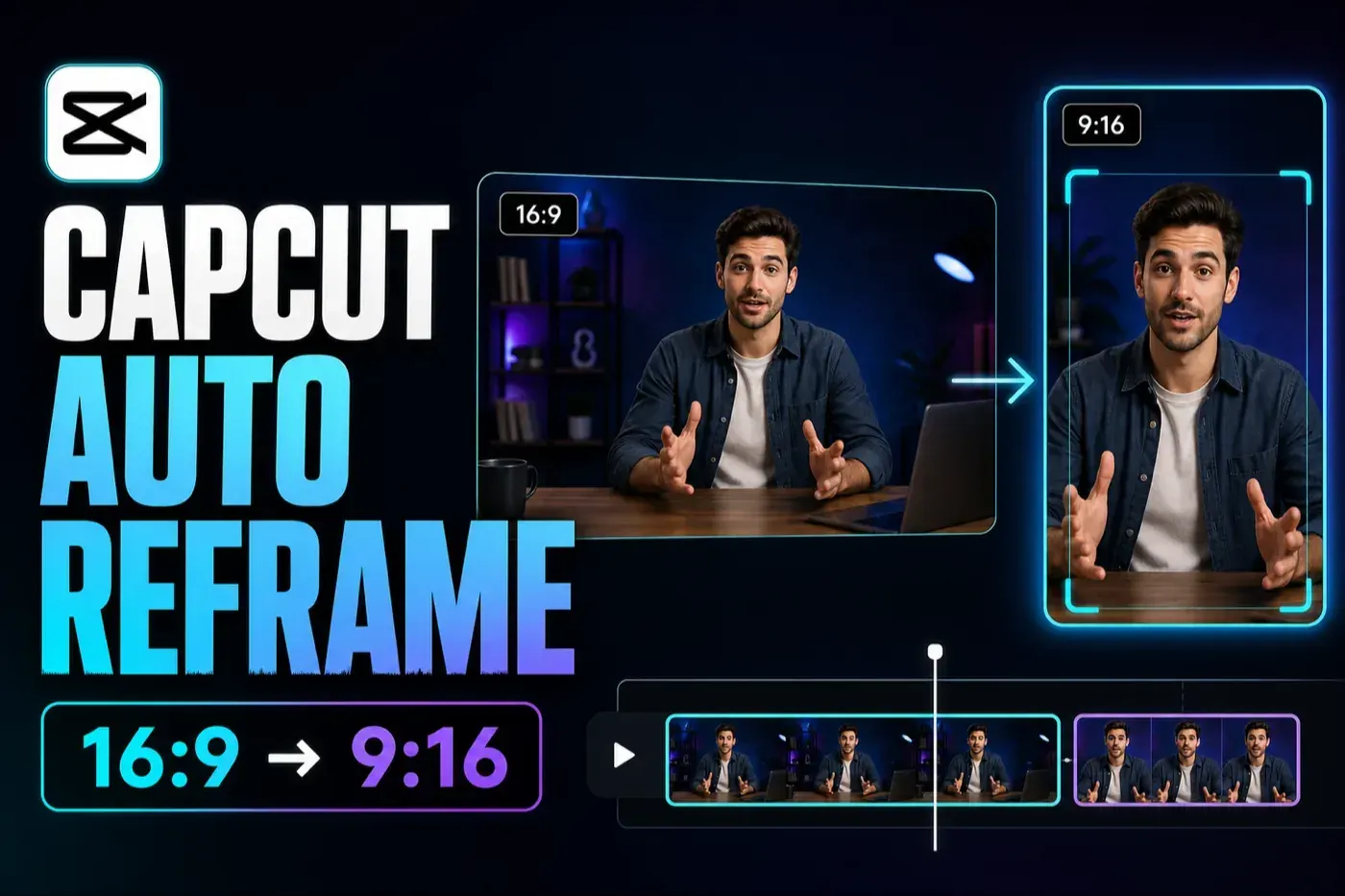
Checked August 13, 2026: CapCut's current Auto Reframe payment help lists the feature as Pro on Online, Desktop and Mobile. The separate Auto Reframe marketing page still says you can try it free, so don't plan a deadline around that promise. Open the signed-in editor first and check the gate shown to your account. The interface visuals below are anonymized editorial reconstructions based on CapCut's documented controls, not captures of a personal project.
Use it when a landscape master needs a vertical TikTok, Reel or Short.
A trial may appear for an eligible account, but CapCut doesn't describe a permanent free Auto Reframe tier.
A talking head, presenter or single moving object gives the tracker an obvious job.
Check people, titles, captions, cuts and the final exported file. “Automatic” is not approval.
The short answer: use Auto Reframe as a first pass
CapCut Auto Reframe can resize a wide video for TikTok, Reels or Shorts without leaving the crop fixed in the middle. It analyzes the clip, chooses what it thinks is the main subject and moves the crop as that subject moves. That's useful when a presenter walks across a 16:9 frame or when a horizontal interview needs a quick 9:16 social cut.
It is not a one-click publishing workflow. Auto Reframe can follow the wrong person, react late after a cut, place a face too close to the edge or keep more empty space than you wanted. It also doesn't decide whether a caption will sit under TikTok controls or whether the export settings are right. The efficient workflow is automatic pass, human review, small manual repair.
Duplicate the project or sequence before changing the frame. A vertical crop is a new editorial version, not a harmless export preset.
Auto Reframe, Ratio and AutoCut are different tools
These names are easy to blur together because all three can appear in a short-form workflow. The wider CapCut AI workflow guide routes tools by input and output; here, the finished edit and new aspect ratio are already known. These three tools solve different problems:
| Tool | What it changes | Use it when | What it doesn't do |
|---|---|---|---|
| Auto Reframe | Moves a crop inside a new aspect ratio to follow a subject | A wide or square edit needs a portrait version | It doesn't find candidate moments or rebuild the story |
| Ratio / Crop | Changes the canvas or a fixed crop manually | The subject stays in one place, or you want complete control | It doesn't follow movement by itself |
| AutoCut | Selects and assembles moments, often with a template-led treatment | You want a new short edit from source footage | It is not simply a moving crop for an already approved cut |
| Long Video to Shorts | Finds several candidate excerpts in one long source | A podcast, interview or webinar should become separate short clips | It doesn't guarantee the right story boundary or crop |
CapCut's AutoCut guide describes a template-led mobile workflow that trims, splits and assembles clips. Auto Reframe has the narrower job here: it changes the composition for another ratio while trying to keep the subject visible.
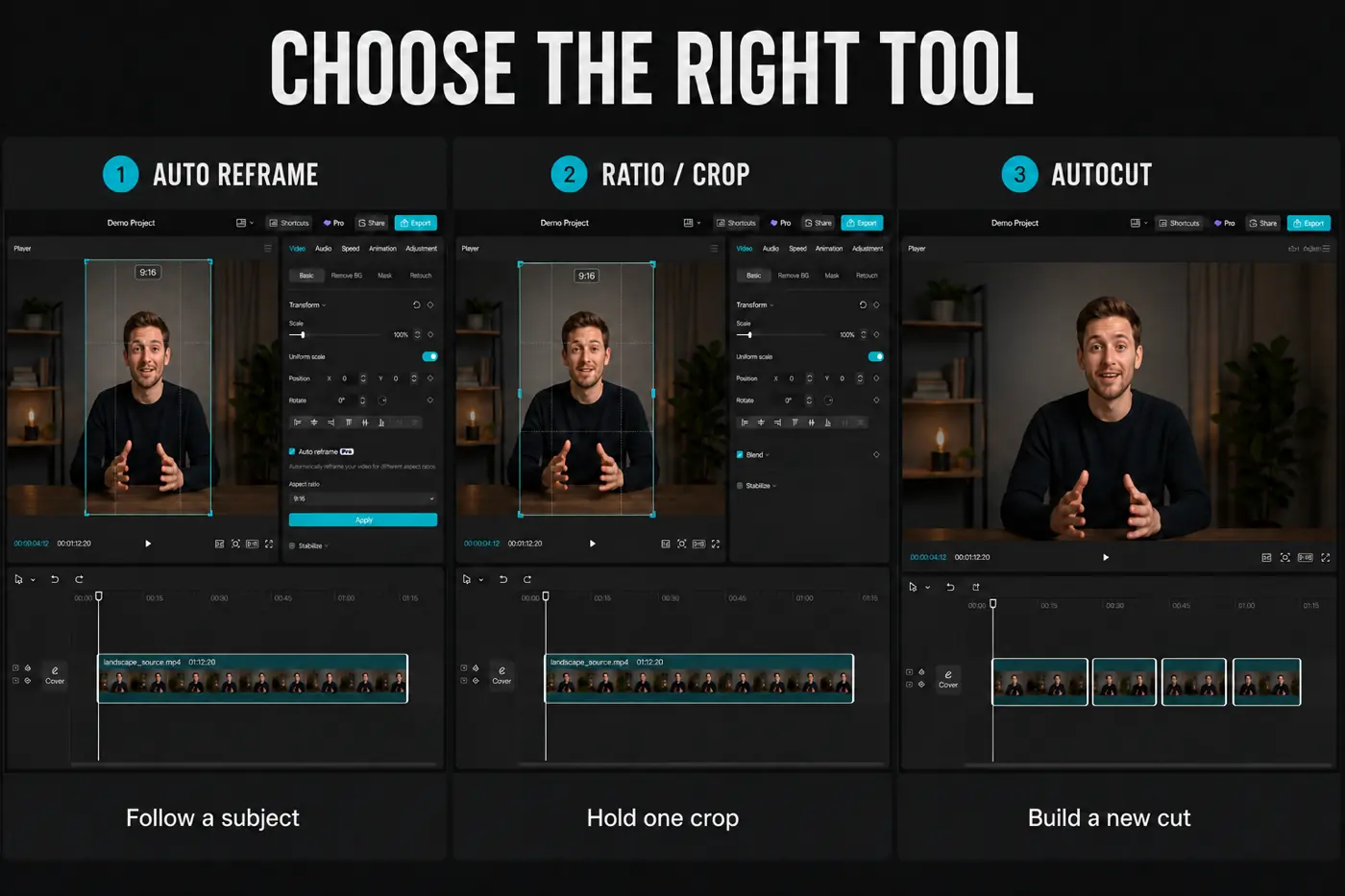
The distinction matters when troubleshooting. If Auto Reframe keeps choosing the wrong person, switching to another automatic pass may waste more time than a fixed crop plus two or three position keyframes. If the original video is slow and centred, you may not need AI at all.
Before you reframe: lock the story and choose one destination
Finish the structural cut first. Remove the sections you won't use, settle the timing and decide which platform version you're making. Otherwise CapCut has to analyze material that may disappear, and every later trim can change where the moving crop needs to be.
- Duplicate the project. Keep the landscape master and source media untouched.
- Finish the rough cut. Reframe the clips that will make the final edit, not an hour of raw footage.
- Choose the destination. “Vertical” is not specific enough if titles, captions and calls to action need different placement.
- Move important overlays after the crop. A 16:9 lower third rarely lands well in a 9:16 frame.
- Check the plan gate before promising delivery. CapCut's help page puts Auto Reframe in Pro across platforms.
This setup is brief for one talking-head clip. A multicamera interview, screen recording or sports edit needs more preparation because the important subject can change between shots.
How to use CapCut Auto Reframe on Desktop
CapCut's Desktop help says to select the clip, then use the clip's context menu or go to Video → Auto Reframe. The separate tool workflow describes controls for the target aspect ratio, image stabilization and camera moving speed. Labels can move between releases, so the selected clip and the Video inspector are the two useful places to look.
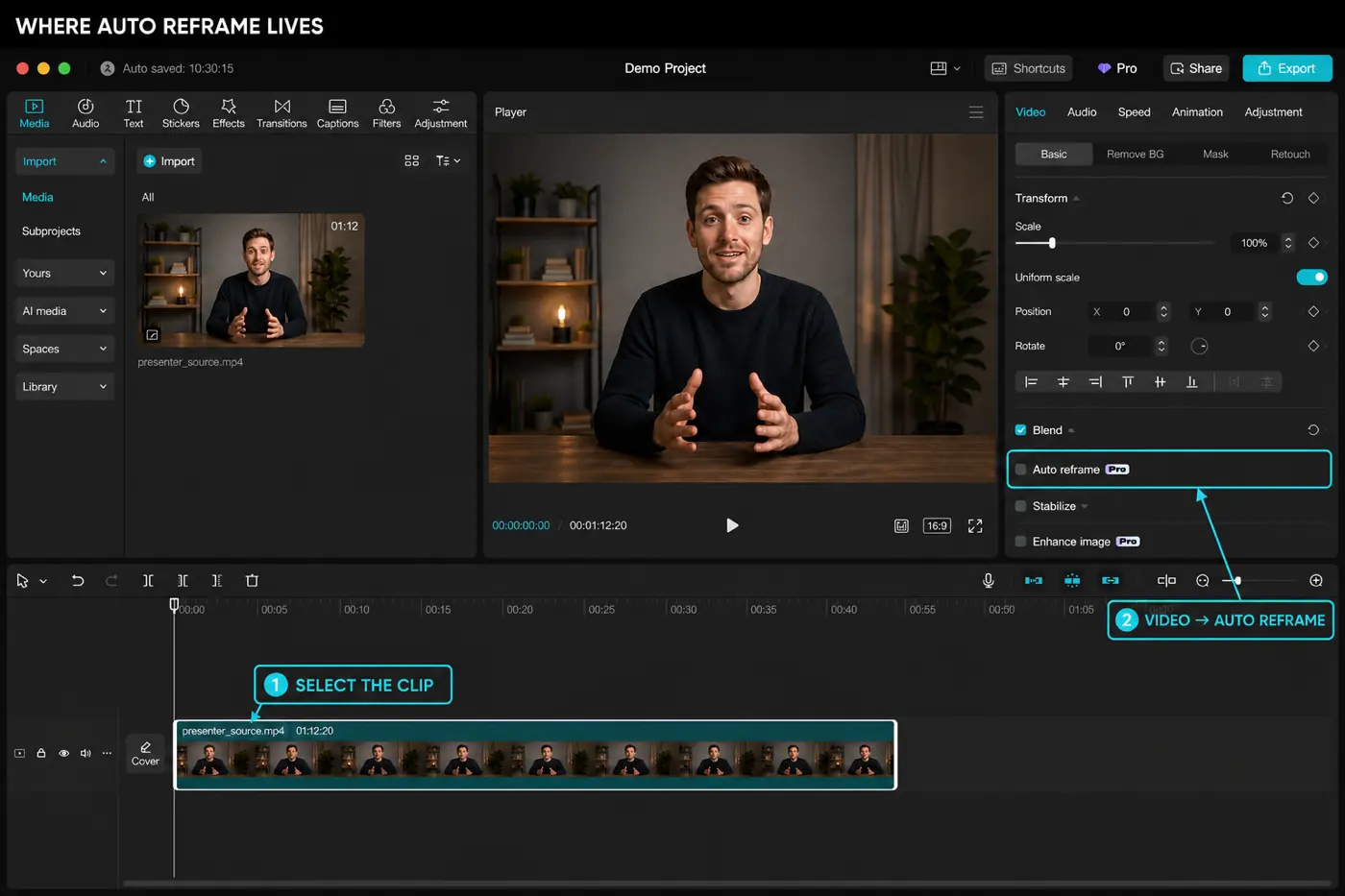
- Open the duplicated project and select the first clip that needs a moving vertical crop.
- Open Video → Auto Reframe, or check the right-click menu for the same action.
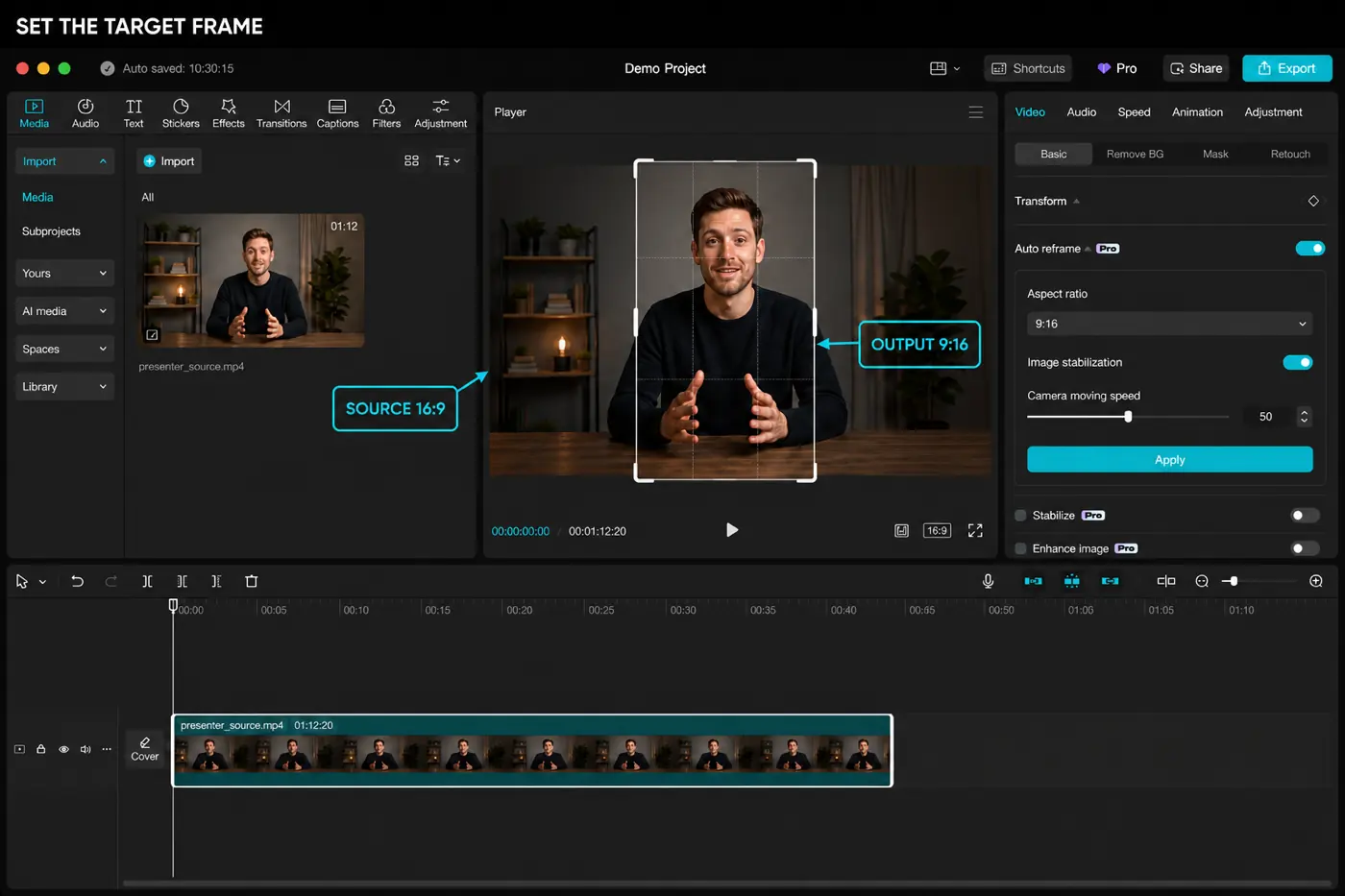
- Choose the target ratio. For a full-screen vertical social version, start with 9:16.
- Set stabilization and camera movement only as far as the shot needs. A fast response can feel nervous; a slow response can let the subject drift toward the edge.
- Apply the analysis, then play the whole clip. Don't judge it from a single paused frame.
- Repeat clip by clip where the composition changes. A long compound edit with cuts deserves more checks than a single take.
Where Auto Reframe is on CapCut Online and Mobile
CapCut Online
Select a clip, then open Adjust → Auto Reframe. CapCut says a non-Pro account receives a subscription prompt and the feature stays disabled until access is active.
CapCut Mobile
Select the clip in the edit, then use Adjust → Auto Reframe. An eligible account may see a trial offer; otherwise CapCut routes the subscription through the relevant app store.
If those labels are absent, don't keep tapping random AI menus. Update the app, confirm the correct account is signed in, check the current CapCut feature availability matrix, then compare the same project on another supported platform. CapCut's own tool page notes regional availability, so two accounts can legitimately expose different controls.
Choose the ratio by the output, not by the source
A 16:9 source doesn't force a 16:9 result. Auto Reframe exists specifically because the target frame can be narrower or taller than the recording. For this workflow, the useful question is where the new version will be watched.
| Destination | Practical starting ratio | What to check after reframing |
|---|---|---|
| TikTok | 9:16 full screen | Face, captions and CTA remain clear of the interface; finish with the CapCut TikTok workflow |
| Instagram Reels | 9:16 full screen | Reel playback and cover crop both make sense; use the Reels guide for the last pass |
| YouTube Shorts | 9:16 is the common full-screen choice | YouTube also accepts square or vertical eligible Shorts; avoid baking black bars into the file and check the Shorts workflow |
| Square feed post | 1:1 | Wide gestures and two-person compositions may need a fixed crop rather than a moving one |
| Landscape YouTube | 16:9 | A vertical source may need background treatment or a deliberate side crop, not constant subject chasing |
Instagram currently accepts a wider range of Reel ratios, and YouTube describes uploadable Shorts as square or vertical rather than “9:16 only.” TikTok's creative guidance recommends full-screen 9:16 and checking its safe zones. We start with 9:16 because it is a practical shared vertical master. The other platforms don't require that exact ratio in every case.
Review the track at the moments where it can fail
Watching once from the beginning is necessary, but it is not enough. Stop at the start, middle and end of every shot with movement. Then inspect the frames immediately before and after each cut. Those are the places where an automatic crop often has to choose a new subject or catch up.
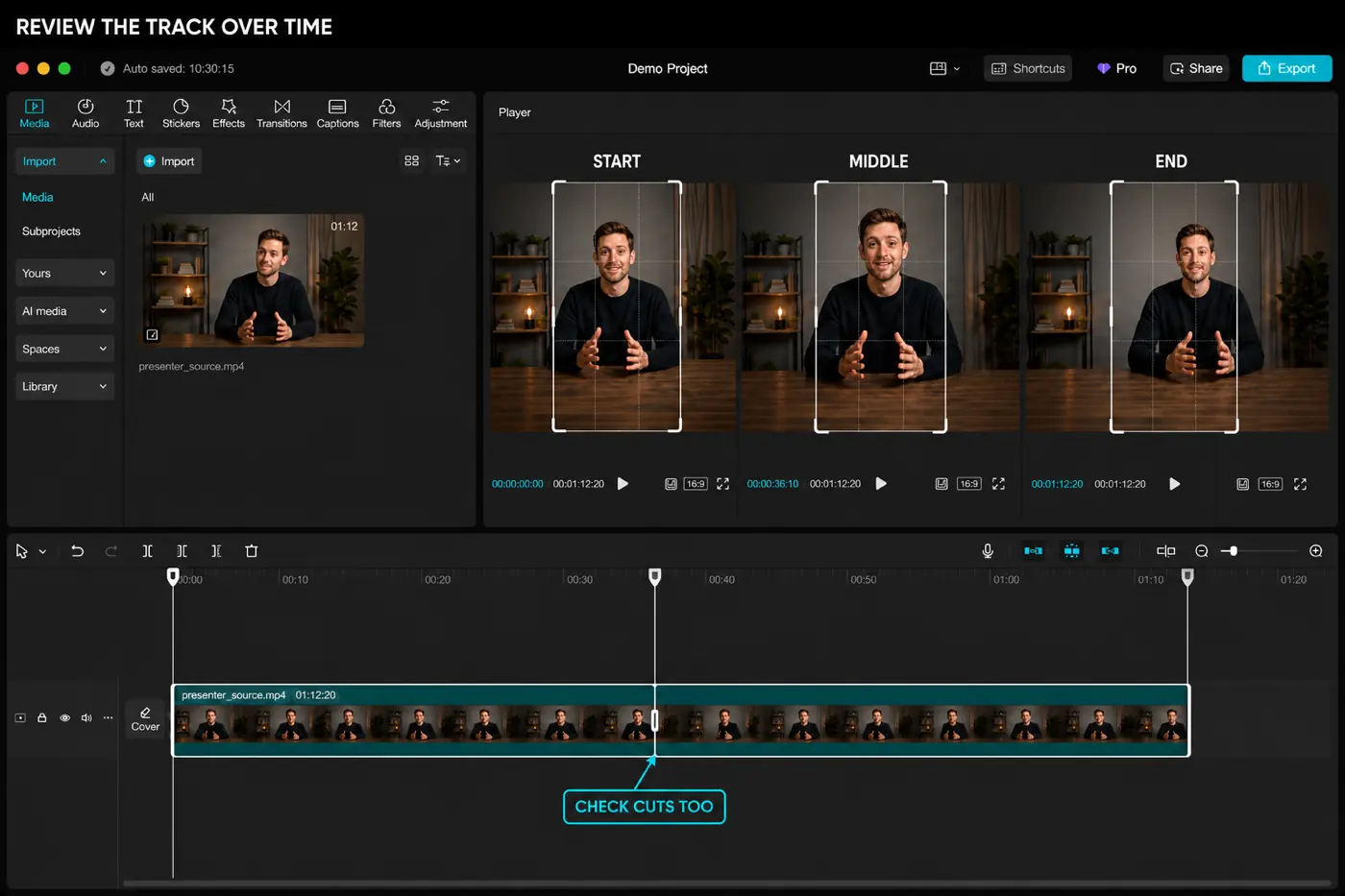
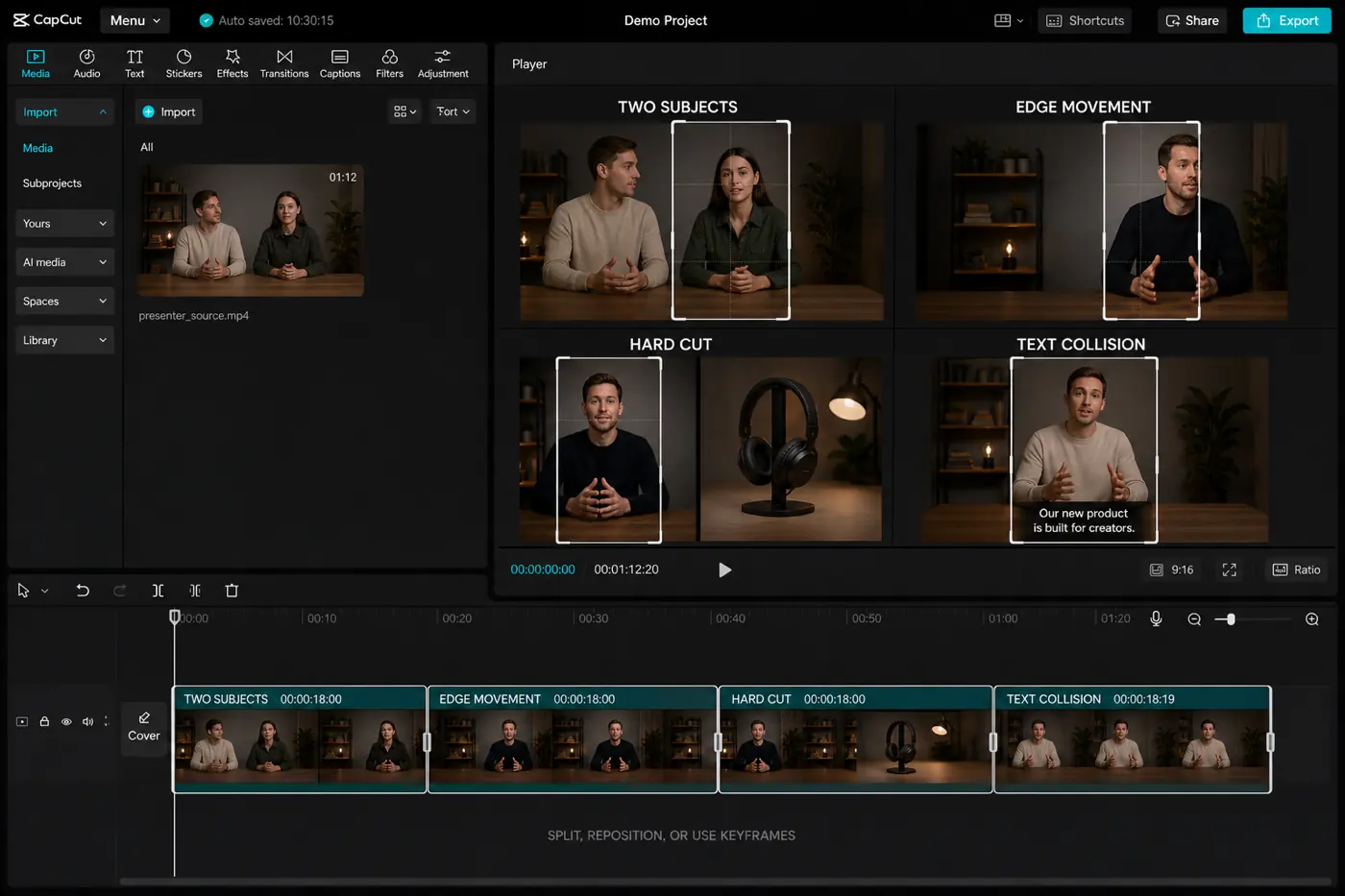
Does the crop jump between faces, or cut one speaker in half?
Does tracking begin early enough, or leave the face pinned to the border?
Does the previous camera move bleed into the new composition?
Does CapCut choose the object that best explains the line?
Does the crop remove a screen label, product name or demonstration step?
Do words stay readable after platform controls cover the bottom or right side?
Fix a bad Auto Reframe result with position keyframes
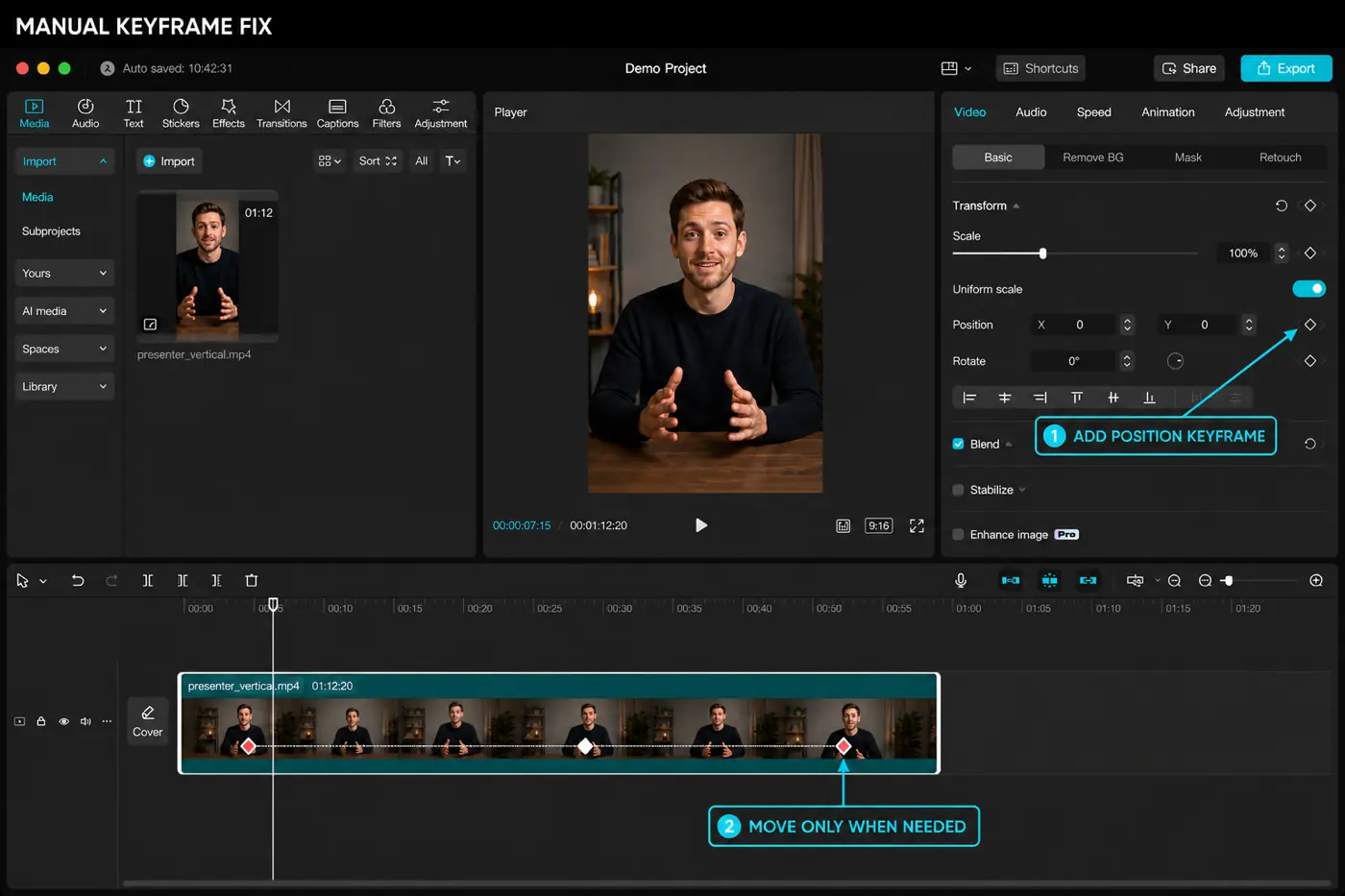
If the generated move is wrong in only one short section, first try splitting that section into its own clip and applying a simpler crop. If the shot still needs movement, a manual path is usually faster than repeating the AI analysis.
- Set the project or canvas to the required ratio, usually 9:16.
- Scale the clip just enough to fill the frame. Excess zoom sacrifices useful detail and makes every camera move more obvious.
- Place the playhead where the subject first needs to move and add position/scale keyframes.
- Move to the point where the subject changes direction or reaches the other side, then reposition the clip. CapCut creates the next keyframe.
- Play through at normal speed. Add another keyframe only when the existing motion can't hold the subject comfortably.
- Ease or space the move so it supports the shot instead of looking like a frantic virtual camera operator.
Our CapCut keyframes guide covers the underlying controls. For Auto Reframe repair, keep the path simple: one move into position and one move out is often enough.
If Auto Reframe is missing, locked or looks wrong
CapCut's Help Center calls Auto Reframe a Pro feature. A trial prompt doesn't create a permanent free entitlement.
Update CapCut, sign into the intended account and compare Online/Desktop/Mobile. Availability and menu placement can differ.
Confirm the canvas is really 9:16, then inspect scale and empty background. Auto tracking can't rescue the wrong fill choice.
Split at cuts, isolate the difficult shot or replace that section with a fixed crop and keyframes.
If the tool stalls or produces no analysis, try a short copy of the clip in a new local project before rebuilding the main edit. That separates a clip/codec problem from an account or feature problem. Keep the original project intact throughout the test.
Reframe first, then finish captions and export
Once the crop path is stable, move titles, stickers and captions for the vertical layout. Watch the entire edit again with sound, then export a short proof before the final render. The editor preview can hide a crop jump at a cut, a title outside the frame or a caption covered by the destination app.
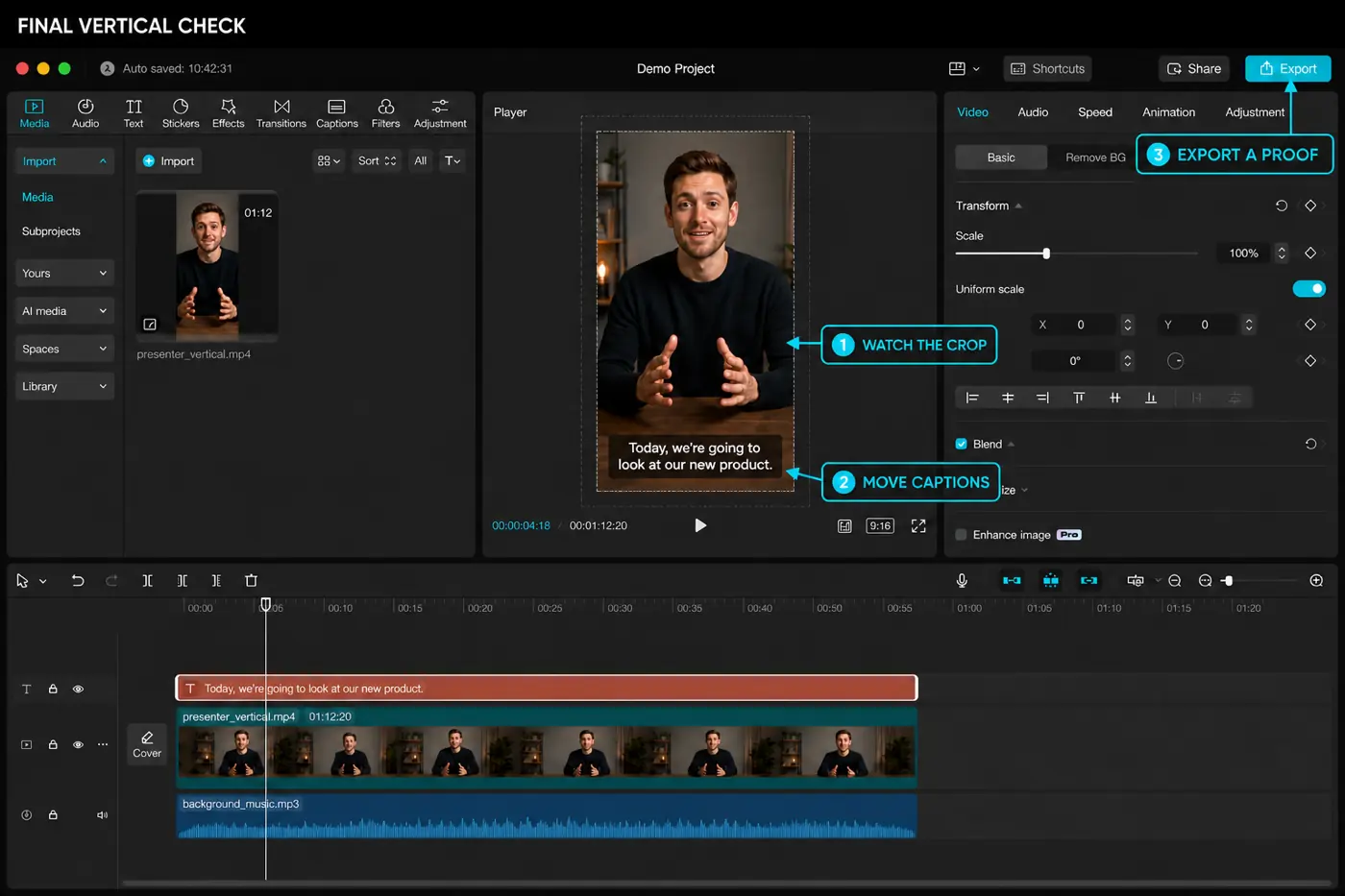
- Watch the exported file outside CapCut on another device.
- Confirm width, height, frame rate and audio with the CapCut export settings guide.
- Check the first and last frames of every reframed clip.
- Make sure captions, names, logos and calls to action survive the crop and the platform interface.
- Keep the landscape master and the vertical project as separate, recoverable versions.
CapCut Auto Reframe FAQ
Is CapCut Auto Reframe free?
CapCut's Help Center says Auto Reframe is a CapCut Pro feature on Online, Desktop and Mobile. The marketing tool page still advertises a free try and notes regional availability, so check the actual signed-in gate. A trial offer is not a permanent free tier.
Where is Auto Reframe in CapCut Desktop?
Select the timeline clip, then look under Video → Auto Reframe or in the clip's right-click menu. Menu placement can move between versions, so update the app and make sure a clip is selected before deciding the feature is missing.
Can CapCut turn a 16:9 video into 9:16 automatically?
Yes. Auto Reframe can create a moving 9:16 crop from a 16:9 clip and try to keep the main subject visible. Review the whole result because multiple people, hard cuts, edge movement and on-screen text can confuse the automatic composition.
What ratio should I choose for TikTok, Reels and Shorts?
Start with 9:16 for a full-screen vertical version across TikTok, Instagram Reels and YouTube Shorts. YouTube also accepts eligible square or vertical Shorts, and Instagram accepts a wider Reel range, but 9:16 is the practical shared master.
Why does Auto Reframe make my video look too small?
Check that the target canvas is 9:16 and inspect the clip's scale, fill and background. The tracker may preserve more of the wide shot than you want. If a tighter crop is intentional, increase scale carefully and repair the subject path with position keyframes.
Can I edit an Auto Reframe result manually?
Yes. Split out the bad section or replace its movement with manual position and scale keyframes. A few deliberate keyframes are often cleaner than rerunning the automatic analysis on a complicated shot.
Does Auto Reframe also set the right export settings?
No. It changes composition for another aspect ratio. Resolution, frame rate, bitrate, codec, captions, platform safe areas and the final file still need separate checks before publishing.