

In CapCut Desktop, import your video, place it on the timeline, then right-click the video clip and choose Split scenes. CapCut analyzes the clip and separates it into editable sections, as described in its automatic video-splitting instructions.
Use this when one video file holds several shots and you want to work with those shots separately. For a single cut at the playhead, use Split instead. Scene detection looks for boundaries. It doesn’t decide which parts of the story deserve to stay.
Choose the right kind of split
Three tasks can look alike at first: cutting at a chosen frame, finding existing shot changes and picking highlights from a long recording. Each one leads to a different result.
| Your task | Start here |
|---|---|
| Cut at one exact frame | Manual Split at the playhead. |
| Break an edited video into its component shots | Split scenes, followed by a boundary review. |
| Find candidate short clips inside an interview or webinar | A highlight-selection workflow, followed by editorial review. |
| Remove a particular sentence or pause | Choose the start and end yourself, then split and remove that section. |
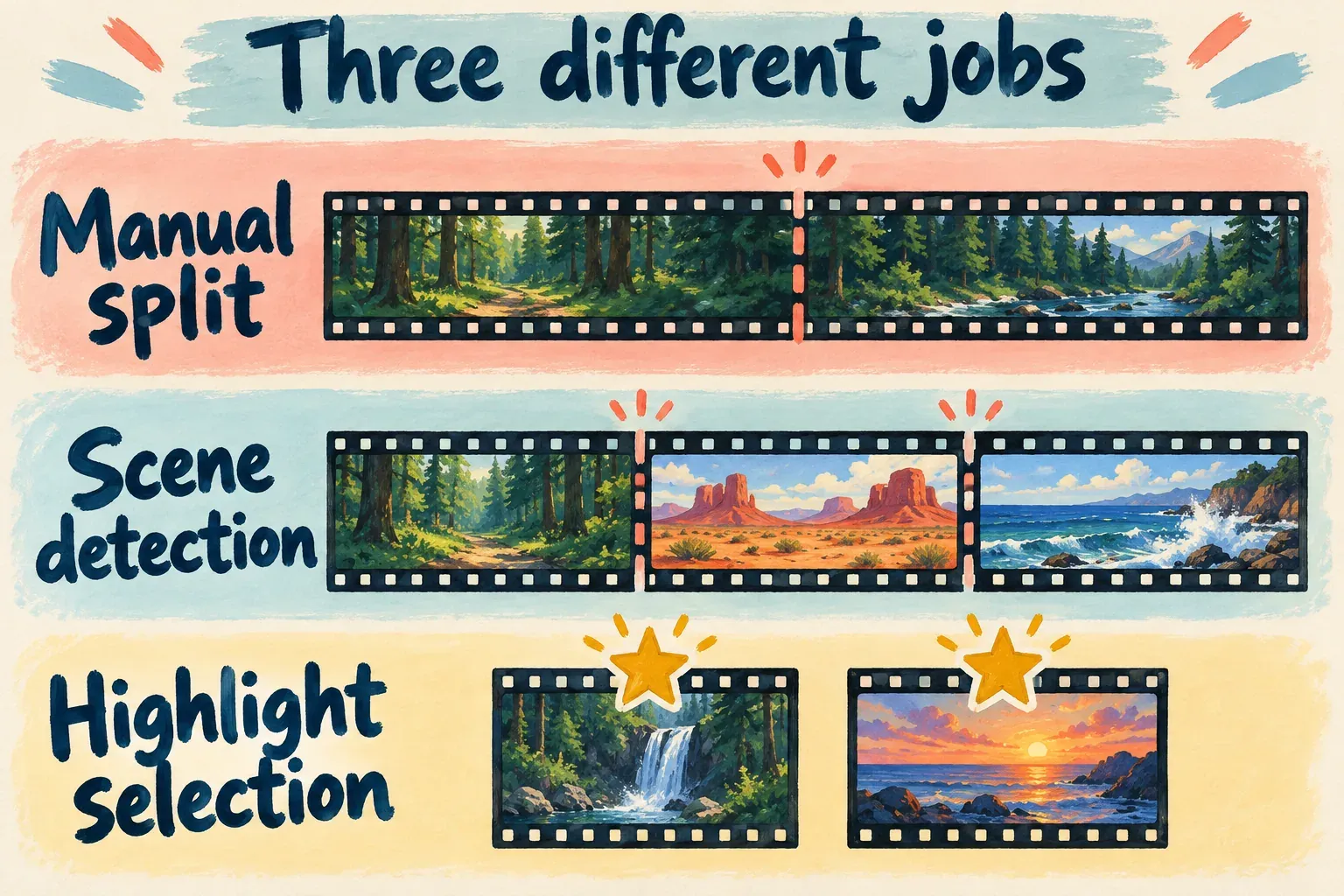
That difference matters when a progress bar appears but the cut isn’t where you put the playhead. You may have asked the app to analyze scenes when you wanted an ordinary split. Our cut, trim and split guide covers precise manual cuts and timeline repairs.
I’d start with scene detection for a previously edited montage whose individual shots I need to reorganize. With a continuous interview shot, the useful edit points are often words, breaths and complete ideas. Those decisions need a review of speech and pacing, even if the picture changes along the way.
Run Split scenes on the selected clip
Start before you’ve built a complicated stack of captions, overlays and sound cues around the footage. Hold on to the original video file and a recoverable version of your edit, so you can compare the result or go back to the earlier sequence.
- Import the source video. Place it on the Desktop timeline.
- Select the intended video clip. Check that you are acting on the footage, rather than a caption, overlay or unrelated item.
- Right-click the clip and choose Split scenes when that command is offered.
- Let analysis finish. Inspect the resulting segments before moving or deleting any of them.
- Review the boundaries. Play across each join with sound, then refine the exact frames where needed.
Don’t swap in the ordinary Split toolbar button for step three. That button divides the selected clip at your playhead. It’s the right tool for an exact manual cut, but it’s a different operation.
You also have to decide what to do with the result. Rearranging shots, shortening a scene and extracting a separate clip are different edits. Find the boundaries first. Then make those changes on purpose, instead of deleting every segment that looks small.
Review the detected boundaries
CapCut describes its scene-detection feature as identifying scene changes or motion shifts. The resulting cuts are a starting point for editing. The word “Scene” in the command name doesn’t mean the app has understood the whole narrative scene, the speaker’s intention or the best moment to interrupt an action.
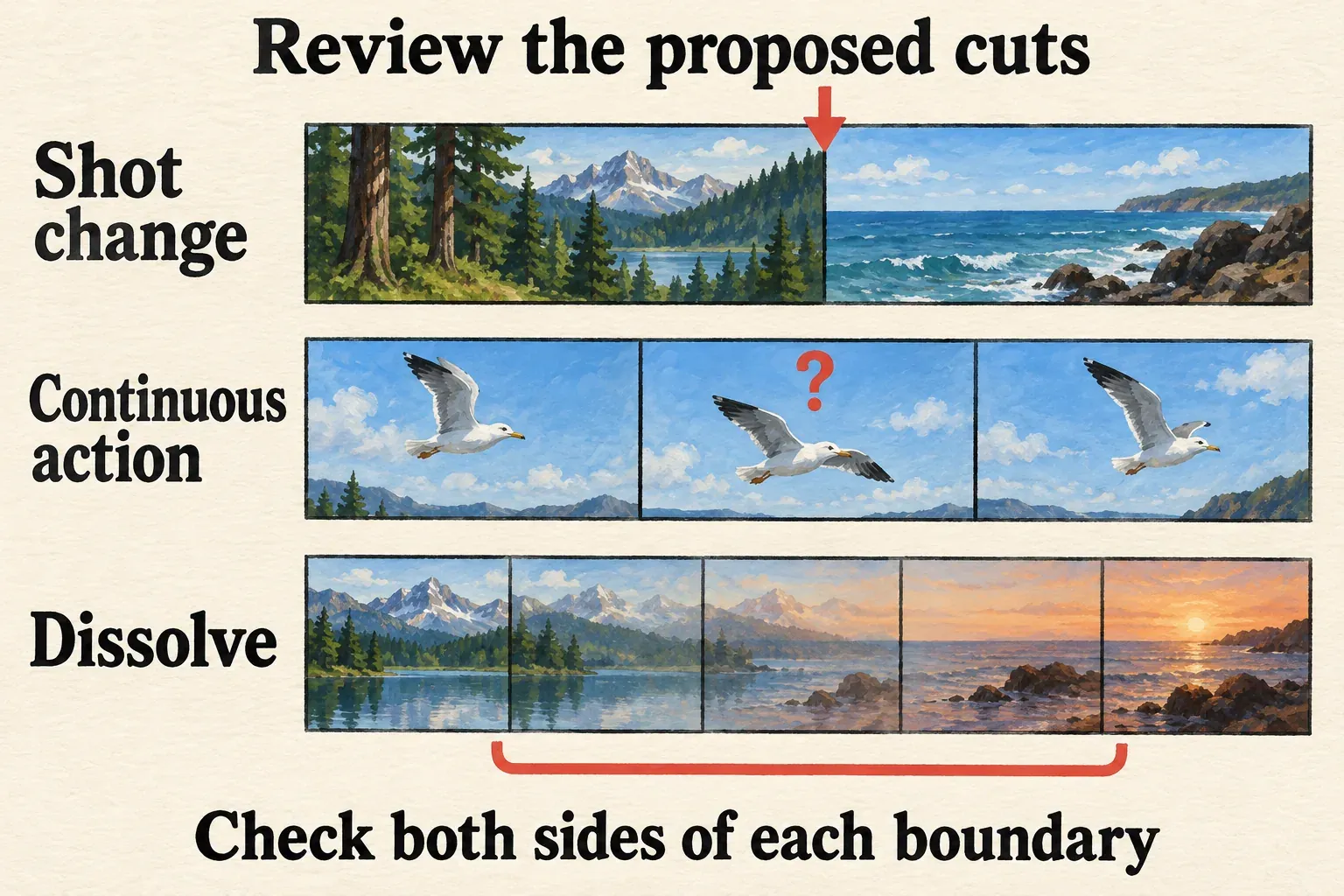
Look at three kinds of boundary:
- A direct shot change: inspect the final frame of the first shot and the opening frame of the next. Check that the cut has not left a stray frame on the wrong side.
- Continuous action: decide whether a division inside a camera move or action is useful. A new segment does not automatically mean a new idea.
- A dissolve or other gradual transition: review the whole transition span. Choose where you want the new edit to begin and end rather than trusting a single boundary to remove the blend cleanly.
If a useful boundary is missing, add a manual split at the frame you pick. When the analysis adds a division you don’t want, go back to the earlier edit and make the cuts you need by hand. Skip any “merge” shortcut borrowed from an unrelated tutorial. Grouping clips, making a compound clip and restoring an uncut source are different operations.
A wide timeline view shows the shot order, and a closer one lets you judge each join. Use both, then replay the passage at normal speed. A frame boundary can be technically tidy and still leave an awkward rhythm.
Check audio, captions and crossing layers
A picture boundary isn’t always the right place to divide speech. A speaker can finish a sentence over the next shot, while music may need to carry on through several cuts. Before you shorten or move a segment, check the items above and below the video.
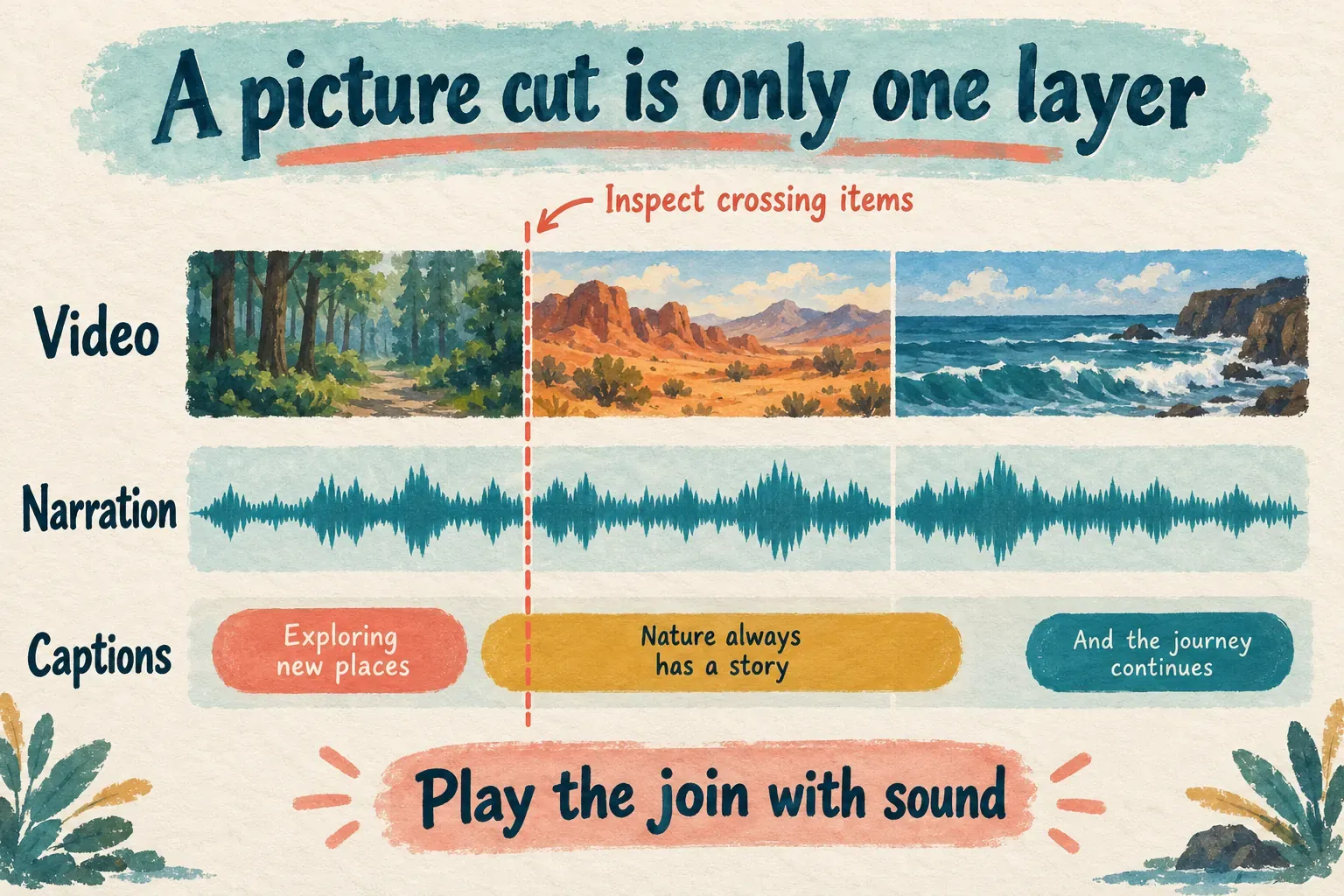
For each edit, ask what should travel with the picture and what should stay at its original time. A caption describing the moved action may need to move. A continuous music bed may not. Check what CapCut has selected or linked, instead of assuming every related item will follow automatically.
Listen for a clipped word, a sudden shift in ambience or a gap the picture alone doesn’t reveal. Check that a caption’s wording still matches the voice after the cut. Scene detection helps you organize footage, but organizing it doesn’t finish the sound or text edit for you.
I’d approve the new shot order before adding transitions. A dissolve can suit a change in time or place, yet it shouldn’t be the default fix for an accidental audio cut. Fix the boundary first, then pick the transition that serves the story.
When Split scenes does not give the result you need
Start with the symptom instead of assuming the analysis has failed:
| What happens | What to check or choose |
|---|---|
| The cut is not at the playhead | Use manual Split if your aim is one exact cut. |
| A continuous shot remains one segment | If your aim is to remove speech or pauses, choose those edit points manually. |
| A shot boundary is missed | Place a manual split at the required frame. |
| There are too many divisions | Return to the earlier edit and create the useful boundaries yourself. |
| Split scenes is absent | Confirm that the video clip is selected; use manual cuts if the command is unavailable. |
| Analysis stalls or reports an error | Preserve the project and read the specific error before changing media or app settings. |
A selected caption or another platform’s toolbar isn’t a reliable way to find this Desktop command. Don’t keep rerunning the analysis when the real job is a precise split, a speech edit or highlight selection.
For highlights, CapCut documents Long video to shorts as a separate workflow with its own upload, conversion and export steps. That’s a useful distinction: a shot boundary and a compelling standalone short aren’t the same thing.
CapCut describes the Desktop feature as free on its scene-detection page. Check any notice that appears with your current action, and keep that question apart from paid effects or assets you add later. A free editing command doesn’t settle the terms for every element in the finished project.
Export the sequence you intend to deliver
Split scenes creates editable pieces in the project. It doesn’t by itself promise a folder of separately exported video files. Before you open export, decide whether you want one rearranged sequence or individual deliverables.
For one finished video, go through the whole intended timeline: shot order, joins, audio, captions and ending. For a separate segment, follow our selected-clip and range export guide and inspect the saved file’s first frame, last frame and duration. If you run a full-project export later, check that it covers the full intended sequence again.
Keep export quality separate from the split itself. CapCut distinguishes dividing clips in the project from rendering them at export. The rendered file still depends on the output settings you choose. A clean cut doesn’t guarantee a lossless export.
Your last check is the delivered video, played with sound. Scene detection has done its job once it hands you useful pieces to work with. The edit is done when those pieces form the sequence you meant to make.