

To normalize audio in CapCut Desktop, select the clip on the timeline, open Audio → Basic and enable Normalize loudness. Some documented layouts label the same control Loudness normalization. Let the processing finish, then listen across the cuts between clips before you adjust the rest of the mix.
CapCut describes normalization as bringing selected clips toward a consistent target loudness. The setting helps when interview answers, voiceovers or recordings from different sessions come in at noticeably different levels. It's not a reason to push every sound in your project to the same prominence.
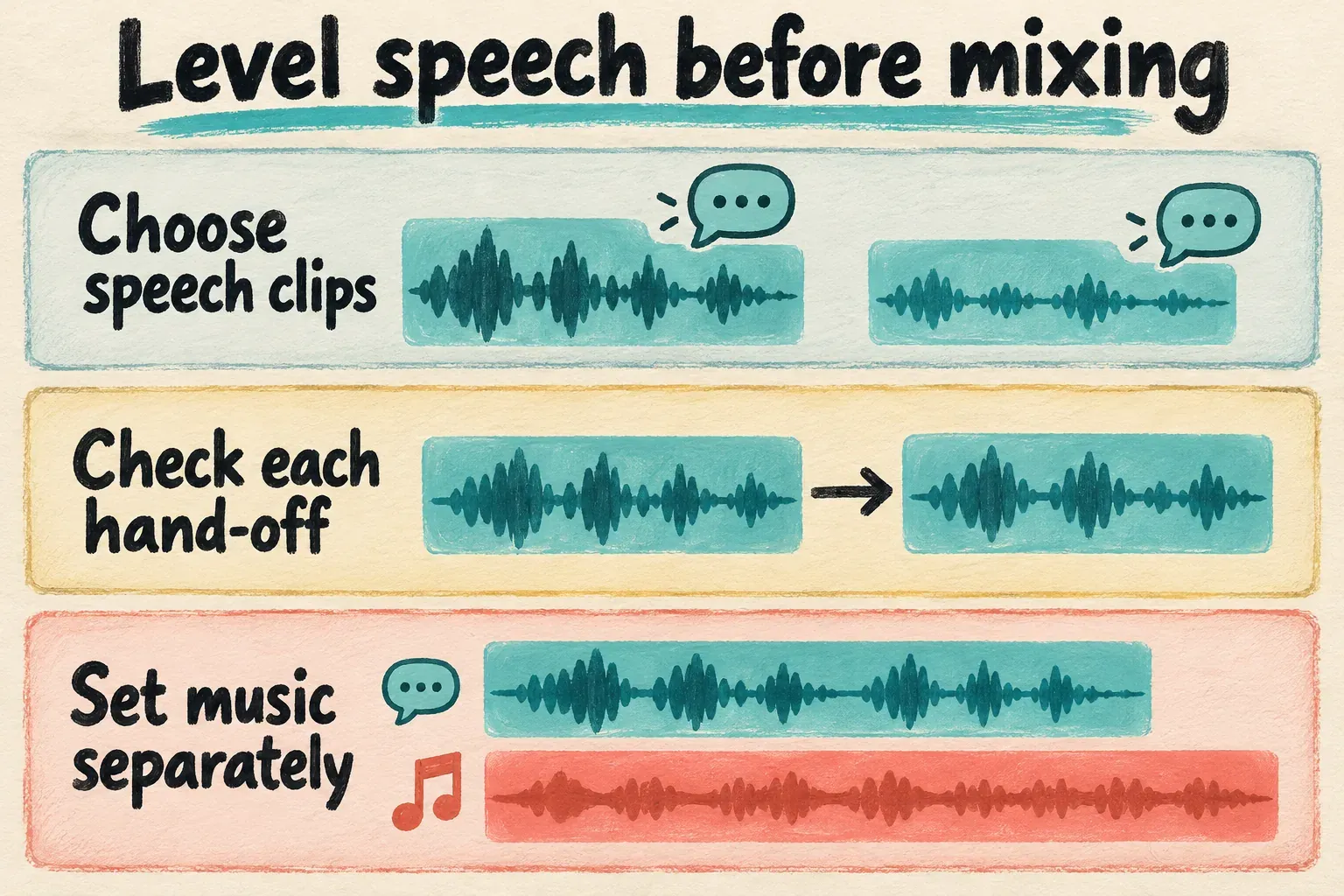
I'd start with comparable speech clips, check the joins and set the music separately. Getting the voice consistent is one decision. Keeping that voice audible over a soundtrack is another.
What Normalize loudness changes
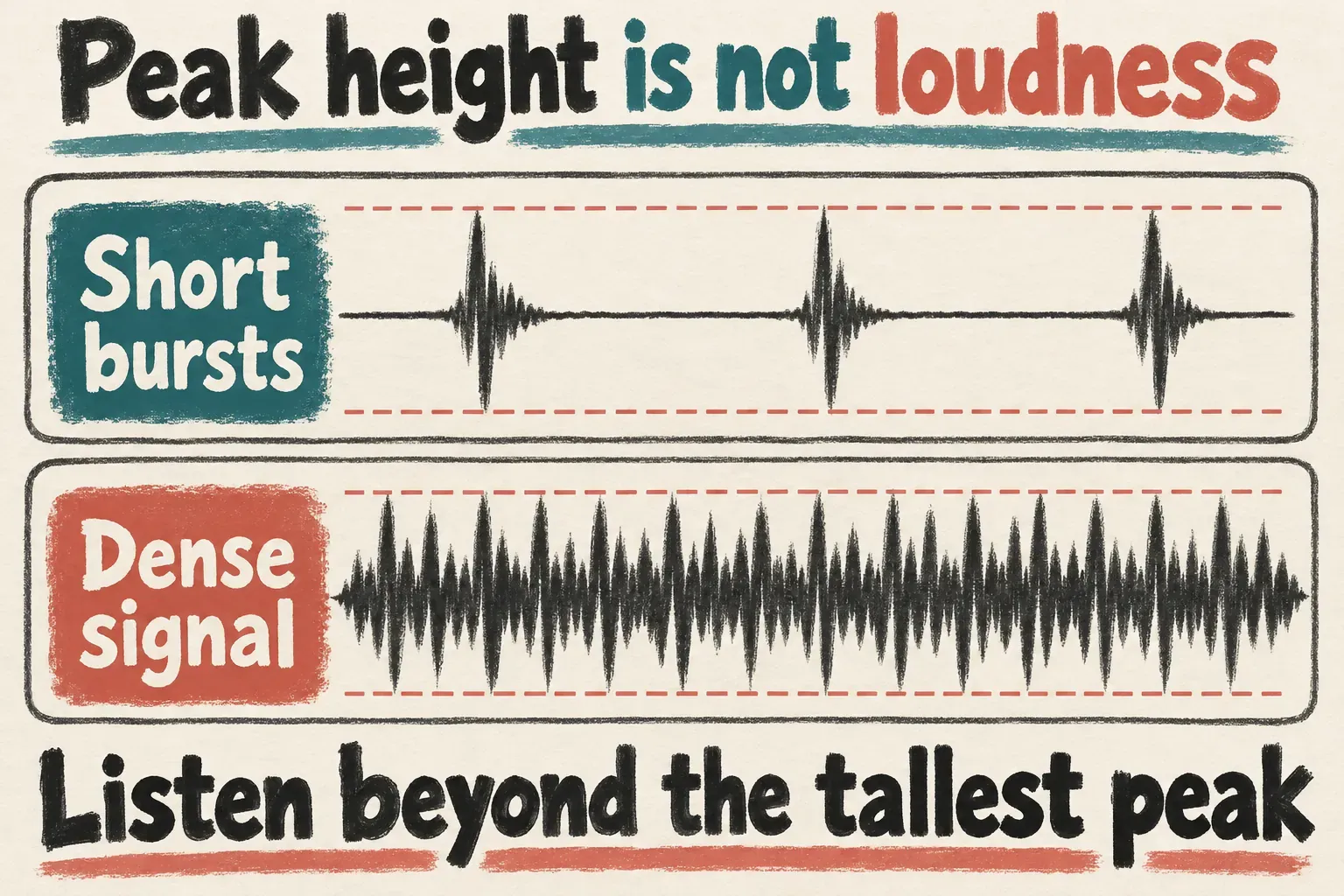
A clip can have one tall peak and still sound quiet for most of its length. Another can stay loud almost the whole time without a taller maximum peak. Waveform height alone doesn't tell you how loud the two recordings will feel.
LUFS measures loudness. A peak level describes the largest signal amplitude. Audacity's official manuals distinguish loudness normalization toward a LUFS target from normalization that sets peak amplitude. The difference explains why matching the tallest waveform spikes is a poor stand-in for judging the whole recording.
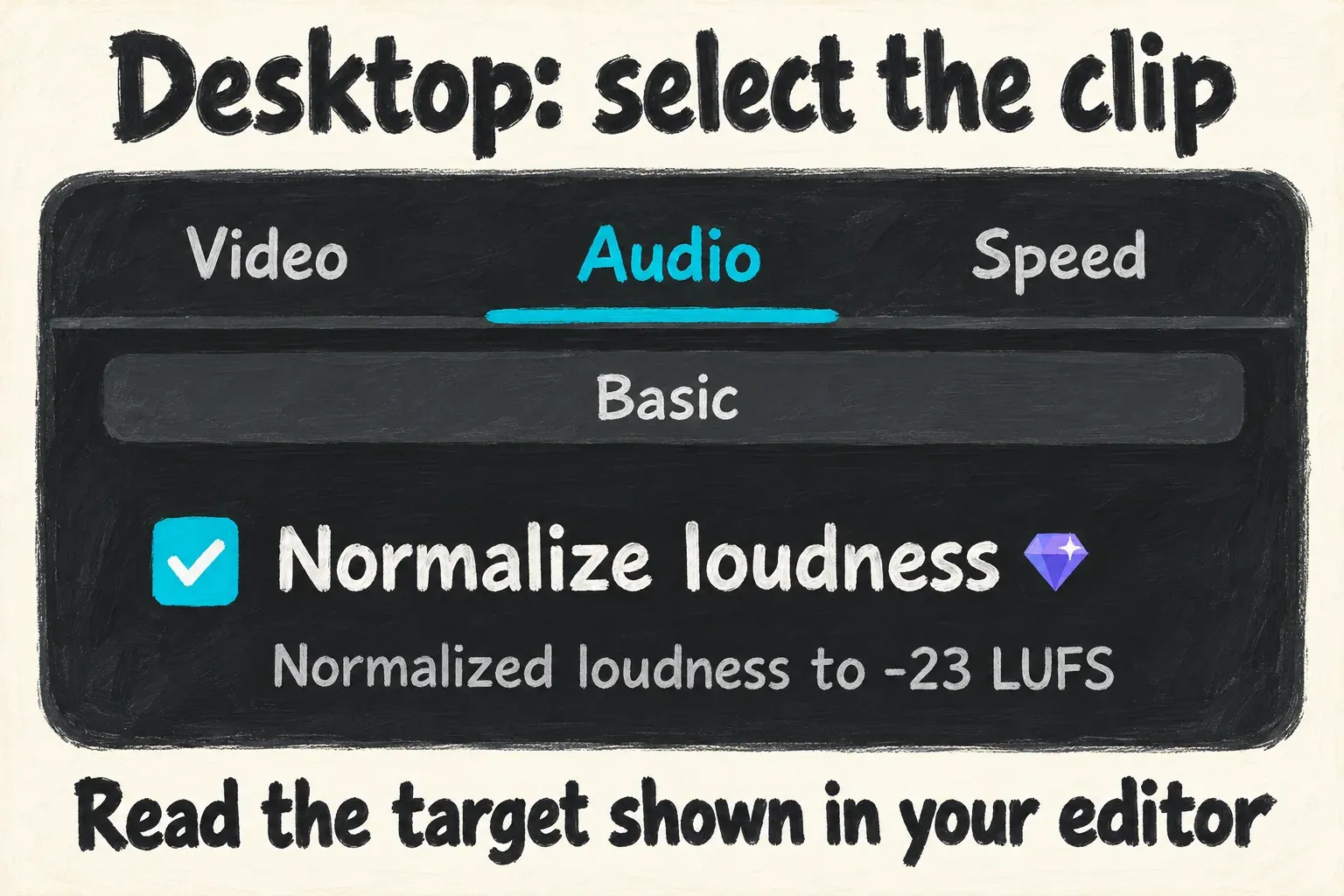
CapCut's Desktop normalization instructions describe a −23 LUFS target, and the same figure shows up in its published control feedback. Read the target your editor shows instead of assuming it's an adjustable setting. In the documented panel, the number appears as feedback beneath a checkbox, not as a target slider you can move.
That number isn't a universal delivery specification for YouTube, TikTok, podcasts or client work. Loudness requirements depend on the destination. If a receiver gives you a target and peak limit, check the finished file against both. Enabling a clip checkbox doesn't certify the final mixed export.
Find the Desktop control on the right clip
Start with the clip that contains the audio you want to level. Selecting a title, image or another silent object won't bring up the audio controls you need.
- Import the video or audio file and put it on the timeline.
- Select the clip containing the speech or other sound you want to normalize.
- Open the right-hand Audio panel and its Basic section.
- Enable Normalize loudness, or Loudness normalization in the older documented layout.
- Wait for processing, read the feedback and listen to a representative section.
- Check the next clip and the transition between them before applying the same choice more widely.
CapCut's MP3-normalizer instructions place the checkbox in the selected clip's Audio panel and describe feedback showing the normalized level. The company's current tool guide shows Audio, Basic, Normalize loudness and “Normalized loudness to −23 LUFS.” Those are the controls to look for, instead of a button that promises to master the whole project.
The control can carry a paid-feature badge. CapCut's separate Desktop normalization guide identifies Pro access as relevant to export. Check the notice in your session early. Previewing a change doesn't settle whether your current access lets you export it.
Make several speech clips consistent
Keep the comparison focused. Dialogue from two cameras, separate voiceover takes and interview answers make sensible groups to review together. Quiet room tone, a dramatic sound effect and background music each do a different job. Matching them to speech is unlikely to improve the edit.
CapCut documents support for multiple selected clips. If your layout shows the normalization control for the selection, use the control on the relevant group. If the control doesn't appear, work through those clips one at a time. Don't assume that changing one clip enables the option across the project.
Mute the music for now, then listen across each hand-off between speakers or takes. Pay attention to the first word after each cut, the quieter phrase and the loudest sentence. You want the listener to follow the conversation without reaching for the volume control.
If one speaker is still too quiet inside a shared recording, normalization alone hasn't finished the job. Where you can separate the speech sections, adjust those parts or use volume keyframes. Our CapCut audio-mixing guide covers those manual changes and the separate task of lowering music around speech.
Keep the dynamics you meant to have. A whispered line doesn't need to sound like a shouted one, and a pause doesn't need to turn into a loud patch of room noise. You're aiming for an intelligible edit, not an identical level at every instant.
Why it may sound too quiet, noisy or uneven
The overall result is quieter. Normalization can lower a loud source as well as raise a quiet one. A target isn't a command to maximize volume. Before you add gain just because another video sounds louder, judge intelligibility and what the destination requires.
Background hiss becomes easier to hear. Raising a quiet recording can also make its noise more noticeable. Normalization doesn't identify and remove that noise. Use our CapCut background-noise guide when the problem is steady hiss, hum or another unwanted sound, and preserve an unprocessed source for comparison.
Loud and quiet words still differ within one clip. Clip-level consistency and dynamic-range control are separate jobs. A compressor is designed to reduce the range between louder and quieter audio. Don't expect CapCut's normalization checkbox to control every shout, whisper or transient. When you need that control, use a suitable dynamics tool or make careful manual level changes to the affected sections.
Distortion remains after turning the level down. An already clipped recording needs a different repair decision. Even Audacity's dedicated Clip Fix is intended mainly for lightly clipped audio. Turning a damaged recording down isn't the same as restoring its missing peaks. If an intact source or another take is available, reach for that first.
The music still masks the voice. Lower the music and check the balance again. Two normalized tracks playing together can still compete. Normalization doesn't decide which sound the viewer should notice.
If the checkbox is missing or marked Pro
First, make sure you selected the timeline clip that carries the audio and opened its audio settings. In the documented Desktop layouts, the label can differ and the control sits below other Basic adjustments. Check the panel before you assume the feature has disappeared.
On Mobile or Web, work with the controls your editor offers. If normalization isn't there, use the volume controls you do have to bring comparable speech clips into a useful balance.
If the editor requires Pro access and you want to finish with the tools you already have, turn off the paid normalization setting and make manual level changes. That's a different workflow, with more listening and adjustment. Manual leveling doesn't unlock the unavailable feature. Leave project storage intact while you look into a missing control.
Check the finished mix and exported file
Once the speech is consistent, bring back the music and sound effects. Listen at a comfortable playback level. Check whether the opening is easy to follow, speaker changes feel natural and quieter words survive under the soundtrack.
Export the finished video and listen to the saved file. Go over the joins again and include the loudest section. A clean-looking waveform or a checked setting won't tell you how the file sounds. If you need only the sound file, our CapCut audio-only export guide explains that separate save task.
When a job comes with an exact delivery specification, run an appropriate loudness meter on the finished export and compare both the loudness and peak requirements. A meter answers a measurement question. Listening tells you whether the dialogue, music and effects serve the video. Your final review needs both.