

To curve text in CapCut, select an editable text layer and use Curve instead of rotating the whole title. CapCut's curved-text guide documents the feature for Desktop and Mobile. The Desktop example shows Text > Basic > Curve with Strength, while the Mobile example shows Styles > Curve with Intensity.
Start with a short phrase and a gentle bend. I'd use an arc to fit a title around a subject or badge, while keeping a spoken caption straight. The bend should help the layout without making the sentence harder to read.
Curve the letters, rather than rotate the title
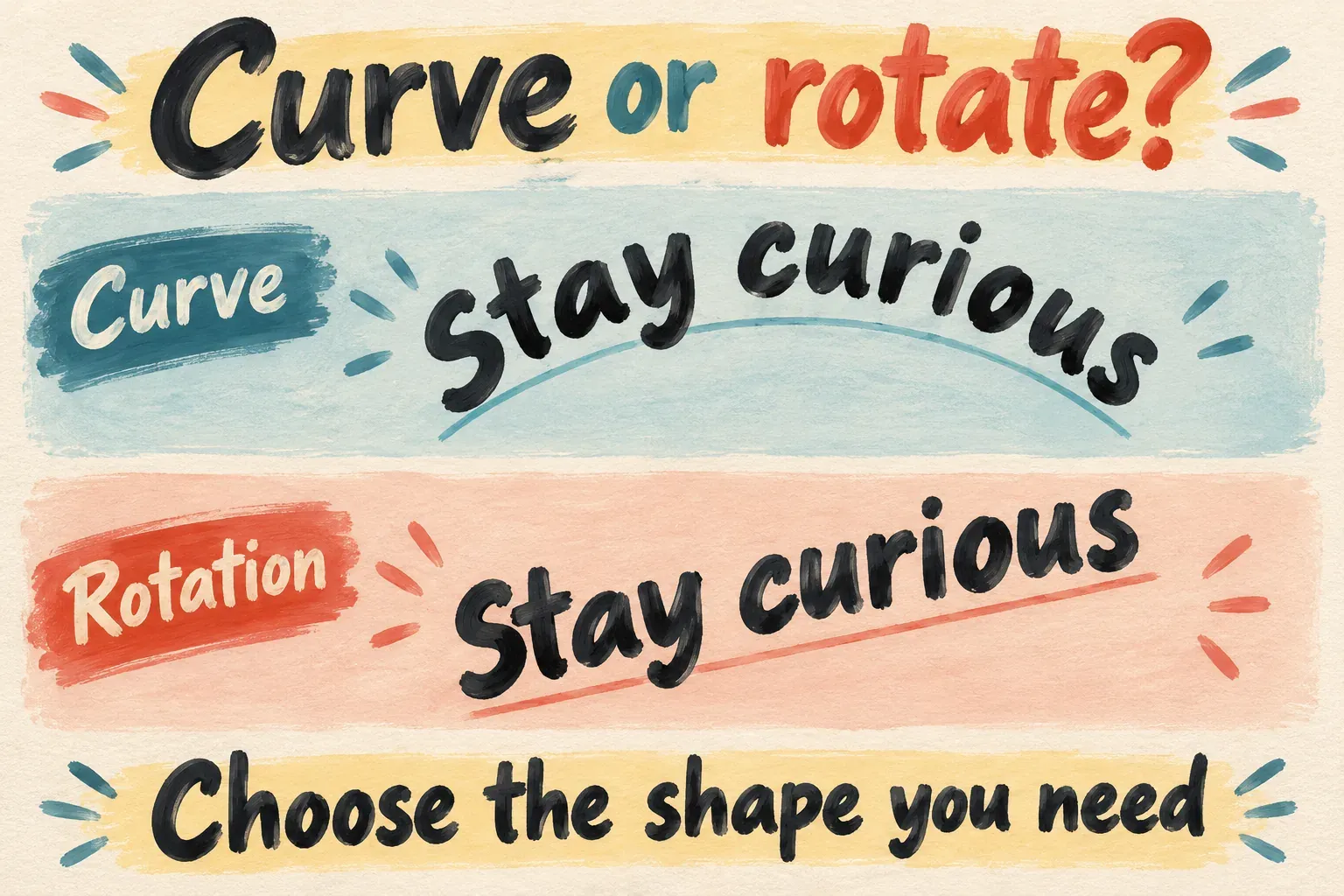
Rotation tilts the whole text layer. The characters still sit on a straight line. Curve changes the line they follow, so the middle and ends of the phrase can form an arch. Let the shape you want in the finished title decide which one you use.
You don't need a font called “curved text” to make an arc. Pick the typeface for its letter shapes, then adjust the Curve control you have. A decorative font and a strong bend can compete with each other. A plain, open letterform is easier to judge while you build the shape.
Curving a title is also a separate job from moving it over time. Set the arc first, then decide whether the title should appear, fade or move. Our text-animation guide covers that timing and motion work. Don't add keyframes just to get a static arch.
Use Curve on a Desktop text layer
Add the video or image to a project, then create ordinary text through Text and Default text or whatever text-entry option your editor offers. Type the phrase and select that text layer on the timeline. Selecting the underlying video brings up a different set of controls.
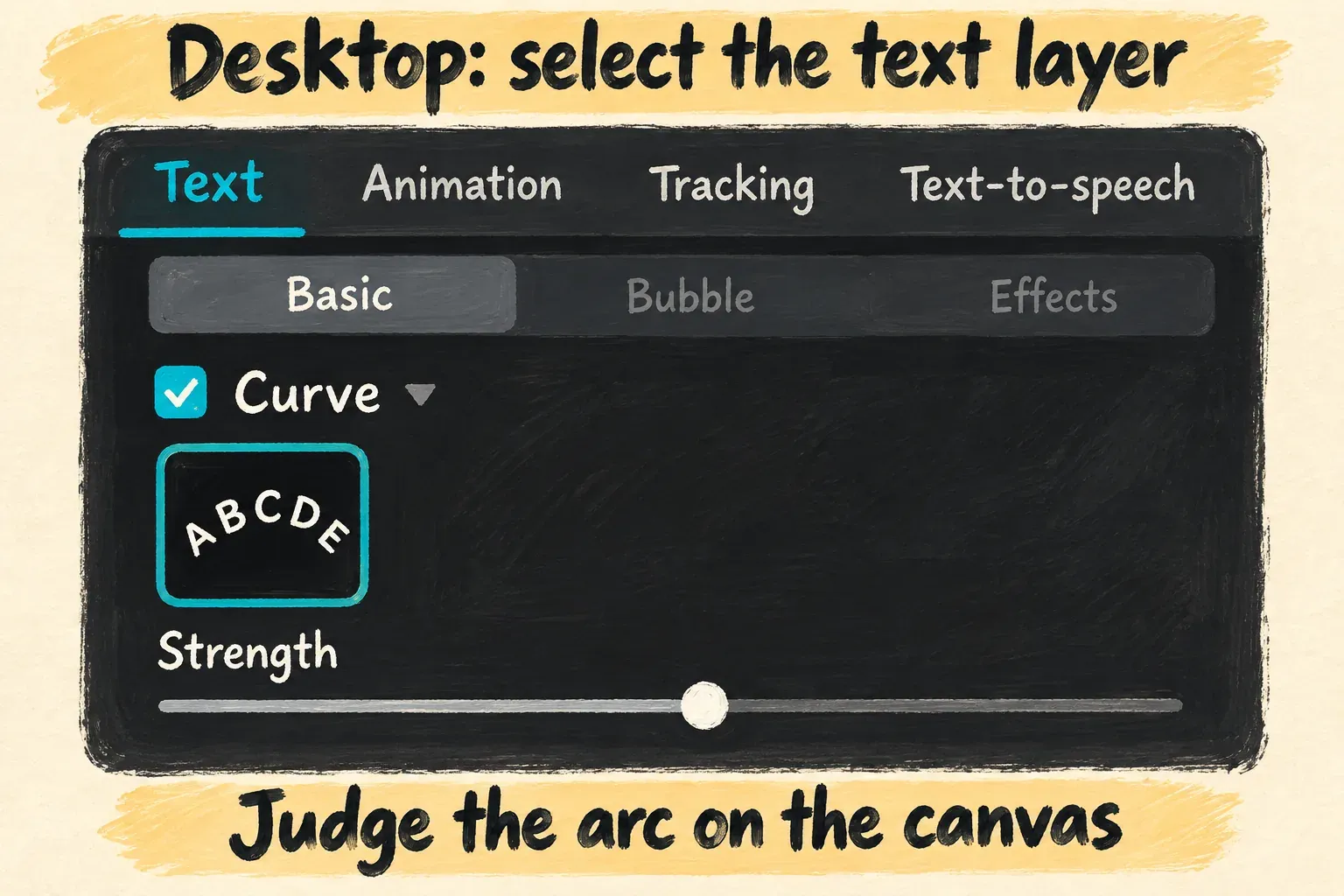
CapCut's separate Desktop Curve instructions describe enabling Curve in the selected text's settings and adjusting the intensity. In the documented Desktop layout, open Text > Basic, scroll to Curve, switch the control on and adjust Strength while you watch the title.
Make the smallest change that gives the phrase a useful shape. After you change the bend, reposition the title and check both ends. Don't use a tutorial's numeric setting as a universal recipe. Phrase length, font, size and the layout you have in mind all affect the result you need.
CapCut also describes changing the curve strength alongside font, color and size. Keep those decisions separate. When the arc looks right but the letters collide, fix the text layout instead of piling on another visual effect.
Find Styles and Curve on Mobile
Open the project, choose Text > Add text, enter the phrase and select that text for editing. If you need help getting an editable title onto the timeline, our add-text guide covers the underlying Mobile procedure.
In CapCut's Mobile curved-text example, the text editor's Styles tab holds Curve. Open that property, choose the curved-letter option and adjust Intensity. Watch the canvas as you change the value, then confirm the edit with whatever control your app shows.
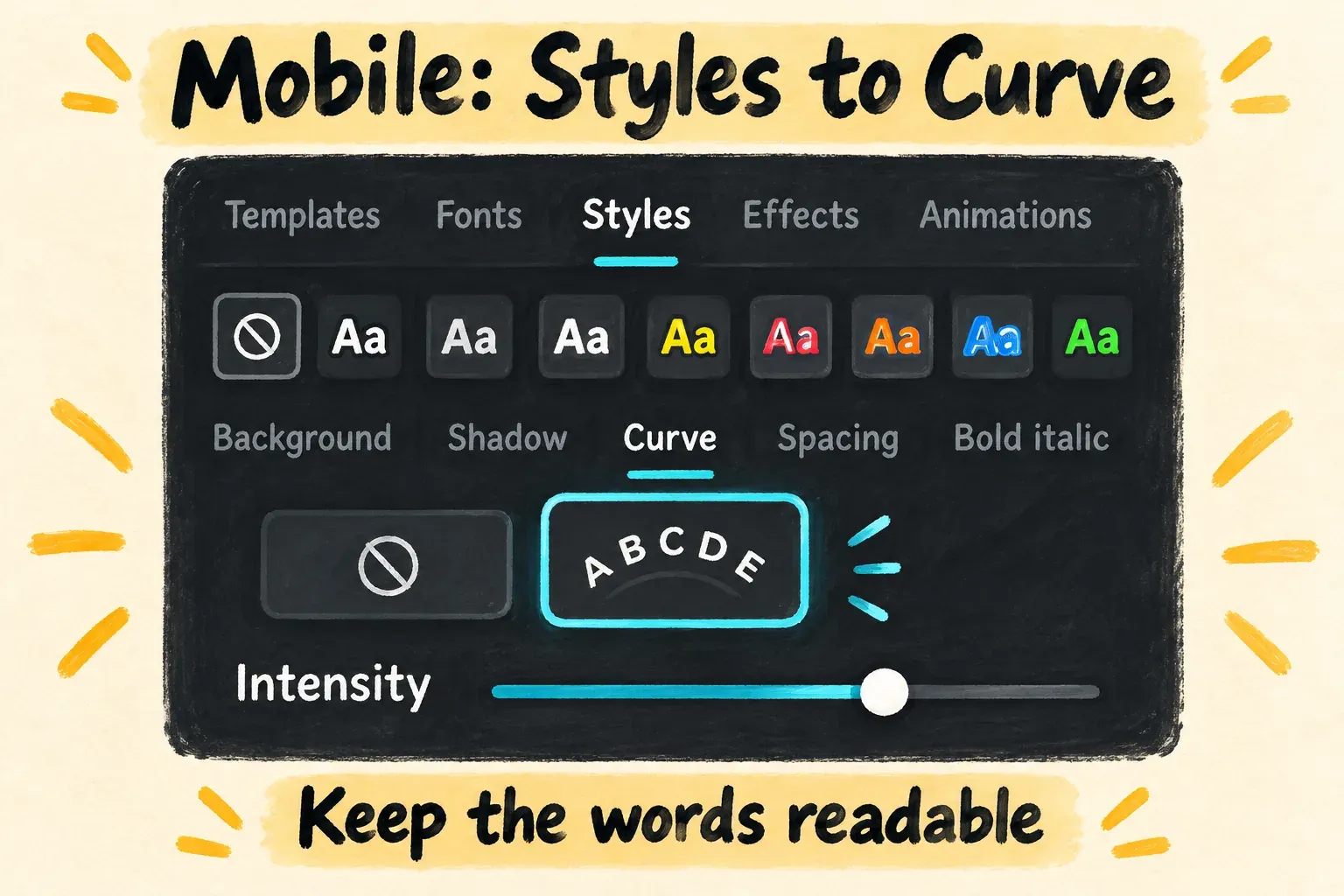
Toolbar labels and positions can change. Look in the selected text's styling controls instead of searching the video-effects catalog for a font or effect with a similar name. The documented Mobile control is Intensity. Don't go hunting for a Desktop Strength label on the phone.
Recheck the whole phrase after you change the font or size. A title that looked balanced at one size may no longer fit the space it has. Keep the end letters clear of the frame edge and of anything the viewer needs to see behind the title.
Build a readable arch or circular layout
A gentle arch is usually a better place to start than forcing a sentence into a ring. Shorten the wording before you push the bend further. Then make sure the first and last letters stay easy to identify and the spaces between words still look intentional.
If the available styling controls include letter spacing, use it to spread out crowded characters. When a phrase needs so much spacing that it stops reading as a phrase, pick a shorter title or a wider layout. On a product label, getting the name right matters more than making the lettering fill a perfect circle.
A complete ring depends on the shape your editor can produce and the phrase you're using. Don't expect one fixed slider setting to work for every title. If a full circle stays cramped or awkward, use an upper and a lower text layer, or build the finished circular graphic in a design tool. That's a layout choice, not a hidden CapCut preset.
Keep enough contrast across the whole arc. Check the first and last letters against their own backgrounds as carefully as you check the middle. Over a moving shot, the title has to stay readable while the picture changes underneath.
For speech captions, I'd keep the normal reading line. Use the curved title for a short introduction, label or decorative heading, and let the explanation stay easy to follow.
If Curve is missing or a template behaves differently
First, make sure you selected editable text. An imported picture of lettering is an image layer. It doesn't expose the same type controls as a native text object. A template can also package its lettering differently from an ordinary title.
Add a plain text layer for comparison and look through its styling controls. On Desktop, check Text > Basic. On Mobile, open Styles and look at the properties listed there. If Curve shows up on that plain title, go back to the original object and check how its text was built. If neither one exposes the control, you'll need another way to prepare the lettering.
If the control is absent, note the platform, version and selected object for the CapCut support route. Read any access notice the editor shows before you rely on a template or change a subscription. A catalog page labeled “free curved text” doesn't settle how every editable project behaves.
In a Web project, use that workspace's own text tools instead of following a Desktop panel or Mobile toolbar. If your browser editor has no suitable control, import a transparent graphic made elsewhere and keep the editable source file. You can position that graphic in the video, but changing the wording means going back to the original design.
Likewise, a template called “3D curved text” or “fisheye text” describes a look; it doesn't promise an editable 3D or custom-path control. Our template guide covers choosing and adapting templates. When you need dependable control over the words and their styling, use native text.
Review the arc in motion and in the saved file
Set the title's duration and replay the shot before you export. Check the first readable moment, the end letters, any movement behind them and how long the viewer has to read the phrase. If you add animation, make sure the motion doesn't hide your carefully shaped title while the key information is being spoken.
Open the exported video outside CapCut and view it at the intended delivery size. Look over the whole arc, the letter edges and the contrast, then watch the shot normally. A design that looks balanced on a paused frame is only part of a readable video title.
Keep the native text editable in the project. That way, a later spelling, language or layout change is much easier than rebuilding lettering that's been flattened into a graphic.