


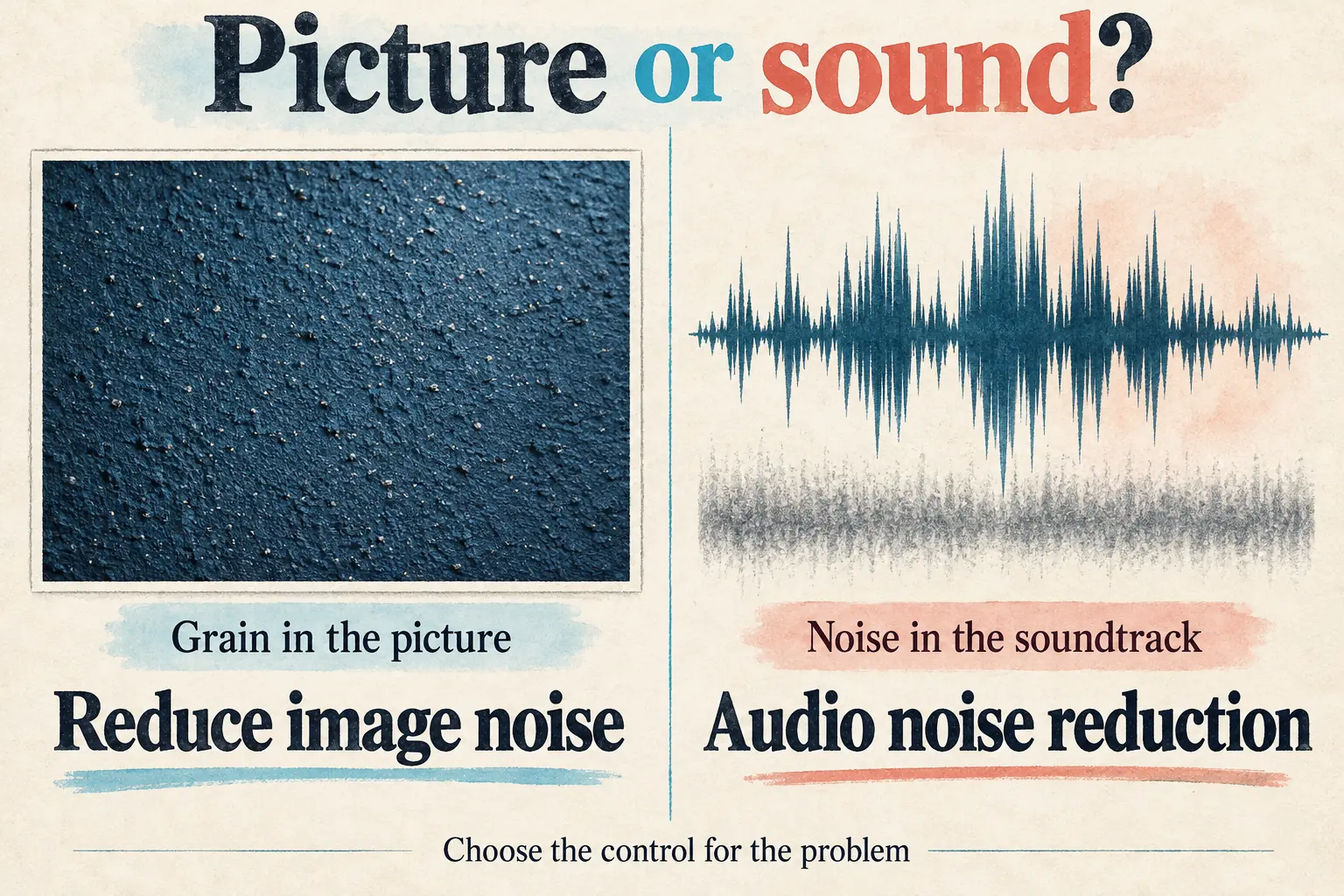
For grain in the picture, use CapCut's Reduce image noise control. For hiss, wind or hum in the soundtrack, use audio noise reduction. CapCut's Desktop video-denoise procedure covers the first job: select the video clip, find the visual-noise control and compare the offered strength before you export.
A cleaner picture only helps if it still holds the detail you need. I'd accept a little remaining grain before sacrificing the fabric, hair or lettering that makes a shot worth keeping.
Check whether the problem is picture noise, sound or delivery
Pause on the original video outside the editor, then watch the same section in motion. Fine speckles dancing in a wall or shadow aren't the same concern as a microphone hiss you hear through headphones. If the soundtrack is the problem, follow our background-audio cleanup guide. A visual denoiser isn't the control for unwanted sound.
Compare the source with any file you've already exported. If the source looks acceptable but the saved video picks up blocks, smeared gradients or crawling shadows, start with our export-quality checks. Raising denoise on a clean source can be the wrong fix for a delivery problem.
Likewise, a small image that lacks detail isn't necessarily noisy. Enlargement is a separate decision, and the video-upscaler guide covers it. Higher output resolution and less grain are different targets. Neither is a promise to recover information missing from the recording.
Work from the best original file you have instead of another compressed download of an already compressed clip. Keep that original. It gives you a stable point of comparison once several adjustments start changing how the image looks.
Find Reduce image noise on the editing surface you use
On Desktop, add the source to the timeline and select the video clip. Open Video > Basic in the right panel and look for Reduce image noise. CapCut's current Desktop editing instructions place that control in the same section as Enhance quality, but the two operations are separate.
Turn on visual noise reduction where it's offered, then look at the settings available. Use the labels in your own panel. HD or UHD under Enhance quality is not a denoising strength, and don't assume an intensity control documented for enhancement belongs to Reduce image noise.
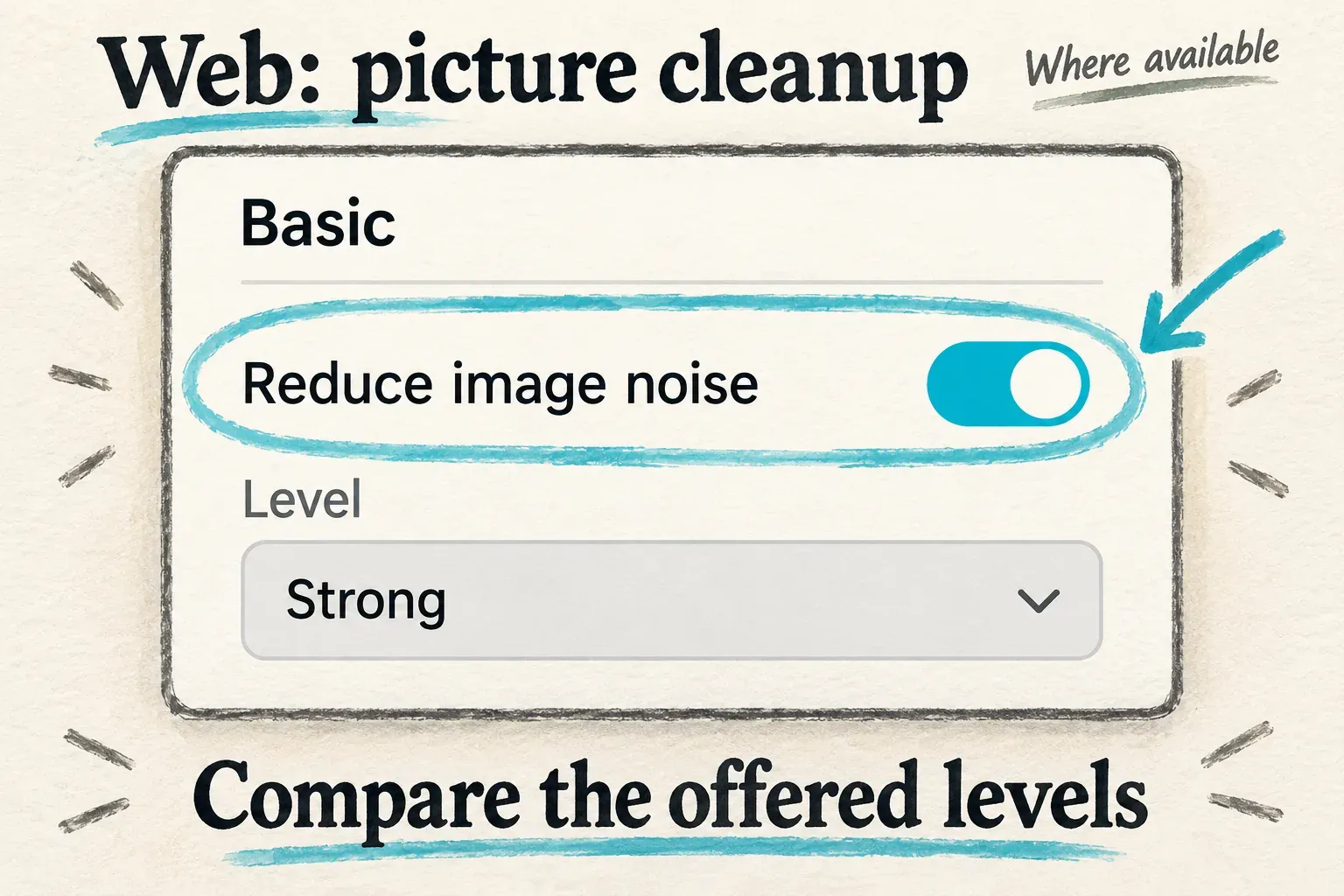
On Web, CapCut's video-denoiser resource shows Basic > Reduce image noise for a selected clip, with a Level choice. Only use that browser route if your workspace provides it. The sidebar is laid out differently from Desktop.
Don't map a phone toolbar from either of those sidebars. If your Mobile version doesn't offer a matching visual-noise operation, a tutorial showing another surface won't prove your app has one. You can switch to a supported editing surface, or keep the source while you decide on another workflow.
If the control is missing, check that you selected the video itself instead of a title, an audio clip or an empty part of the timeline. Note the platform, app version and account before asking through the CapCut support route. Reinstalling over and over or buying a plan isn't a verified way to bring back a particular menu.
Read any paid-operation notice on your account before you invest time in a long export. A marketing page calling a tool free doesn't mean every operation, region and editing surface has the same access.
Choose less noise while keeping useful texture
Pick a short section that has both an obviously noisy area and fine detail. A flat wall may look cleaner even as a patterned shirt turns too soft, so one smooth patch is a poor judge of the whole frame.
This tradeoff matters. Adobe's official grain-removal guidance discusses balancing noise reduction against retained sharpness and reviewing fine detail. It's a useful principle for judging results, though it doesn't tell you CapCut uses the same processing or controls.
Start with a mild setting and change only the denoise level on offer while you compare:
- Inspect the untouched clip at a size that makes detail visible, then watch it at the intended delivery size.
- Enable Reduce image noise and choose a lower strength where your panel offers a choice. Allow the preview to finish its processing before judging it.
- Compare the wall or shadow that distracted you, then inspect hair, lashes, small text, foliage and fabric.
- Try a stronger setting only if the remaining noise still harms the shot. Return to the lighter treatment if important edges or texture disappear.
- Replay movement. Follow a turning head, a moving hand or a camera pan instead of relying on the cleanest paused frame.
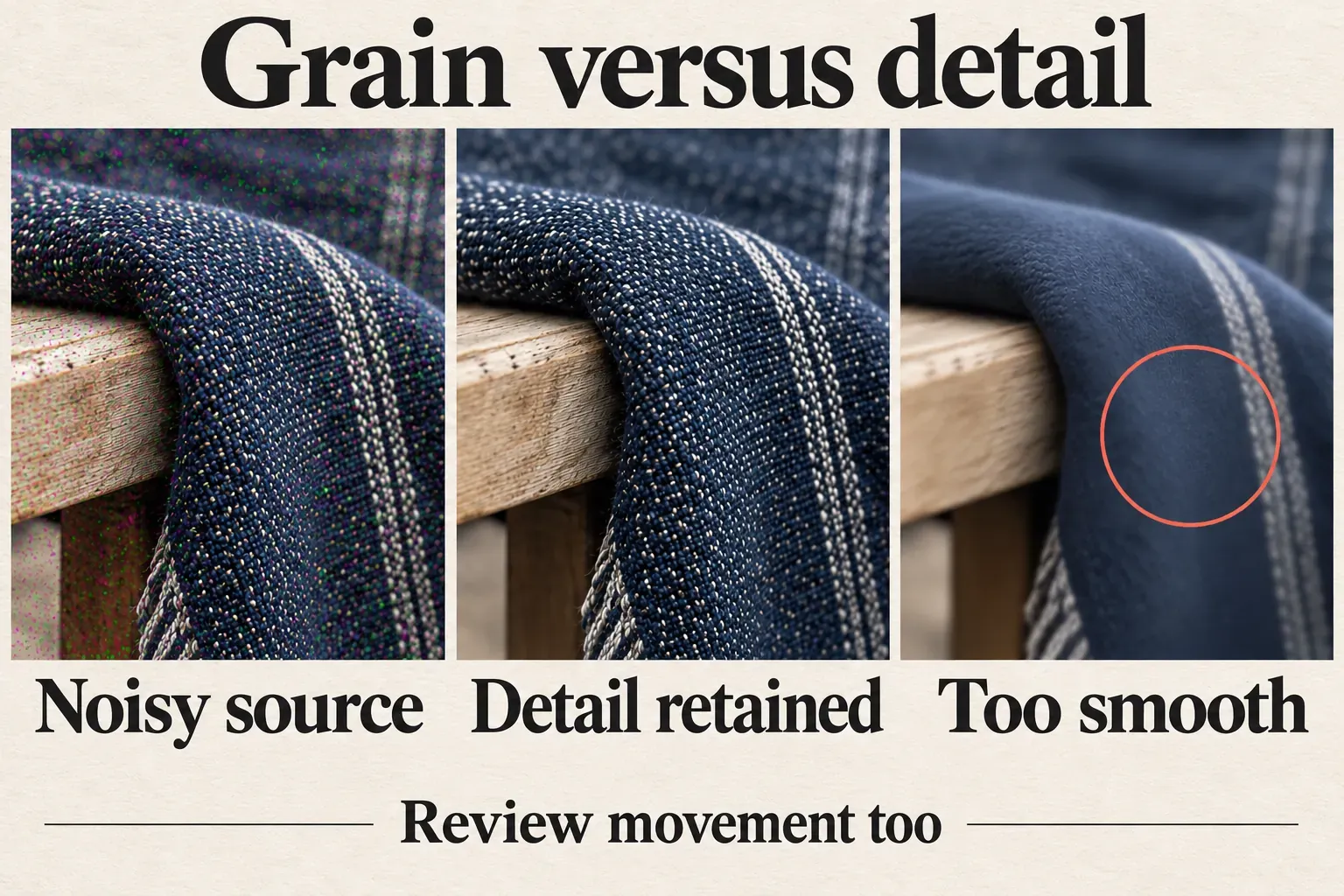
There's no universal best level for a dim interview, a night street and a well-lit product shot. Judge each source by what matters in that particular clip. Deliberate film grain may be part of the intended look, while distracting colored speckles may be the thing you want to reduce.
Don't stack several smoothing or enhancement operations just because each one promises a cleaner picture. Keep the comparison simple enough that you can tell which change removed useful detail. Once you've picked a treatment, review any tone and color adjustments again instead of assuming the combined result still fits the shot.
Reject soft movement and check the exported file
Watch the chosen section at normal speed. Look at moments where a still subject starts to move, the edges of moving objects and details that pass through shadows. If those areas look smeared, waxy or unstable, dial the treatment back or remove it. Those are warning signs to watch for; they don't mean every CapCut version creates those defects.
Check neighboring shots before you copy a setting across the timeline. With different lighting, cameras and compression histories, a level that suits one clip can be distracting in the next. Aim for a sequence that looks coherent, not uniformly smooth.
Export a short, representative section with the resolution, frame rate and delivery settings you plan to use. Open the saved file outside CapCut and review the same noisy areas, texture and movement. Listen to the sound as well, even though the job here was picture denoising.
If the saved result looks worse than the preview, separate export changes from the denoise decision before you raise the strength. When the preview itself already loses the important detail, a larger export can't turn that setting into a good correction.
Keep the original when the tradeoff doesn't work. A shot with some grain can still tell its story clearly. The goal is to reduce a distraction while keeping the subject, not to prove you used the strongest setting.