

On mobile, look for Text → Draw in an open CapCut project. That’s the route documented in CapCut’s own drawing resource. If your version has no Draw control, a transparent PNG placed over the video gives you a reliable alternative on mobile or Desktop. An AI painting effect changes the picture’s appearance; it does a different job from circling a detail with a pen.
I’d start with one annotation and one purpose: a circle around a connection, an arrow toward a button, or a short note beside an object. A drawing should make the video easier to understand. It should also disappear when that detail stops being relevant.
Choose the drawing route before editing
| What you need | Use this route | What to watch for |
|---|---|---|
| Draw a freehand line on a phone | The mobile Draw tool, when present | Menus differ between versions; confirm that you are in a project, not the template feed. |
| Add the same handwritten mark on Desktop | Import your own transparent PNG above the footage | The file needs transparency. A white page remains a white rectangle. |
| Make an arrow follow a moving subject | A separate drawing layer with position keyframes, where supported | A static mark will drift away from a moving object. |
| Make footage look painted or sketched | A suitable photo or video effect | This does not give you a freehand annotation tool. |
| Reveal a line stroke by stroke | A dedicated animation method or a prepared transparent animation | Moving a completed drawing is not the same as drawing it progressively. |
The official CapCut drawing resource describes Text → Draw and brush settings. Its controls describe a mobile workflow; don’t expect every account, region or Desktop build to have the same menu. Older tutorials may show a route through Stickers. Don’t spend the whole edit hunting for an old toolbar layout: check your available controls, then use the overlay route if necessary.
Draw over a video on mobile
Open the video in an editing project and pause on a frame where the subject is easy to see. If a clip-specific toolbar is open, return to the main project toolbar so that you can look for Text.
- Open Text, then look for Draw. You may need to scroll the toolbar horizontally. If it is absent, use the next section’s PNG method.
- Choose a simple brush and a contrasting color. Start with a solid line rather than a decorative pattern when the mark explains something.
- Adjust Size and Opacity using the controls your build exposes. A thick mark can hide the small detail it is meant to identify; a faint one can vanish against bright footage.
- Draw directly over the preview. Keep a circle slightly outside the object, or end an arrow near its edge so the arrowhead does not cover it.
- Confirm the drawing with the panel’s checkmark. Play the relevant section to check the mark throughout the moving footage.
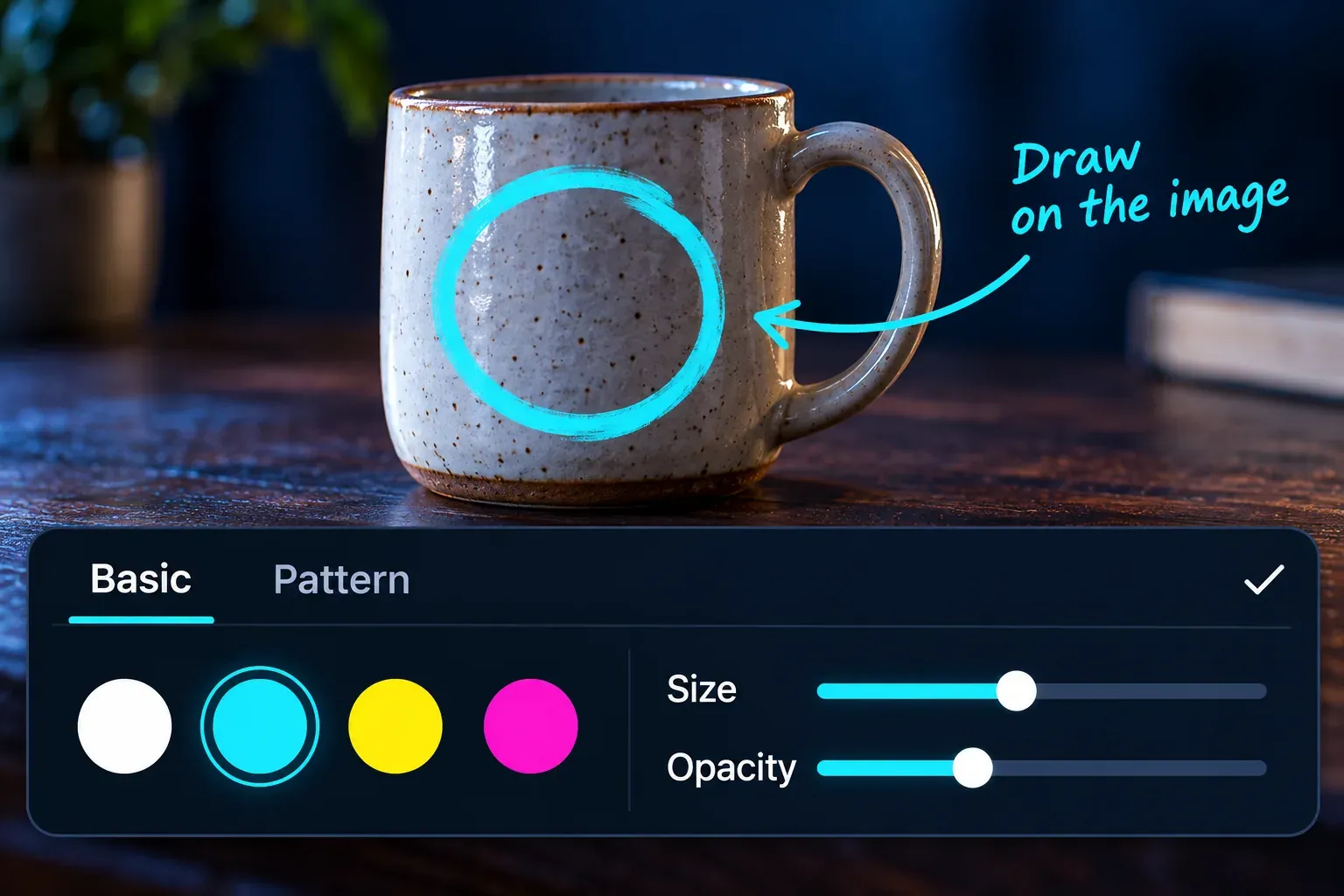
The official resource also mentions Pattern choices and AI-generated patterns. Those are optional treatments. You don’t need them to make a clear circle or arrow, and I wouldn’t assume that a particular pattern is free, available or cleared for commercial use on every account.
A white line works on a dark surface until the camera moves past a bright window. Choose the color after checking the whole annotated moment. If no single color stays readable, a darker backing or a different part of the frame may work better than adding more strokes.
For readable words, use a separate text layer in CapCut instead of squeezing a paragraph into handwriting. It’s easier to revise the wording and keep the text consistent across several clips.
Use a transparent drawing on Desktop or when Draw is missing
You can prepare a circle, arrow or handwritten note in a drawing app that exports PNG with transparency, then bring that file into CapCut. This avoids relying on an undocumented Desktop Draw menu. It also lets you reuse the same mark without drawing it again.
Keep the background transparent when exporting the artwork. A checkerboard in an image editor usually represents transparency, but a checkerboard painted into the file is still visible image content. Check the exported file, not merely the workspace behind it. JPEG doesn’t preserve an alpha transparency channel.
For a tightly positioned annotation, a transparent canvas with the same aspect ratio as the video is easier to align. Give the mark enough space from the edge, and export it large enough that it won’t need severe enlargement. Keep your editable artwork separately if you may need to change the stroke later.
In CapCut Desktop, import the PNG and place it on a video track above the footage. On mobile, the corresponding route is Overlay → Add overlay. CapCut’s picture-on-video guide explains the image-layer approach; the drawing is simply the picture you’re adding.
Resize and position the layer in the preview. If the drawing uses a full-frame transparent canvas, align the canvas before changing the mark’s scale. Otherwise a small rescale can shift the arrow away from its target. Our CapCut overlay guide covers the platform-specific layer controls and visibility checks in more detail.
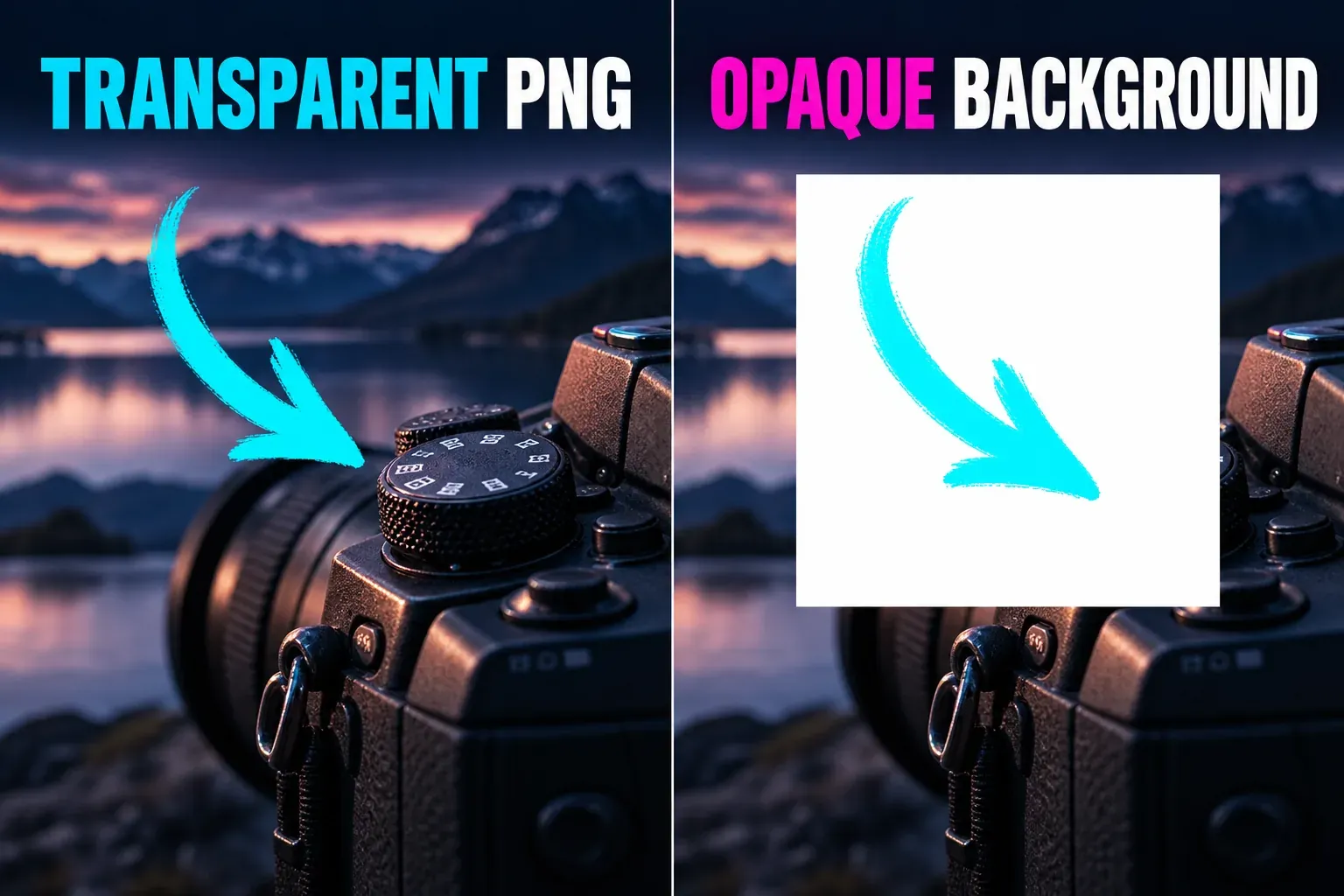
Avoid a screen recording of a drawing on a black or white page if a transparent still will do. Removing that page later adds another operation and can leave unwanted edges. A separate PNG is also easier to retime than a drawing flattened into the original video.
Control when the drawing appears
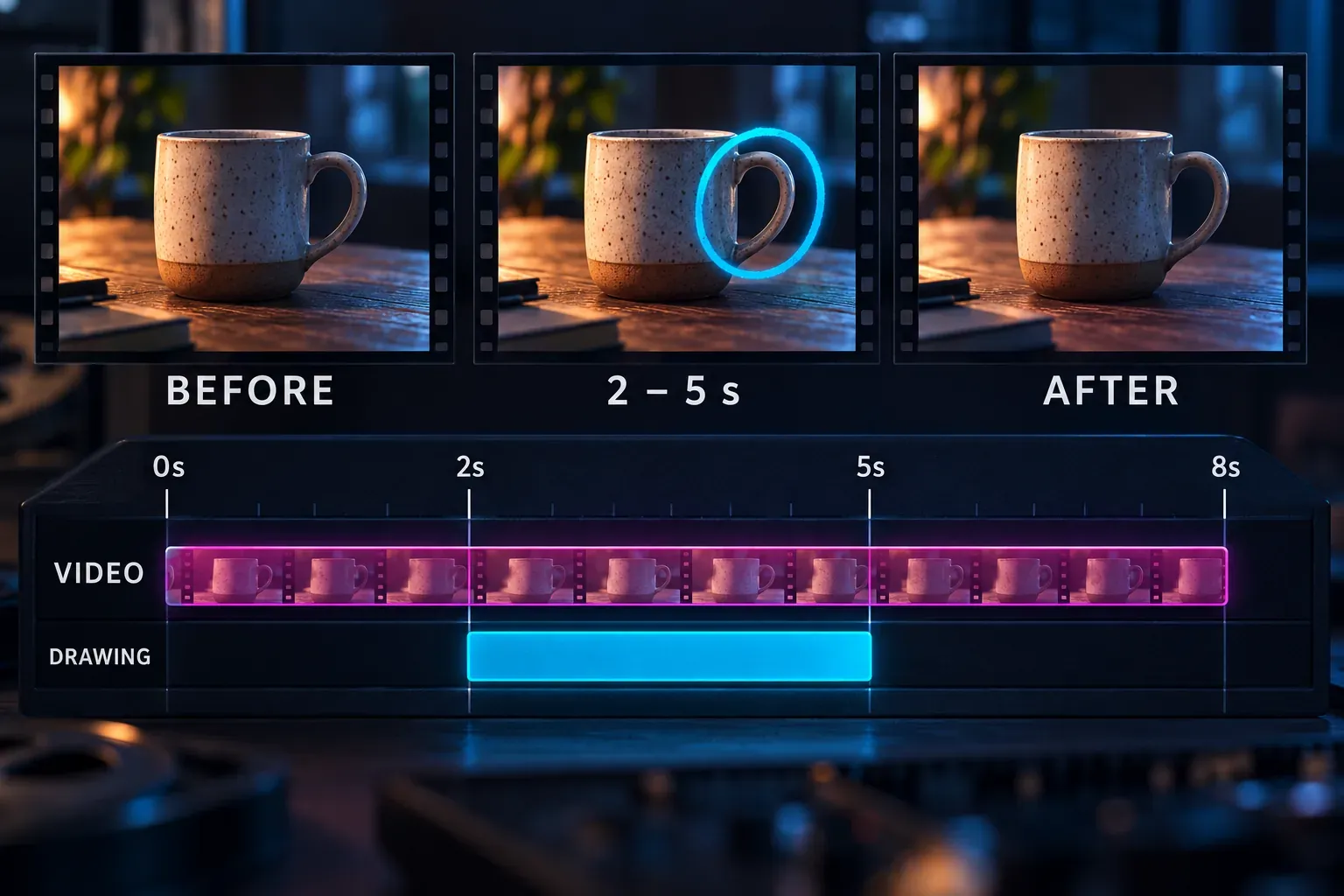
A good annotation has a start and an end. For a separate overlay, trim its timeline segment so it covers the moment you want to explain. If a native drawing is saved as its own selectable layer in your build, check that layer’s duration too. Don’t assume a drawing visible on one paused frame lasts for the whole clip.
Picture an eight-second shot: an object enters at the start, the useful detail is clear from seconds two to five, then the camera moves away. A drawing visible only from two to five seconds is more precise than a circle left floating over the entire shot.
If the target moves, decide whether it’s worth following. A brief cut to a steady close-up may communicate more clearly than a complicated moving annotation. If you keep the moving shot, position keyframes can move a separate overlay. Check intermediate frames as well as the first and last position; two correctly placed endpoints can still leave the line crossing the wrong object in between.
A mask in CapCut can reveal part of an existing drawing, and a moving mask can make a simple line appear progressively. It reveals the line; CapCut doesn’t replay your original pen strokes. A complex handwriting animation needs its own plan; don’t expect a static PNG to contain stroke timing.
Fix a missing, blocked or misplaced drawing
There is no Draw button. Check the main editing toolbar and Text submenu. The official mobile route doesn’t tell you whether Desktop has it. Use a transparent overlay if the control is absent; downloading an unofficial app build is unnecessary for this task.
The drawing covers the subject. Reduce the stroke’s thickness or move the mark outside the detail. Lowering opacity can help, but it also weakens contrast. A single clear arrow is often better than several overlapping circles.
A white box appears around the mark. The drawing was exported with an opaque background, or the wrong file was imported. Export a transparent PNG from the artwork source. Renaming a JPEG to .png doesn’t add transparency.
The drawing is visible in only part of the video. Inspect the drawing or overlay’s timeline segment, the playhead position and any cuts around it. Match the duration to the intended shot before looking for a rendering fault.
The mark slips away from the object. A static overlay stays in a fixed frame position while the footage moves beneath it. Reposition it, shorten the annotated moment or use suitable position keyframes.
It looks fine in the editor but weak on a phone. Check the exported video at the size viewers will see. Thin lines, small handwritten words and low contrast are the first things to lose clarity. Keep important marks clear of captions and of the platform controls our safe zone checker maps, so the final video has one clear point of attention.