

CapCut currently says its Retouch feature is unavailable in the United States. That notice appears on CapCut's Face Retouching page, so a missing Retouch or Smooth control isn't automatically something you can fix by finding a different menu or buying Pro.
Where CapCut offers Retouch, you can use the tool to adjust a face in a video, including skin smoothing and other appearance changes. Start with a small, specific correction. I'd keep recognizable texture and expression ahead of a perfectly smooth still frame.
This guide keeps two questions apart: whether your app provides Retouch at all, and how much of the subject you want to change. Settle the first one before you work on the second.
If Retouch is missing, check the restriction first
Read the current feature notice before you spend time troubleshooting. CapCut words it as a present availability statement and gives no return date. The notice also doesn't say that every version outside the United States has the same controls.
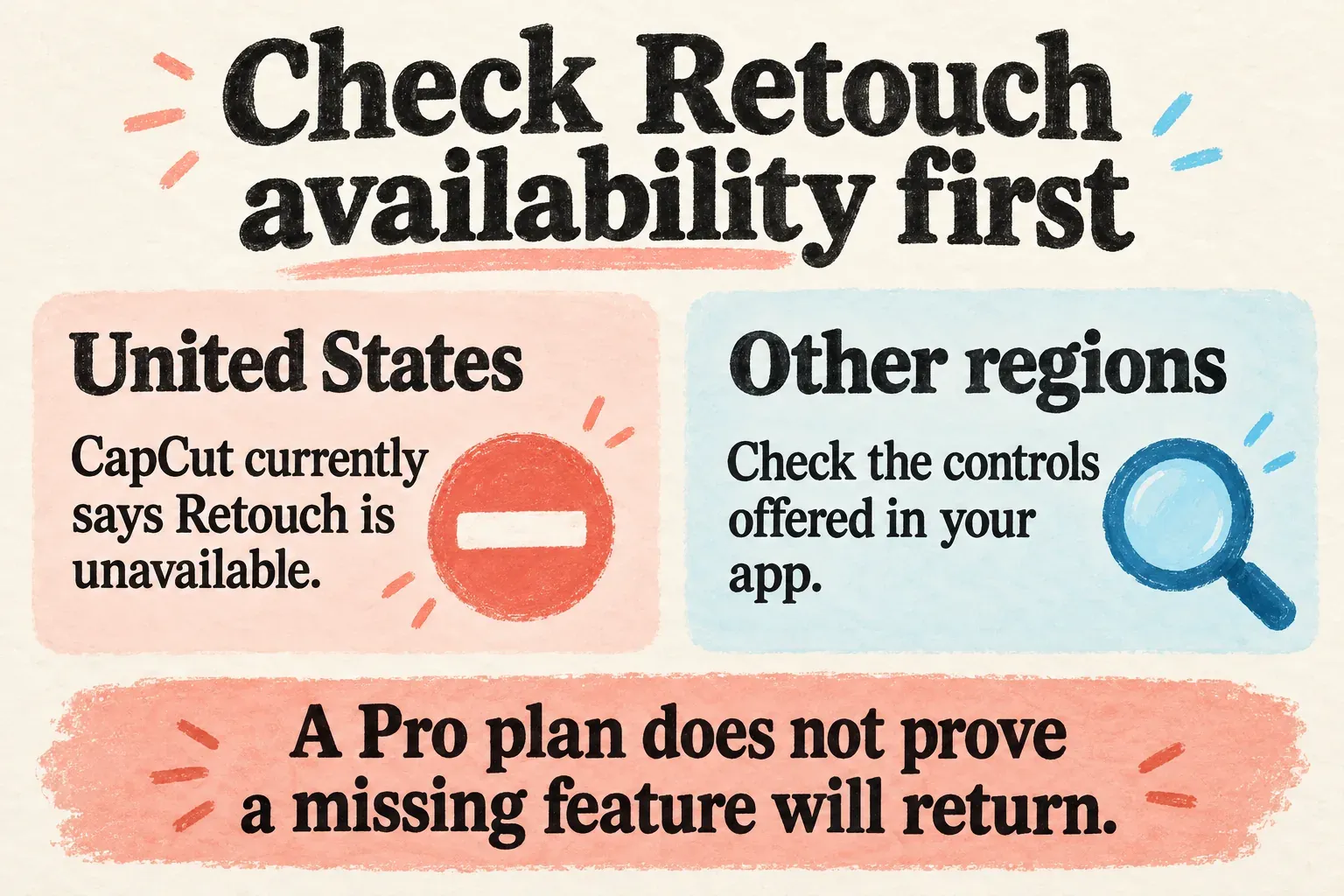
Check that you selected the video clip itself instead of a title or an empty patch of timeline. Note your platform, app version and account, then look at the controls your app offers. If the missing feature still needs an explanation, go through the CapCut support route with those details and the exact control name.
A template search result with the word “retouch” in it doesn't mean the native face controls are available to your account. A tutorial from another country won't settle your access either. Keep your existing project and source files safe while you decide what to do next. Our project-backup guide covers how to preserve an edit before you change workflows.
If Retouch is unavailable, you can still check whether ordinary exposure, white balance or contrast adjustments solve the real problem. Those adjustments won't recreate a missing skin-smoothing tool, but a badly exposed face may need a tonal correction instead of cosmetic processing.
Where to look when your version provides Retouch
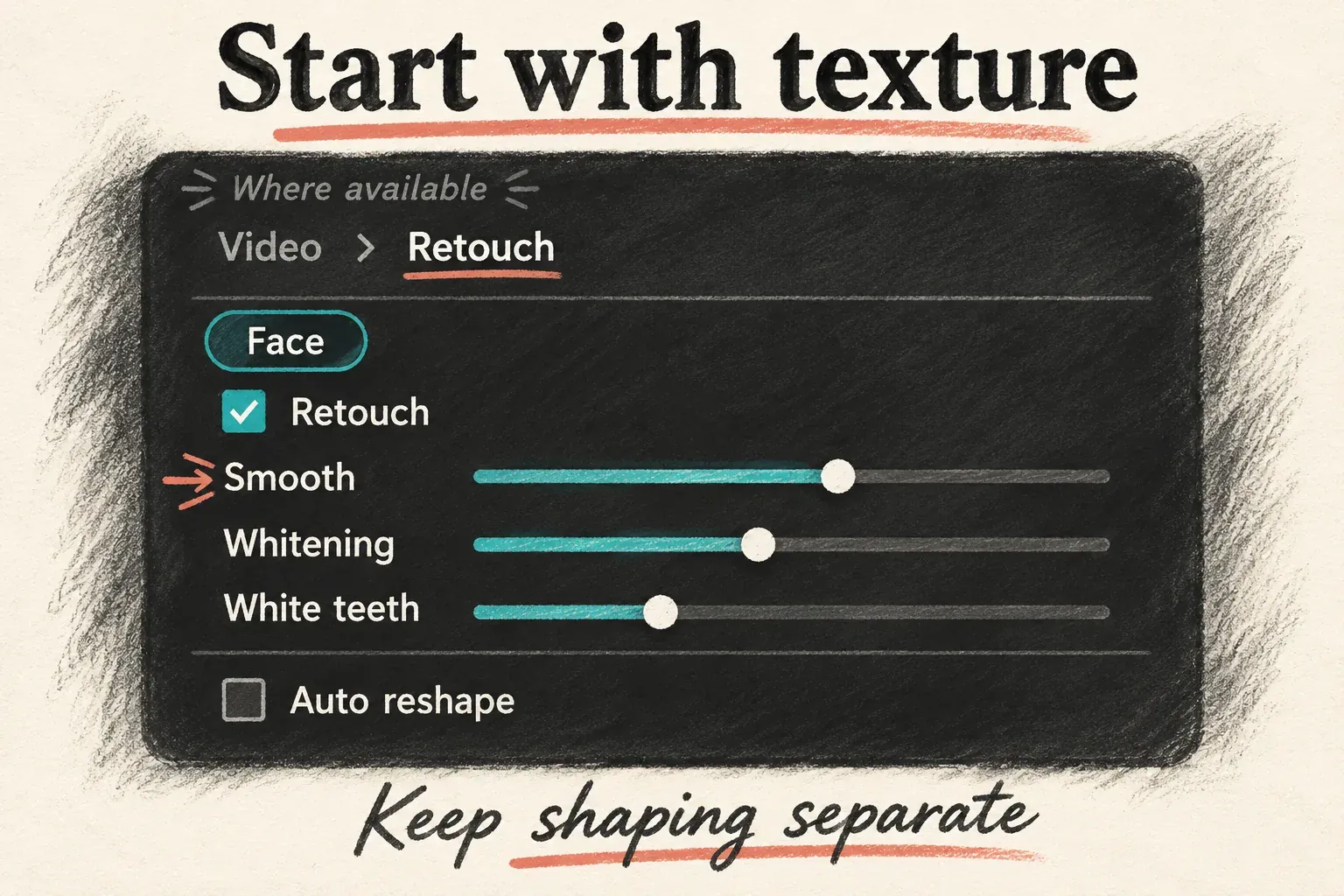
On Desktop, select the video clip on the timeline and open Video > Retouch in the right panel. CapCut's Desktop beauty-filter instructions describe the Retouch route for a selected clip and the adjustable appearance options. When available, the panel can separate Face from Body and include face presets.
For a face, work with the face controls your panel provides. CapCut's documented Desktop panel includes Smooth, Whitening and White teeth, plus separate shaping options. Read the labels in your own build. Those names don't mean every operation is free or available everywhere.
CapCut's Web Retouch procedure describes a different route: add the portrait video to the timeline, then go through Smart tools and a Face control. Use that route only if the interface and feature are offered to you. A Desktop sidebar isn't a map of the browser editor.
On Mobile, select the video clip and look through the editing toolbar for any Retouch controls on offer. Don't assume an older phone tutorial's tool position or grouping survives in your version. If the feature isn't there, go back to the availability check instead of reinstalling over and over or planning around an unverified restoration recipe.
Smooth texture without changing the person by accident
Before you apply Retouch, judge the untouched face at the intended viewing size. Is the concern skin texture, lighting, a color cast or a deliberate change of facial shape? Those are separate jobs. Handle general tone and color with manual color correction first, then decide how much smoothing the face needs.
Smoothing changes the appearance of texture. Reshaping changes facial proportions. Keep the two choices apart. A setting that cleans up the skin is not a reason to narrow a jaw, enlarge eyes or change a person's smile. If you're editing someone else's appearance, agree with them on the change you plan to make.
Start from the untouched comparison, then make one small change:
- Select the intended clip and face controls where available. Confirm that the adjustment affects the person you mean to edit.
- Increase the offered smoothing control gradually. Pause on a representative frame, then replay the person talking or turning.
- Compare eyebrows, lashes, lips, hair and fine skin texture. Reduce the adjustment if those details soften or the face becomes waxy.
- Judge brightening or whitening separately if you need it. Watch the face, neck and hands together so they still belong in the same light.
- Leave shaping and makeup off while evaluating texture. Add them only as a separate, deliberate choice using the controls your app provides.
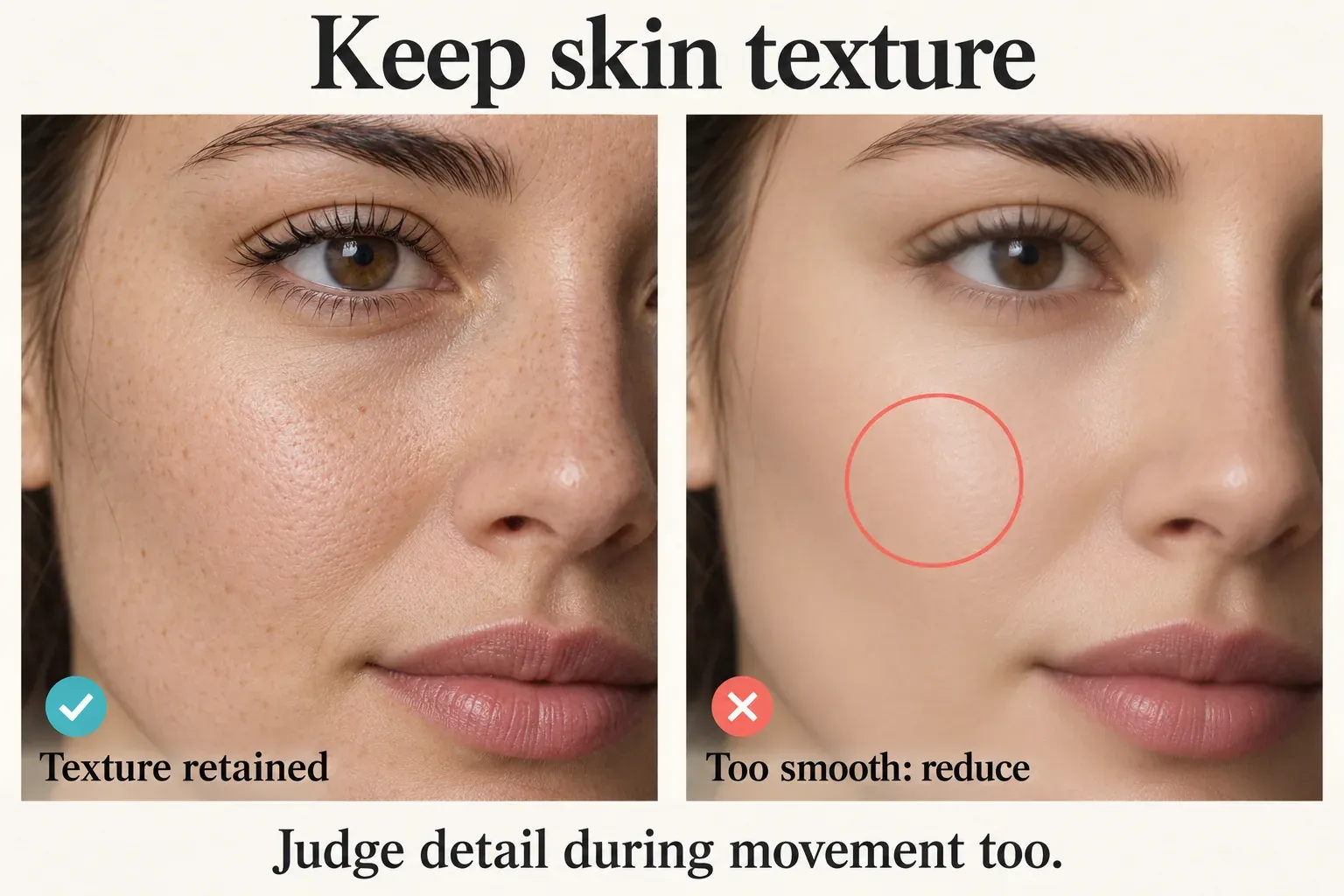
There's no universal Smooth percentage that works for every source. A well-lit close-up, a compressed social download and a dim recording each carry different detail. The same slider value can produce different-looking edits, and a larger number isn't a quality target.
If you want a visibly stylized beauty effect, judge the result against that goal. For a natural interview or presentation, I'd favor a correction viewers can accept throughout the movement instead of one that looks impressive only when paused.
Review expressions, group shots and the saved video
Play the treated section at normal speed. Watch closely when the person turns, smiles, closes their eyes, touches their face or passes behind an object. A hand covering the cheek is a useful moment to check, since the face should still look convincing as the cheek comes back into view.
Dial the treatment back or remove it if texture disappears unevenly, the skin tone jumps, a facial boundary shifts or a nearby object changes along with the face. Those signs mean it's time to review your output. They don't mean every CapCut version produces those defects.
In a group shot, check each person instead of judging only the most prominent face. Where the interface offers that choice, confirm the affected target. Don't apply a preset across many clips and assume different faces, camera angles and lighting will need the same correction.
Check the cuts between shots too. An untreated reverse angle can make an aggressively smoothed close-up stand out. Match the intended appearance through the sequence, then export a short section with the final delivery settings and open the saved file outside CapCut.
In that file, review texture, expressions, color, motion and sound. Read any paid-operation notice before you commit to the export. If the file looks different from the preview, use our export-quality checks to separate delivery problems from the Retouch decision.
If Retouch isn't available, or the correction can't preserve the subject well enough, keep the original and finish with a simpler treatment. Retouch is optional. A clear, convincing face is more useful than an appearance change that distracts from what the person is saying.