

In CapCut Desktop, select a clip on the timeline and look under Video > Basic for Relight. CapCut's Relight instructions describe facial, ambient and creative lighting options, plus controls for shaping the virtual light. Pick one of the offered looks, then adjust it while you watch the actual movement in the shot.
Relight is useful when you want light to fall differently on a subject or scene. Shaping light is a different decision from making the whole image brighter. If the picture just needs a small exposure or color tweak, I'd start with manual color correction. Adding a second artificial light can complicate a shot that already has believable shadows.
My aim would be to make the subject easier to read while keeping the scene's lighting convincing. A brighter face isn't much of an improvement if its edges glow or the surrounding room no longer makes sense.
Choose what should change in the picture
Watch the untouched clip first and pick one specific problem: a face gets lost against a bright background, the room feels too dull, or the scene needs a deliberate colored-light treatment. Naming one problem helps you avoid changing several unrelated settings at once.
CapCut's Desktop video-relighting procedure lists lighting groups that do different jobs:
- Facial: start here when the person is the focus and you want a face-oriented lighting look. Judge skin tone and the transition into hair, neck and clothing.
- Ambient: consider it when the wider scene needs a different lighting mood. Check nearby objects and the background as carefully as the subject.
- Creative: use a stylized treatment when the color or movement of the light belongs in the edit. A music-video look does not have to imitate natural daylight.
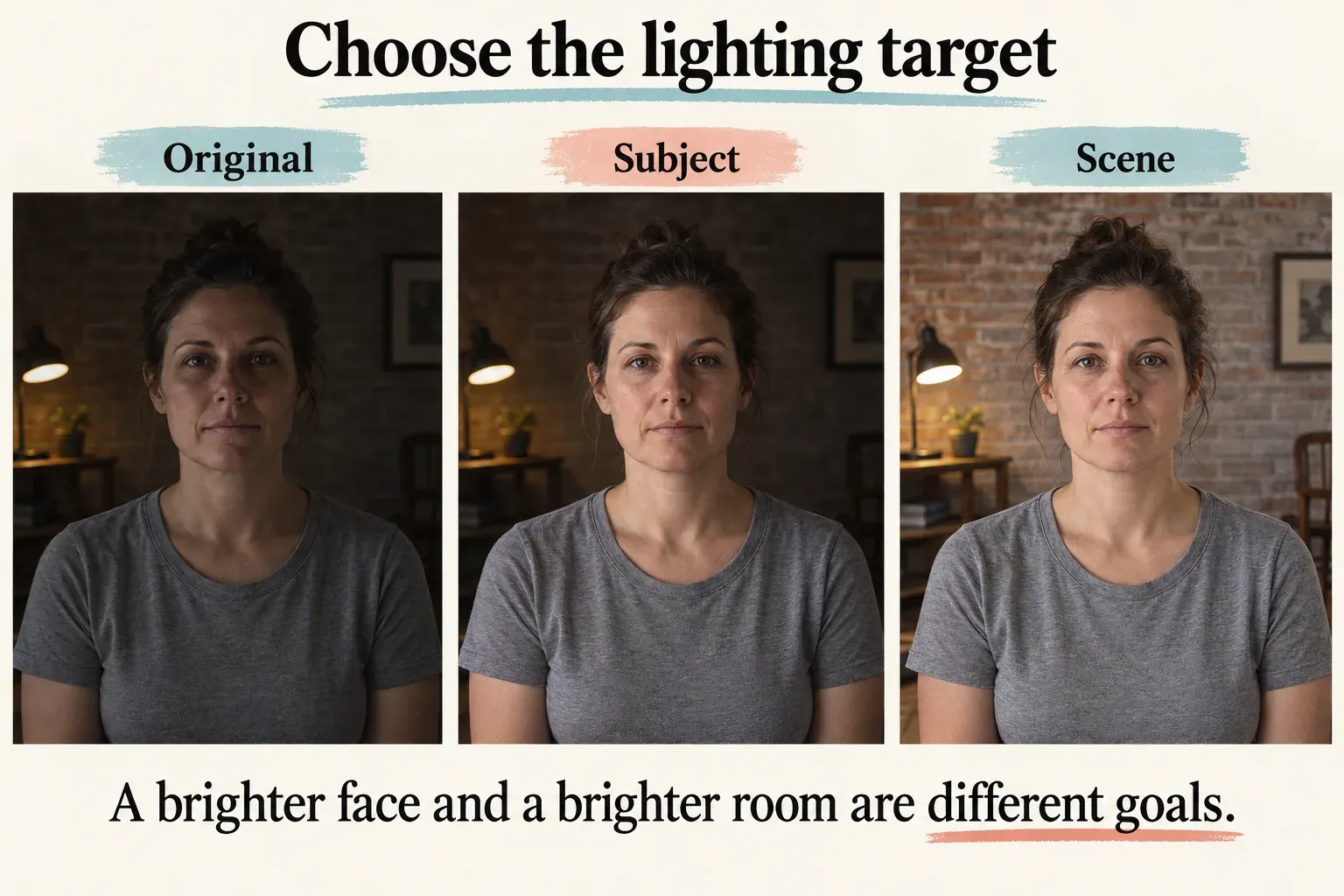
Look for a cue that's already in the shot, like a window, a lamp or a colored stage light. For a natural look, let that cue guide the apparent direction and color of the added light. For a stylized scene, keep your choice consistent enough that the neighboring shots feel intentional.
Don't count on Relight to restore detail the recording failed to retain. A bright window with no visible texture may stay featureless, and raising a dark area may make existing defects easier to see. If the important subject detail isn't in the source, consider another take instead of planning around a guaranteed rescue.
Find Relight and check access before a long edit
When the edit matters, keep the original handy and work in a duplicate project. Select the video clip itself, then open the clip's right-hand editing panel. CapCut's separate Desktop walk-through also puts Relight inside Video > Basic.
Turn on the offered Relight control and look through the available groups or presets. An older tutorial's labels and selection may not match your build. Go with what your version shows instead of hunting endlessly for a particular thumbnail.
Check the access indicator now. CapCut's tool page advertises free use, while its Desktop walk-through describes a paid Relight export. A free download or a working preview doesn't confirm that your finished file can be exported without a subscription. Read the operation's Pro notice and the export check before you spend time refining the effect.
If Relight is missing, make sure you selected a video clip instead of a text layer or an empty part of the timeline. Check which features your current app and account offer, then ask for help through the app if the documented control still isn't there. Our CapCut support guide explains how to report the platform, version and exact missing option.
The Desktop route won't tell you the Mobile or Web menu location. On another platform, go by the controls that app offers. Exporting and reimporting the whole edit, reinstalling the app or buying Pro isn't a verified fix for a missing button.
Tune one light while preserving the subject
Start with one available preset or light. CapCut's description of Relight's controls covers adjustments such as intensity, color, radius and direction, and which controls you get depends on the lighting option you've selected. Make a modest change first so you can see what that option alters.
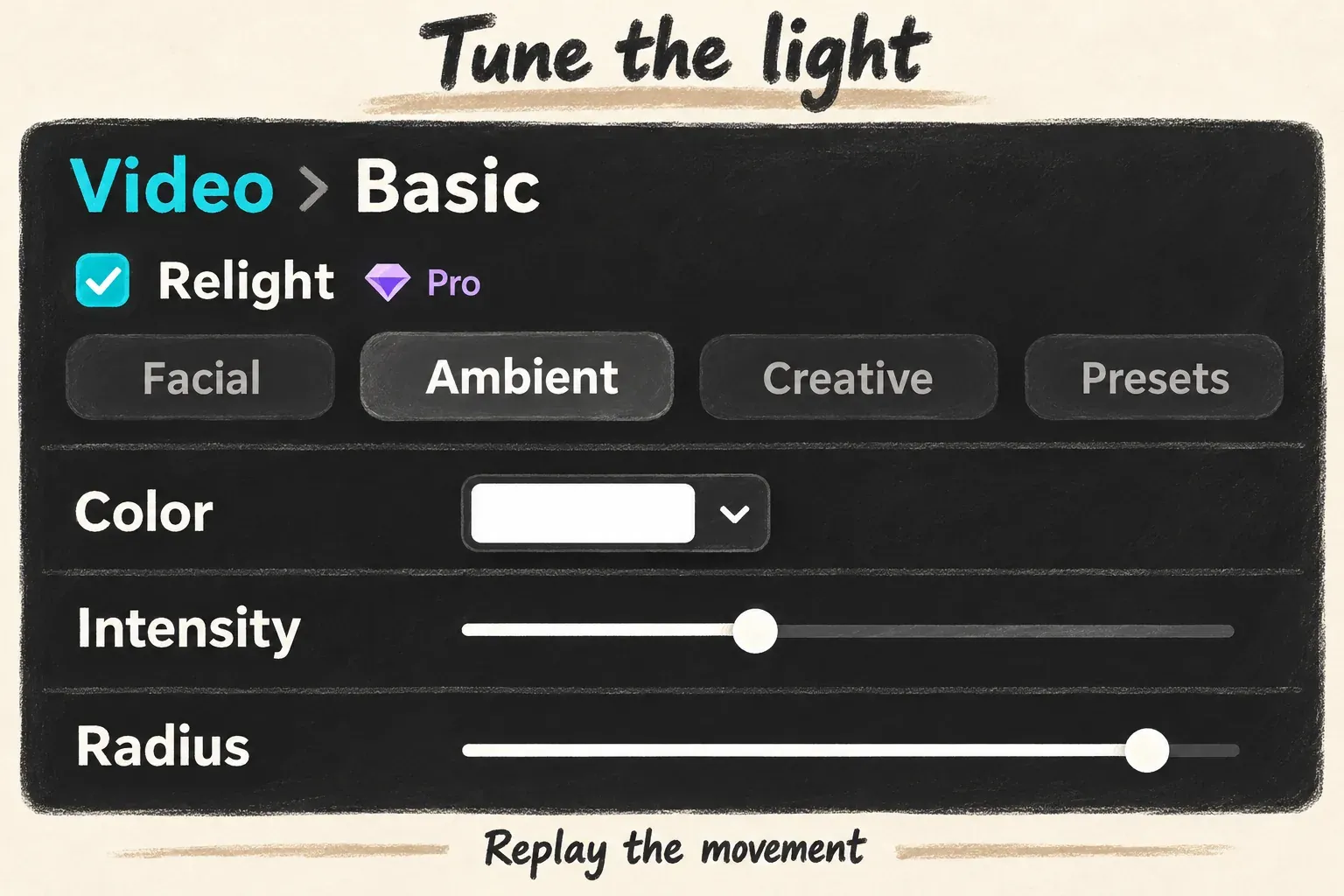
Work through the decision in this order:
- Set the purpose. Make the face more readable, change the scene's mood or create a deliberate light effect. Keep the untouched clip as your comparison.
- Match the direction and color where offered. For a natural result, follow the lighting cue in the source. Watch white clothing and skin for an unwanted color cast.
- Adjust intensity. Increase only enough to achieve the purpose. Compare facial shape, highlights and shadows instead of treating the largest slider value as a target.
- Shape the affected area. If radius or another light-size control is offered, check the transition around the subject. A sharp bright rim can draw attention to the correction.
- Replay movement. Watch the person turn, cross the frame or pass behind an object. Compare the same moments with the treatment disabled or against the untouched copy.
Extra lights can help when the offered preset supports them, but each one adds another interaction to judge. I'd settle the first light before adding another. If you can't explain which setting improved the picture, go back to the simpler version.
Don't stack beauty, sharpening and lighting changes while you're still deciding whether Relight helps. Stacked changes make it harder to tell why skin texture or an edge looks different. Keep each decision visible.
Check movement, neighboring shots and the exported file
A still frame can look good even when the light behaves badly in motion. Play the whole treated section at normal speed, then check the moments when a face turns, hair moves or an object crosses the subject.
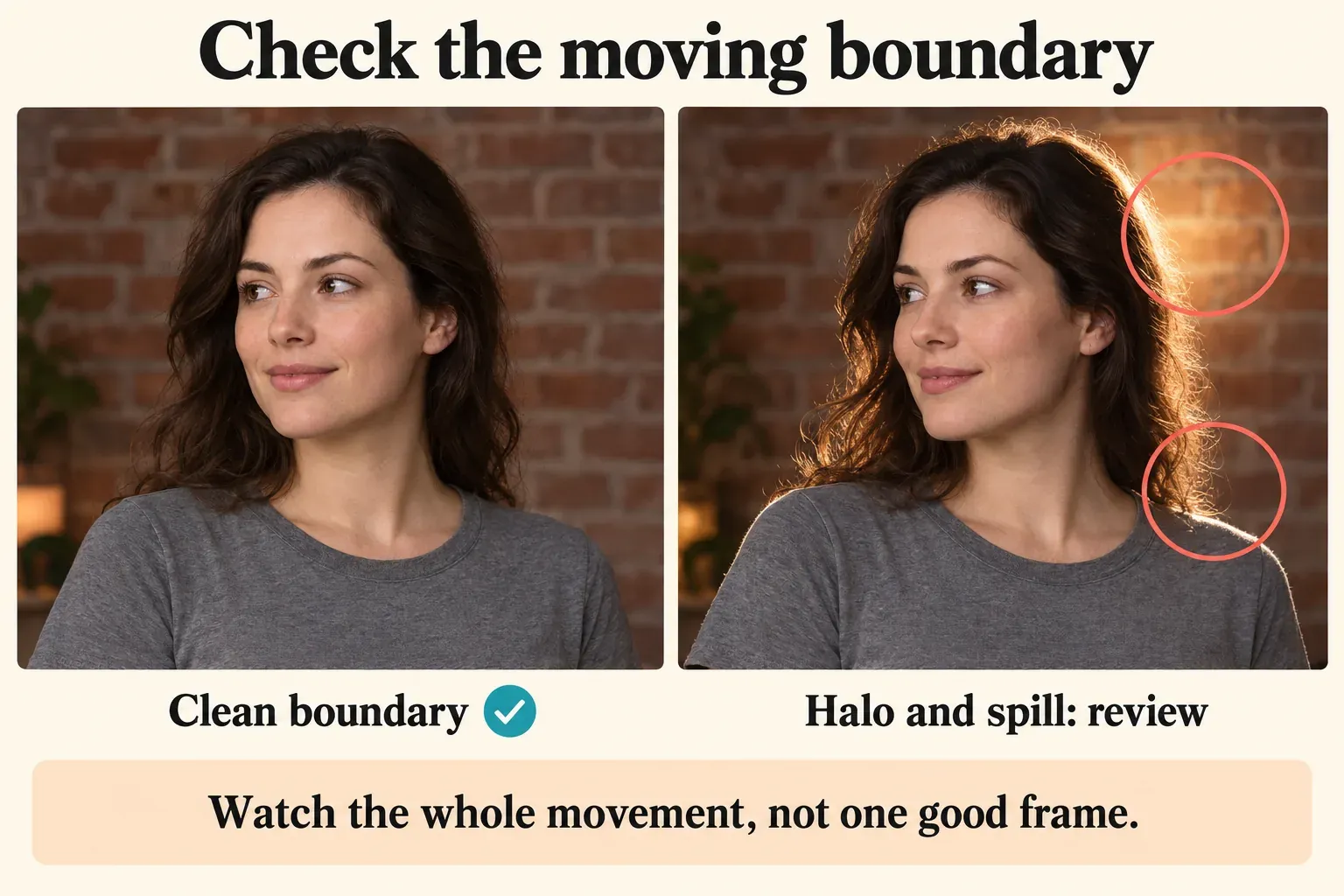
Reduce or reject the treatment if the effect's boundary drifts, the subject's color jumps, a halo follows the head or important texture disappears. These are checks to apply to your output, not effects you should accept because the face got brighter.
Compare neighboring shots too. A correction that suits one angle may make a cut feel abrupt when the next angle keeps the original lighting. Aim for a believable relationship between the shots instead of identical slider values.
Export a short, representative section with comparable delivery settings, then open the saved file outside CapCut. Check the subject, background, movement and sound, and confirm that the operation you chose passes your account's export check. If the saved file doesn't match the editing preview, use our export-quality guide.
If Relight costs more than you want to spend or never improves the scene enough, remove the Relight operation and see how a simpler tonal correction holds up. Keeping a convincing original is a valid editing choice. What you want at the end is a shot whose light supports the subject without becoming the distraction.