

CapCut's Eye Contact tool adjusts the appearance of a speaker's gaze in recorded video. On Mobile, CapCut's official Eye Contact procedure says to select the video clip, open Eye contact from the editing toolbar, enable it, then review the result before you export.
That can be a useful choice for a direct-to-camera explanation recorded while reading notes. When the speaker is supposed to look at someone or something else, correcting the gaze is a poor choice. I'd judge the purpose of the glance before trying to remove it.
Decide which looks belong in the shot
A tutorial presenter reading a line near the lens and an interview guest watching the interviewer have different reasons for looking off camera. Keep that distinction in the edit. Direct gaze isn't automatically the more natural performance.
Start with one short, front-facing section where you can clearly see the speaker's eyes. CapCut's single-speaker guidance recommends a close-up or a dominant subject. That doesn't mean a group shot is impossible, but a group gives you more people and expressions to inspect.
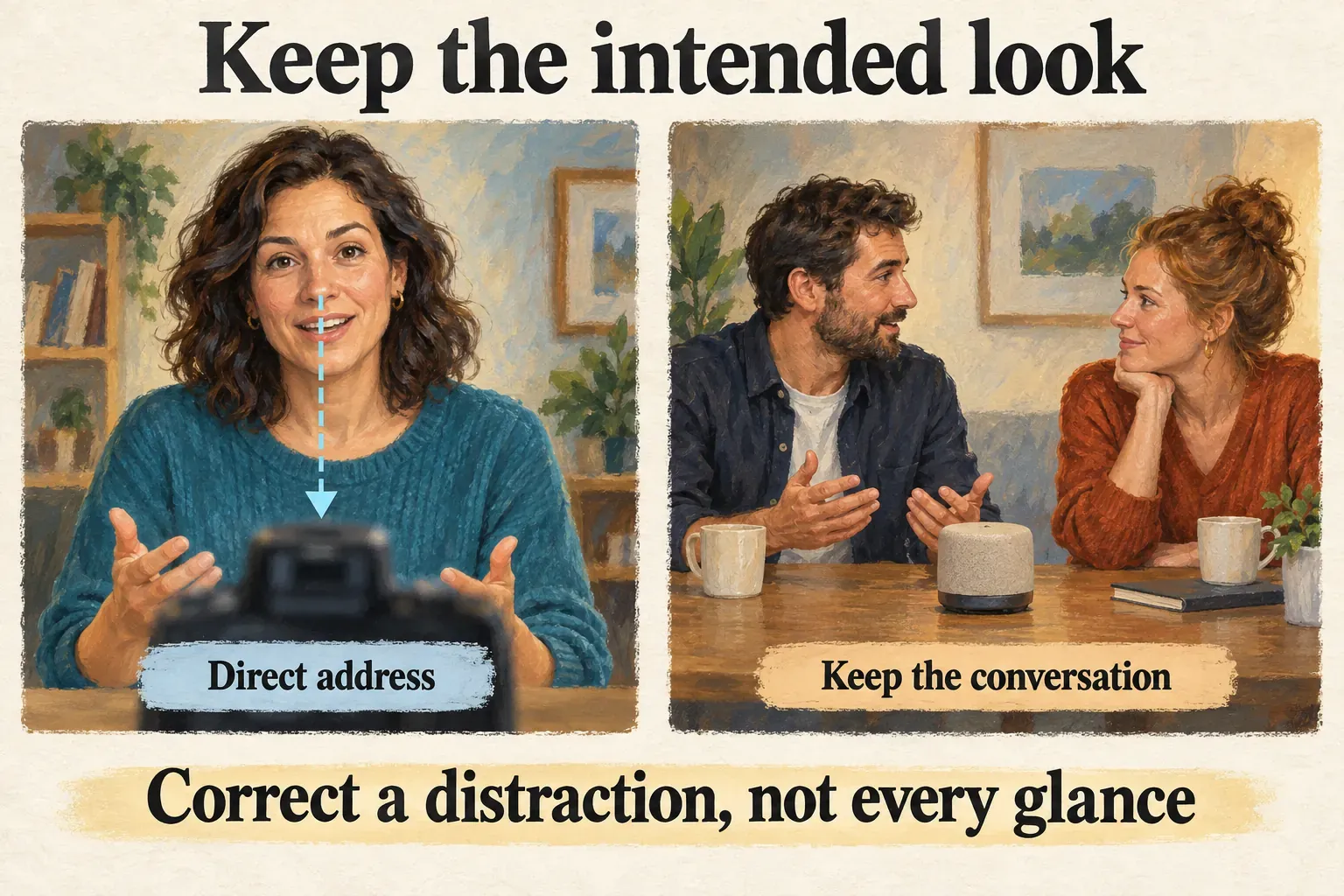
In a product demonstration, the presenter may need to look at the item they're handling. In an interview, where people look helps explain the exchange. Don't apply the correction across those moments just because it improved the opening sentence.
Correcting gaze is also a different job from generating a talking character. The AI Avatar guide covers creating a speaker from a photo or other avatar input. Eye Contact starts with an existing performance and changes how the speaker's gaze appears.
Enable Eye contact on a selected Mobile clip
Keep the original recording, and if you want an easy way back, work on a copy of the edit. Our project-backup guide covers preserving the editable project and its media.
Use this route when your Mobile app offers the feature:
- Start a New project, choose the recorded video and tap Add, or open the existing project containing it.
- Tap the video clip on the timeline. Selecting a title, soundtrack or empty area will not open the same clip tools.
- Find Eye contact in the selected clip's editing toolbar. Scroll the toolbar if needed; its position can differ from a tutorial's layout.
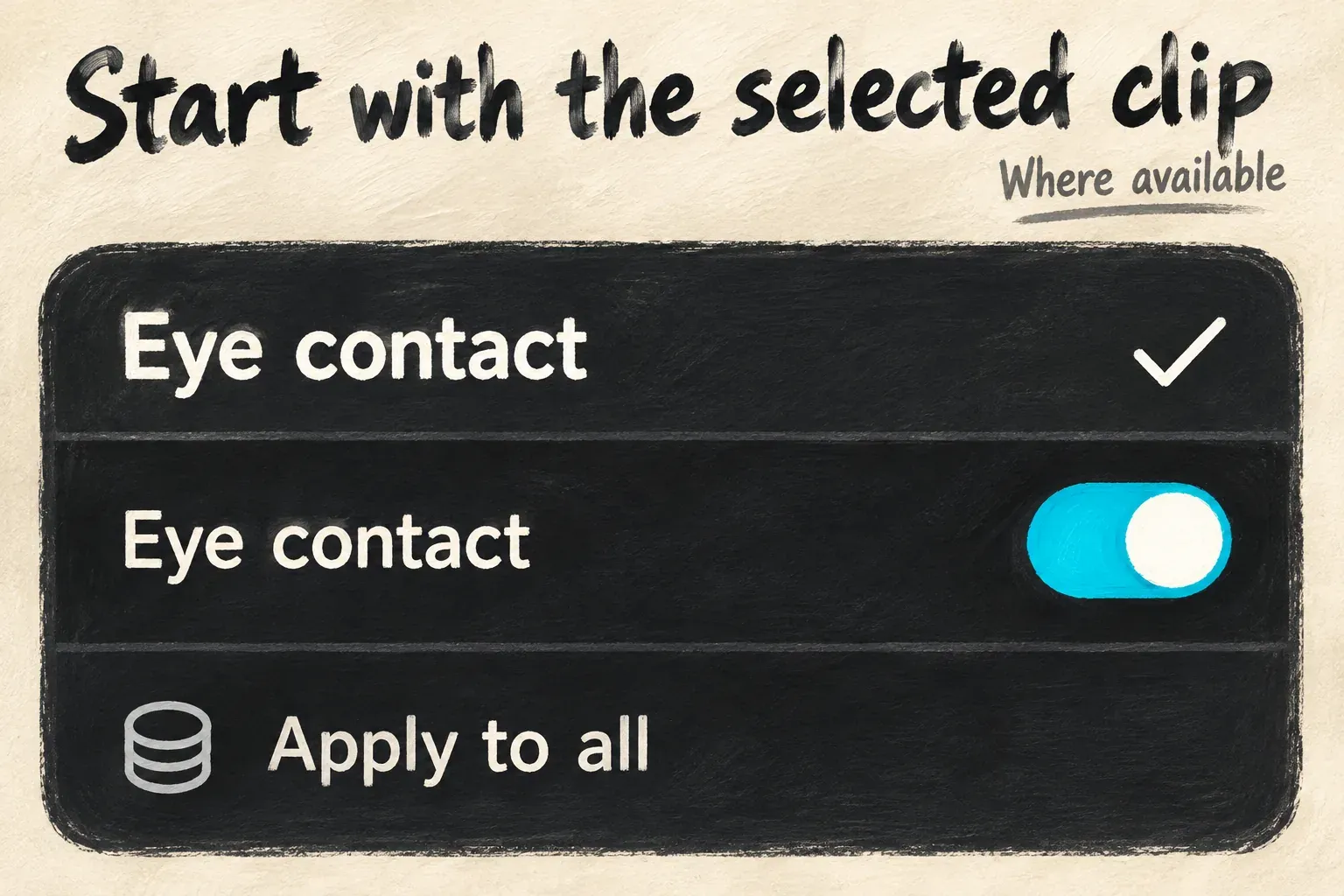
- Open the tool and enable its Eye contact switch. Let the processing finish, then replay the chosen section.
- Keep the adjustment on that clip while evaluating it. Use Apply to all only after checking whether the other clips need the same treatment.
CapCut's separate Mobile editing instructions after a teleprompter recording show the selected-clip tool, its switch and the option to apply it across clips. Those controls don't give you a universal strength percentage, and they aren't a reason to process every face in a sequence.
Review the corrected performance before you choose Export. A preview that looks acceptable on one paused frame doesn't show that the gaze stays convincing through the sentence.
If the tool is missing, separate access from the tutorial
First confirm that the selected item is the video clip, then check which tools that app offers. If you need an explanation through the CapCut support route, note the platform, app version, account and the exact missing label.
Desktop users in this Eye Contact discussion describe Video > Basic in the right panel, while other participants can't find it. Those are older user reports. They tell you where to look; they don't guarantee every current Windows or Mac build has the same checkbox. If the option isn't there, check the selected clip's own panel and current support guidance.
The verified Mobile route above isn't a map of CapCut Web. A browser template called “eye contact” doesn't show that the workspace has a native gaze-correction control either. Follow a documented procedure for the surface you're on instead of carrying a phone toolbar over into a Desktop or browser guide.
CapCut describes Eye Contact as free, but read the operation and export notices your account shows you. That description doesn't settle access for every platform or account. Confirm what applies to your platform before you change a subscription or build the edit around a restoration recipe.
You can finish the edit without gaze correction. Hold on to the recording while you decide whether a shorter selection, another take or a purposeful cut works better for the video.
Watch blinks and turns, then open the saved export
Replay the treated section at normal speed and compare it with the untouched recording. Look at the whole expression first. Then inspect the pupils, eyelids and the moments where the eyes move or close.
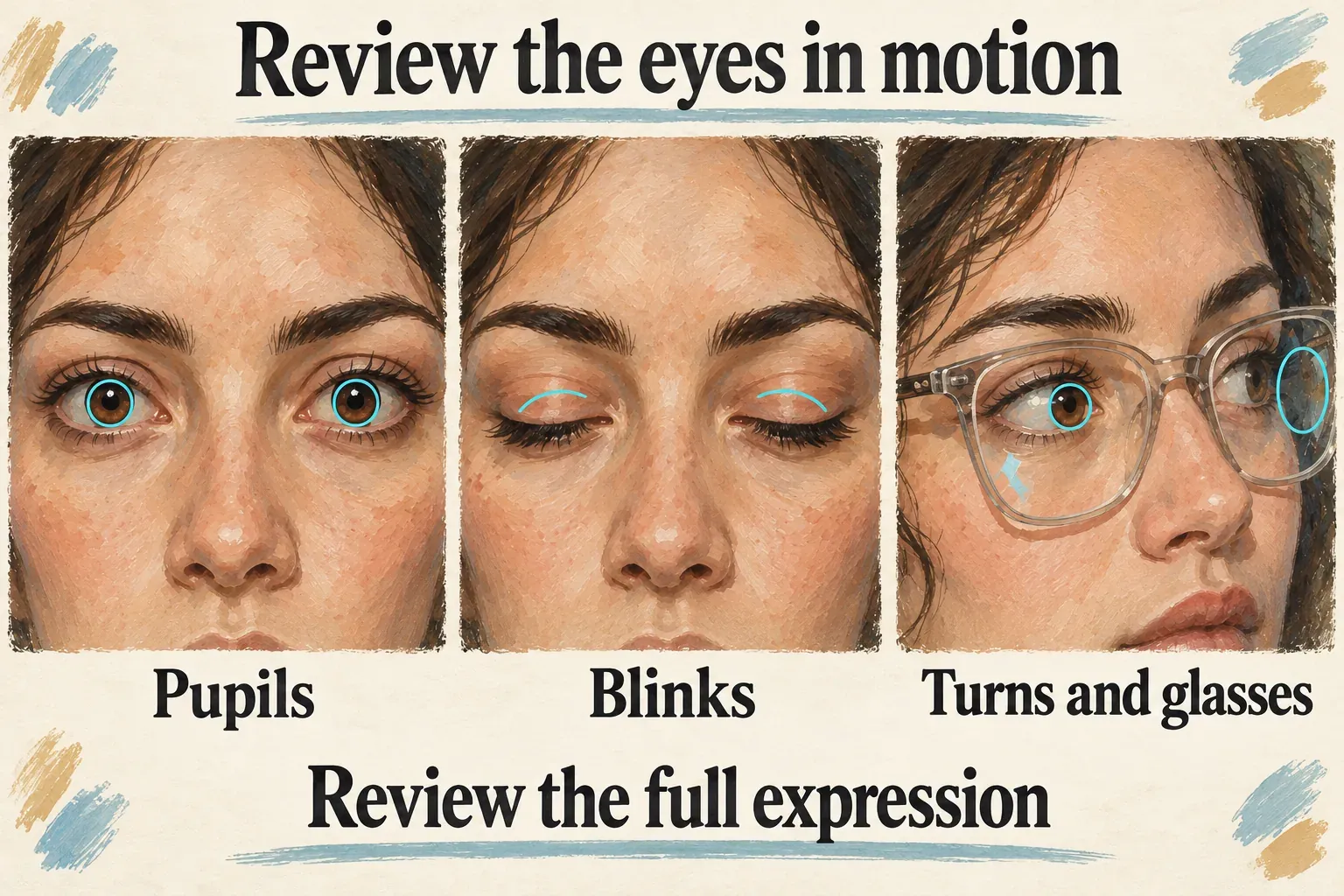
Watch the start and end of each blink, a head turning away, a hand passing near the face and reflections in glasses. Does the gaze still fit the head direction? Do both eyes look consistent? Does the correction keep an intentional glance from the original, or replace it with an unwanted stare?
Turn the correction off for a section if the pupils jump, the eyelids look unnatural or the result changes what the moment means. Those are reasons to reject a pass; they don't mean every CapCut version produces those defects. In a group shot, check every affected person instead of assuming the tool picked the subject you intended.
Check the cuts between corrected and untreated clips too. A perfectly fixed gaze in one shot can feel abrupt next to a relaxed glance in the next. For a natural explanation, a consistent performance matters more than getting every frame to face the lens.
Export a representative section using your intended delivery settings, then open the saved file outside CapCut. Check the gaze in motion, the rest of the face, captions, sound and the cut into the next shot. If delivery looks different from the preview, use our export-quality guide to investigate that separate problem before applying more face processing.
Make the next recording easier to edit
If another take is practical, move the notes closer to the active lens and use shorter spoken phrases. Make sure the speaker can read comfortably without an obvious sideways scan. An on-screen script helps with delivery, but where you place the script still matters.
Leave purposeful pauses, and record the opening before you commit to the full take. For a product video, plan where attention should move from the viewer to the demonstration; our UGC editing guide covers that broader sequence.
Gaze correction is optional. Keep the correction when the saved result supports the direct address you intended. Keep the original glance when it communicates the action, the conversation or the person more convincingly.