


CapCut documents Desktop screen recording and Web screen recording. On Desktop, look for Record screen on the home screen or beside Import in a project. In Web, the recording entry is the camera icon under Media > Project. Desktop and Web are different interfaces, so pick the procedure for the editor you have open.
For an iPhone demonstration, record the phone with its own Screen Recording control, then import the saved video into CapCut. I'd choose the capture route before arranging captions or a webcam overlay. The first job is getting the right picture and sound into the recording.
Choose the area and sound before the full take
A software tutorial rarely needs your whole desktop. Use a selected area when the Desktop recorder offers it, or a browser tab when the Web recorder offers that choice. Leave room for any menus the demonstration will open. A crop that fits the first page but cuts off the next dialog is too tight.
Before you record, enlarge the text in the app you're demonstrating, so the viewer gets readable source material. I'd make the source legible first, then judge the delivery file at its intended viewing size.
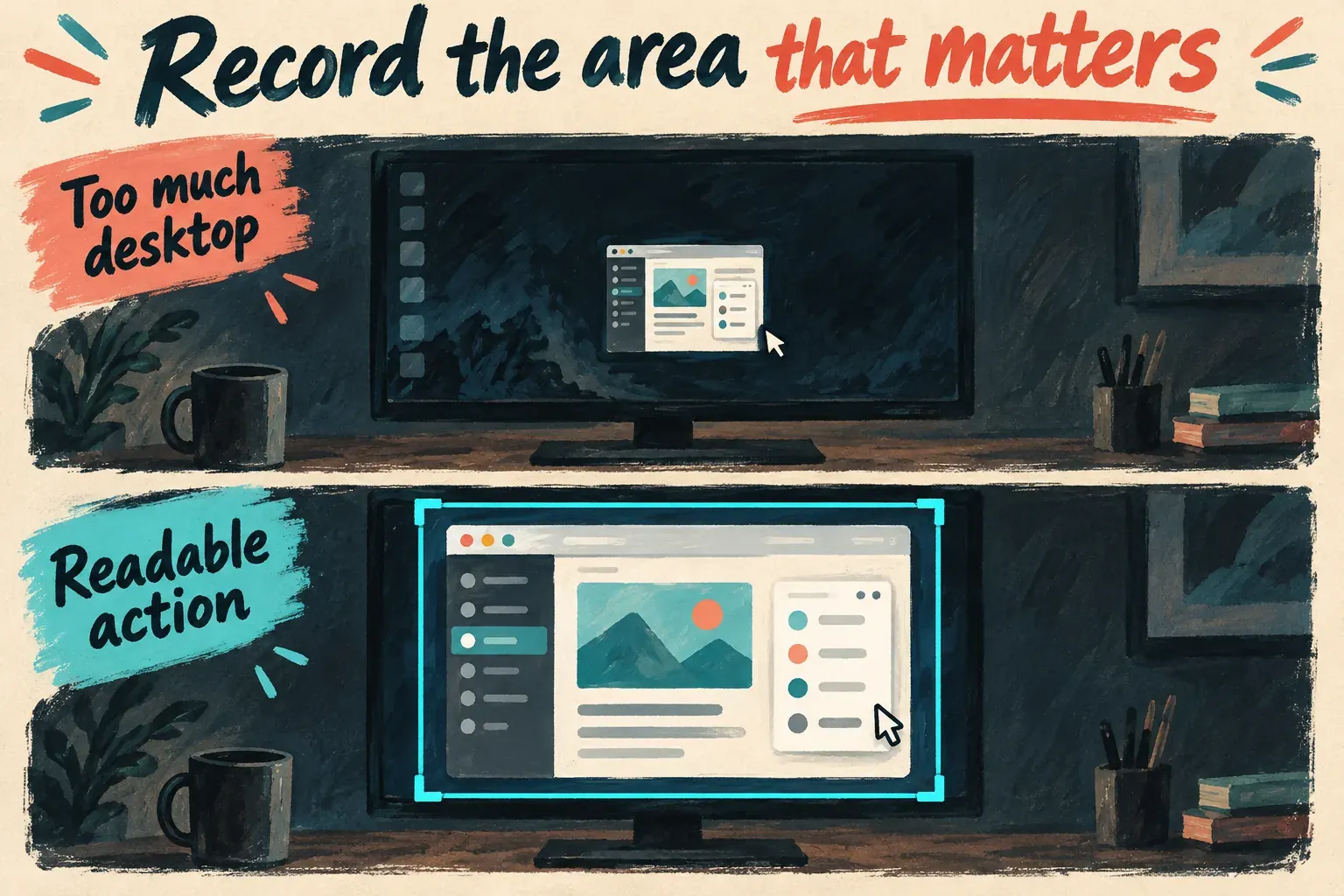
Set up a clean demonstration window with no private messages or account details. Close unrelated pop-ups and pause any notifications that could interrupt the take. If the lesson needs a login screen, work out how you'll keep credentials out of the recorded area before you get to that screen.
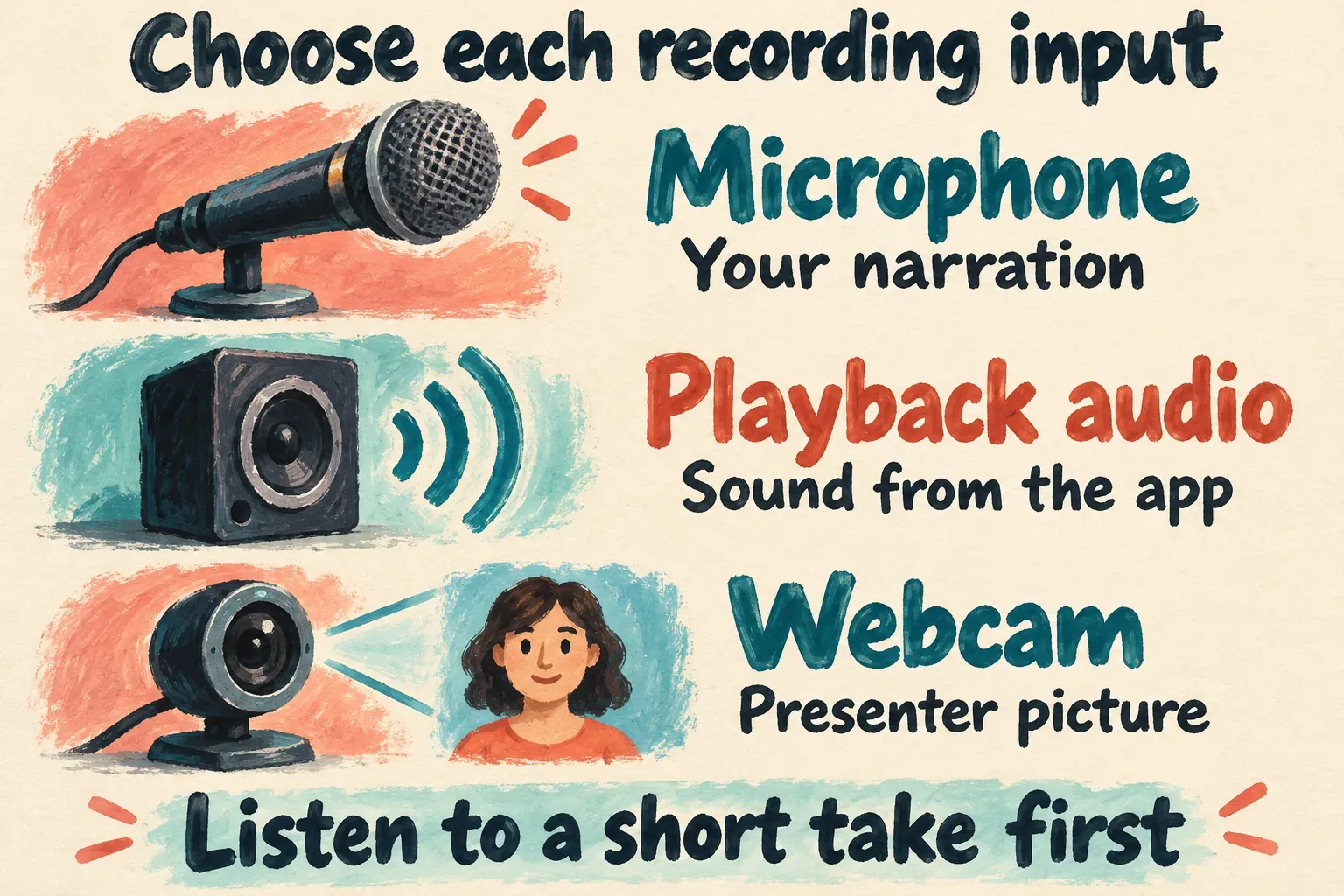
Decide which sound the viewer needs. Your microphone carries the narration, while audio from the application carries the playback. A webcam adds a picture of the presenter. Turning one on doesn't mean the others will be included. Record a short passage with both the spoken explanation and any playback you need, then listen to the saved result before you record the whole lesson.
Record a screen in CapCut Desktop
CapCut's Desktop recording instructions document Record screen on the home screen and a second recording entry beside Import inside a project. Use whichever entry your installed editor offers. Don't expect every build to show the same set of tiles as a tutorial's home layout.
- Open Record screen and choose the area you intend to demonstrate. Use the full screen only when the action needs it.
- Check the microphone selection. Choose the intended input from its dropdown, rather than assuming the recorder picked the microphone you use for calls.
- If you want a presenter picture and the recorder offers camera recording, enable and frame it. Make sure that picture will not cover a control the viewer must see.
- Choose Start recording, wait for the countdown and perform the demonstration.
- Choose Stop recording. Use Download to keep the recording or Edit more to continue in the editor, according to the options shown.
CapCut's separate screen-capture and editing procedure also describes the native Desktop recorder, even though the page's main subject is OBS. You don't need to copy an OBS setup into CapCut to use the native recorder.
After a short take, check the file before you move on. Make sure the intended region stayed in frame, the microphone is audible and the application's sound is there if you need it. The Desktop instructions cover microphone selection, but they don't show one identical system-audio switch across every Windows and Mac build. Look through the audio choices your recorder offers.
Record a tab or screen in CapCut Web
CapCut's online screen-recorder procedure starts with a Web project, Media > Project and the camera recording icon, then describes browser-tab, full-screen and webcam recording choices. Follow those labels instead of a fixed sidebar position.
Open the recording entry, pick the mode you need and choose the right tab or display in the browser's sharing dialog. Read the permission request before you confirm. Sharing a single browser tab and sharing the entire screen give the recorder different areas of access.
When the browser offers an audio-sharing choice, select it if the demonstration needs the tab's sound. Don't assume a microphone permission includes audio playing in another tab or application. Record a short section, stop and listen back before you commit to a long session.
Stop the recording and bring the result into the project's editing timeline. If you need help with the surrounding browser workspace, our CapCut Web editor guide covers projects, media and export. Browser recording choices can differ, so if the audio or screen-sharing mode you need isn't there, use another documented capture route.
Capture an iPhone screen, then import the video
For a phone demonstration, use the phone's own recorder. Apple's iPhone screen-recording instructions describe opening Control Center, adding the Screen Recording control if it's missing and tapping it to start after the countdown. For spoken narration, touch and hold the control, turn on Microphone and start the recording.
Dismiss Control Center, perform the steps you want to show, then stop from the recording indicator. The video saves to Photos. Open a CapCut Mobile project and add that video from the phone's library. You're importing an existing screen recording here instead of using the Desktop home tile on a phone.
Apple also notes that some apps don't allow recording their content and that screen recording can't run alongside screen mirroring. A blocked recording isn't a reason to keep changing CapCut's export settings. If a recording appears in Photos but not in CapCut, check CapCut's library access before you record again.
On Android, use the screen-recording procedure documented for your phone, then import the resulting video. Manufacturer menus and audio choices differ. The iPhone controls above aren't an Android instruction set.
Fix a missing control, blank picture or absent sound
If Record screen is missing, check both the Desktop home screen and the area beside Import in a project. If neither place shows the button, finish the capture with another documented recorder you have and import that file. The PC setup guide covers the broader Desktop context, but it doesn't promise that an older screenshot's tile exists in your build.
In Web, reopen the recording entry and look at the browser's sharing selection. Make sure you picked the correct tab or display and accepted the permission you need. A camera recording mode produces a presenter picture. By itself, that mode doesn't record the desktop behind the person.
On a Mac, Apple documents recording access under System Settings > Privacy & Security > Screen & System Audio Recording. Allow the app or browser you intend to use through those Mac recording permissions. Older macOS labels may differ. Granting access fixes a missing permission, but it won't resolve every blank recording.
If narration is missing, recheck the microphone input and permission, then listen to another short take. When playback sound is missing, look at the recorder's audio-source choices and, in Web, the browser's audio-sharing option. With a hollow or doubled voice, listen for the same narration being recorded twice or for speaker sound reaching the microphone. Headphones can help keep playback out of the microphone while you track down the duplicate source.
Edit the explanation and inspect the delivery file
Trim the time you spend opening the recorder and finding the starting window. Keep pauses that let the viewer see an important menu change, and cut waits that add nothing. A fast cursor with tiny text can make a short tutorial harder to follow than a slightly longer demonstration that's easy to read.
Caption the explanation, and check technical names against the on-screen labels. Our auto-captions guide covers generation and corrections. Place captions and any presenter picture so the controls you're demonstrating stay visible.
Choose the final framing and delivery settings using the export-settings guide. Don't crop away a dialog the recording was meant to explain. Read any asset or export notices the project shows before treating the preview as the finished file.
Open the exported video outside CapCut and watch the demonstration from start to finish. Check text at the intended viewing size, the first and last actions, narration, playback sound and any private content that slipped in. Keep the original screen recording along with the editable project, so another cut doesn't require another capture.