

CapCut's old photo restoration tool is designed to reduce visible scratches, noise, fading and blur in a digital photograph. Open the online Old photo restoration tool, upload a working copy, review the result and save it separately. If the panel offers Original and Colored, choose whether to keep the photograph's existing color treatment or add color.
The decision that counts comes before the download: does the repaired picture still look like the same photograph? CapCut's own restoration guidance calls for comparing faces, edges, color and repaired areas. A smoother face or a brighter scene only helps when the change keeps what matters in the source.
I'd keep the untouched scan, make a separate restoration copy and judge the details before the result goes into a family slideshow. You can keep a pleasing edited version. Just don't treat it as a replacement for the original.
Start with a scan you can keep
Work on the digital image. CapCut changes the file but doesn't repair a torn print, stabilize fragile paper or remove a physical stain.
If the photograph still needs digitizing, do that first. The National Archives advises keeping physical originals and making sure a photograph fits completely on the scanner, since the lid can crush or crease an item that extends past the edge. The same guidance also warns against feeding fragile or valuable papers through an automatic scanner. A damaged family print deserves more care than a quick upload.
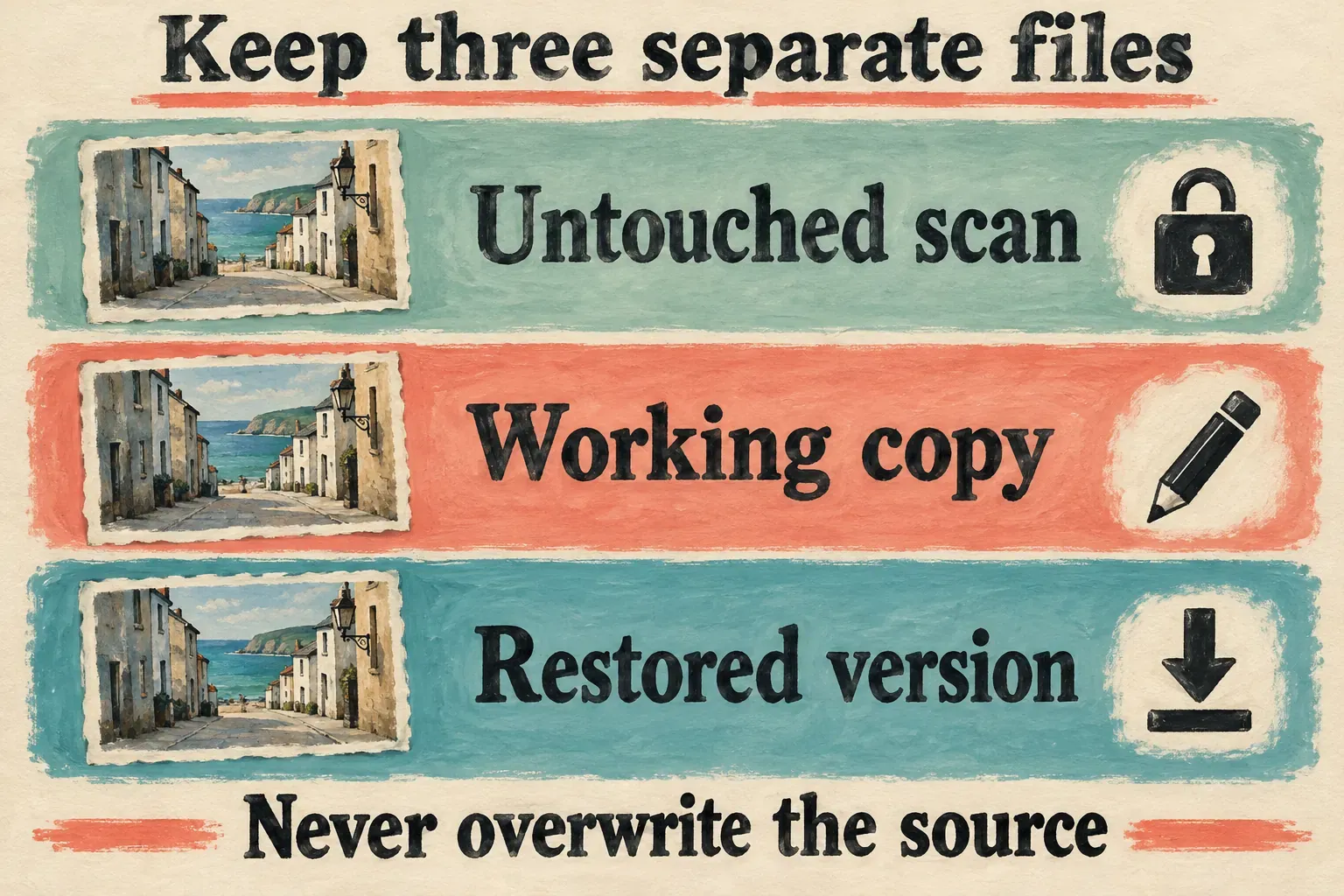
Give the untouched scan a name that identifies the picture, then make a duplicate for editing. The Library of Congress recommends modifying a copy and saving it under a different name so an edit can't overwrite the original. Separate names pay off when several versions look alike in the Downloads folder.
Keep three roles clear:
- Untouched scan: the reference you return to when judging a repair.
- Working copy: the file you upload and edit.
- Restored version: the output you decide to keep or share.
These file roles aren't a complete backup plan. Store a separate backup of the source, along with any known names, place and date. A convincing restoration can't supply missing family history.
Open CapCut's online restoration tool
CapCut's documentation places restoration in an online image tool. The company calls the workspace section Magical tools on its tool page and Magic tools in its guide. Look for Old photo restoration there, or use the tool page linked above to reach whichever entry point your account is offered.
Follow this sequence when the tool is available:
- Open Old photo restoration and choose Upload, or drag the working copy into the upload area.
- Wait for the initial restoration to finish before comparing the available versions.
- Review the available restoration versions. If the panel includes Original and Colored, select the one that fits your purpose.
- Compare the result with the untouched scan, especially across repaired marks and small identifying details.
- Save the version you accept. Use Edit more if you need further image editing before the final download.
CapCut's separate picture-restoration instructions show the upload, preset choice and Export sequence, and the steps here follow that online workflow. Start at the dedicated image tool instead of hunting for a restoration effect on the video timeline.
Choose Original or Colored deliberately
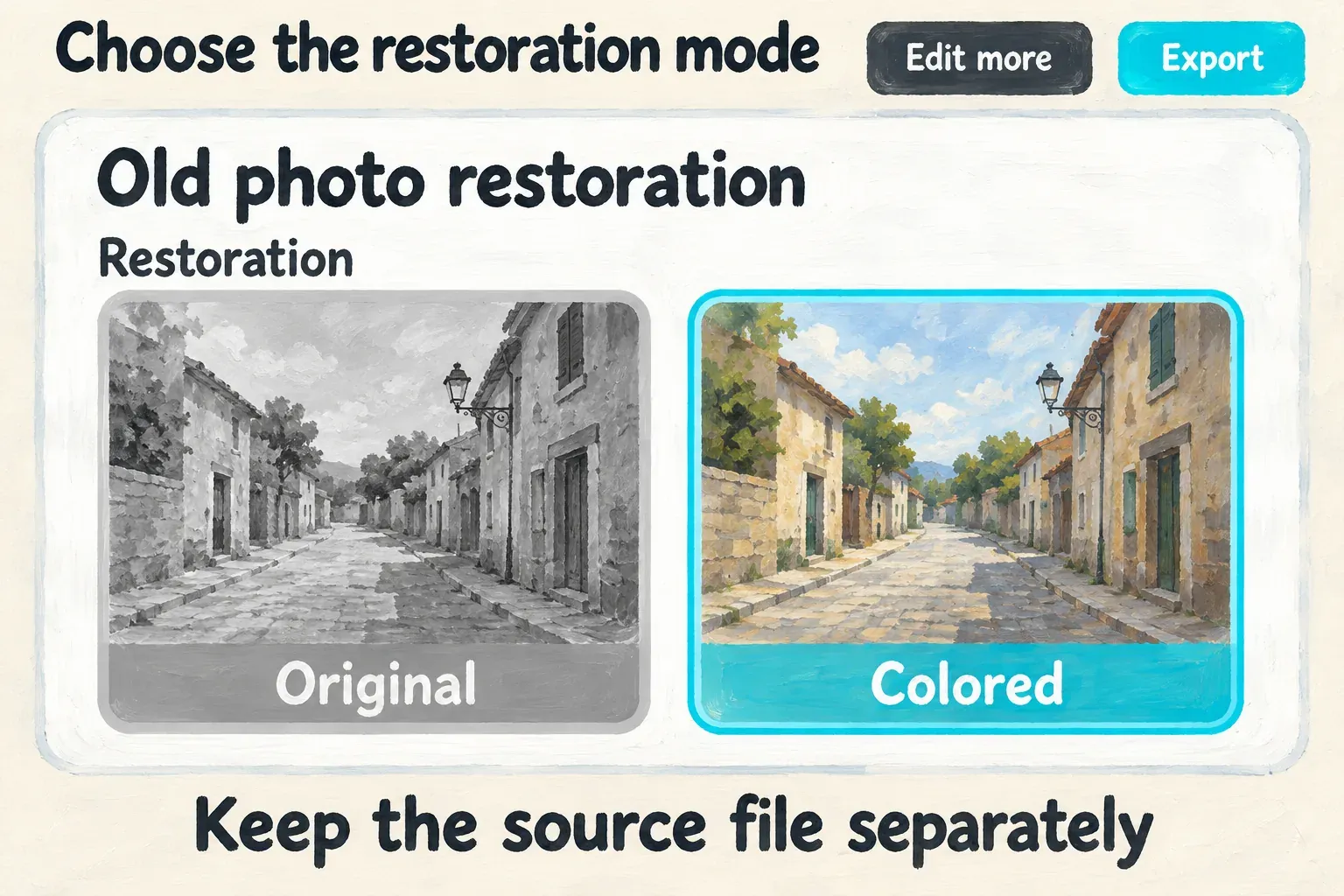
Original is a restoration preset, not your archival source file. In CapCut's documented panel, Original keeps the photograph's existing monochrome or faded treatment while the restoration is applied. Colored adds a colorized version, and CapCut explains the difference in its guide to the two restoration options.
For a black-and-white family photograph, I'd begin with Original. That way you can judge scratch reduction and facial detail without also deciding whether the added colors look convincing. If you want a Colored version for sharing, keep it as a separate choice.
A plausible shirt color is still a choice to review. That color doesn't prove what the person wore, and a newly colored background shouldn't become evidence about the original scene. If you know a color from another photograph or a reliable family record, use that knowledge to judge the result.
The distinction helps with faded color prints too. You might want to make a face and setting easier to see while keeping the source's character, instead of giving the whole photograph a modern palette.
Inspect the details that identify the photograph
Start with the whole picture, then look closely at the areas the tool changed. CapCut itself recommends this comparison. The checks below turn that comparison into a decision about whether to keep the result.
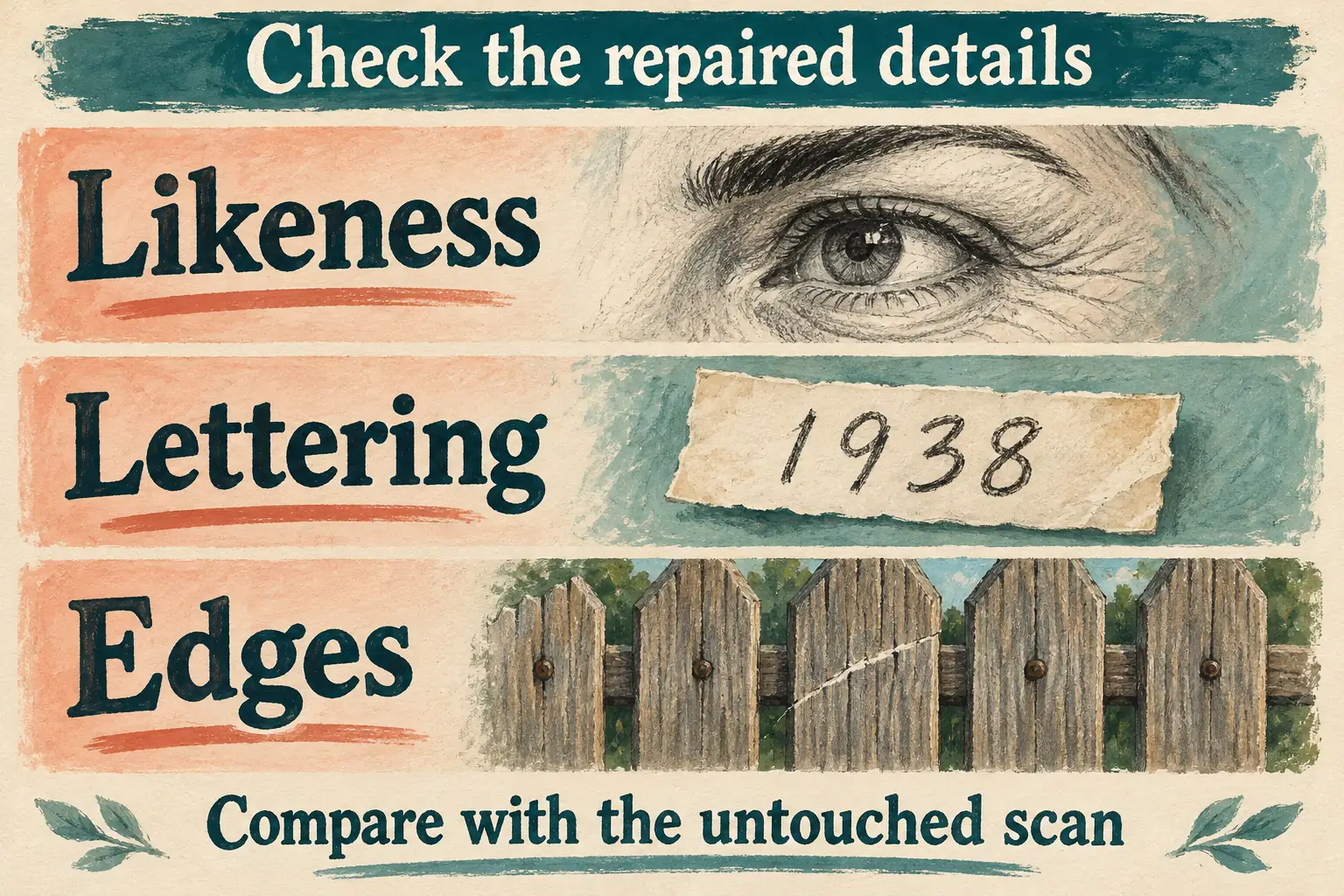
Faces and likeness. Check eye shape, mouth, expression, wrinkles and any distinctive mark visible in the source. A younger or more symmetrical face may be a poor restoration even if it looks cleaner. If a damaged area has turned into convincing detail, ask whether the source can support that detail.
Lettering and dates. Look at names on signs, handwritten notes, uniform markings and dates. A sharper-looking character can still be the wrong one. Keep uncertain text uncertain, and don't quietly rely on a changed digit to identify a place or year.
Edges and repairs. Trace fence rails, building lines, clothing seams and the boundary between a face and its background. A repair shouldn't make a line change direction, repeat a texture or blend two separate objects into one.
Tone and texture. Look for flat skin, halos around dark edges, patches with different grain and color spreading across boundaries. Then decide whether the cleaner area belongs with the rest of the photograph. The most polished output isn't automatically the best one to keep.
When the result you get changes an important detail and offers no suitable correction, reject that version and keep the source. Running the photo through again and again won't tell you what a missing detail originally looked like.
If restoration is missing or the result is poor
A CapCut template called “photo restoration” doesn't mean the dedicated tool is available to you. Templates can set up a before-and-after presentation or animate photographs without giving you the restoration controls described above.
If the linked tool sends you to another editor or the restoration panel isn't there, stop relying on those button names for that session. Before you commit to a workflow, check which image tools are available and read any access or payment notice on screen. A page headed “free” doesn't settle the limits your account will run into. For an account-specific missing feature, use the routes in our CapCut support guide.
A faded but otherwise intact picture may only need ordinary tonal adjustments. Our CapCut photo-editing guide covers the broader editing task. Adjusting brightness or contrast is a different decision from filling a scratch, and more sharpness doesn't mean missing information has come back.
A prompt-based image generator is a different tool again. It may reinterpret a scene, which is a poor fit when you need to preserve an identifiable historical photograph. Keep restoration focused on a defensible improvement to the source.
Save the photo before building the video
Once you've accepted a version, download it under a distinct name and reopen the saved image. Don't judge from the tool's preview alone; check the same face, text and repair areas in the file you'll use.
CapCut's restoration guide describes a download icon on the image, while the company's other procedure uses Export. Use whichever save control your session shows. Keep an intermediate restoration copy before Edit more so later edits don't become your only surviving version.
For a family slideshow, settle the still-image decision before you add motion or music. Our CapCut slideshow guide covers arranging the photographs into a video. In the finished sequence, give each picture enough screen time to read, and skip any crop that cuts away the details you worked to preserve.
A restored copy can make a difficult photograph easier to enjoy. Keep the source alongside the copy, hold on to the known context and leave uncertain details open. You end up with a useful image without losing the record it came from.