

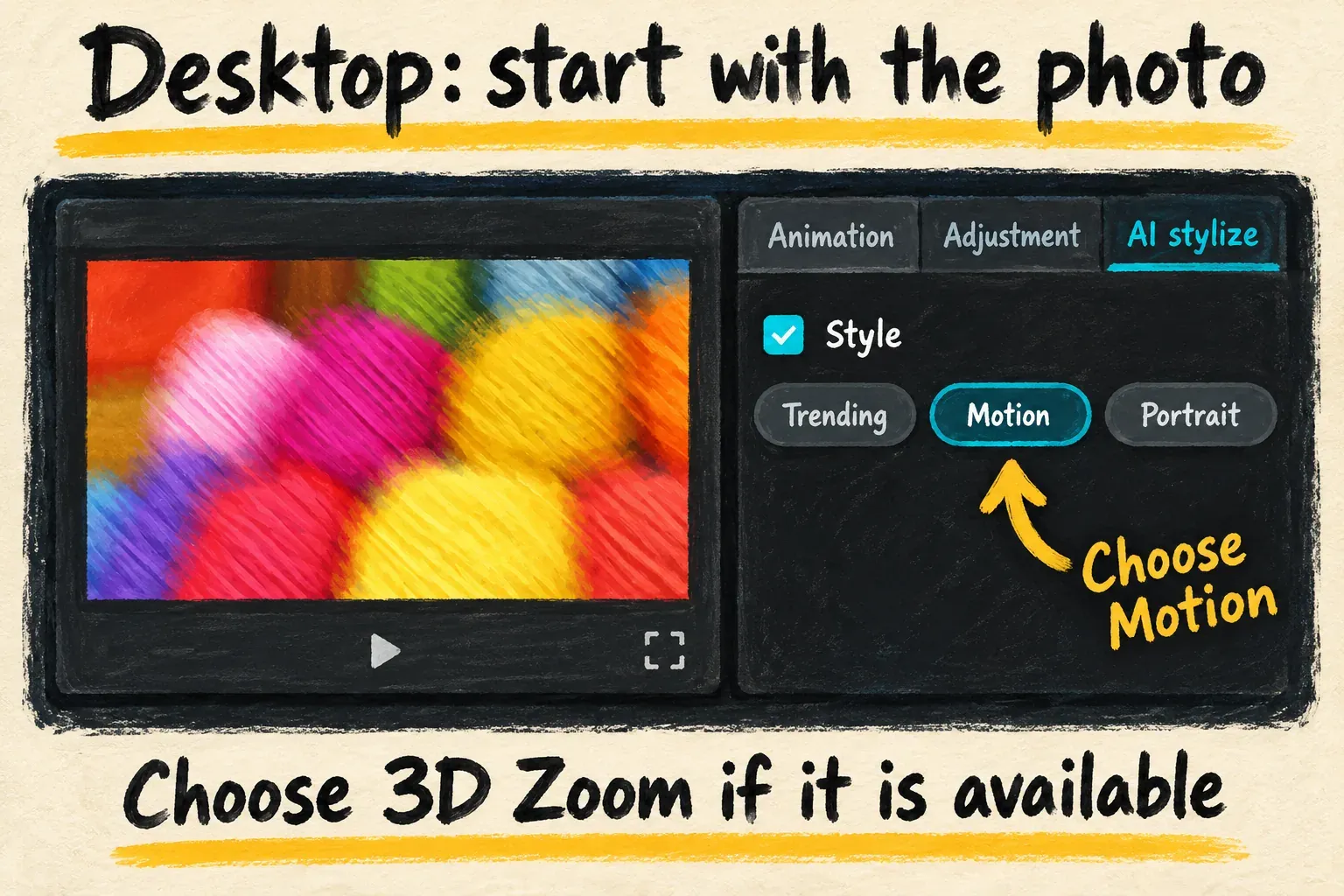
To find 3D Zoom in CapCut Desktop, add a photo to the timeline, select it, then open AI stylize → Motion in the right-hand panel. Choose 3D Zoom if it appears and let processing finish. That’s the route described in CapCut’s Desktop 3D Zoom instructions; an effect missing from your app is a separate availability problem.
Start with one photo before you assemble a whole sequence. That way you can check whether the effect is available and suits the image without building the rest of the edit around that one shot. A template is another option, while a normal keyframe zoom gives you controlled movement without the same depth effect.
What 3D Zoom changes
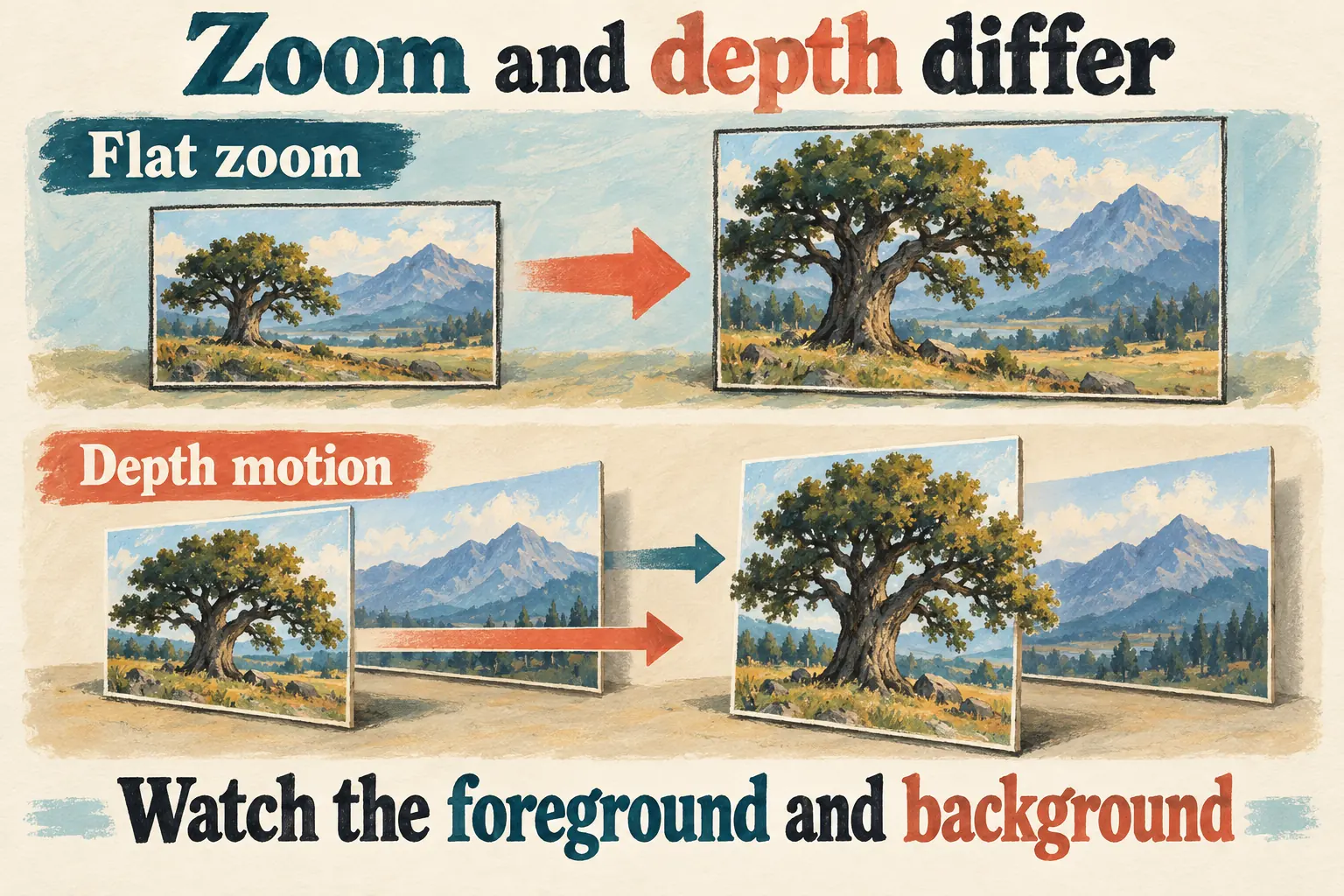
A flat zoom enlarges the picture as one surface: the tree, mountain and sky all grow together. A depth-style movement makes the foreground and background appear to move differently. That gives a still image the impression of a camera moving into the scene.
That impression is the point of the effect. It doesn’t give you a freely navigable 3D model or an accurate record of what was behind the subject. Judge it as a short visual treatment: does the movement draw attention to the right place, and does the picture hold together while it moves?
I’d use depth on a photo with a clear subject and room around it, such as a building against a distant landscape. For a product label, a document or a close crop where every edge matters, a restrained flat zoom is the safer editorial choice. Our zoom and keyframe guide covers that separate workflow.
Apply 3D Zoom in CapCut Desktop
What you select matters. Start with the photo you want to animate instead of opening the general effects browser and assuming every search result called “zoom” does the same job.
- Import the photo into your CapCut Desktop project and place it on the timeline.
- Select that photo clip. Look at the right-hand properties panel for AI stylize.
- Open Motion within AI stylize. If 3D Zoom is available there, choose it and wait for processing to finish.
- Review the resulting movement. Adjust the photo’s position and scale as needed to keep the intended subject in the frame.
- Finish the surrounding edit and export. Check the exported clip as well as the editing preview before using it in a longer video.
In the control panel, Motion sits beneath the Style section of AI stylize. Motion is a category inside that panel, not a separate main editing tab. Even when the category shows up, that alone doesn’t guarantee the particular 3D Zoom preset is available to you.
Keep the first pass simple. If you add another zoom, a transition and heavy reframing at the same time, it’s harder to tell which treatment is causing an awkward crop. Settle the depth movement first, then decide whether the shot needs anything else.
This guide follows the Desktop route. A phone tutorial showing a bottom toolbar called Style isn’t a map of the Desktop interface. A browser template page won’t tell you whether the same preset exists in the Web editor’s effects panel, either.
Choose a photo that survives the movement
Look at the picture before you look at the effect. A clear foreground and a distinct background give the depth treatment a useful visual idea to work with. A busy collage, a tiny subject or a photo that’s already cropped against the frame can make the result harder to read.
When you pick your starting crop, leave some space around the subject. Then watch the moving version for three things:
- Subject boundaries: hair, branches, railings and other fine edges should remain convincing as they move against the background.
- Straight lines and lettering: window frames, signs and product text should not bend or become distracting.
- Frame edges: the motion should not expose an unwanted border or push the important part of the photo outside the crop.
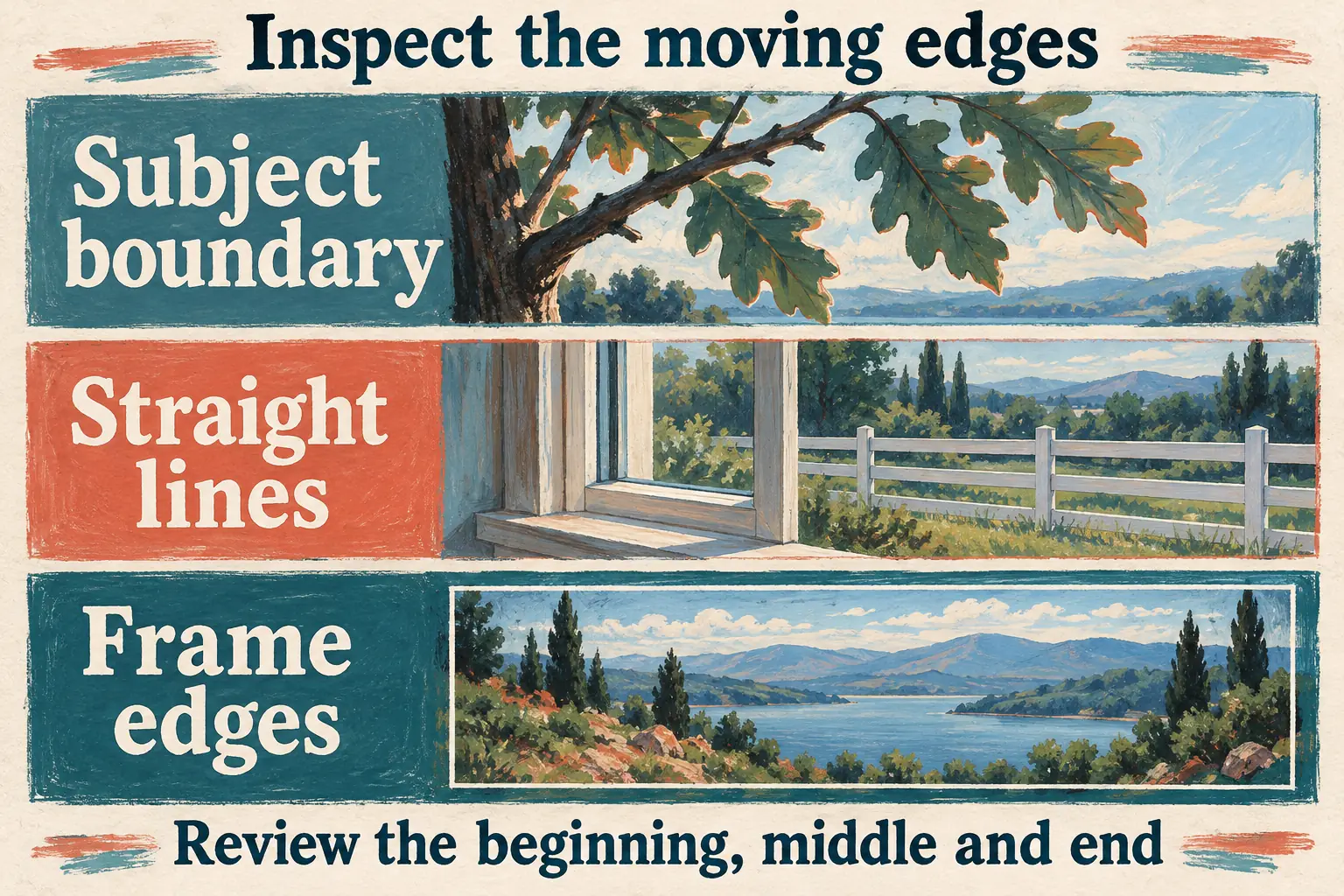
You won’t see these problems on every photo, but they’re what to watch for. If the movement spoils the subject’s outline, pick a different image or switch to a flat zoom. Hiding a distracting edge under more effects usually just adds another distraction.
In a slideshow, judge each picture the same way. One landscape that works doesn’t tell you how a close portrait or a crowded group shot will look. Preview the cut between photos too: a strong movement on every image can make the sequence feel restless.
If 3D Zoom is missing or unavailable
First, check that the photo clip is selected and that you’re looking inside AI stylize instead of searching the general effects library. If the panel or preset still isn’t there, the tutorial can’t speak for your installation.
The useful next choice depends on what you need:
| What you see or need | Sensible next step |
|---|---|
| A zoom effect in the main Effects browser | Preview what it does; its name alone does not establish a depth-photo effect. |
| Motion is present, but 3D Zoom is absent | Choose a template that demonstrates the movement, or use a controlled flat zoom. |
| A paid marker or export restriction appears | Check the requirement shown for that preset or template before building the full sequence. |
| The subject looks distorted during movement | Change the photo or simplify the movement. |
| Precise framing matters more than depth | Use scale and position keyframes instead. |
Don’t assume a template, a similarly named preset or an older tutorial has the same access conditions. Our CapCut Pro features guide explains how to inspect paid elements, but the requirement shown in your current project is what you need to resolve.
I’d avoid clearing app data or reinstalling just to chase this effect. Losing time to an unverified fix is a poor trade when a different visual treatment can meet the brief. Keep the project intact and pick a route whose result and export requirements you can check.
Use a 3D Zoom template when it fits the sequence
A template makes sense when you want a ready-made photo sequence and its pacing suits your edit. Check the required inputs and the preview before you choose your pictures.
For a concrete starting point, the 3D Zoom template by xuvel lists four inputs, 00:13 duration and 9:16 aspect ratio, with a Use this template action. Those are that template’s requirements. They aren’t a rule that every 3D Zoom edit needs four photos or thirteen seconds.
Open the template through its action, follow the prompts for your media and look over the completed preview. Make sure the subject sits correctly in the portrait crop and each replacement photo stays readable during the movement. If an access or export requirement shows up, confirm it before you commit to the sequence.
A template may come with its own timing, transitions and other treatments. Pick one because the full sequence works for your footage, and don’t expect it to behave like a single Desktop preset. Our CapCut templates hub covers finding and using templates when the handoff or media selection is the part you need help with.
Make the final decision at export
Watch the finished clip at the size people will see it. A small preview can hide an uneven outline, while a larger view can show whether the motion has damaged a face, a sign or a building edge. Check both the full picture and the details that carry the story.
Then play the sequence with its soundtrack. The effect should support the pacing, not force a cut just because the movement has run out. If one photo needs less movement than the others, let it have less.
Keep the original photo and the editable project. If the depth treatment looks convincing, use it. If the frame needs precise geometry or the movement keeps pulling the eye to an edge, go with the flat zoom. What you want is a photo that holds the viewer’s attention without making them wonder what happened to it.