

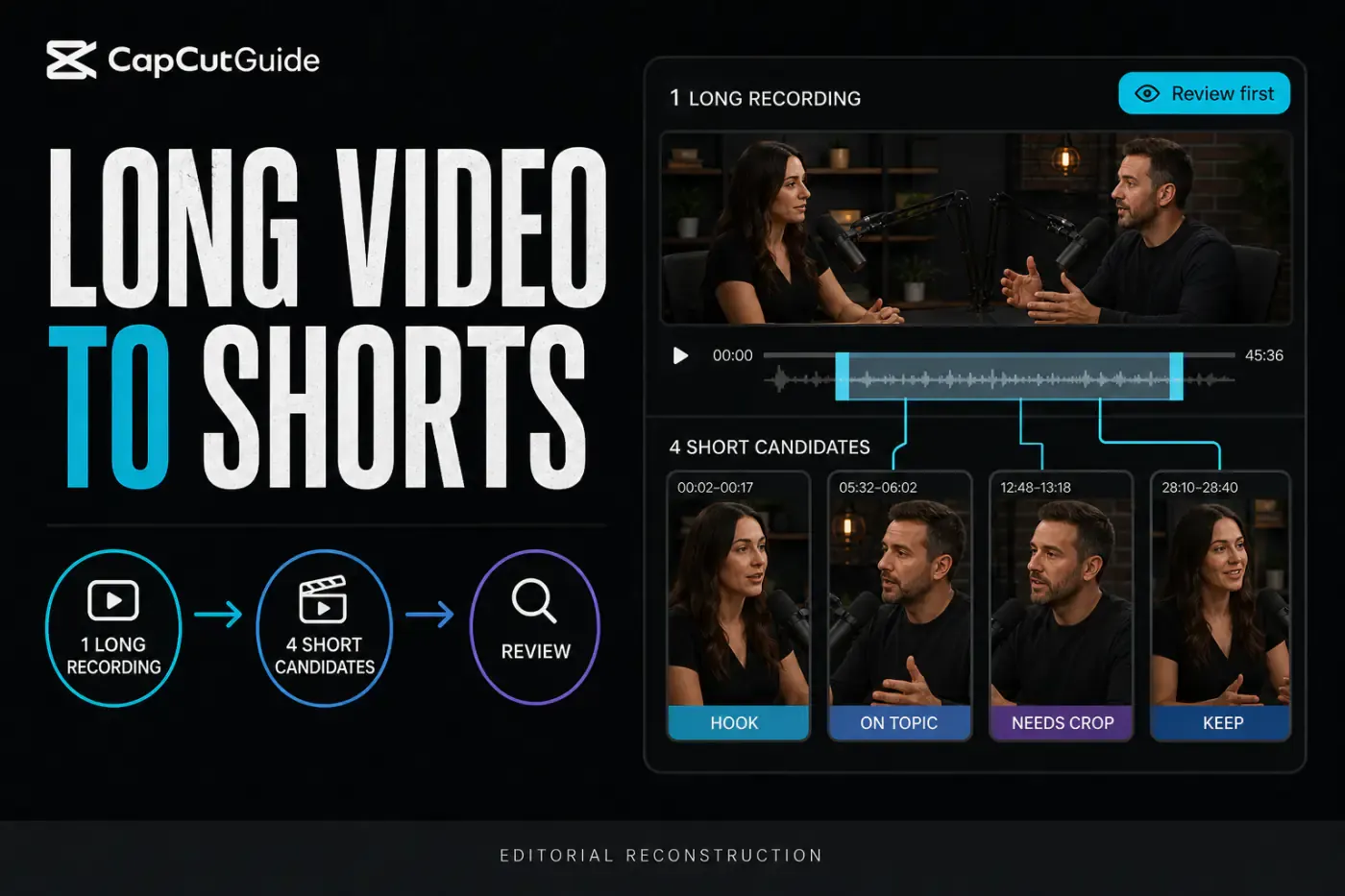
I opened CapCut's public Long Video to Shorts Web route signed out, compared it with CapCut's current Desktop walkthroughs, inspected the visible upload limits and checked recent reports about the tool moving or disappearing. I didn't upload private client footage or present a generated candidate as a tested final result.
CapCut Long Video to Shorts is useful when one podcast, interview, webinar or commentary video contains several moments that could stand alone. It analyzes the source, proposes short clips, adds a vertical treatment and gives you a route into the editor. The useful word there is proposes. A high-ranked clip can still begin without context, cut a sentence in half, crop the wrong speaker or repeat a moment you already approved.
This guide treats CapCut as a fast first pass, not an editorial oracle. You will learn where the tool currently lives, what the live Web screen says about limits, how to set up the conversion, how to reject weak candidates and when to fall back to a manual timeline.
Quick answer: what Long Video to Shorts does
A speech-led source such as a podcast, interview, lesson or commentary video.
Separate proposed moments rather than one montage of all selected media.
Approve context, crop, captions, audio and the ending before export.
Use exact timeline cuts when the AI keeps choosing the wrong story.
That makes this tool different from CapCut AutoCut. AutoCut builds one automatic first edit from selected media. One documented mobile route can also start with a longer recording. Long Video to Shorts is the better starting point when you want several separately publishable excerpts from the same source. The AI workflow hub maps both routes alongside generation, captions, voice and cleanup.
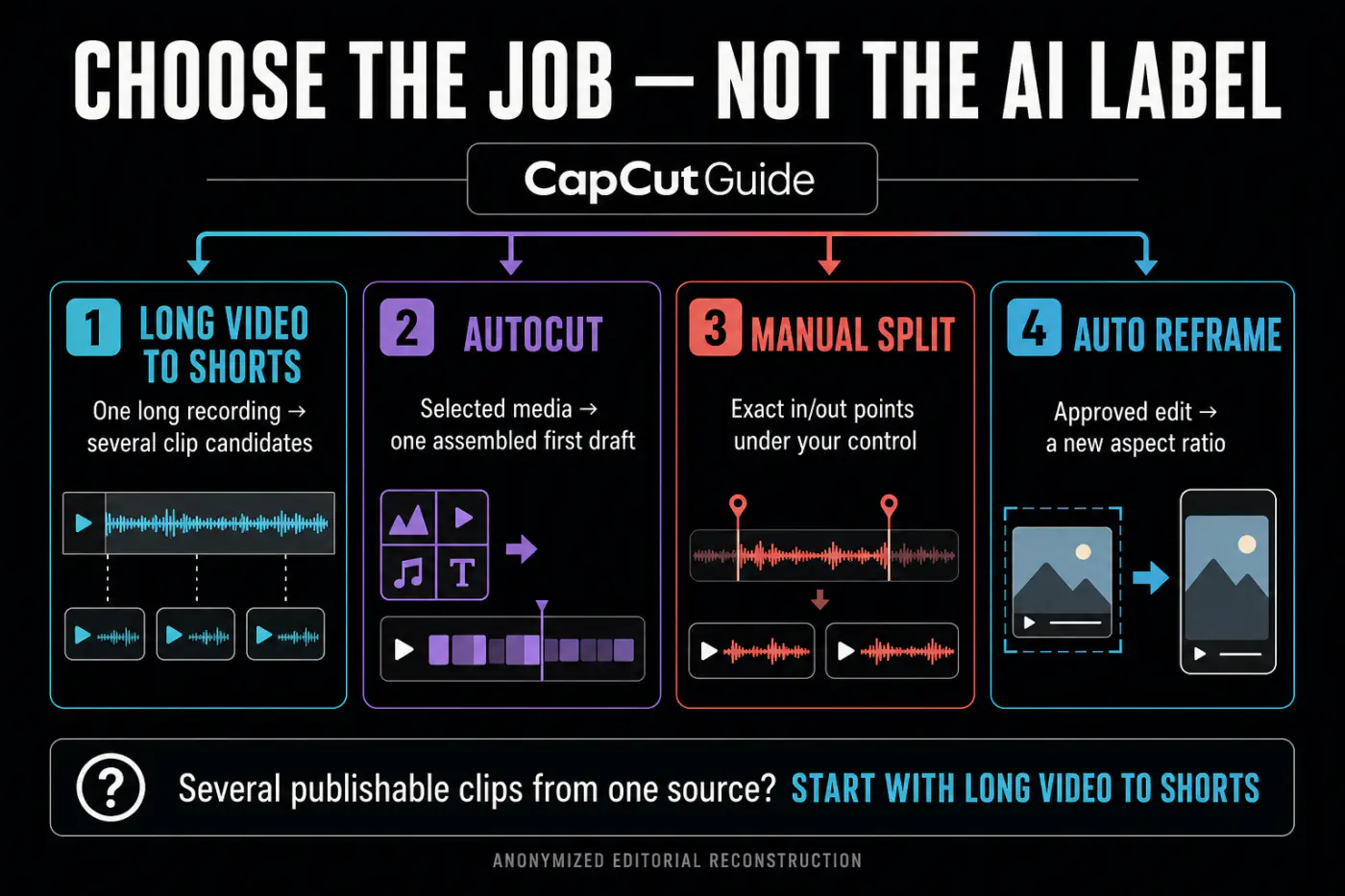
Long Video to Shorts vs AutoCut, Split and Auto Reframe
If your problem is only a horizontal-to-vertical crop, use the Auto Reframe workflow. If you need exact dialogue boundaries, the Cut, Trim and Split guide is the safer owner of that job. Keeping these tasks separate prevents you from spending an AI allowance on work a normal timeline can do better.
What we checked: platforms, limits and plan boundaries
The public Long Video to Shorts Web tool was live when I checked it. Signed out, it offered local drag-and-drop, Google Drive, Dropbox and CapCut Space. The screen stated that the uploaded video must be under three hours and 10 GB, and that the feature supports more than 20 languages. CapCut's current Desktop walkthrough separately asks for a source longer than one minute; the signed-out Web panel didn't display that minimum before upload.
The same screen also said that time consumed equals the duration converted. It displayed 0 minutes of free use for the signed-out session and showed the remaining time as Unknown. That directly conflicts with older CapCut pages that describe the tool as free or show a fixed Pro allowance. Read the balance in your own tool before uploading a two-hour recording; don't rely on an old screenshot or a search snippet.
Upload panel and current visible limits checked signed out.
CapCut's current resource pages show a home card and a conversion workspace, but availability can move.
AutoCut exists on Mobile; that is not proof the dedicated multi-short workspace is identical there.
CapCut's current AI Clip Maker page uses both “Long Video to Shorts” and “AI Clip Maker” for the workflow. Its marketing copy promises highlight detection, smart cropping and captions. Treat those as intended features, not a guarantee that every face, sentence or caption will survive correctly. The broader CapCut feature availability matrix explains why account, region, platform and rollout matter more than a single product-page badge.
Prepare the source before uploading it
A poor source creates expensive noise. Keep the original master outside CapCut, then make a working copy if you need to remove a private pre-roll, client notes or a long break. If the recording contains two hours of usable conversation and thirty minutes of setup, select only the conversation range before conversion.
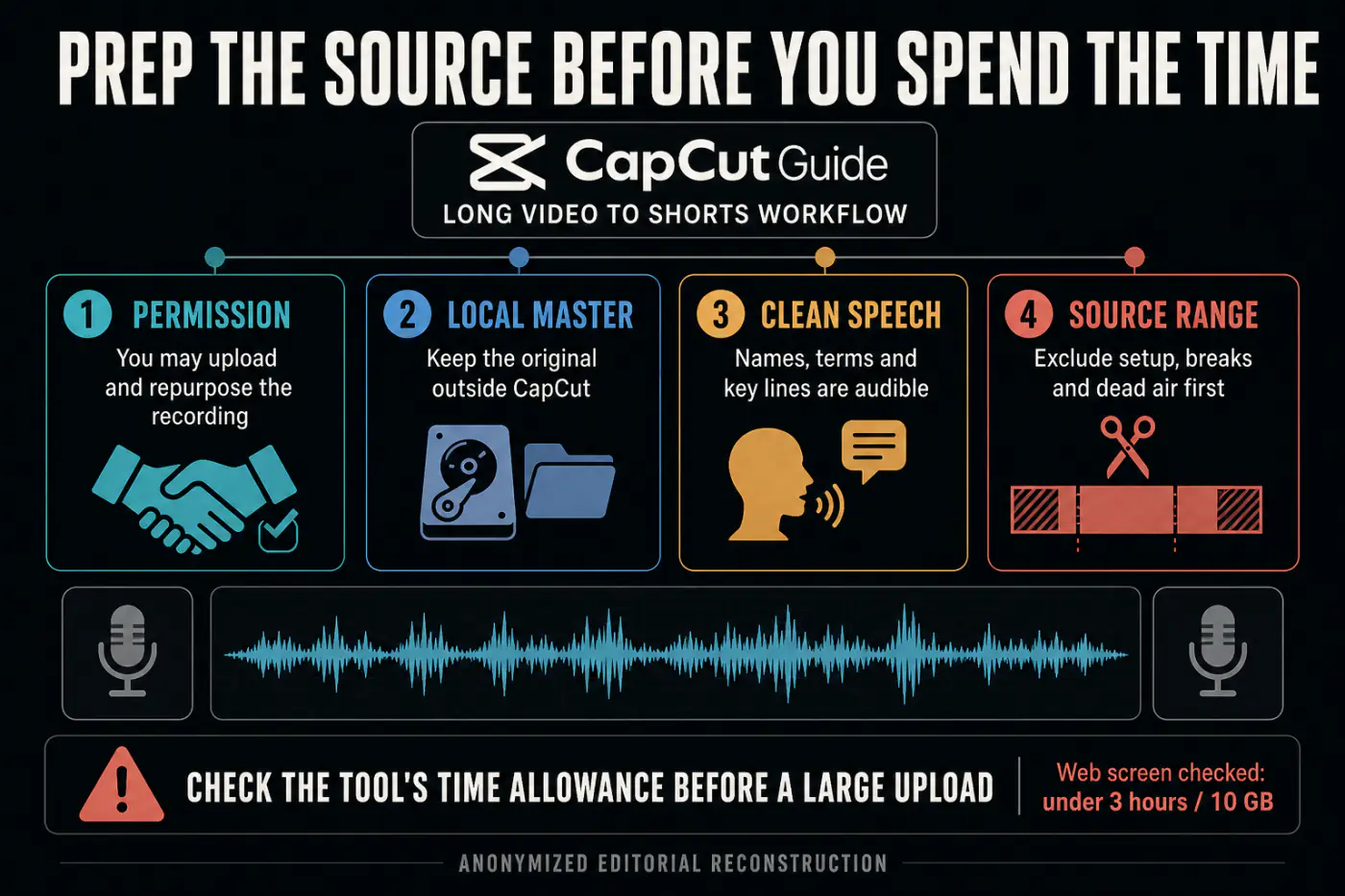
- Confirm authority. You need the right to upload the recording and repurpose the speakers, music and third-party footage it contains.
- Protect the master. Keep the untouched source and any client-approved long edit outside the AI workflow. The CapCut Project Safety hub covers backup and recovery decisions.
- Check speech. Names, product terms and the key claim should be audible. A clip generator can't recover a sentence buried under music.
- Remove irrelevant time. Exclude countdowns, breaks, post-call chatter and dead air before they consume conversion minutes.
- Check privacy. CapCut's US Privacy Policy says the service may collect content you create, import, upload or generate, including video, audio, metadata and information sent to AI interfaces. Don't upload confidential or sensitive material merely because the tool accepts a large file.
Where to find Long Video to Shorts on Desktop and Web
On Desktop, CapCut's current Shorts walkthrough shows a Long video to shorts card on the home screen. Open it before creating a normal timeline project. If the card is missing, don't spend an hour reinstalling the app: open the official Web route and compare what appears signed in and signed out.
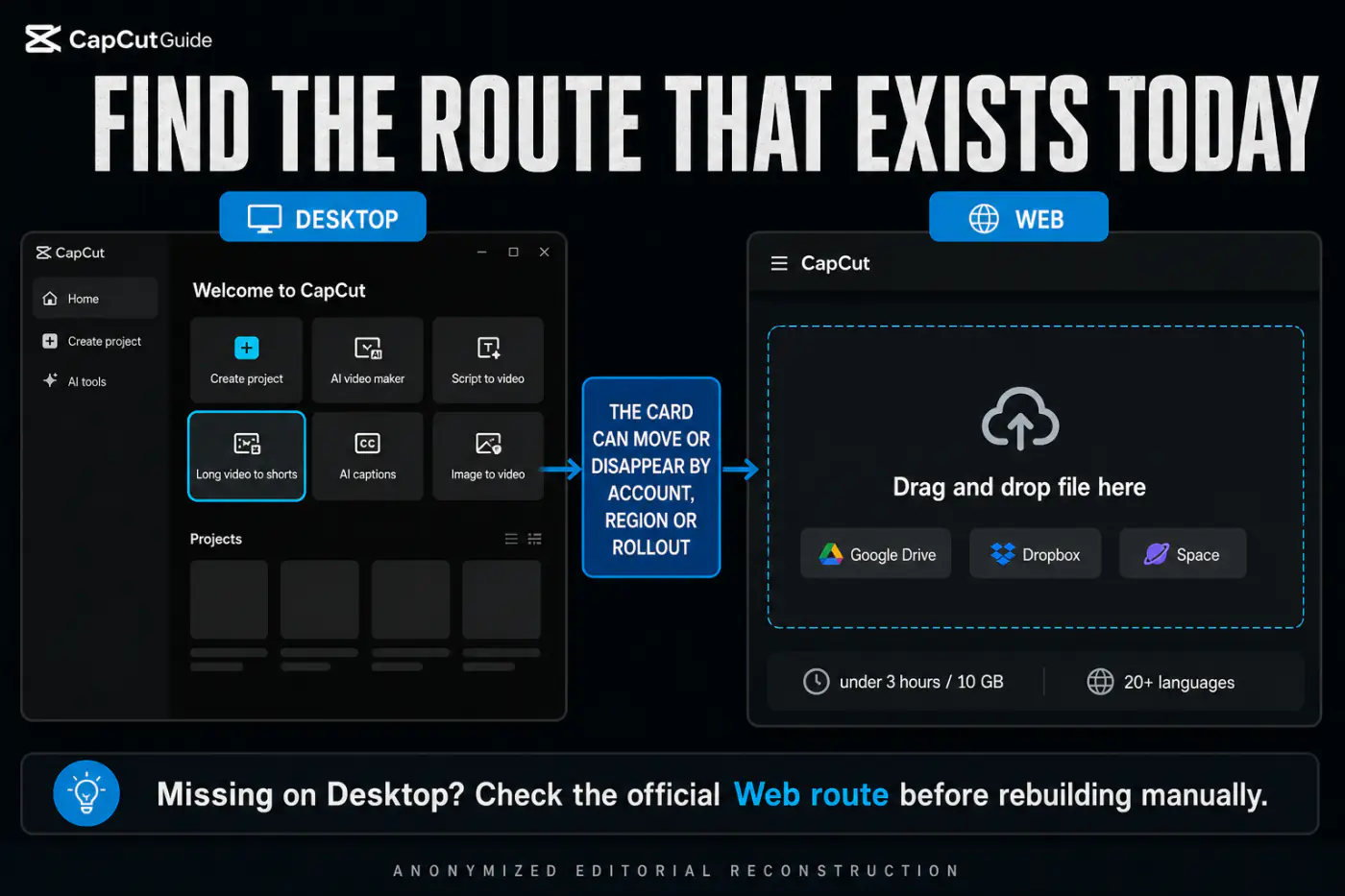
Current community reports show why the Web fallback matters: one r/VideoEditing report says the Desktop option disappeared after an update, while a same-day r/CapCut discussion describes the feature appearing and then vanishing again. These are individual reports, not proof of a universal outage. Check the route, account, region and current build before deciding the tool has been discontinued.
How to convert a long video into short candidates
1. Upload one source
Use the local upload panel or a supported cloud route. CapCut's Web screen asks you to keep the tab open during upload. A local copy is easier to diagnose than a cloud file that still needs to sync or download in the background.
2. Select the source range
Drag the range handles around the part worth analyzing. Don't select the full recording from habit. A tighter range reduces wasted processing and makes the candidate list easier to judge.
3. Choose caption style and duration
CapCut's checked Desktop conversion walkthrough shows Auto, <60s, 60–90s, 90s–3m and a selected-duration option. The <60s button means under 60 seconds; it is not a quality score. Pick by the amount of context the moment needs. A useful 74-second explanation should not be crushed below 60 seconds just because “shorter” sounds safer.
4. Check time needed, then convert
Compare the selected source duration with the time remaining in the tool. Click Convert once. If processing stalls, don't queue repeated conversions before you know whether each attempt consumes the allowance.
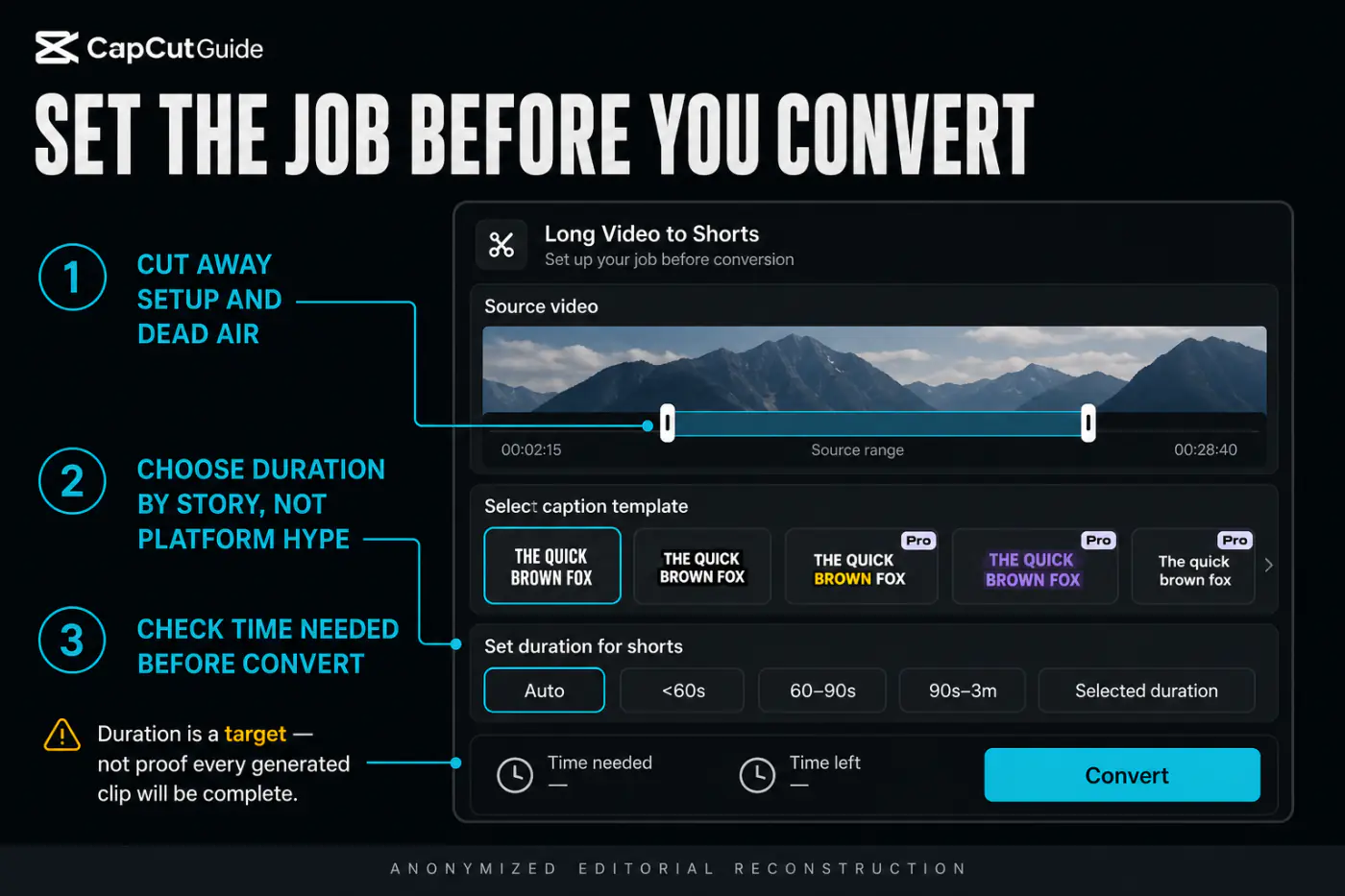
It tells CapCut what length to target. It doesn't prove the proposed clip will start with context, end on a complete thought or avoid repeating another candidate.
Review every generated candidate like an editor
The generated list may attach labels such as Hook, On topic or Engaging. Those labels are useful for sorting, but they are not approvals. Play each candidate from the first frame to the last and answer six questions:
- Does a new viewer understand the subject without hearing the previous minute?
- Does the last sentence finish, or does the clip stop after the setup?
- Do captions match the spoken words, names and technical terms?
- Does the vertical crop keep the active speaker, hands and demonstration visible?
- Is this moment meaningfully different from the other approved clips?
- Did the cut preserve the first consonant, final word and clean audio transition?
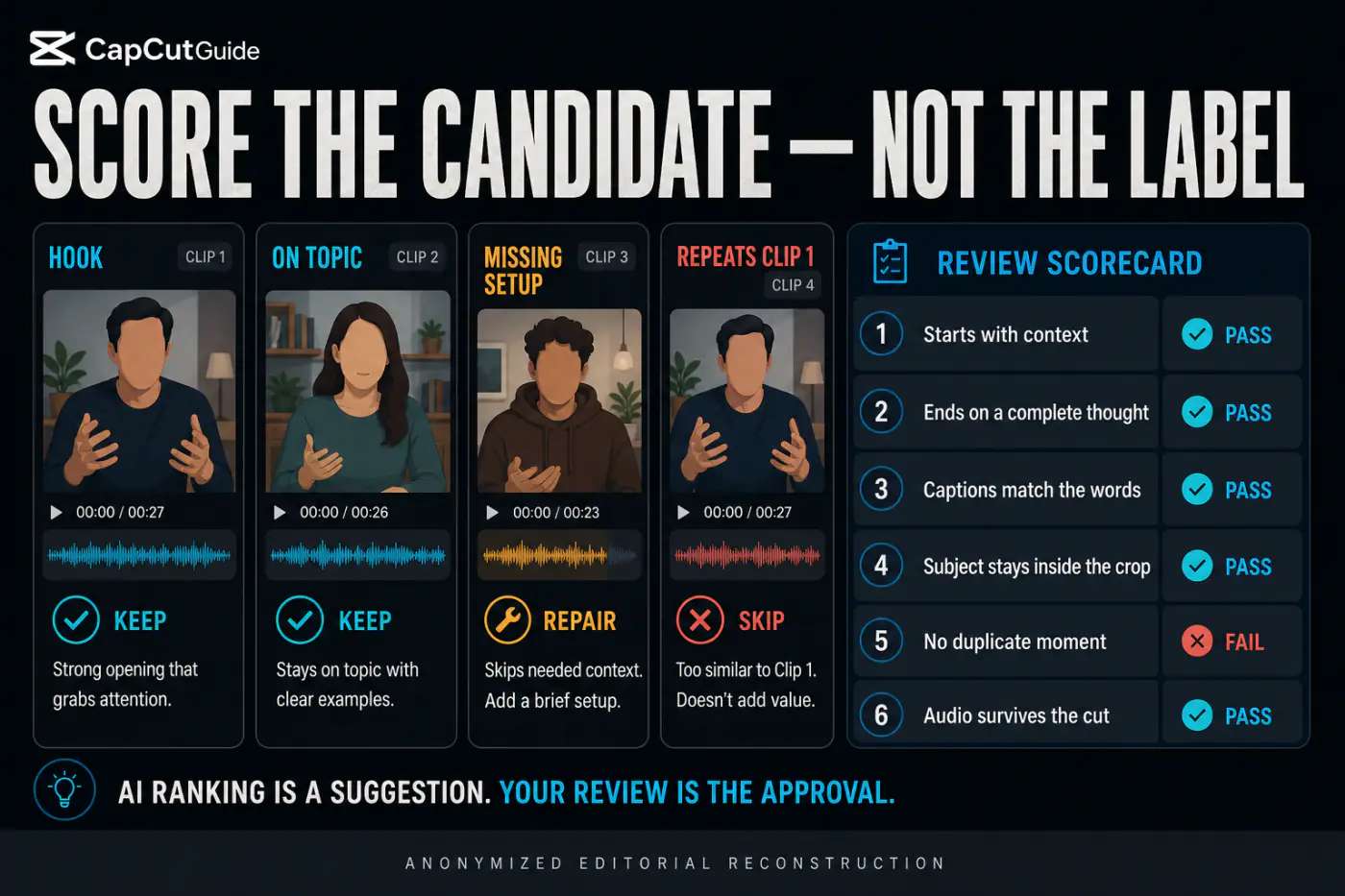
Keep a small clip log while you review. CapCut may give each candidate a suggested title or topic, but your own line should describe the usable idea in plain language. “Pricing mistake at 12:48” is easier to find later than “Engaging clip 3.” Add the source timecode, intended destination and decision so the same moment doesn't get approved twice under different AI labels.
A simple log also protects the long-form edit. You can trace every short back to its original timecode without cutting or overwriting the master. For client work, note who approved the excerpt and whether the short needs its own music, call to action or disclosure. That is slower than clicking Export on every card, but much faster than discovering after publication that two clips repeat the same answer or omit the speaker's qualification.
For captions, fix the transcript before styling it. The CapCut Auto Captions guide covers recognition, timing and export decisions in more depth. If the crop is the only problem, use a targeted reframe; if the story itself is wrong, reject the candidate.
Repair one promising clip with Edit more
Edit more is for a candidate that already contains the right moment. Use it to restore a short setup, clean the ending, correct the crop, fix captions or smooth the audio. It is not a reason to keep a clip whose central point is missing.
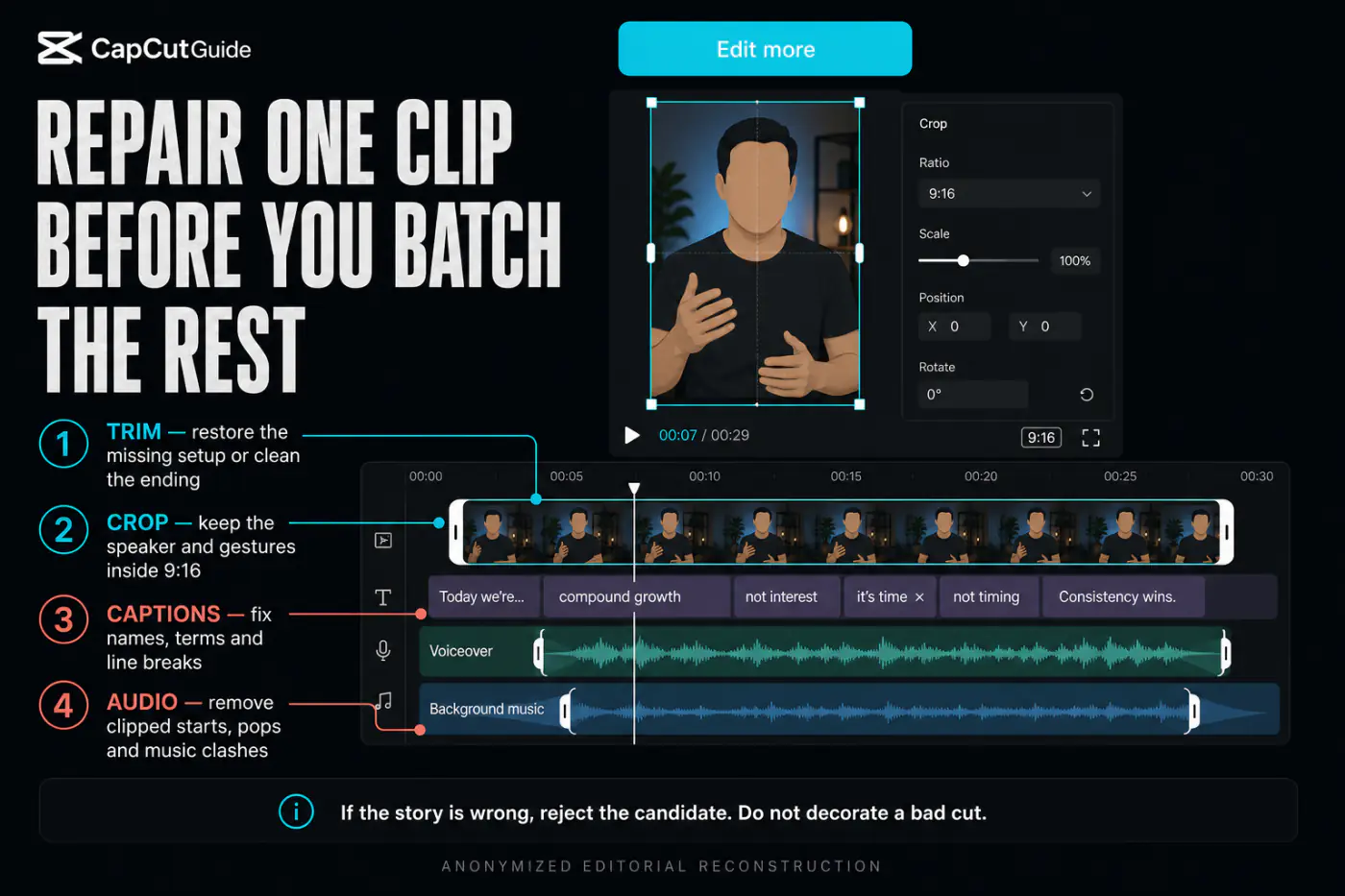
Restore the sentence that names the subject; remove repeated breaths or a dragged-out goodbye.
On a 9:16 canvas, keep the speaking face and meaningful gestures inside the vertical frame. Add controlled keyframes only when the subject moves.
Correct names and line breaks. Keep text out of platform controls and away from the speaker's mouth.
Listen for clipped consonants, pops, level jumps and music that competes with the key line.
When the moment is right but the delivery format is wrong, finish the editorial cut first and then use the destination guides for TikTok, Instagram Reels or YouTube Shorts. Those pages own platform-specific safe zones and packaging; this page owns clip discovery and approval.
Export one proof clip before batching the rest
Export the strongest candidate first. Match the approved source and destination rather than copying a screenshot's settings. The CapCut export settings guide explains resolution, frame rate, bitrate and codec choices.
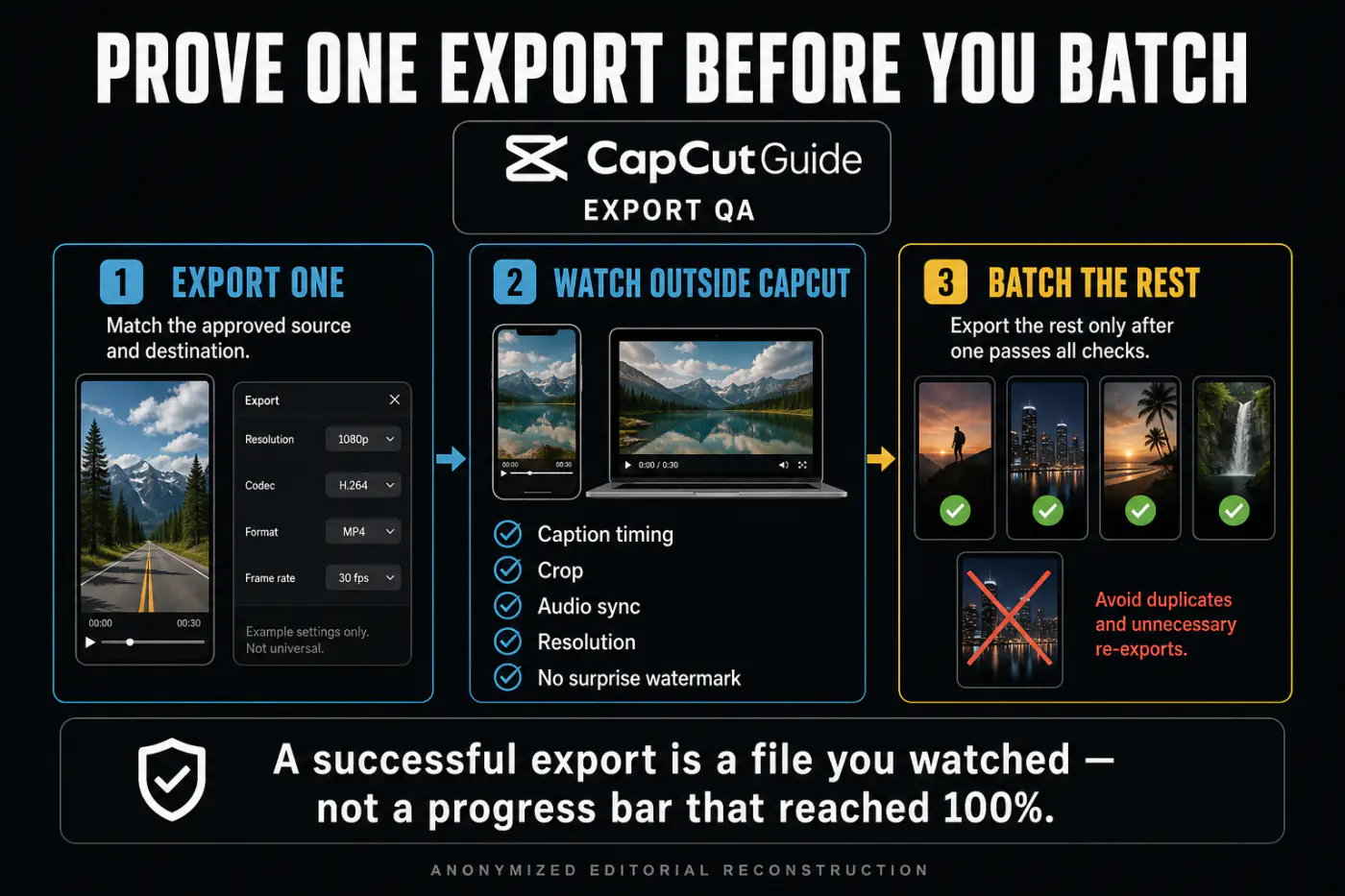
Watch the saved file on another device. Check caption timing, crop, audio sync, resolution and any unexpected watermark or end card. A progress bar reaching 100% only proves that CapCut wrote a file; it doesn't prove the file is ready to publish.
Long Video to Shorts missing, stuck or producing bad clips
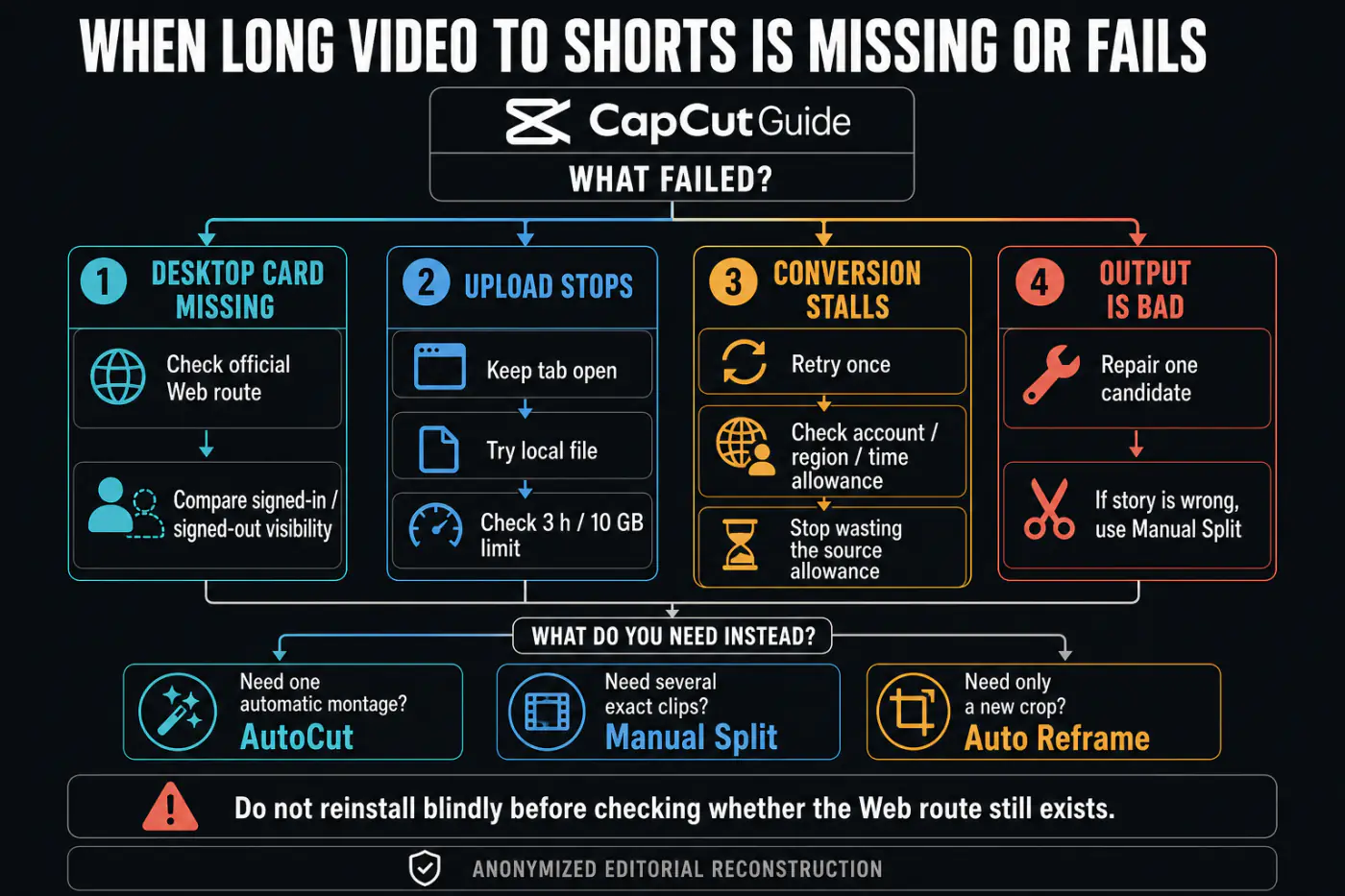
Check the official Web route, then compare signed-in and signed-out visibility. Record the build, region and account state before reporting the issue.
Keep the Web tab open, try a local file and confirm the visible three-hour/10-GB ceiling. A partially synced cloud file adds another failure point.
Retry once, not repeatedly. Check the time allowance, account and region. If the service is unstable, preserve the source and switch workflows.
Restart the route, test a short non-sensitive working copy and verify that ordinary imports still work. If only this cloud/AI job fails, use the manual timeline.
Repair a good story with Crop or Auto Reframe. Don't keep empty space, a cut-off speaker or a preview framing that fails in the exported file.
Don't keep regenerating the same poor source range. Narrow the range, or mark exact in/out points with Manual Split.
Don't confuse this allowance with CapCut's general generative credits. The CapCut AI credits tracker explains credit mechanics; the checked Long Video to Shorts Web screen measures this job in source minutes.
When this tool saves time and when it doesn't
Good starting material
- Podcasts with clear topic changes
- Interviews with self-contained answers
- Lessons with named steps
- Commentary with distinct claims
- Webinars with clean chapter boundaries
Better cut manually
- Montages driven by visual rhythm
- Dense conversations with constant cross-talk
- Confidential client recordings
- Scenes that require exact comedic timing
- Footage where the key subject keeps leaving frame
Verdict: Long Video to Shorts can remove the slowest part of repurposing: scrubbing a long recording for possible moments. You still make the editorial decision. Use it to build a shortlist, repair only the candidates with a complete idea, prove one export and then process the rest. If the tool keeps misunderstanding the story, a manual cut is faster than running the same source again.
CapCut Long Video to Shorts FAQ
Is CapCut Long Video to Shorts free?
Don't assume a universal free allowance. On August 13, 2026, the public Web route showed 0 free minutes while signed out and labeled remaining time as Unknown. Check the allowance shown in your signed-in tool before uploading.
How long can the source video be?
CapCut's current Desktop walkthrough asks for a source longer than one minute. The checked public Web upload screen showed the upper limits instead: under three hours and 10 GB. CapCut can change these boundaries, so read the live panel before a large job.
Does it make several Shorts from one video?
That is the intended workflow: one long source is analyzed into several separate candidate clips. The number depends on the source range, duration target and current model; CapCut doesn't guarantee a fixed count for every input.
Where did Long Video to Shorts go on Desktop?
The home card can vary by version, account, region or rollout. Check the official Web route before reinstalling. If both routes are unavailable, use Manual Split for exact clips or AutoCut for one automatic montage.
Is Long Video to Shorts the same as AutoCut?
No. Long Video to Shorts is designed to return several candidate excerpts from one long source. AutoCut assembles one first draft from selected media or, in a documented mobile route, one longer recording.
Why is the vertical crop wrong?
Automatic framing can miss a moving speaker, a second person or an important gesture. Open a good candidate in Edit more, repair the crop or use Auto Reframe, then verify the exported file outside CapCut.
Does CapCut guarantee ready-to-publish clips?
No. Labels such as Hook or On topic are ranking suggestions. Review context, ending, captions, crop, duplication, audio, rights and the exported file before publishing.