

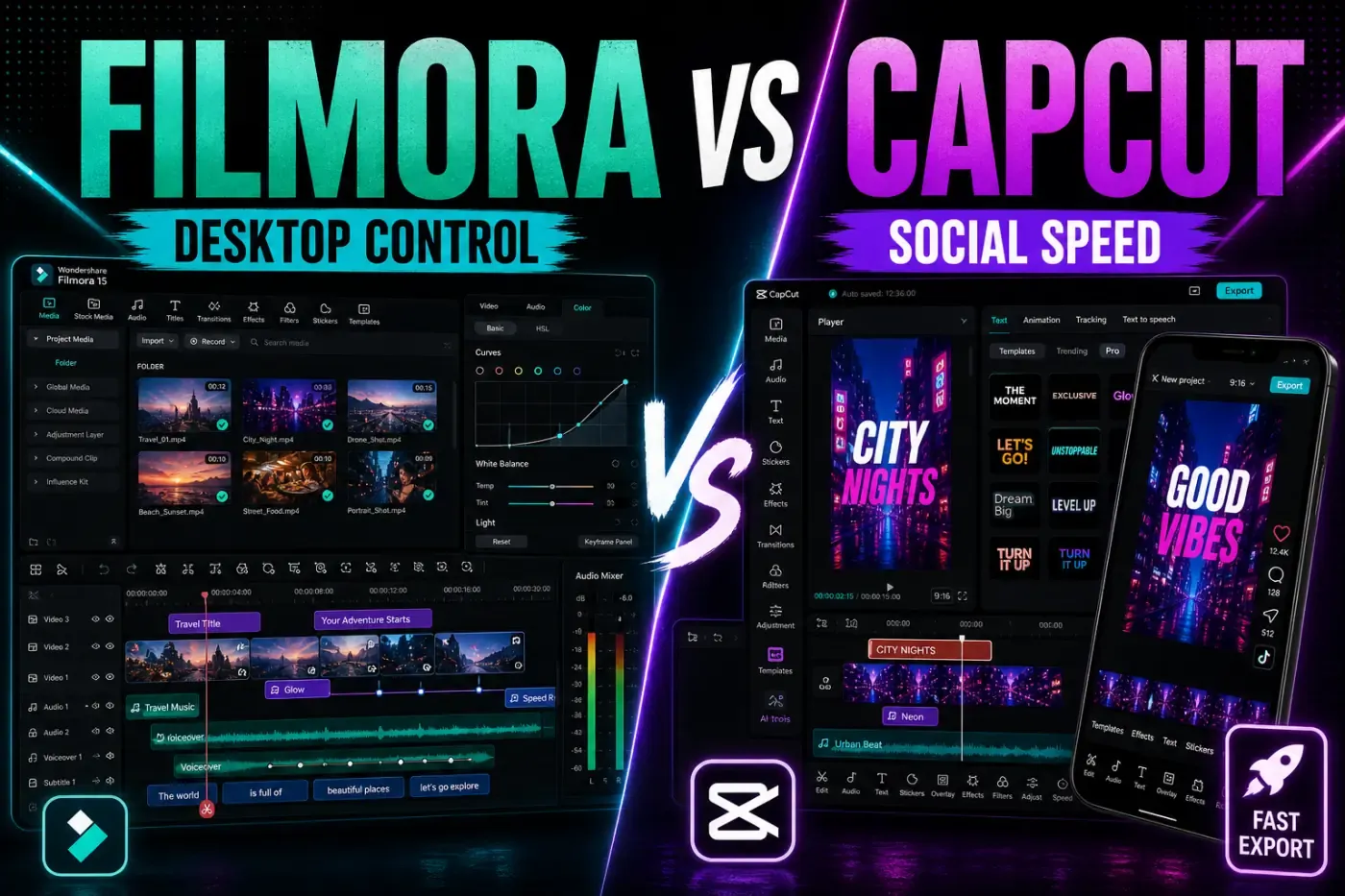
Filmora is the better CapCut alternative when your edit needs a real desktop timeline, repeatable project structure and more control over a long video. CapCut is still faster for phone-first templates, animated social captions and trend-led publishing. Filmora is the calmer choice for tutorials, interviews, product videos and creators who want their projects to feel like editable production files rather than a stack of presets.
We rechecked this Filmora review on September 4, 2026 against the live Filmora 15 shop, version notes, Windows and Mac specifications, AI-credit rules, Workspace, mobile-license, business and audio-license pages. We also compared search results available at the time, TechRadar's July hands-on review and recent user discussions. The biggest trap in older reviews is the price table: that shop snapshot did not show the Premium card used in our August snapshot.
September 25, 2026 update: Wondershare now presents Filmora 16 as its current desktop release. The Filmora 15 features, plan allowances, system requirements and prices below describe the September 4 snapshot; the current Filmora plans identify the license and allowances to check before buying Filmora 16.
Filmora Review Facts at a Glance
| Review fact | September 4 snapshot |
|---|---|
| Core product | Filmora 15 is a Windows and macOS desktop video editor with a timeline, effects, captions, keyframes, motion tools, color/audio controls and AI-assisted workflows. |
| Free edition | Basic editing is available to try, but the export carries a Filmora watermark and a paid license linked to a Wondershare ID is required for a clean export. |
| Plan model in this snapshot | Annual Basic and Advanced subscriptions plus a version-specific Perpetual offer; platform coverage, tax, promotion and currency vary by checkout. |
| AI allowance | Free/Basic show no included general AI-credit bundle; Advanced includes 1,000 every 30 days and Perpetual 1,000 one-time credits. AI Mate has separate free-use allowances. |
| Export line | Paid shop cards advertise no watermark and 4K HD export; technical specifications list support up to 8K, subject to source, codec, hardware and plan details. |
| Desktop requirements | 8 GB RAM and a supported 2 GB-VRAM GPU are minimum tiers; Wondershare recommends 16 GB for HD/4K and 32 GB or more for 8K. |
| Strongest workflow | Long-form desktop editing, compound projects, text-based editing, structured audio/color work and repeatable client or channel production. |
| Best alternative decision | Pick Filmora for desktop control and project depth; keep CapCut for speed, templates, mobile capture and social-first finishing. |
Quick Verdict: Filmora Is a Desktop-first Step Up
Filmora makes sense when you're starting with hours of footage, a script, several versions or a client deadline. You get a conventional desktop timeline, multiple tracks, keyframes, motion tracking, audio tools, color controls and a project file that is easier to revisit than a one-off social template. It is not a Hollywood workstation, but it gives a beginner enough structure to grow without immediately moving to a much heavier editor.
CapCut remains the quicker answer for a creator who wants to shoot on a phone, choose a template, animate captions and publish a vertical post in one sitting. Our roundup of CapCut alternatives puts Filmora beside the other options, but a separate review is warranted because Filmora's value comes from the desktop editing loop rather than from a bigger collection of trendy presets.
The catch is pricing and the Free export. Filmora's free editor is useful for learning the interface, but the watermark makes it a poor client-delivery plan. The AI features are also not one unlimited switch: the shop assigns credits to many tools, with different allowances by plan. If you can accept those boundaries, Filmora is a more capable long-form editor than CapCut for many Windows and Mac workflows.
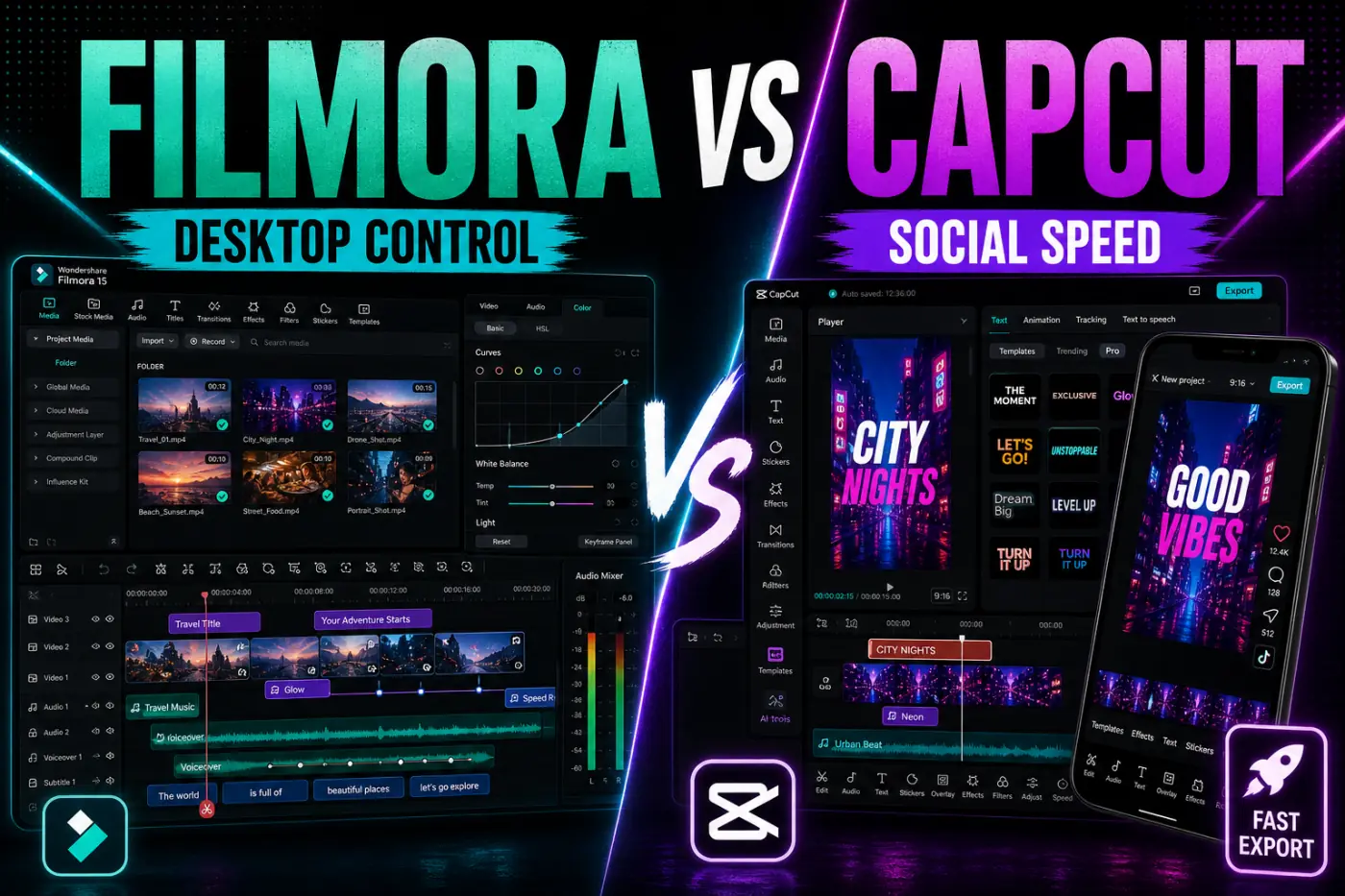
Filmora 15 features assessed on September 4, 2026
Filmora 15 was the desktop release assessed for this review on September 4, 2026. Its latest feature notes list AI Extend, a Pen Tool, Animated Charts, Source and Timeline Preview Editing, Dual-Timeline Editing and Import Subprojects. Those additions matter because they make the editor more useful for organized production instead of stopping at one effect on the next clip.
AI Extend can extend video or audio inside the timeline when a shot needs more breathing room. The Pen Tool supports paths and shapes that can be used with motion-tracking work. Animated Charts turns data into customizable visualizations, while Source Monitor and Timeline Monitor give you a more familiar way to inspect a clip before committing it to the sequence. Dual timelines and imported subprojects are practical when a large job needs reusable sections.
The interface is still designed for a beginner. That is a strength, but it can also become busy once you open effects, templates, AI tools, stock assets and the full inspector at once. Start with a short project and learn the media bin, timeline, preview, inspector and export panels before trying to automate every stage. Filmora rewards a simple folder and naming system more than a search for a new effect on every cut.
Wondershare continues to position Filmora as a creator editor rather than a full professional NLE. That is an honest fit for YouTube tutorials, course lessons, product explainers, travel videos, gaming highlights and social cuts. If you need advanced color-managed finishing, complex audio routing or a high-end post-production pipeline, use Filmora as the accessible middle ground and compare it with a dedicated professional editor rather than expecting it to be one.
Free vs Paid: Watermark, Plans and AI Credits
Treat the Free edition as a workspace for learning Filmora, not as the tier that delivers a finished client file. You can use the basic editor and make a test project, but the exported file carries a watermark. Wondershare's download and registration guide says editing can begin without signing in; activating paid rights requires the Wondershare ID tied to the license. Confirm the account before building a deadline project.
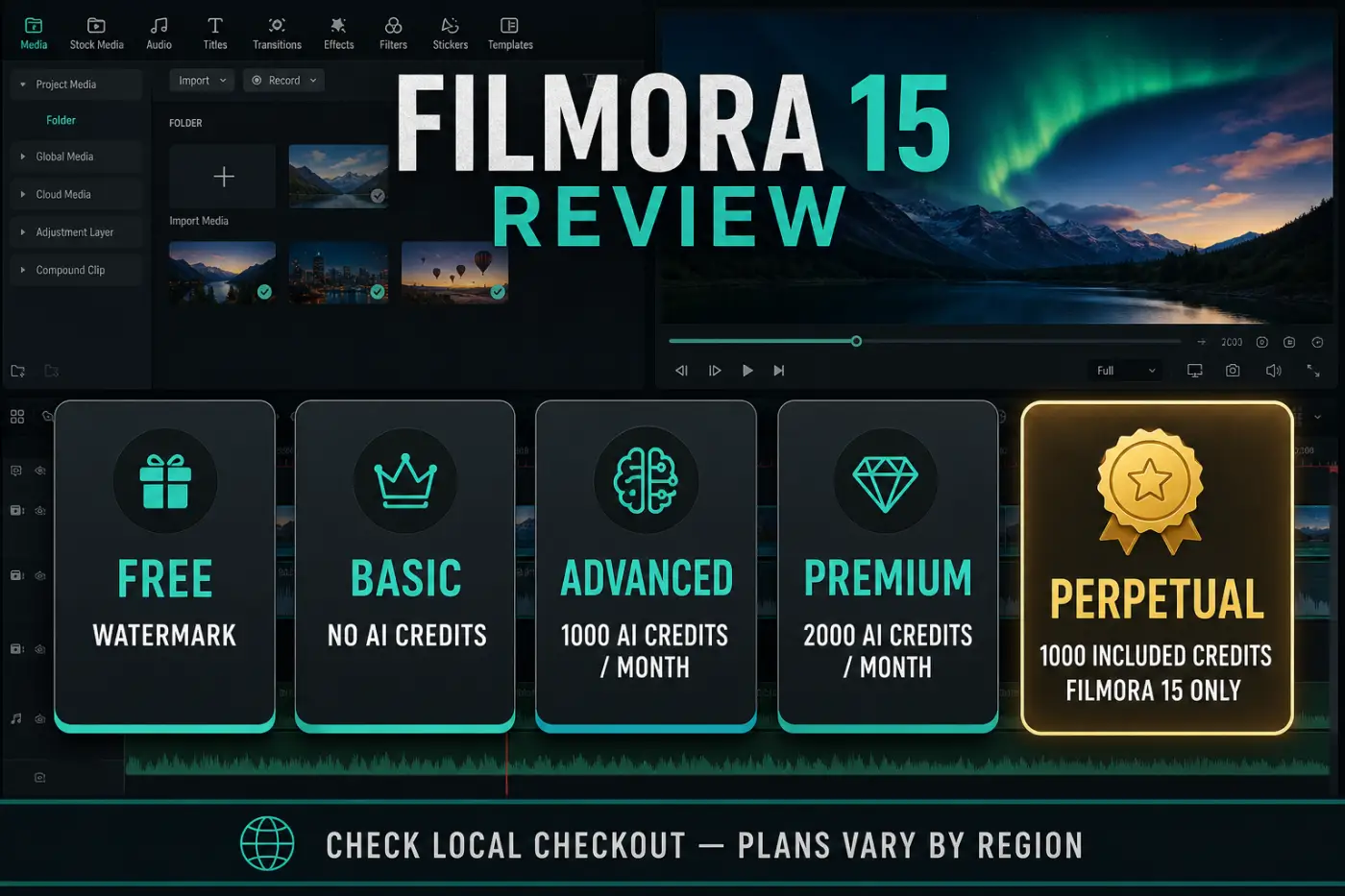
The September 4 Filmora 15 plan table does not show an included general AI-credit bundle for Free or Basic. It does show a separate AI Mate allowance: 15 free uses a day on Free and 500 a month on Basic, Advanced and Perpetual. Advanced includes 1,000 AI credits every 30 days; Perpetual includes 1,000 one-time credits. That distinction matters because “Filmora includes AI” does not mean every generation, transcript or enhancement is included in the license price. Our CapCut AI tools guide applies the same task-by-task check to CapCut.
Credits can be a good trade for repetitive work, but budget them before a long source reaches the server. Filmora's current AI-credit table lists Smart Short Clips at 6 credits per source minute, speech-to-text at 4 per minute, text-only translation at 5 per minute and voice-plus-text translation at 16 per minute. The linked credit rules say subscription credits are valid for 30 days and Perpetual-plan credits have permanent validity. Those validity rules do not confirm the number of credits included with a plan today. Recheck your Account Center because rates and models can change.
Filmora 15 Pricing Snapshot: Basic, Advanced and Perpetual
On the live US-dollar Filmora shop checked on September 4, 2026, Basic was $49.99 per year, Advanced was $59.99 per year, and the Windows Perpetual offer was $79.99 once. Basic and Advanced auto-renew; Perpetual does not. These are dated web prices, not a universal quote: currency, tax, promotion, operating system, optional Creative Assets trial and the exact checkout SKU can change the total.
In the September 4 Filmora 15 shop snapshot, Basic was the sensible entry tier when you mainly need watermark-free desktop export, the normal editing tools and 1 GB of cloud storage. Advanced adds 1,000 AI credits every 30 days and 10 GB of cloud storage. The September 4 individual shop snapshot did not show the former Premium card, so do not plan around the August $99.99 price, 2,000 monthly credits or 100 GB bundle unless those benefits appear in your own checkout. To see what the competing subscription includes, compare our breakdown of CapCut Pro features.
The Perpetual offer recorded on September 4, 2026 was a one-time license for Filmora 15 updates, not a promise of Filmora 16 or later. That offer was Windows-only and included 1,000 one-time AI credits plus 1 GB of cloud storage. Creative Assets and some AI tools remain separate even after the watermark-free editor is unlocked; a current r/Filmora discussion includes a reply from the official Filmora account confirming that boundary.
Wondershare advertises a 30-day money-back guarantee subject to its refund policy. Read the refund conditions instead of assuming every change of mind qualifies. The September 4 shop snapshot presented Basic and Advanced as Windows-and-Mac plans, while another FAQ paragraph on the page used platform-specific wording. Check the exact desktop and mobile entitlement for the SKU in your final cart; do not assume that a different offer today has the same platform coverage.
Export Quality: 4K, 8K and Watermark Reality
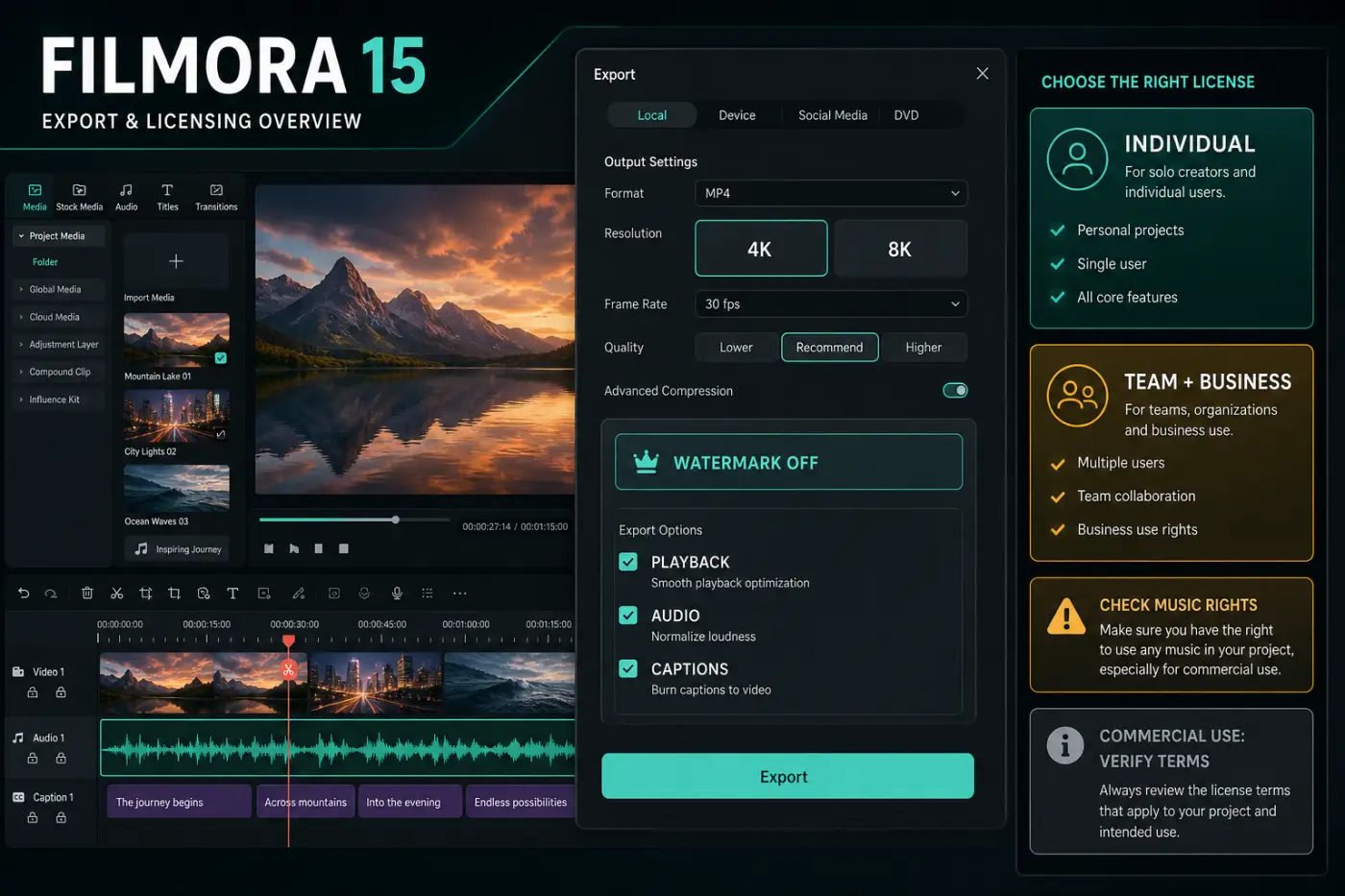
Paid Filmora shop cards advertise no watermark and 4K HD export. Wondershare's technical specifications list support up to 8K and output examples such as 4K MP4/MOV/MKV and 8K MP4 H.264 or MOV ProRes. Read those statements together: 8K is a technical capability, not a promise that every plan, codec, source or laptop will preview and render 8K comfortably.
Adding pixels in the export menu doesn't recreate detail the camera never captured. Match frame size and frame rate to the destination, then watch the first and last seconds of the exported file. Check subtitles, music peaks, color shifts, transparency, audio sync and file size before uploading a long video. A clean 4K file with the wrong frame rate or a clipped caption is still a failed export.
Free watermarks are a hard boundary, not an overlay you can hide with a crop. Keep the project file and original media until the paid export has been opened on a second player. If you need several social versions, export a clean master once and create the vertical, square or 4:5 versions from that master rather than repeatedly compressing an already compressed file.
Our guide to CapCut export settings covers the same final-file discipline. The editor matters less than verifying the actual file that a platform or client will receive.
Desktop Requirements and Realistic Performance
Filmora is approachable, but it is not weightless. The current Windows page lists Windows 7, 8.1, 10 and 11 for x64, plus Windows 10 and 11 for ARM. It sets a minimum at an Intel 6th-generation or Ryzen 3 1300X-class processor, 8 GB RAM and a named supported GPU family with 2 GB VRAM. The Mac page lists macOS 10.15 through current releases and Apple M-series compatibility; its macOS 10.14 link installs the older Filmora 12.4, not the Filmora 15 build assessed here.
Those are compatibility floors, not a promise of a fluid timeline. Wondershare recommends 16 GB RAM and 4 GB VRAM for HD/4K. For 8K it points to 32 GB or more, an RTX 3000/Radeon RX 6000-class GPU with at least 8 GB VRAM, and a fast NVMe SSD with at least 1 TB. Multiple camera streams, denoise, stabilization and animated effects can still outrun a supported laptop. Use proxies or lower preview quality and test the exact camera codec you own.
Filmora's desktop installation is an advantage over a browser-only editor when the source is large or the connection is unreliable. It is also a responsibility: keep the installer, license details, project backups and source media organized. Save before updating, as Wondershare recommends, and don't make a major version change immediately before a deadline.
For CapCut users, the performance difference is less about one benchmark number and more about where the bottleneck sits. CapCut can be convenient for a short phone clip and a preset; Filmora can be steadier for a local multi-track project. Our CapCut for PC guide covers the other desktop route. On a low-end machine, either editor can struggle once effects and high-resolution sources stack up.
Timeline, Magnetic Editing and Compound Projects
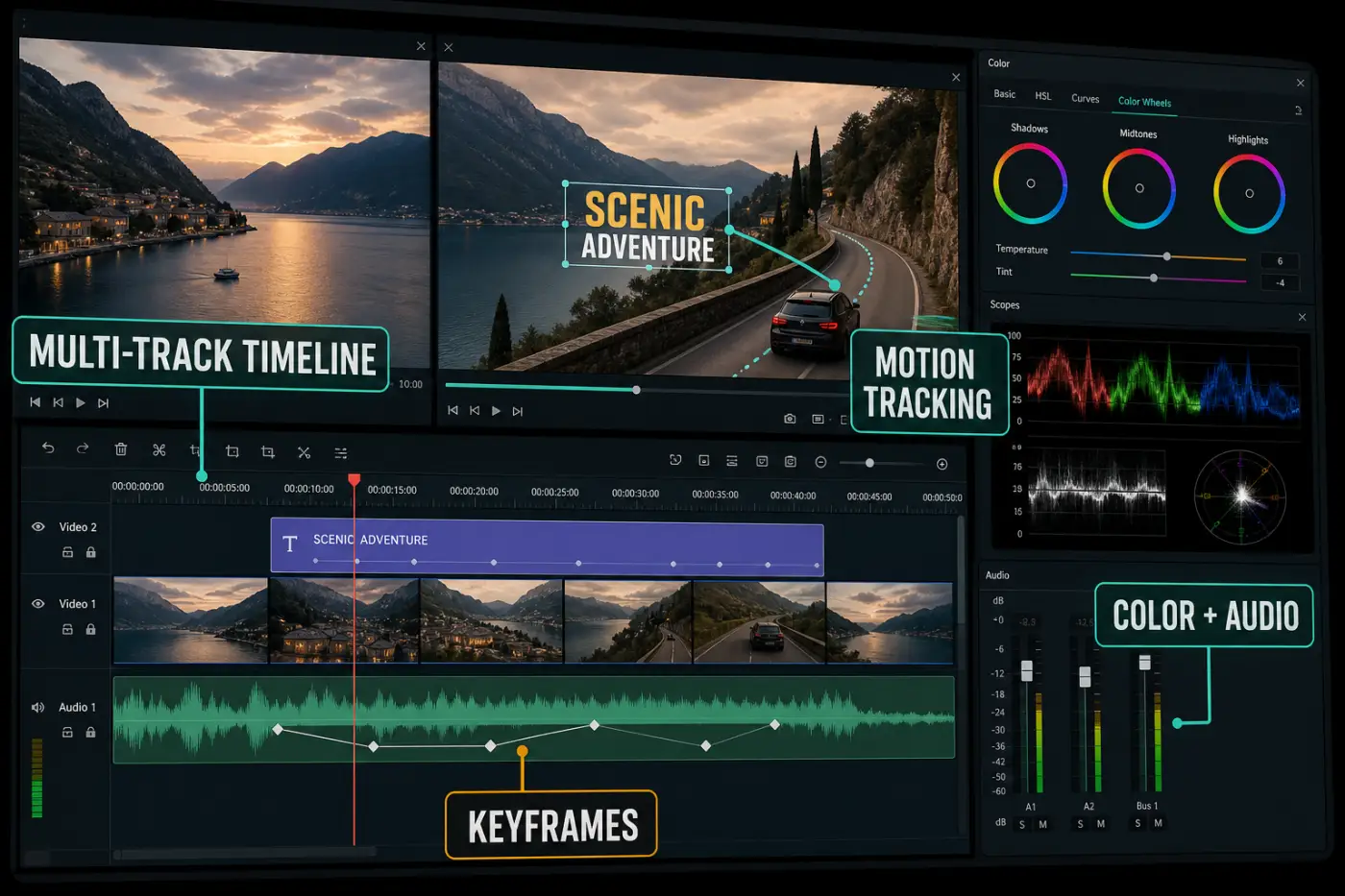
Filmora's timeline is the reason to choose it over a template-first editor. You can organize a project into a main sequence, B-roll, voice, music, ambience, captions and graphics instead of treating every change as a single social export. Keyframes let you animate position, scale, opacity and other controls; motion tracking can attach an element to a moving subject; and compound or imported subprojects help keep a long edit manageable.
Filmora 15's Source and Timeline Preview Editing is useful when you want to inspect a source clip, mark a range and then place only the chosen section into the sequence. Dual-timeline editing and imported subprojects are similarly valuable when a video has chapters, recurring intros or a separate short-form cut. Build a clean master sequence and treat social versions as branches rather than destroying the long-form edit.
The interface is easier to learn than a professional NLE, but don't confuse friendly controls with automatic story judgment. Filmora can cut, align and animate; you still decide when a pause is meaningful, whether a reaction shot earns its place and when a music beat should give way to the speaker. That editorial control is the difference between a polished tutorial and a preset collage.
Text, Captions and Audio
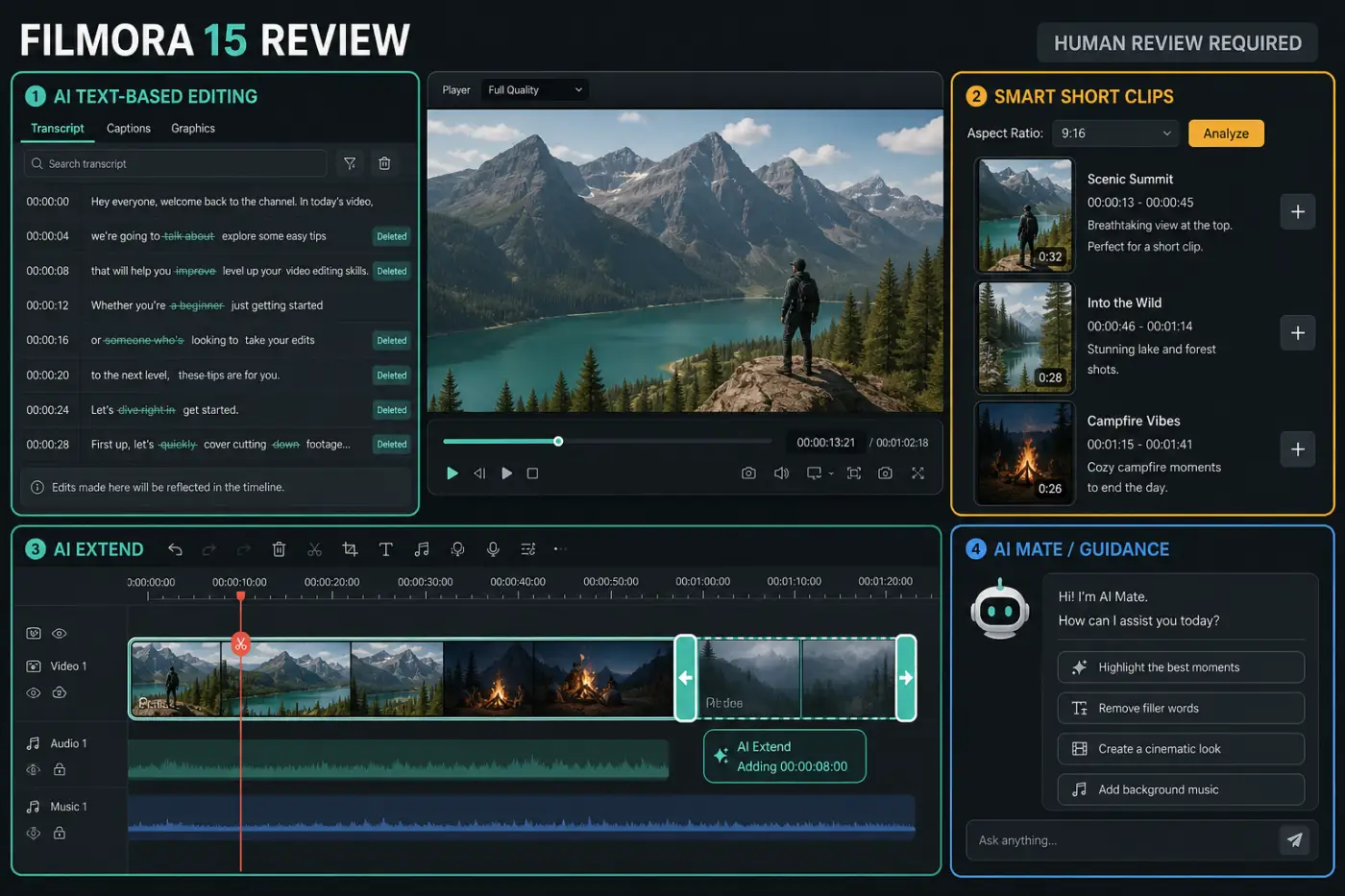
Filmora's AI Text-Based Editing turns spoken audio into editable text, lets you remove words or silent sections and sends the result back to the timeline. That is a strong shortcut for an interview, course lesson or talking-head tutorial. Read the transcript as a rough cut, then watch the actual edit at normal speed; removing every pause can make a real person sound rushed and unnatural.
Captions are more than a style preset. Correct names, measurements, code, product terms and punctuation, then preview the captions on the smallest screen where they will appear. Keep a clean subtitle track separate from a social treatment so you can make a readable YouTube version and a more animated vertical version without rebuilding the transcript.
Filmora's audio controls cover the practical work most creators need: levels, fades, music, voice-over, noise cleanup and sound effects. Use music under speech rather than competing with it, and listen on headphones after checking laptop speakers. AI noise reduction can help a consistent room hum, but it can't recover clipped dialogue or replace a properly recorded microphone.
CapCut often reaches animated captions faster. Filmora is more comfortable when the transcript, audio, B-roll and caption track need to remain editable across a longer project. Our CapCut auto-captions guide is the faster social-first reference; Filmora is the more deliberate desktop route.
AI Tools: Text Editing, Smart Short Clips, AI Extend and AI Mate
Filmora's AI collection is broad, but the useful question is which repetitive action it removes. The current AI video editing page lists Smart Short Clips, AI Text-Based Editing, AI Video Enhancer, Smart Scene Cut, AI Smart Search and other tools. The September 4 shop snapshot illustrates why that convenience should be measured against the credit allowance in your own plan, not against the number of buttons in the interface.
Smart Short Clips can take a source file, an own-video YouTube link or Filmora Cloud media and generate vertical clips with captions, music, themes and aspect-ratio choices. It is useful for turning a long interview into a first batch of Shorts. It is not a publish button: review the selected moments, transcript, crop, music, thumbnail and brand treatment. An AI highlight can miss the sentence that gives a quote its meaning.
AI Text-Based Editing is the most immediately practical tool for spoken content. Smart Scene Cut can extract rough highlights. AI Extend can give a shot or audio bed more duration when the edit needs room. Those actions save repetitive work, but they still need a human check for continuity, factual meaning and timing.
AI Mate is best understood as an assistant that routes or explains tasks. Wondershare's AI Copilot page says some actions receive guidance rather than full automatic execution. Don't buy Filmora expecting an autonomous editor that understands the whole brief and finishes the video without supervision.
Effects, Motion Tracking, Color and Creative Assets
Filmora's effects library is a good middle ground. It has titles, transitions, overlays, filters, stickers, stock media and motion tools without forcing a beginner to learn a node graph. Motion tracking can attach text or an element to a moving subject, while masking and keyframes give you enough control for product callouts, screen tutorials and travel edits.
That convenience can create visual noise. Start with a restrained title, one caption treatment and a consistent transition language. If every shot has a zoom, glow, sticker and whoosh, the viewer stops noticing the story. CapCut's templates are excellent at making a social edit feel current; Filmora is better when you want to establish your own repeatable visual system.
Creative Assets are part of the paid value proposition, but availability and commercial rights depend on the asset and plan. Check the license for stock music, sound effects, fonts and template elements before a commercial campaign. Don't assume an item inside the editor is automatically cleared for every client, platform or paid placement.
For color, use scopes or at least a consistent reference frame when matching clips. A filter can create a look quickly, but exposure, white balance and skin tone still need a manual pass. Filmora is capable enough for creator work; the quality comes from restraint and repeatable checks rather than from piling on presets.
Cloud, Mobile and Cross-platform Limits
Filmora still has a desktop center of gravity. The September 4 shop snapshot presented Basic and Advanced for Windows and Mac, while Wondershare's mobile activation FAQ describes FilmoraGo/mobile purchases and desktop Filmora licenses separately. It also separates Android purchases from iOS purchases. Check the rights attached to the exact offer you buy before assuming it activates another device or store.
Filmora Workspace advertises project/settings backup, cloud media, cross-platform project access and frame-by-frame review. That can help a Windows-and-Mac handoff, but it does not prove that every desktop effect, plug-in, font or AI result survives on mobile. Separate project access from license entitlement and from feature parity; test the destination device before promising a cross-device edit.
Use cloud space for transfer, backup and review, not as your only archive. Keep the source footage and a local project copy, especially before changing Filmora versions or moving between operating systems. If another editor must open the job, export a reference and record the Filmora version, fonts, Creative Assets, plug-ins and media paths.
CapCut remains the cleaner choice when the same solo creator captures and finishes primarily on a phone. Filmora is stronger when the master project lives on a desktop and the phone is a capture or viewing surface. If cross-device editing is the deciding factor, test the same short project on every intended device before choosing either ecosystem.
Licensing: Personal, Commercial and Built-in Music
Licensing is where a quick “Filmora is cheap” recommendation can become expensive. Wondershare's business page defines company use broadly: internal company videos, marketing, advertising and editing delivered to paying clients. It directs that work to Team & Business. The same FAQ says an individual-plan video with paid product placement needs a description disclosure that it was made with Filmora.
Wondershare's public audio guidance is not internally tidy. The business FAQ says built-in music and sound effects cannot be used by a company, while the newer Audio Library page says 97% of its catalog can be commercially used with the appropriate plan and tells users to filter by Commercial Use. A separate commercial-use license adds partner-specific conditions. Treat the exact track label and license as controlling; save proof from the download date and do not infer rights from the fact that a track appears inside the editor.
For a personal creator publishing on their own channel, an individual plan may fit the permitted use. For a client, employer or brand, decide who owns the work, which business seat applies, whether paid placement needs disclosure and which asset license covers the final distribution before the edit is finished. If the official pages disagree about a track, use separately cleared music or ask Wondershare for written clarification.
Reliability and Practical Friction
Filmora's likely friction points are ordinary desktop-editor problems. A high-resolution timeline may need proxies, an AI tool can consume more credits than expected, and an update can arrive right before a deadline. An asset license may not match a company project, or a project may open with missing media after a folder move. None is a reason to avoid Filmora, but each deserves a checklist.
Keep project media in a stable folder, save versions before major changes and open the final file in a separate player. Export a short proof before a long 4K render. If the timeline stutters, reduce preview quality or use proxies rather than judging the editor from one overloaded sequence. If an AI result changes a face, voice or caption, compare the before and after manually.
The evidence for this Filmora 15 purchase decision points to a real strength and a real buying risk. TechRadar's July 22, 2026 hands-on review found a deep editing and AI toolset but also a learning curve and no AI generation on Free. In a recent Filmora 15 Perpetual discussion, users focused on separate Creative Assets and AI costs; the official Filmora account replied that Perpetual unlocks the Filmora 15 editor and watermark-free export while Creative Assets and some AI features remain separate. That is a useful checkout warning, not a measured failure rate.
Before paying, make a five-minute project with your real camera file, one caption track, one music bed, a tracked title, an AI action you expect to use and a 4K export. Check the result on the machine and platform where it will be published. That small test reveals more than a generic “best video editor” list.
Filmora vs CapCut: Feature Comparison
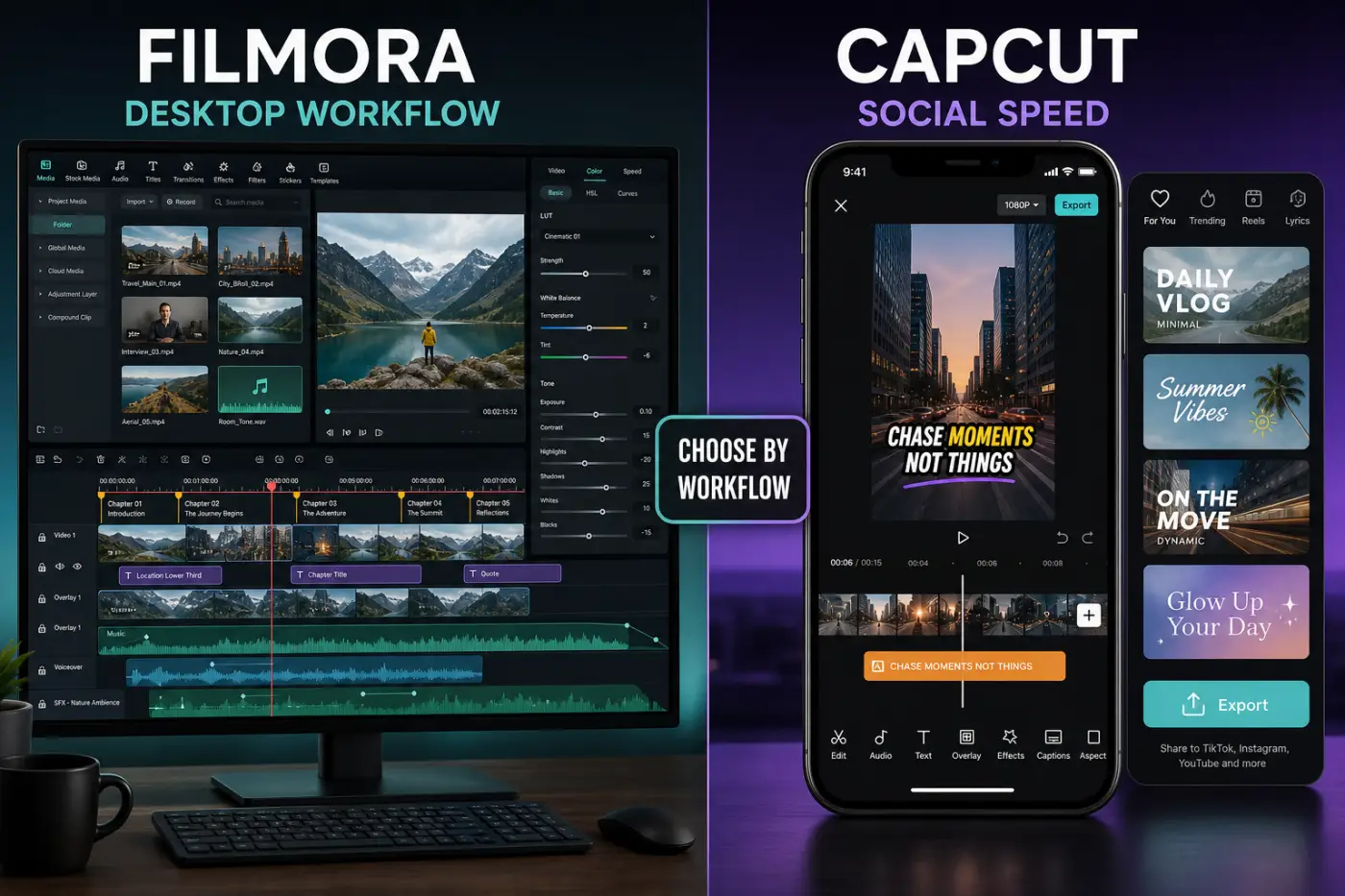
The overlap is easy to see: both editors trim clips, add text, generate captions and publish social video. The useful difference appears before the first cut: Filmora opens a desktop production project, while CapCut pushes toward a fast social finish. Read the matrix as a routing guide for the job, not as a scoreboard.
| Decision factor | Filmora 15 | CapCut |
|---|---|---|
| Primary workflow | Desktop timeline, long-form structure, compound projects and repeatable channel/client production | Fast mobile, web and desktop social editing with templates, effects and guided shortcuts |
| Free export | Free editing trial, but the export carries a Filmora watermark | Clean-export rules vary by platform, asset, feature and account; check the export screen |
| Paid model | Annual Basic/Advanced subscriptions plus a version-specific Perpetual offer; regional checkout applies | Plan and feature rules vary by platform, region and account |
| AI model | AI tools use plan credits/allowances for text editing, clips, enhancement, generation and assistance | Broad creator-focused AI tools; exact availability depends on version, region and plan |
| Timeline | Multi-track desktop editing with keyframes, tracking, masks, compound projects and source/timeline previews | Fast social timeline with keyframes, masks, effects, templates and cross-device shortcuts |
| Captions | Text-based editing, editable transcript, manual styling, timing and audio-first workflow | Fast animated captions, translations, stickers and social presets |
| AI short clips | Smart Short Clips creates vertical drafts from long footage, with human review required | Templates and social tools make short-form finishing quick; feature availability varies |
| Desktop performance | Local files and a stable desktop project; hardware still matters for 4K/8K and AI | Convenient across mobile/web/desktop, but source, account and device workflow can change |
| Cloud/mobile | Windows/Mac Workspace access exists; check the exact purchase for mobile rights and store-specific access | Mobile-first ecosystem makes capture-to-publish switching easier |
| Licensing | Company/client work, paid-placement disclosure and per-asset audio rights need checking | Commercial rights also depend on the specific asset, account and platform |
| Best fit | Tutorials, interviews, YouTube, courses, product videos and organized desktop projects | Daily Shorts/Reels, trend formats, templates and phone-first publishing |
Choose Filmora If You...
- edit tutorials, interviews, courses, product videos or YouTube projects on Windows or Mac;
- want a local multi-track timeline with keyframes, motion tracking, audio and color controls;
- need to keep a long master project and create several social versions from it;
- can budget for a clean export and will track AI credits instead of assuming unlimited automation;
- want text-based editing, Smart Short Clips or AI Extend as first-draft helpers;
- need a beginner-friendly step up before moving to a heavier professional NLE;
- will check platform, business, stock-media and music licensing before commercial delivery.
Stay With CapCut If You...
- make daily vertical posts from a phone and want the shortest route to publish;
- depend on trend templates, animated captions, stickers, beat maps and quick social effects;
- need to capture, edit and publish on the same device with minimal project setup;
- rarely edit long interviews, lessons or multi-version client projects;
- don't want to manage a desktop subscription, version-specific license or AI-credit allowance;
- prefer a preset-led visual treatment over a structured long-form timeline;
- need a lightweight social workflow more than a local project archive.
A Practical Filmora and CapCut Hybrid Workflow
The cleanest split gives Filmora ownership of the master project and CapCut ownership of the social finish. Build the long-form cut in Filmora, organize the transcript and audio, correct the captions, export a high-quality intermediate and keep the project folder intact. Then make a controlled vertical version in CapCut with the one trend treatment, sticker, template or caption style the platform needs.
The reverse order works when the idea begins as a Short. Find the hook and social rhythm in CapCut, then bring one clean intermediate into Filmora for a longer YouTube cut, chapters, audio cleanup or client revision. Don't shuttle an already compressed file back and forth; preserve one master and derive the platform versions from it.
Write down the Filmora version, plan, license owner, music source, font choices and export settings. This chain stays dependable only when the handoff names a specific file and project state, so nobody has to guess which app contains the approved cut.
Frequently Asked Questions
Is Filmora free?
Filmora has a Free edition for trying the editor and basic workflows, but exports carry a Filmora watermark. A clean export requires a paid license connected to a Wondershare ID. Check the current regional shop before treating the Free edition as a delivery plan.
Does Filmora export without a watermark?
Paid Filmora plans advertise no watermark. The Free export is watermarked, so keep the project and original media until the paid version has rendered and you have checked the actual file. Cropping or importing a watermarked file won't create a clean master.
What did Filmora cost in the September 4 snapshot?
Pricing is regional and checkout-sensitive. On the September 4, 2026 US-dollar shop snapshot used for this review, Basic showed $49.99 per year, Advanced $59.99 per year and the Windows Perpetual offer $79.99 once. The September 4 individual page did not show Premium. Verify currency, tax, renewal, operating-system entitlement, optional Creative Assets trial and AI credits in the final cart.
Does Filmora support 4K or 8K?
Paid shop cards advertise 4K HD export, and Wondershare's technical specifications list support up to 8K with example 8K formats. Actual results depend on the plan, source codec, hardware, storage and timeline complexity. Test a representative file instead of assuming every 8K project will preview smoothly.
Are Filmora AI tools unlimited?
No blanket unlimited claim is safe. In the September 4 Filmora 15 shop snapshot, Free and Basic showed no included general AI-credit bundle, although AI Mate had separate free-use allowances. Advanced included 1,000 credits every 30 days and Perpetual included 1,000 one-time credits. Check the current plan allowance and live cost of the exact action; the linked credit rules say subscription credits are valid for 30 days.
Is Filmora better than CapCut?
Filmora is better for a structured desktop timeline, long-form edits, compound projects, local media and repeatable client or channel production. CapCut is better for phone-first templates, animated social captions and fast trend publishing. If you need both, build the clean master in Filmora and use CapCut for a deliberate social finishing pass.
Final Verdict
Filmora 15 is a strong CapCut alternative for creators who have outgrown one-off social edits but do not want a steep professional-NLE learning curve. The desktop timeline, text editing, compound projects and AI helpers are useful. The buying decision is less friendly than the editor: Free exports are watermarked, Perpetual stops at the purchased major version, AI credits and Creative Assets are separate limits, mobile rights depend on the exact purchase, and company work needs a licensing check. Choose Filmora for an organized desktop master; keep CapCut when speed on a phone matters more.