

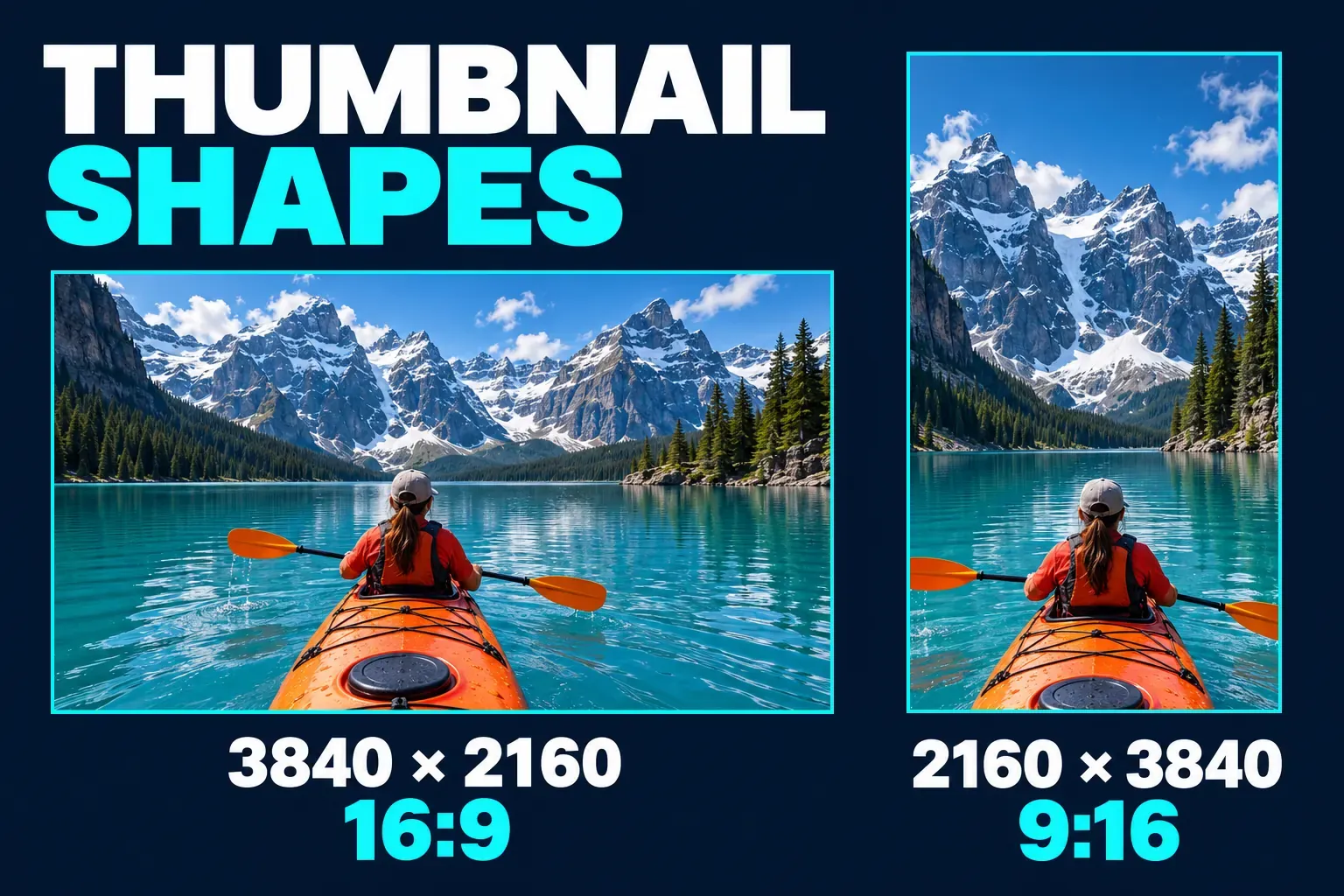
The YouTube thumbnail size to use for a regular video is 3840 × 2160 pixels at 16:9, saved as a JPG or PNG. The image has to be at least 640 pixels wide and stay under 50 MB when you upload from a computer or 2 MB from a phone. For a Short, turn the frame upright: 2160 × 3840 at 9:16, at least 640 pixels tall, uploaded in YouTube Studio on a computer.
The 1280 × 720 figure you'll find in most guides still uploads without trouble. It's a smaller 16:9 size, and it's the floor for one feature: if any thumbnail in a Test & compare experiment is under 720p, YouTube shrinks every option in that test to 854 × 480.
I design every thumbnail at 3840 × 2160 and upload it from a computer. One large master covers the player preview, the A/B test rule and later reuse, and the 50 MB limit leaves plenty of room for it.
YouTube thumbnail size at a glance
These figures come from YouTube's custom thumbnail help page, which asks for the image to be as large as possible because it also becomes the preview in the embedded player.
| Thumbnail for | Recommended size | Shape | Minimum | File size limit |
|---|---|---|---|---|
| Regular video | 3840 × 2160 px | 16:9 | 640 px wide | 50 MB from a computer, 2 MB from a phone |
| Short | 2160 × 3840 px | 9:16 | 640 px tall | 50 MB; custom Shorts thumbnails are added on a computer |
| Podcast playlist | No pixel size listed | 1:1 square | Not listed | 50 MB from a computer, 10 MB from a phone |
Use JPG or PNG. Those are the two formats the help page names, and both work everywhere you'd make a thumbnail. Pick PNG for flat graphics and sharp text when you upload from a computer, and JPG when the file has to stay small.
Every row is width × height. Swapping the two numbers turns a widescreen frame into a tall one, which is why a Shorts thumbnail and a video thumbnail are the same pixels in a different order.
Is 1280 × 720 still OK?
Yes. A 1280 × 720 thumbnail is 16:9, well above the 640-pixel minimum, and it looks fine in a search result or a home-feed grid. Many guides still list it as the target, while YouTube's help page recommends 3840 × 2160. When I checked Google's top ten results for "youtube thumbnail size" while writing this guide, six pages led with 1280 × 720 and two gave 3840 × 2160. Both numbers work; they describe different ceilings.
Three reasons to go bigger anyway:
- The embedded player uses it. Before someone presses play on a video embedded in a site, the thumbnail fills the whole player, which can be far wider than a search result.
- Test & compare has a hard floor. The A/B testing rules say that if any thumbnail in a test is below 1280 × 720, all of the test's thumbnails are downscaled to 854 × 480. One small file drags the others down with it.
- You can always go down. Exporting a smaller copy from a 3840 × 2160 design is a single step. Enlarging a 1280 × 720 file later can't add detail that was never there.
1920 × 1080 is also a perfectly good thumbnail. Any 16:9 size from 1280 × 720 up to 3840 × 2160 keeps the same shape, so a thumbnail made from a 1080p video frame doesn't need resizing before upload.
File size limits: computer vs phone
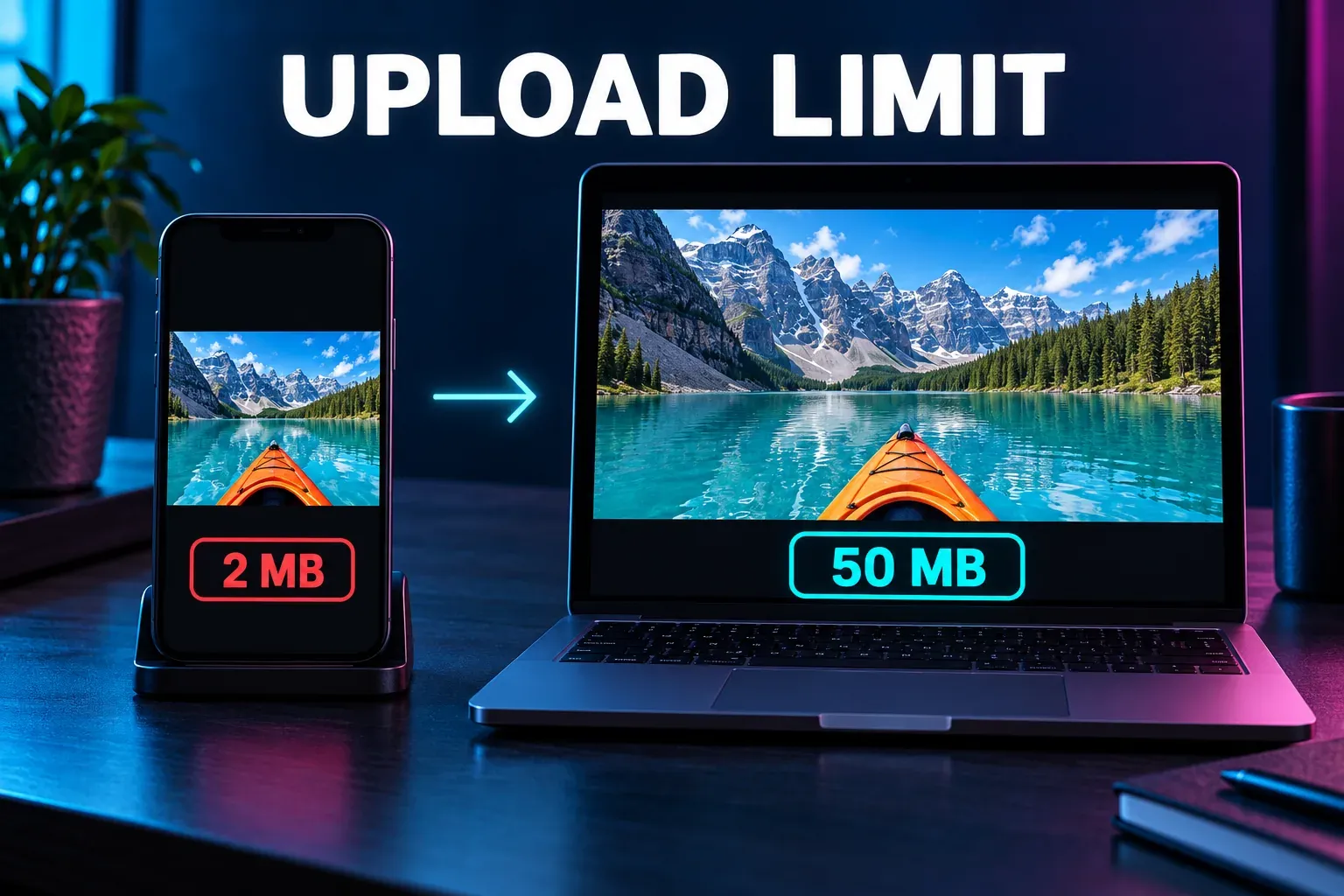
The device you upload from sets the limit, and the gap between the two is big:
- From a computer: 50 MB for video, Shorts and podcast thumbnails.
- From a phone: 2 MB for a video thumbnail, 10 MB for a podcast thumbnail.
A 3840 × 2160 PNG with a photo background usually runs past 2 MB, so the phone upload is where the size limit tends to bite. You have three ways around it:
- Upload from YouTube Studio on a computer, where the full-size file fits.
- Save the thumbnail as a JPG instead of a PNG; for photo-heavy images that's the biggest single saving.
- If you have to use a phone, export a 1920 × 1080 JPG and check the file size in your gallery or Files app before you upload.
Pixel dimensions and megabytes are separate settings. A 3840 × 2160 JPG can be lighter than a 1280 × 720 PNG, because file size depends on the format, the compression and how much detail the picture holds.
Shorts and vertical video thumbnails
Shorts follow different rules from regular videos:
- Computer only. Custom thumbnails for Shorts can currently be added only in YouTube Studio on a computer. Open Content, select the Shorts tab at the top, then open the Short.
- Make it 9:16. YouTube recommends a vertical 2160 × 3840 image for a Short, with a minimum height of 640 pixels.
- A 16:9 thumbnail on a vertical video gets swapped. On the home, explore and subscription pages, YouTube replaces it with an auto-generated 4:5 thumbnail. Your custom image still appears in the watch feed, watch history and on non-mobile platforms.
- No A/B tests. Test & compare doesn't run on Shorts, Scheduled Lives or Premieres. A Premiere becomes eligible once it ends and converts to a long-form video, and Live Archives can be tested.
For a vertical upload, I'd make the thumbnail 9:16 every time, so the image you designed is the one people see on the busiest pages. Our CapCut for YouTube Shorts guide covers editing the Short itself, including captions and interface safe zones.
Design a thumbnail that reads at small sizes
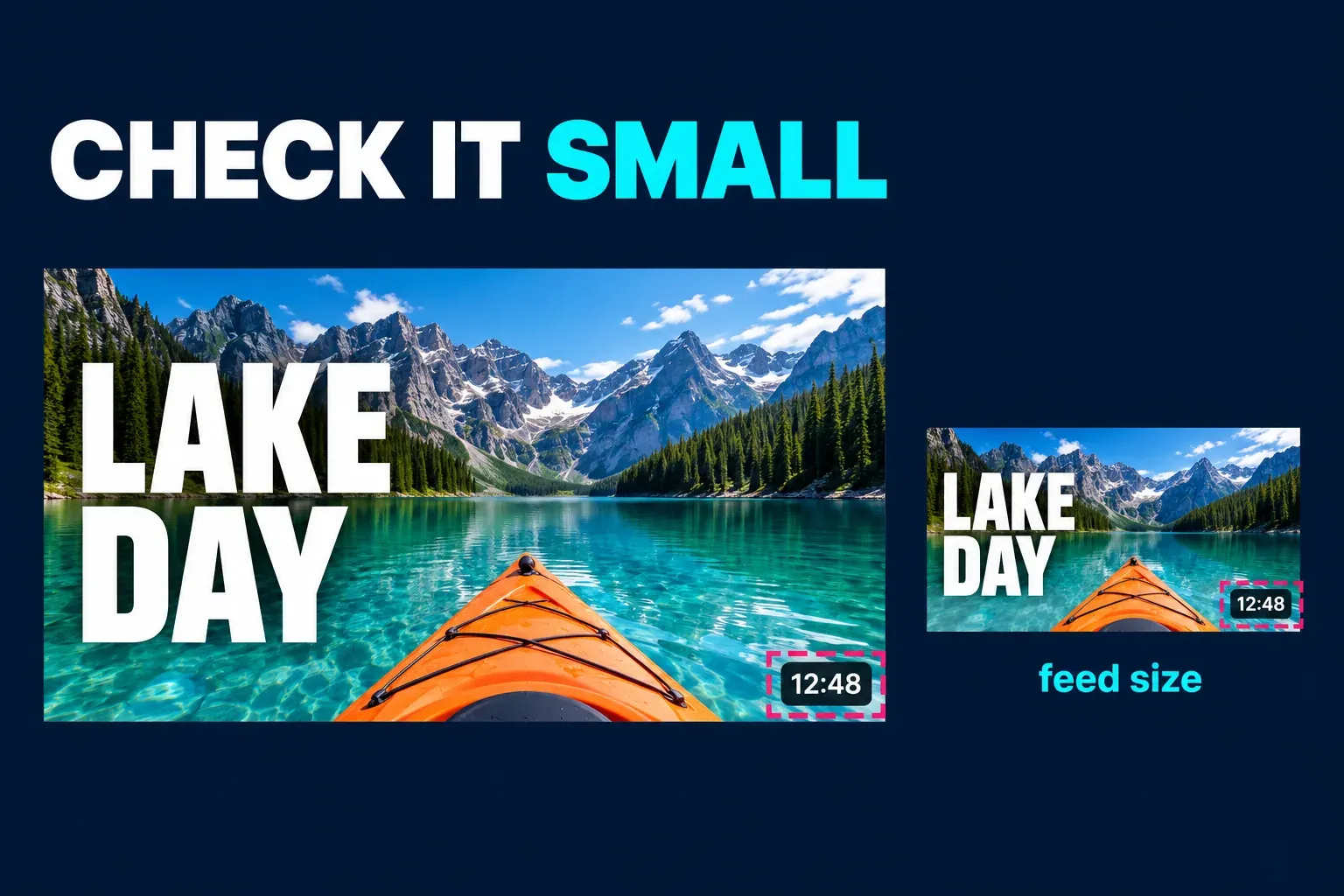
A thumbnail is designed at 3840 × 2160 but judged as a small rectangle in a feed or a suggestions column. Design for that small view:
- Zoom out before you export. Shrink the canvas view until the thumbnail is about the size of your thumb, or open the exported file on your phone. If the words aren't readable there, they won't be in a feed.
- Keep the lower-right corner clear. YouTube usually shows the video length over that corner, so a face or a key word placed there can end up partly covered.
- Use few, large words. Three or four words is plenty. Let the title carry the rest; repeating it in the image wastes the space.
- Separate the subject from the background. A bright subject on a dark background, or the reverse, survives shrinking far better than two similar tones.
- Use the frame edges carefully. Leave a little breathing room around text so it doesn't look cut off once the image is scaled down.
Thumbnails must also follow YouTube's Community Guidelines. An image with nudity, hate speech, violence or harmful content can be rejected and bring a strike, and repeat offenses can remove custom thumbnail privileges for 30 days or lead to account termination.
Upload a custom thumbnail in YouTube Studio
Custom thumbnails need a verified channel. On YouTube's feature access tiers, they're an intermediate feature, available once you verify your phone number. Channels with advanced features get a higher daily limit.
To add a thumbnail to a regular video:
- Sign in to YouTube Studio.
- Select Content in the left menu.
- Open the video you want to change.
- Under Thumbnail, click Upload file to use your own image, or Get suggestions to let YouTube generate options.
- Click SAVE.
For a Short, the steps are the same except that you pick the Shorts tab under Content first, and you can only do it on a computer.
A few things that trip people up:
- The new image doesn't show right away. YouTube notes that thumbnail changes can take time to appear across the site.
- "Daily custom thumbnail limit reached." Every channel has a daily cap on custom thumbnail uploads. Wait 24 hours and try again. The cap can vary by country or region and channel history, and Community Guidelines strikes affect it.
- Ask Studio can suggest designs. If your channel has it, Ask Studio reads the video's transcript and themes and proposes thumbnails you can refine with follow-up prompts.
Test up to three thumbnails with Test & compare
YouTube's built-in A/B testing lets you upload up to three thumbnails, three titles, or combinations of both for the same video. The option with the highest watch time share is then shown to everyone.
Before you start, check that the video qualifies:
- You're working in YouTube Studio on a computer, and your channel has advanced features.
- The video isn't a Short, a Scheduled Live or an unfinished Premiere.
- It isn't made for kids, set for mature audiences, or private. A test on a video marked age-restricted won't run.
- Every thumbnail is at least 1280 × 720, so none of them gets downscaled.
To set one up, open the video in Studio, click A/B Testing under Thumbnail, choose Thumbnail only or Title and thumbnail, upload your options and click Done. A test can take a few days or up to two weeks, depending on impressions and how recently the video was published.
Don't touch the title or thumbnail while it runs. Changing either one stops the test, and you'd have to start it again.
At the end, you'll see one of three results: Winner, Performed Same or Inconclusive. Without a clear winner, the first option you uploaded becomes the default. You can review the results on the video's Details page or in the Reach tab of its analytics.
Make the options clearly different. Thumbnails that are too similar can make a test run longer, because YouTube has a harder time finding a difference worth reporting. YouTube also says third-party tools that test thumbnails one after another, often on click-through rate alone, may pick a different winner than its watch-time-based test.
Make the thumbnail in CapCut
CapCut Web can open a still-image canvas where you can set 3840 × 2160 or 2160 × 3840, add text and download a JPG or PNG. Our step-by-step guide on how to make a YouTube thumbnail in CapCut walks through that on Web and Desktop, from canvas setup to the export check.
If you'd rather build the thumbnail from a moment in the video, export a single frame from CapCut as a PNG or JPEG and design on top of it. Choose the largest resolution the export offers; a 1920 × 1080 frame is already a valid 16:9 thumbnail. For the video file itself, our YouTube video size guide covers dimensions, aspect ratios and upload limits.
YouTube thumbnail questions
Can a YouTube thumbnail be 1920 × 1080?
Yes. 1920 × 1080 is 16:9, above the 640-pixel minimum and above the 1280 × 720 floor for A/B tests, so it works everywhere a regular video thumbnail appears.
What is the YouTube thumbnail size in inches or centimeters?
There isn't one. YouTube reads the image in pixels, so a DPI or print size setting in your editor doesn't change how the thumbnail looks on screen. Set the canvas to 3840 × 2160 pixels and ignore the inch fields.
Why is YouTube showing a different thumbnail from the one I uploaded?
Thumbnail changes can take time to appear. A vertical video with a 16:9 custom thumbnail shows an auto-generated 4:5 image on the home, explore and subscription pages. During an A/B test, viewers see different options, and YouTube may keep a small control group that sees only the default. YouTube can also turn off custom thumbnails in certain search results when it considers them inappropriate for viewers.
Can I change a thumbnail after the video is published?
Yes. Open the video under Content in YouTube Studio, upload a new image under Thumbnail and save. If an A/B test is running, the change stops it.