


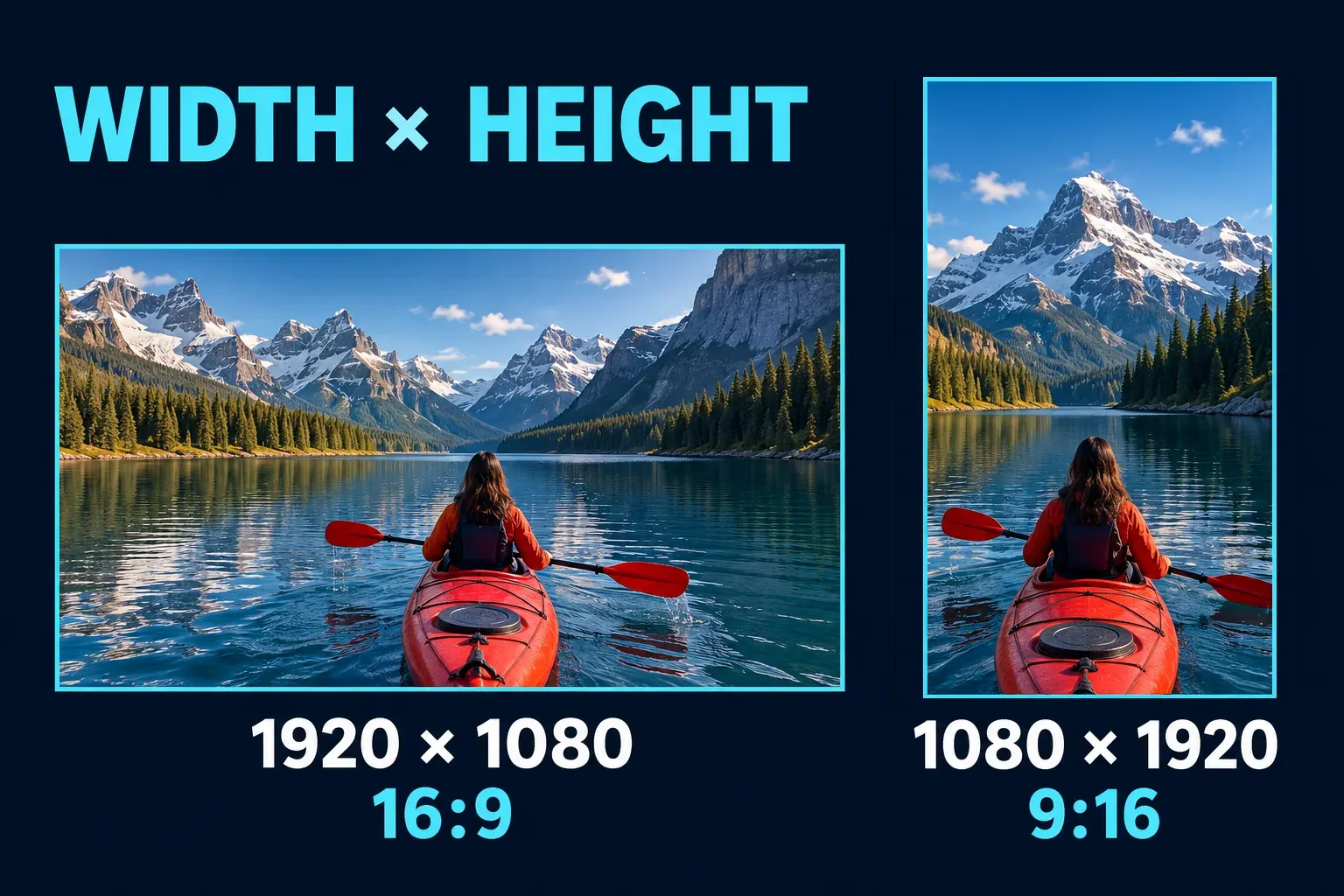
For a standard horizontal YouTube video, 1920 × 1080 pixels at 16:9 is a practical starting point. Use 3840 × 2160 when your source and project support 4K. For a full-screen vertical Short, 1080 × 1920 at 9:16 is a useful target. Width comes first, so those last two numbers describe a tall frame.
These are different decisions from the size of the uploaded file. Pixels determine the frame dimensions; megabytes or gigabytes describe the file's storage size. A 1080p video can be small or large depending on its duration, bitrate and encoding.
I'd choose the intended viewing format first, then keep the detail the footage can support. Changing a 720p export to a 4K label doesn't recover detail that was never recorded.
YouTube video dimensions at a glance
YouTube's resolution and aspect-ratio guidance lists the following sizes for a default 16:9 frame. You don't have to force every upload into that shape: the player adapts to other aspect ratios.
| Resolution label | Width × height | How to use it |
|---|---|---|
| 4320p / 8K | 7680 × 4320 | A supported size for a genuine 8K production, not a necessary upgrade for an ordinary edit |
| 2160p / 4K | 3840 × 2160 | High-detail footage and a project prepared for 4K delivery |
| 1440p / QHD | 2560 × 1440 | An intermediate option when the source supports this detail |
| 1080p / Full HD | 1920 × 1080 | A sensible default for many horizontal videos |
| 720p / HD | 1280 × 720 | A valid smaller HD frame, including material recorded at this size |
| 480p | 854 × 480 | A lower-resolution widescreen option |
| 360p | 640 × 360 | Low-resolution material or a small viewing copy |
| 240p | 426 × 240 | The smallest frame in this published reference list |
In these landscape examples, the “p” label is the vertical pixel count. It isn't a file-size limit. The smaller listed sizes use rounded pixel widths, so don't stretch your footage to resolve a tiny arithmetic difference in the ratio.
If you're choosing between 1080p and 4K, inspect what matters in the source: faces, product labels, gameplay details or screen text. A higher-resolution master can preserve more of that information when it exists. It also asks more of your storage, export and upload process. There's no universal promise that uploading 4K makes every video look better.
Choose 16:9, vertical or square deliberately
16:9 is the standard computer-player aspect ratio. It suits tutorials, interviews, gameplay and other horizontal compositions. A 1920 × 1080 file and a 3840 × 2160 file have the same shape; the second contains more pixels.
A 9:16 frame is tall. 1080 × 1920 is a practical vertical delivery size, while 1080 × 1080 is square. Turning the phone upright changes the composition you can capture; swapping the export's width and height after filming doesn't automatically recompose the shot.
For standard YouTube channels, the current Shorts classification rules classify square or vertical uploads of up to three minutes, uploaded on or after October 15, 2024, as Shorts. Older uploads retain their earlier classification. Official Artist Channels have their own date condition in that guidance. So a square frame isn't a reliable way to keep a new short video out of Shorts.
Use our CapCut for YouTube Shorts guide for the vertical editing workflow, captions and interface safe zones. This page covers the dimensions and upload decisions for a YouTube video, rather than repeating that complete workflow.
Change the canvas without stretching the picture
When the footage and output have different shapes, decide what you're willing to lose.
Crop to fill: enlarge and reposition the shot until it covers the output frame. This removes part of the source. Check moving subjects throughout the clip; a face that fits in the opening frame may leave the crop later.
Fit the whole shot: preserve the original picture inside the new canvas. The remaining space needs a deliberate treatment if you are exporting a wider composition.
Fit with a background: keep the full shot and use a chosen color, design or blurred background around it. This can make sense when a horizontal deliverable must contain portrait footage. It doesn't turn the source into a wider camera shot.
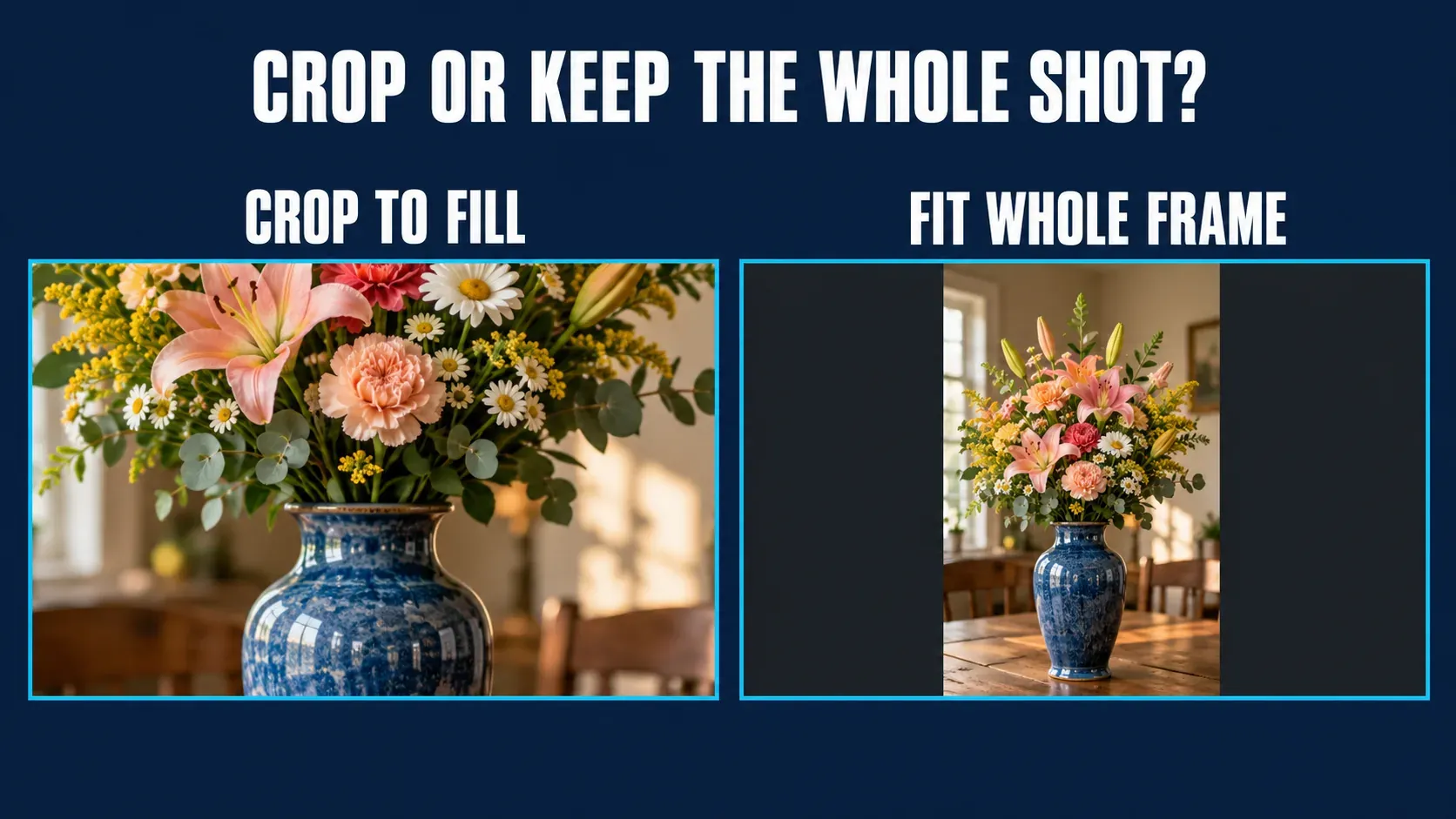
Don't bake black bars into a file just to make YouTube accept its native vertical or square shape. Its player can adapt to the video. Added padding becomes part of the picture and limits that flexibility. That's different from intentionally designing a background for a particular finished composition.
For CapCut's platform-specific controls, follow our aspect-ratio guide for Mobile, PC and Web. Once the canvas is correct, review titles, captions, stickers and the end card as well as the main clip. Objects arranged for a landscape frame can sit outside a portrait crop.
Separate resolution, bitrate and frame rate
Resolution says how many pixels form the frame. Bitrate describes the data used over time. Frame rate describes how many frames play each second. Changing one doesn't make the others equivalent.
A useful SDR export starting point is MP4 with H.264 video and AAC-LC audio. In its recommended upload encoding settings, YouTube asks creators to keep the recorded frame rate and gives these video-bitrate references:
| SDR output | 24, 25 or 30 fps | 48, 50 or 60 fps |
|---|---|---|
| 720p | 5 Mbps | 7.5 Mbps |
| 1080p | 8 Mbps | 12 Mbps |
| 1440p | 16 Mbps | 24 Mbps |
| 2160p / 4K | 35–45 Mbps | 53–68 Mbps |
Those figures are upload recommendations, not hard file-size limits, promised playback bitrates or rules for HDR. Keep the source frame rate instead of converting everything to 30 fps. HDR has separate color and encoding requirements; don't apply an SDR table to it without checking them.
The same guidance lists 48 kHz as an audio sample rate and 384 kbps as its stereo audio-bitrate recommendation. Those units measure different things. A kHz value should never be entered as though it were a video bitrate in Mbps.
Our CapCut export-settings guide explains the editor's controls and platform differences. Pick the appropriate output there after choosing the intended frame here.
How large will the video file be?
For a rough decimal-megabyte estimate:
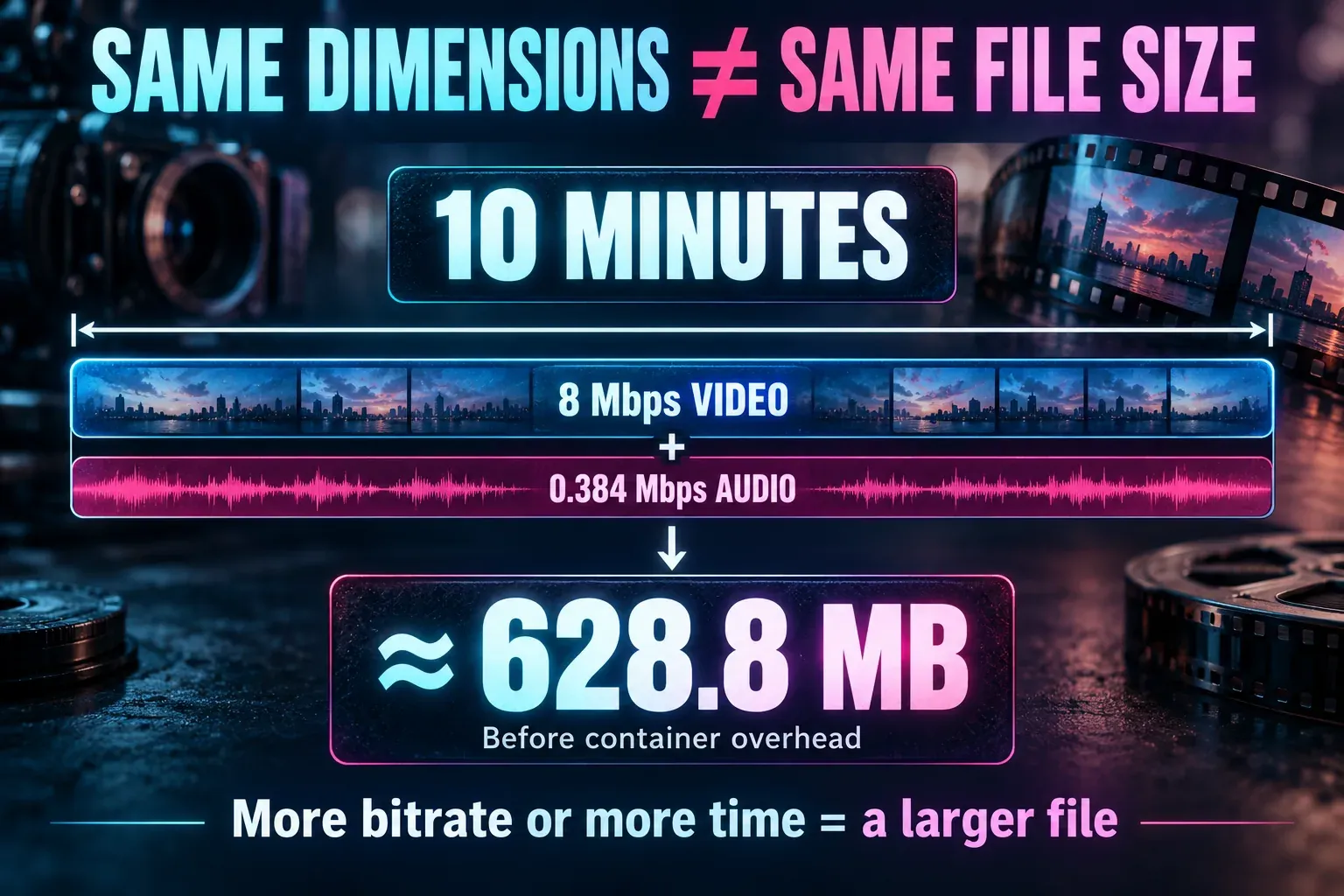
File size in MB ≈ duration in seconds × total bitrate in Mbps ÷ 8.
Include audio in the total. For example, ten minutes at 8 Mbps video plus 0.384 Mbps audio gives 600 × 8.384 ÷ 8 = 628.8 MB before container overhead. A variable-bitrate export may not average exactly the rate you expected, so it's a planning estimate, not a promised final file size.
If the file is too large, reduce unnecessary duration or choose an appropriate bitrate before discarding useful resolution. Keep a higher-quality master when making a smaller upload copy. Don't repeatedly compress the last compressed version if you still have the original project and media.
“1080p equals 100 MB” isn't a meaningful general rule. A ten-second clip and a one-hour recording don't have the same storage requirements just because they share a frame size.
YouTube upload limits and longer videos
YouTube's longer-video and upload-limit instructions set a default duration limit of 15 minutes. Verified accounts can upload longer videos. The maximum upload is 256 GB or 12 hours, whichever is reached first.
These are different limits from the frame dimensions, your editor's export allowance and the space available on your device. A valid 1920 × 1080 frame doesn't override an account's duration limit. A small file doesn't override the maximum duration either.
If longer uploads used to work and no longer do, check account feature eligibility and any relevant copyright restrictions rather than resizing the video repeatedly. Follow YouTube's account instructions; buying an editing subscription doesn't verify a YouTube account.
Check the finished file before uploading
Review the exported file as well as the editor preview. Confirm its width and height, duration and file size. Play the opening, several middle sections and the ending. Look for cropped titles, unintended padding, stretched faces and a final frame that was designed for a different canvas.
After upload, inspect the processed video in the intended viewing format. Keep the master until you have checked the result. A YouTube thumbnail is a separate image asset, not a reason to change the video's dimensions; our CapCut thumbnail guide covers making that asset.
For a straightforward horizontal production, return to the basic decision: a 16:9 canvas, a resolution supported by the source and an export that preserves the composition. Use a different shape because the viewing task calls for it, with the crop and text checked for that shape.