

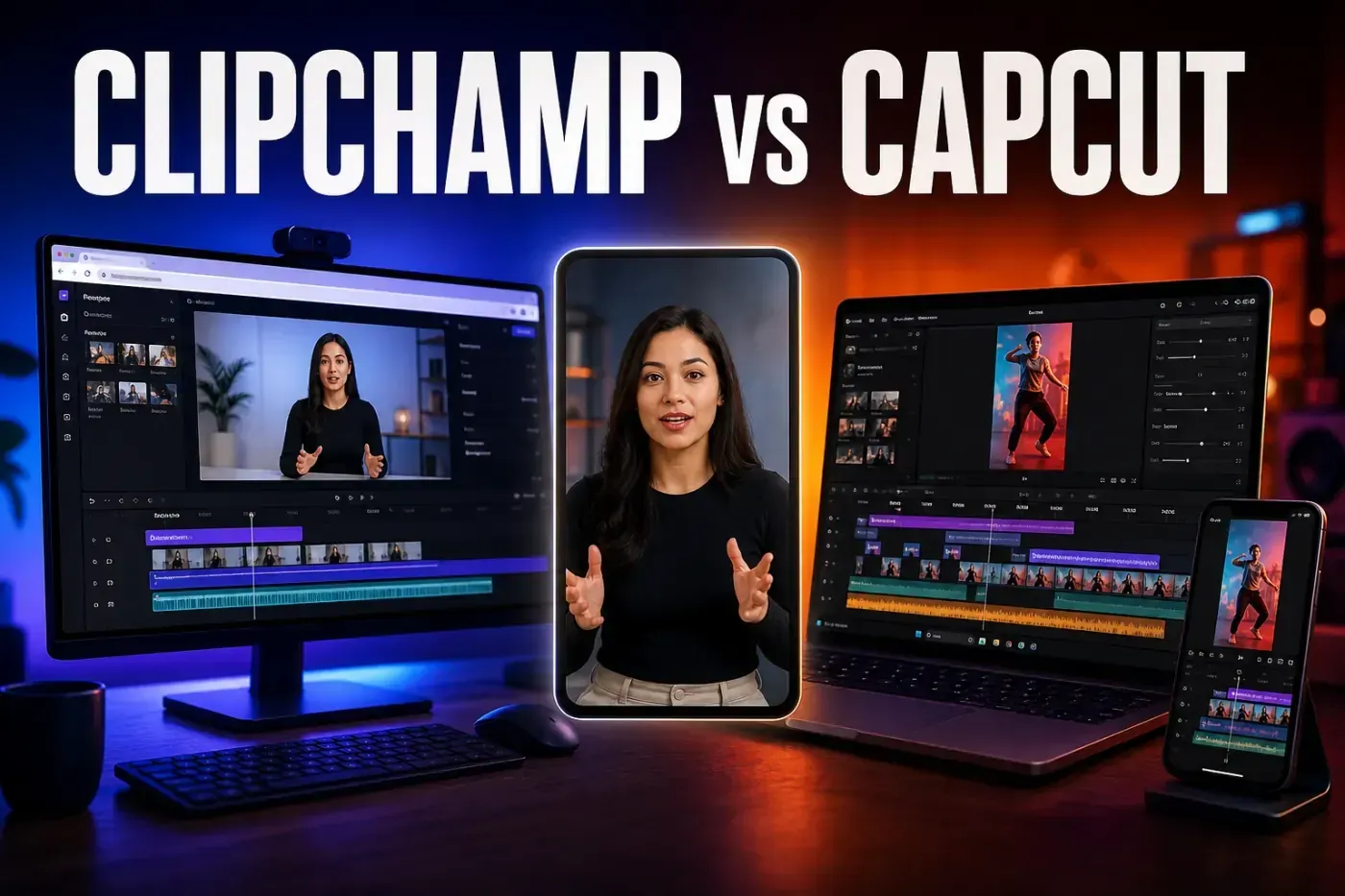
Clipchamp is easiest to recommend for a clear desktop job: cut a screen recording, training video or uncomplicated YouTube upload on Windows or in a browser, then export a clean 1080p file. The free plan includes captions, text-to-speech, silence removal, noise suppression and AI auto compose. CapCut is still the better fit when the edit starts on a phone or depends on 60 fps output, custom keyframes, speed curves or fast-moving social templates.
This Clipchamp review was rechecked on August 27, 2026 against Microsoft's pricing page, export and browser documentation, the dated iOS retirement notice, OneDrive guidance and recent user reports. A few Microsoft pages still describe the older mobile or backup setup. Where they conflict, this review follows the newer dated notice and tells you what to verify inside the account before trusting a project to the cloud.
Clipchamp Review Facts at a Glance
| Review fact | Current answer |
|---|---|
| Price | Free personal tier. The public pricing page presents Microsoft 365 Personal or Family for premium access; Microsoft also calls personal Clipchamp Premium a current standalone paid plan. Check the offer for your account and region. Work plans are separate. |
| Platforms | Windows 10/11 app; Edge, Chrome and other Chromium desktop browsers on Windows, Mac, Linux and Chromebook. No supported Android app. The iOS app was discontinued June 9, 2026. |
| Free export | Up to 1080p, MP4, 30 fps, without a Clipchamp watermark when the project uses features and assets included in the account plan. |
| Paid export | Up to 4K for Microsoft 365 Personal/Family, personal Premium and work/school plans. Microsoft's personal export documentation still specifies 30 fps. |
| Best fit | Beginner Windows editing, screen and webcam recordings, training videos, presentations, simple YouTube uploads and Microsoft 365 workflows. |
| Biggest trade-off | No current mobile editor, 30 fps output, limited custom motion control and Microsoft documentation that doesn't always distinguish OneDrive project storage from source-media backup clearly. |
Quick Verdict: Excellent for Simple PC Edits, Limited for Motion-Heavy Work
Clipchamp succeeds when the job is clear: assemble a few clips, record a screen or webcam, remove pauses, add captions and music, then export a 1080p file. The interface is one of the easiest desktop timelines to understand. It feels closer to a modern Windows Movie Maker than a simplified professional NLE, and that is useful rather than insulting when speed matters more than deep control.
The free tier is unusually practical. Microsoft's current Clipchamp feature matrix includes core editing, standard templates, free stock, screen/webcam capture, auto captions, text-to-speech, auto compose, image background removal, silence removal, noise suppression and 1080p export. The limits become visible when footage is 60 fps, motion needs custom animation, the timeline grows dense or the project must move smoothly between a phone and computer.
What Clipchamp does well
- low learning curve and a readable multi-layer timeline;
- free 1080p exports without an added Clipchamp watermark;
- screen, webcam and combined recording built into the editor;
- automatic captions with editable transcript and SRT download;
- free text-to-speech, silence removal, noise suppression and personal auto compose;
- useful stock media, templates, animated titles and aspect ratios;
- Windows 11 integration plus browser access on several desktop operating systems;
- Microsoft 365 and OneDrive integration for people who already use those services.
Where Clipchamp falls short
- the iOS app ended on June 9, 2026 and there is no Android editor;
- personal video export is MP4 at 30 fps, including current 4K export;
- no traditional CapCut-style custom keyframes, speed curves or broad motion-control system;
- Safari and Firefox are not supported editing browsers;
- premium stock or features can block export until upgraded or removed;
- Free, Microsoft 365, personal Premium and work plans are easy to confuse;
- OneDrive migration and unclear source-media backup status can create avoidable project risks;
- long, high-resolution or codec-heavy projects can expose browser, memory and import limitations.
What Clipchamp Is in 2026
Clipchamp is Microsoft's browser-technology video editor. Windows 11 includes the personal app, Windows 10 can install it from Microsoft Store, and the same editor runs at app.clipchamp.com in Chromium-based desktop browsers. On Mac, Linux and Chromebook it is a web editor rather than a native Mac or Linux application. Microsoft's browser support page recommends Edge or Chrome and says Safari and Firefox are not supported.
The mobile answer changed decisively. Microsoft discontinued the Clipchamp iOS app on June 9, 2026. Projects stored only inside the app needed to be exported as MP4 before the cutoff; OneDrive or web/desktop-accessible projects were not part of that deletion. Some generic Microsoft device pages still say the iOS app is available, but the dedicated dated deprecation notice is the current source. Microsoft provides no supported Android Clipchamp editor, and the desktop editor doesn't run in mobile browsers.
This changes the comparison with CapCut. Clipchamp is now a desktop-first Windows/browser choice. CapCut remains available across phones, desktop and web, although feature availability and plans vary. If the edit must begin on a phone or move between phone and computer, review our CapCut platform guide before committing to Clipchamp.
Editing Workflow and Learning Curve
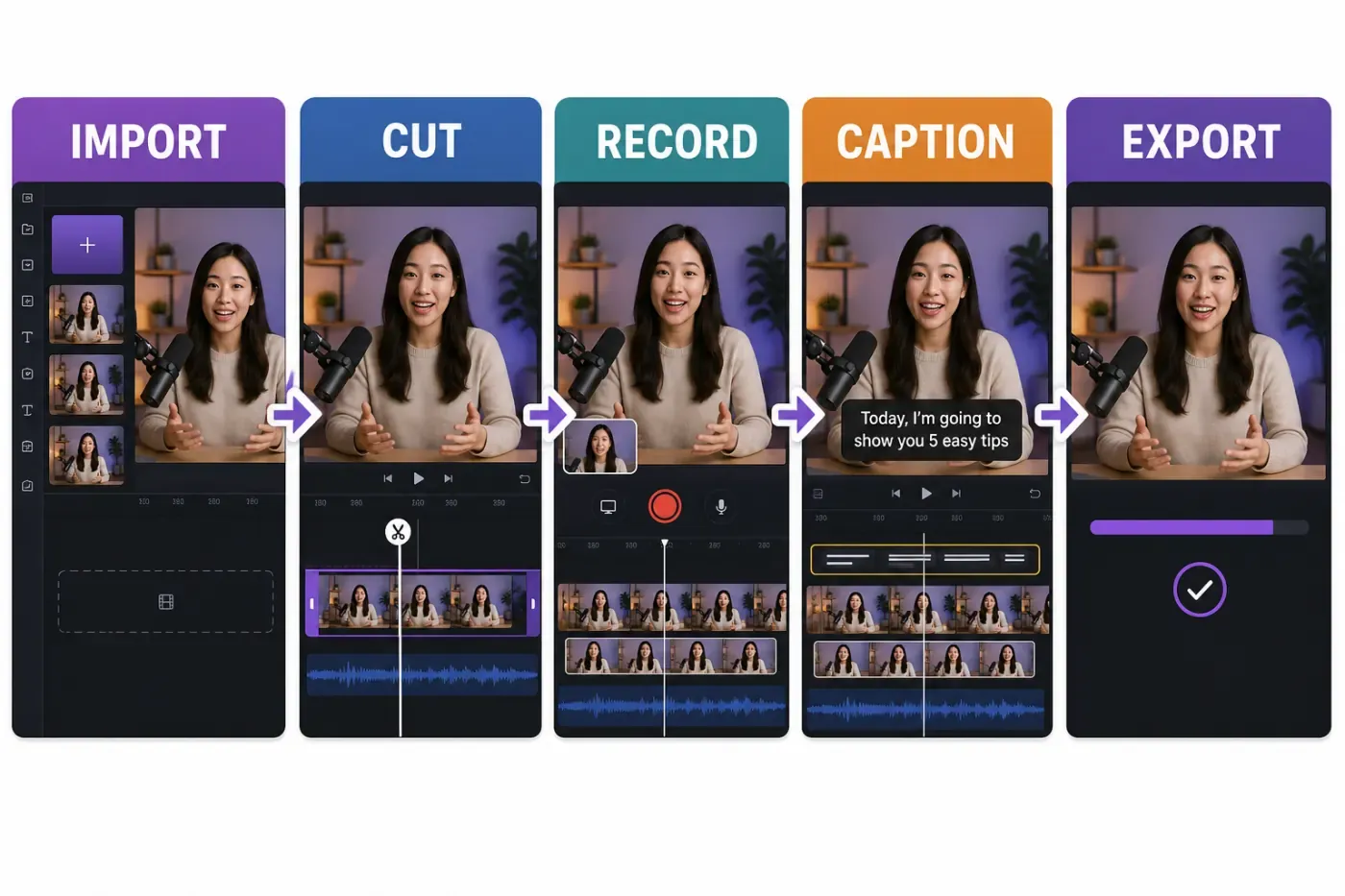
A new Clipchamp project opens with a media bin, preview, property panel and timeline. Import files from the computer or a supported cloud service, drag the main video to the timeline, trim or split it, place overlays above it, add audio below it and use the property panel for crop, color, speed, effects, captions and other clip-specific controls.
The layout is easier to understand than CapCut Desktop's larger set of panels, assets and AI entrances. Gaps can be removed, multiple clips can be selected or grouped, and common controls stay near the selected element. A beginner can normally complete a screen-recording edit without first learning track targeting, nested sequences or a professional media-management system.
The safest order is: decide the final aspect ratio, organize and back up the source files, make the structural cut, fix speech and pauses, generate captions, add branding and music, then export a short proof. Don't begin with templates or premium stock until you know which account will perform the final export.
Timeline, Layers, Green Screen and Motion Limits
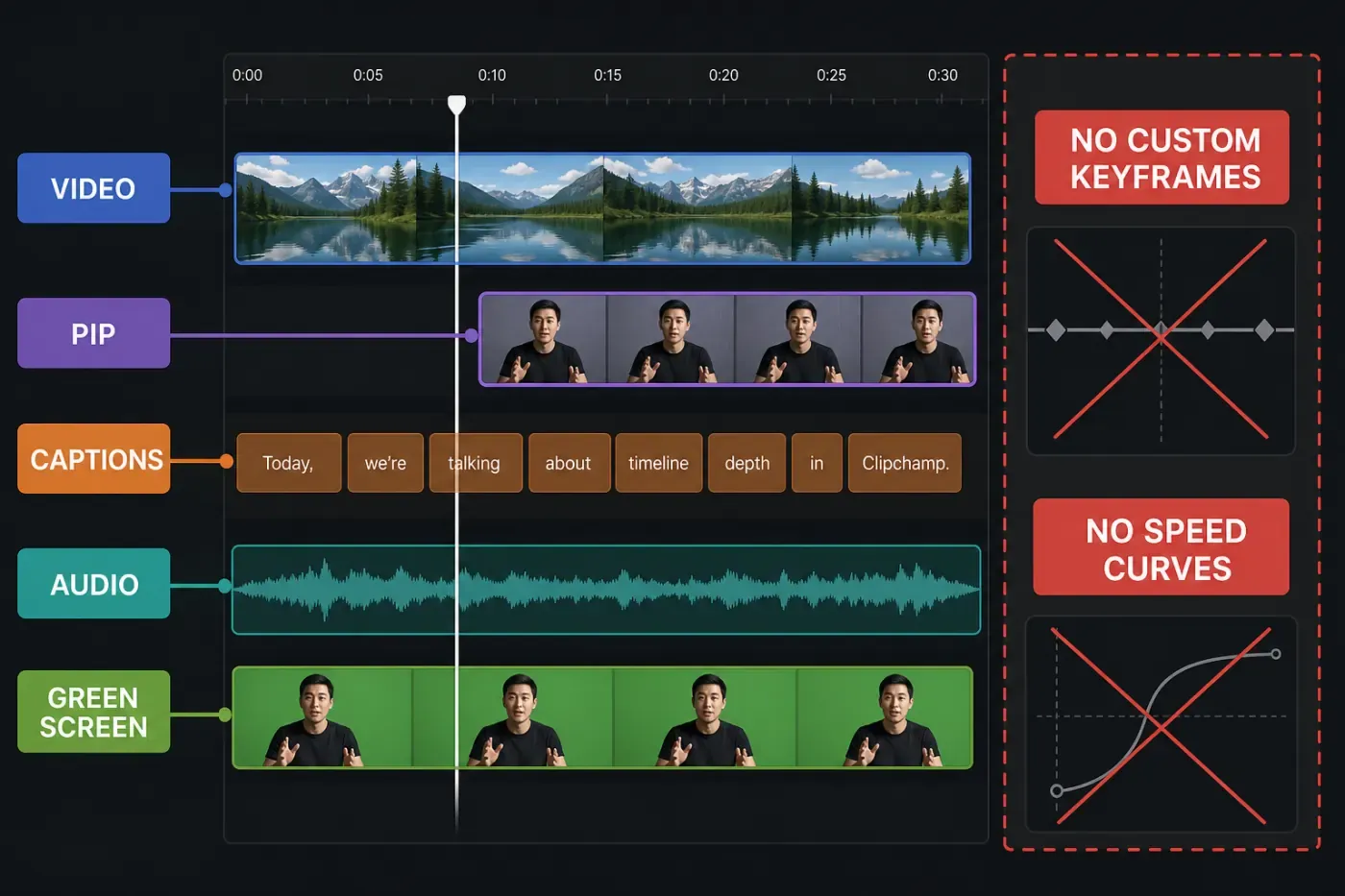
Clipchamp supports more than a single clip strip. Video, images, text, graphics and audio can sit on separate layers. Picture-in-Picture can position an overlay in a corner or resize it freely, and Microsoft's green-screen tool can key green, blue or red backgrounds. The setup follows the same foreground/background logic explained in our green-screen workflow. This is enough for tutorials, reactions, product demos, presentations and straightforward branded content.
The boundary is motion design. Microsoft's current personal feature table lists trimming, cropping, fades, speed control, transitions, effects, motion titles and multi-layer editing, but it doesn't list a general custom keyframe system, motion tracking or speed curves. New preset in/out animations for text and shapes are rolling out in 2026, yet preset direction and duration are not the same as plotting custom position, scale, rotation or opacity through time.
CapCut is more capable when text must follow an object, a camera move needs controlled easing, a speed ramp must land on a beat or several animated overlays have to stay synchronized. The principles in our CapCut keyframes tutorial illustrate the control Clipchamp currently lacks. Clipchamp is the simpler choice when those controls would only slow the job down.
Captions, Audio and AI Tools
Clipchamp's automatic captions are available on the free personal tier. The editor generates an editable transcript with timestamps, burns styled captions into the video and can download an SRT file. Microsoft's caption documentation says Azure Cognitive Services processes the audio, automatic speech recognition involves no human access and caption/transcript data is stored with the Clipchamp project.
That is useful for training and YouTube work, but it is not a reason to skip transcript QA. Names, acronyms, punctuation, speaker changes and line breaks still need a complete pass. Use the same procedure described in our caption editing and export guide: correct the words, watch every cut, keep text inside safe zones and review the final file with sound both on and off.
Silence removal is free and automatically suggests pauses longer than three seconds. Noise suppression can clean a speech track, and text-to-speech creates automatic voiceovers. Personal accounts also have free AI auto compose: it analyzes uploaded media, selects highlights, applies a style, adds music and produces a 1080p MP4. Microsoft says the process runs in the browser and user media is not used to train its model.
Don't confuse auto compose with the newer Copilot video generator for organizations. The work feature can create a script, voice narration and stock-based project from a prompt, but Microsoft currently limits it to eligible commercial users with Microsoft 365 and Copilot Chat. It composes stock and project structure; it doesn't generate new video pixels. CapCut offers a broader set of consumer-facing generation and creator AI tools, often subject to plan, region and credits.
Screen Recording, Training Videos and Presentations
Screen and webcam capture are where Clipchamp has a particularly coherent use case. A teacher, support specialist or small business can record a browser demonstration, add a talking-head camera overlay, remove long pauses, suppress noise, create captions and place a logo without moving between several apps.
Clipchamp also fits PowerPoint-heavy organizations because finished videos, project files and work assets can live in OneDrive or SharePoint according to the account type. The personal and work versions are not interchangeable, though. Templates, third-party cloud imports, project sharing, live camera backgrounds and Copilot access differ. A personal project can't currently be transferred directly into a work account.
For a solo tutorial recorded at 1080p/30, this workflow is more focused than CapCut. For animated callouts, tracked highlights, fast social pacing or a phone-recorded follow-up, CapCut regains the advantage. Choose based on the whole production path, not the fact that both products have a screen recorder.
Export Quality, 30 fps and Watermark Rules
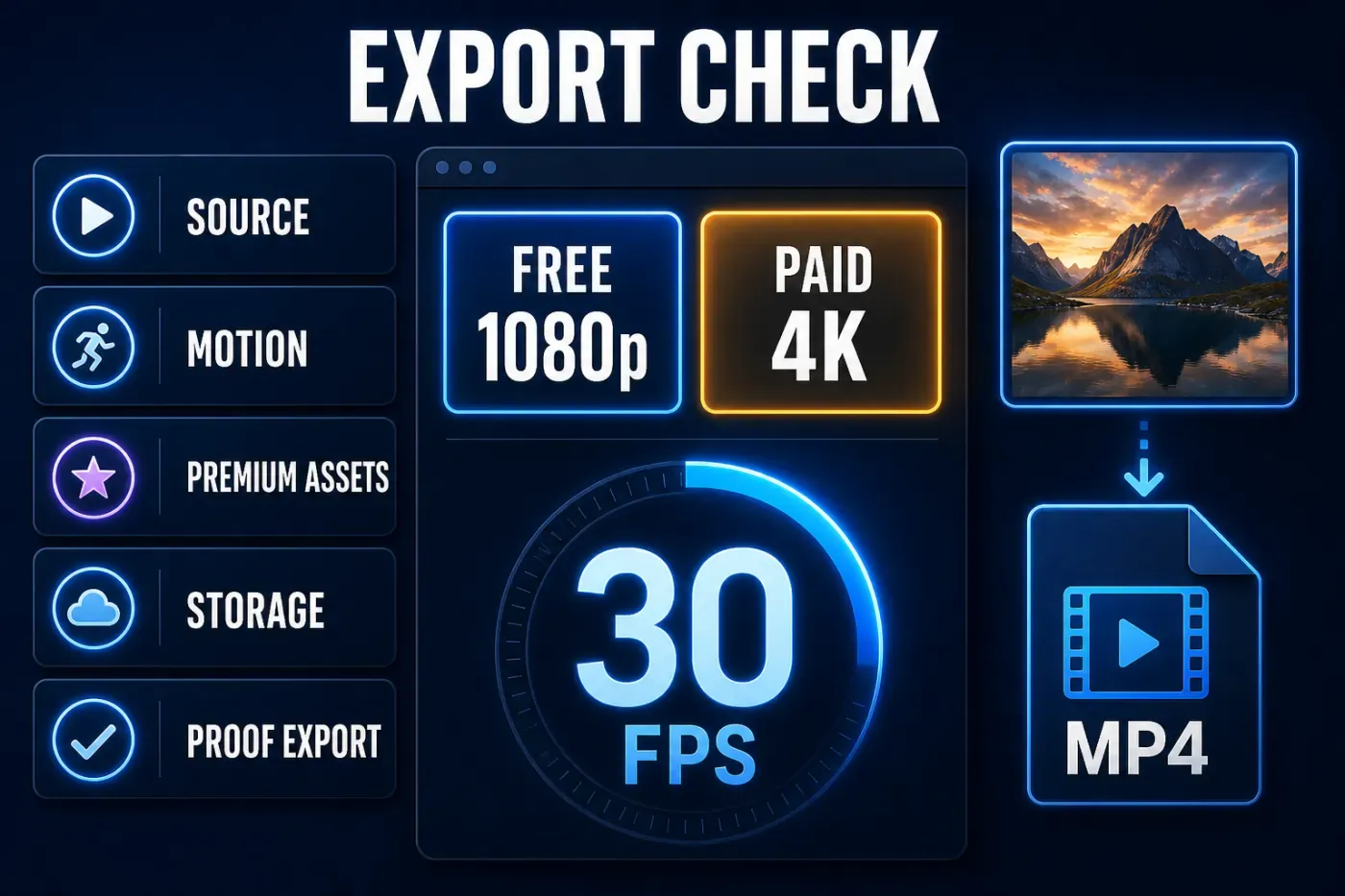
Clipchamp Free exports at 480p, 720p or 1080p. Paid access adds 4K, and every tier can import 4K source media. The catch is frame rate: Microsoft's export-format documentation says the personal editor produces MPEG-4 MP4 at 30 fps. Selecting 4K raises spatial resolution; it doesn't preserve a 60 fps source as 60 fps.
This is acceptable for a presentation, talking head, training video, slideshow or ordinary 30 fps upload. It is a poor fit for 60 fps gameplay, sports, fast pans or motion graphics where temporal smoothness matters. Converting a 60 fps source to 30 fps removes half the output frames. Test a motion-heavy excerpt before building a long project around Clipchamp.
Clipchamp itself adds no visual or audio watermark. Microsoft's watermark policy explains the real restriction: if a free account uses premium stock or another premium feature, Clipchamp doesn't add a watermark but blocks export until the project is upgraded or the paid item is removed. Audit every crown/premium indicator before deadline day.
Export settings are less granular than a professional editor. You choose resolution, while format, frame rate and most encoding decisions are fixed. Our CapCut export settings walkthrough explains why source resolution and fps should drive the choice. Clipchamp's 30 fps ceiling should be a decision made before editing, not discovered after it.
Pricing and What Each Plan Really Includes
The free personal tier is enough for many short projects. It includes the core editor, standard templates, free stock, captions and speech tools, AI auto compose and 1080p export. The current Clipchamp pricing page presents Microsoft 365 Personal or Family as the personal upgrade route for 4K, a brand kit, premium filters and effects, and premium stock. Templates still need the same paid-asset check described in our template workflow. On August 27, Microsoft's US plan comparison listed Personal at $9.99 monthly or $99.99 yearly and Family at $12.99 monthly or $129.99 yearly. Those prices buy the full Microsoft 365 bundle, not Clipchamp alone.
The Microsoft subscription guidance calls Clipchamp Premium the current standalone personal paid plan and explains how to buy or manage it. Meanwhile, the public Clipchamp pricing page directs new visitors to Microsoft 365 Personal or Family. Check the offer and terms shown for your own account before paying; the two routes may differ in backup and template access. If you already subscribe to Premium, check its renewal screen and storage allowance before switching plans.
Work pricing is separate. Microsoft's US Clipchamp page listed Editor Standard at $3 per user/month and Editor Premium at $7 per user/month, paid yearly, on August 27. Some Microsoft 365 business or education licenses already include Clipchamp features. Work accounts use different sharing and OneDrive/SharePoint rules, so a personal plan chart can't tell an organization what its tenant includes.
OneDrive, Project Storage and Source-File Safety
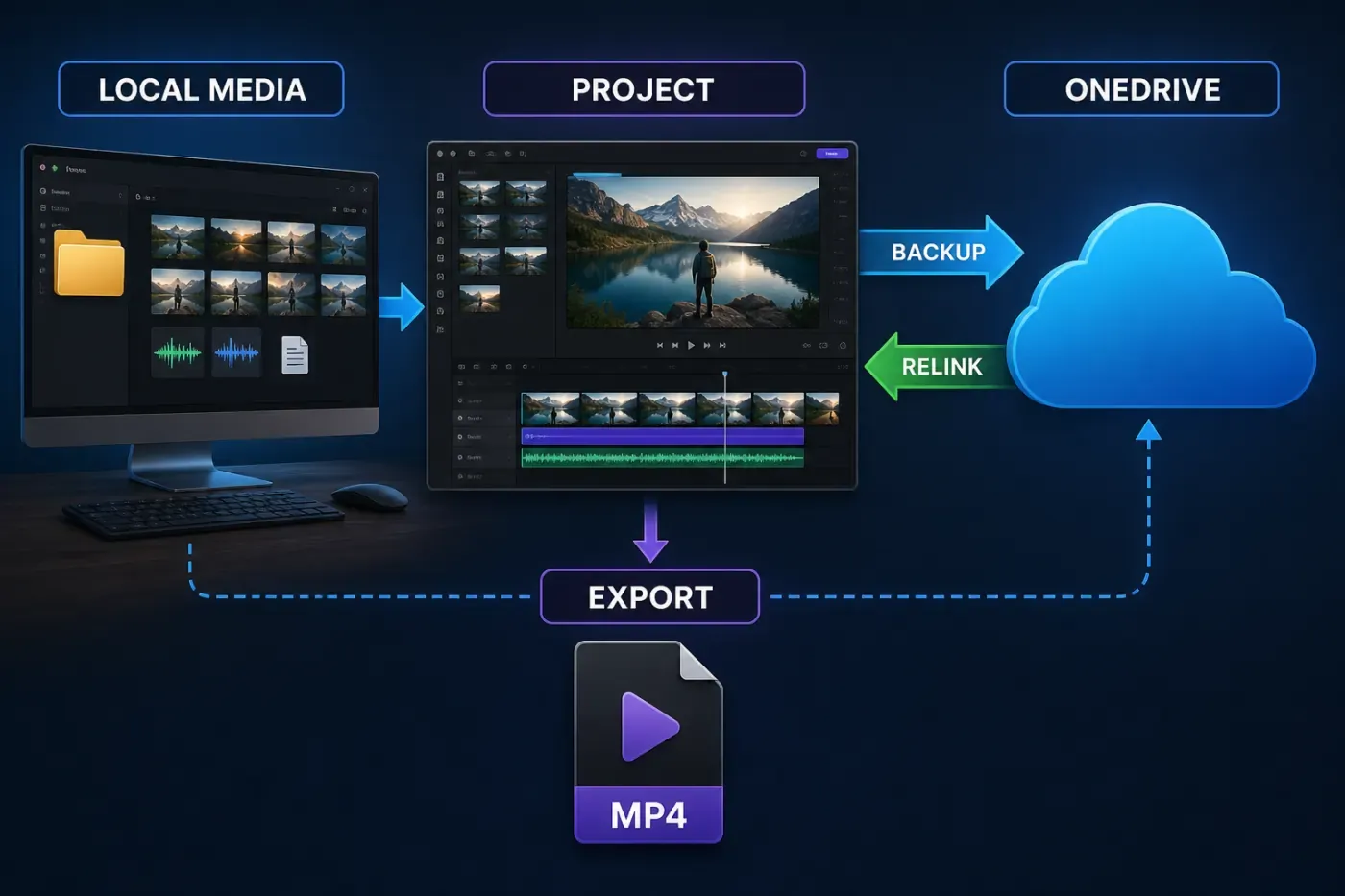
Personal Clipchamp projects are moving into OneDrive. Microsoft's cloud-storage FAQ gives a free Microsoft account 5 GB, Microsoft 365 Personal 1 TB and Family up to 6 TB in total. A project saved there can be opened on another supported computer after sign-in, provided its media is available to the project.
The word backup is the confusing part. The pricing page now lists content backup on OneDrive in Free, while Microsoft's separate Content Backup article still describes a Premium feature that automatically uploads imported media. Those pages don't define the transition consistently. Treat OneDrive project storage and confirmed source-media upload as two checks: inspect the project's cloud status, reopen it on another supported computer and keep the originals until that test succeeds.
Without confirmed backup, keep the original video, image and audio files in place. Clipchamp saves edit decisions, but it may ask you to relink local media if the source is moved, renamed or deleted. Work/school accounts normally store project media in a corresponding OneDrive/SharePoint Assets folder; moving those files can also break retrieval.
Before a large edit, create a dedicated source folder, leave filenames stable, confirm OneDrive capacity, export checkpoints and keep the final MP4 outside the project system. An editor is not a backup simply because it has an account login.
Performance, Formats and Reliability
Clipchamp processes much of the edit and export locally even though the interface uses browser technology. Microsoft recommends at least 8 GB of RAM and says 16 GB or more is better. A current Chromium browser, available disk space, hardware acceleration and a recent computer matter more than the small Windows app download suggests.
Microsoft says Clipchamp can accept many formats, but browser decoding support and the actual codec inside a file still matter. Microsoft currently recommends MP4, MOV or WebM for the quickest video import, though the editor accepts a broader list and may convert some files first. Microsoft currently does not support AV1 video or HDR media. A file extension alone doesn't guarantee smooth import because the codec inside the container still matters. If a file stalls, verify it in another player, copy it from external/cloud storage to a local drive and transcode a duplicate rather than altering the only original.
A July 2026 import discussion illustrates the distinction: the reported MPEG file failed while participants pointed to MP4, MOV and WebM as better-supported paths. An April 2026 migration thread contains multiple reports of missing media, OneDrive lockouts and export failures. These reports establish failure modes, not a defect rate.
There is positive evidence too. A July training-video user described Clipchamp as easy and effective before asking for avatar features beyond its scope. Treat the product accordingly: strong for short, conventional projects; preflight carefully for long footage, unusual codecs, crowded timelines or a critical deadline.
Privacy, Local Processing and Asset Rights
Microsoft's media-processing explanation says personal media is normally processed locally and is not uploaded merely to preview or export a project. Media does leave the computer when the user enables cloud backup, uses OneDrive/share options or sends files to support. Work and school projects store media in organizational OneDrive or SharePoint by default.
Individual AI tools can follow different paths. Auto captions use Azure speech processing and store the transcript with the project. Personal auto compose says media remains on the computer and is not used for model training. Copilot work video creation stores the resulting project in corporate OneDrive. A blanket statement that Clipchamp is either “fully local” or “fully cloud” is therefore wrong.
Microsoft describes Clipchamp's included stock library as royalty-free, but paid advertising and client delivery still deserve an asset record. Confirm the plan that supplied the stock item, keep proof of the license and avoid assuming that an AI voice, font, logo or externally imported music track inherits the same terms as Microsoft stock.
Clipchamp vs CapCut: Feature Comparison
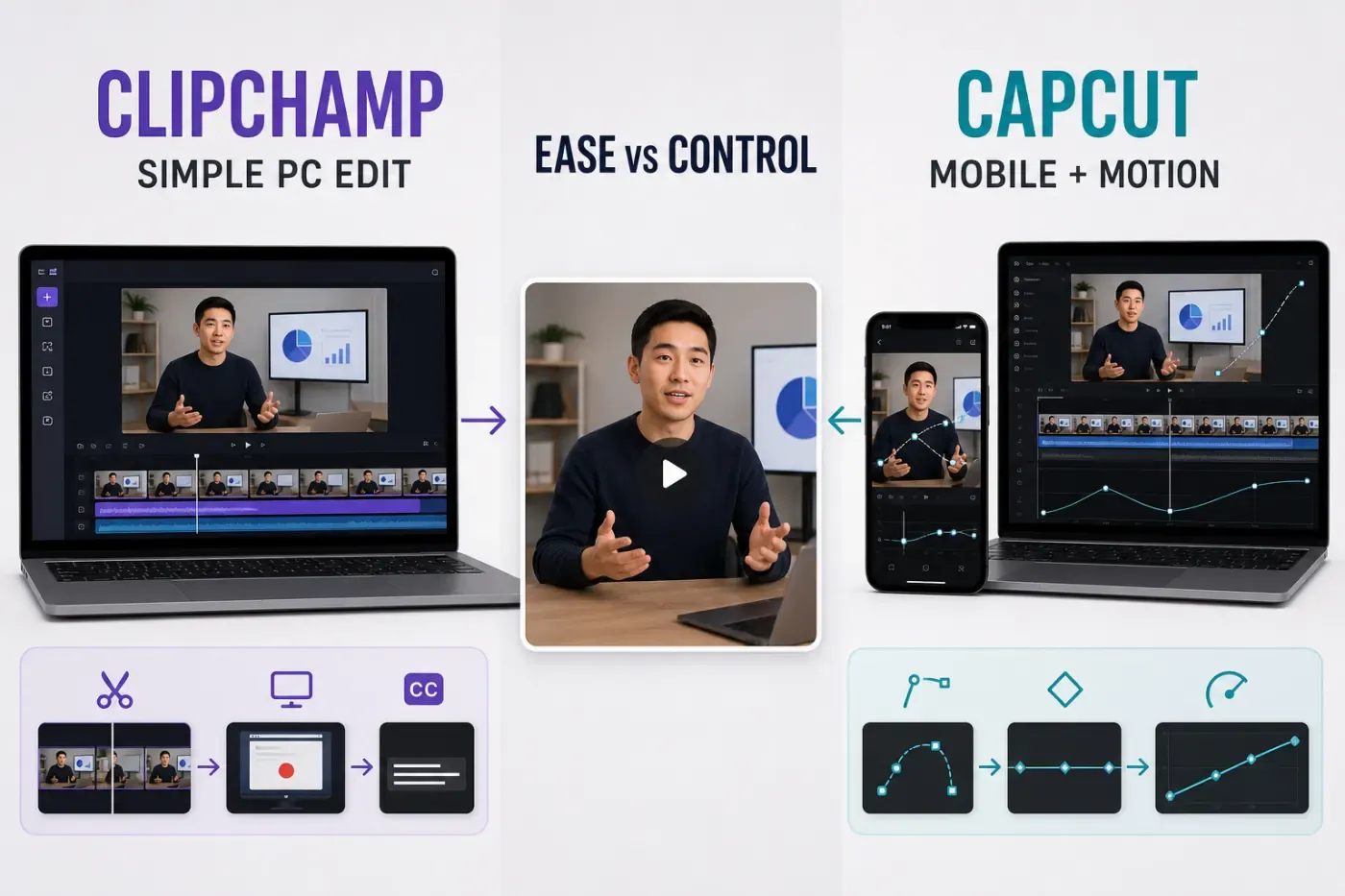
The editors overlap on basic cuts, captions, templates, stock, background removal, green screen, screen recording and social aspect ratios. Clipchamp prioritizes a clean desktop workflow inside Microsoft services. CapCut prioritizes creator speed across phones and computers, with deeper motion, trend and AI tooling.
| Decision factor | Clipchamp | CapCut |
|---|---|---|
| Best fit | Windows beginners, screen recordings, training, presentations and simple YouTube videos | Mobile/social creators, faster trend work, motion-heavy edits and cross-device production |
| Platforms | Windows app; Chromium browser on Windows, Mac, Linux, Chromebook; no supported mobile editor | iPhone, iPad, Android, Windows, macOS and web, with platform-dependent features |
| Learning curve | Very low; focused desktop timeline and property panel | Moderate; more assets, panels, AI entrances and platform variation |
| Timeline and motion | Multi-layer cuts, PiP, green screen, preset titles/effects; no general custom keyframe or speed-curve system | Keyframes, speed curves, tracking, masks and broader multi-track motion control |
| Captions and speech | Free auto captions, transcript, SRT, TTS, silence removal and noise suppression | Auto captions, translation/styling and broader creator-oriented speech/AI workflows |
| Recording | Coherent screen, webcam and combined recording workflow | Screen and voice recording plus wider mobile capture tools |
| Templates and stock | Strong standard templates and Microsoft stock; premium access varies by plan | Larger library of trend templates, effects and creator assets |
| Free export | Up to 1080p MP4 at 30 fps, no Clipchamp watermark | Resolution, frame-rate and watermark behavior vary by platform, assets and account |
| Paid export | Up to 4K, still documented at 30 fps for personal accounts | Up to 4K/60 fps where device, source and plan support it |
| Project continuity | OneDrive desktop continuity; verify both project storage and source-media availability | Phone, desktop, browser and cloud options, with plan and region differences |
| Privacy model | Core personal editing is local; captions/cloud/sharing use Microsoft services | Local and cloud behavior depends on platform and tool; online AI features require separate review |
| Pricing shape | Free, Microsoft 365 personal bundles, standalone personal Premium and separate work plans; check the account offer | Free, Standard and Pro access varies by platform, region and billing source |
Choose Clipchamp If...
- you edit on Windows or in Edge/Chrome on a desktop computer;
- the project is a screen recording, training video, presentation, family video or simple YouTube upload;
- free watermark-free 1080p/30 export is enough;
- screen/webcam capture, captions, silence removal and noise cleanup cover most of the job;
- you already pay for Microsoft 365 and can use its Clipchamp/OneDrive benefits;
- you value a shallow learning curve more than custom animation control;
- you can keep source files, OneDrive capacity and project backup state organized.
Stay With CapCut If...
- you edit on a phone or tablet;
- 60 fps gaming, sports or motion-heavy output matters;
- you use custom keyframes, speed curves, tracking or complex masks;
- trend templates, social effects and creator AI save substantial time;
- the project moves regularly between mobile and desktop;
- your work relies on dense multi-track arrangements or fast vertical-video iteration;
- the existing CapCut workflow is already tested for your team's assets and deadlines.
Frequently Asked Questions
Is Clipchamp free?
Yes. Clipchamp's free personal tier includes core editing, templates, some stock media, screen/webcam recording, auto captions, text-to-speech, auto compose, silence removal, noise suppression and exports up to 1080p. Premium assets and 4K require an eligible paid plan.
Does Clipchamp add a watermark?
No. Microsoft says Clipchamp doesn't add a visual or audio watermark. If a project uses a premium asset or feature outside the current plan, export is blocked until that item is removed or the account is upgraded; Clipchamp doesn't simply watermark it.
Can Clipchamp export 4K or 60 fps?
Eligible Microsoft 365, personal Premium and work/school accounts can export 4K. Microsoft's current personal export page specifies MP4 at 30 fps, so Clipchamp should not be chosen when preserving 60 fps motion is required.
Does Clipchamp work on Mac, iPhone or Android?
Clipchamp works on a Mac through Edge, Chrome or another supported Chromium desktop browser. The iOS app was discontinued June 9, 2026, there is no supported Android editor and the desktop web editor doesn't run on phone or tablet browsers.
Are Clipchamp projects stored locally or in OneDrive?
It depends on the account and migration state. Core personal editing remains local, while personal projects are moving into OneDrive. Microsoft's pricing and Content Backup pages describe source-media backup differently, so don't rely on the word “saved” alone. Confirm the cloud status, reopen the project on another supported computer and keep the original media until that test works.
Is Clipchamp better than CapCut?
Clipchamp is better for a beginner who wants simple Windows/browser editing, screen recording and clean 1080p output inside Microsoft 365. CapCut is better for mobile production, 60 fps export, keyframe motion, speed curves, trend templates and a broader creator tool set.
Verdict
Clipchamp is one of the easiest free desktop video editors to recommend for a narrow, common job. It turns screen recordings, talking-head clips, presentations and uncomplicated YouTube footage into clean 1080p videos without an editor watermark, and its captions, speech and noise tools reduce the number of extra apps needed.
The limits matter before you start, not after the edit is finished. There's no current mobile editor, personal export remains 30 fps, custom motion control is shallow and Microsoft's storage documents require you to verify whether the source media is really available from another computer. Choose Clipchamp for conventional desktop work inside those boundaries. Choose CapCut when the video begins on a phone, must preserve 60 fps motion or needs deeper animation and social templates. For other browser, mobile and professional routes, see our roundup of CapCut alternatives.