


Checked September 4, 2026: all four CapCut template links below still open, and their 12, 13, 45 and 74 clip counts and aspect ratios match CapCut's live details. Availability, music and editable controls can still vary by account, region and app build. For slideshow, collage, intro and other template-led formats, our overview of CapCut design tools separates the available routes.
If your camera roll holds 86 moments and the template asks for 12, you don't have a template problem yet. You have a story decision. A compact monthly recap may need only the four or five scenes that explain the month. A year in review may work as one moment per month. An event recap usually needs an opening, a peak and an ending, not every clip you recorded.
This guide helps you make that decision before CapCut locks you into fixed timing. You will find four live official templates, a quick way to budget the media, and a normal-timeline fallback for the recaps that deserve more room.
If you only need the general workflow for finding and opening templates, start with our guide to finding and using CapCut templates. This page is narrower: monthly, yearly and event recap videos, and what to do when a fixed layout is too short.
The short answer: template or normal project?
A short highlight package
Choose this route when the slot count is close to your shortlist, the fixed rhythm suits the mood and each moment can survive a similar amount of screen time.
A longer or uneven story
Use a normal project when one scene needs ten seconds, another needs one second, or your archive is much larger than the available template.
Don't choose by the preview’s effects alone. First check the number of required clips, the frame shape and whether the opening still makes sense after you replace the creator’s footage. Then decide whether the template is helping or merely making the result faster.
Choose the recap before the template
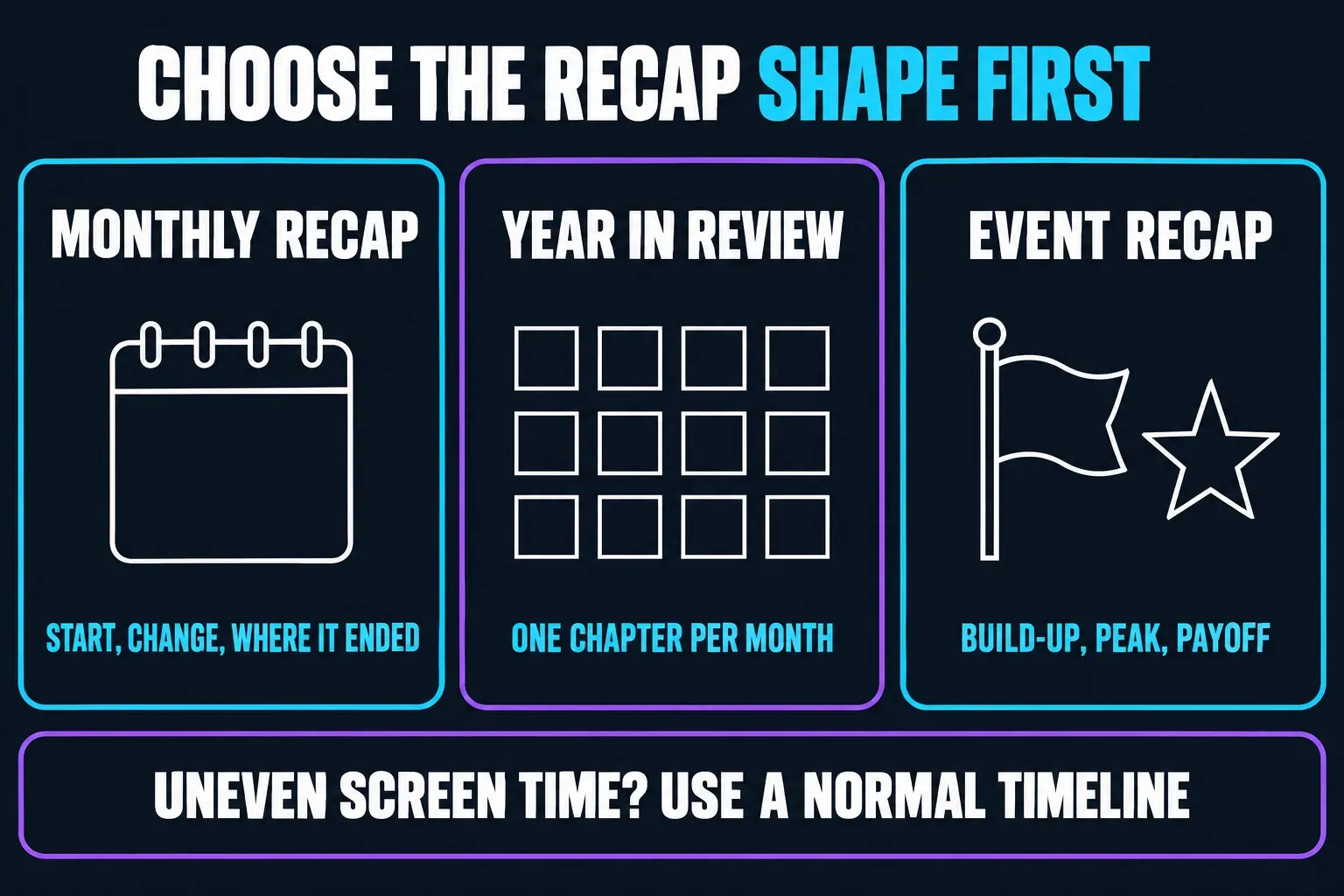
- Monthly recap: show a beginning, one or two changes, and where the month ended. Four to twelve moments are often easier to follow than a complete camera-roll dump.
- Year in review: use one chapter per month or group the year around milestones. Chronology is useful, but it is not mandatory if the strongest story is thematic.
- Event recap: open with place or anticipation, move to the strongest reaction or action, then finish with a payoff. The viewer should understand what happened even with the sound off.
A generic slideshow is a different job. If your main question is simply how many photos fit and which frame shape works, use the CapCut slideshow templates guide. A recap has an extra requirement: the order should say something about the month, year or event.
Live CapCut recap templates checked September 4, 2026
These are not ranked by volatile use counts. They cover four practical combinations of capacity and format. Open the detail page, confirm that the same clip count and aspect ratio still appear, then test the template with copies of your media before committing the whole archive.
One moment per month
This 12-clip Year recap template is the cleanest starting point when each month gets one vertical scene.
Choose it for: a disciplined January-to-December sequence.
Skip it if: several months need multiple clips or a longer explanation.
A compact horizontal recap
This 13-clip monthly recap template gives you a landscape canvas rather than forcing everything into a phone-first vertical crop.
Choose it for: a TV, presentation or standard YouTube frame.
Skip it if: the main destination is Reels, TikTok or Shorts.
A denser vertical year
This 45-clip Year recap template leaves room for several highlights per chapter while keeping a vertical social format.
Choose it for: a busy year with a tight shortlist.
Skip it if: most items are still photos that viewers need time to study.
A high-capacity archive
This 74-clip Monthly Recap template can absorb a much larger set, but capacity is not the same as readable pacing.
Choose it for: rapid impressions where every frame is simple.
Skip it if: faces, captions or wide photos become hard to read at speed.
CapCut also maintains broader recap, monthly recap and year-end recap collections. Their ordering changes, so treat them as live shelves rather than permanent rankings.
Count the media before you open CapCut
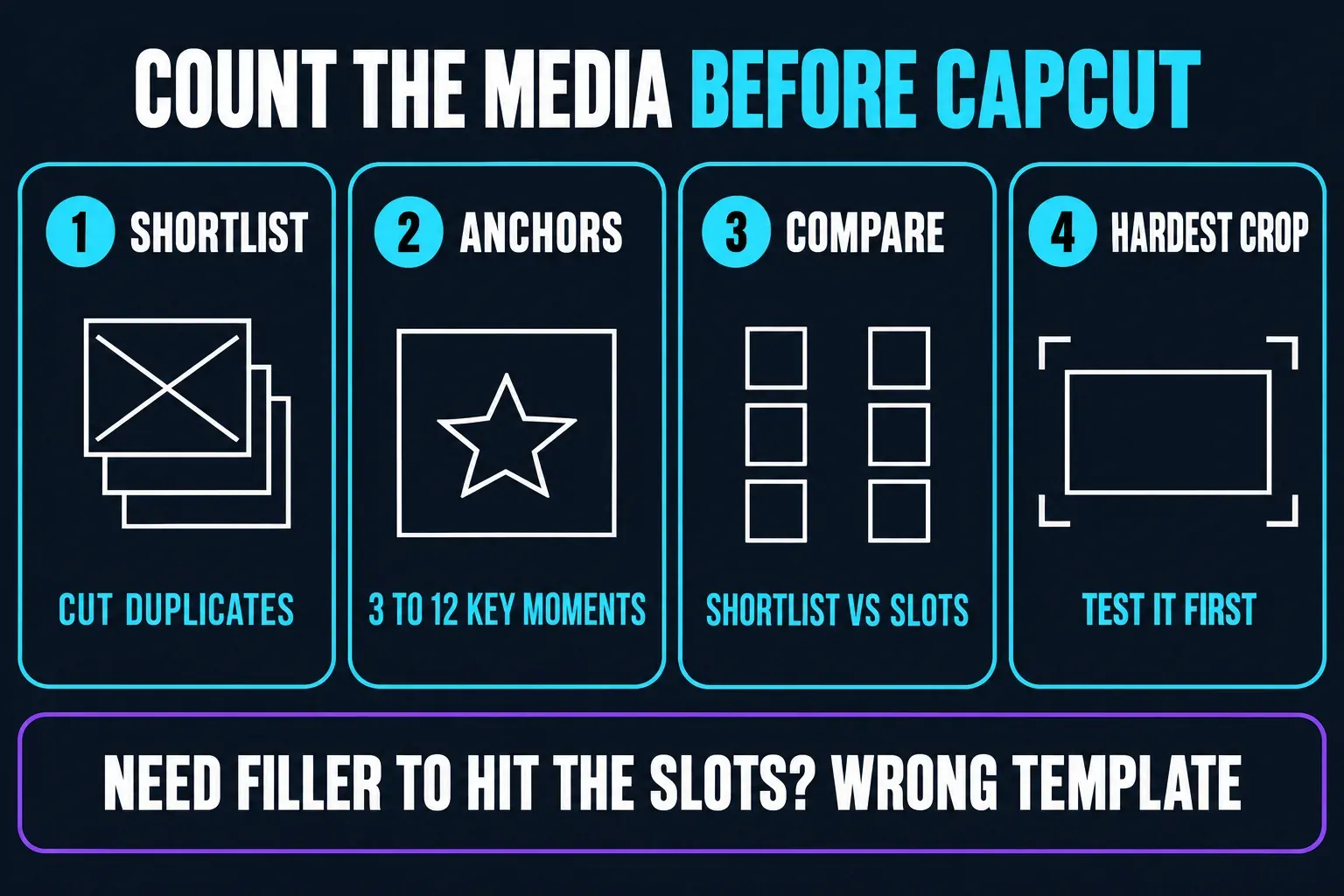
- Make a shortlist outside CapCut. Put every candidate in one album, then remove duplicates, setup shots and near-identical bursts.
- Mark the anchors. Pick the three to twelve moments the recap can't lose. These build the story; everything else supports them.
- Compare the shortlist with the required slots. If you must discard an anchor or add filler to hit the count, the template is already the wrong fit.
- Test the worst crop first. Use one landscape group photo, one close face and one text-heavy image. If those fail, don't spend an hour replacing the easy shots.
This distinction matters in real use. One r/CapCut user looking for a year recap described having more than 100 photos and videos but no sufficiently long template. That is a useful warning signal, not proof that every template is short. The practical lesson is simpler: count first.
Test the pace before replacing every slot
Do a three-point test with difficult media: replace one slot near the beginning, one in the middle and one near the end. Use a wide group photo, a clip whose best action happens several seconds in, and an image containing text. Then watch the complete preview without pausing or scrubbing.
If you can't read the text, recognise the people or reach the action, the template is not ready for the rest of the album. Try its crop or trim controls if they are exposed. When timing remains fixed, move to a different layout or a normal project. Don't assume that a higher slot count solves the problem; it may simply divide the same short runtime into smaller pieces.
Run the preview three ways. First, watch silently and check whether the order still makes sense. Second, listen without staring at the screen and notice whether the music has a clean opening and ending. Third, watch at the size and orientation of the intended destination. A vertical edit that feels energetic on a phone can look frantic on a television, while a landscape event recap can feel distant inside a vertical feed.
An older CapCut community thread about a 68-photo recap moving too quickly illustrates the same trade-off. It is not a specification for current CapCut builds. It is a reminder to judge the finished pace rather than the number printed on the template card.
Build the story before the effects
A recap becomes easier to watch when each section has a job. Put a recognisable anchor near the start, create one clear change in the middle and end on a moment that feels finished. A beautiful transition can't rescue a random order.
For a month, the order might be arrival, routine, surprise, finish. For a year, it might be January to December, four seasons, or three milestones. For an event, it is usually anticipation, atmosphere, peak action and goodbye. Add title cards only where they orient the viewer; twelve month labels are useful in a year recap, while twelve generic motivational captions are not.
Music can set the rhythm, but it should not decide which memories survive. Choose the anchors first, then test the track. If a song makes an important scene unreadably short, change the edit or the music rather than forcing the story into the beat.
Use a recap template on Mobile, Web or Desktop
CapCut’s current help pages disagree about how broad template discovery is outside Mobile. One guide says templates can be used across Mobile, PC and Web. The other, dated January 2026, says the full community-template experience is on Mobile while Web and Desktop have narrower routes. Both pages were still live when rechecked on September 4, 2026.
That conflict is why this guide doesn't promise one identical menu path. For a shared community-template link, start on Mobile. On Web or Desktop, open the link and check whether your current account and build offer Use template. If they don't, search the template title inside the library you can see or rebuild the sequence in a normal project.
Before replacing all the media, confirm four things: the required clip count, the original aspect ratio, whether the text is editable and whether the soundtrack is present. CapCut notes that a creator’s original media may be protected, so “editable template” doesn't guarantee that every element is unlocked.
When the template is too short
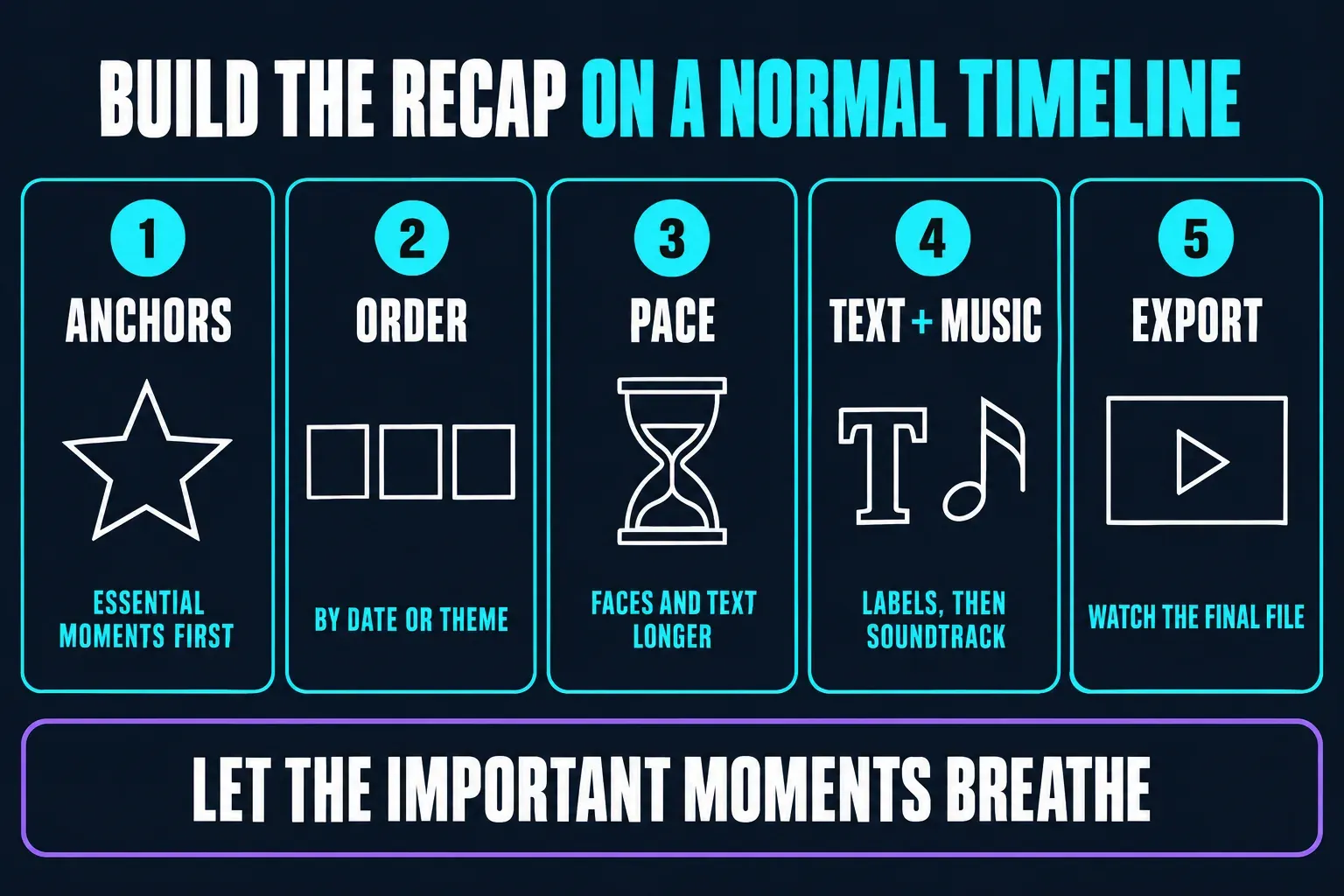
- Select anchors: import the shortlist and place only the essential moments first.
- Order the story: arrange them chronologically or by theme, then add supporting shots between them.
- Set the pace: leave faces, text and emotional reactions on screen longer; cut simple movement or scenery more tightly.
- Add text and music: use chapter labels where they help, then fit the soundtrack around the story beats.
- Export and watch: review the finished file instead of trusting the editor preview.
A normal project takes longer, but it is often faster than filling 74 slots and then discovering the recap is impossible to follow. CapCut's current manual slideshow workflow confirms the core controls used here: arrange imported media, change clip duration, add transitions and audio, then export. If you want CapCut to make the first clip selection automatically, that is a separate workflow covered in our CapCut AutoCut guide.
Fix crops, missing music and broken links
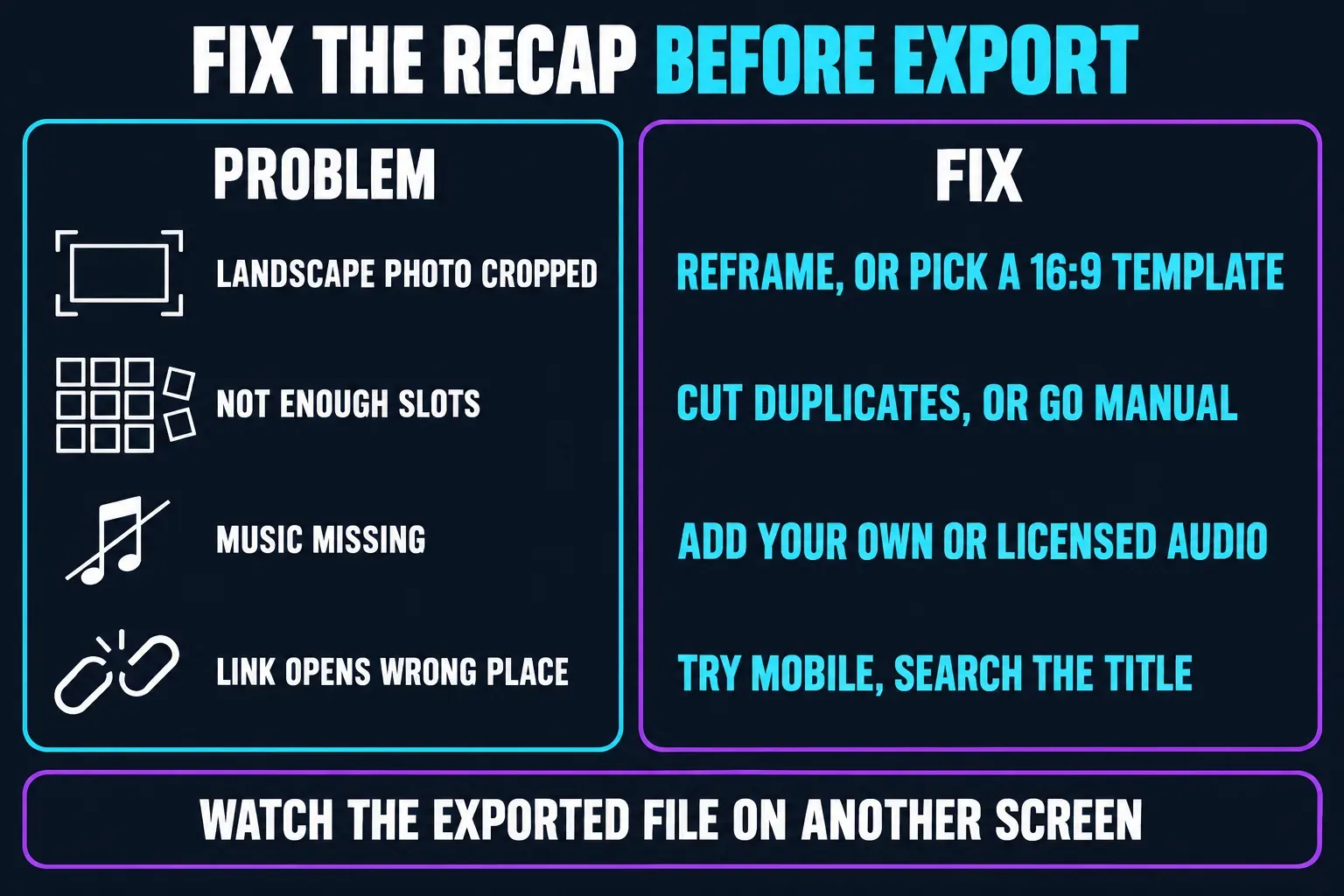
- Landscape photo is cropped: open that segment and reframe it if the template exposes crop controls. If the ratio is effectively locked, choose a landscape template or rebuild. In an August 2026 Reddit thread about narrow template cropping, one user reported a 9:16 replacement becoming narrowly cropped while the available crop control would not restore the lost sides. That is one experience, not a universal defect, but it shows why the hardest-shaped photo deserves an early test.
- Not enough slots: remove duplicates and weak setup shots. If an anchor still has to go, abandon the template instead of weakening the story.
- Music disappeared: CapCut says a published template may be muted because of copyright restrictions on the original music. Replace it with original or appropriately licensed audio. Our CapCut music guide covers the editing routes.
- Link opens the wrong surface: try Mobile, then search the exact title in the template library available to your account. For broader link, region and gallery failures, use the CapCut templates troubleshooting guide.
Export a recap that still works off your phone
Watch the exported file on another screen before you post it. Check the first three seconds, every crop, month or chapter labels, music continuity and the final frame. Pause on the fastest still images: if you can't understand them without already knowing the memory, a viewer won't either.
Export for the actual destination rather than choosing the largest number on the menu. A vertical social recap and a landscape family-screen version may deserve separate projects or separate reframing passes. Our breakdown of CapCut export settings explains resolution, frame rate and compression choices; this article’s job is to make sure the story is worth exporting first.
Keep the source album and the CapCut project until you have watched the final file from beginning to end. Don't delete the only copies of your clips because one export looked correct inside the editor.
FAQs about CapCut recap templates
What is the best CapCut template for a year recap?
For a simple month-by-month story, start with a 12-clip 9:16 layout. Use a 45-clip option only when you have several real highlights per chapter and the preview leaves enough time to read them.
Can a CapCut recap template include both photos and videos?
Many template routes accept photos, videos or both, but the allowed media type is set by the specific template. Check the selection screen before preparing the full album.
What if my recap has more photos than the template has slots?
Remove duplicates and weak filler first. If the remaining anchors still exceed the slot count, build the recap on a normal timeline so you control duration and order.
Why are my landscape photos cropped in a vertical recap template?
A 9:16 frame can't show the full width of many landscape photos. Reframe each exposed slot, choose a 16:9 template, add a background treatment or switch to a normal project.
Why does a CapCut recap template have no music?
The original track may be unavailable or muted because of rights restrictions. Replace it with music you created or are permitted to use, then watch the exported file to confirm the sound remains.
Can I use the same recap template on Mobile, Web and Desktop?
Not reliably. CapCut’s current help pages describe different levels of template access outside Mobile, and availability can vary by build, account and region. Trust the controls shown in your current version.
Does downloading a CapCut recap template give me a project file?
Usually no. The normal route opens the template, lets you replace its requested media and exports a finished video. It doesn't guarantee a portable project package for another editor.