

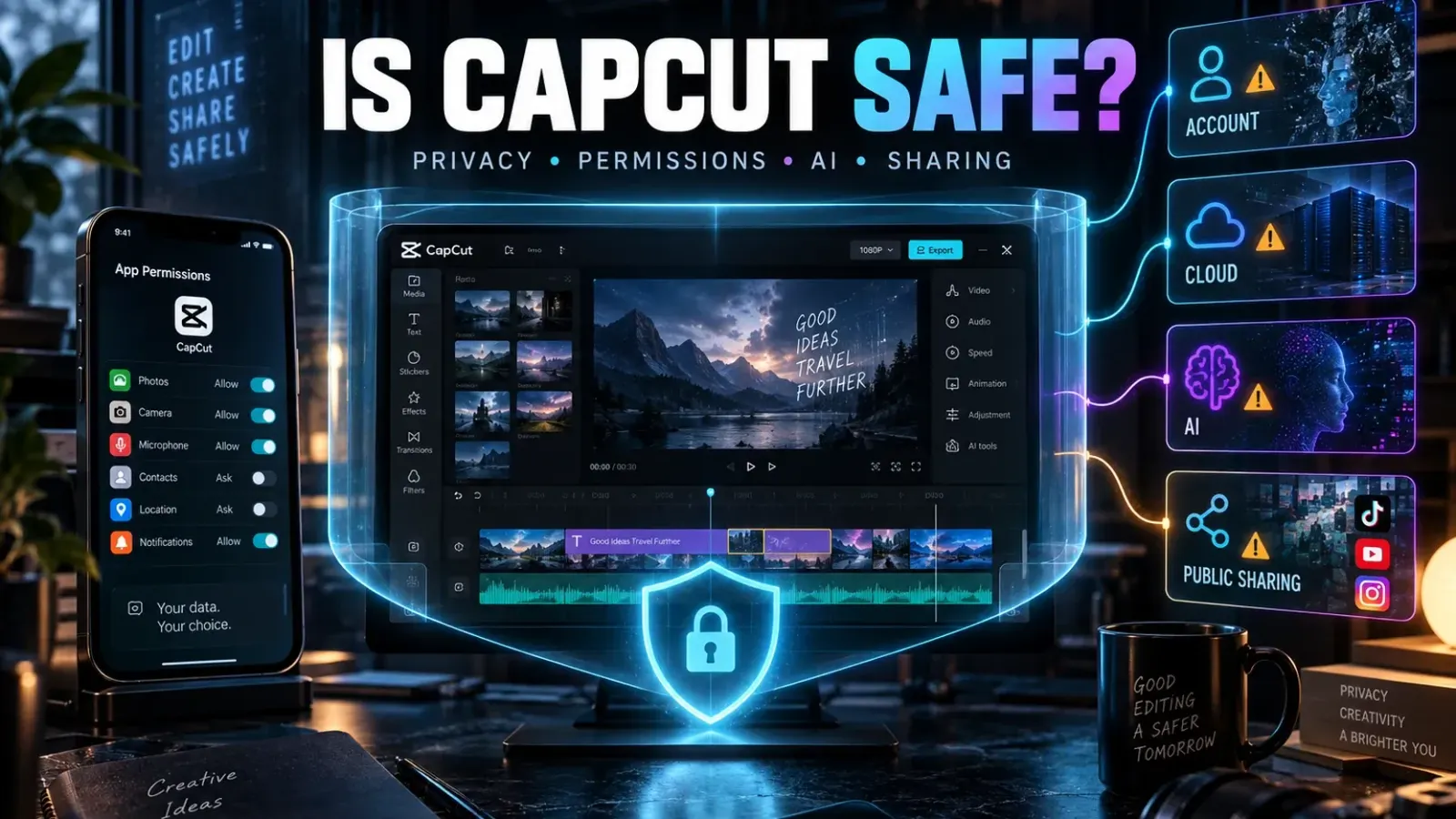
Checked September 22, 2026. CapCut is a legitimate video editor, but “safe” depends on where you install it, what media you give it, which permissions you allow, whether you use cloud or AI features, and what you publish through your account.
For ordinary editing, the practical answer is yes—with limits. Install CapCut only from its official site or an authorized app store, keep device permissions narrow, treat private footage as sensitive data, and separate local editing from templates, cloud features and public activity. CapCut does not currently offer a private-account switch, so you should not treat the account as a private social space.
Quick verdict: CapCut is safest when you use official software, edit non-sensitive media, keep projects local where possible, review AI and cloud uploads before sending them, and avoid publishing personal details. The main risk is rarely the cutting tool itself. It is the combination of broad media access, account data, uploaded content and public interaction.
CapCut safety at a glance
| Question | Practical answer | What to do |
|---|---|---|
| Is CapCut malware? | The official app is a legitimate editor. Modified APKs and unofficial downloads are a separate risk. | Use the official CapCut site, Apple App Store, Google Play or another authorized store. |
| Can CapCut access my photos? | Only within the permissions available on your device, but broad library access exposes more than selected access. | Choose selected photos where supported and remove access you no longer need. |
| Does CapCut collect data? | Its policy lists account, content, device, usage and other categories that may apply depending on the features you use. | Read the current policy and avoid uploading media you would not trust to an online service. |
| Are AI tools private? | AI tools can require prompts, files and generated responses to be processed by the service. | Remove private details before using AI features and check the applicable terms. |
| Can I make my CapCut account private? | No. CapCut's current help page says private accounts are not supported. | Limit profile details and public activity; do not rely on a privacy toggle that does not exist. |
| Is CapCut safe for children? | It can be appropriate for some teens with supervision. The general minimum age is 13, subject to regional terms and parental consent rules. | Use device-level controls, restrict purchases and review anything before it is posted. |
| Is CapCut banned in the United States? | Availability and legal status can change. The app is currently listed in the US App Store. | Check the current status before relying on it for a deadline. |
Is CapCut legitimate and safe to install?
CapCut is a real editing product operated by ByteDance-related entities under published terms and privacy documents. That does not make every file carrying the CapCut name trustworthy.
The CapCut Terms of Service distinguish official services from unauthorized versions. Install from the official CapCut website or the store built into your device. A “Pro unlocked” APK, cracked desktop installer or download mirror can add code CapCut did not ship, disable normal update checks or steal account credentials.
Use this installation check:
- Confirm the publisher and download source before opening the installer.
- Avoid pages promising permanent Pro access, removed watermarks or region bypasses through a modified app.
- Let the operating system verify the package and signature.
- Keep the app updated through the same official channel.
- If you already installed an unofficial build, remove it, review recent account sessions and change reused passwords.
For iPhone and iPad, the current US App Store listing for CapCut is a useful identity check. Store presence is not a complete security audit, but it is safer than installing a package from an unknown site.
What data CapCut may handle
CapCut's Privacy Policy, dated April 15, 2026, describes categories the service may collect depending on how you use it. These include account details, user content and its metadata, purchase and support information, device and network information, approximate location, usage activity, and material submitted to AI features.
That wording matters. It does not mean every category is collected from every person on every device. A local edit made without signing in does not create the same data flow as a signed-in account using cloud space, AI generation, templates and public publishing.
The policy also says CapCut may analyze characteristics of video, images and audio to provide features, recommendations and moderation. For some functions, content may begin uploading before you finish an action when you have allowed that behavior. The right response is not panic; it is choosing media with the assumption that any online feature can require server processing.
Apple's privacy labels can help you compare categories, but Apple explains that App Privacy information is supplied by the developer. Treat the label as a summary, then use CapCut's current policy and your actual permission settings for the final decision.
Review permissions before you import footage
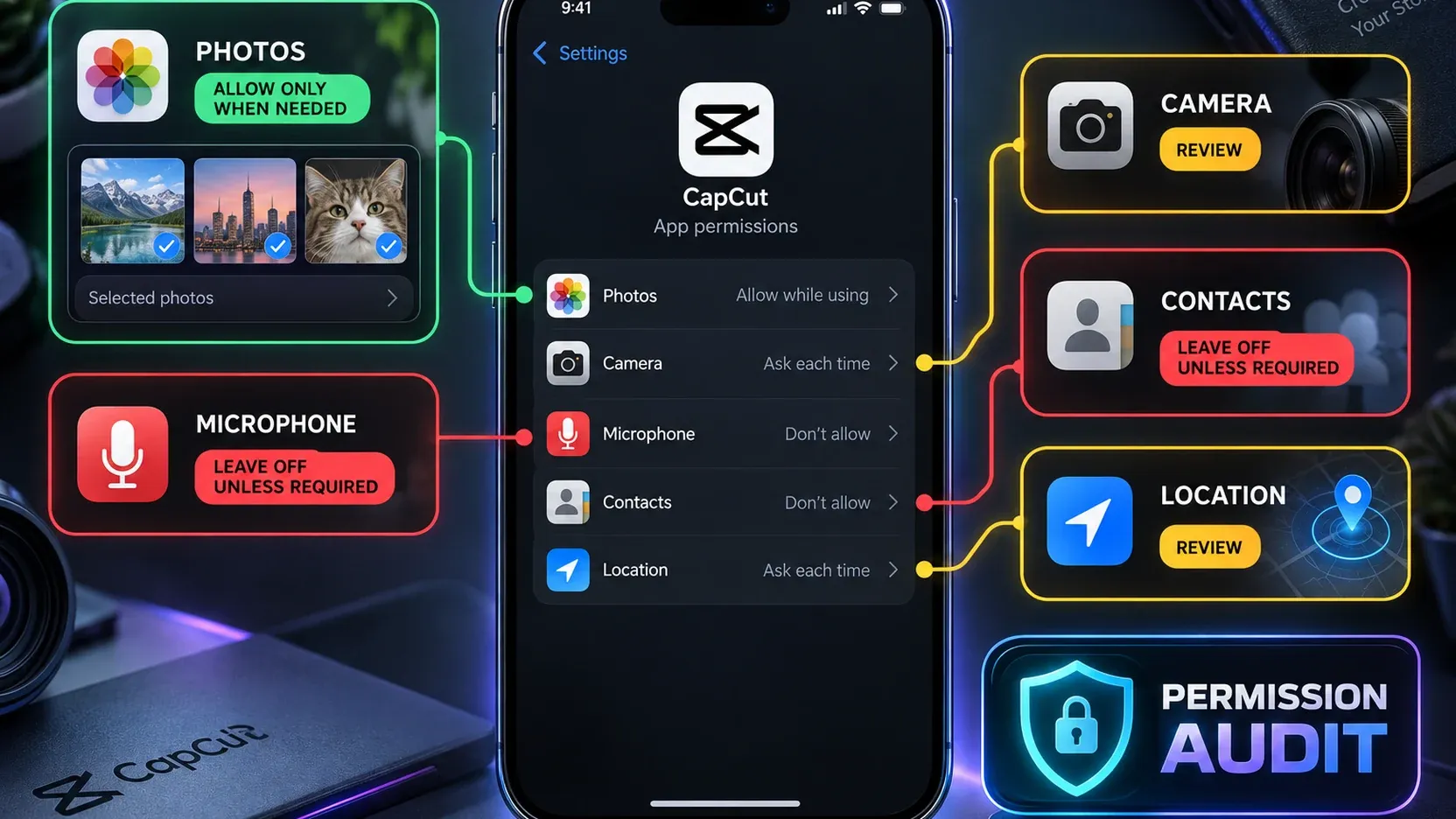
CapCut needs access to media to edit it. That does not mean it needs unrestricted access forever.
Photos and videos
Selected-photo access is the strongest default where your phone supports it. It limits the library visible to the app without blocking the project you are actually making. If you granted full access for a large edit, reduce it after the import is finished.
Camera and microphone
Camera access makes sense when recording inside CapCut. Microphone access makes sense for voice-over or live recording. Neither permission is needed merely to trim a clip already stored on the device.
Contacts and location
Do not enable contacts or precise location by habit. If a specific sharing or discovery feature requests either one, read the prompt and decide whether that feature is worth the extra access. A video can also reveal location through the picture itself: street signs, school logos, badges, windows and file metadata can identify more than the permission screen suggests.
Notifications and tracking controls
Notifications are mainly an attention choice. Advertising or tracking controls vary by platform and region. Deny optional tracking if you do not want cross-app personalization, then check whether the editor still performs the task you need.
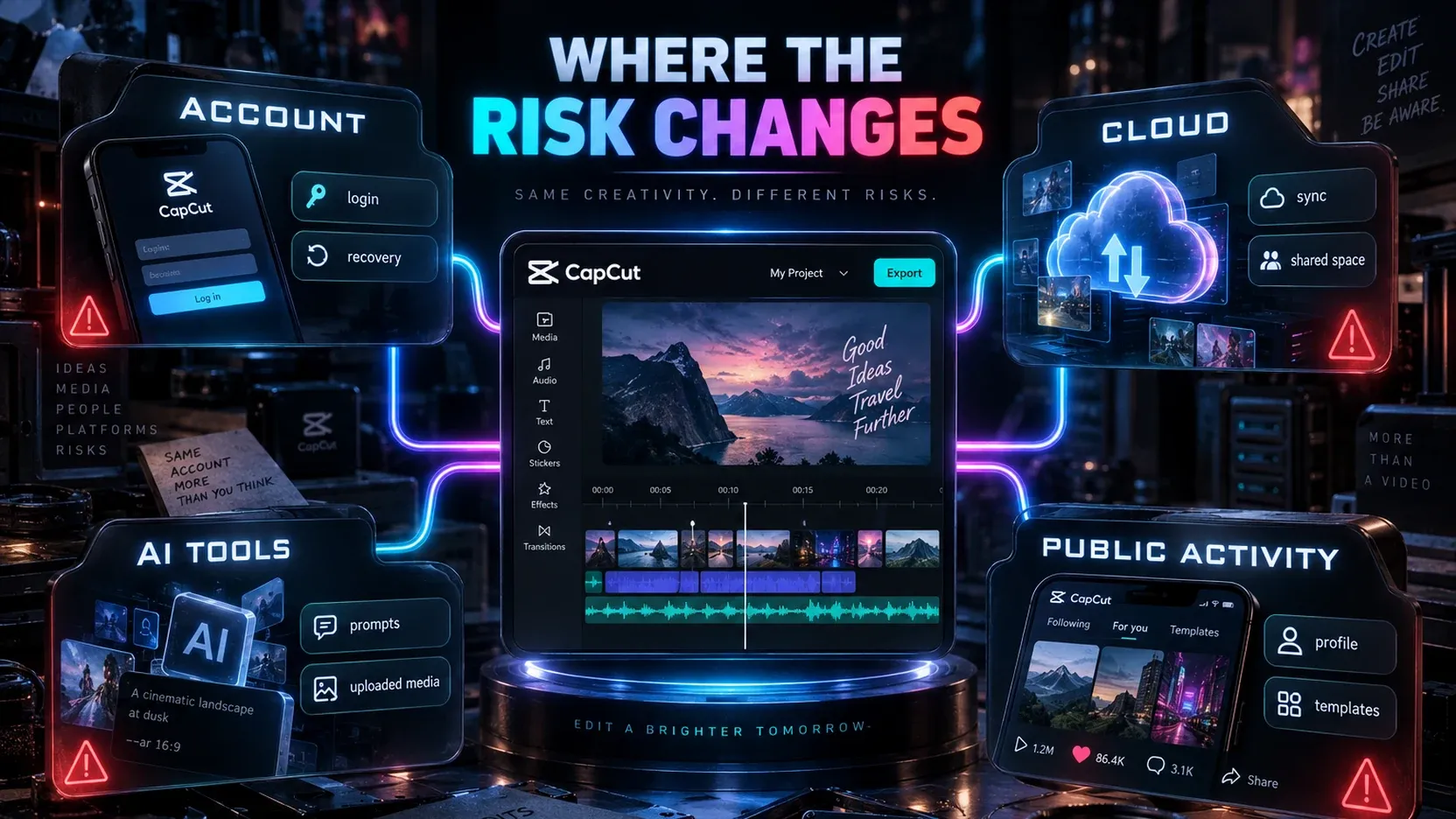
Where the risk changes: account, cloud, AI and public activity
A useful safety review follows the path of the project. Each step can expose a different kind of information.
Account data
Signing in links projects and activity to an account identity. Use a unique password, keep recovery details current and protect the email or social account used for login. CapCut explains how to check the login method and reset a password, while its account settings help center groups guidance for passwords, two-factor authentication, connected devices and account recovery.
Do not promise yourself that two-factor authentication will appear on every account. Login and verification options can vary by region, platform and sign-in method. Protect the underlying Apple, Google, TikTok, Facebook or email account as well.
Cloud projects and shared spaces
Cloud storage is convenient when you move between phone, desktop and browser or collaborate with another editor. It also changes the threat model: the project is no longer only on one device. Review who can access the space, remove old collaborators, and export an offline copy before a deadline. Our CapCut project safety guide explains how to keep source files, project data and exports from becoming a single point of failure.
AI tools
CapCut's policy explicitly includes AI prompts, uploaded files and AI responses among the information that may be processed. CapCut's trustworthy AI guidance describes privacy, transparency and safety as product commitments, while the Privacy Policy remains the controlling source for how submitted information is processed.
Use a simple rule: do not send an AI tool anything you would not send to another online processing service. Remove client names, unpublished product details, IDs, medical information, private conversations and location clues before upload. For a confidential project, use local editing features or a workflow approved by the person who owns the footage.
Templates, profiles and public interaction
Templates can be useful without being private. They may expose creator profiles, recommendations, links or a path to publishing. CapCut's official answer to whether an account can be made private is currently no: private accounts are not supported.
That makes profile hygiene important. Use a neutral display name where appropriate, omit personal biography details, and do not publish a draft merely to move it between devices. If your task is finding and adapting templates, follow the selection and licensing checks in our CapCut templates hub before you post the result.
Is CapCut safe for kids and teenagers?
CapCut's general terms set a minimum age of 13 and say minors may need permission from a parent or legal guardian. Regional rules and product experiences can differ, so a store rating is not permission to ignore the terms.
The official CapCut safety guidance for children should be read with two practical limits: CapCut does not offer a private-account switch, and it does not provide a complete parent dashboard that replaces device-level controls.
For a teenager, split the decision into activities:
- Local editing of approved clips: usually the lowest-risk use.
- Template browsing: review recommendations, creator profiles and external links.
- Cloud sync or AI tools: decide whether the footage is appropriate for online processing.
- Public posting: check faces, names, school details, location clues, audio and audience.
- Comments or contact: teach the child to block, report and show unwanted interaction to an adult.
- Purchases: require approval for trials, subscriptions and add-ons.
Apple families can use Screen Time and Ask to Buy controls. Android families can use Google Family Link app controls. Those controls can help manage installation, time, permissions and purchases, but they cannot judge whether a particular video reveals the child's school or home.
For a child under 13, do not create a false birthday to pass the age gate. Use an age-appropriate editor or keep the entire project under an adult-controlled account and sharing workflow that complies with the applicable terms.
Decide what is safe to upload
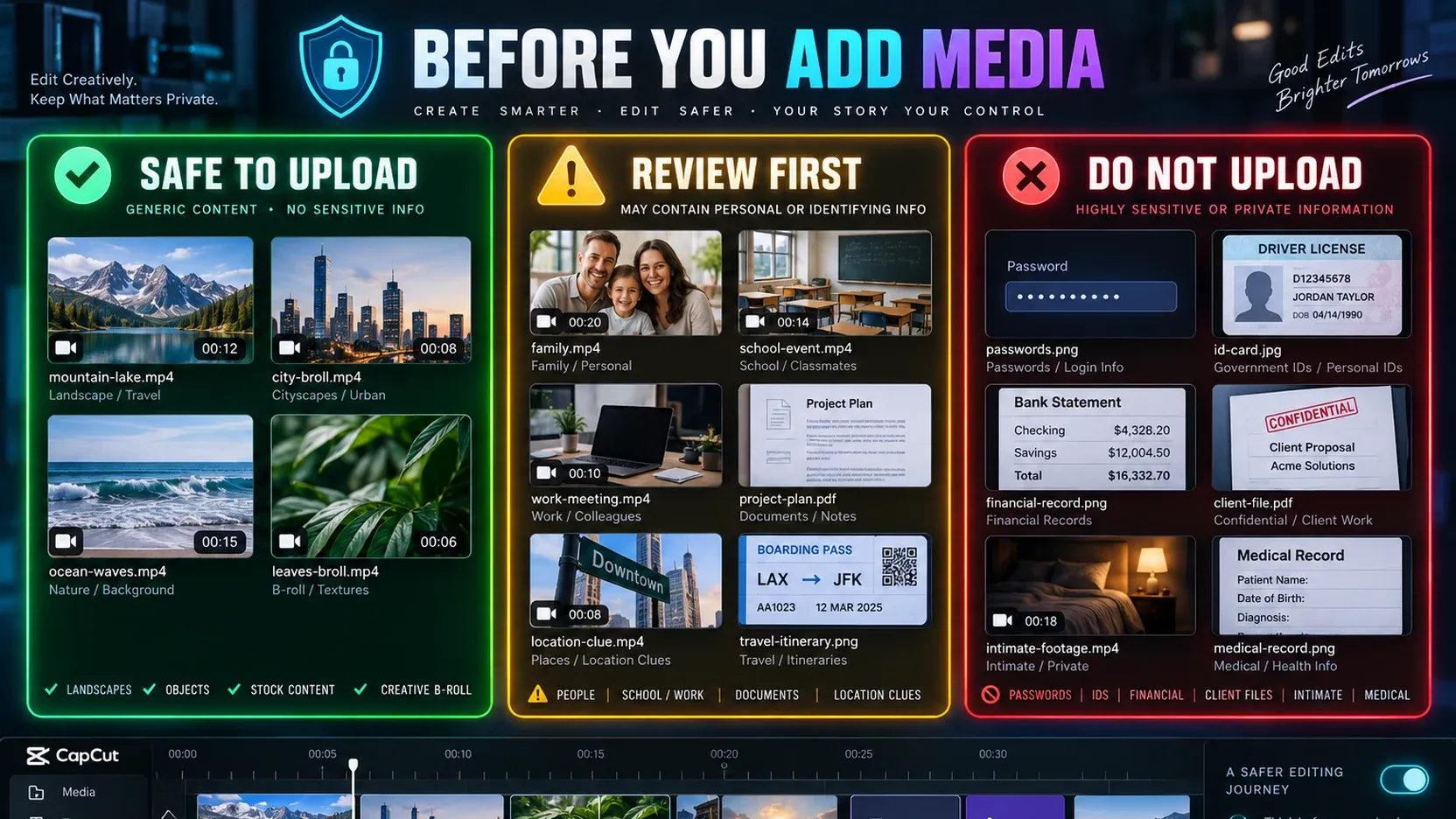
The media itself is often more sensitive than the app setting. A five-second clip can reveal a full name on a badge, a home address on an envelope, a customer record on a monitor or a private conversation in background audio.
Usually lower risk
Generic b-roll, public scenery without identifying details, product footage already cleared for publication, and media created specifically for a public post are easier choices.
Review first
Family videos, children, school or workplace footage, home interiors, license plates, documents, customer material, unpublished products and clips with other people's voices need a purpose and consent check.
Do not upload to online features
Passwords, recovery codes, identity documents, financial records, health records, confidential client files, intimate footage and anything under a legal or contractual restriction should stay outside online tools unless the data owner has approved a specific secure workflow.
Protect local projects and exports
Privacy is only one part of safety. Losing a project the night before delivery is a real risk too.
Keep original footage outside the app's project folder. Export important drafts at milestones. Store a separate copy on another disk or trusted backup service. Before deleting CapCut, clearing app data or switching devices, confirm that you have the source clips, the latest export and any project package your platform can preserve.
If you need to reinstall or move devices, use the correct platform guide: download CapCut for iPhone and iPad, install CapCut on Android, or review the CapCut account and login guide before changing sign-in methods.
A 10-minute CapCut safety setup
- Confirm the source. Use the official site or authorized store and remove any modified build.
- Protect the sign-in account. Use a unique password and secure the connected email or social login.
- Reduce media access. Choose selected photos where available.
- Turn off unused permissions. Leave camera, microphone, contacts and location disabled until a task needs them.
- Review profile details. Remove personal information and remember that private accounts are not supported.
- Separate local and online work. Decide before using cloud sync, shared spaces, templates or AI features.
- Lock purchases for children. Require approval for trials and subscriptions.
- Check every upload. Look for faces, names, documents, screens, locations and background audio.
- Back up the project. Keep source media and a recent export outside CapCut.
- Recheck availability before deadlines. Service and regional conditions can change.
Is CapCut currently safe to use in the United States?
Safety and legal availability are different questions. As of this check, CapCut is listed in the US App Store, but platform access and legal conditions can change faster than a general safety guide.
For the current timeline, download status and practical alternatives, use our maintained guide to whether CapCut is banned in the US. Do not use an unofficial APK or account workaround to bypass a restriction; that can add security risk without solving project continuity.
Final verdict
CapCut is safe enough for many ordinary editing jobs when you use the official app and make deliberate choices about data. The strongest setup is simple: limited media access, no unnecessary permissions, non-sensitive footage, protected login, local backups and a separate decision before any cloud, AI or public feature.
For children, the bar is higher. Follow the age rules, keep purchases controlled, use Apple or Google family controls, and review what leaves the device. Because CapCut does not support private accounts, profile and publishing choices deserve the same attention as the edit itself.