

iMovie is the better pick when everything you edit on is made by Apple, and CapCut is the better pick for captioned vertical video or any device outside Apple's. In a same-project beginner test, a first-time editor finished a 90-second video in 22 minutes in iMovie and 34 minutes in CapCut. The published export runs use different devices and projects, so they do not establish a speed tie or predict your render time. iMovie is free with no watermark and no plan to manage, while CapCut adds auto captions, a multi-track timeline and apps for Windows, Android and the web, with paid plans from $9.99 a month.
The pages ranking for this comparison mostly trade impressions, and several get basic facts wrong. PDFChef writes that "CapCut Standard costs nothing," though the App Store lists Standard at $9.99 a month. Fluxnote calls iMovie "a traditional desktop timeline editor," yet iMovie runs on iPhone and iPad too, and CapCut's own comparison page describes iMovie in one paragraph as "exclusive to iOS devices," leaving out the Mac. Clixie still lists "No watermarks" and "Full HD export quality" as free CapCut perks, while CapCut's help pages name several ways a free export can carry a mark and its free phone app reached 4K in a 2026 test. None of the ranking pages I could read publishes a timed test, a store rating with its count or the iOS version the current iMovie needs. This page puts a beginner workflow test, 4K export timings, store ratings, review scores, device requirements and three years of costs side by side, then tells you which one I'd use for each job.
iMovie vs CapCut at a glance
| Feature | iMovie | CapCut |
|---|---|---|
| Made by | Apple | ByteDance |
| Best for | Family, travel and school videos on an iPhone, iPad or Mac; a first edit with nothing to learn or pay | TikTok, Reels and Shorts with captions; editing on Windows, Android or the web; layered edits |
| Runs on | iPhone and iPad (iOS 27.0 or later for the current version) and Mac (macOS 26.6 or later) | iPhone and iPad (iOS 15 or later), Android, Mac, Windows and web |
| Price | Free | Free; Standard $9.99 a month (phone only); Pro $19.99 a month or $179.99 a year |
| Watermark | None | Deletable end card on a free phone export; Pro elements, template endings and some stock can add a mark |
| Auto captions | No; titles are typed by hand | Yes, on phone, desktop and web; may need Pro or use an allowance |
| Timeline | Two video layers | Multi-track |
| Beginner's first 90-second video | 22 minutes | 34 minutes |
| App Store rating (US) | 4.4 from 318,837 ratings | 4.6 from 1.1 million ratings |
| Install size on iPhone | 702.6 MB | 828.5 MB |
First edit by a beginner: the workflow test
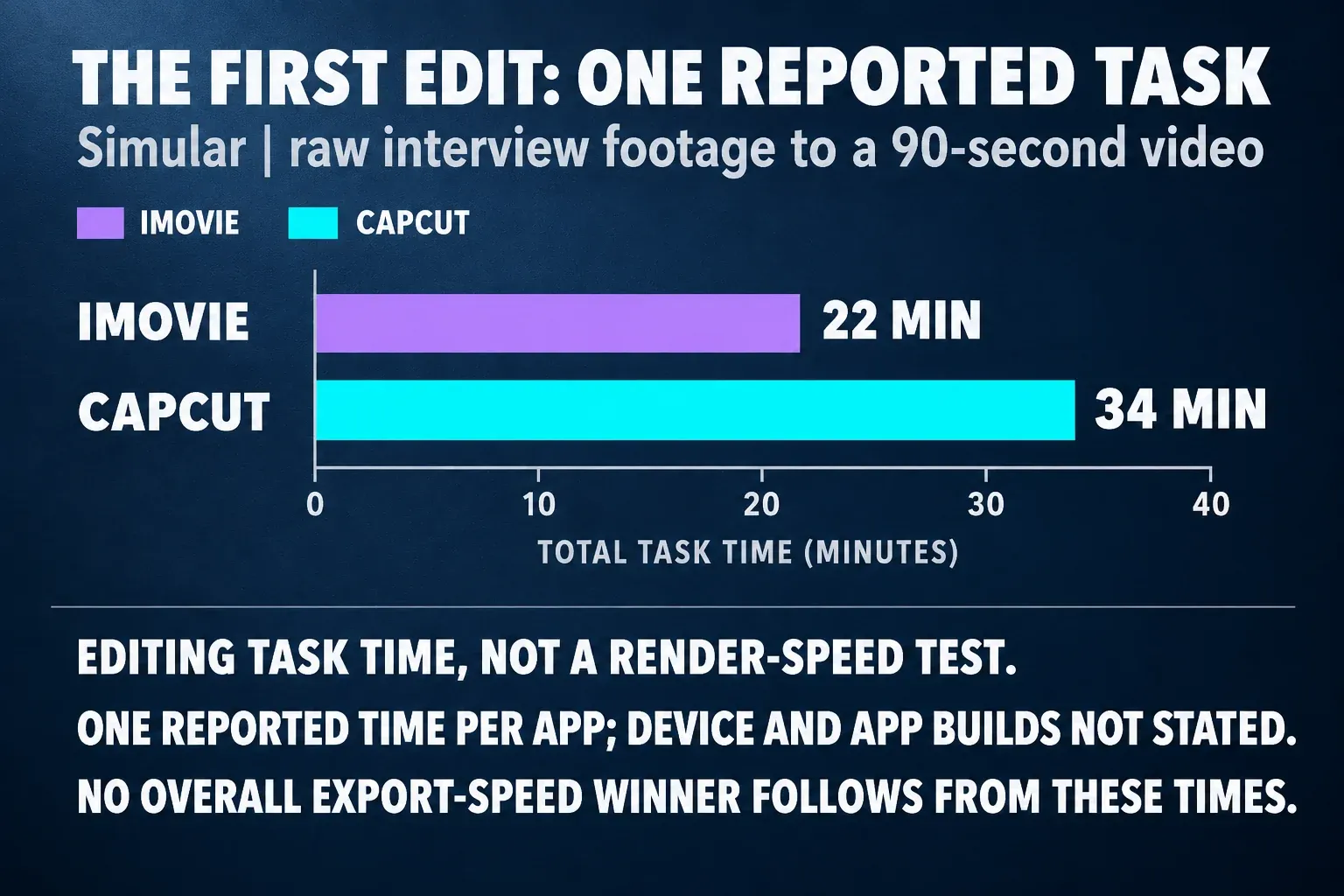
For Simular's test of ten beginner video editors, a user with no editing experience turned raw interview footage into a polished 90-second video in each app. iMovie was the fastest of all ten at 22 minutes, with "zero frustration." CapCut came second at 34 minutes, with frustration rated 2 out of 10.
| Measure | iMovie | CapCut |
|---|---|---|
| Time to a finished 90-second video | 22 minutes, fastest of 10 editors | 34 minutes, second of 10 |
| Frustration score | Zero | 2 out of 10 |
| Automatic first draft | Magic Movie made a watchable video in under 3 minutes | Not timed |
| Auto captions | None | 98.2% accurate in Simular's English tests |
CapCut took about 55% longer, roughly 12 extra minutes on a 90-second video. That's one run per app from one source, so there's no range to report, and the page gives no date, device or app versions. Simular also sells Sai, an AI video agent it ranks first on the same page, and a few of its CapCut details are out of date: it lists a $7.99 Pro plan and free 4K exports with no watermark, which the price and watermark sections below correct. I still trust the direction of the timing. iMovie has two video layers and short menus, so there's less to learn before the first export, and Magic Movie builds a whole draft from an album with titles, transitions and music. CapCut's extra 12 minutes buys captions that type themselves, which matters more on a talking-head video than on a holiday clip.
4K export times on the tested devices
The timed runs below use different devices, projects and output settings. They describe those setups, not a controlled export race between the apps.
| Test | App and device | Video and setting | Render time | Seconds of render per second of video |
|---|---|---|---|---|
| OWC, December 2020 | iMovie on a 2019 16-inch MacBook Pro, Core i9, 32 GB | A 2:03 4K project, exported at 4K, High quality | 261.3 s | 2.12 |
| OWC, December 2020 | iMovie on an M1 MacBook Air, 16 GB | The same project and setting | 191.5 s | 1.56 |
| Dailytech, October 2026 | Free CapCut 19.6.0 on a Galaxy A31 | About 30 seconds at 4K and 25 fps | 48.2 s | about 1.6 |
| Dailytech, October 2026 | The same phone and app | The same clip at 1080p and 25 fps | 16.4 s | 0.55 |
| HitPaw, October 2026 | CapCut, device not stated | 60 seconds with overlays and music at 1080p and 60 fps | 42 s | 0.70 |
The OWC iMovie runs and the CapCut phone exports are separate historical results, with different hardware, projects, years and output settings. They do not establish equal rendering speed or a time estimate for your next 4K export. HitPaw sells its own video tools; its currently published 42-second result belongs to CapCut, while Canva took 105 seconds. The older OWC runs also predate iMovie 10.4: the Mac App Store version history for iMovie describes segmented HEVC and H.264 export on specified Apple Silicon Macs running macOS Sonoma or later. Choose by device support and the editing tools below, then check a short representative export if turnaround time matters.
TechPP also reports CapCut exports at 4K and 60 fps on three phones. In TechPP's three-phone export test, CapCut exported one 4K clip at 60 fps in 1:45 on a OnePlus 13, 1:51 on a OnePlus 13R and 3:25 on a mid-range Nord CE4. The page doesn't give the clip length, so those times cannot be normalized by video length or used to compare speed with iMovie. Speed isn't the reason to choose here. If an export drags in CapCut, our CapCut export settings guide shows which resolution, frame rate and bit rate to lower first.
Captions and vertical video
This is where CapCut wins outright. iMovie has 11 animated title styles you can place and restyle, but no automatic captions: every line of text is a title you type and time yourself. CapCut transcribes speech into timed captions on phone, desktop and web, and Simular measured 98.2% accuracy in English. Auto captions can sit behind Pro or a limited allowance depending on your account, and our CapCut auto captions guide explains what the free plan gets. For the bouncing, word-by-word look that Shorts and TikTok use, see our guide to word-by-word captions in CapCut.
Vertical video follows the same split. iMovie can edit portrait footage, but it isn't built around 9:16 social canvases, and its quick shares to Mail and Messages come out at 360p and 30 fps, according to Apple's iMovie for iPhone sharing guide. CapCut lets you switch a project's aspect ratio for TikTok, Instagram or YouTube, and our guide to auto reframe in CapCut turns a landscape cut into a vertical one. Our YouTube Shorts size and TikTok video size guides list the numbers to export at.
Store ratings, review scores and install size
| Measure | iMovie | CapCut |
|---|---|---|
| US App Store, iPhone and iPad | 4.4 from 318,837 ratings | 4.6 from 1.1 million ratings, #1 in Photo & Video |
| Google Play (US) | No Android app | 3.5 from 13.1 million reviews, 1B+ downloads |
| Mac App Store (US) | Not enough ratings to show an average | Desktop app compared below |
| Install size | 702.6 MB on iPhone; 3.58 GB on Mac | 828.5 MB on iPhone |
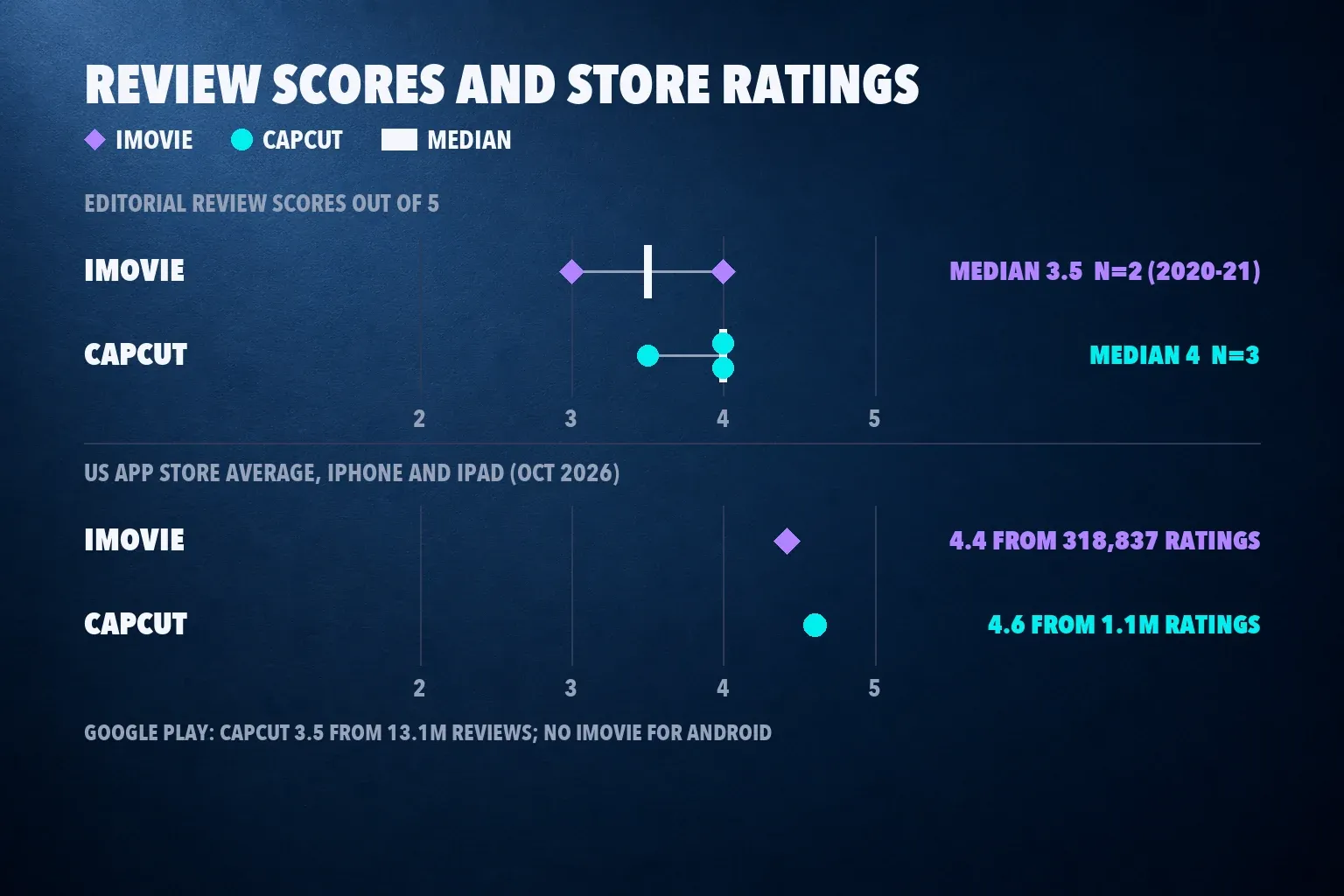
| Editorial review scores | TechRadar 3 (2020) and Tom's Guide 4 (2021), both for the Mac app; median 3.5 from 2 | TechRadar 4, MobileAppDaily 4, PCMag 3.5 for the desktop app; median 4 from 3 |
CapCut edges iMovie in both the App Store and the review scores, but neither gap is wide: 4.6 against 4.4, and a median of 4 against 3.5. The iMovie scores are also old. TechRadar's 3 out of 5 came with the complaint that iMovie "hasn't been properly updated in years," and Apple has shipped updates since, so I'd weigh that score less than CapCut's newer ones. CapCut's 3.5 on Google Play is the number to watch if you edit on Android, so read recent reviews for your phone model before paying. On a full iPhone, iMovie is about 126 MB smaller, and our guide to freeing CapCut storage on iPhone helps if CapCut is the one eating space.
Updates and the devices each app needs
Check this before anything else, because it can decide for you. The current iMovie for iPhone and iPad, version 3.0.6 from October 22, 2026, requires iOS 27.0 or later, according to the iMovie App Store listing. iMovie 10.4.5 for Mac, from September 29, 2026, lists macOS 26.6 or later in its compatibility field, while its description asks for macOS 26.4, 4 GB of memory and 3.5 GB of free space. If your iPhone or Mac can't run those versions, check what the App Store offers your device before you plan a project around iMovie. CapCut for iPhone runs from iOS 15, its Mac app from macOS 10.14 or 10.15 depending on the CapCut page you read, and it also runs on Windows, Android and the web. Our CapCut for Mac guide sorts out the conflicting Mac requirements.
iMovie is still maintained, just slowly. The iPhone version got Magic Movie and 20 Storyboards in version 3.0 on April 12, 2022, log video support for iPhone 15 Pro in 3.0.2 in September 2023, and mostly fixes since. The Mac version added segmented export in 10.4 in November 2023 and Cinematic mode effects in 10.4.5. CapCut updates far more often, with new templates, effects and AI tools; our CapCut AI tools guide covers what's there now.
What each app costs
iMovie is free on iPhone, iPad and Mac, with no watermark, no paid tier and no AI-credit allowance to track, per the iMovie App Store listing and its Mac App Store listing.
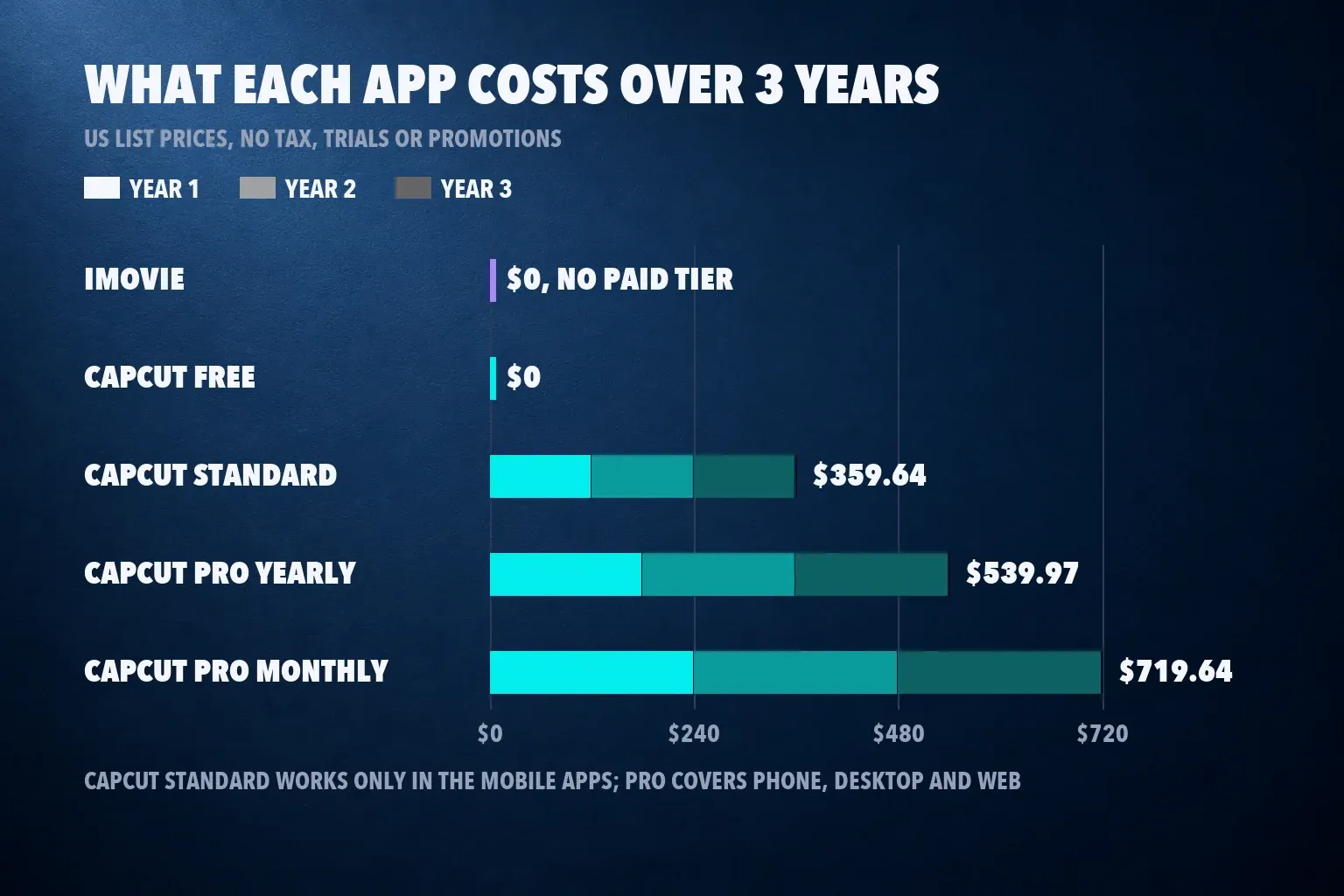
CapCut's free phone app exported with no watermark in the Dailytech test, adding only an end card you can delete. PCMag found watermarks on free desktop exports, and CapCut's watermark help page traces marks to template endings, stock that needs attribution, the default outro and Pro elements; our CapCut watermark guide handles each case. The CapCut App Store listing shows Standard at $9.99 a month and Pro at $19.99, and CapCut's pricing page shows Pro at $179.99 a year. Standard works only in the mobile apps, while Pro covers phone, desktop and web, per CapCut's help page on cross-platform subscriptions.
| Plan | 1 year | 2 years | 3 years |
|---|---|---|---|
| iMovie | $0 | $0 | $0 |
| CapCut Free | $0 | $0 | $0 |
| CapCut Standard monthly | $119.88 | $239.76 | $359.64 |
| CapCut Pro yearly | $179.99 | $359.98 | $539.97 |
| CapCut Pro monthly | $239.88 | $479.76 | $719.64 |
These are US list prices with no tax, trials or promotions, renewed at the same price. Both apps have a $0 route, so the real question is whether CapCut's paid features earn their keep on your videos. Paying buys more AI tools, premium effects and, with Pro, the desktop and web apps on the same subscription. Our CapCut pricing guide compares the plans, is CapCut Pro worth it answers whether they earn their price, and the CapCut Pro free trial guide shows how to try Pro first.
Export rules side by side
| Rule | iMovie | CapCut |
|---|---|---|
| Top resolution | 4K (3840x2160) | 4K (3840x2160), where the device, system, app version and platform support it |
| 4K and 60 fps on a Mac | 4K shares at 30 fps; 60 fps projects share at 1080p | Desktop exports up to 4K at 60 fps when the source supports it |
| 60 fps on iPhone and iPad | At 1080p or 4K when more than half the project media is 60 fps | 24, 25, 30, 50 or 60 fps |
| Project format | On a Mac, the first clip you add sets the format | In the web editor, set 2K or 4K before you start editing |
| Other controls | Quality and compression on Mac; HDR on or off on iPhone | Resolution, frame rate and bit rate on phones; codec, format and color space on desktop |
| Watermark | None | Deletable end card on a free phone export; Pro elements can mark or lock an export |
The Mac rules come from Apple's guide to 4K and 60 fps video in iMovie, and the iPhone rule from Apple's sharing guide. That 60 fps condition trips people up: a project made mostly of 30 fps clips won't offer 60 fps, however you set the phone. CapCut's help page on 2K and 4K export says the higher options depend on the device, system, app version and platform, and the web editor's 4K needs at least macOS 11 or 64-bit Windows 10 with 8 GB of RAM. Our CapCut export quality guide fixes soft or blocky exports.
Editing tools: where each one is stronger
iMovie is built around getting a good-looking result quickly. The iMovie App Store listing counts 20 Storyboards, 14 trailer templates, 8 themes, 13 filters, 11 animated title styles and more than 130 soundtracks that fit the length of your movie, plus picture in picture, green screen and split screen. It also handles Apple footage well: Cinematic mode focus changes and log video from recent iPhones. The limit is depth. TechRadar counted two video layers on the Mac, and Simular lists no motion tracking or multicam. Our iMovie review tours Magic Movie, Storyboards, the timeline and the export menus in full, so I won't repeat it here.
CapCut is built around the social edit. You get a multi-track timeline for stacked overlays, keyframe animation in CapCut, a large library of CapCut templates for trends and a wide range of caption styles. If you stack logos, text and picture-in-picture clips, our guide to adding overlays in CapCut shows how far past two layers you can go.
Editing on a Mac, PC or iPad
iMovie runs only on iPhone, iPad and Mac. There's no Windows, Android or web version, so an editable iMovie project can't move to a PC; you share a finished video file instead. Projects do move between Apple devices over AirDrop or iCloud Drive, and an iPhone project can go to a Mac to finish in iMovie or Final Cut Pro. If you're weighing that upgrade, our CapCut vs Final Cut Pro comparison covers it.
CapCut runs on iPhone, iPad, Android, Mac, Windows and the web, and Pro carries one subscription across all of them. If you edit on a bigger screen, start with our CapCut for PC, CapCut web editor or CapCut for iPad guide.
Using iMovie and CapCut together
You don't have to choose. Cut in iMovie, finish the social version in CapCut Free.
- Build the story in iMovie on your iPhone or Mac, where trims, titles and Apple footage are easy.
- Export a clean master at the project's full resolution, without burned-in text you'll want to change.
- Import the master into CapCut, switch the canvas to 9:16 and reframe it for TikTok, Reels or Shorts.
- Generate captions, proofread names and numbers, then export one version per platform.
Keep the master, original recordings and editable iMovie project. The master is useful for reframing the finished cut, but it cannot restore separate titles, layers or discarded footage when the story needs another edit. Our Instagram Reel size guide lists the Reels export numbers.
Which one I'd pick
- Family, travel and school videos on an iPhone or Mac: iMovie. It's free, adds no watermark, and Magic Movie gives you a first draft in minutes.
- Your first video ever: iMovie, which got a beginner to a finished 90-second video 12 minutes sooner in the only same-project test.
- TikTok, Reels and Shorts with captions: CapCut. Auto captions and quick 9:16 reframing save the work iMovie leaves to you.
- A Windows PC, an Android phone, a Chromebook or a mixed household: CapCut, because iMovie doesn't exist there.
- An iPhone or Mac that can't run the current iMovie: CapCut, which installs from iOS 15, unless the App Store offers your device an older iMovie.
- Layered edits with logos, text and picture in picture: CapCut's multi-track timeline. On a Mac, Final Cut Pro is the other way up from iMovie.
- Long 4K exports: choose by your Apple device, required tools and output settings. The separate historical runs do not identify the faster app for that job.
If neither fits, our CapCut alternatives guide compares more editors, and our InShot vs CapCut, Canva vs CapCut and Edits vs CapCut comparisons cover three more matchups. For a wider field on Apple devices, see the best video editing apps for iPhone.
How I compared
I compared both apps on the questions a beginner or creator asks before choosing: how long the first edit takes, how fast 4K exports, how captions and vertical video work, what the free export looks like, what paying adds and which devices each one runs on. The workflow timing comes from Simular's same-project beginner test, with its vendor interest and missing dates stated. Export times come from OWC's iMovie runs on two Macs and from Dailytech, HitPaw and TechPP for CapCut, kept as separate historical runs with their stated conditions, without pooling them into a speed tie or predicting another project's export time. I read both apps' US App Store listings, iMovie's iPhone and Mac version histories, CapCut's Google Play listing, Apple's 4K and sharing guides, CapCut's pricing and help pages, and the TechRadar, Tom's Guide, MobileAppDaily and PCMag reviews. Where a ranking page disagreed with a listing or help page, the listing won.
iMovie vs CapCut questions
Is CapCut better than iMovie for beginners?
Not for the first video. In Simular's beginner test, iMovie produced a finished 90-second video in 22 minutes with zero frustration, against 34 minutes in CapCut. CapCut becomes the easier choice once you need captions or vertical social formats.
Which exports 4K faster, iMovie or CapCut?
The cited runs do not settle that comparison: they use different hardware, projects, years and settings. They cannot predict how long your next 4K export will take. Compare a representative section on your intended device and output settings if render time decides the choice.
Which is better for TikTok, Reels and Shorts?
CapCut. It writes timed captions automatically, switches the aspect ratio to 9:16 and reframes landscape footage, while iMovie needs every caption typed as a title. iMovie is fine for the cut itself if you finish the vertical version in CapCut.
Do iMovie or CapCut add a watermark?
iMovie never does. CapCut's free phone app added only an end card you can delete in a 2026 test, while PCMag found watermarks on free desktop exports, and Pro templates, effects or stock can mark or lock any export.
Can I get iMovie on Windows or Android?
No. iMovie runs only on iPhone, iPad and Mac, and an iMovie project can't be opened on a PC. CapCut has apps for Windows, Android and the web, so it's the one to use across devices.
Why can't I install iMovie on my older iPhone?
The current iMovie, version 3.0.6, requires iOS 27.0 or later, and the Mac version asks for macOS 26.6. Check what the App Store offers your device; if it offers nothing, CapCut runs on iPhones from iOS 15.
Is CapCut Pro worth paying for when iMovie is free?
Only if you use what it adds. Pro costs $179.99 a year or $19.99 a month and brings premium effects, more AI tools and the desktop and web apps on one subscription. For family videos, free iMovie or free CapCut covers the job.