

Checked September 23, 2026. The US App Store currently lists two separate CapCut apps that can run on iPad, and their versions, libraries and available controls can change.
For a new iPad-first, multi-track project, start with CapCut Pad. It is the dedicated tablet app. If you already have an editable project, open the app that created it before changing anything. Do not assume CapCut Pad and CapCut: Photo & Video Editor share one local draft library merely because both use the CapCut name.
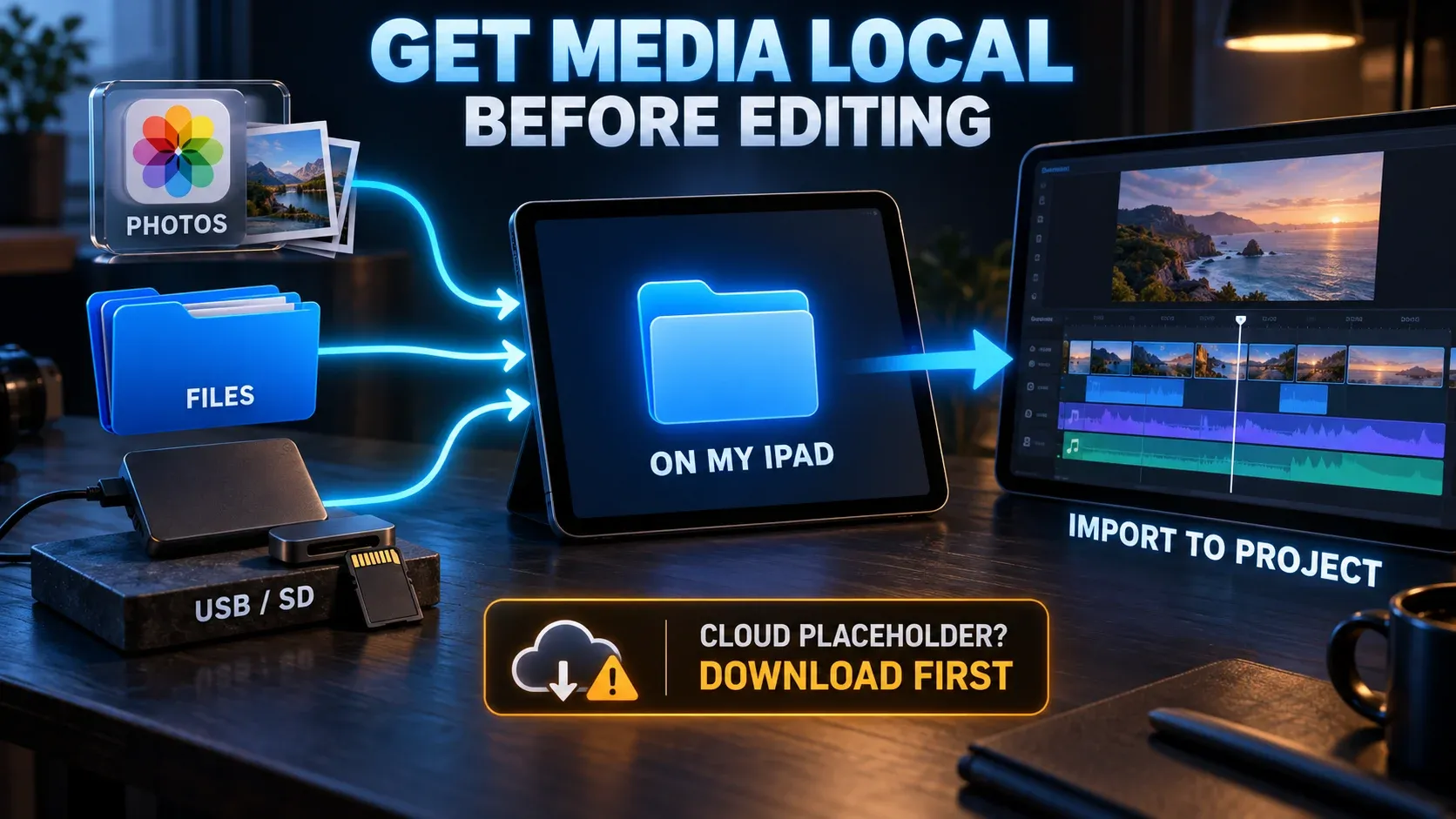
Use Photos, Files or an external drive to bring in source media. Download cloud placeholders first. For an editable move to another device, sign in to the same CapCut account and verify that the project is actually present in the intended Space or Cloud area before removing the local copy. A rendered MP4 is a finished video, not a transferable timeline.
Which CapCut app should you use on iPad?
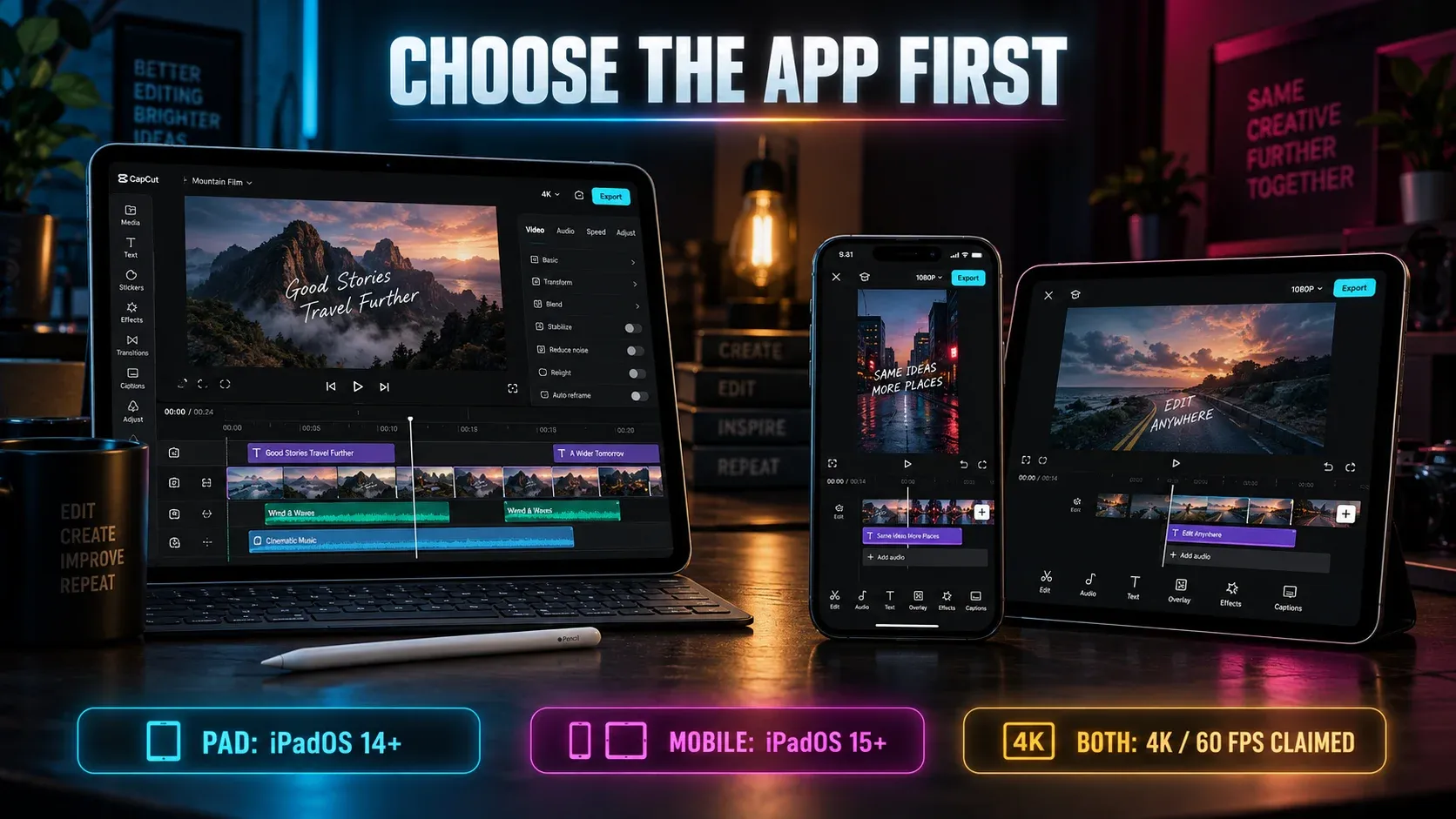
As of the checked date, the two US listings are:
| App | Current US listing | Best starting point | Main caution |
|---|---|---|---|
| CapCut Pad | Version 9.5.0; requires iPadOS 14.0 | A new iPad-focused project that benefits from a larger multi-track workspace | It is a separate app. Confirm that any old project has been transferred before deleting its original copy. |
| CapCut: Photo & Video Editor | Version 19.6.0; requires iPadOS 15.0 on the current universal listing | An existing mobile draft created in this app, or a workflow already tied to its mobile library | Do not switch apps in the middle of a project without a verified editable copy. |
Apple's current catalog identifies CapCut Pad as a dedicated app and keeps CapCut: Photo & Video Editor as a separate universal listing. The different bundle IDs matter because local app data belongs to the app that created it.
CapCut describes the Pad version as a touch-oriented, large-screen editor with a multi-track timeline, keyframes, optical-flow slow motion, chroma key, stabilization, auto captions and background removal. Those are useful reasons to choose it for a new edit. They are not proof that a draft stored only inside the other app will appear automatically.
The minimum iPadOS number only tells you whether the store will allow installation. It does not promise smooth editing of 4K/60, HDR, long multi-layer timelines or AI features on every supported iPad. Source codecs, free storage, memory pressure, the project and the current build still matter.
Protect an existing project before switching apps
If a project already matters, keep the original iPad, original app and source media intact until you have opened a second editable copy. Do not treat a home-screen thumbnail as a backup.
Use this order:
- Open the project in the app where it currently works.
- Confirm which CapCut account and Space are active.
- Keep every original video, audio file, font and graphic available.
- Upload or copy the project through the editable project route offered by that app.
- Open it on the destination device or app and inspect the timeline, media links, text, effects and audio.
- Export a short representative section and review it outside CapCut.
- Preserve the original draft until the transferred copy survives those checks.
If the only file you have is an exported MP4, you can import that video and make a new edit around it. You cannot recover its original layers, cuts, keyframes, captions and replaceable media from the rendered file. The CapCut project-location guide explains the difference between app-managed drafts, uploaded projects and exported videos.
Import from Photos, Files or an external drive
From Photos
Use Photos when the clips were recorded on the iPad or synced into the photo library. Before importing a long or high-resolution clip, open it in Photos and wait for the original to download. A visible thumbnail can still represent media that is stored primarily in iCloud.
Check CapCut's Photos permission if a clip is missing from the picker. If iPadOS offers limited access, include the exact clips you need or change the permission deliberately in Settings. Do not delete and reinstall CapCut as the first permission fix when local drafts have not been backed up.
From Files
Files is the cleaner route for material organized in folders, downloaded from another service or copied from a computer. Put a test clip in On My iPad when you need to separate a CapCut import problem from an iCloud or network problem.
If a familiar MP4 or MOV file still fails, the extension may not describe the streams inside it. The CapCut supported-formats guide shows how to inspect the video codec, audio codec and timing before making a short compatibility copy.
From USB-C, an SD card or an external SSD
Apple says an iPad external drive must have one data partition and use APFS, encrypted APFS, HFS+, exFAT, FAT32 or FAT. That determines whether Files can mount the drive. It does not guarantee that CapCut can decode every video stored on it.
For a dependable edit:
- confirm the drive appears under Locations in Files;
- open and scrub the source outside CapCut;
- copy a short test clip to On My iPad;
- import that local copy into a blank project;
- copy the complete media folder locally when storage permits;
- keep the drive connected and powered if the project continues to reference it.
Some drives need more power than the iPad port supplies. A powered hub can solve a connection problem, but it will not fix an unsupported codec or a damaged file.
Templates can differ between the two apps
Do not judge the installation only by whether the Templates tab looks identical to an iPhone screenshot. Template availability can depend on the CapCut app, account, region, app version, link type and plan.
A shared TikTok or CapCut template link may be designed to open through the mobile app route. CapCut Pad can have a different layout or library state. If a template is missing:
- record which of the two apps is open;
- update that app through the official App Store listing;
- confirm the account and region;
- try a second current template;
- open a shared link on the iPad instead of expecting the same desktop path;
- protect local drafts before clearing data or reinstalling.
The templates-not-working decision tree separates a missing tab, a broken shared link, a blank preview, failed media replacement and export failure. Those symptoms need different fixes.
Where iPad projects live and how sync works
A local draft belongs to the app's managed storage. Signing into an account does not prove that every existing draft has been uploaded. Open the project library and the intended Space, then confirm the project appears where you expect it.
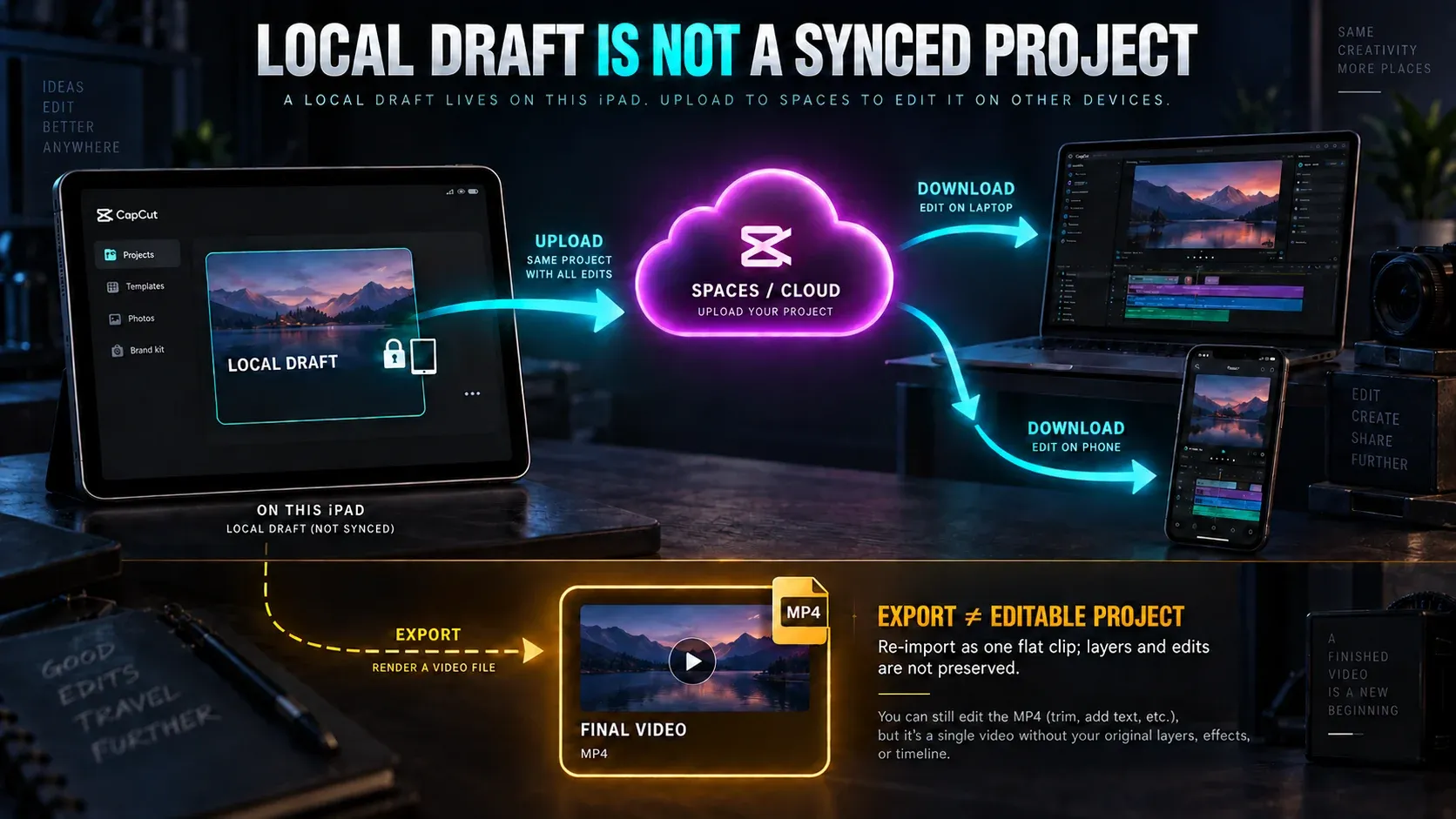
For an editable handoff to desktop or another iPad:
- use the same login method and verify the exact account;
- select the intended Space rather than assuming the default one is correct;
- wait for the upload to finish;
- open the project on the destination device;
- check for missing local fonts, effects or source files;
- leave the original draft untouched until the new copy is complete.
Cloud storage is an entitlement, not an automatic backup of everything in the app. If the meter shows almost no capacity, the CapCut 1 KB cloud-storage explanation covers current Space quota behavior and a safer preservation route.
For a project you cannot recreate, keep three separate things: the editable draft or verified project copy, the original media, and a finished export. Each protects against a different failure.
Move between iPad and desktop without flattening the edit
A finished MP4 is useful for delivery, review or continuing with a single flattened clip. It is the wrong transfer method when you still need individual layers and edits.
Use an editable Space or project-copy route when available. Then inspect the destination timeline before doing more work. Features and assets can differ between Pad, Mobile, Desktop and Web, so look for:
- missing fonts or substituted text;
- effects or templates tied to a plan or app;
- offline media;
- captions that changed line breaks;
- HDR or color-space differences;
- aspect-ratio and canvas changes;
- audio tracks that are muted or unavailable.
If you prefer a paid iPad editor with a more traditional local project workflow, the LumaFusion review and CapCut comparison explains the tradeoff without assuming that one editor fits every project.
4K, 60 fps and HDR export limits
The current CapCut Pad listing advertises 4K at 60 fps and Smart HDR. Read that as the app's stated capability, not a universal promise for every iPad and every project. The option you can actually select in the current export panel is the operative answer.
Availability can depend on:
- the iPad model and operating system;
- the source resolution, frame rate and color range;
- project complexity and free storage;
- the CapCut app and version;
- account, region and plan;
- effects or assets that require processing or payment.
Do not turn 1080p source into a 4K export expecting new detail. Match the useful source cadence, keep enough free storage for temporary files, and review the finished video outside CapCut. The CapCut export-settings guide covers resolution, frame rate, codec and delivery choices, while the export-quality hub routes blur, lag, audio, HDR and partial-export symptoms to focused fixes.
Fix the common iPad dead ends
The App Store shows two CapCut apps
Choose CapCut Pad for a new iPad-first project. Keep using the original app for a local draft until an editable copy is verified elsewhere. Compare the developer name and store listing instead of relying on the icon alone.
A clip appears in Photos but not in CapCut
Open the full clip in Photos, wait for the download, then check CapCut's Photos permission. If it remains missing, save a copy to Files and test from On My iPad.
Files can see the drive but CapCut cannot import the video
Copy a short sample locally and test it in a blank project. If Files can play it but CapCut refuses it, inspect the codec and audio stream. If Files cannot read the drive reliably, fix the connection, power or drive format first.
An old project disappeared after installing CapCut Pad
Return to the original CapCut app and original device. Check its project library and the account/Space used there. Do not uninstall either app or clear storage while the only editable draft may still be local.
Templates are missing
Confirm the app, account, region and link type. Test a second template. A library difference between apps is not proof that the iPad installation is broken.
4K or 60 fps is absent
Check the actual source, project and visible export menu. Update the correct app, free storage and test a short project. If the option still does not appear, use the highest suitable setting the app offers rather than forcing a claim from a marketing page.
A safe iPad setup checklist
Before starting a serious edit:
- identify the exact CapCut app and keep it updated through its official listing;
- leave enough local storage for media, caches and export files;
- download cloud originals before importing;
- organize sources in Photos or a dedicated Files folder;
- keep external media connected or copy it locally;
- verify the account and Space before relying on sync;
- preserve the original draft, source media and a finished export separately;
- test one short export before rendering a long project.
CapCut Pad is the cleaner starting point for a new iPad-focused workflow. The universal CapCut app remains relevant when it owns an existing mobile draft. Make that distinction first, and the rest of the iPad workflow becomes much safer: local media is easier to diagnose, templates are easier to interpret, and an editable project is less likely to be mistaken for a finished video file.