

CapCut is the better video editor, and Canva is the better buy when video is one part of your design work. In a same-clip test, CapCut exported a 60-second 1080p video at 60 fps in 42 seconds, while Canva took 1 minute 45 seconds and wrote a file twice the size. Canva Pro costs $143.99 a year in the US App Store, $36 less than CapCut Pro's $179.99, and it also covers graphics, presentations, brand kits and stock. Both free plans can export without a watermark, under different rules.
The pages ranking for this comparison leave out the numbers that decide it. Storyflow prices Canva Pro at $14 to $15 a month and never prices CapCut Pro, so its cost advice covers one side. PDFChef warns of blocked renders and 4K stutter without showing a test, then closes by pitching a one-time-purchase editor from the same company. Arjan KC frames the choice by scenario but gives no prices, export limits or watermark rules, and CapCut's own comparison covers only the phone apps. None of the ranking pages I could read publishes an export time or a file size. This page puts timed exports, a six-month workflow test, review scores, store ratings and three years of prices side by side, then tells you which one I'd use for each job.
Canva vs CapCut at a glance
| Feature | Canva | CapCut |
|---|---|---|
| What it is | A design platform with a video editor inside | A dedicated video editor |
| Best for | Branded posts, one design resized for every platform, teams already in Canva | Footage-first edits, captions, trend templates and layered timelines |
| Runs on | Web, Windows, Mac (macOS 12 or later), iPhone and iPad (iOS 15.4 or later), Android | Web, Windows, Mac (macOS 10.14 or later), iPhone and iPad (iOS 15 or later), Android |
| Free export | Clean MP4 up to 1080p with your own uploads and Free assets | Clean on a phone in a 2026 test, with a deletable end card; PCMag found watermarks on free desktop exports |
| Same-clip export test | 1:45 and 85 MB | 42 seconds and 42 MB |
| Frame rate control | No frame rate setting documented | Set in the Export dialog with resolution, bit rate and codec |
| Paid plans (US) | Pro $18 a month or $143.99 a year; Business $25 a month | Standard $9.99 a month (phone only), Pro $19.99 a month or $179.99 a year |
| Review median | 3.5 from 1 review of the video editor (2022) | 4 from 3 reviews (3.5 to 4) |
| App Store rating | 4.9 from 3.6 million ratings, whole app | 4.6 from 1.1 million ratings |
| Google Play rating | 4.8 from 27.5 million ratings, whole app | 3.5 from 13.1 million ratings |
Same clip, two exports: the speed test
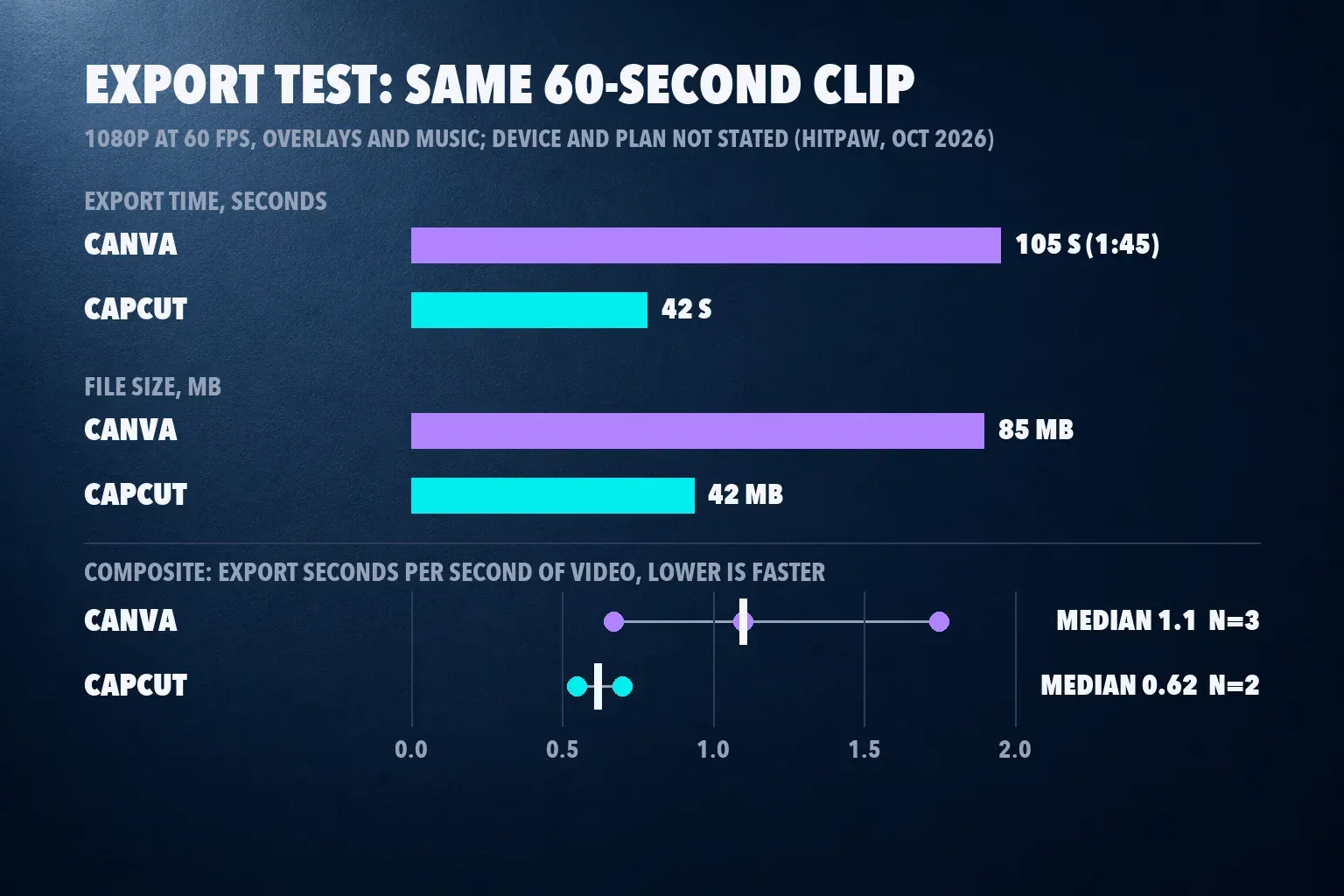
For HitPaw's Canva vs CapCut comparison, updated October 22, 2026, Daniel Walker exported one 60-second clip with several overlays and background music from both apps at 1080p and 60 fps. Canva took 1 minute 45 seconds and wrote an 85 MB file. CapCut took 42 seconds and wrote 42 MB. That's 2.5 times faster with half the file size. The page doesn't name the device, the plans or the app versions, and HitPaw sells its own video tools, so I checked the result against every other timed export I could find.
Two more sources timed one of the apps. TechRadar's Canva Video review from 2022 rendered a 1:50 video in just over two minutes and a five-minute video in 3:20, in Canva's older editor with HD export. The Dailytech test of free Android editors, published October 8, 2026, exported a clip of about 30 seconds from CapCut 19.6.0 on a Galaxy A31 at 1080p and 25 fps in 16.4 seconds. Dividing export time by video length puts all five runs on one scale.
| Run | App | Video length | Export time | Seconds per second of video |
|---|---|---|---|---|
| HitPaw, 1080p at 60 fps | Canva | 60 s | 105 s | 1.75 |
| TechRadar 2022, HD | Canva | 1:50 | Just over 2 min | 1.1 |
| TechRadar 2022, HD | Canva | 5:00 | 3:20 | 0.67 |
| HitPaw, 1080p at 60 fps | CapCut | 60 s | 42 s | 0.70 |
| Dailytech, Galaxy A31, 1080p at 25 fps | CapCut | About 30 s | 16.4 s | 0.55 |
The composite result: Canva needs a median 1.1 seconds of export per second of video (0.67 to 1.75, three runs from two sources), and CapCut 0.62 (0.55 to 0.70, two runs from two sources). At the median, CapCut finishes about 1.8 times sooner. Devices, settings and editor versions differ, and TechRadar's two runs come from Canva's older editor with no hardware stated, so they widen Canva's range rather than settle it. The direction is still clear, and it matches the one same-clip test, which is the result I'd lean on.
Frame rate is part of the story. Canva doesn't document a frame rate setting for export, and its download troubleshooting lists 60 fps sources as one cause of failed downloads, as our Canva video editor review explains. CapCut's desktop Export dialog sets frame rate, bit rate, codec and resolution, and our CapCut export settings guide shows which values to pick. If you shoot gameplay, sport or anything at 60 fps, that control alone points to CapCut.
Six months in both: the workflow test
Sonary's small-business comparison measured something the speed test can't: how long a finished video takes a person. Its team used CapCut's desktop app and Canva's web app on a MacBook and on Windows, on free and Pro plans, for roughly 15 hours a month over six months, editing social posts, Reel ads and explainers. The page was last updated in July 2026, and Sonary discloses that it may earn commissions from featured providers.
| Measure | Canva (web) | CapCut (desktop) |
|---|---|---|
| Time to a first 30-second video | About 1 hour | About 30 minutes |
| Auto captions on a 45-second clip | About 10 seconds to finish | About 30 seconds to generate, then about 15 minutes of styling and fixes |
| Caption errors (English, about 90 words) | Minor only | Minor only |
| Learning curve (1 to 5, 5 hardest) | 2 | 3 |
| Highest export on the plan used | 4K MP4 | HD |
Canva was slower to a first export because its template library pulled the team into options, while the editing itself was quick. CapCut produced captions in seconds and offers far more caption styles, but the team spent longer tightening the wording and matching the look. Sonary's verdict: Canva is the tool you can hand to anyone, CapCut is more powerful but busier, and most small teams should run both. One row I don't carry over is "watermark on free export: yes" for both apps. Canva's stock guidance says designs made from Free assets and your own uploads download without a watermark, and Sonary's own FAQ says CapCut's free version adds only a deletable end mark.
Review scores and store ratings
| App | Review scores | Median |
|---|---|---|
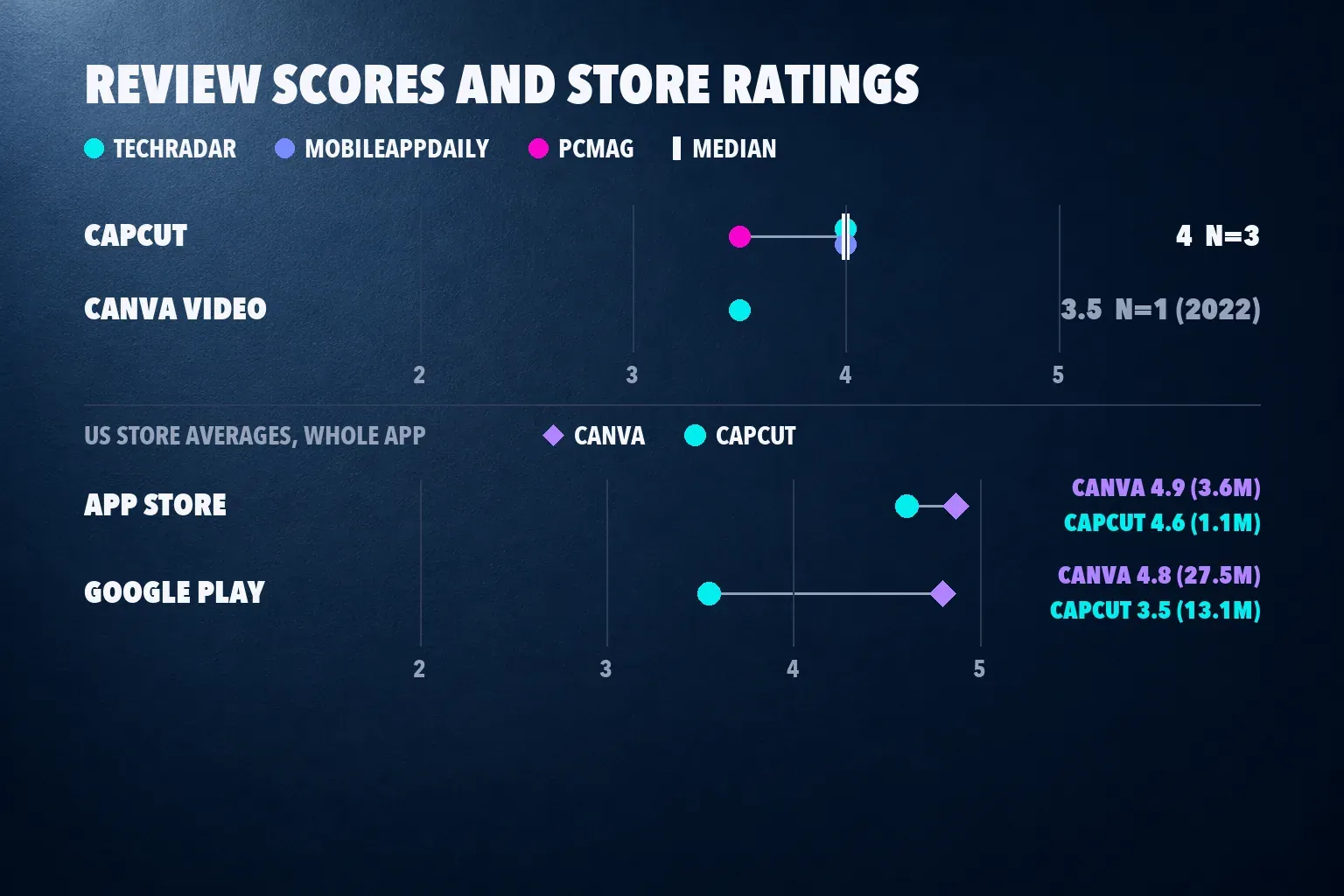
| CapCut | TechRadar 4, MobileAppDaily 4, PCMag 3.5 for the desktop app | 4 from 3 (range 3.5 to 4) |
| Canva video editor | TechRadar 3.5 (2022) | 3.5 from 1 |
Reviewers score CapCut as a video editor, and two of the three land on 4. Canva's video editor has one scored review in this set, and it's old. Steve Clark's 2022 TechRadar review called Canva Video "best-suited to videos without too many cuts and effects" and found "no way to time effects," which held animations on screen until the clip ended. Canva's current editor times text, graphics and audio on a multilayer timeline, as our Canva review describes, so part of that complaint has aged, but the score hasn't been updated. TechRadar's Canva design review calls Canva "a really impressive suite of graphic design tools," which is the half of the product CapCut doesn't try to match.
| Store | Canva | CapCut |
|---|---|---|
| US App Store | 4.9 from 3.6 million ratings, Editors' Choice | 4.6 from 1.1 million ratings |
| Google Play (US) | 4.8 from 27.5 million ratings, 500M+ downloads, Editors' Choice | 3.5 from 13.1 million ratings, 1B+ downloads |
Canva wins the stores by a wide margin, but its rating covers the whole design app, from flyers and presentations to photo edits. It doesn't isolate the video editor. CapCut's 3.5 on Google Play across 13 million ratings is still a warning worth heeding, so read recent reviews for your phone model before paying. For judging the editor itself, I give the reviews more weight.
What a clean export costs
Canva's free plan exports clean video as long as you stick to your own uploads and Free assets. Place a Pro item on a Free account and the export carries a watermark until you license or remove it, the same paywall TechRadar described in 2022. Free MP4 tops out at 1080p, and Pro on desktop can choose 480p up to 4K UHD. The US App Store listing for Canva shows Pro at $18 a month or $143.99 a year and Business at $25 a month. The yearly price matches the $144 on Canva's own pricing page. The store also lists lower Pro rows ($14.99 and $15 a month, $119.99 a year) without saying who gets them, so I use the rows that match Canva's own page.
CapCut's free phone app exported with no watermark in the Dailytech test, adding only an end card you can delete, and reached 4K at 25 fps; moving toward 30 fps opened a trial prompt. On a computer, PCMag found watermarks on free exports and all AI tools locked. CapCut's watermark help page traces marks to template ending clips, stock that needs attribution, the default outro and Pro elements, and our CapCut watermark guide handles each case. The CapCut App Store listing shows Standard at $9.99 a month and Pro at $19.99, and CapCut's pricing page shows Pro at $179.99 a year. Standard works only in the mobile apps, while Pro covers phone, desktop and web, according to CapCut's help page on cross-platform subscriptions. Our CapCut pricing guide compares the plans.
| Plan | 1 year | 2 years | 3 years |
|---|---|---|---|
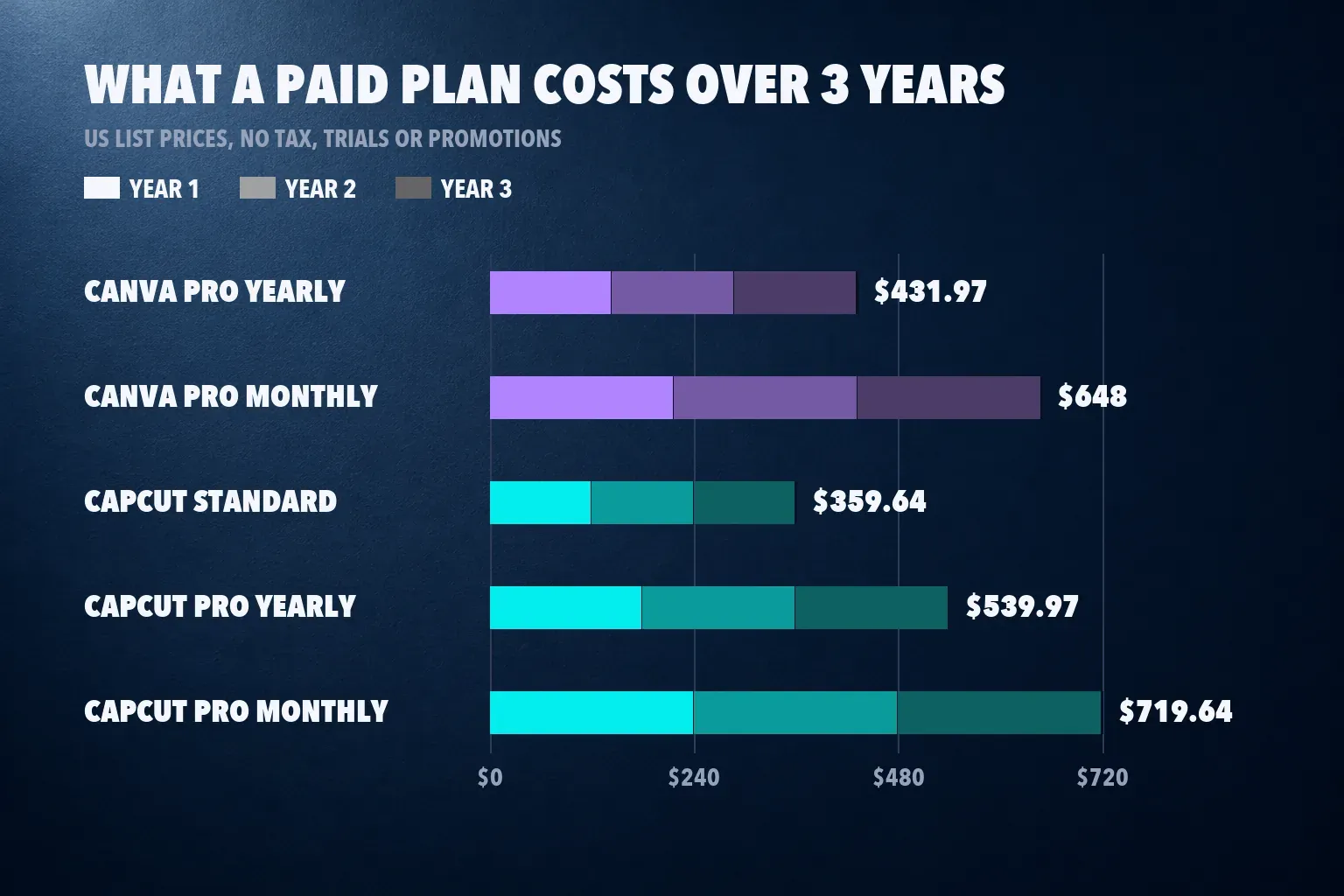
| Canva Pro yearly | $143.99 | $287.98 | $431.97 |
| Canva Pro monthly | $216.00 | $432.00 | $648.00 |
| CapCut Standard monthly | $119.88 | $239.76 | $359.64 |
| CapCut Pro yearly | $179.99 | $359.98 | $539.97 |
| CapCut Pro monthly | $239.88 | $479.76 | $719.64 |
These are US list prices with no tax, trials or promotions, renewed at the same price. Over three years, Canva Pro yearly costs $108 less than CapCut Pro yearly and buys more than video: Magic Resize, one-click background removal for video, Brand Hub, a scheduler and premium stock. CapCut Pro buys the deeper editor and its AI tools on every device. If you use both, Canva Pro yearly plus CapCut's free plan costs $143.99 a year, adding CapCut Standard brings it to $263.87, and adding CapCut Pro yearly brings it to $323.98. Whether CapCut's paid tools earn their price is what our is CapCut Pro worth it guide answers, and the CapCut Pro free trial guide shows how to try Pro first.
Export rules side by side
| Rule | Canva | CapCut |
|---|---|---|
| Free resolution | Up to 1080p MP4 | 4K at 25 fps in a free phone test; 30 fps opened a trial prompt |
| Paid resolution | 480p to 4K UHD with Pro on desktop | Resolution, frame rate, bit rate and codec in the Export dialog |
| 4K from 4K footage | Not on Canva: uploaded 4K is stored at 1080p, so a 4K export can't restore the detail | Pro adds 4K export, per PCMag and Sonary |
| Watermark | Only from Pro items used on a Free account | Deletable end card on phone; PCMag saw watermarks on free desktop exports; Pro elements can mark or lock an export |
| Captions | Free auto captions, rendered into the video; no separate SRT file promised | Auto captions may need Pro or show a limited allowance; captions export as SRT or TXT |
The row that surprises Canva users is uploaded 4K. Canva stores it at 1080p, so picking 4K at export upscales rather than restoring your camera's detail. If you deliver 4K from 4K footage, edit it in CapCut, where our export quality guide covers bit rate. For subtitles that a platform or client needs as a separate file, CapCut wins too: our guide to exporting CapCut captions as SRT shows the steps, while Canva renders its free captions into the video and doesn't promise a separate subtitle file.
Editing tools: where each one is stronger
Canva's strength is everything around the cut. The Canva Google Play listing names thousands of watermark-free videos, more than 25,000 licensed audio tracks, Beat Sync, caption translation into more than 100 languages and real-time collaboration with 5 GB of cloud storage, and it lists one-click background removal and Magic Resize for photos and videos among the Pro features. Templates, Brand Kits and Magic Resize turn one campaign into every format quickly. Our Canva video editor review covers the timeline, Brand Kits, Beat Sync and licensing in depth, so I won't repeat it here.
CapCut's strength is the cut itself. You get separate tracks for video, audio, text and effects, keyframe animation in CapCut, auto captions with a wide range of styles and a large library of CapCut templates for trends. HitPaw also ran background removal: Canva handled high-contrast backgrounds but struggled with fine detail like hair, while CapCut's Auto removal came out clean; our guide to removing a background in CapCut without a green screen shows the settings. CapCut has brand and team features too, covered in our CapCut brand kit and CapCut teams guides, but they're a smaller part of the product than in Canva.
Using Canva and CapCut together
If you already pay for Canva Pro, the real question is whether you need CapCut at all. If your videos are a few clips, text and music in a branded template, you don't. If you cut talking-head footage, need precise timing or deliver captions as a file, add CapCut and keep Canva for the frames around the video.
- Build the thumbnail, title cards, lower thirds and end slate in Canva with your brand kit.
- Cut, time and caption the footage in CapCut, then drop the Canva graphics in as overlays.
- Export from CapCut at the size your platform wants; our YouTube video size guide lists the common ones.
- Bring the finished MP4 back to Canva only if you need its scheduler or a resized campaign version.
Move finished exports and graphics between the apps, not project files. Check the license on each asset you carry over, because Canva Pro stock and CapCut's music both come with their own terms; our CapCut commercial use rights guide covers CapCut's side.
Which one I'd pick
- Branded posts in many sizes, or a team that already designs in Canva: Canva Pro. Magic Resize and brand kits save more time than a faster render, and it costs less than CapCut Pro.
- TikToks, Reels and Shorts built from your own footage: CapCut. It exports faster, sets frame rate and gives you a real timeline and caption styles.
- Free and clean: either app. Canva Free if you stay with your own uploads and Free assets at 1080p, CapCut's free phone app if you want 4K at 25 fps.
- 60 fps footage or 4K from a 4K camera: CapCut, because Canva documents no frame rate setting and stores uploaded 4K at 1080p.
- You already pay for Canva Pro: keep it, add CapCut Free and pay for CapCut only when a missing tool blocks you.
- Editing on a computer: CapCut desktop, with Pro rather than Standard; start with our CapCut for PC, CapCut for Mac or CapCut web editor guide.
Before installing, read is CapCut safe if your employer restricts ByteDance apps. If neither app fits, our CapCut alternatives guide compares twelve editors, our InShot vs CapCut comparison covers a phone editor with a $19.99-a-year Pro plan, and our roundup of the best free video editing apps ranks the free options.
How I compared
I put both apps through the questions a creator asks before choosing: how fast the export is, how long a finished video takes, what the free export looks like, what paying adds and which devices each runs on. Export times come from HitPaw's same-clip test, TechRadar's 2022 Canva runs and Dailytech's CapCut phone run, converted to seconds of export per second of video, with the median, range and count shown. Workflow numbers come from Sonary's six-month test. Scores come from TechRadar, MobileAppDaily and PCMag. I read both apps' US App Store and Google Play listings and CapCut's pricing and help pages; Canva's export, watermark and storage rules come from our Canva review, which checked them against Canva's help and pricing pages. Where a ranking page disagreed with a listing or help page, the listing won.
Canva vs CapCut questions
Is Canva better than CapCut for video editing?
No, not for editing footage. CapCut exported the same 60-second clip 2.5 times faster in a side-by-side test, sets frame rate at export and gives you a deeper timeline. Canva is better when the video is part of a branded campaign that also needs graphics, resizing and team review.
Does Canva add a watermark to videos?
Only when the design uses Pro content on a Free account. Videos built from your own uploads and Free assets download without a Canva watermark, at up to 1080p on the free plan.
Does CapCut add a watermark?
Not on a free phone export in a 2026 test, which carried only a short end card you can delete. PCMag found watermarks on free exports from the desktop app, and Pro templates, effects or stock can mark or lock any export.
Is Canva Pro cheaper than CapCut Pro?
Yes. In the US, Canva Pro costs $143.99 a year against CapCut Pro's $179.99, and $18 a month against $19.99. Over three years on yearly plans, Canva Pro costs $431.97 and CapCut Pro $539.97. CapCut Standard is cheaper at $9.99 a month but works only in the phone apps.
Can Canva export 4K video?
Yes, with Pro on desktop, where you can pick 480p up to 4K UHD. Free exports stop at 1080p, and Canva stores uploaded 4K footage at 1080p, so a 4K export won't bring back the detail from a 4K camera.
Which is faster at exporting, Canva or CapCut?
CapCut. In HitPaw's same-clip test it took 42 seconds against Canva's 1 minute 45 seconds, and across five timed runs from three sources CapCut needed a median 0.62 seconds per second of video against Canva's 1.1.
Can I use Canva and CapCut together?
Yes, and Sonary's six-month test recommends it for most small teams. Design the thumbnail, title cards and overlays in Canva, cut and caption in CapCut, then export from CapCut. Move finished exports and graphics between them rather than project files.