

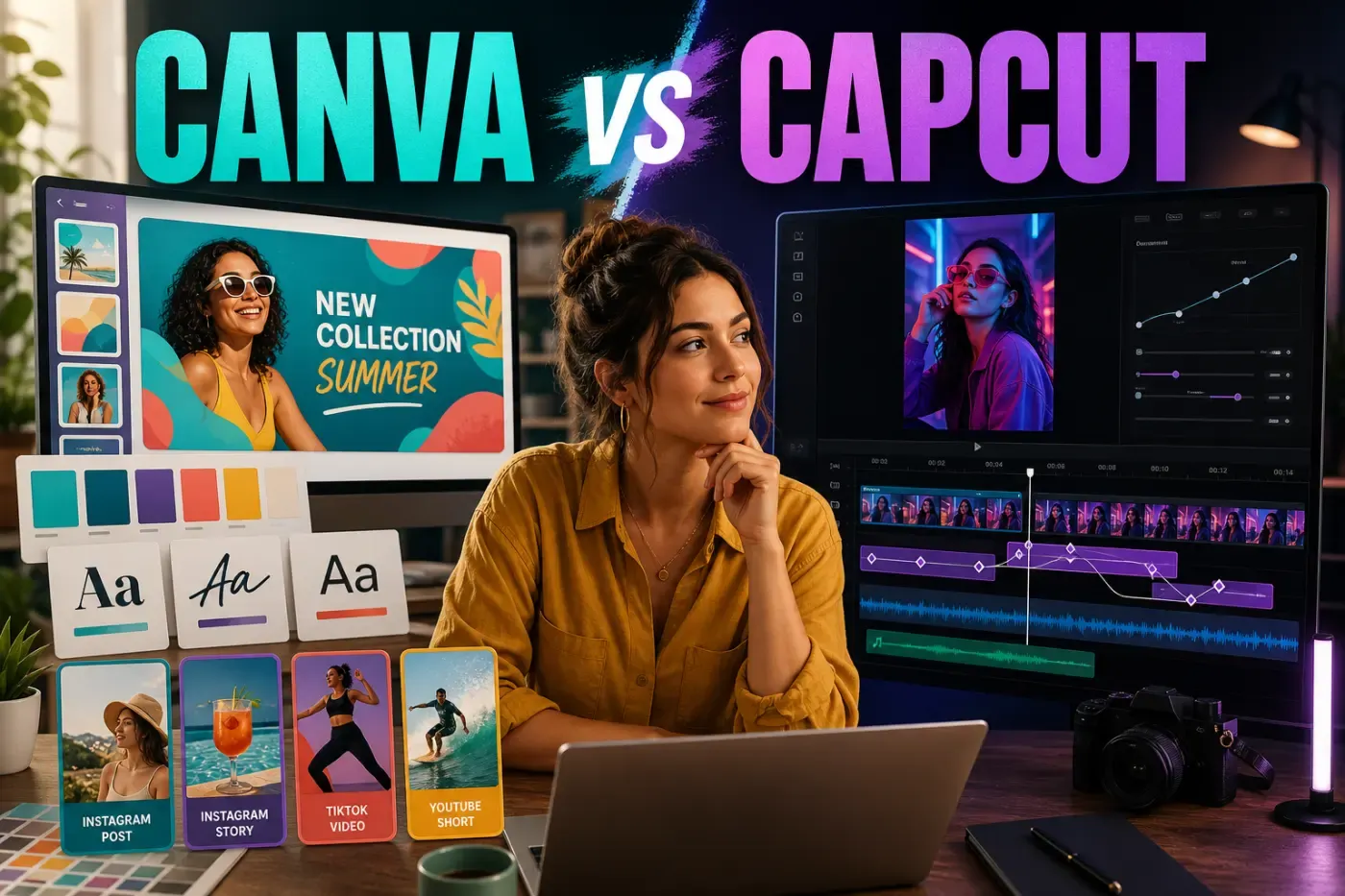
Canva Video Editor is the better CapCut alternative when video is one part of a branded campaign rather than the whole production. It is unusually fast for turning the same approved colors, type, graphics and presenter footage into a Reel, Story, square post, YouTube video and presentation. CapCut is still the stronger editor for frame-sensitive cuts, custom keyframe motion, tracking, masks, speed ramps, dense audio and creator-first mobile workflows.
This Canva Video Editor review was rechecked on September 4, 2026 against Canva's current pricing, export, upload, licensing, privacy and AI pages, recent product announcements, search results for Canva Video Editor and Canva vs CapCut, and recent user reports. That date matters: older comparisons still quote retired prices and storage limits, claim every free export has a watermark or describe captions as manual. None of those shortcuts is a reliable description of Canva today.
Canva Video Editor Review Facts at a Glance
| Review fact | Current answer |
|---|---|
| Price | Free is $0. At our September 4 check, Canva's US-dollar annual view listed Pro at $180 for one person and Business at $250 per person; taxes, billing terms, promotions and regional prices can differ. |
| Platforms | Web browser, Windows 10+, macOS, Chromebook, iPhone, iPad and Android. Canva now advertises Canva Offline, but its plan table does not establish full offline video editing across stock, AI and collaboration. |
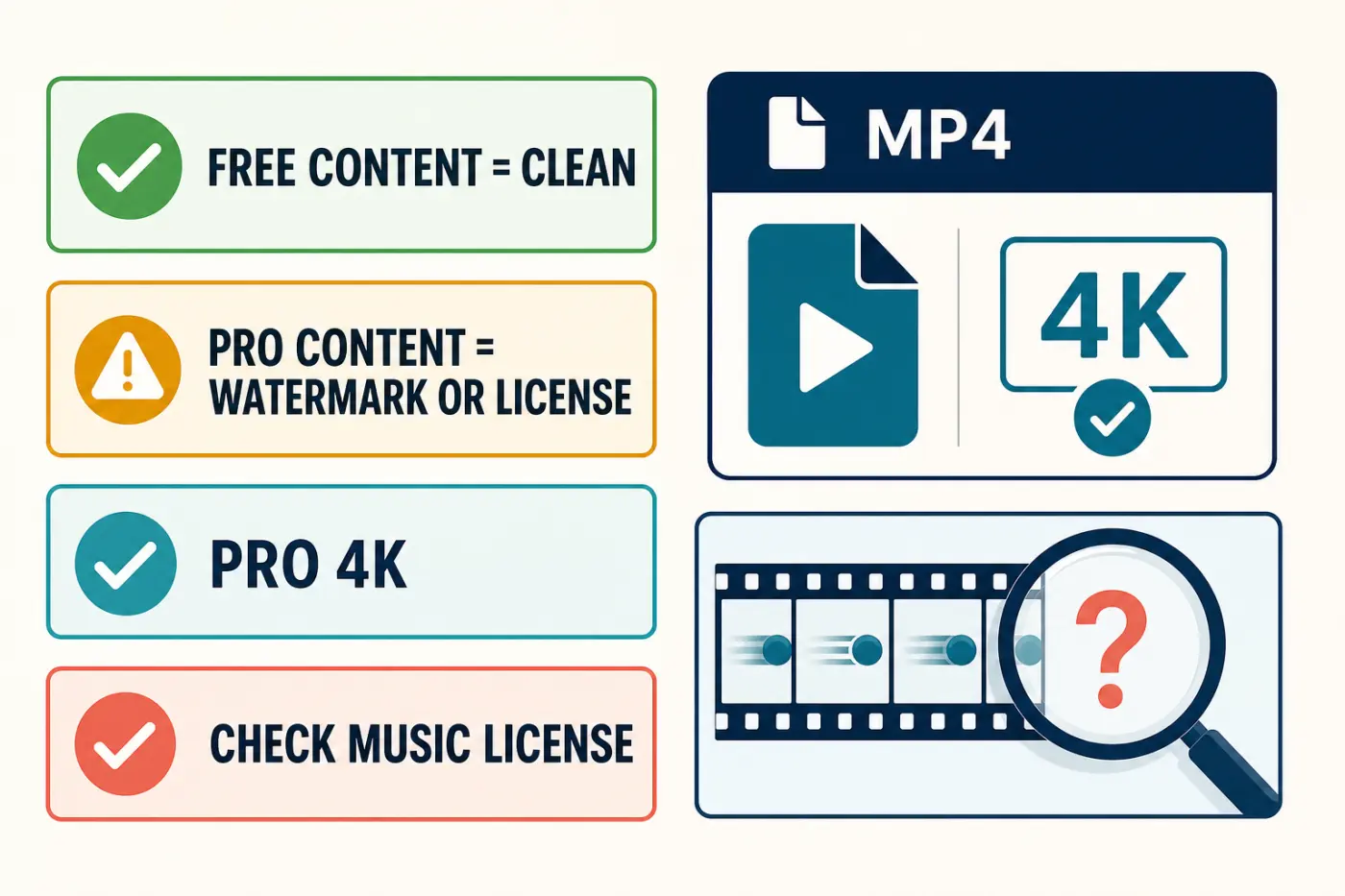
| Free export | MP4 without a Canva watermark when the design uses owned uploads and Free content. Using Pro/crown content on a Free account adds a watermark until that content is licensed or removed. |
| Paid export | Canva Pro can select 480p through 4K UHD, but Canva says uploaded 4K video is stored at 1080p. It does not document a universal output-fps selector or 60 fps guarantee. |
| Best fit | Brand-led social campaigns, template-based explainers, presentations, ads, team review and rapid resizing across channels. |
| Biggest trade-off | Its pages-and-layers model is less precise than a dedicated timeline; uploaded 4K footage is stored at 1080p, and stock, music and cloud rules need active review. |
Quick Verdict: A Design System With Video Editing, Not a Full NLE
Canva is excellent at the part many editors leave until the end: making video look consistent with the rest of a brand. Templates, Brand Kits, shared styles, stock, comments and multi-format resizing live in one workspace. A marketer can replace media in an approved layout, generate captions, adjust page timing and export a polished campaign asset without learning a professional editing application.
The compromise is precision. Canva can trim, split, crop, layer, animate, caption and score a video, but its editing model still feels like animated design pages arranged over time. It doesn't replace the deeper track, keyframe, curve, tracking, masking and audio tools that make CapCut useful for footage-first work. The right question is not “Can Canva edit video?” It can. The question is whether the job is mostly designing a branded sequence or shaping footage through time.
What Canva Video Editor does well
- keeps brand fonts, colors, logos, templates and approvals close to the edit;
- turns one campaign into multiple aspect ratios quickly;
- offers a low-friction pages, layers and drag-and-drop workflow;
- exports clean MP4 files from Free when only Free or owned media is used;
- generates editable, styled automatic captions on the Free plan;
- combines stock, graphics, presentations, video and collaboration in one account;
- offers Beat Sync, background removal, motion paths and expanding AI tools;
- works across browser, desktop and mobile devices.
Where Canva Video Editor falls short
- page timing and layered elements are less exact than a conventional multi-track timeline;
- motion paths are not a substitute for per-property keyframes, graphs and easing;
- frame-rate control and 60 fps delivery are not clearly exposed or guaranteed;
- long or complex projects can reveal preview, audio-sync, processing and export problems;
- Pro stock, Popular Music and client-transfer rules are more nuanced than “royalty-free”;
- project media and AI features depend on cloud services and account settings;
- important conveniences such as one-click Beat Sync, background removal and Magic Resize require paid access;
- the redesigned video editor is still producing workflow complaints from some existing users.
What Canva Video Editor Is in 2026
Canva Video Editor is the moving-image layer of Canva's wider visual communication platform. It runs in a browser and in Canva's Windows, Mac, iOS and Android apps. Canva's current MP4 workflow page also names Chromebook support and accepts common containers including MP4, MOV, MKV, WEBM and MPEG. The codec inside a file still matters, so MP4/H.264/AAC remains the safest handoff when a camera file behaves unpredictably.
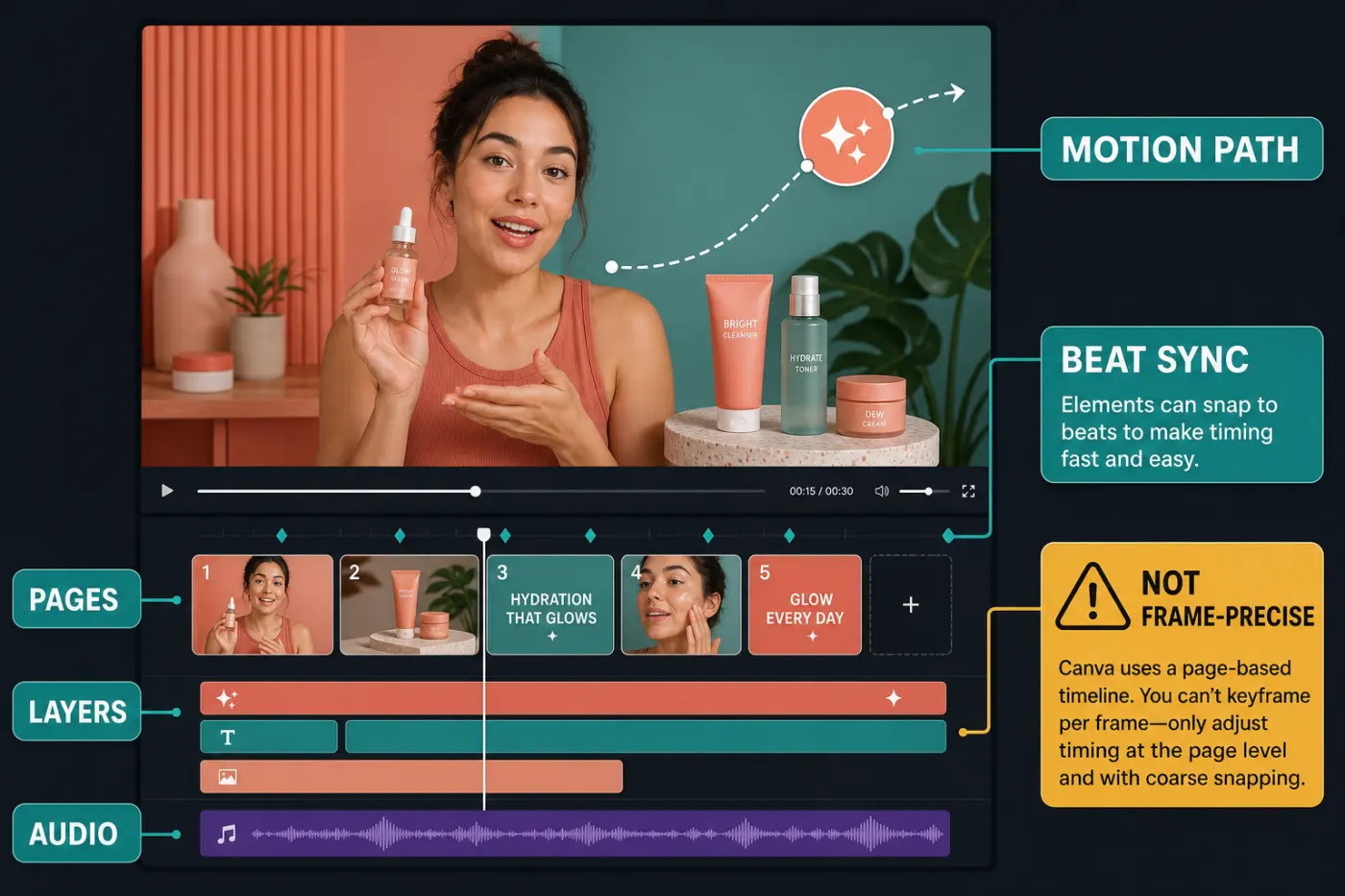
The editor is built around scenes or pages. Each page has a duration, background video and layered text, graphics, photos, audio or additional video. Pages can be split, reordered and transitioned; elements can be timed within a page. This makes a social ad or explainer feel familiar to anyone who has built a Canva presentation. It is less natural for someone expecting timecode, track targeting, compound clips or a professional audio mixer.
Canva is also changing quickly. The company introduced more AI video capabilities and continued rolling out a redesigned editing experience during 2026. Its current pricing page now lists Canva Offline, but that label does not prove that every video, stock, collaboration or AI action works without a connection. Test the exact desktop workflow before treating Canva like a fully local editor. Reviews based on the old timeline, retired Teams pricing or a fixed list of AI credits should not be treated as permanent product documentation.
Workflow and Learning Curve
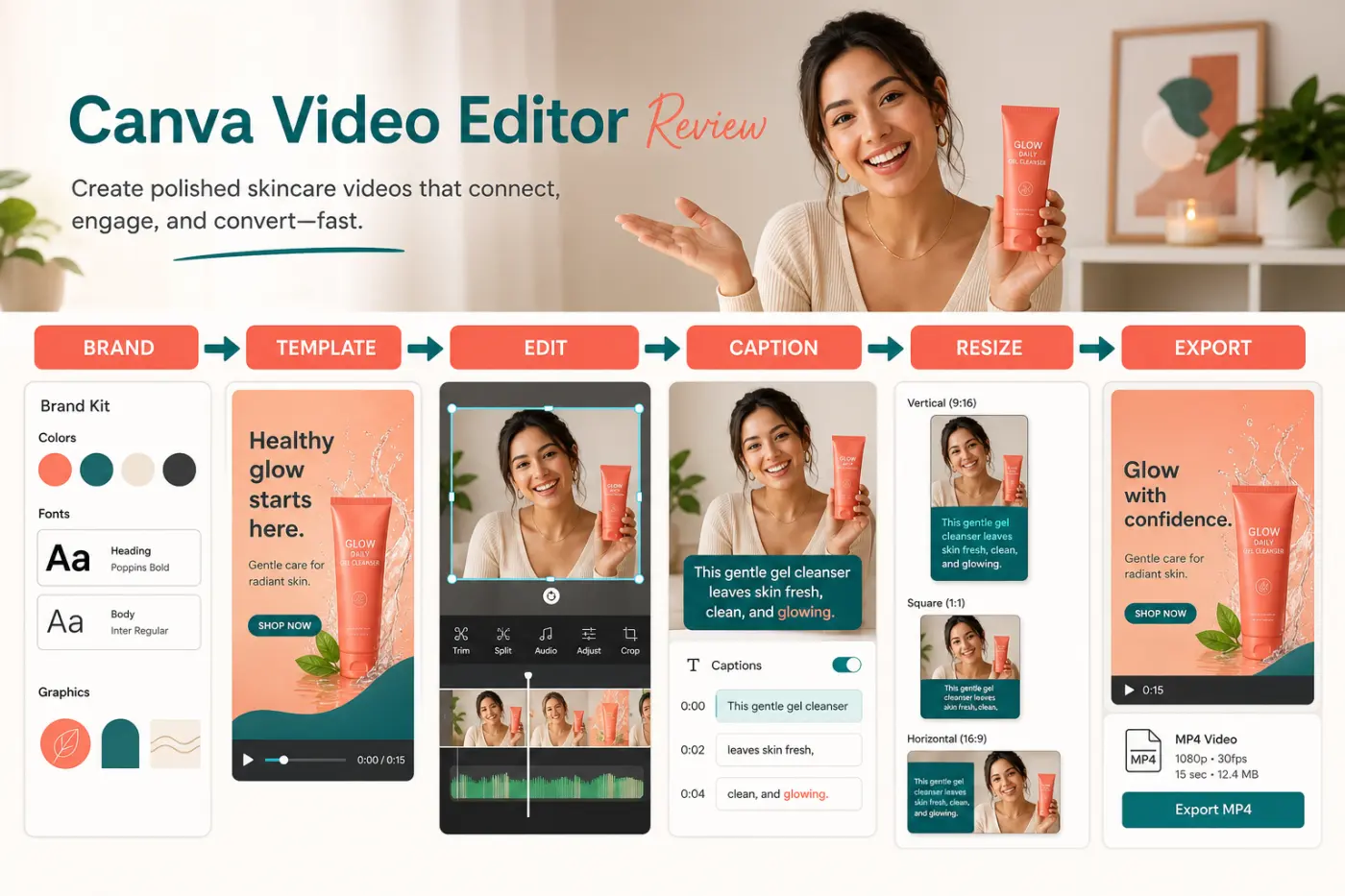
A practical Canva edit starts with the delivery format, not the template search. Choose the final aspect ratio, upload the approved source footage, place the strongest shot on the first page, establish page timing, then add brand elements, captions and sound. Duplicate or resize only after the master version has passed a complete watch-through.
The editor keeps common actions close to the selected object. A video can be trimmed by dragging its ends, split at the playhead, cropped into a frame, sped up or slowed down, and layered behind text and graphics. Canva's official speed changer currently advertises adjustment up to 2x. That covers a quick montage or condensed demonstration, not the designed acceleration and deceleration of a CapCut speed curve.
Templates shorten layout work, but they also hide risks: portrait footage may be cropped badly, the beat may no longer match replacement clips, and a crown icon can change the export/license outcome. Treat a template as an editable starting system. Replace every placeholder, inspect every asset, review mobile safe zones and perform the final export from the account that owns the required content license.
Timeline, Pages, Layers and Motion Limits
Canva supports layered video, multiple audio elements, page transitions and independent element timing. That is enough for a presenter over a branded background, product cutaways, lower thirds, animated charts, music and captions. Users who remember Canva as a slideshow tool may underestimate how much conventional social video it can now assemble.
Its motion system is still design-led. Canva's motion-path animator lets an element follow a custom drawn path and adjust the path's speed and style. It is useful for a product icon, route, pointer or playful graphic. It is not the same as placing separate position, scale, rotation and opacity keyframes on a time ruler, refining their curves and coordinating them with a tracked object.
CapCut is the safer choice when a graphic must hit an exact frame, text must follow a moving person, a zoom needs controlled easing or a reveal depends on masks. Our CapCut keyframe guide shows the difference: keyframes describe changing properties through time, while Canva's paths and presets make specific animation jobs quicker but less controllable.
Brand Kits, Templates and Multi-Format Campaigns
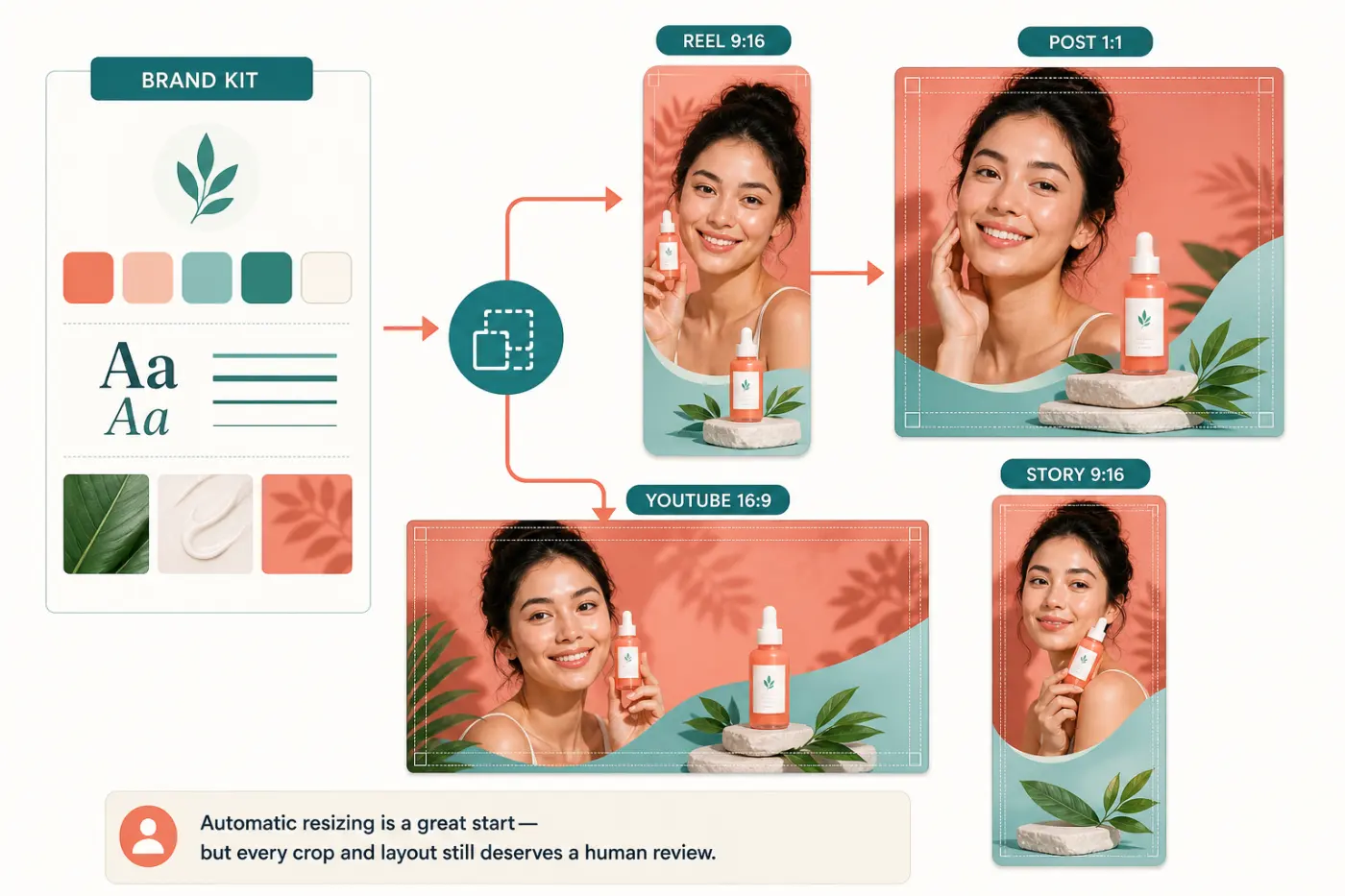
This is Canva's clearest advantage. The current US plan page includes a limited Free Brand Kit with up to three colors, five Brand Kits on Pro and up to 100 Brand Kits plus approval workflows on Business. A properly configured kit reduces small inconsistencies that multiply across a campaign: the wrong shade, a substitute font, an old logo or a caption style that changes between channels.
Canva Pro's Magic Switch and video resize tools can create platform-specific versions without rebuilding the design. The feature is a starting point, not final QA. A 16:9 interview changed to 9:16 may cut off the second speaker; a square title may wrap in portrait; captions may collide with app controls. Review every generated format page by page.
Use a master design with locked brand decisions, duplicate it for each destination, then adjust crop, line breaks, page duration and safe zones. Our template guide applies here too: a useful template saves repetitive construction while leaving the editorial choices visible.
Captions, Audio and Beat Sync
Canva's automatic caption tool is available free, generates captions from speech and lets the editor correct and style the text. Captions are rendered into the downloaded video. Canva's public page doesn't promise a separate SRT download for every workflow, so don't plan a broadcaster or localization handoff around an undocumented subtitle-file export.
The words still need a complete editorial pass. Check names, product terms, punctuation, reading speed, line breaks and moments when graphics cover the text. Our automatic-caption workflow explains the same human QA: listen to every sentence, keep text in the safe area and verify the final exported file rather than trusting the canvas preview.
Canva's Beat Sync has an important plan distinction. Free users can display beat markers and manually snap clips to them. Pro adds one-click Sync now. The automated result is a useful first assembly, but it can't decide whether a reaction, product detail or spoken phrase deserves an extra half-second. Music should support the cut, not override meaning.
Canva AI Video Tools in 2026
Canva's AI menu is broader than a single text-to-video button. Its current AI video generator uses Google's Veo 3 for prompt-based clips with synchronized audio, while Canva's February 2026 update added three-second image-to-video generation. Canva also presented Canva AI 2.0 as a research preview that creates layered, editable design output. Availability, output class and allowance depend on the plan, tool, region and fair-use rules.
The current US pricing matrix describes pooled monthly allowances rather than one universal credit number. Free lists up to 200 Standard or 20 Premium uses; Pro lists up to 2,000 Standard, 200 Premium or 20 Ultra uses when using one class of tool; Business raises those ceilings again. The same page warns that tool complexity, availability and fair use affect consumption. A comparison that says “Canva Pro has 500 AI credits” is already too blunt.
Canva's AI Product Terms, effective June 26, 2026, say users own output to the extent allowed by law, but output may not be unique and can contain licensed content. Canva may share inputs with technology partners to provide the tool, and privacy settings influence use of data for product improvement. AI results are not guaranteed accurate. Don't put unreleased client material, personal data or a protected character into a prompt merely because the tool appears inside a familiar editor.
Use generation for optional B-roll, backgrounds, rough concepts or short transitions, then verify what appears on screen. It should not fabricate a product interface, customer result, historical event or human endorsement. For a broader map of generation, cleanup and caption features, see our CapCut AI tools guide.
Export Quality, Frame Rate and Watermark Rules
Canva imports several common video containers and exports MP4. Its current MOV-to-MP4 documentation says normal download selects the best quality automatically, while Canva Pro can explicitly choose from 480p through 4K UHD. There is a major source-quality catch: Canva's upload requirements say uploaded 4K video is downscaled and stored at 1080p. Choosing a 4K export cannot restore source detail that Canva did not preserve.
Frame rate is the unresolved boundary many reviews ignore. Canva doesn't currently document a universal user-selectable output-fps control or promise 60 fps for every design, device and source. Its download troubleshooting guide also flags source video at 60 FPS or higher as one possible cause of failed downloads. If smooth gameplay, sport or motion graphics matter, export a ten-second representative test, inspect it with MediaInfo or another file inspector and watch it on the destination device before editing the full project.
The watermark rule depends on assets, not simply the Free label. Canva's stock-video guidance says designs made with Free assets and the user's own uploads can be downloaded without a Canva watermark. A Free user who places Pro/crown content sees a watermark until that item is removed, licensed once or covered by an eligible subscription. Audit every stock clip, graphic, font and music item before export.
Choose resolution based on source and destination, then inspect the actual file for dimensions, duration, audio sync, compression and fps. The checklist in our export settings guide is more useful than choosing 4K automatically. Upscaling a low-resolution source doesn't recreate lost detail.
Pricing and Plan Differences
At our September 4 check, Canva's US-dollar annual pricing view listed Free at $0, Pro at $180 for one person and Business at $250 per person. Enterprise used custom pricing. Taxes may be added, and monthly, app-store, promotional and regional billing can differ. Check the final checkout in the same account and country that will own the projects.
Storage currently scales from 5 GB on Free to 100 GB on Pro, 500 GB on Business and 1 TB on Enterprise. That directly contradicts old reviews calling Pro a 1 TB plan. Brand capacity, approvals and AI allowances also change by tier. Pro is the logical solo upgrade for 4K selection, automatic Beat Sync, video background removal, premium content and Magic Resize. Business is aimed at teams needing more brands, approvals, storage and AI allowance rather than simply a better timeline.
Don't upgrade until a real limitation appears. A solo creator using owned clips, Free graphics, automatic captions and ordinary MP4 delivery may finish on Free. If the workflow repeatedly uses crown assets, background removal or several campaign formats, Pro can be cheaper than repeatedly rebuilding around those restrictions.
Collaboration, Storage and Project Ownership
Canva makes review easier than many lightweight editors. A design can be shared by link, commented on, assigned and edited with teammates. The official video-sharing page describes real-time comments and tasks, while current pricing determines storage and approval depth. This is valuable when legal, brand and social teams all need to see the same cut.
Easy sharing increases the need for ownership rules. Decide which account owns the master, who may change templates, where raw footage is archived and how a finished project is handed off when a freelancer leaves. Team owners or administrators may have visibility and control defined by the account. A shared Canva link is not a substitute for a source archive and exported master.
Keep originals outside Canva, use stable filenames, export checkpoints and record the final license state. Canva's current upload requirements set a 1 GB maximum for an individual video file. For long camera footage or a large multi-cam project, a dedicated editor and storage system is safer than forcing the material into a design workspace.
Stock, Music, Client and Commercial Licensing
“Royalty-free” doesn't mean “no conditions.” Canva's Content License Agreement distinguishes Free, Pro, Branded and Education content. If several categories appear in one design, the most restrictive applicable terms matter. Pro Content generally receives a one-design license when exported under an eligible plan or paid one-off license; distributing an asset as a standalone file is not allowed.
Magic Resize creates another design, so licensing should be reviewed for each final version rather than assumed to follow the master forever. Canva allows transfer of a finished design to one client under stated conditions, including a written agreement, while the original user remains responsible for compliance. Education Pro content is limited to non-commercial educational use.
Music needs a separate check. Canva's Popular Music License is for personal, non-commercial use on approved platforms and doesn't cover sponsored or commercial promotion. A business video can therefore be visually licensed but still use the wrong music category. Record the track name and license type before approval, and replace uncertain audio before buying media or running ads.
Privacy, Cloud Processing and AI Data Controls
Canva remains a cloud collaboration service even though its pricing page now advertises Canva Offline. Uploaded footage, designs, comments and account information are handled under Canva's Privacy Policy, updated August 25, 2026. Shared or public designs can have different visibility from private drafts, and team access is governed by organizational settings.
AI features add technology partners and separate controls. Canva's AI terms say input may be shared with partners to supply a requested feature and that user settings affect whether Canva and partners can use data to improve AI. The privacy policy gives Canva Education additional protection: student and teacher content is not used to train AI. Teams working with unreleased products, children, health data or confidential clients should review workspace and AI settings before upload.
Use the least exposure necessary: keep the design private, invite named collaborators, remove access when work ends and avoid AI processing for footage that policy or contract doesn't allow to leave an approved system. “Canva uses AI” is not itself a privacy conclusion; the specific tool, account type, settings and data determine the risk.
Performance, Reliability and the New Editor
Canva is dependable for short, template-shaped projects on a current device and stable connection. Complexity changes the calculation. Many long source files, stacked effects, several audio tracks, high-resolution media and browser memory pressure can produce lag, preview differences or slow processing. Export a proof early, before the campaign is approved.
Recent community reports identify practical failure modes. In a February 2026 discussion of the new editor, users described page-timing friction and laggy exports. Another February workflow discussion repeatedly framed Canva as useful for graphics and simple promos but less precise than CapCut. A May 2026 report documented blurry embedded-video output. These anecdotes establish things to test, not a measured failure rate.
Positive use cases are equally clear: social teams value the familiar brand tools and the ability to produce graphics and short video in the same system. Protect that speed with a preflight: use a supported format, reduce unnecessary layers, close unused browser tabs, test the hardest ten seconds, compare preview with export and download the final MP4 before a deadline.
Canva vs CapCut: Feature Comparison
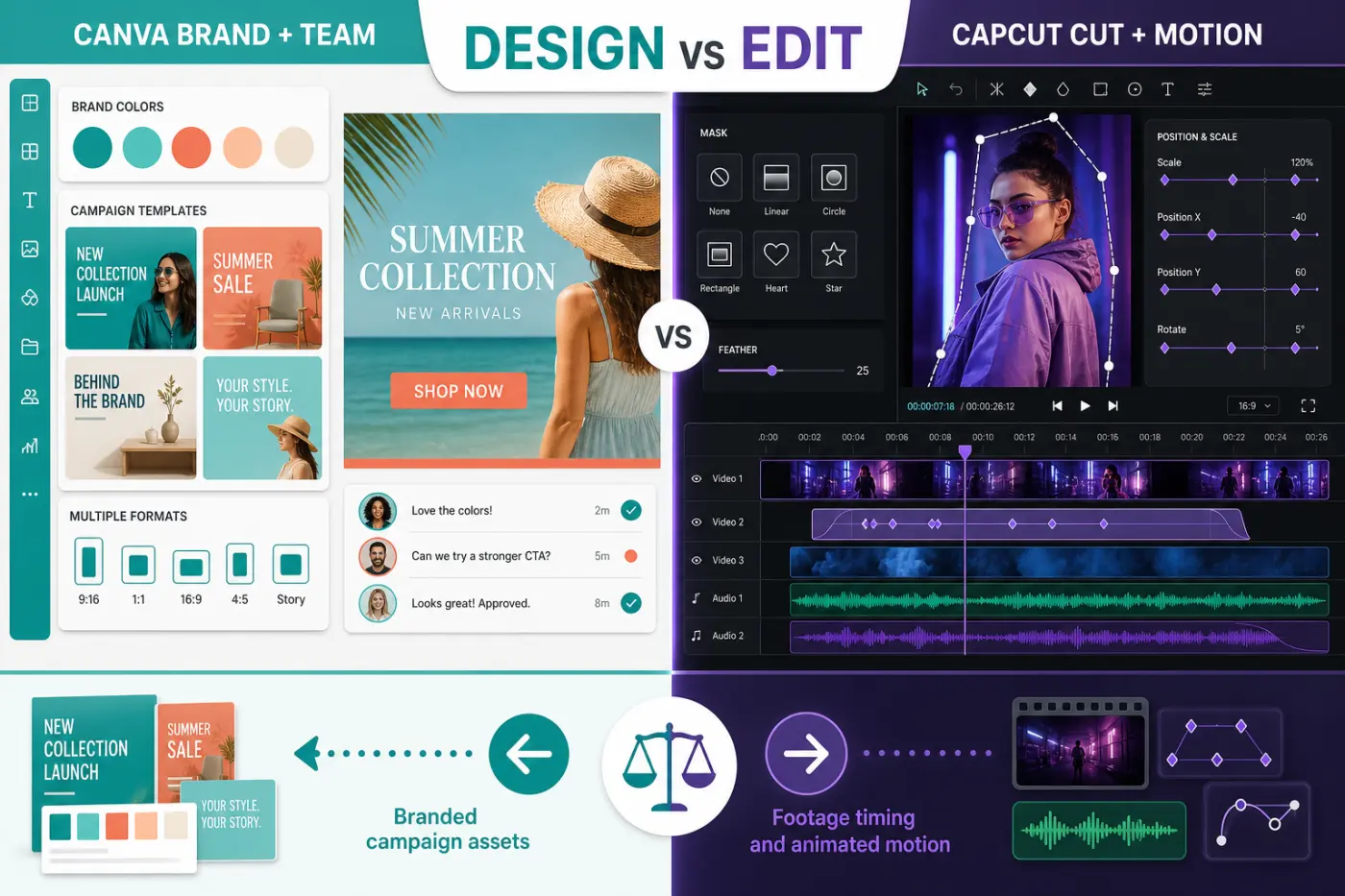
Canva and CapCut overlap on cutting, captions, templates, effects, stock, background removal, AI generation and social formats. Their centers of gravity are different. Canva begins with brand and layout; CapCut begins with footage and time.
| Decision factor | Canva Video Editor | CapCut |
|---|---|---|
| Best fit | Branded campaigns, social graphics, explainers, presentations, ads and team review | Creator videos, mobile-first production, footage-led storytelling and motion-heavy social edits |
| Editing model | Timed design pages with layered elements and audio | Conventional multi-track timeline with deeper clip and motion controls |
| Learning curve | Low for existing Canva users; template and layout led | Moderate; more timeline, effect and AI controls |
| Brand system | Strong Brand Kits, templates, approvals and multi-format campaign workflow | Brand assets and templates exist, but campaign design is not the product's center |
| Motion control | Presets and custom motion paths; no comparable full keyframe graph workflow | Keyframes, curves, tracking, masks and more exact timing |
| Captions | Free automatic captions, editing and visual styling; rendered into MP4 | Automatic captions, styling, translation and creator-oriented caption workflows |
| Audio | Multiple audio layers and Free manual beat markers; Pro one-click Beat Sync | More detailed timeline audio work, beat tools, effects and creator sound workflows |
| Free watermark | No watermark with owned and Free content; Pro assets watermark Free exports until licensed or removed | Depends on platform, template, asset and account; inspect the final export flow |
| Resolution | Pro can select 480p through 4K UHD; Free quality is chosen automatically | Up to 4K where device, plan, source and platform support it |
| Frame rate | No clearly documented universal fps selector or 60 fps guarantee | Frame-rate controls, including 60 fps in supported workflows |
| Collaboration | Comments, tasks, links, team templates and approval workflows | Cloud collaboration exists, but availability and depth vary by platform and plan |
| AI focus | Design generation, branded creation, Veo clips and image-to-video within a wider suite | Creator editing, captions, cleanup, effects and generative video workflows |
| Offline expectation | Cloud-centered account workflow; don't treat desktop app as a traditional offline NLE | Desktop/mobile editing has local elements, but assets and AI often require network access |
| Licensing risk | Clear but detailed Free/Pro/Music/client rules require asset-level review | Asset, music, template and commercial-use terms also need project-level review |
Choose Canva If...
- the video must match presentations, ads, posts and other campaign assets;
- Brand Kits, reusable templates, comments and approvals save more time than deep timeline control;
- the project is a short promo, explainer, slideshow, product announcement or social package;
- non-editors need to replace footage or text without breaking the visual system;
- automatic captions, simple audio and page-level timing cover the job;
- you'll inspect every resized version and keep stock/music license records;
- a representative export test confirms the needed image quality, sync and frame behavior.
Stay With CapCut If...
- the edit begins with footage rather than a brand template;
- you need custom keyframes, curves, tracking, masks or speed ramps;
- 60 fps delivery is required and must be selected explicitly;
- mobile shooting and editing are central to the workflow;
- the timeline contains many cuts, reactions, sound effects and layered audio decisions;
- creator templates, effects and rapid trend execution matter more than team approvals;
- the existing CapCut workflow is already tested for the account, platform and destination.
A Practical Canva and CapCut Hybrid Workflow
Many teams don't need to choose only one. Build the reusable campaign system in Canva: brand board, title cards, data graphics, end cards, thumbnails and format-specific layouts. Export graphics with the required transparency or background, then perform the footage cut, keyframe motion, tracking, sound design and frame-rate-sensitive export in CapCut.
The reverse workflow is useful too. Make the master cut in CapCut, export a high-quality file, then place it into approved Canva frames for a presentation, ad set or stakeholder review. Avoid repeated lossy exports: keep one high-quality video master, move static/transparent assets separately and render each destination only once after the final combination.
Define ownership before work begins. Canva should own the brand masters; the video editor should own the footage project and final delivery settings; a shared archive should hold licenses and exported masters. The hybrid method works when each tool handles its strongest layer, not when the same compressed MP4 bounces between them repeatedly.
Frequently Asked Questions
Is Canva Video Editor free?
Yes. Canva Free includes video editing, Free templates and assets, uploads, automatic captions and MP4 download. Paid plans add benefits such as premium content, manual resolution choices through 4K, one-click Beat Sync, video background removal, Magic Resize and larger brand, storage and AI allowances.
Does Canva put a watermark on videos?
Canva doesn't watermark a Free design that uses only the user's own uploads and Free content. If a Free user adds Pro/crown content, that content is watermarked until it is removed, licensed once or covered by an eligible subscription.
Can Canva export 4K or 60 fps?
Canva Pro can choose resolutions from 480p through 4K UHD, but Canva's upload requirements say uploaded 4K video is stored at 1080p. Canva does not document a universal output-fps selector, and its troubleshooting guide warns that 60 FPS or higher source video can contribute to download failures. Test and inspect a representative export when frame rate matters.
Is Canva better than CapCut for video editing?
Canva is better for branded, template-led campaigns, rapid resizing and team collaboration. CapCut is better for footage-first editing, precise timing, custom keyframes, tracking, masks, speed curves, denser audio and explicit high-frame-rate workflows.
Can Canva automatically add captions and sync clips to music?
Yes, with a plan distinction. Automatic editable captions are available free. Free users can view beat markers and snap clips manually; Canva Pro adds the one-click Sync now function.
Can Canva videos be used commercially?
Many Canva designs can be used commercially, but the answer depends on every asset. Free, Pro, Branded, Education, Pro Music and Popular Music have different terms. Popular Music is personal and non-commercial, and client transfers and resized designs have specific licensing conditions.
Verdict
Canva Video Editor is one of the best CapCut alternatives for people whose real deliverable is a coordinated campaign. It makes brand consistency, template reuse, comments, captions and format changes unusually accessible, and the Free plan can produce clean MP4 output when the design uses Free or owned content.
It is not the stronger pure editor. Canva's page-based timing, limited motion control, uncertain frame-rate delivery and cloud/licensing complexity become more important as a project grows. Choose Canva for short, design-led communication. Choose CapCut for footage, motion and creator speed. Use both when a campaign needs Canva's brand system and CapCut's timeline. Our full CapCut alternatives guide compares the remaining mobile, browser and professional choices.