


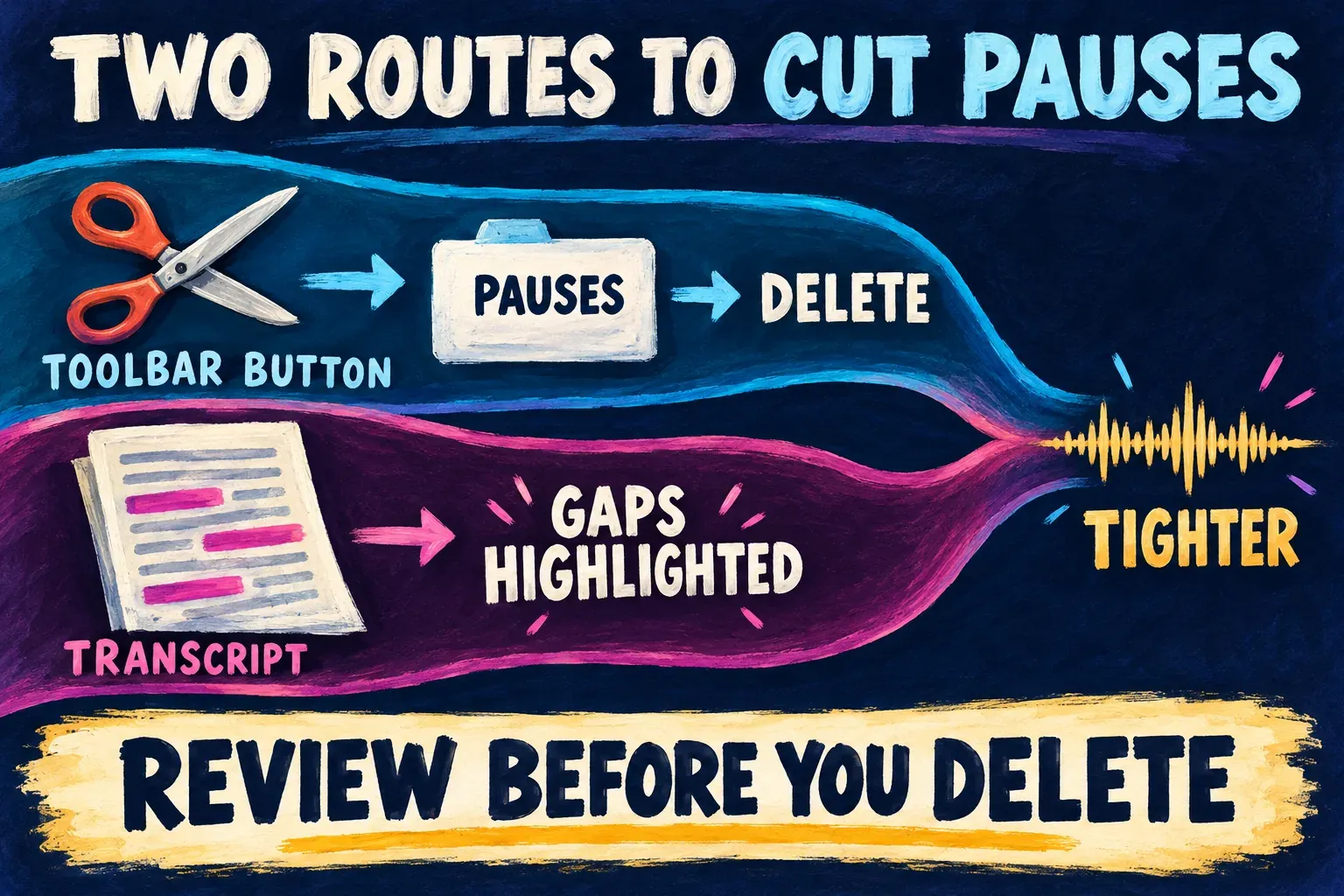
To remove silence in CapCut on Windows or Mac, select the clip, click Remove filler words in the toolbar above the timeline, open the Pauses tab, untick any pause you want to keep and click Delete. CapCut cuts the gaps and pulls the clip together. On a phone, use a pause-removal tool only if it shows the actual media intervals to delete. A filler-word switch in Captions identifies words and does not by itself prove that silent video has been cut. Otherwise split at both ends of each pause and delete the piece between. I'd review the longest gaps first, then keep the breaths and beats that carry the meaning. Duration helps you find a pause; listening decides whether to cut it.
The same window also finds filler words and repeated takes, and CapCut's transcript editor reaches the same detections from a different menu. I'll cover both desktop routes, the phone method, how long a pause to keep, and what to do when the tool asks for Pro or isn't there at all.
Remove pauses on Windows or Mac
- Select the clip with the speech. Import the video, drag it onto the timeline and click it once. If your voice sits on its own audio track, select that track instead.
- Click Remove filler words above the timeline. CapCut's own filler-words guide puts the Remove filler words option in the menu above the timeline, and Film Crux's CapCut editing guide describes it as the scissor tool in the same place. Hollyland's guide to removing pauses calls it Auto Remove Silence and adds that some versions show it in the right-hand panel among the audio tools.
- Open the Pauses tab. The window that opens has tabs for the whole dialogue, Pauses, Repeats and Filler words. Start with Pauses.
- Untick what you want to keep. CapCut's guide says the detected parts are highlighted in blue and that you can adjust the selection by hand. Go through the highlights and deselect any pause that carries meaning, such as the beat before a punchline.
- Click Delete. CapCut removes the selected pauses and closes the gaps on the timeline.
- Play the whole clip back. Listen at every join for a clipped first syllable or a breath cut in half, and press undo on any join that sounds wrong.
I'd run Pauses as its own pass, then come back for Repeats and Filler words. Judging one kind of cut at a time is faster than weighing a pause against an "um" in the same list, and a mistake is easier to spot. If you don't have the desktop app yet, our guides to CapCut for PC and CapCut for Mac cover the official downloads.
The transcript route
When the button isn't in your toolbar, or the clip runs longer than a few minutes, the transcript gets you to the same detections and lets you read the talk instead of scrolling a waveform.
Transcript-based editing. Right-click the clip on the timeline and choose Transcript (or Transcript-based editing), then pick the spoken language. CapCut's desktop transcript steps call the menu item Transcript. CapCut's transcript editing page says the editor automatically recognizes filler words and speech gaps, and you remove the ones you don't want from the transcript. Our transcript-based editing guide walks through the editor itself.
Auto captions with filler-word detection. Open Captions, then Auto captions, choose the language, turn on Identify filter words and click Generate. That's the route CapCut's filler-word remover page gives, and the detected words are then highlighted in the transcript. CapCut's help article on auto captions places Captions in the left toolbar on desktop and in the bottom menu on a phone. Our CapCut auto captions guide shows where the filler-word switch sits in the panel.
Generating captions gets you a transcript and highlighted filler words. Review a detection and choose whether to delete or adjust it, as CapCut's page describes. For silence removal, use the Pauses selection and Delete workflow above, or the manual splits below, unless your transcript tool explicitly selects speech gaps and applies cuts to the media. Confirm that the timeline becomes shorter, then listen across each join and check lip sync. A cleaner caption alone isn't a removed pause. Recheck caption timing after the media cuts; fixing caption timing in CapCut helps if a line lands early or late.
Remove silence on iPhone or Android
The phone app is where published answers disagree most. Filmora's guide to CapCut filler words gives the phone route as Captions in the bottom toolbar, the Identify Filler Words switch turned on (it goes blue), then Generate. BlitzCut's write-up, from a company that sells a rival app, lists AI Tools and then Remove Silence. Hollyland says the phone app has no automatic silence button at all.
Check what your build actually removes. The Captions filler-word switch can identify spoken fillers; it is not evidence of a silence-removal command on a phone. If you find a tool that previews pause intervals and deletes them from the video, review those intervals, apply the deletion and check the shortened timeline and joins. If it only highlights or edits subtitle text, use the manual method below.
Cut pauses by hand on any device
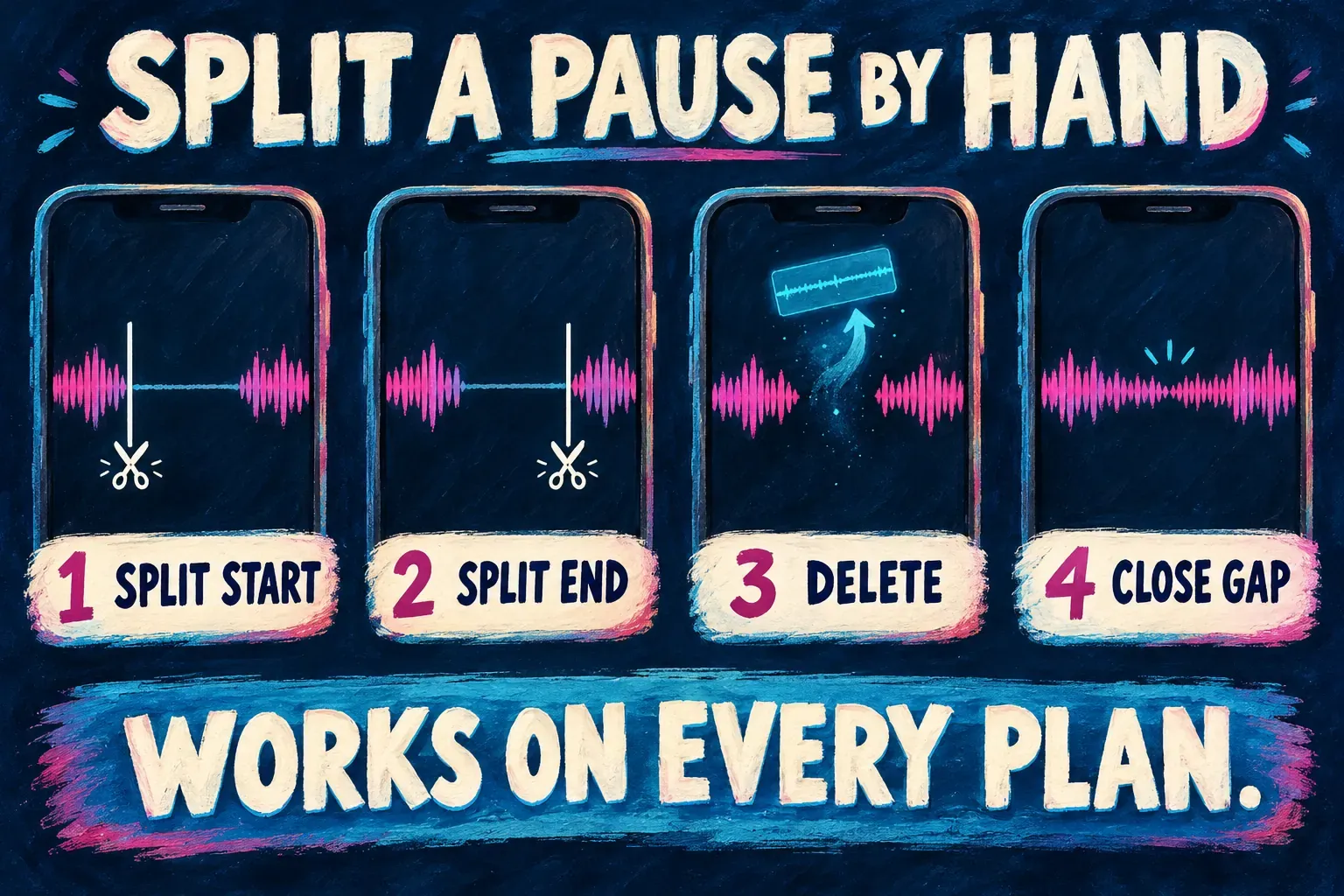
- Zoom in on the timeline. Pinch outward on a phone, or zoom the timeline on desktop, until the waveform shows flat stretches between words.
- Split at the start of the pause. Put the playhead where the waveform goes flat and split. On desktop the shortcut is Ctrl+B on Windows and Command+B on Mac, as our CapCut keyboard shortcuts list shows; on a phone, tap Split in the bottom toolbar.
- Split at the end of the pause. Move to where the waveform rises again and split a second time.
- Delete the silent piece. Select it, delete it, and drag the next clip left if a gap stays behind.
- Work from start to finish. Go through the clip in order so you never lose your place.
Our guide to cutting, trimming and splitting in CapCut explains when the main track closes a gap by itself and when it doesn't. One habit from that guide is worth repeating here: a flat line can hide a soft word, so listen as well as look. I leave a couple of frames before the next word so its first consonant survives the cut.
If you recorded the voice on a separate microphone, line it up with the picture first using CapCut's audio sync steps, then cut both tracks at the same points. Cutting only the audio drifts the lips out of sync.
How long a pause to keep
Review a pause in the sentence around it before shortening it. Campione and Véronis's study of silent pause duration grouped about 6,000 pauses from 5.5 hours of speech in five languages into brief, medium and long categories. These describe the recordings in that study; they are not editing thresholds.
| Pause length | Group in the study | What I'd do |
|---|---|---|
| Under 0.2 seconds | Brief | Listen for a breath or word boundary; shorten only when the join stays natural |
| 0.2 to 1 second | Medium | Judge the sentence rhythm and shorten only if the pause distracts |
| Over 1 second | Long; observed only in spontaneous speech in this sample | Review early, but keep pauses that give an answer, reveal or emotional beat room |
The study does not establish that scripted speech always needs less cleanup. Good preparation can still reduce retakes: our guides to recording a voiceover in CapCut and the CapCut teleprompter cover that work. Some pauses earn their place whatever their length: CapCut's guide to filler-word removal names an important answer, reveal or emotional moment as reasons to keep one.
Pro, free trial or free?
CapCut's pages disagree with each other. The filler-words guide says you have to upgrade to Pro to use the speech removal feature, while the filler-word remover page says you can remove filler words free with CapCut's trial. Filmora calls the feature exclusive to Pro subscribers and BlitzCut says the same, but Scotty Creates' remove silence tool video has FREE in its title, and TutorialTV's filler words and dead silence tutorial says it's completely free on PC.
Open the tool and look for a Pro badge. If one shows up and you'd rather not pay, the manual split method does the same job on the free plan. What CapCut Pro adds, the CapCut Pro free trial and CapCut free vs Pro cover the plan side.
When automatic removal cuts too much
Treat the result as a first draft. Junius Ong says exactly that in his auto remove silence tutorial for CapCut Pro and CapCut's guide to filler-word removal describes the automatic pass as a suggestion rather than a bulk delete.
- Speech sounds rushed. Undo the last removal and restore enough breathing room around the rushed sentence. Listen across each join before cutting another pause.
- Words lose their first or last sound. The detector cut into the word. Drag the edge of the clip back a few frames.
- Music or noise under the voice. BlitzCut reports lower accuracy with background noise, music or several speakers. I'd remove silence on the voice before you add music, and clean the room tone first with CapCut's noise reduction.
- The app slows down. Filmora cites user reviews of lag when several clips are processed at once. Run the tool on one clip at a time.
- Captions vanish or shift. Generate captions again after the cuts, or see CapCut captions not working.
If the pace still drags once the dead air is gone, a small speed increase in CapCut finishes the job better than cutting deeper into the pauses.
Remove filler words button missing?
- Nothing is selected. The button acts on the clip you selected, so click the clip with the speech first.
- The layout moved after an update. CapCut's help on interface changes says tools can be moved or reorganized after an update, and suggests checking the main menu, toolbar and settings, restarting, and updating to the latest version. Our page on CapCut after an update covers changed layouts and missing features.
- Your version or plan doesn't have it. Use the transcript route, or split by hand.
- You opened a different cutting tool. If CapCut AutoCut opens template or beat-based suggestions, return to the selected speech clip and look for Remove filler words > Pauses, the workflow used here.
For long recordings headed for Shorts or Reels, take the silence out first and then cut clips with our long video to Shorts guide. Each short then starts with speech instead of a gap.
What 14 published answers say about removing silence
I compared eight written guides with six YouTube tutorial descriptions. Alongside the tutorials linked above, the video sources include TubeMasterTools, Edit in Minutes' lesson on pauses and repeats and AttiqueStic's transcript walkthrough. The table counts what these 14 sources explicitly say; it does not measure the editor's accuracy or speed.
| What they say | Sources | Who |
|---|---|---|
| Explicitly place the desktop button above the timeline | 3 of 14 | CapCut's filler-words guide, Film Crux, Hollyland |
| Describe transcript or caption-led removal | 7 of 14 | CapCut's filler-word remover, filler-word removal guide and transcript editing page, Film Crux, Filmora, TubeMasterTools, AttiqueStic |
| Tell you to review or refine the detected edits | 8 of 14 | CapCut's filler-words guide, filler-word removal guide and remover page, Hollyland, BlitzCut, Junius Ong, TubeMasterTools, Edit in Minutes |
| It needs Pro | 4 of 14 | CapCut's filler-words guide, Filmora, BlitzCut, Junius Ong |
| Mention free use or trial access, including Pro trials or invites | 5 of 14 | CapCut's filler-words guide and filler-word remover, Scotty Creates, TutorialTV, Junius Ong |
Across the written guides and tutorial descriptions, 3 of 14 explicitly place the button above the desktop timeline, 7 describe a transcript or caption-led route, and 8 recommend review or refinement. The three phone answers contradict each other.
Hollyland's guide also lists a silence threshold in decibels and a minimum gap slider. I didn't find either control on any CapCut page, so I left them out of the steps.
My verdict: on desktop, use Remove filler words, take Pauses first and untick the beats you want to keep. On a phone, confirm that a tool deletes pause intervals from the media; if it only handles caption text or fillers, split the pauses by hand. Whatever the tool, review the suggested gaps and play every join in context before you export.
Removing silence in CapCut: questions
Does CapCut have an auto remove silence feature?
Yes, on desktop. Select the clip and click Remove filler words above the timeline, then use the Pauses tab. Some guides call it Auto Remove Silence, and some versions show it in the right-hand panel.
Is removing silence in CapCut free?
CapCut's own pages disagree: one says speech removal needs Pro, another says filler-word removal is free with the trial. Open the tool and check for a Pro badge. Splitting and deleting pauses by hand is free on every plan.
How do I remove silence in CapCut on my phone?
Split the clip at the start and end of a pause, delete the silent piece and close the gap. If your build offers automatic pause deletion, review the selected media intervals before applying it and check the shortened timeline and joins. Generating or cleaning captions alone does not confirm that silence was removed.
How long should a pause be after editing?
Keep breaths, sentence breaks and pauses that carry meaning. Review the longest gaps first, then shorten only the parts that drag. A duration category from a speech study does not tell you which pause belongs in your edit.
Can CapCut remove filler words and silence at the same time?
Yes. The same window has Pauses, Repeats and Filler words tabs. I'd run them as separate passes so each cut gets a proper listen.
Why are my captions out of sync after removing pauses?
The cuts moved the speech but not every caption followed. Generate the captions again after the silence pass, or fix the timing of the lines that drifted.