


Select the video clip, open Speed, then choose Normal on Mobile or Standard on Desktop and set a rate above 1x. In CapCut Web, select the clip and move the Speed slider above 1x. This changes the video in your edit, not just how fast the preview plays. CapCut documents the Mobile and Desktop controls and its Web slider separately.
I would start with a modest increase and play the result with sound. A fast clip is useful when it removes waiting; it is less useful when it makes the action or speech impossible to follow.
Choose the clip, then choose an even speed
The important selection is the clip on the timeline. If you change Normal/Standard, that selected clip runs at one constant rate. Curve is for a speed ramp that rises or falls during the clip; the CapCut velocity edit guide covers that different job.
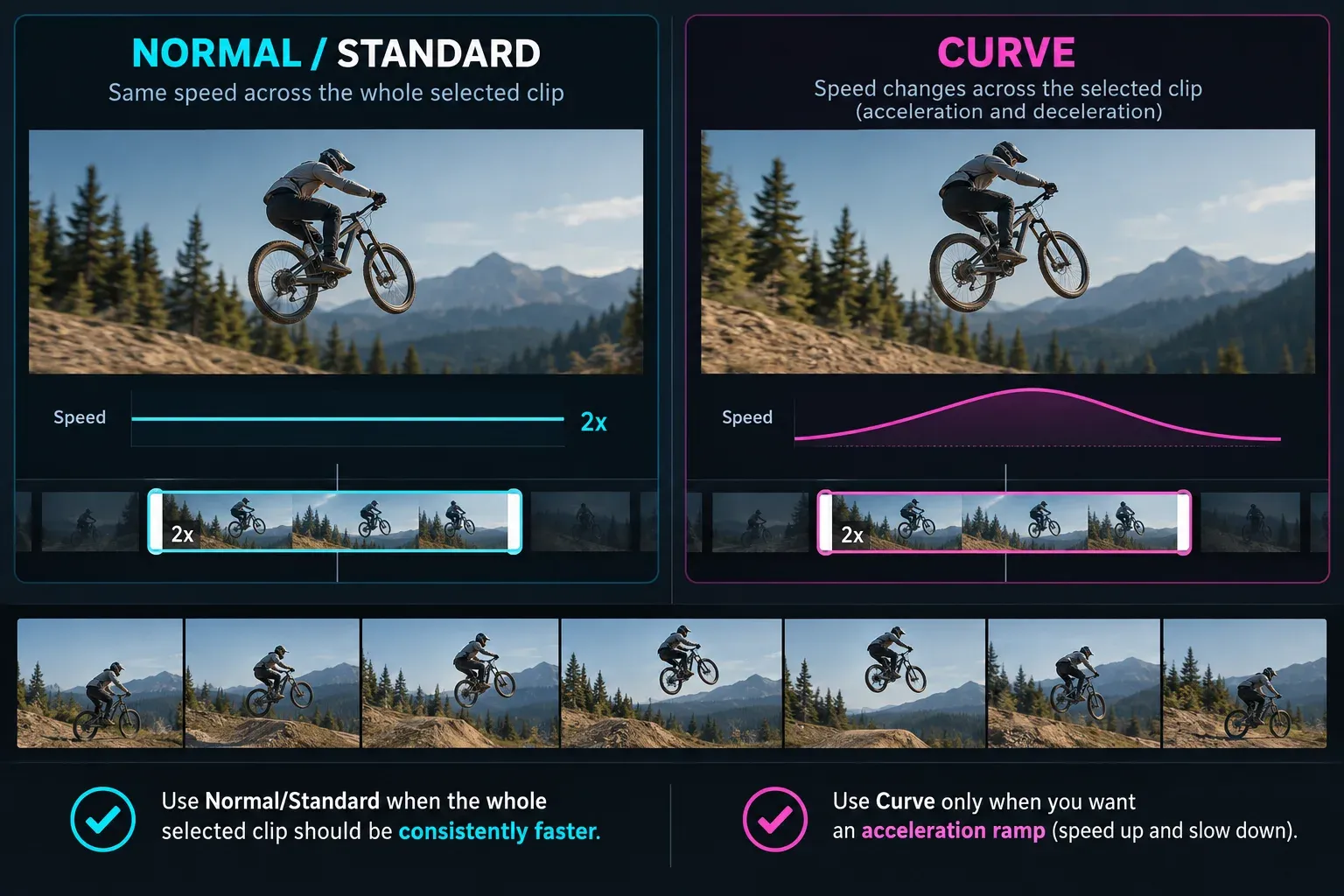
On Mobile, tap the video in the timeline, open Speed > Normal, and move the control above 1x. CapCut's current Mobile walkthrough gives 1.25x, 1.5x and 2x as examples. Confirm the change, then play across the cut into the next clip; making one shot shorter can expose a gap or move a later beat.
On Desktop, select the video, open Speed and choose Standard for a uniform increase. CapCut's Desktop instructions separate Standard from Curve, while its Mac guide also shows the slider and duration field. Watch the displayed clip duration as you adjust the rate. Do not change the project's export frame rate to make a clip play faster.
On Web, place the video on the timeline, select it, then use Speed in the right-side controls and set a value above 1x. That is the route in CapCut's online speed-changer guide. If you see only project settings, click the video clip itself; if the named control is absent, check the selected media type and the current Web layout before assuming the feature is unavailable.
Speed up only one part
Split the video at the start and end of the section you want to accelerate, select the middle piece and change its Normal/Standard speed. CapCut's Web speed instructions make clear that the control applies to a selected clip; our trim and split guide covers making that separate range. Keep the pieces before and after at 1x unless the pacing calls for another change.
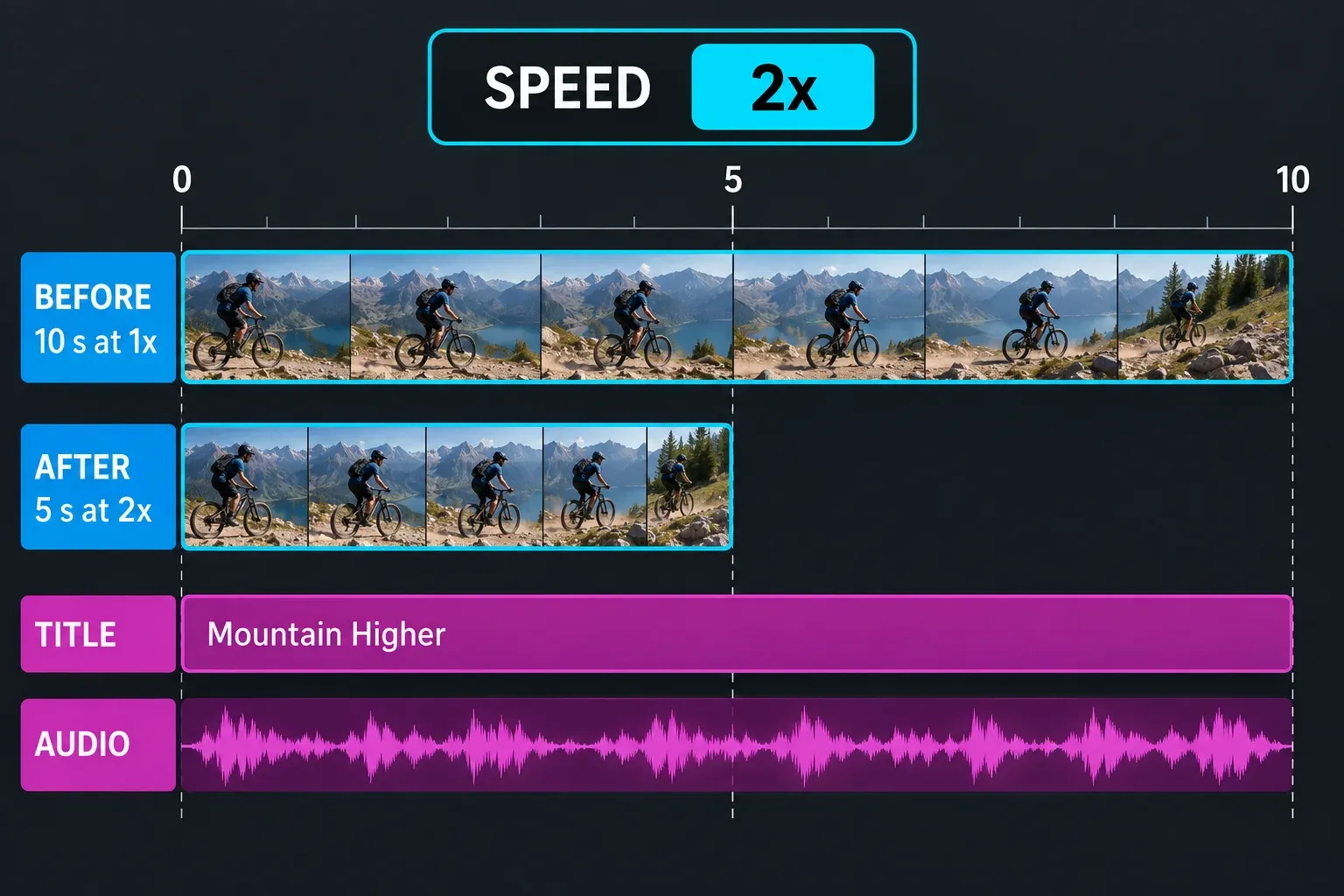
For a simple planning check, a 10-second source segment at 2x becomes about 5 seconds on the timeline. That is arithmetic, not a guaranteed export measurement: transitions, freezes or other edits can affect the final sequence. Inspect whether captions, sound effects or a cut now land too late. A title attached to the original time range will not necessarily shorten in step with the footage.
If you want the acceleration to ease in and out instead of starting abruptly at the split, use the Velocity Edit curve workflow rather than piling transitions onto a basic speed change.
Check sound, motion and the saved video
Listen to any speech or production audio after increasing speed. Its timing changes with the footage, and pitch may change depending on the available audio treatment. CapCut's Web speed page describes a pitch option, but do not assume the same toggle appears in every app build. If the voice becomes distracting, choose a slower rate, separate the audio for deliberate editing, or replace it with music or narration you have the right to use. The CapCut audio-mixing guide covers the separate-track decisions.
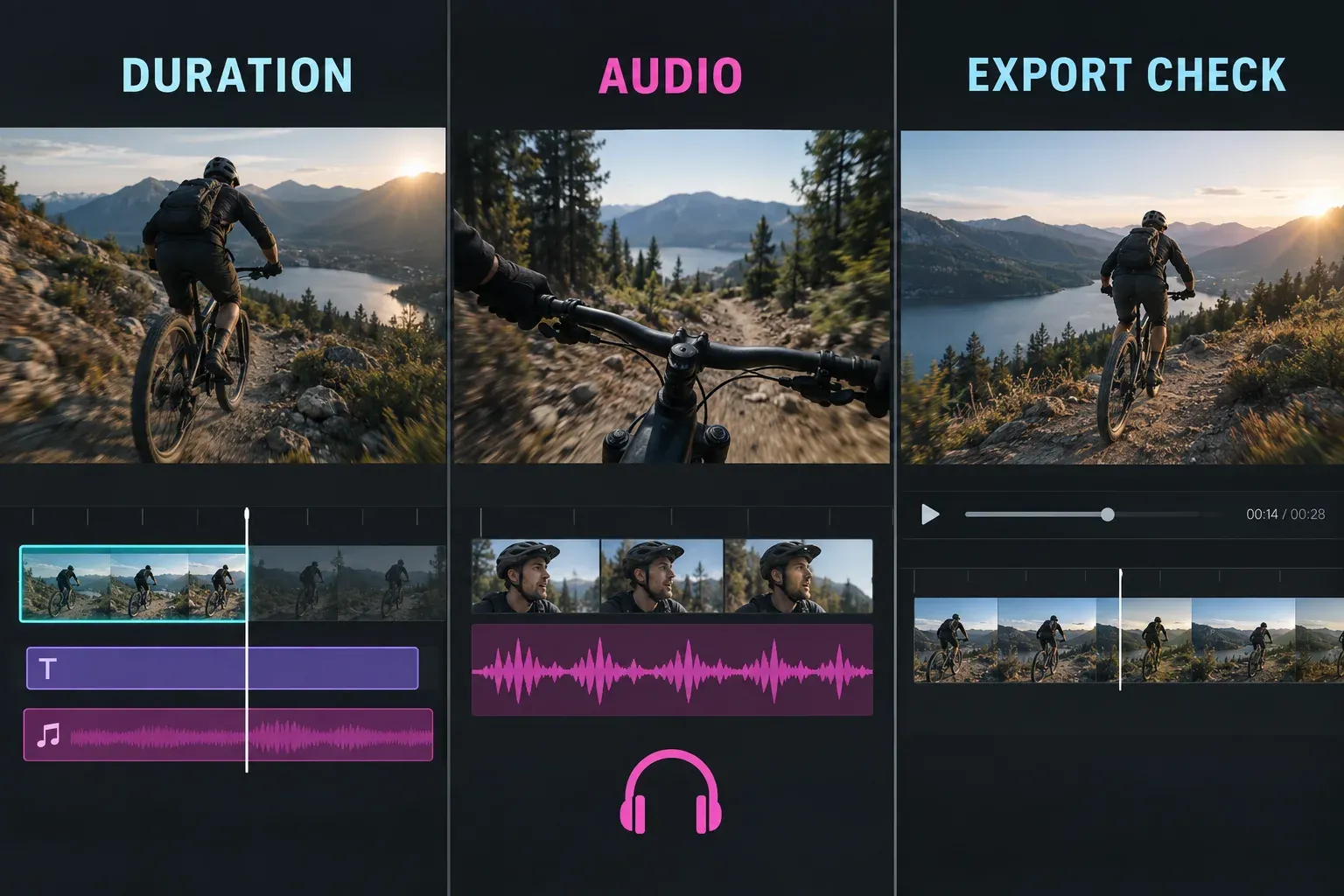
Watch a representative section at normal playback speed, especially fast pans, fine patterns and motion near a cut. Raising export FPS is a separate output setting; it does not undo a poor timing choice or recreate source detail that was never recorded. If the editor preview stutters, check a short exported file before rebuilding a speed edit that may already be fine. Use the CapCut export settings guide for resolution, frame rate and file checks.
If the whole project merely previews too slowly while the selected clip still shows 1x, diagnose playback performance separately. Changing the clip to 2x would alter the finished video; it is not a preview-speed switch.