

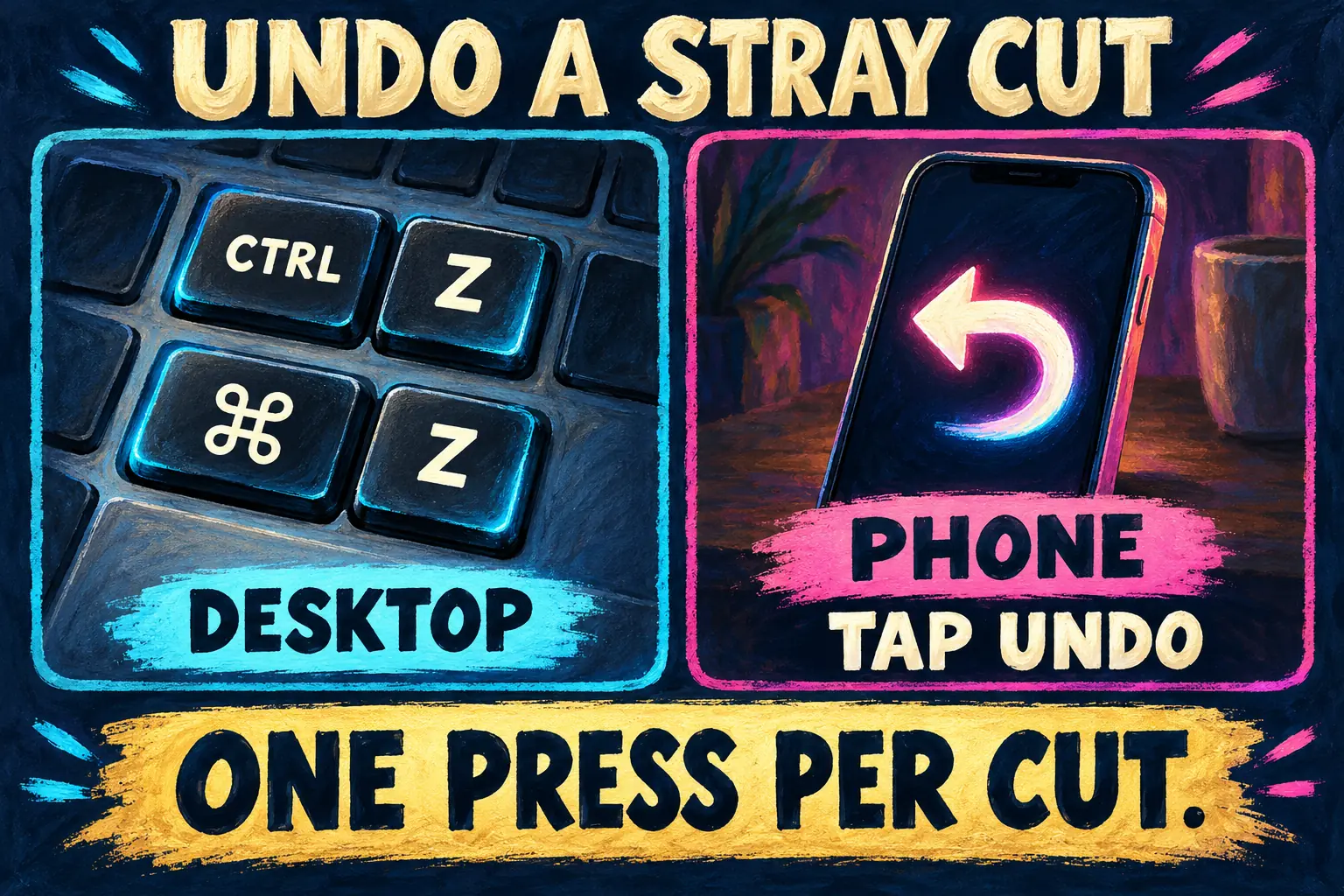
To get out of cutting mode in CapCut, press A or click the pointer icon in the toolbar above the timeline. The razor cursor is Split mode: the B key turns it on, and pressing B again won't turn it off. Once the normal pointer is back, press Ctrl+Z (Cmd+Z on a Mac) once for every stray cut.
That's the desktop app on Windows and Mac. The phone app has no cutting mode to get stuck in, because Split there is a single tap that cuts once at the playhead. A stray cut on mobile only needs the Undo arrow.
Leave Split mode on Windows or Mac
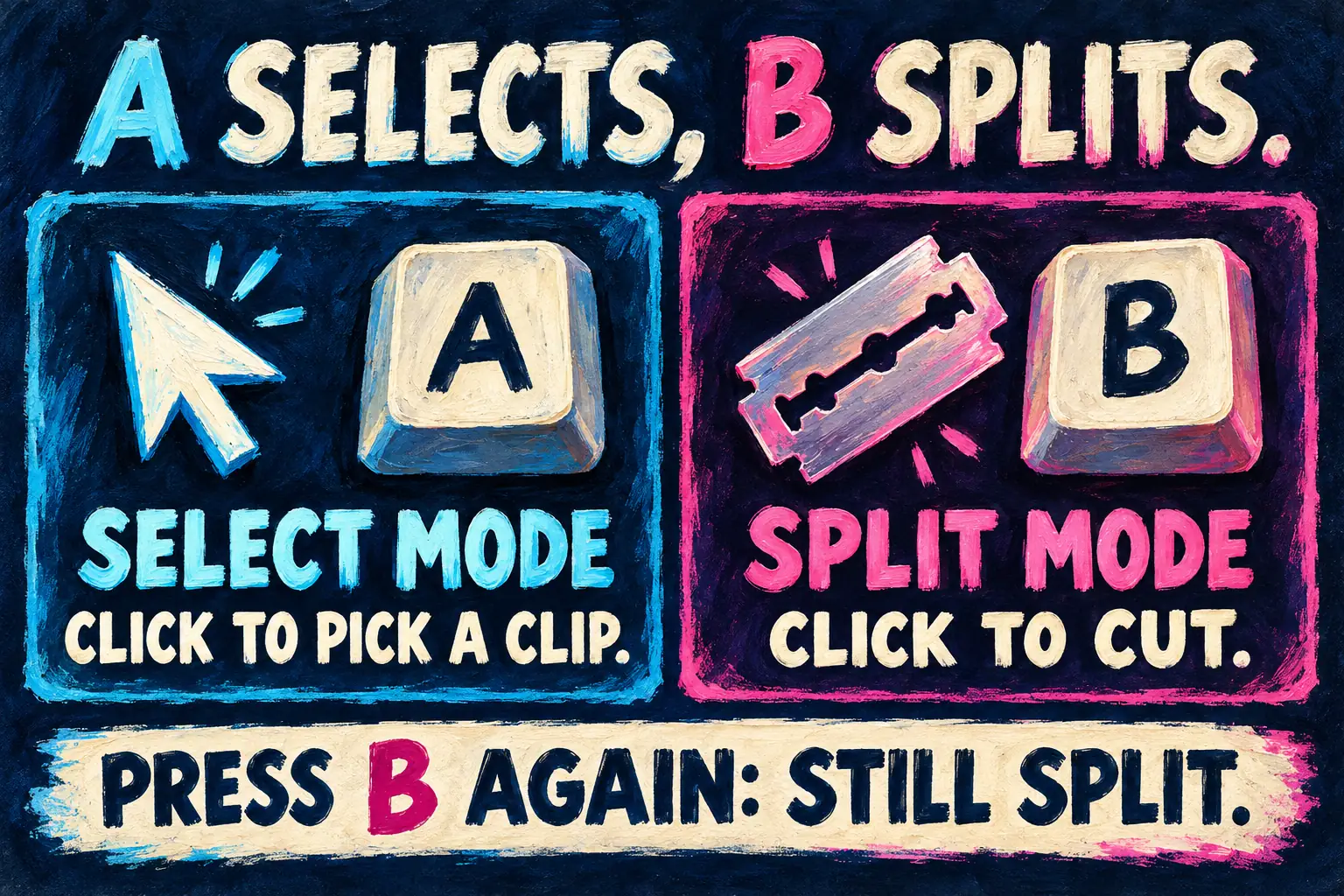
- Press A. In the default layout, A is Select mode and B is Split mode. The shortcut lists from TutorialTactic, DefKey and a CapCut shortcut sheet on GitHub all agree. The top answer in the r/CapCut razor icon thread says the same thing, and replies from 2026 report that it still works. Click an empty part of the timeline first if a text box or number field has focus, or the A lands there instead.
- Or click the pointer icon. In the toolbar right above the tracks, beside Undo, sits a small cursor icon. In Split mode it shows the razor instead. Click it, or open the small down arrow next to it, and choose the arrow pointer. Replies in that thread describe both routes, and GraphixGrove's razor tutorial points to the same icon.
- Check the cursor. Hover over a clip. The plain arrow should be back. Click one clip: it should get selected, not cut. A yellow hover line can remain when Preview Axis is enabled; its visibility alone does not tell you which tool is active.
If A does nothing, go with the icon. It works whatever your keys are, which is why it's my default fix when someone else's computer is involved.
Why pressing B again doesn't help
B isn't an on/off switch. It selects the Split tool, so a second press selects Split again and nothing changes. GraphixGrove's video describes exactly that dead end. A selects the other tool.
Three cutting shortcuts get mixed up all the time:
| Keys | What happens | When I'd use it |
|---|---|---|
| B | Split mode: every click on a clip cuts it at that spot | A long run of cuts by clicking |
| A | Select mode, the normal pointer | Leaving Split mode |
| Ctrl+B or Cmd+B | One split of the selected clip at the playhead, no mode change | A single precise cut |
| Ctrl+Shift+B | Split all clips at the playhead | Cutting picture, captions and music together |
CapCut's overview of its PC editor documents Ctrl+B and Cmd+B as the cut shortcut. One guide in the results, ytzolo's blade tutorial, says Ctrl+B is what turns blade mode on. That runs against CapCut's documentation and GraphixGrove, which both treat it as a single split. I'd use Ctrl+B for the occasional cut and keep B for a burst of cuts, because the mode is easy to forget once you look away. For lining up a single cut exactly, see how the playhead works.
Keys don't match? Check the preset
If a tutorial tells you to press V or S, it's probably using another layout. CapCut says its PC shortcuts can be changed to match apps you already use, and this CapCut shortcut reference notes that the shortcut panel switches between CapCut and Premiere Pro presets. ytzolo's tips to press V for the cursor and S to split don't match the default list. In the list TutorialTactic shows, V activates or deactivates a clip, so a Premiere habit can switch off the selected clip instead of changing the tool. GraphixGrove's advice to press S on a Mac has the same weakness: one video against three shortcut lists.
Open the shortcut panel from the keyboard icon or the menu's Shortcuts entry. If it moved, CapCut's help on interface changes says to check the main menu, toolbar or settings. Find Select mode and Split mode by name and use the keys your copy shows. Our CapCut keyboard shortcuts guide explains how to remap one action at a time, and setting up CapCut for Mac or CapCut for PC covers the desktop basics.
Undo the cuts you made by accident
Once the pointer is back, undo the stray cuts in the same order you made them.
| Where | Undo | Redo |
|---|---|---|
| Windows | Ctrl+Z or the Undo arrow | Ctrl+Shift+Z or the Redo arrow |
| Mac | Cmd+Z or the Undo arrow | Cmd+Shift+Z or the Redo arrow |
The desktop keys come from Skillademia's CapCut shortcut list and match MeowTool's cheat sheet. CapCut's own guide to splitting a video into parts confirms that the Undo button or Ctrl+Z reverses any action. On desktop the Undo and Redo arrows also sit in the toolbar, next to the pointer icon. On the phone, use the Undo arrow. The r/CapCut thread on undoing a split puts the button "under the video and to the right", and createthat.ai's cutting guide places it on the right side above the timeline. That's the same spot described two ways. Rebecca Sun's undo and redo walkthrough shows the desktop buttons.
Undo walks back through your history one action at a time. Three stray cuts take three presses, and you can watch the pieces close up. If you did other work after the cuts, undo takes that work away first, because it goes strictly in reverse. On desktop, Redo brings back a step you undid by mistake, so don't make a new edit in between.
Rejoin a split after you've kept editing
When undo would cost too much later work, fix the cut by hand. CapCut's comparison of split workflows notes that splitting "does not automatically delete any footage", so the frames are still in the source:
- Before deleting anything, duplicate the project or back it up. Note the second piece's speed and effects: deleting it removes those settings with it. Keep the two segments if they need different treatment.
- If the first piece can supply the whole span with the intended treatment, select the second piece and delete it.
- Drag the right edge of the first piece back out to its original length.
- Play across the old cut point and check the picture, sound and captions.
After extending the first piece, check the join, duration, speed, effects and audio against the saved copy. Reapply only the treatment that should cover the whole joined span. Rebecca Sun's video on undoing a cut and merging clips shows a similar copy, extend and delete method for edits that are already applied. ytzolo also suggests clicking a white split marker and pressing Delete. CapCut documents no such control, and I wouldn't plan around it.
For compound clips, groups and when pieces stay separate, use the section on rejoining a split in our merge clips guide and the cut, trim and split walkthrough. If the sound drifts after a rejoin, syncing audio and video is the next stop.
Select clips, one track or everything
On desktop:
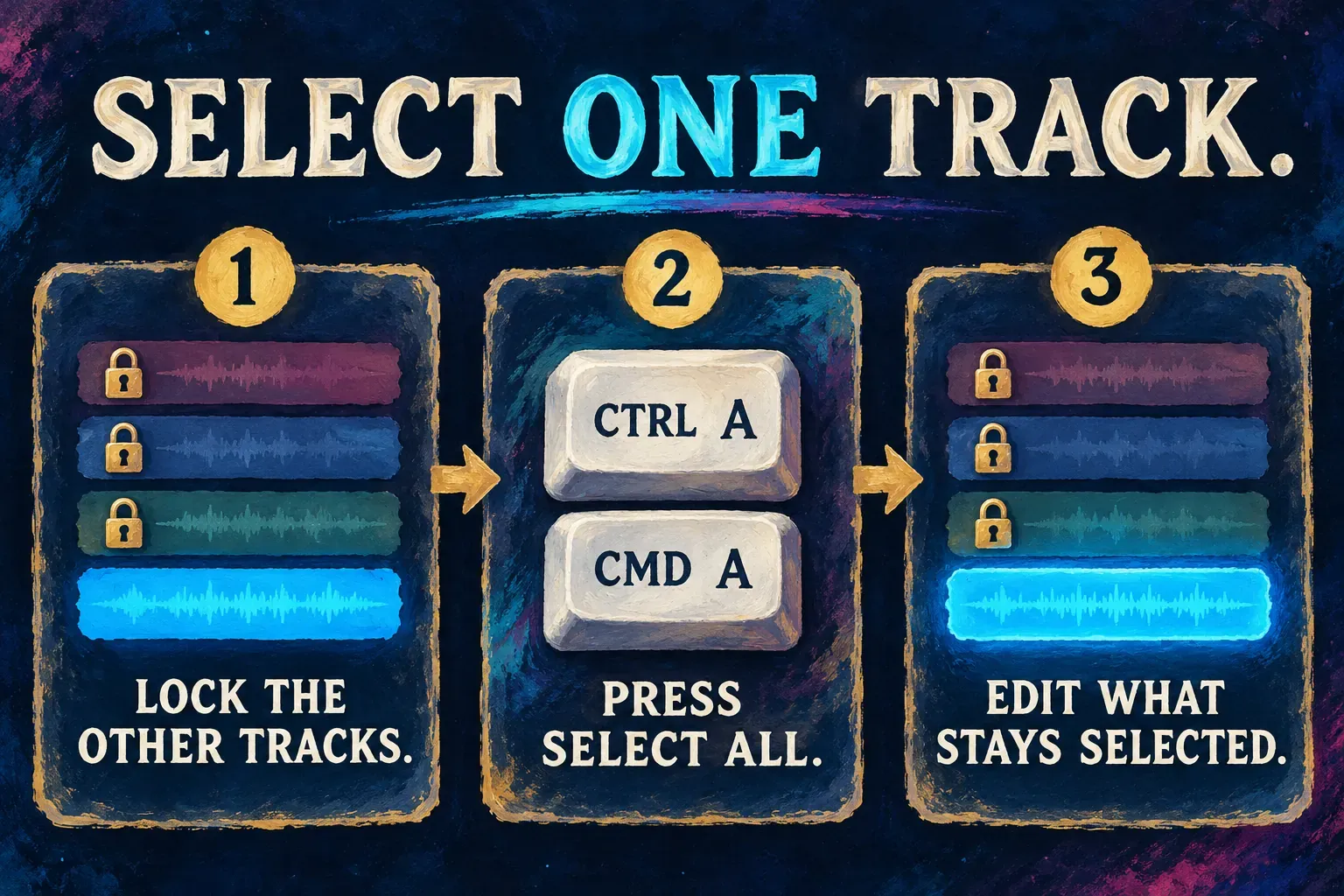
- Everything: Ctrl+A or Cmd+A. A 2025 reply in the r/CapCut select-all thread points out that it selects "everything but the locked tracks". Rebecca Sun's select-all tutorial shows the same keys on PC.
- One entire track: lock every other track with the lock icon at the start of each track, then press Ctrl+A or Cmd+A. This is the method I'd use, because it relies on that locked-track behavior and needs no dragging.
- Everything to one side: [ is Select to the left and ] is Select to the right in the default lists.
- A few clips: drag a box from an empty part of the timeline around them.
- Clear the selection: Alt+X, or click an empty spot.
- Keep them together: Ctrl+G groups the selection. Right-click > Group works too, per Facebook's answer summary on selecting multiple clips.
Click the lock icons again afterwards so your next edits reach those tracks.
On the phone, there's no select-all on the timeline. The select-all thread's 2025 replies say it still can't be done, even with a mouse and keyboard attached. Two workarounds help:
- At import: tap every clip you want before you press Add. They land on the timeline together.
- Same look everywhere: set up one clip, then use Copy attributes and Paste on the others.
If you were selecting everything to change the speed, start with one clip: our speed-up guide sets speed on the selected clip, then on just one part of it. CapCut's feature availability by device shows what else differs between mobile, desktop and the web editor.
What 7 published answers say about leaving the mode
The Google top 10 for "how to get out of cutting mode in capcut" is mostly video: seven YouTube results, a Reddit thread and two blog guides. Five of the videos give no method in their title or description, and createthat.ai covers cutting without the way out. I counted the four results that name a key or a button and added the three shortcut lists above.
| What they say | Sources | Who |
|---|---|---|
| B turns Split mode on | 6 of 7 | Reddit thread, How To Financial, GraphixGrove, TutorialTactic, DefKey, GitHub sheet |
| A returns to Select mode | 5 of 7 | Reddit thread, GraphixGrove, TutorialTactic, DefKey, GitHub sheet |
| Click the pointer icon | 3 of 7 | Reddit thread, GraphixGrove, ytzolo |
| Pressing B again doesn't exit | 1 of 7 | GraphixGrove |
| Press S on a Mac | 1 of 7 | GraphixGrove |
| Ctrl+B turns the mode on | 1 of 7 | ytzolo |
| V brings the cursor back | 1 of 7 | ytzolo |
Composite result: 5 of 7 name A as the way back to Select mode, and all 3 that describe the toolbar point to the pointer icon.
The single-source answers are where readers get stuck. Ctrl+B is CapCut's documented single split, V is Activate/Deactivate clip in the default list, and S on a Mac appears in none of the three shortcut lists. How To Financial's video on turning off razor mode has the most views in the group, close to 25,000, and its description explains that B switches the mode on, not how to leave it.
My verdict: press A, and if your layout ignores it, click the pointer icon. Then undo the stray cuts before you touch anything else.
When it keeps cutting
- Several tracks got cut at once. That's usually Ctrl+Shift+B, which the shortcut lists call Split all clips. CapCut's split comparison gives the fix for a cut on an unexpected layer: undo it and confirm the intended clip is selected.
- The pointer is back but a click still cuts. Open the cursor menu again and make sure the arrow is chosen. ytzolo suggests checking whether another cutting or trimming control is still active.
- No shortcut does anything. Click the timeline so it has focus. TutorialTactic adds that some shortcuts behave differently in Split mode and Select mode.
- The toolbar looks different. Menu names vary by version. If the icons moved after an update, our guide to CapCut after an update shows where tools went.
Cutting mode in CapCut: questions
What is cutting mode in CapCut?
It's Split mode in the desktop app, also called the razor or blade tool. The cursor turns into a razor and every click on a clip cuts it at that spot. B turns it on and A turns it off.
Why does my CapCut cursor look like a razor blade?
You pressed B or picked the razor from the cursor menu above the timeline. Press A or click the pointer icon to get the arrow back.
Does the CapCut phone app have a cutting mode?
No. Split on the phone cuts the selected clip once at the playhead and doesn't stay on. If a cut was a mistake, tap Undo right away.
How do I undo and redo in CapCut?
Ctrl+Z and Ctrl+Shift+Z on Windows, Cmd+Z and Cmd+Shift+Z on a Mac, or the Undo and Redo arrows in the toolbar. On the phone, tap the Undo arrow above the timeline on the right once per step.
How do I select an entire track in CapCut?
On desktop, lock every other track and press Ctrl+A or Cmd+A, which skips locked tracks. The phone app has no select-all on the timeline.
Can I move Split mode off the B key?
If your build lets you edit that row in the shortcut panel, assign Split mode a key you won't hit by accident. Check that A still selects Select mode before you close the panel.