

To use a CapCut meme template: open a linked template on your phone, tap Use template if available, select the required photos or clips, then preview and edit the result. Check the caption, crop and sound before exporting. Start with the four templates below, or build the timing yourself if the preset does not fit. For collages, intro cards, slideshows and other formats beyond a meme, browse our round-up of CapCut design tools.
A reaction that arrives before the caption is readable can spoil a good joke. So can a long pause after the viewer already understands it. Pick a template for the footage and timing you need rather than for the face on its cover.
Need a quick choice? The two-input vertical example runs about 8.2 seconds; the one-input square example runs about 6.9 seconds. For a single picture and caption, use the image-meme route. To place a reaction over another scene, follow the green-screen workflow.
For the wider library, discovery routes and saved-link workflow, use the main CapCut templates guide. Here, choose a format that fits your joke and check the finished edit.
Choose how to build your meme
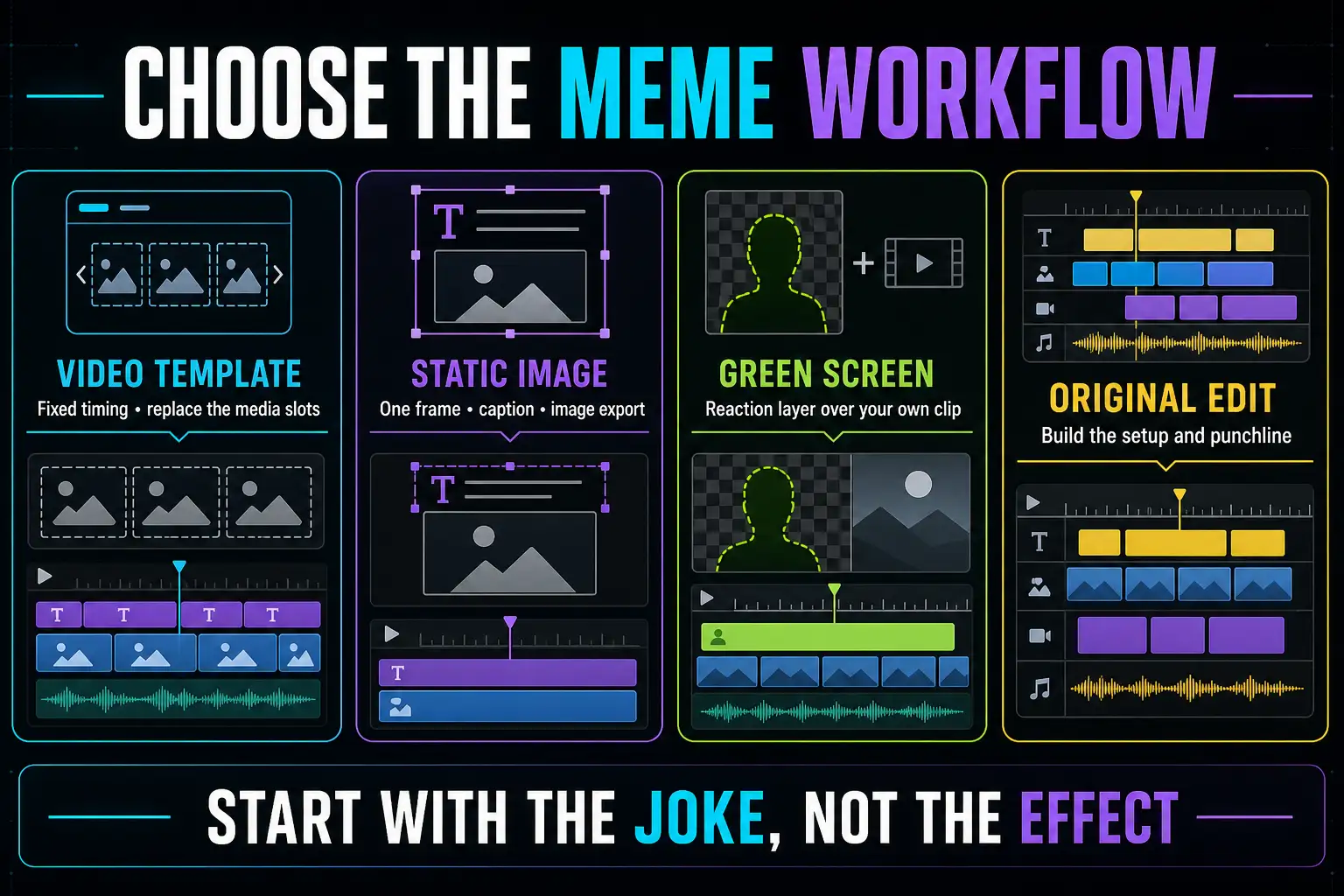
Ready video template
Choose this when the format already has the right rhythm and you only need to replace clips or captions.
Static image meme
Choose this for a still image with a short caption when motion, transitions and a soundtrack add nothing useful.
Green screen or cutout
Place a reaction over your own scene when the subject needs to stay separate from the background.
Manual video edit
Build it yourself when the joke depends on a precise pause, custom text or footage that doesn't fit a preset.
A trending format is not automatically the right format. If the viewer needs three lines of context before the reaction makes sense, shorten the setup or choose a different structure. The template should carry the timing; it should not force the joke into a shape it doesn't fit.
Four live CapCut meme templates checked
Detail pages checked September 5, 2026: clip counts and ratios match the linked listings; approximate lengths come from their preview metadata. These are creator templates hosted by CapCut, not designs we can attribute to CapCut itself. A live page does not prove that a template opens, exports free or offers the same editing controls in your account. Check any paid label or payment prompt before committing.
Funny Meme
The CapCut listing for Funny Meme template displayed two required clips and a vertical 9:16 frame when checked.
Choose it for: testing a two-input vertical edit when you have a setup shot and a reaction to supply.
Skip it if: the joke needs a wide scene or more than two distinct beats.
même green screen
The CapCut listing for même green screen template displayed one required clip and a 4:3 frame.
Choose it for: testing a one-input 4:3 edit when that shape fits your scene. Its roughly 16.5-second length may need a longer setup than a quick reaction.
Skip it if: you need a reusable transparent reaction layer or native 9:16 coverage. The template name alone does not establish either.
Running meme
The CapCut listing for Running meme template displayed one required clip and a square 1:1 frame.
Choose it for: testing a short square edit with one media input.
Skip it if: the destination needs edge-to-edge vertical video.
Four-clip meme
The CapCut listing for four-clip meme template displayed four required clips and a 3:4 frame.
Choose it for: testing a four-input edit in a 3:4 frame, provided the preview timing fits your sequence.
Skip it if: you only have one strong setup and one reaction.
CapCut’s live editable meme collection, broader meme templates collection and funny template collection provide more current choices. Save the exact name or link when you find a useful option; the collection order and available templates can change.
Check the template before fine-tuning the edit
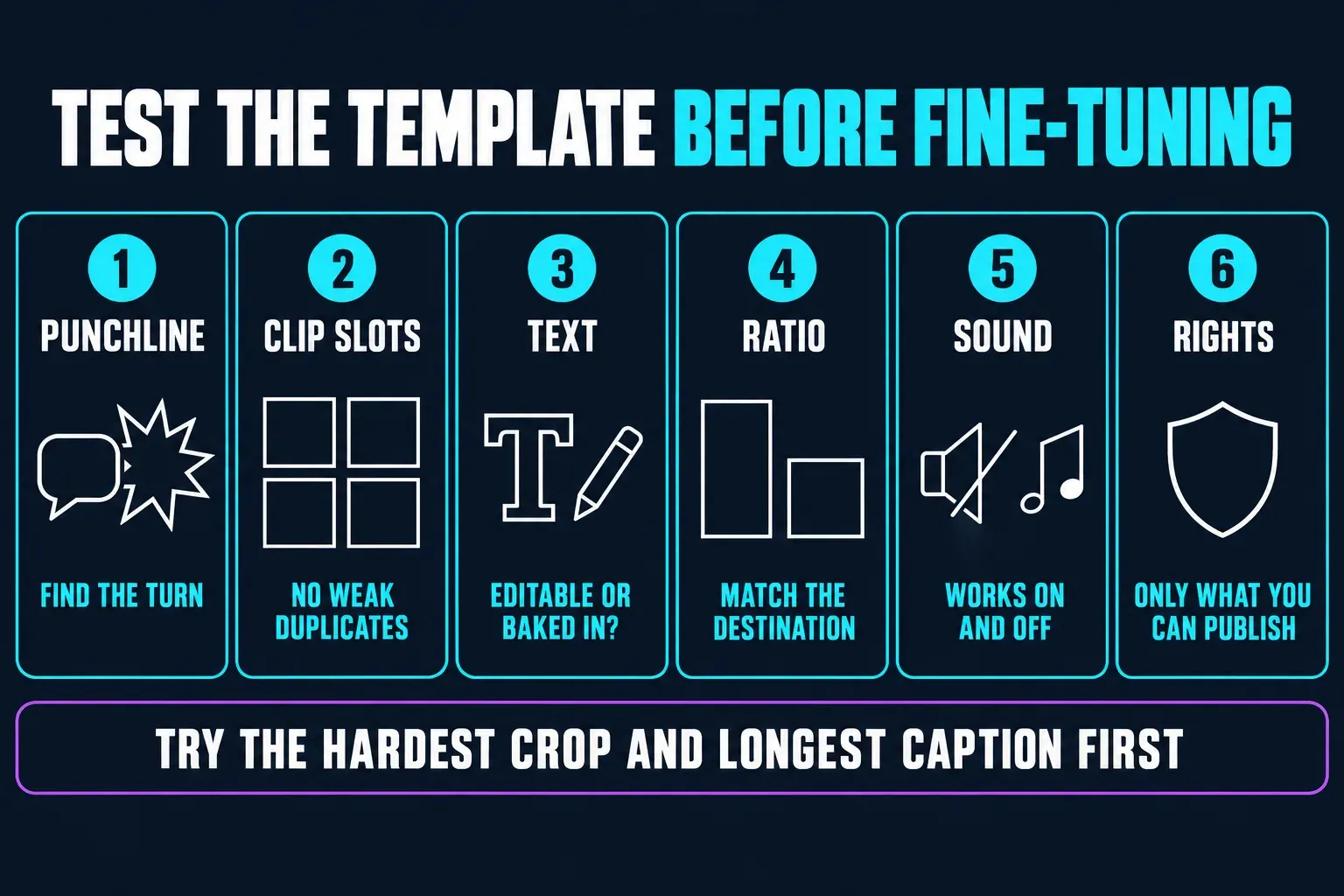
- Setup and punchline: watch the full preview once without imagining your own footage. Identify the exact frame where the joke changes direction.
- Clip slots: confirm how many inputs are required and what each slot does. Don't pad a four-clip template with weak duplicates.
- Editable text: after selecting the required media and opening the preview, check whether the caption is editable. If the line is part of the original video, choose another template or rebuild it in a normal project.
- Aspect ratio: match the destination before editing. Reframing a square or 4:3 meme inside 9:16 can remove the reaction or leave awkward empty space.
- Sound: preview with audio on and off. The joke should remain understandable when a feed starts muted, while any sound cue should still hit the intended beat.
- Rights: a template being available doesn't prove that every included clip, character, song or logo is cleared for every use. Replace material you can't confidently publish.
Some templates require every slot to be filled before you can preview your version. Fill those inputs for a test, then inspect the hardest crop and longest caption before spending time on the smaller details.
A collection headed “free” is not a promise about every template: CapCut documents paid templates and purchase labels. Check the export prompt too, and inspect the saved file for an unexpected ending or watermark.
Use a CapCut meme template
For a shared community template, start on Mobile. Open one of the detail links above, or search the Templates area for “meme,” “funny” or the exact template name. Use the following sequence when the app offers that template; available buttons and editable fields can vary.
- Open the live template page and watch the whole preview. A cover doesn't reveal the pause, ending or included sound.
- Tap Use template and select the required media. Confirm the slot count and ratio first. If the app requires every slot before Preview or Next, fill them for the test.
- Inspect the hardest crop in the preview. Select that segment and use Edit if available. Check that the face, caption space and important action stay in frame.
- Change the editable captions. Check spelling and line breaks. If an essential line is locked, change the template or rebuild the meme manually rather than leaving a placeholder.
- Preview the setup through the punchline at normal speed. Don't scrub past the pause that the viewer will experience.
- Finish the details and export a sample. Review the output settings and any payment choices. Watch the saved file outside CapCut with sound on and off; check its ending and any watermark.
CapCut’s live help pages disagree about platform access. One describes template use on Mobile, PC and Web. Another, explicitly framed as January 2026 guidance, describes narrower community-template access on Web and Desktop and contradicts itself about Web support. Both pages remained live when checked. They do not establish identical access today. Confirm that your chosen template opens; if it does not, work through our troubleshooting steps for CapCut templates that won't load before considering a reinstall.
Build a video meme manually
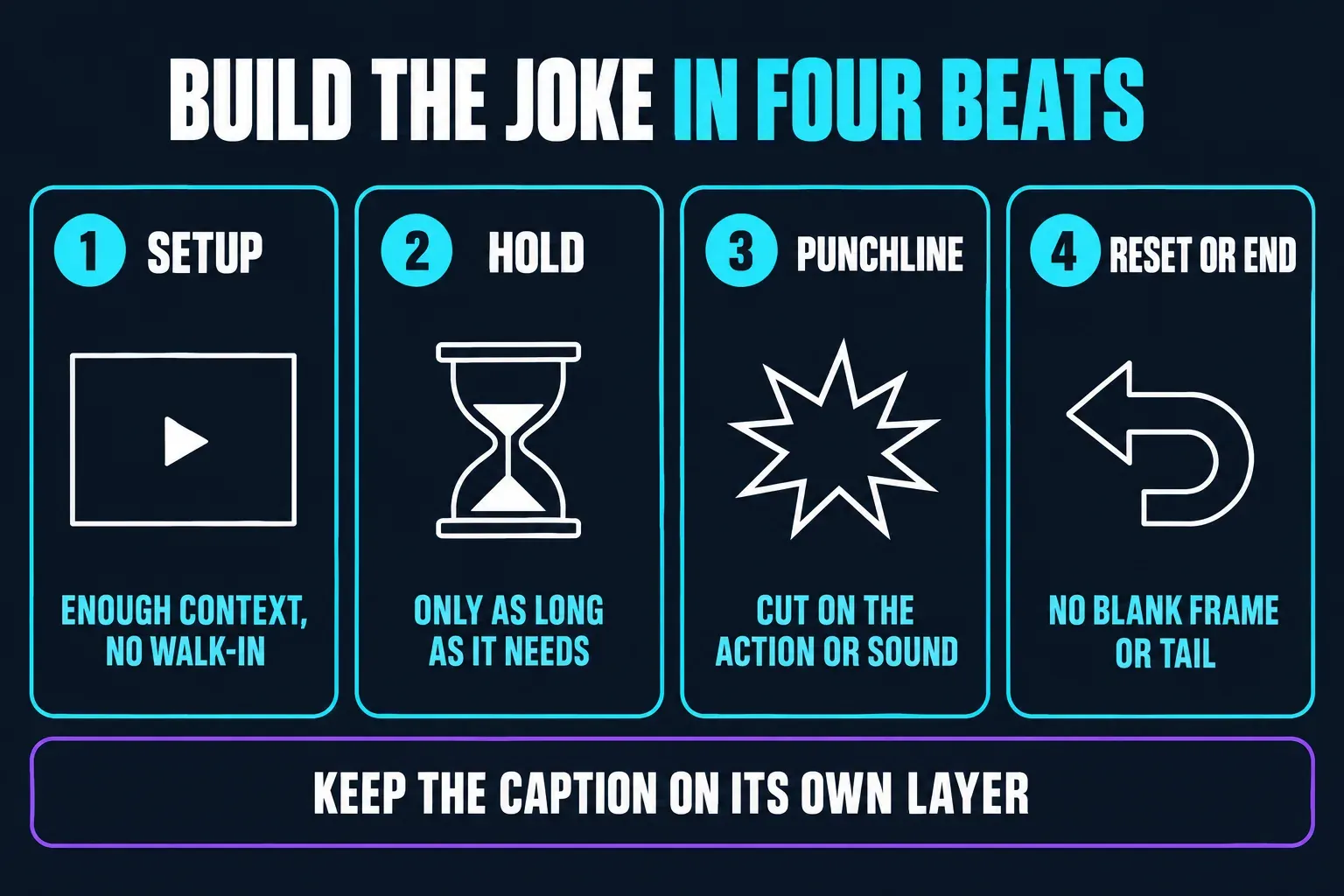
A manual edit is the better route when you have an original observation, a reusable reaction clip or a pause that the preset gets wrong. CapCut’s official meme-video tutorial documents importing the base video, arranging the meme layer, editing text and exporting on Desktop.
- Place the setup. Start at the first frame that gives the viewer enough context. Remove the walk-in, camera adjustment or repeated sentence before it.
- Add the caption as a separate layer. Keep the first line short enough to read without pausing. The CapCut text guide covers timing, background and readability controls.
- Hold only as long as the idea needs. A short pause creates anticipation; a dead section feels like buffering.
- Cut to the punchline or reaction. Put the change on the visual action, spoken word or sound cue that carries the joke.
- Reset or end cleanly. Don't leave a blank frame, frozen caption or accidental tail after the payoff.
If the reaction belongs above the base footage, place it on a separate track using the overlay workflow. Keep an editable master and your source media when you plan to reuse the layout. CapCut’s saved-project guidance recommends working on a duplicate to preserve the original. An exported video does not replace its separately editable text and media layers. Check that the asset licenses cover the new video too.
Make a static image meme in CapCut
Not every meme needs to become a video. A static image is often clearer when the entire joke is one visual plus one short caption. CapCut’s custom-image meme guide documents an AI design route that creates an image, allows text and visual edits, and downloads the selected result. If you already have the picture, look for an image-editing route in your account rather than generating a new one. The CapCut photo-editing guide covers that choice. Image/design tools and a video timeline are different workspaces; their available controls can vary.
- Choose the destination ratio. Square, portrait and landscape layouts give the caption different amounts of usable space.
- Open the base image in an image or design workspace. Use a picture you own or have permission to publish. In the documented AI design route, you can upload a reference and describe the result you want; inspect any generated details before using them.
- Add a separate text caption. In the documented design workflow, the plus button opens Text. Correct the wording and break the line where the thought changes, rather than wherever the box runs out of width.
- Protect contrast. Add a restrained outline or background only when the caption disappears into the image.
- Download the image. Check the available image format; the design guide documents Download and Copy as PNG. Open the saved picture to check the caption and edges. A video timeline export is a different deliverable, even if the picture never moves.
The meme-maker collection offers more format ideas, but check what its selected item opens. A video template is not an editable still-image file.
Add a green-screen or cutout reaction
A ready-made meme template and a green-screen reaction clip are not interchangeable. For a reaction you can position over your own scene, use a separate clip in a normal project. With an evenly colored background, CapCut’s chroma-key guidance describes selecting the background color and adjusting the key. Auto removal is a different option; it does not depend on choosing a green color. Neither method guarantees clean edges on every clip.
- Put the base scene on the lower track and the reaction above it.
- Trim the reaction before removing the background. Keep only the expression or movement that supports the punchline.
- Choose the removal method for the footage. For a clean green screen, select the reaction, enable Chroma Key if available and sample the green with the color picker. Adjust the strength gradually so you do not remove parts of the subject. Use the green-screen guide for the full procedure, or the cutout guide when there is no uniform background.
- Inspect hair, hands and motion edges. A small reaction can hide minor defects, but a glowing outline remains visible against a dark background.
- Place the subject where it doesn't cover the setup. Check captions, faces and platform interface zones before export.
Don't download a familiar film, show or creator clip and assume “meme” makes it free to reuse. Template availability and common circulation don't settle copyright, publicity or music rights. For client or brand work, use material you own or have permission to publish. CapCut’s commercial-use guidance distinguishes materials labeled for commercial use from other templates. Check the rights for the particular clip and soundtrack; the app subscription alone doesn't settle them.
Make the timing, text and audio carry the same joke
- Timing: show enough setup for recognition, then cut before the viewer predicts the exact ending. Watch from the beginning at normal speed after every trim.
- Text: write the shortest line that preserves the idea. Keep the important word on screen through the reaction rather than removing it a frame too early.
- Audio: line up the sound cue with the visual change that carries the joke. If the joke depends on spoken words, include the important line as text too. Our music guide covers import, timing and muted-track checks.
- Muted preview: confirm that the caption and visual sequence still make sense without sound.
- Ending: decide whether the reaction ends immediately, holds for recognition or resets to the original scene. Remove accidental leftover frames.
Export one representative file before publishing a batch. Match the real destination ratio, resolution and frame rate, then watch the file outside CapCut. Our walkthrough of CapCut export settings covers codec and quality choices. Check the saved file for readable text, clean reaction edges and the intended final frame.
CapCut documents template audio being muted because of music-rights restrictions. Its Materials License Agreement separates US and non-US users. The non-US Commercial Sounds terms name CapCut, TikTok and TikTok for Business as permitted platforms; use elsewhere requires separate rights. US users should check the separate terms that apply to them. A track playing in the editor is not clearance for every destination.
What changes on Mobile, Web and Desktop
- Mobile: start here for community template links and fast clip replacement. Try it when the shared template does not expose a usable button on Desktop; this is a fallback to test, not a promise of access.
- Web: use it when a CapCut meme maker or compatible template opens in the browser. Confirm the live controls before assuming a mobile tutorial maps exactly to the page.
- Desktop: use the larger timeline for manual timing, layered reactions and detailed edge inspection. CapCut’s meme-video tutorial describes a Templates → Memes route, but the conflicting Help pages above do not confirm that route in every current build. Work with the controls your installed editor shows.
If the main goal is finding what is currently circulating rather than building one meme well, use the trending CapCut templates guide. Come back to the steps above once you have a format worth adapting.
Fix a meme template that is missing, locked or badly timed
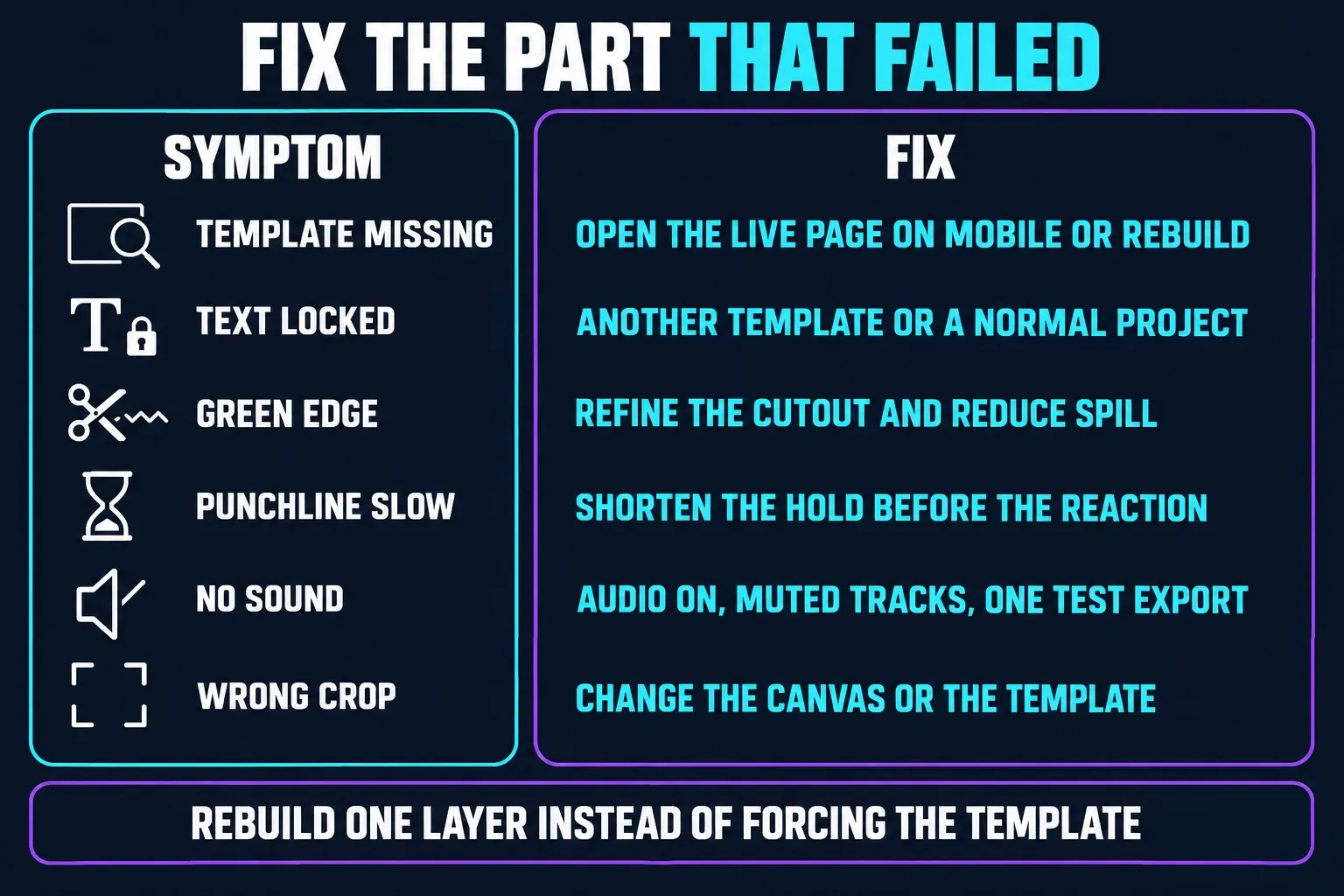
- Template missing: open the current detail page and try Mobile if the Desktop route is unavailable. If the page or use button is gone, rebuild the visible structure manually.
- Text locked: choose another template or rebuild the caption in a normal project. Add an overlay only if that workspace permits it and the old text can be replaced cleanly; do not obscure a creator credit or watermark.
- Green edge: refine the cutout, reduce color spill and inspect the moving edges over both light and dark frames.
- Punchline feels slow: shorten the hold before the reaction. Don't speed up every clip when the real problem is one dead pause.
- No sound: preview with audio enabled, check muted tracks and test one export outside the editor. Replace unavailable template audio rather than rebuilding the visual edit first.
- Wrong crop: change the canvas or template before shrinking the subject until the expression becomes unreadable.
FAQs about CapCut meme templates
Where can I find meme templates in CapCut?
Open a current CapCut meme collection or search Templates for meme, funny, reaction or green screen. Availability can differ by platform and region, so confirm that the live page shows a usable template button for your account.
How do I make a meme in CapCut without a template?
Import the setup and reaction, arrange them on the timeline, add a separate caption, trim the hold before the punchline and test one export. Use an overlay when the reaction needs to sit above the base scene.
Can CapCut make a static image meme?
Yes, through an available image-editing or design workspace. Add a readable caption and use its image download option; the documented design route includes Copy as PNG. Do not assume that a video project exports a still-image file.
Why can’t I edit the text in a CapCut meme template?
The caption may be part of the original video or the template may expose only media replacement. If text controls are missing, choose another template or rebuild the meme in a normal project with a separate caption layer.
Why is a CapCut meme template unavailable on Desktop?
CapCut’s own help pages describe platform access differently, and individual community templates can vary by region or account. Try the live detail page on Mobile; rebuild manually if the template remains unavailable.
How do I remove the green background from a meme in CapCut?
Place the reaction on a separate layer above the base footage. For a uniform green screen, select Chroma Key if available, sample the green and adjust the strength gradually. For footage without a clean color background, try the available cutout tools. Inspect moving edges before export.
Does a CapCut meme template give me rights to every included clip and song?
No. Check the permissions for the clips and music separately, including commercial use and the destination platform. An available template or paid app subscription does not automatically clear every included asset for your intended use.
Can I make my own reusable meme template?
For your own videos, keep an editable project and duplicate it before changing the caption or clips. Publishing a template for other CapCut users is different: CapCut’s template-creation guidance requires creator access. Saving or exporting a normal project does not give it a public Use template link.
Are CapCut meme templates free?
Some are offered free and others are paid. Check the specific template’s label and any export prompt in your account. A collection titled free does not establish the cost, watermark behavior or rights for every template it contains.