

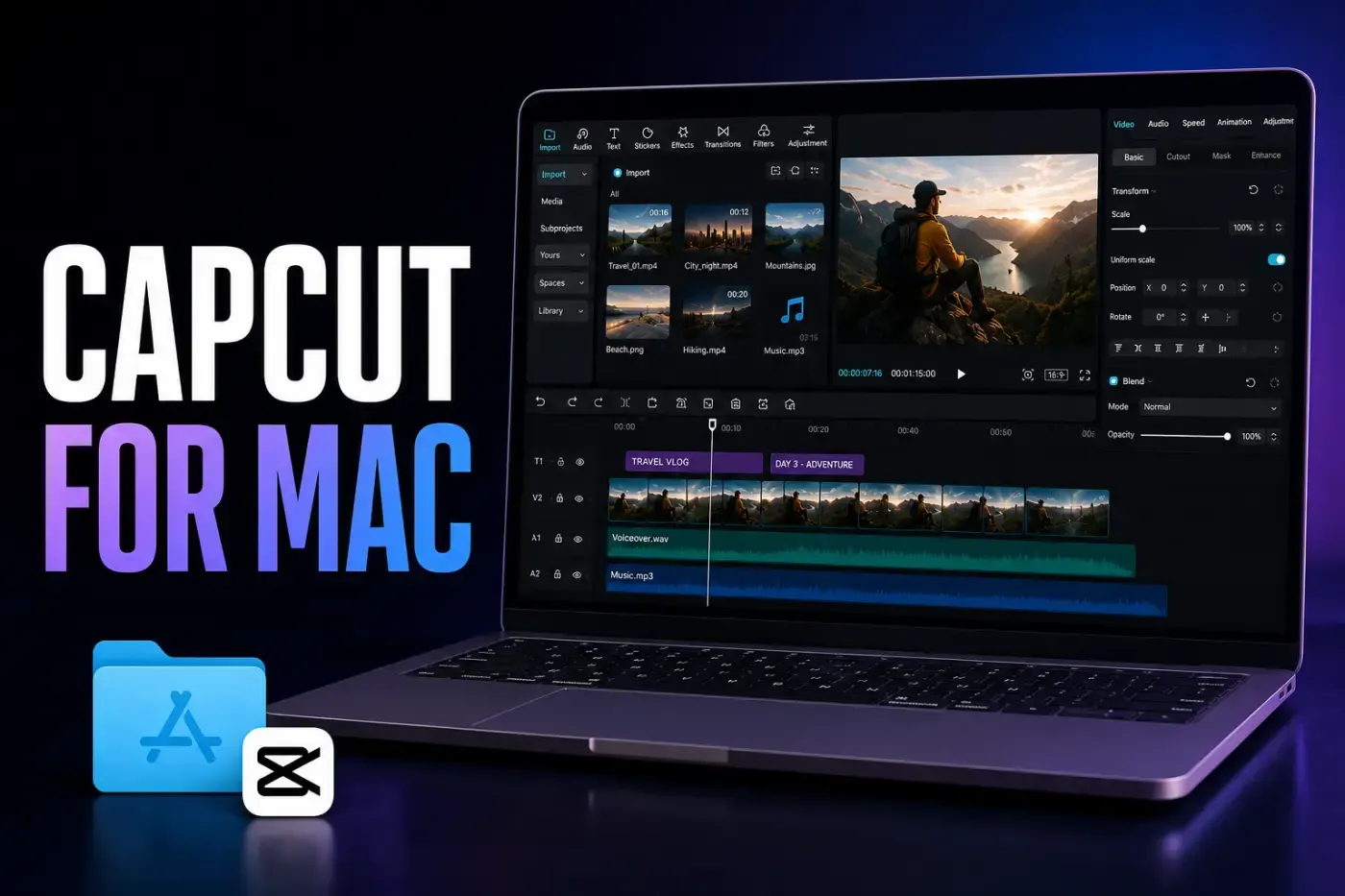
Fact-checked August 25, 2026. CapCut has a native Mac desktop app, so no Android emulator is required. Download it from CapCut or Apple, read the exact wording of any macOS security alert, and decide whether each project should stay in the Mac project list or be uploaded to Spaces for another device.
Quick answer: Use the official CapCut Desktop page or the Mac App Store listing. CapCut's Mac guide starts at macOS 10.15, a dual-core processor, 4 GB RAM and 2 GB free for installation. Other official pages still show macOS 10.14, while CapCut's current 4K help names macOS 12 or later for that export workflow. The current installer or Store compatibility check makes the final decision for a specific Mac.
Before installing, settle two things: where the app comes from and where CapCut lists the project. Those choices affect updates, recovery and cross-device access. They don't prove what CapCut may process online.
How to Download and Install CapCut for Mac
There are two official routes. Pick one and keep that copy updated. If the website installer fails, try the Mac App Store; if the Store queue fails, use CapCut's own Mac download. A mirror is not the missing third option.
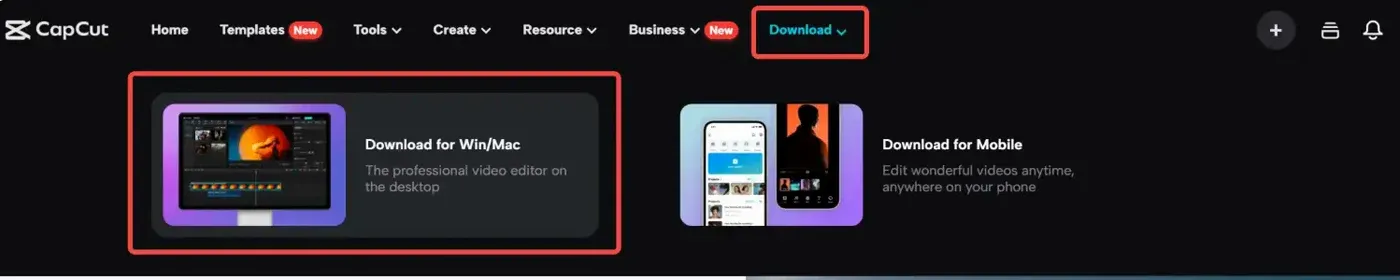
Option 1: CapCut's macOS installer
- Open CapCut's official Desktop page and select the Mac download.
- Let the download finish, then open the macOS installer from Downloads.
- Follow the package instructions. CapCut's own Mac installation page directs users to launch the finished app from Applications.
- On first open, confirm that macOS identifies the app and that the file came from the official CapCut domain.
The filename, package flow, version and download size can change, so use the current official route instead of matching an old tutorial character for character.
Option 2: Mac App Store
- Open the App Store on the Mac and search for CapCut.
- Confirm the seller is Bytedance Pte. Ltd and open the Mac-compatible listing.
- Select Get or the download-cloud button, then launch CapCut from Applications.
Apple currently lists CapCut as free with in-app purchases and marks the listing compatible with Mac. The App Store route is convenient when you want Apple to manage acquisition and updates. The direct package is useful when Store access is blocked or the Store queue fails. Availability and update timing can differ by region and route.
Avoid “CapCut Pro for Mac free,” old-version archives, cracked packages and repackaged DMGs. They can be modified, outdated or unable to open projects created by a newer build. If the official download won't start, the other official route is the sensible fallback.
What a macOS Security Alert Means
macOS Gatekeeper checks whether software downloaded outside the App Store is signed by an identified developer, notarized and unchanged. Apple also asks for confirmation the first time downloaded software opens. That routine confirmation means “did you intend to open this download?”, not “malware was found.”
The response changes when macOS says Apple could not verify the app is free of malware, the developer can't be verified, the app will damage your computer, or the app is damaged. Apple's Gatekeeper guidance explains that unsigned or unnotarized software can expose the Mac and personal information.
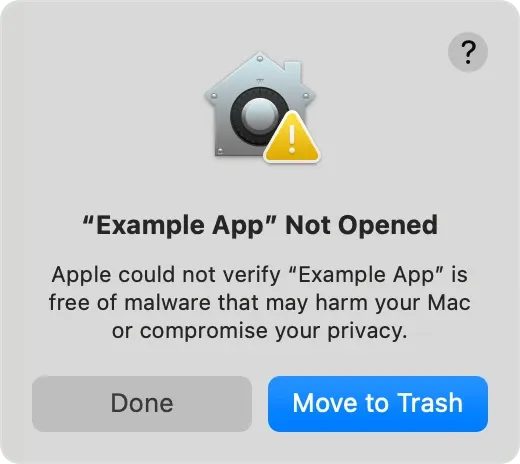
- Check the source. If the package didn't come from CapCut or the App Store, delete it.
- Read the exact alert. Don't treat every warning as the same Gatekeeper prompt.
- Try the other official route. An App Store install removes the third-party package from the equation.
- Use Open Anyway only as a deliberate exception. Apple documents the override for software you're certain is trustworthy and untampered. It is not a routine CapCut installation step.
If macOS says the app will damage the Mac or moves it to the Bin, don't override the warning. Delete the installer and obtain a fresh current copy from an official route.
CapCut for Mac System Requirements
CapCut's official pages don't give one consistent Mac requirement. The Mac guide lists macOS 10.15 or later, a dual-core processor, 4 GB RAM and 2 GB free for installation. CapCut's Desktop product page and Apple's current US listing say macOS 10.14 or later. A separate CapCut export guide names macOS Monterey 12.0 or later for Desktop 2K/4K export.
These are different official compatibility signals, not one clean promise. Check the route and task you'll use, then let the current installer or Store decide whether the latest build accepts the Mac.
| Component | CapCut Mac guide | Other official signal | Practical target |
|---|---|---|---|
| macOS | macOS 10.15 or later | Desktop page and US App Store: 10.14+; current 2K/4K help: 12.0+ | A supported macOS release that installs the current build and exposes the export you need |
| Processor | Dual-core processor | No detailed Intel or Apple silicon matrix on the checked pages | A current installer or Store compatibility check that accepts the specific Mac |
| Memory | 4 GB; 8 GB said to improve the experience | No RAM floor in the checked App Store compatibility block | 8 GB for ordinary layered edits; 16 GB gives demanding work more room |
| Storage | 2 GB for installation | No working-storage allowance in the checked App Store compatibility block | SSD headroom for source media, cache, proxies and the exported file |
| Graphics | Integrated graphics supported; dedicated graphics suggested for advanced processing | No exact GPU floor in the checked App Store block | Test the real codec, resolution and effects before a long project |
The last column is editorial guidance, not a CapCut guarantee. Four gigabytes may open a light project, but it doesn't promise a pleasant multi-layer 4K workflow. Source codec, resolution, frame rate, duration, effects, background apps and free disk space all change the load. A supported MacBook Air can handle short social edits; an older low-memory Air may struggle with the same timeline a newer MacBook Pro plays smoothly.
CapCut's public Mac requirement page doesn't clearly document every current Intel and Apple silicon package detail. Let the current official installer or App Store compatibility check decide. Don't use an old mirror merely because it labels itself “Intel” or “M-series.”
First Launch and Your First Desktop Edit
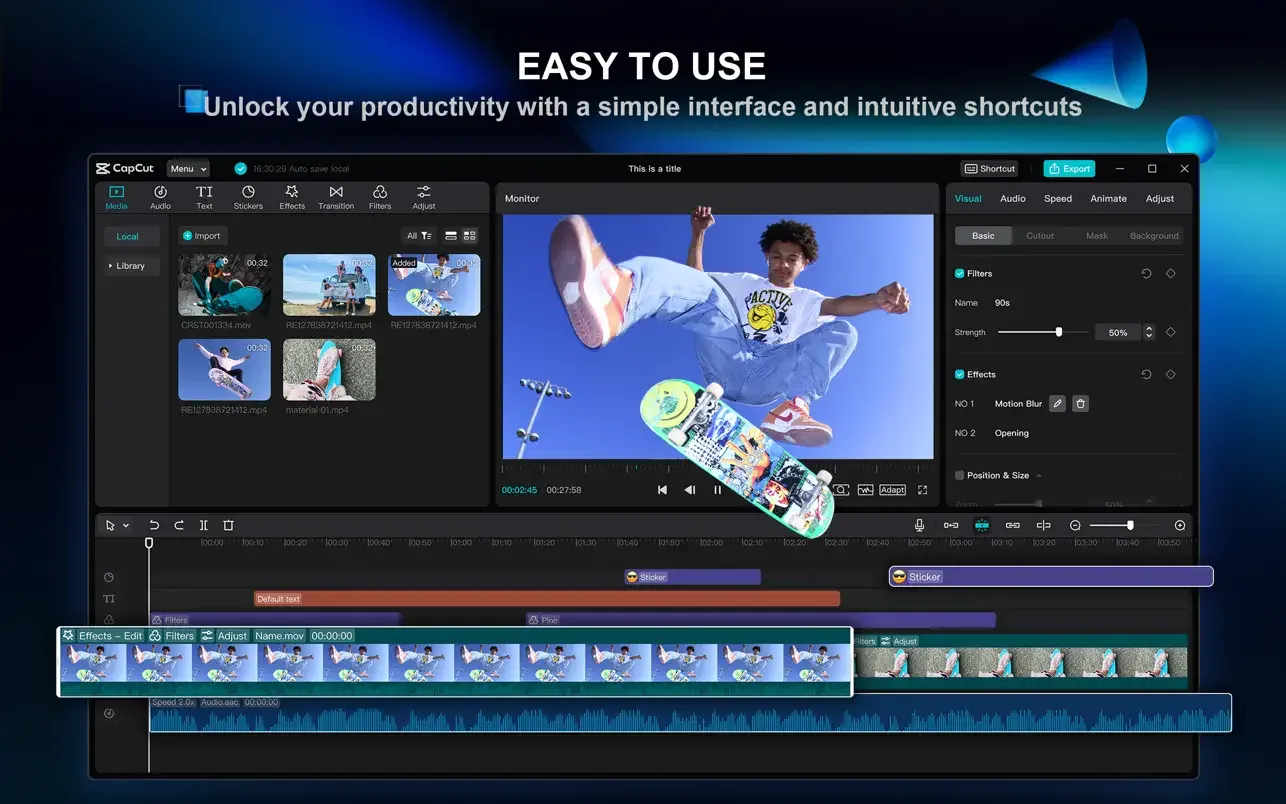
CapCut's dashboard and labels change, but the working layout is consistent enough to learn once. Media sits on the left, the preview occupies the center, selected-clip properties appear on the right, the timeline runs along the bottom and Export stays near the upper-right corner.
- Choose the account path. CapCut's desktop login guidance lists QR code, Facebook, Google and TikTok. Use the method tied to the existing account; a different method can look like a new empty profile.
- Create a project. Use New project, then set the canvas for the destination before building titles and overlays: 16:9 for standard YouTube, 9:16 for TikTok, Reels or Shorts.
- Import local media. Keep the source video, audio and images in a stable project folder. Moving or deleting them later can leave the timeline unable to find the material.
- Build the main track. Drag the primary clip to the timeline, split at the playhead and remove the unwanted section.
- Add separate layers. Put captions or text above video and keep voiceover, music and effects on their own audio tracks. Desktop earns its place when you can see these relationships at once.
- Test the export early. Open Export before a long edit and confirm the resolution, frame rate and account-dependent choices the project needs.
For the controls themselves, continue with the complete CapCut tutorial, the auto-caption workflow, keyframe animation and the maintained CapCut export settings guide.
Local Projects vs Spaces on Mac
This distinction is about project availability, not a privacy switch. Local Projects normally means the project is available in the Mac project list and doesn't appear on another device by default. It doesn't prove that imported media never reaches CapCut services.
CapCut's cross-platform project page contains two different statements: it says signed-in projects save to the cloud by default, then says projects must be uploaded to Spaces for cross-platform use. Builds and accounts can behave differently, so use the conservative workflow: upload the project to Spaces deliberately, open the same account on the second device, and verify that the project appears there before relying on the handoff.
For privacy, use CapCut's policy rather than the word “Local.” The current US privacy policy says CapCut may collect User Content through pre-uploading when content is created, imported or uploaded, whether or not it is saved or published. Online and AI tools can also require processing. If footage is sensitive, check the policy and your organisation's rules before importing it.
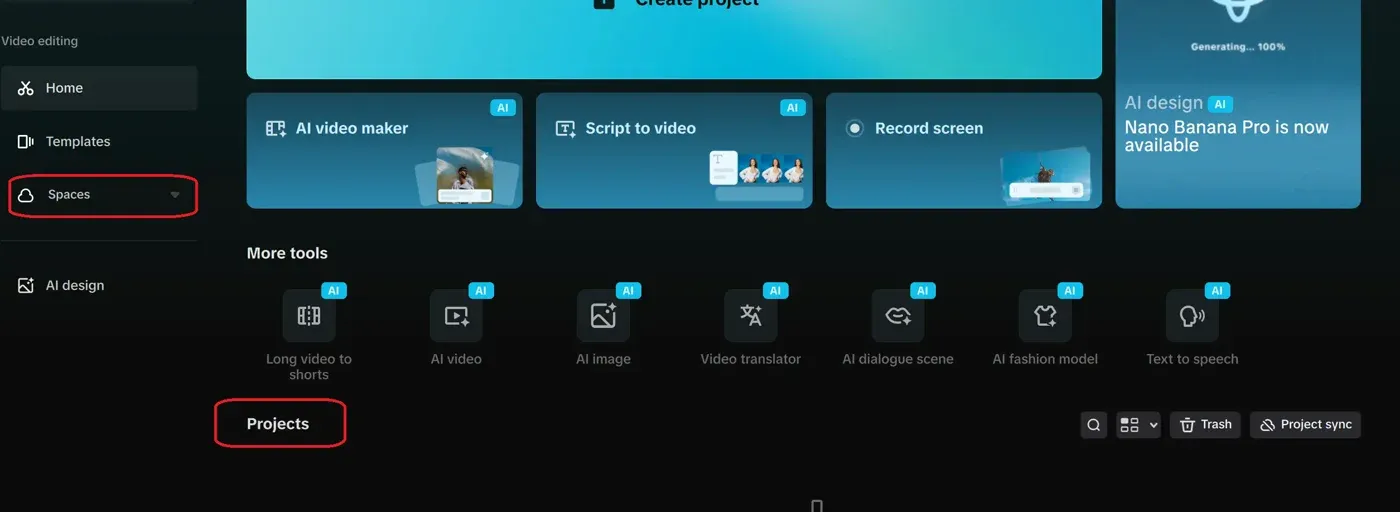
Use Local Projects when the edit doesn't need to appear on another device or when the connection is unreliable. Keep the original media in a stable folder and maintain a separate backup. Use Spaces when the project must be available on another device or shared through CapCut's cloud features, then confirm the upload from that second device.
Cloud access doesn't guarantee identical tools everywhere. CapCut's own template help is inconsistent: one platform comparison limits Desktop to built-in templates without community discovery, while a newer template walkthrough tells Desktop users to browse a Templates tab. Treat the current build, account and region as the source of truth, and check the project after switching platforms rather than assuming every asset will translate.
CapCut on Mac vs iPhone vs Web
| Choose | Best fit | Main tradeoff |
|---|---|---|
| Mac Desktop | Local media, visible multi-track editing, mouse and keyboard precision | Needs installation, storage and compatible hardware |
| iPhone app | Fast vertical edits, capture-to-publish work and broad mobile template discovery | Less screen space for layered timing work |
| CapCut Web | A supported browser where installing software is not practical | Depends on browser resources, connection and cloud workflow |
Use project control as the dividing line. If the edit has several dialogue, music, caption and overlay tracks, Desktop is easier to reason about. If a trend begins with a mobile template link, finish the template-led part on Mobile unless the Mac build proves it can preserve the project. If the Mac is managed and blocks installation, the use CapCut in a browser explains the browser route.
Is CapCut for Mac Free?
CapCut is free to download, and the App Store labels it free with in-app purchases. A project built from your own footage can use core timeline editing without turning every action into a payment.
That doesn't mean every asset, AI operation, cloud allowance or export setting is free. Look for Pro badges before adding a template, effect, font or stock item, then inspect the project again when Export opens. CapCut's export entitlement explanation notes that a Pro prompt can come from premium materials or settings inside the project.
Don't freeze one App Store purchase price into an installation guide. CapCut plan names, promotions, billing routes and included benefits vary. Our maintained CapCut Free vs Pro comparison handles that volatile question separately.
CapCut's current 2K and 4K export guide says Desktop can expose those resolutions and names macOS Monterey 12.0 or later for the Mac workflow. Hardware, app version, source media and project settings still affect what appears. Account entitlement and premium materials can affect the final export too. Open Export in the current account and run a short test before promising a specific 4K deliverable.
Update CapCut and Fix Common Mac Problems
Check the version before reinstalling
CapCut's current Desktop version instructions say to open Settings and find Version. The separate Desktop update guide uses Settings → Version → Check for updates; App Store installations can also show updates through the Store.
CapCut warns users not to uninstall during an update because locally saved projects can be lost. Before any reinstall, identify what is Local and what is in Spaces, duplicate important projects and keep the source media outside CapCut's cache.
The installer won't download or finish
Check network stability, free storage and macOS compatibility, then retry through the other official route. CapCut's download and install help groups failures around compatibility, network and system restrictions. Don't answer a failed official download with an unofficial mirror.
An MP4 or MOV won't import
The filename extension is not the codec. CapCut's import troubleshooting page explicitly warns that renaming a file to .mp4 doesn't convert its contents. Transcode a short copy with a trusted tool and test it before converting an entire shoot.
Preview is slow or CapCut closes
Close memory-heavy apps, keep SSD headroom, update CapCut and test a shorter section without the heaviest effect. If the problem follows one project, duplicate it before removing effects or media. The CapCut crashing checklist separates project corruption, storage pressure and device load.
Export fails or stalls
CapCut's official Desktop export checklist names large or high-resolution projects, insufficient storage and background programs among common causes. Test a lower resolution or frame rate on a duplicate, free storage, close other creative apps and export a short range. If the same project fails at the same point, inspect the clip or effect around that timecode and continue with our stuck export guide.
This Mac guide belongs to the CapCut Download hub. Use the hub when the real question is whether Desktop, Mobile or Web is the better platform.
If you want a calmer Apple-only editor with no subscription decision, the iMovie review shows where it is easier than CapCut and where it stops short.
CapCut for Mac FAQ
Can a MacBook Air run CapCut?
A supported MacBook Air can run CapCut, but project complexity matters. A short 1080p edit is far lighter than a layered 4K timeline. Keep free SSD space, close memory-heavy apps and test a representative clip before committing a long client project to an older or low-memory model.
Does CapCut work on Intel and Apple silicon Macs?
CapCut distributes a current macOS desktop app through its official routes. Because CapCut's public Mac requirements don't clearly document every processor architecture, use the current installer or App Store compatibility check for the specific Mac instead of an old mirror.
Should I install CapCut from the website or Mac App Store?
Both are official routes. The direct download gives you CapCut's current macOS installer; the App Store handles acquisition and updates through Apple. Availability, update timing and the purchase flow can differ, so choose one route and avoid maintaining two copies.
Why won't CapCut open after I install it on Mac?
Read the exact macOS alert. A normal first-open confirmation for an identified developer is not the same as a warning that Apple can't verify the developer or that the app will damage the Mac. For a serious warning, don't bypass it by habit; delete the file and start again from an official route.
Do I need a CapCut account on Mac?
Depending on the current build, basic local editing can work without every signed-in feature. Sign-in is needed for Spaces, cross-device access, account entitlements and many online or AI services. Use the same login method on each device so one account doesn't look like a second empty profile.
Can I sync a CapCut project between Mac and iPhone?
Yes, after the project is available in Spaces and both devices use the same CapCut account. CapCut's own help gives conflicting default-sync wording, so upload deliberately and check that the project appears on the second device before editing there. Duplicate important work because tools and materials can differ by platform.
Can CapCut for Mac export 4K?
Yes, on a compatible setup. CapCut's Desktop guide names macOS Monterey 12.0 or later for 2K/4K export, but the available resolution still depends on the Mac, app version, source media, project settings and account entitlement. Open Export and complete a short test before promising a specific 4K deliverable.
Can I download CapCut for Mac in India?
As of August 25, 2026, Apple's India lookup for CapCut product ID 1500855883 returned no result, while the US listing was live. That establishes the checked Store availability, not the legal reason. Check CapCut's official Mac page and the Indian Mac App Store with the account you intend to use. If neither official route offers the app, don't substitute a mirror, cracked package or old DMG.