

To use a CapCut intro template: open a template below on your phone, tap Use template if available, select your clips and preview the result. For a regular widescreen YouTube video, start with a 16:9 option. Use 9:16 for a vertical opener. Check the title, crop and soundtrack before exporting. For title cards, collages, memes and other visual pieces around the opener, browse our CapCut design tools section.
Need a quick choice? The two-shot YouTube opener below runs about 3.5 seconds. The cinematic example uses four clips over about 9.2 seconds. The vertical logo reveal is much longer, about 19.5 seconds, so consider whether it belongs before your video or works better as a standalone reveal.
An intro can identify your channel, introduce an episode or set the scene. It can also delay the moment someone clicked to see. Choose its job first, then decide how much time it deserves.
For other formats, browse the full CapCut templates guide. Here, start with an opener that fits your footage, or build an editable intro you can reuse.
Choose the intro by the job it has to do
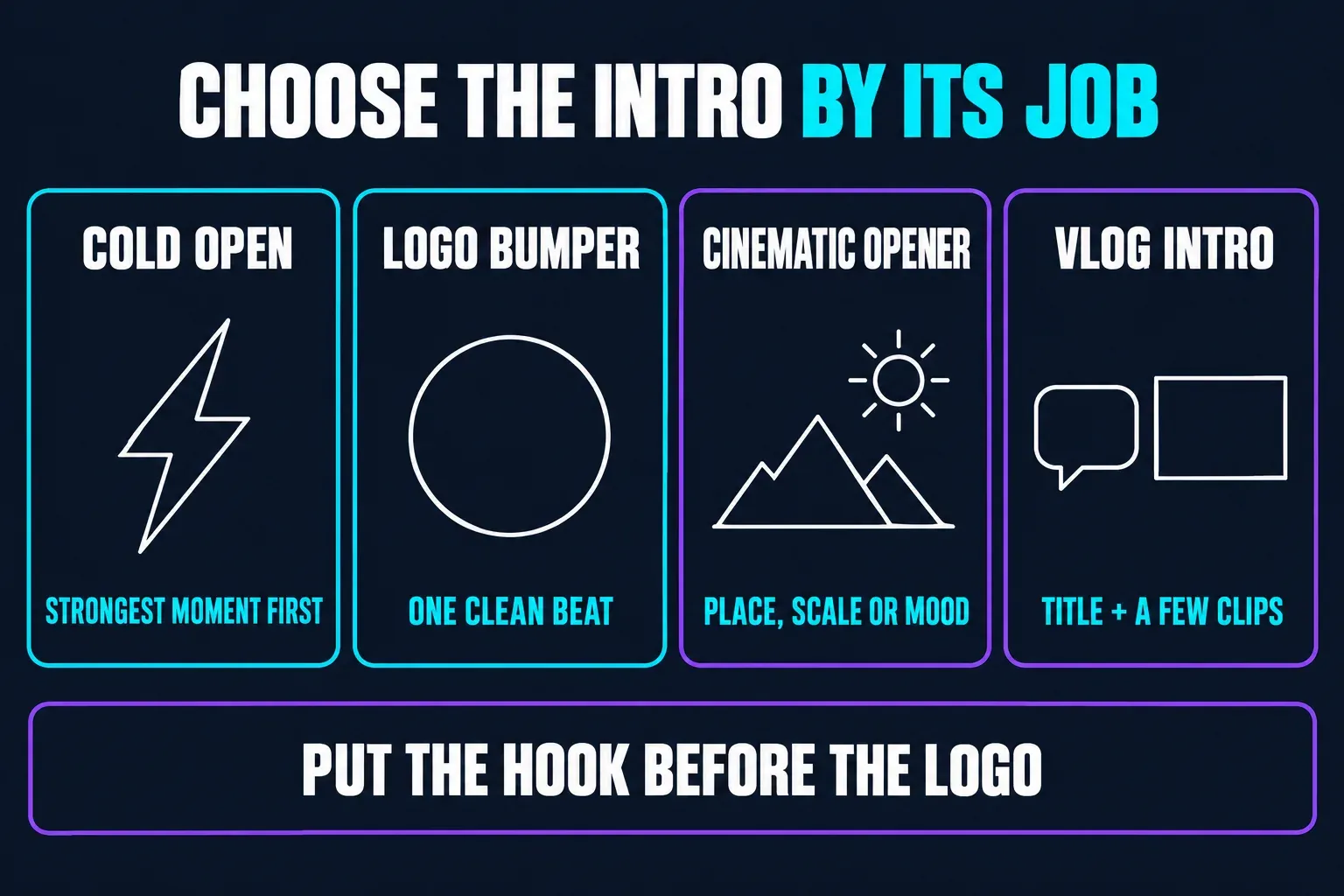
Cold open
Put the strongest moment, result or question first. Branding can follow once the viewer knows why the video is worth watching.
Logo bumper
Use one clean visual beat for a logo or title, then move into the content. Keep the logo readable without making viewers wait through a separate trailer.
Cinematic opener
Use a short sequence of deliberate shots when place, scale or mood is part of the promise: travel, film, documentary or event work.
Vlog or YouTube intro
Combine a recognizable title with a few representative clips. Keep it easy to update when the season, topic or channel look changes.
Try putting the opening hook before the logo. YouTube recommends a concise intro that delivers on the title and thumbnail. That does not establish one ideal duration for every video. Once published, use the audience-retention report to examine where viewers leave or skip. Its “Intro” measure covers the first 30 seconds of the video, not a recommended 30-second logo animation.
Four live CapCut intro templates checked
Detail pages checked September 4, 2026. Clip counts and ratios come from the linked listings; approximate durations come from their preview metadata. These are creator templates hosted by CapCut, not a claim that CapCut designed or endorsed them. A live listing does not prove that it opens, exports free or exposes the same controls in every account. Check the preview and any payment prompt before committing.
One-shot YouTube intro
The CapCut listing for youtube intro template displayed one required clip and a 16:9 frame when checked.
Choose it for: testing a one-shot opening when you have only one piece of footage to supply.
Skip it if: you need to introduce several people, products or locations.
Basic two-shot channel opener
The CapCut listing for Basic YouTube intro template displayed two required clips in 16:9.
Choose it for: testing a short opener with two pieces of footage, such as a host shot and a subject shot.
Skip it if: the title or included styling can't be edited to match the channel.
Cinematic four-shot opener
The CapCut listing for cinematic intro template displayed four required clips in a widescreen frame.
Choose it for: testing a widescreen opener when you have four distinct travel, film or event clips.
Skip it if: your footage doesn't survive the template’s crop or rapid pacing.
Vertical logo intro
The CapCut listing for Logo INTRO template displayed three required clips and a 9:16 frame.
Choose it for: a standalone vertical reveal, provided the template and music allow your intended use.
Skip it if: you need a brief bumper, the final video is 16:9 or the logo needs generous horizontal space.
CapCut’s live video intro collection, YouTube intro collection, cinematic opening collection and logo effect collection contain more options. Their contents and order change, so check their current previews rather than treating an old usage count as a recommendation.
Check the fit before fine-tuning the intro
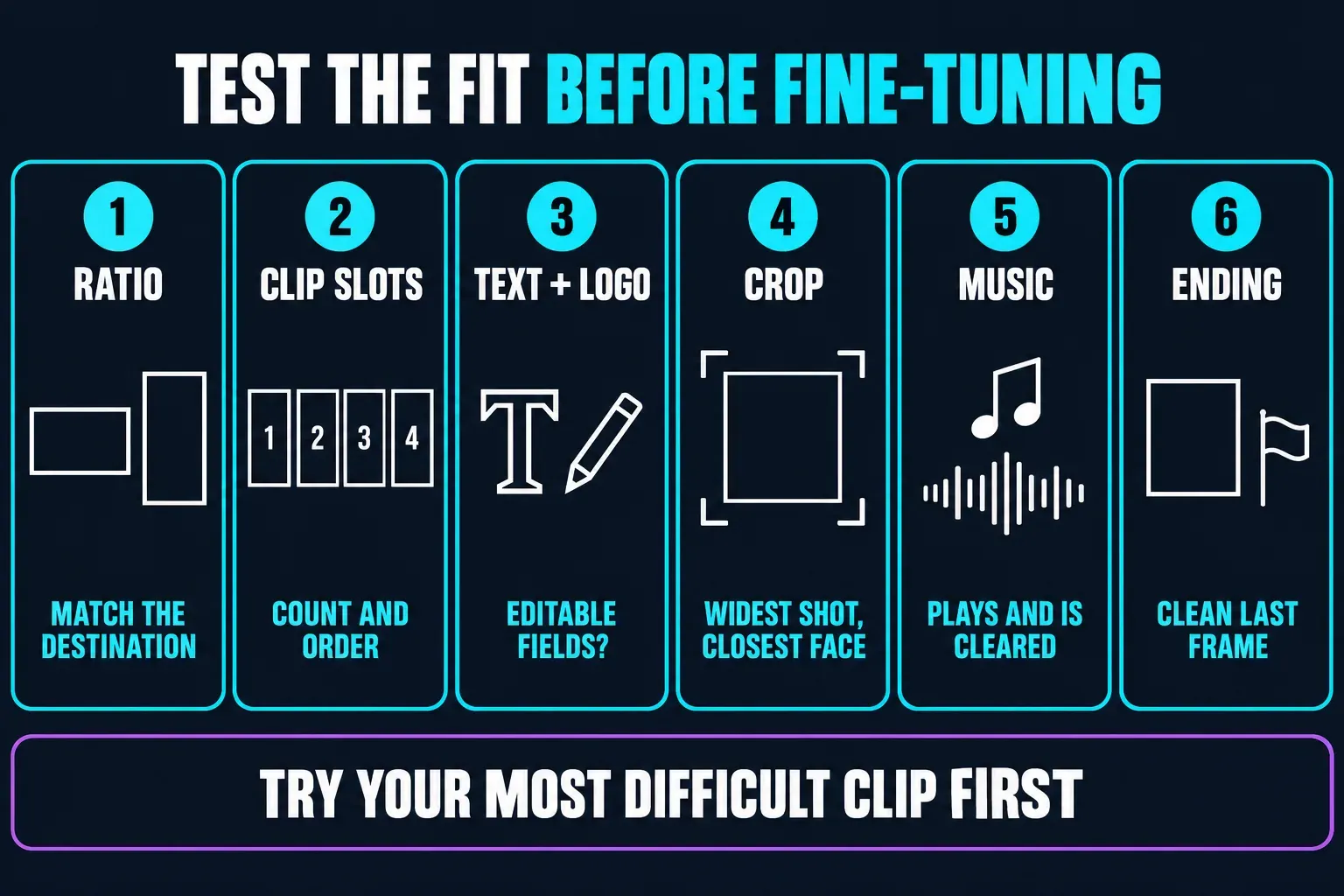
- Ratio: match the template to the destination before you edit. A vertical logo reveal doesn't become a good widescreen intro just because CapCut can place it on a 16:9 canvas.
- Clip slots: count the required inputs and note their order. A four-slot opener needs four useful moments, not one clip duplicated four times without a reason.
- Text and logo: check whether the template exposes editable title or logo controls. Do not assume that every visible element in the preview is a replaceable field.
- Crop: test the widest group shot, the closest face and the logo with the longest wordmark. If any of them lose essential detail, change the template or ratio.
- Music: confirm the track plays and that you can use it where the video will appear. CapCut documents template muting caused by music-rights restrictions. Have an alternative track ready and check the cuts again after replacing it.
- Ending: inspect the last frame. A clean finish matters when the intro becomes a reusable clip at the front of dozens of videos.
For client or brand work, check the template's permission before editing. CapCut's commercial-use guidance distinguishes expressly labeled commercial materials from other templates. Music needs its own check: the Materials License Agreement has different terms for US and non-US users. Its non-US Commercial Sounds provision names CapCut, TikTok and TikTok for Business as permitted platforms and requires separate rights elsewhere. For a US account, check the separate US terms and the track's license in your account before publishing. An available track is not automatically cleared for a YouTube brand intro.
Also check for a paid-template label or export prompt. CapCut documents paid templates, so a collection headed “free” is not enough to establish the terms of an individual edit. If the font, timing, crop and soundtrack all need replacing, building a small master project may take less work.
How to use an intro template in CapCut
CapCut's mobile intro guide documents searching the Templates area for “intro,” “opener” or “vlog intro.” You can also open a linked detail page. If the app offers the template, use this sequence; labels and editable fields can differ between versions.
- Open the template and watch the whole preview. Use a link above or search Templates in the mobile app. Check that its opening and ending fit your video.
- Tap Use template and select the required media. Confirm the ratio and slot count first. If CapCut requires every slot before Preview or Next, fill them for the test; do not expect it to render an incomplete selection.
- Inspect the hardest crop first. In the preview, select the relevant segment and use Edit if available. Check the widest shot or longest logo before fine-tuning the other slots.
- Change the editable text. Check spelling, title placement and every placeholder. If an essential title is locked, choose another template or rebuild it in a normal project.
- Check timing and sound. Watch the entire intro at normal speed, then check title readability with the sound off. Replace missing or unsuitable music where the editor permits it.
- Export a sample and check it in the main video. Inspect the export settings and any payment or sharing choices. Watch the saved file outside CapCut, then place it before your main footage and check the cut between them.
CapCut’s two current help pages don't describe platform access the same way. One says templates can be used on Mobile, PC and Web. Another page, explicitly framed as January 2026 guidance, says the full community-template experience is on Mobile while Web and Desktop have narrower access. Both remained live on September 4, 2026; the latter also contradicts itself about Web support. These pages do not establish identical access today. Check whether your chosen template opens in your current editor.
Build a reusable intro master manually
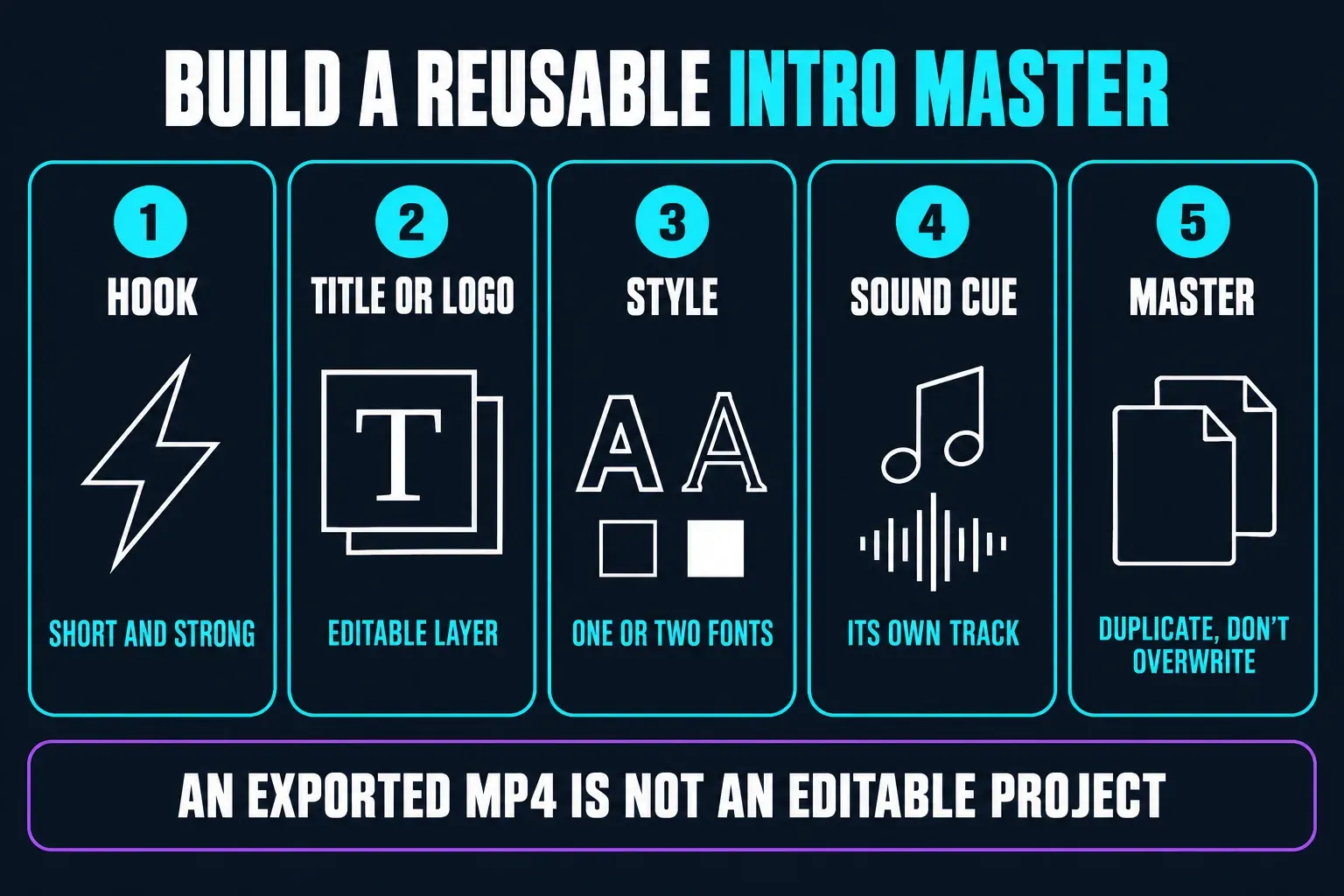
Build a manual master when you need to change the episode title without rebuilding the animation. Keep the footage, logo and licensed audio with it so you have the ingredients as well as the finished video.
- Start with the hook. Place a short hook or representative shot at the beginning. Trim it by feel; remove the setup that happens before the interesting movement.
- Add your own title or logo on a separate layer. Keep the text editable. Animate a logo you own or have permission to use; don't adopt a library graphic as your brand mark. The non-US materials agreement linked above prohibits using its covered materials as a logo or trademark. Our CapCut text guide covers titles, timing and readability.
- Keep the styling consistent. Pick one or two fonts, a pair of colors and a simple animation style. Use the same choices across the series.
- Add a short sound cue. Keep it on its own track so it can be replaced without rebuilding the visuals. The music guide explains import, timing and audio checks.
- Save a clean master. Duplicate that project before changing it for the next video. CapCut's saved-project guidance recommends editing a duplicate when you want to preserve the original. An exported MP4 is a finished video, not an editable replacement for the project.
Use keyframes only when they make the motion clearer. A logo can scale or settle with two deliberate positions; it doesn't need constant movement. Our CapCut keyframes tutorial explains how to place and adjust those positions.
YouTube, logo, cinematic and vlog intros need different edits
- YouTube channel intro: make the subject and channel identity obvious. Try a short cold open followed by a title, then compare the opening with your audience-retention data.
- Logo reveal: protect the clear space around the mark and test it on a small screen. If the logo only reads when paused on a desktop monitor, the reveal is too busy or too small.
- Cinematic opener: choose shots with a purposeful progression: wide context, detail, movement and destination, instead of four similar landscapes. Let the music support the sequence rather than dictate every cut.
- Vlog intro: show the person, place or activity the episode contains. A reusable series title can stay constant while one or two clips change for each episode.
- Vertical short-form opener: design for 9:16 from the start. Keep important text away from interface-heavy edges and don't shrink a widescreen title into the middle of a phone frame.
Effects and transitions are ingredients, not the intro itself. Our guide to CapCut effects covers effect controls, and the one on CapCut transitions handles shot-to-shot movement.
What changes on Mobile, Web and Desktop
- Mobile: start here for community templates and shared template links. Search the Templates area, open the detail page and confirm that Use template appears.
- Web: use the browser when the intro maker or your chosen template opens there. CapCut's YouTube-intro maker page documents a browser workflow. That is not proof that each community template above opens on Web.
- Desktop: consider it for a reusable manual master when you want more room to inspect layers, text and audio. For community templates, check the actual controls in your installed build; the conflicting help pages above do not establish a universal Desktop route.
If your CapCut intro template is not working, don't keep reinstalling the app. Check whether the detail page still exists, whether your app or browser editor shows Use template and whether the template is available in your region. The CapCut templates troubleshooting guide walks through missing buttons and links that fail to open.
Fix locked text, bad crops, missing music and slow pacing
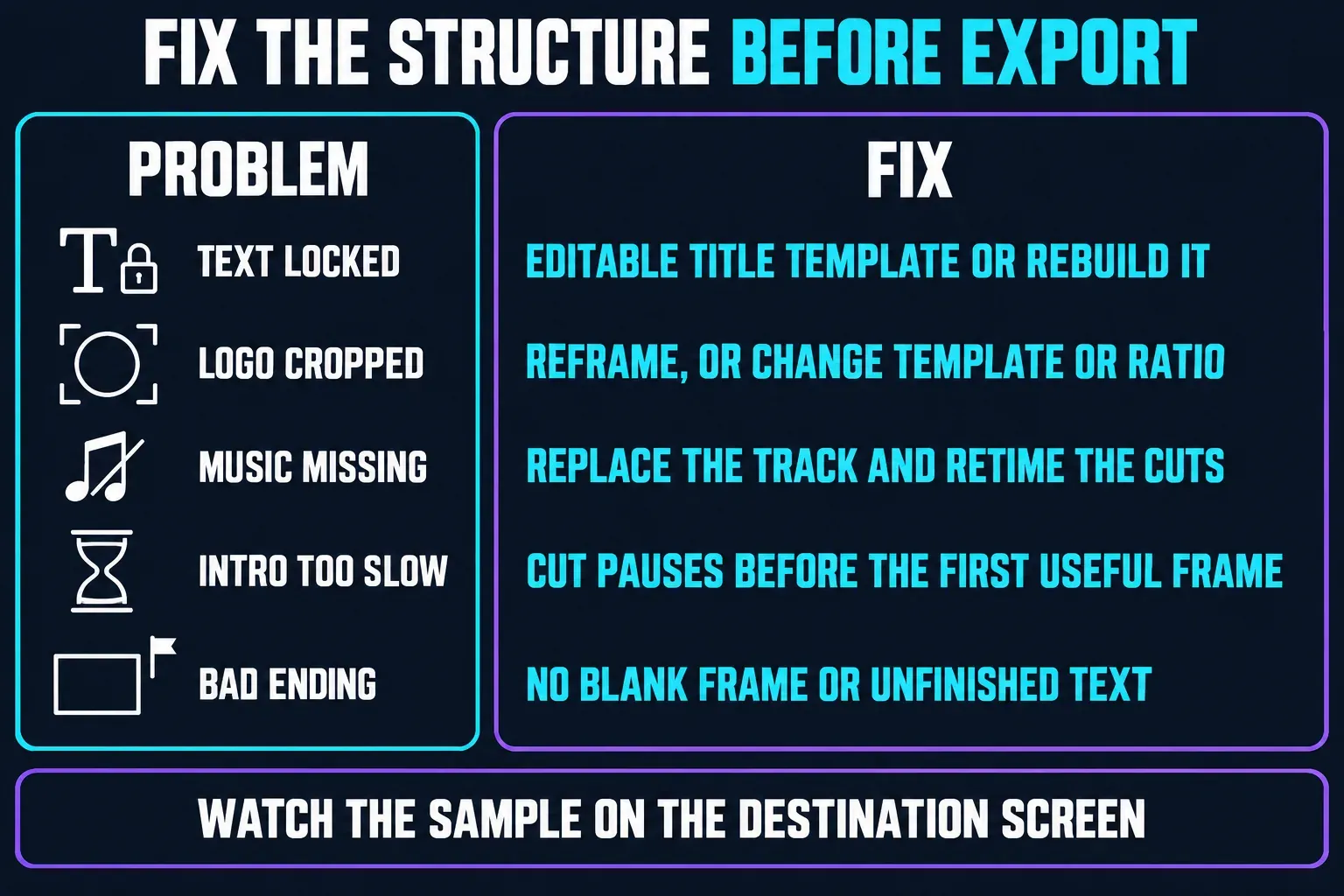
- Text is locked or incomplete: choose a template that exposes the title controls, or rebuild the title manually. Don't publish someone else’s placeholder because the animation looks good.
- The logo is cropped: reframe the media if the slot allows it. Otherwise change the template or output ratio; shrinking the logo until it is unreadable is not a fix.
- The music is missing: replace the track and retime the cuts if necessary. Don't assume the original template audio will be available to every account or destination.
- The intro feels slow: remove pauses before the first useful frame, shorten repeated shots and judge the opening as part of the complete video.
- The ending feels broken: check the final frame and the cut into the main edit. Remove an accidental blank frame, frozen crop or unfinished text animation.
Export, check and reuse the intro safely
Export one representative sample before using the intro across a series. Watch it on the destination screen from the first frame through the handoff into the actual video. Check title readability, logo edges, sound level, the cut after the intro and any watermark or unexpected ending.
Use the same output shape as the main project. A 16:9 intro placed inside a 9:16 edit can create bars or force another crop. Match resolution and frame rate to the real timeline rather than exporting the intro at an impressive setting the rest of the project doesn't use. Our breakdown of CapCut export settings covers those choices.
For reuse, keep the editable master, an exported reference file and your original media. Keep license records for any fonts, audio or other assets you use; saving a project does not extend those permissions. The non-US materials agreement licenses covered assets per exported content, so check whether a new export needs another payment or an active subscription. Duplicate the master before changing episode-specific text. If you are adding the intro to an existing project, import the exported video as a clip. CapCut's project-import guidance explains that the imported video does not retain separately editable layers. Keep the master for later changes, and do not assume the original template link will remain available.
Intro template, trending template, transition or effect?
- Intro template: provides an opening sequence and its title, media slots, rhythm and handoff.
- Trending template: is chosen because a current format or sound is circulating; use the trending templates guide when discovery and freshness are the main job.
- Transition: controls how one shot moves into the next. It can support an intro without becoming the intro.
- Effect: changes the look or motion of a clip or layer. It is one component, not the whole opening.
- Self-introduction template: presents a person, role or profile. It may appear in the same search results, but its job is different from a channel bumper or cinematic opener.
If you already have an opener and only want to change the cut between two shots, adjust that transition. You do not need to replace the whole intro.
FAQs about CapCut intro templates
Where can I find intro templates in CapCut?
On Mobile, start in the Templates area and search intro, opener, YouTube intro, logo intro or vlog intro. On Web or Desktop, template access can be narrower, so confirm that the live page shows a usable template button for your account.
Can I edit the text in every CapCut intro template?
Not always. Check whether the template lets you change the title and logo before fine-tuning the edit. If the important text is locked, choose another template or rebuild the title in a normal project.
Should a YouTube video start with a logo intro?
Not automatically. If the opening moment contains the reason someone clicked, show that first and place a short branding beat after it. Remove the logo sequence when it delays the content without adding useful context.
Can I use a vertical CapCut intro in a 16:9 video?
You can place it on a widescreen canvas, but that may create empty space or aggressive cropping. A native 16:9 template or a manual rebuild usually gives the logo and title more usable room.
Why is the music missing from an intro template?
The original track may be unavailable for your region, account or destination, or it may not load with the template. Replace it with audio you can use and retime the cuts if the new track has a different rhythm.
Can I save my CapCut intro and reuse it?
Yes, if the licenses for its music and other assets cover the new videos. Keep an editable master project and duplicate it before changes. An exported reference copy is useful, but it cannot replace the editable title, logo and audio layers.
Why does a CapCut template link not open the same intro on Desktop?
CapCut’s own current help pages describe platform access differently, and community-template availability can vary. Try the live detail page on Mobile, verify the Use template control and use the troubleshooting guide if the route still fails.